


TABLE OF CONTENTS
- Step 1: Navigate to Configurations
- Step 2: Configure Class Display Settings
- Step 3: Configure Booking Settings
- Step 4: Enable Customer Check-In
Overview
This guide explains how to configure global class settings in Core. It covers how to manage visibility of free spaces, enable booking for family and friends, and configure customer check-in preferences. By following this guide, merchants can customize the booking experience for their customer.
Step 1: Navigate to Configurations
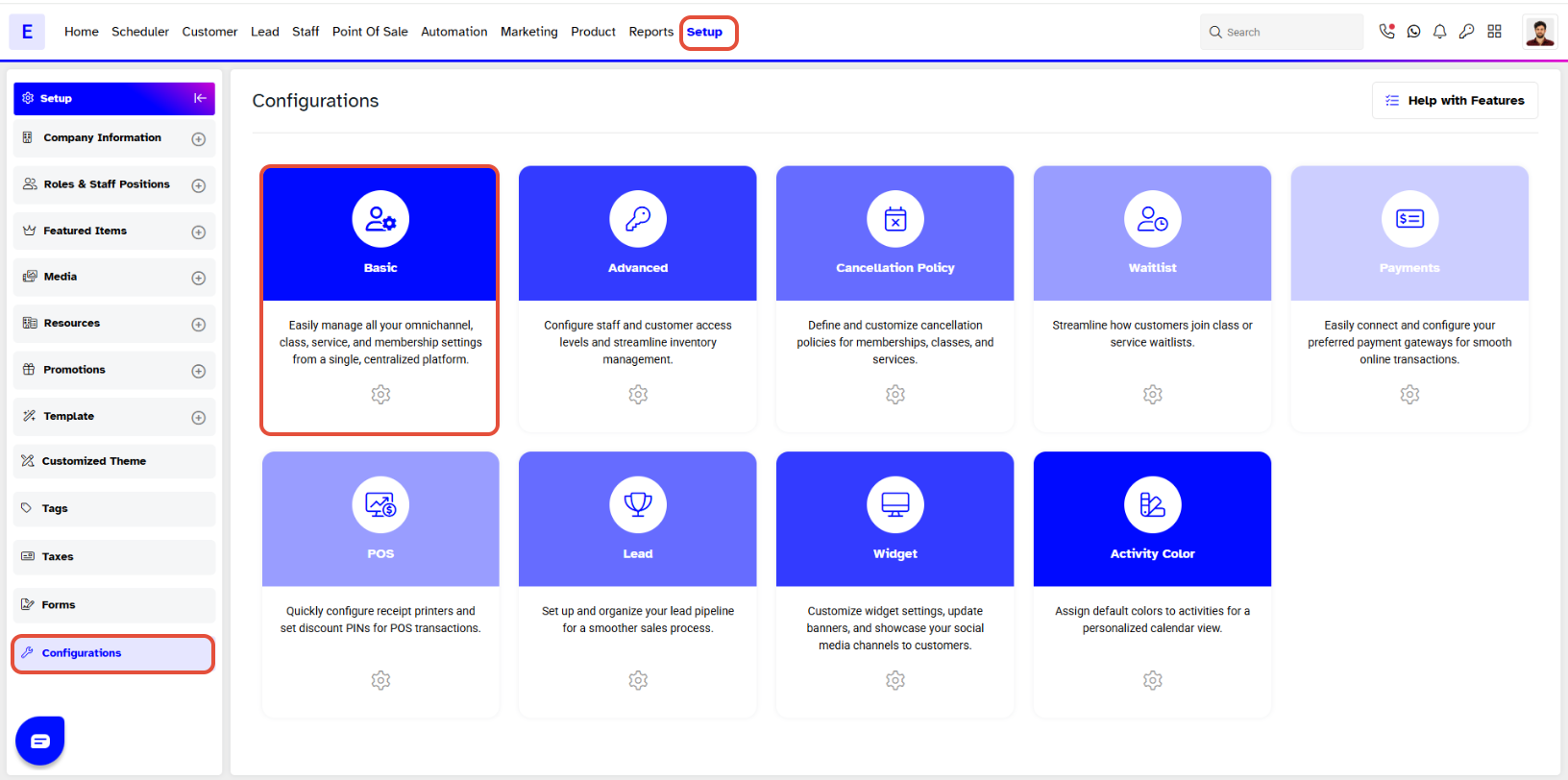
- Go to the Setup module in Core.
- Click on the Configurations tab.
- Click on the Basic tab.
- Locate the Class Configurations section by scrolling down.
Step 2: Configure Class Display Settings
- To allow customers to view remaining availability for a class, toggle ON the Show Free Spaces - Widget & App button.
- This setting applies to both the online widget and the customer app.

Step 3: Configure Booking Settings
- To allow customers to book a class more than once, toggle ON the Book for Family and Friends button. Enabling this provides two additional options for managing benefits
- Use Discounted Benefits for Booking Family and Friends: Toggle ON to allow members to use their benefits for booking family and friends in discounted classes.
- Use Free Benefits for Booking Family and Friends: Toggle ON to allow members to use their benefits for booking family and friends in free classes.

Step 4: Enable Customer Check-In
- Toggle ON the Customer Check-In button to allow customers to check in to a class according to a specific time.