


TABLE OF CONTENTS
- Overview
- Step 1: Navigate to the Membership Section
- Step 2: Add a New Membership
- Step 3: Enter Membership Information
- Step 4: Configure Contract Settings
- Step 5: Add Media
- Step 6: Set Up Payment Options
- Step 7: Configure Membership Benefits
- Terms in Benefits
- Step 8: Assign Branches
- Step 9: Save the Membership
Overview
This guide explains how to create a Membership in Core. It covers every step from configuring membership details and setting up payment options to defining benefits and assigning branches. By following this guide, merchants can easily create customized memberships that align with their business needs and offer the right benefits to their members.
Step 1: Navigate to the Membership Section
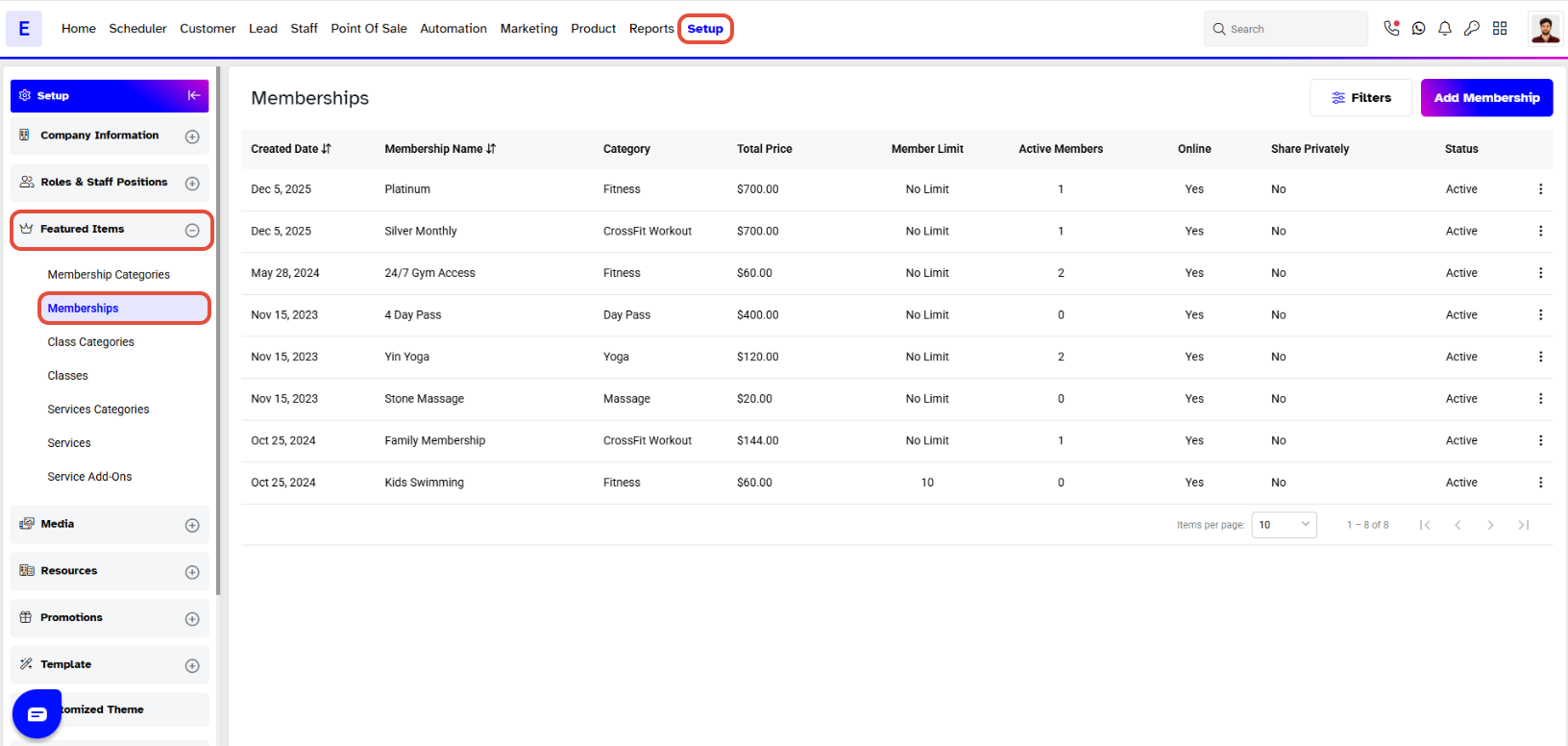
Go to the Setup module in Core.
Click on the Featured Items tab.
Select Membership from the Featured Items.
Step 2: Add a New Membership
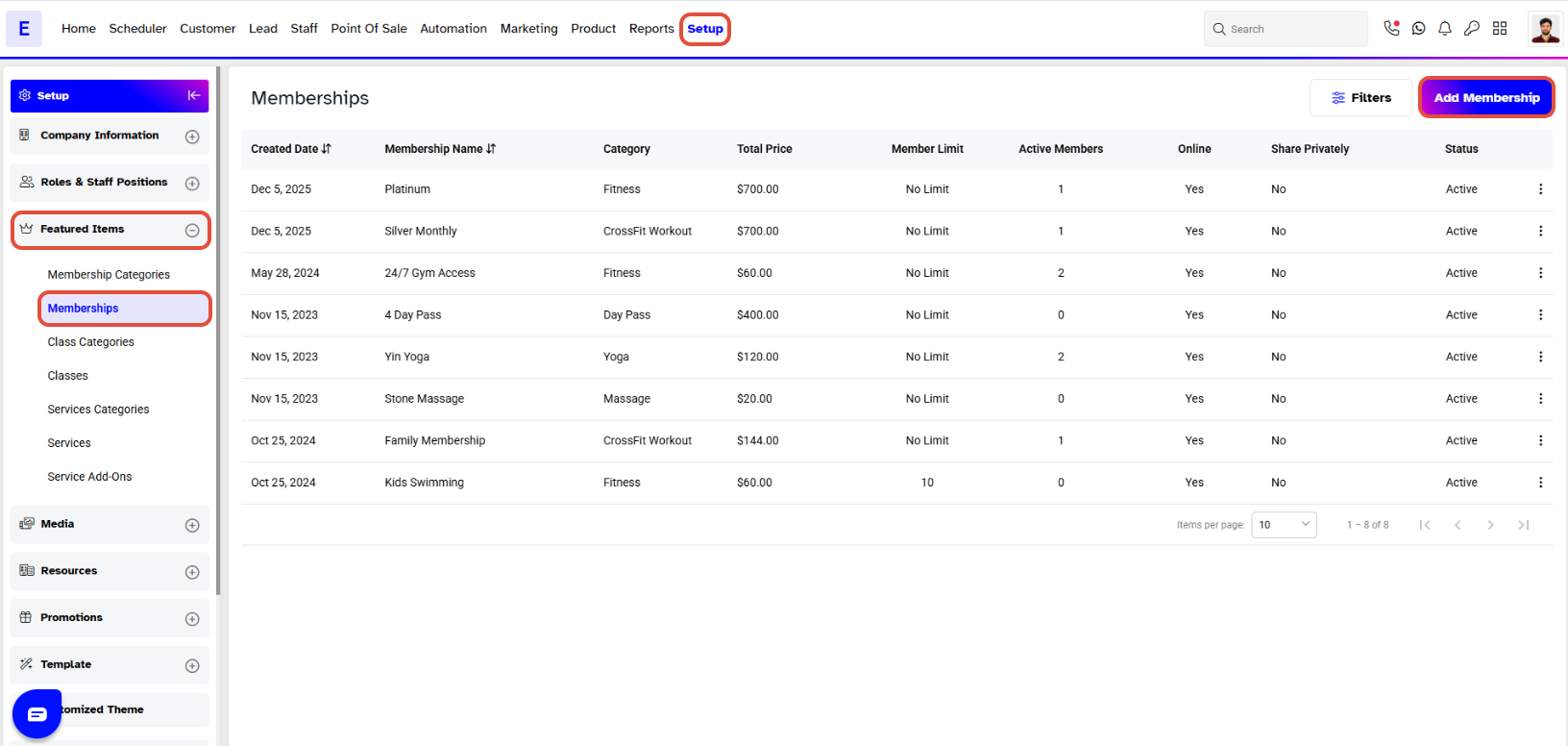
Click on the Add Membership button to create a new membership.
 Step 3: Enter Membership Information
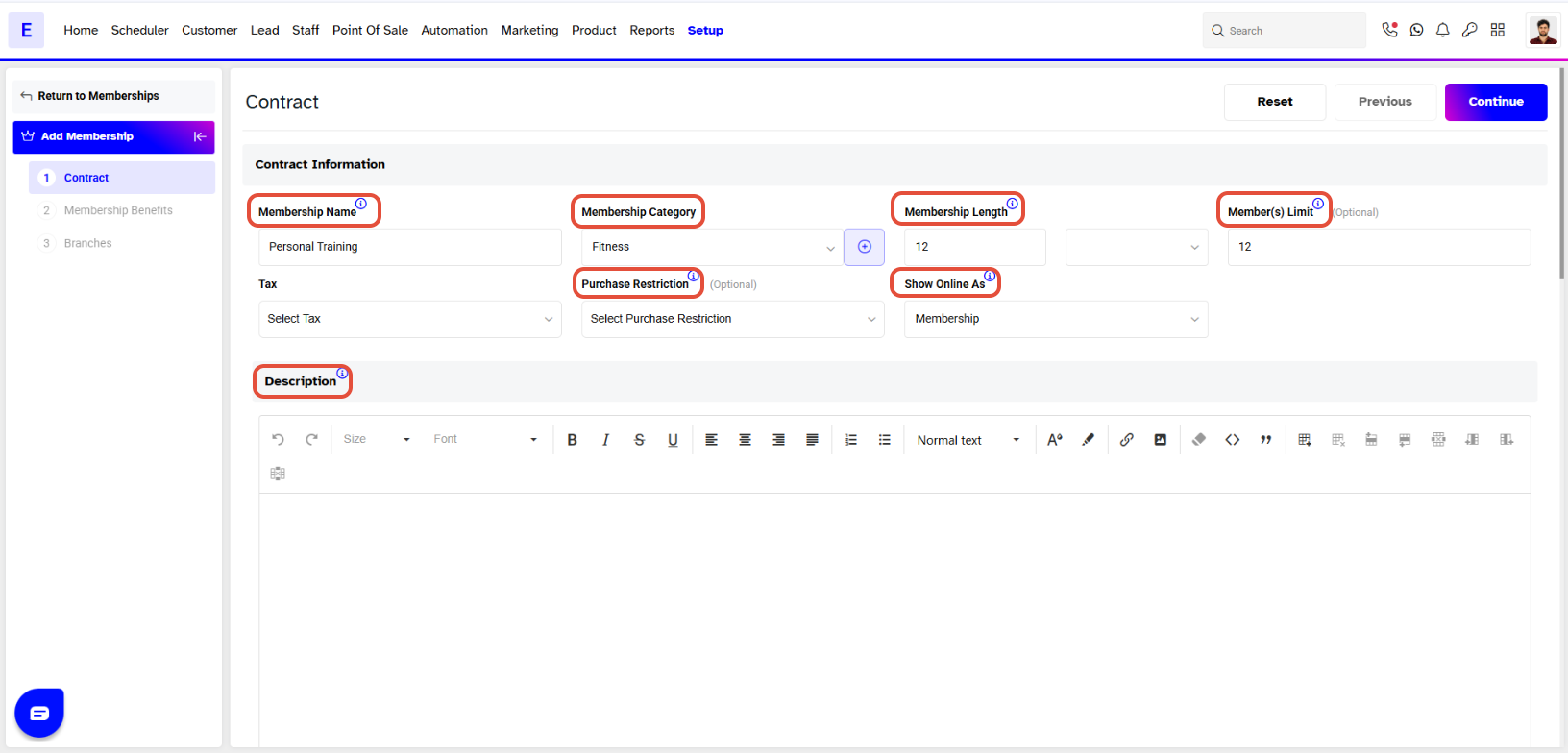
In the Membership Information section:
Enter the Membership Name.
Choose a Membership Category or create a new one by clicking the + button.
Set the Membership Length (Days, Weeks, Months, Quarters, or Years).
Define the Members Online Purchase Limit (optional).
Add Tax if applicable.
Optionally, set Purchase Restrictions.
Choose whether to Show Online as a Membership or Package.
Add a short Description if you want.
 Step 4: Configure Contract Settings
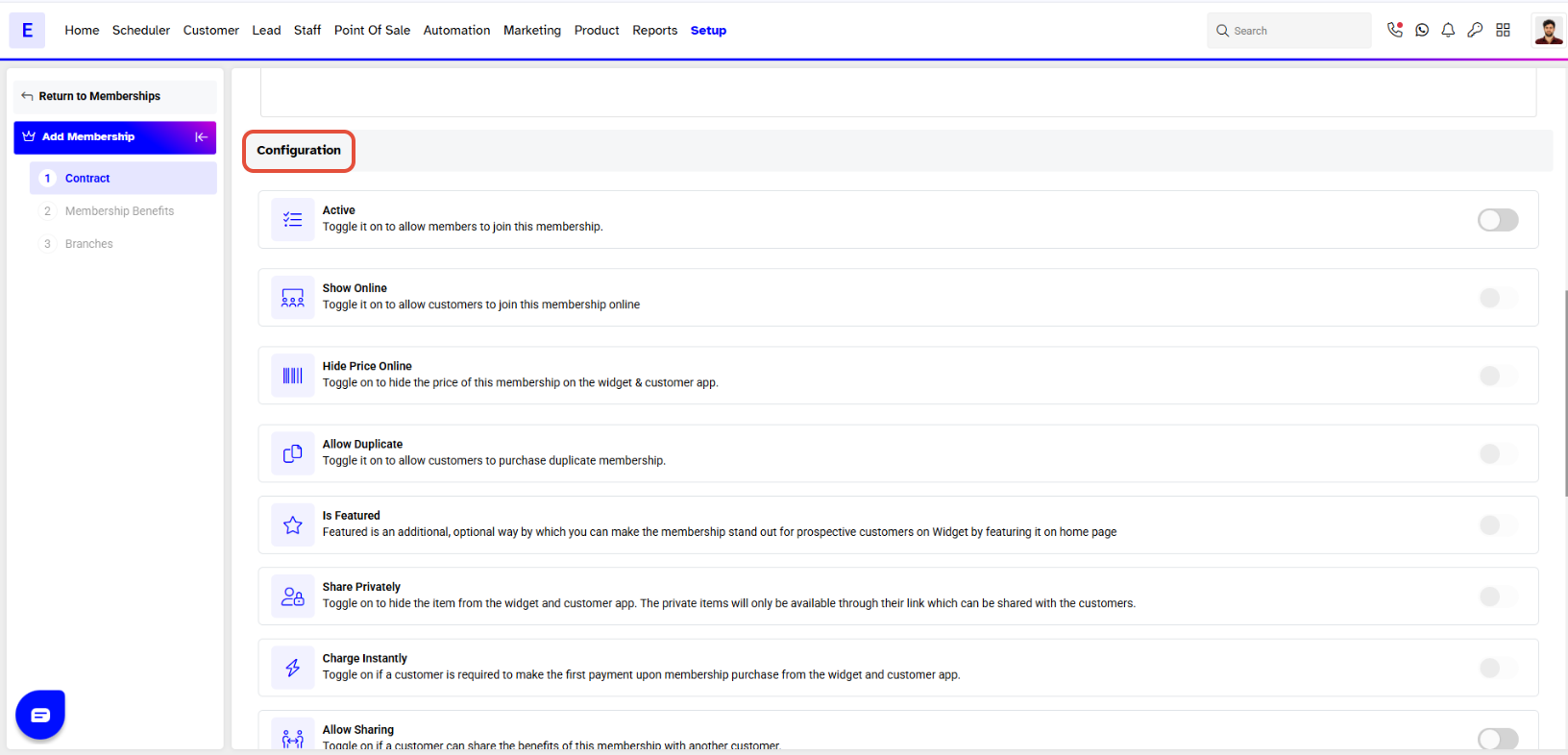
In the Contract section, you can control the membership’s visibility and behavior.
Active: Activate or deactivate the membership.
Show Online: Allow customers to join the membership from the Widget or App.
Hide Price Online: Hide the membership price from customers online.
Allow Duplicate: Allow customers to purchase the same membership multiple times.
Is Featured: Highlight the membership on the Widget or App home page.
Charge Instantly: Charge the first payment immediately when purchased online.
Allow Sharing: Make the membership shareable.
Share Privately: Hide the item from the Widget and Customer App. Private items will only be accessible through their shared link.
You can upload up to five images for a membership.
These images will be displayed on the Widget and Customer App to enhance visibility.
Step 6: Set Up Payment Options
There are two types of payment structures for memberships:
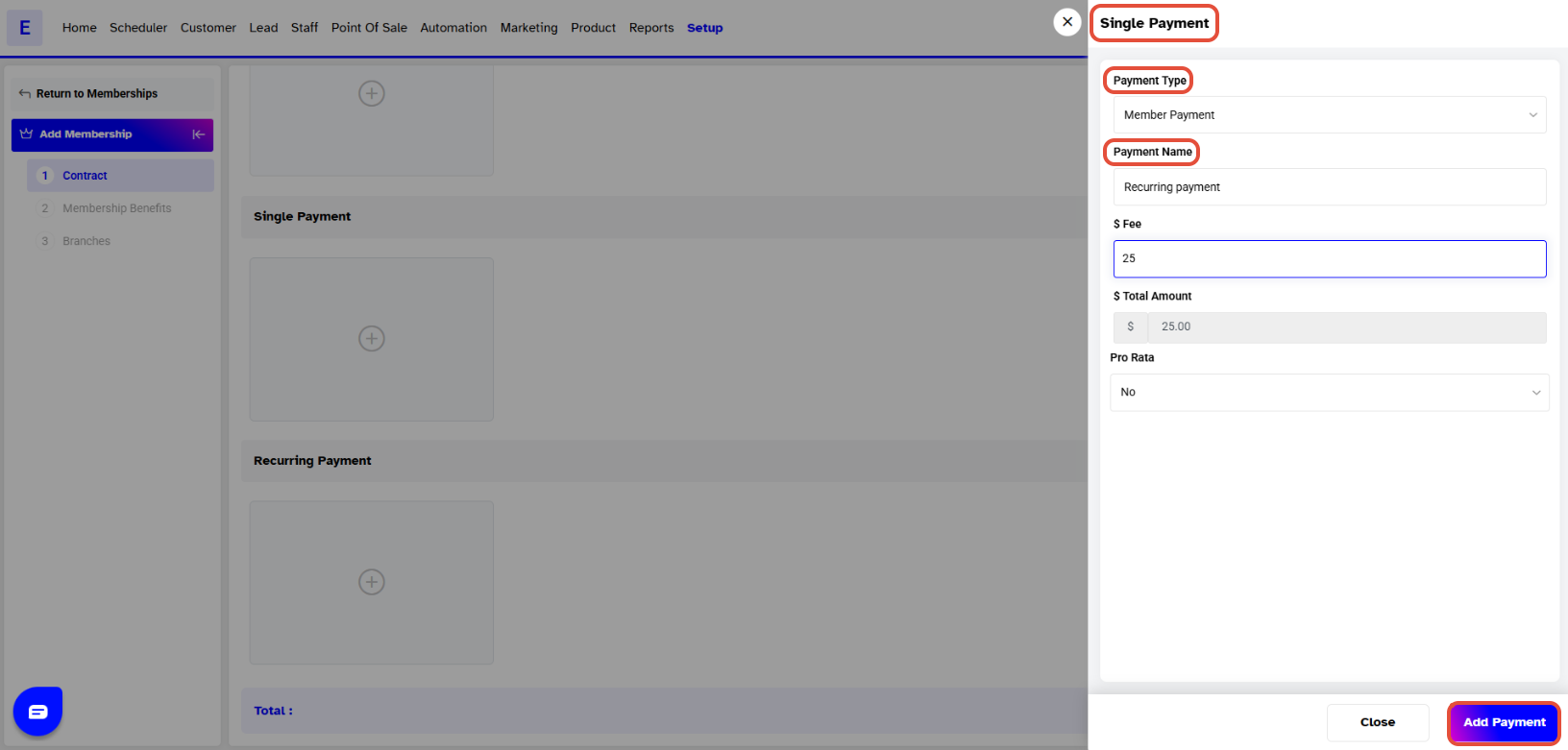
A. Single Payment
Used for one-time membership fees.
Click + Add New Payment.
Choose the Payment Type (Deposit or Member Payment).
Enter the Payment Name and set the Fee.
The Total Amount (including tax) will be displayed automatically.
Optionally, enable Pro-Rata for partial month adjustments.
After adding all details, click Add Payment to confirm.
You can add multiple Single Payments if needed.
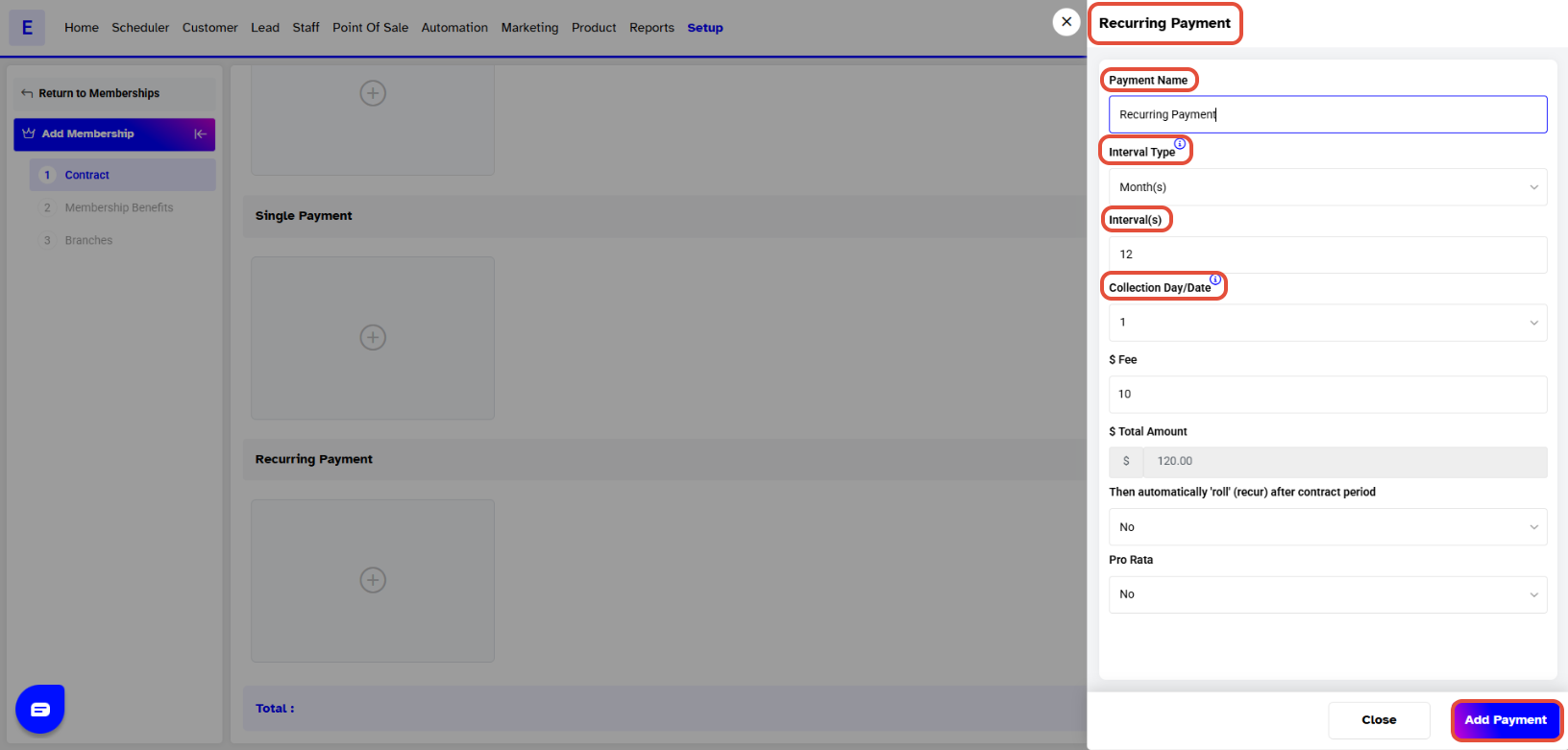
 B. Recurring Payment
Used for memberships billed at regular intervals.
Click + Add New Payment.
Add a Recurring Payment Name.
Select the Interval Type (Days, Weeks, Months, etc.).
Define the Number of Intervals and choose the Billing Day/Date.
Set the Membership Fee.
Check Automatically Roll to yes for auto-renewal.
Optionally, enable Pro-Rata for usage-based billing.
Click Add Payment to move to the Membership Benefits section.
 Step 7: Configure Membership Benefits
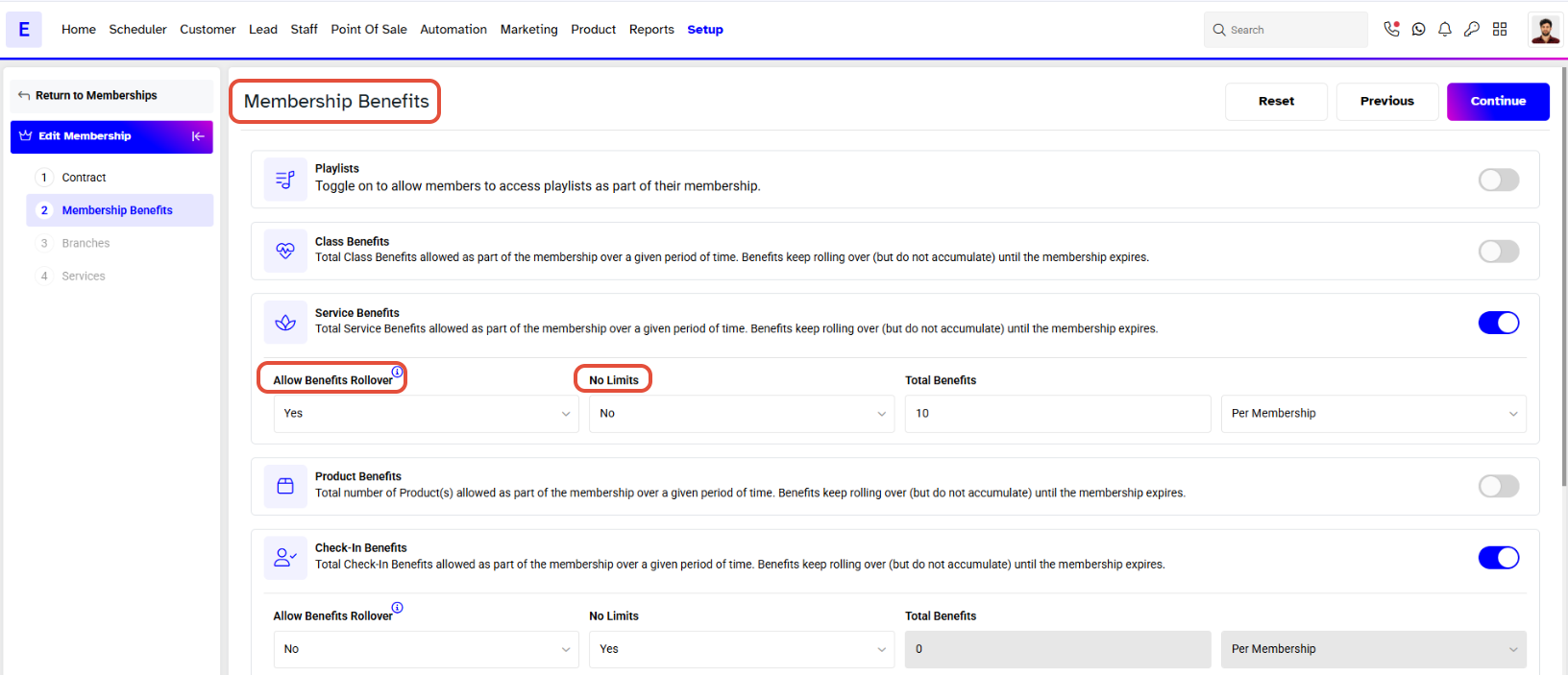
Playlists Benefits
Allow members to access playlists as part of their membership.
Class Benefits
Toggle ON to include class access.
Service Sessions
Toggle ON to include service access.
Product Benefits
Toggle ON to include product benefits.
Check-In Benefits
By default, toggle ON to activate check-in access benefits.
Terms in Benefits
No Limits: Offer unlimited benefits.
Uncheck No Limits: Manually define benefit limits.
Allow Benefits Rollover: Carry unused benefits to the next cycle.
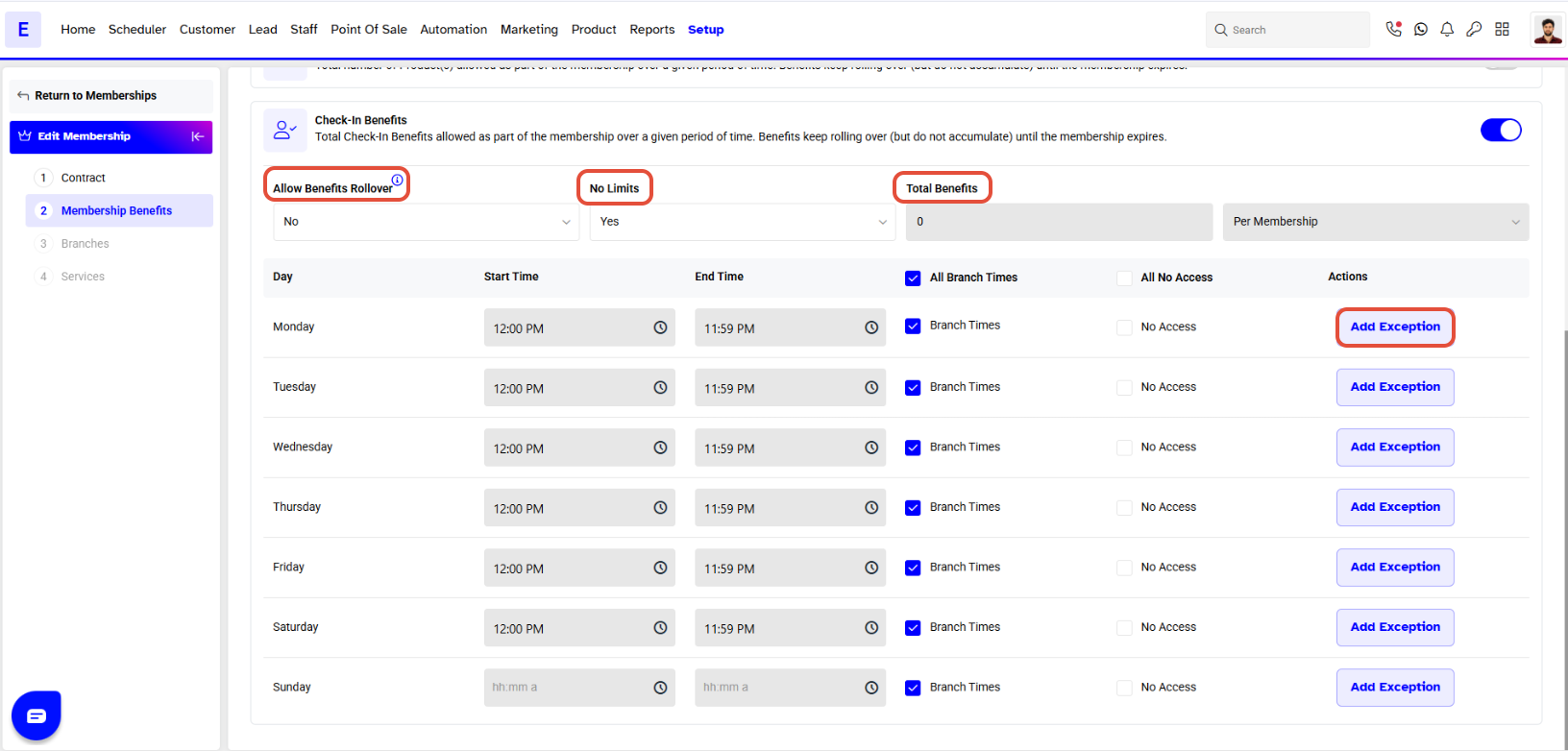
For Check-In Benefits:
Set the Benefit Time Settings manually or apply Branch Timings.
Add Exceptions to restrict benefit access on specific days/times.
If enabled, sections for Classes, Services, or Products will appear for configuration.
 Step 8: Assign Branches
By default, the membership is assigned to the branch where it is created.
Toggle ON the switch next to other branch names to make the membership available at multiple locations.
Step 9: Save the Membership
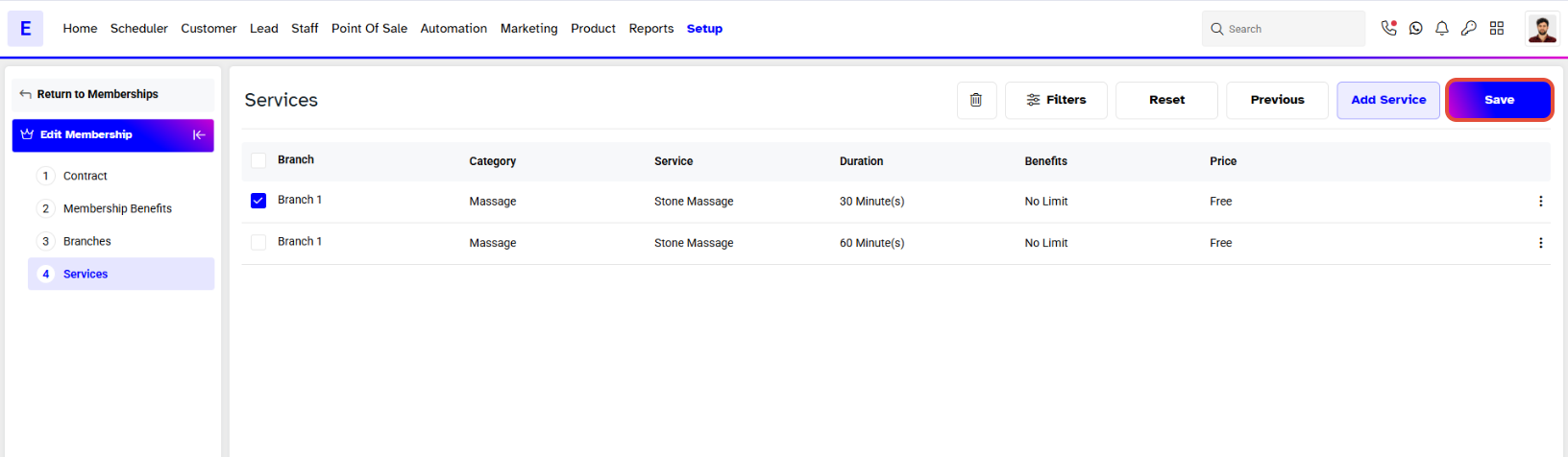
Once all benefits has been added, click on the Save button.
The new membership will now appear in the Membership List.
Ensure that membership settings, payments, and benefits are configured carefully before activation. Once customers begin purchasing, any change to the payment structure or duration may impact existing subscriptions.




