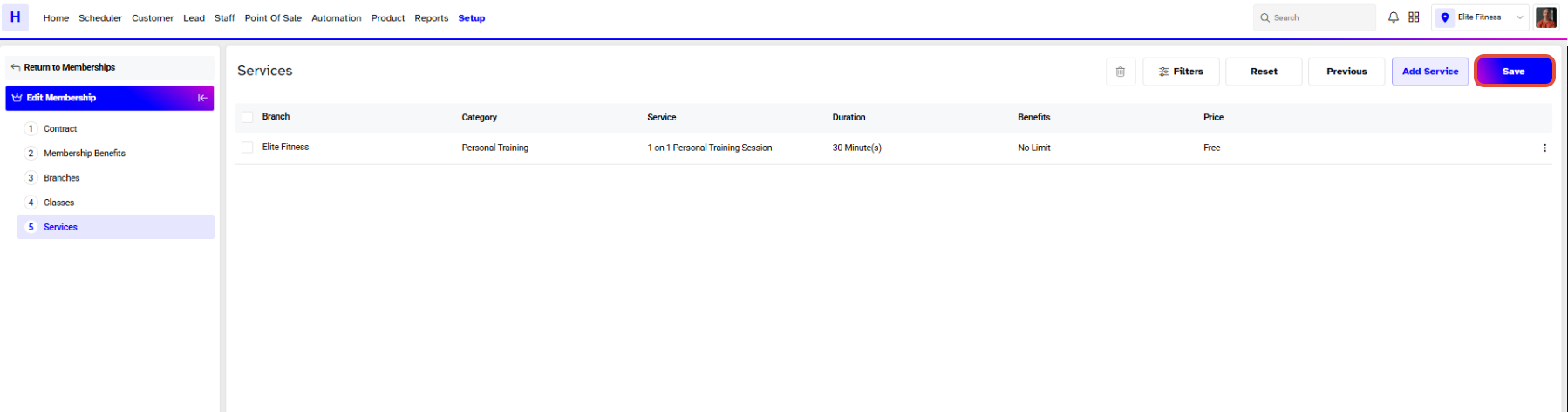
TABLE OF CONTENTS
Follow these steps to create a Time-based Membership in Core:
How to Create a Time-Based Membership in Core
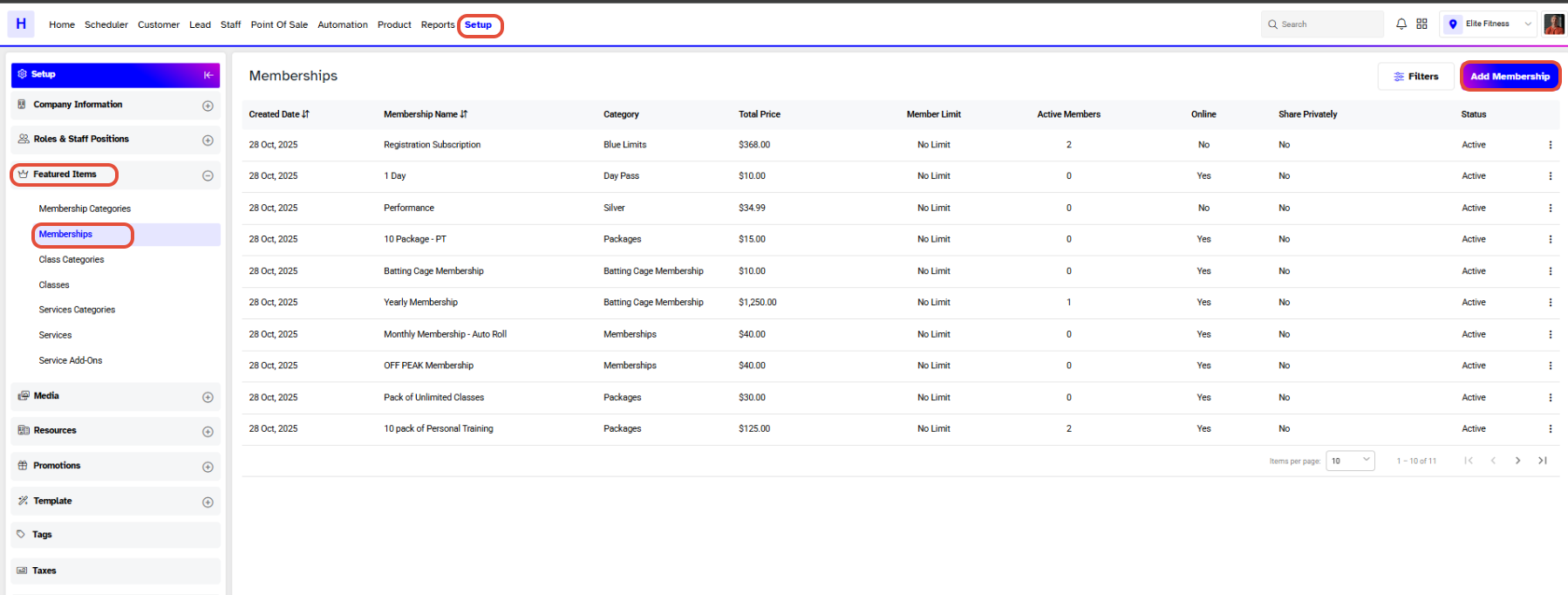
Go to the Setup Module in Core.
Click on the Memberships tab under featured items.
Click on the Add Membership button.
1. Contract
In the Contract section, add the following:
- Membership details.
- Payment information.
For detailed instructions on adding Membership details in the Contract section, click here.
2. Membership Benefits
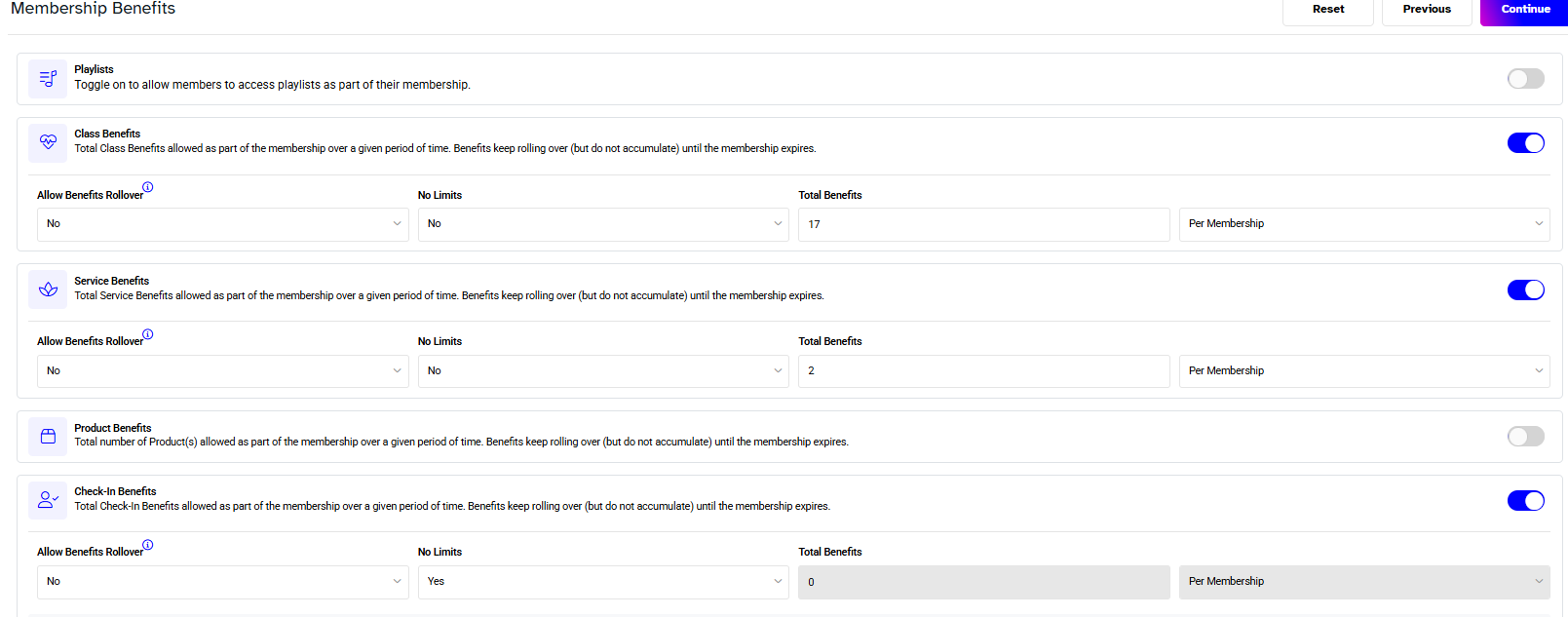
- Toggle Check-In Benefits to activate them.
- To offer Unlimited Benefits, select the No Limits checkbox.
- To set a manual limit for Check-Ins, uncheck No Limits and specify the number of Check-Ins allowed.
- To enable Membership Check-In rollover, select the Allow Benefits Rollover checkbox.
- Set the Membership Benefits time by either:
- Selecting Branch Time, or setting a default timing manually.
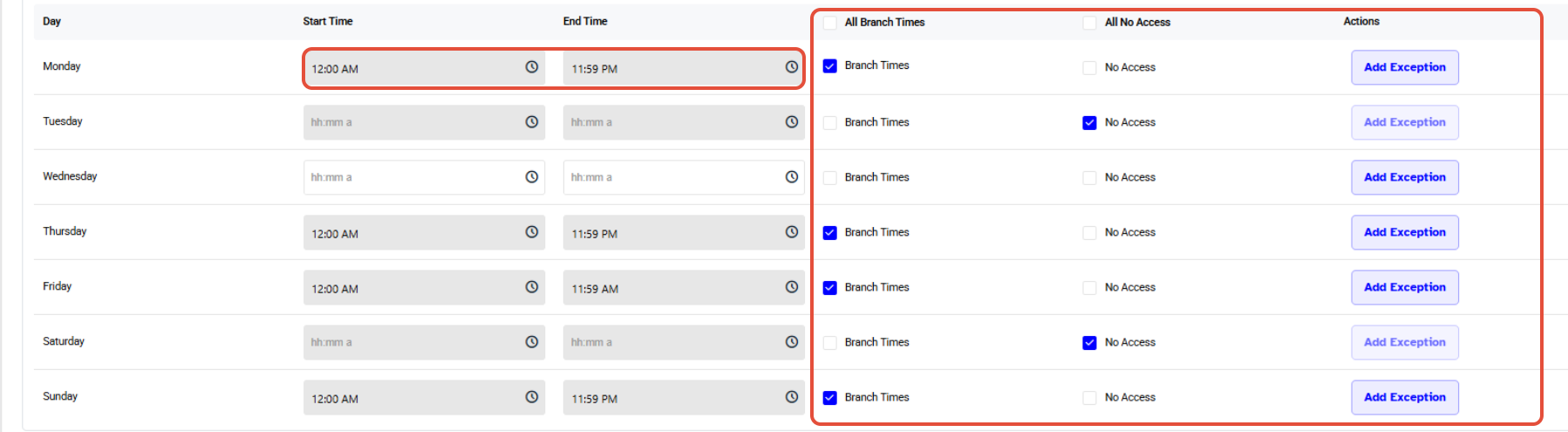
Merchants can also add exceptions within the given times when the Membership would be unavailable to Access the Doors.
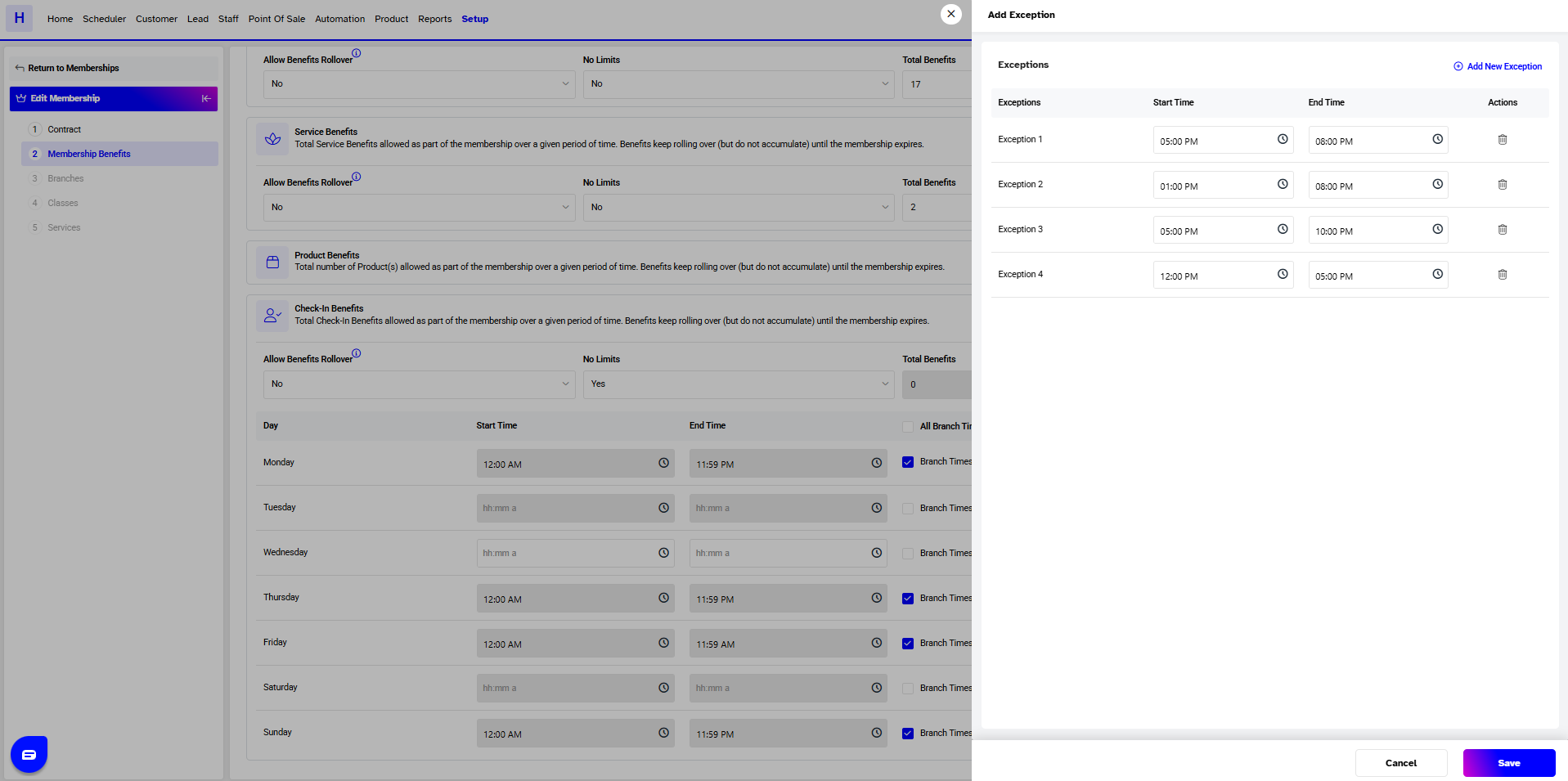
Merchants can add up to 5 Exceptions per day when the Membership will be unavailable to access Doors.
Switching between Branch Time and No Access while adding or editing Membership will remove any exceptions previously set for that day.
3. Branches
- By default, the Membership applies to the branch where it is created.
- To add Membership to multiple branches, toggle the switch under Action next to the branch name.

Once done, click on the Save Button.