TABLE OF CONTENTS
Overview
Deleting a membership permanently removes it from the system. Once deleted, the membership will no longer be available for assignment or management.
Step 1: Open Setup
Go to the Setup module.
Step 2: Navigate to Memberships
Click on Featured Items.
Open the Memberships tab.
Step 3: Delete the Membership
Locate the membership you want to remove.
Click the Delete icon under the Actions column.
Step 4: Confirm Deletion
In the confirmation dialog, click Yes, Delete.
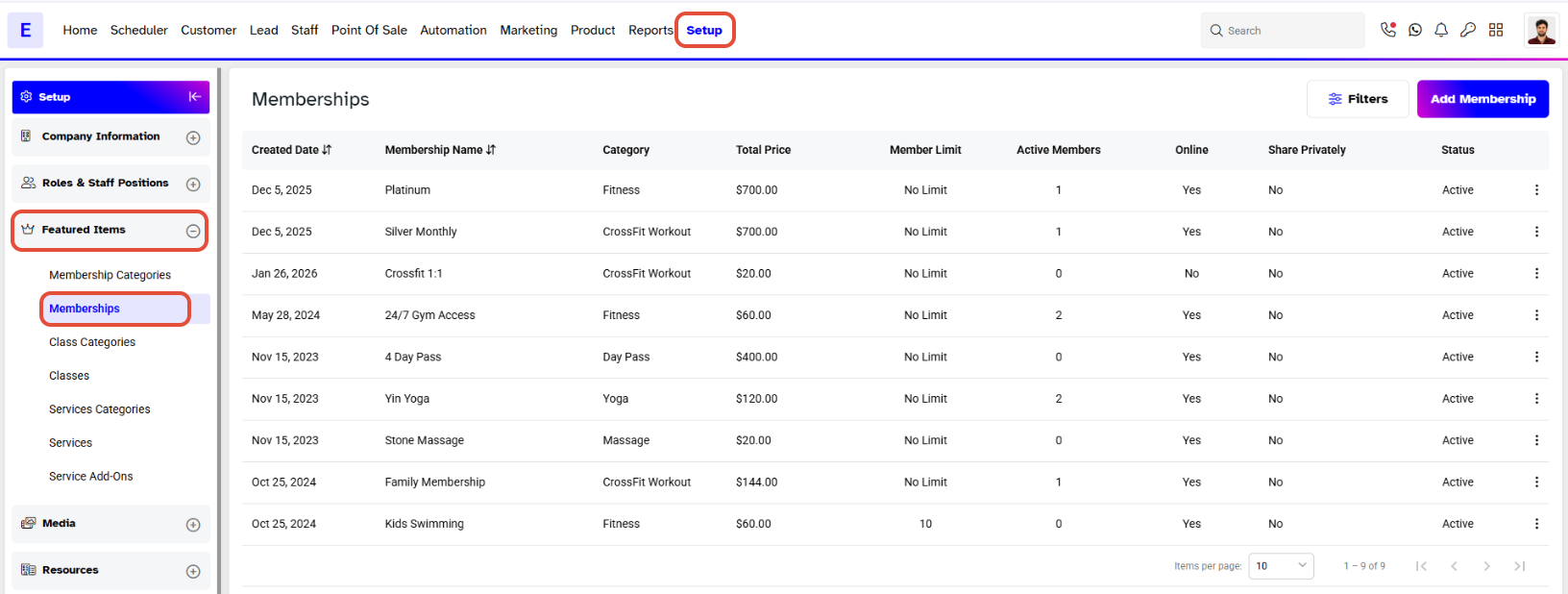
Go to the Setup Module and click on the Featured Items and navigate to the Memberships Tab.
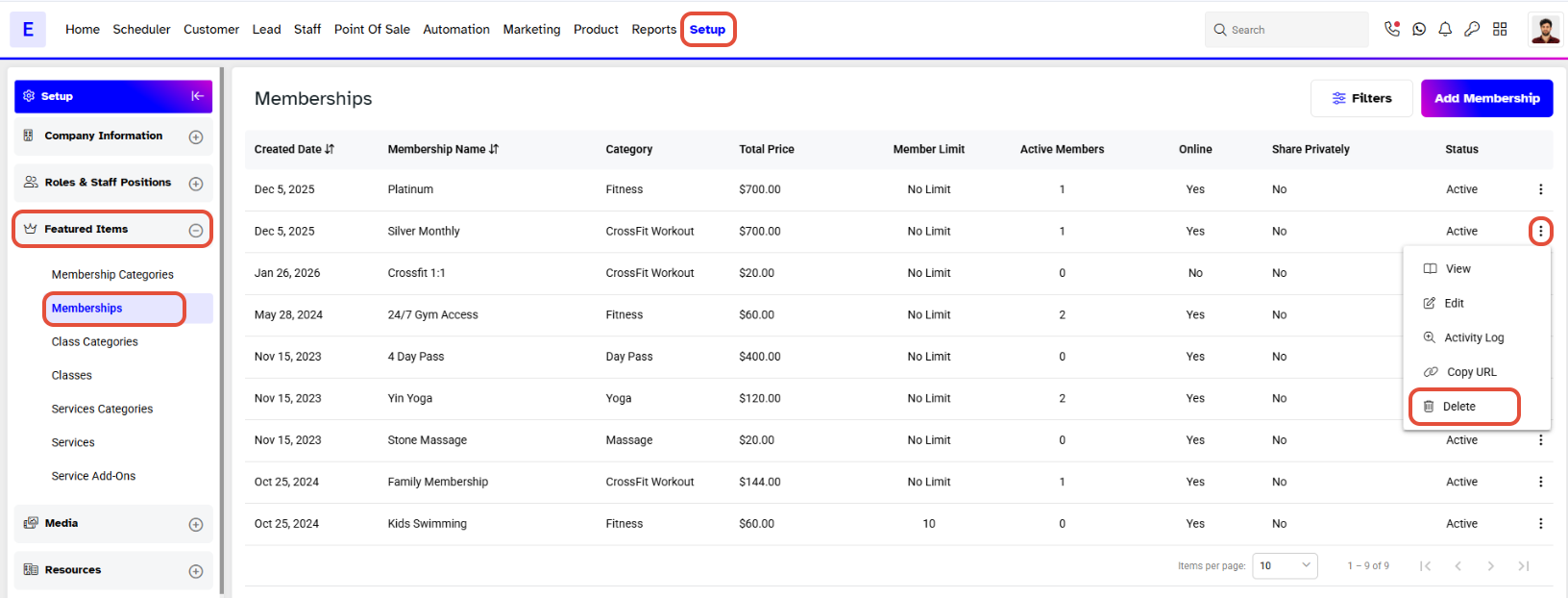
Click on the Delete Icon under Actions against the Membership that is to be removed.
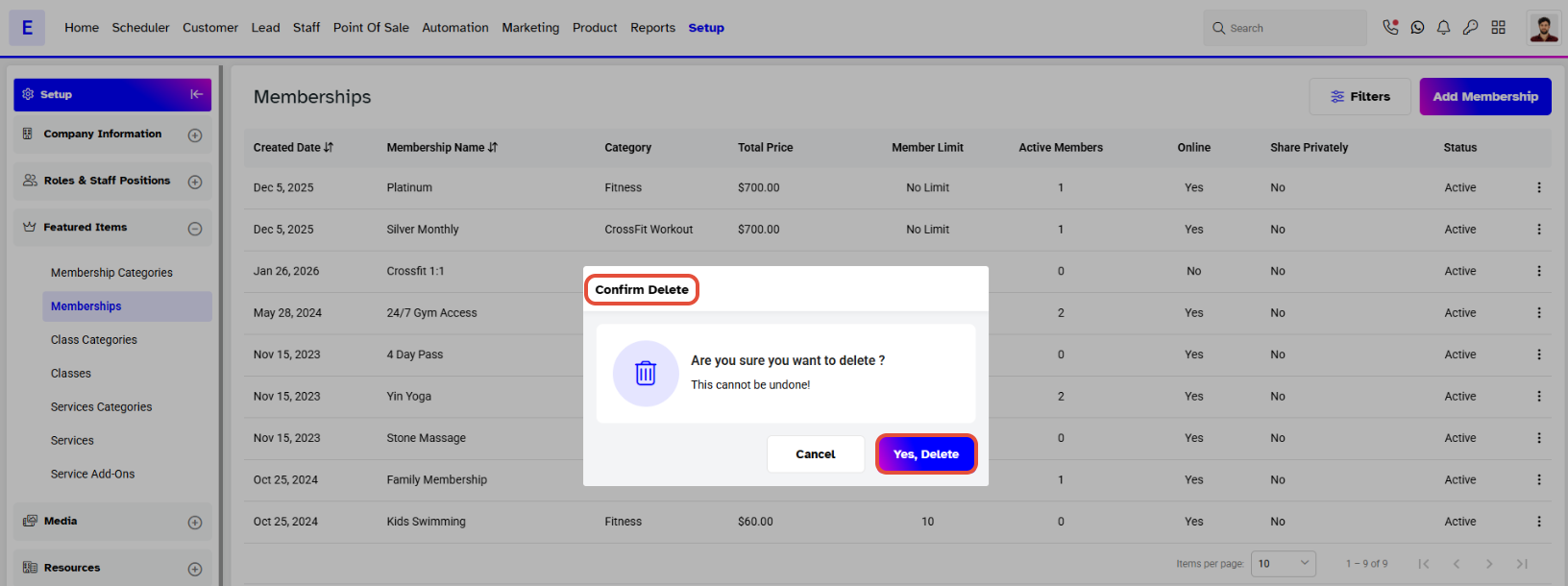
Now, click on the Yes, Delete Button in the Confirm Delete Box.
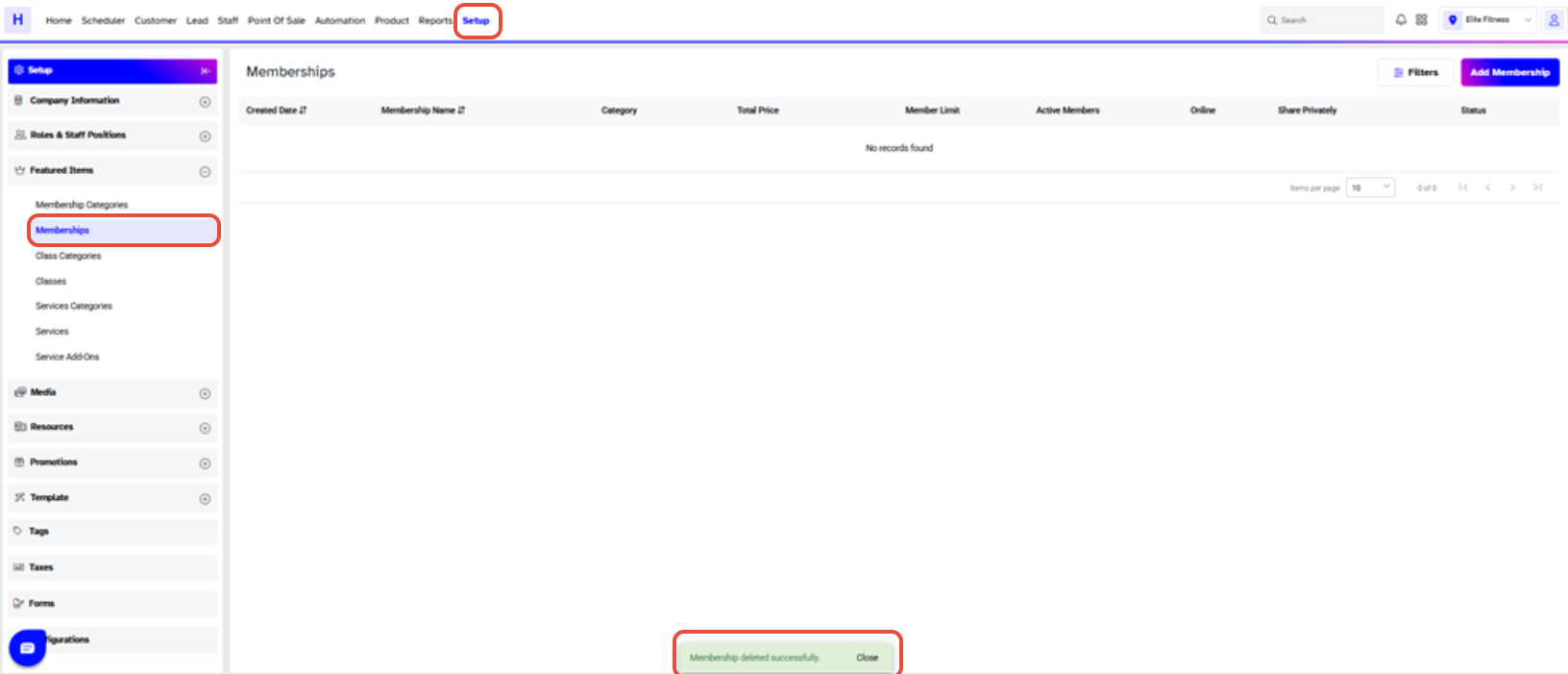
The Membership will be deleted from the system.