TABLE OF CONTENTS
- Step 1: Navigate to Client Membership
- Step 2: Select Membership Details
- Step 3: Choose 3rd Party Payment Method
- Step 4: Confirm and Save Membership
Overview
This guide explains how to use a 3rd Party as a payment method when purchasing a membership in Core. It covers the steps from navigating to the client's membership section to selecting the payment method and saving the membership.Step 1: Navigate to Client Membership
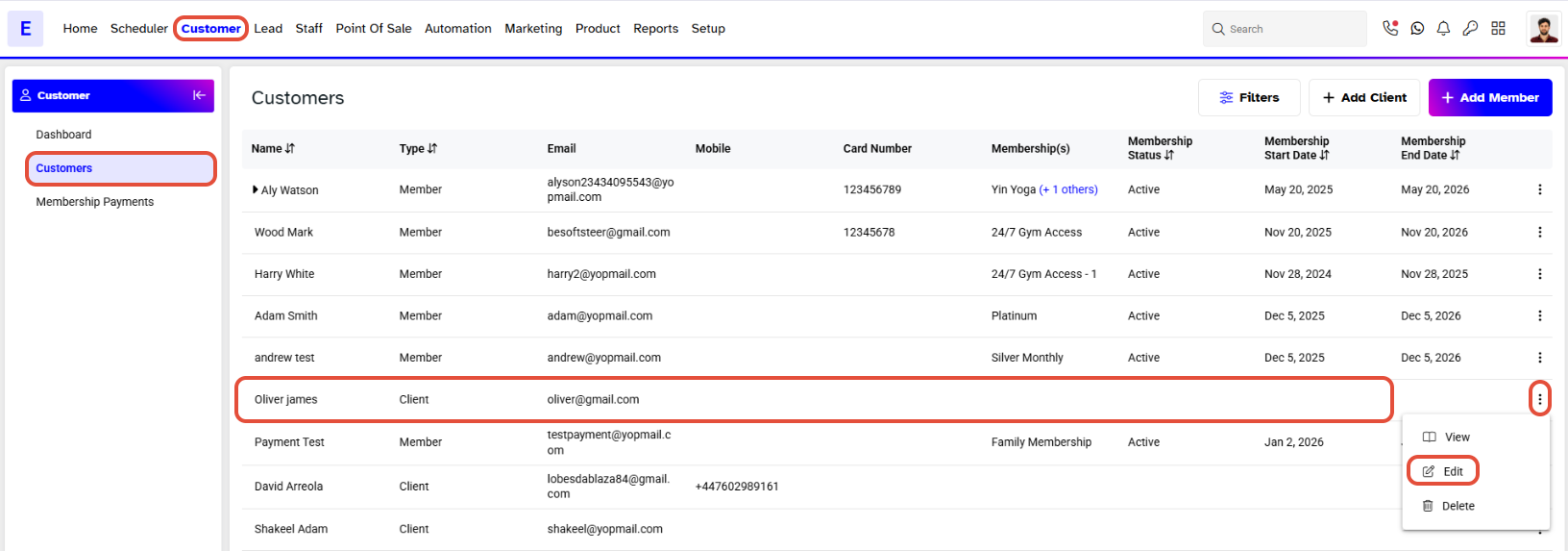
- Go to the Customer Module in Core.
- Click on the Edit Button against the Client.
- Move down to the Process Membership section.
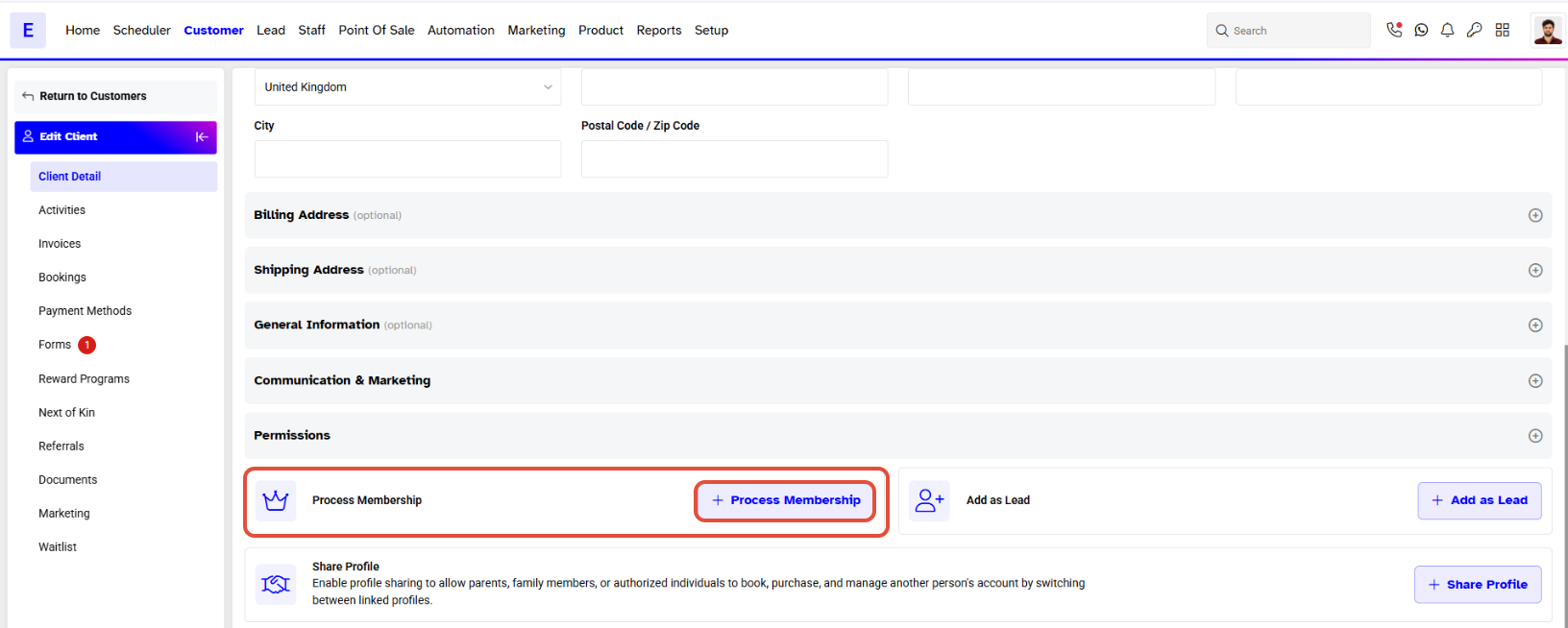
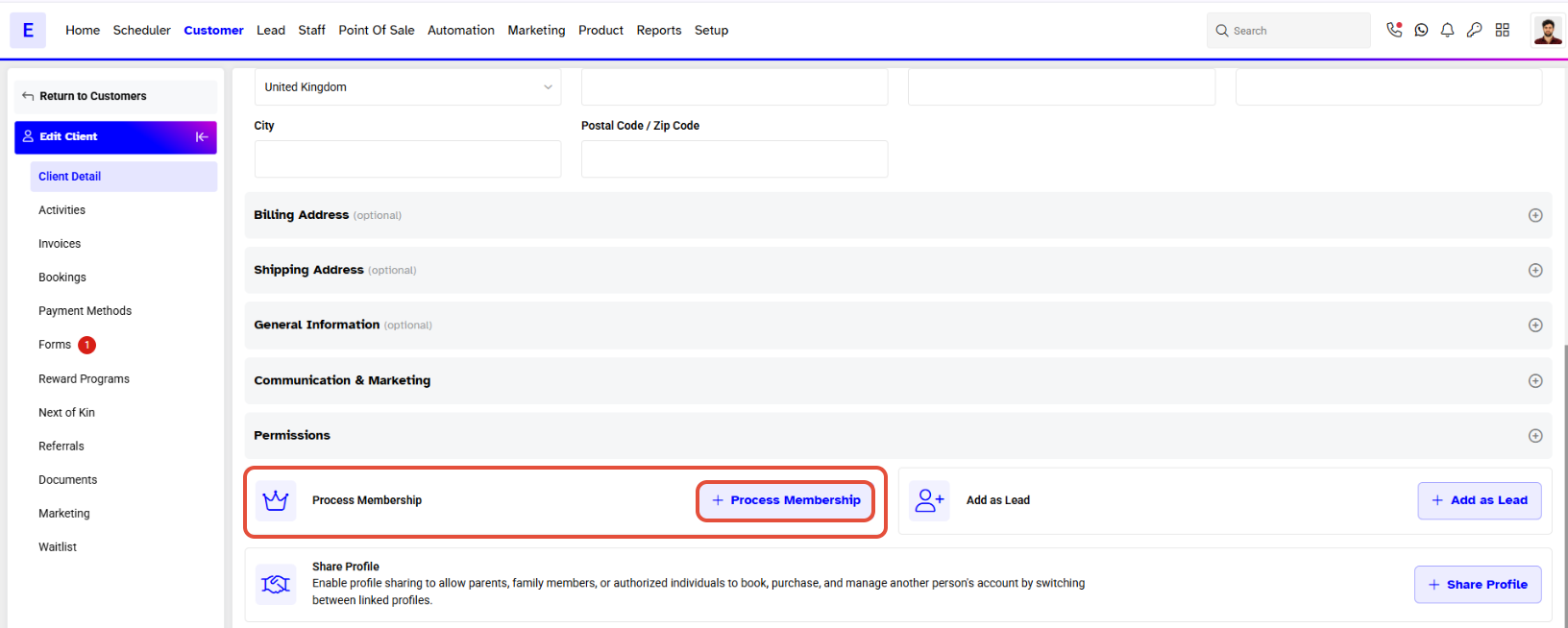
- Click on the Process Membership Button.
Step 2: Select Membership Details
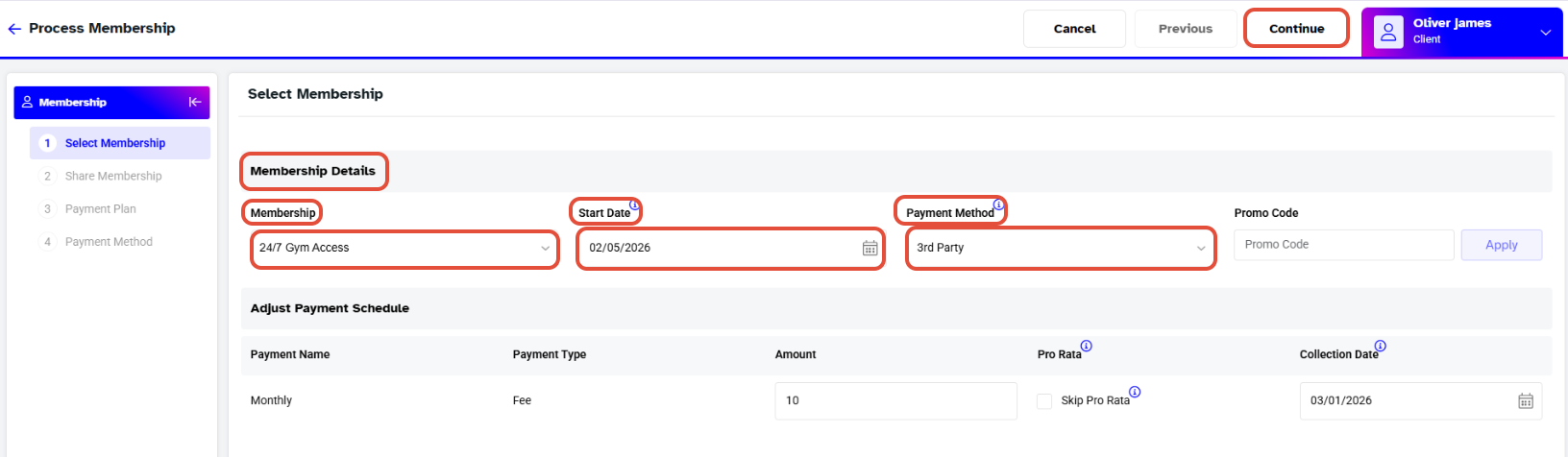
- The Select Membership section will open.
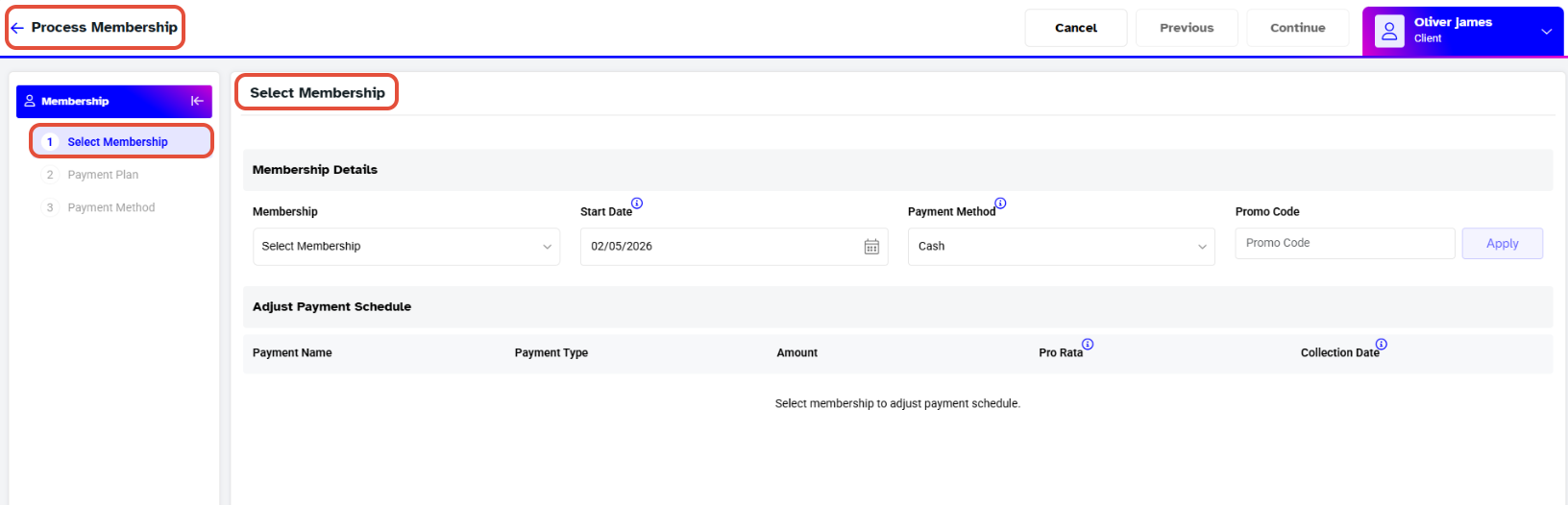
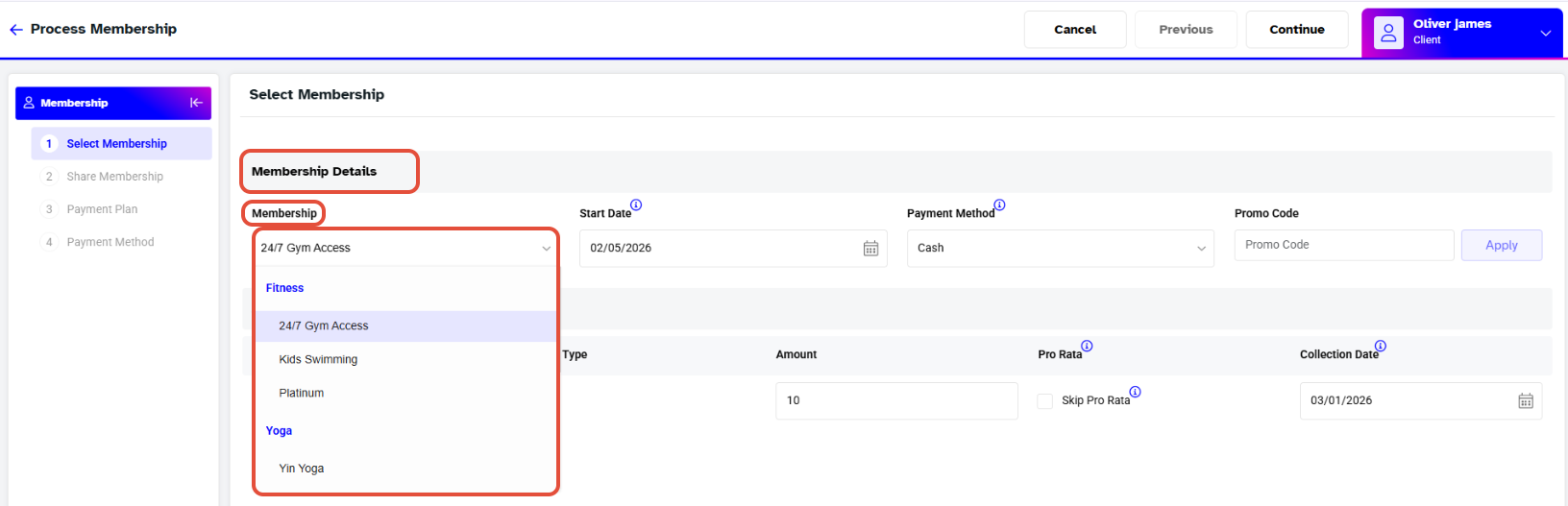
- Select a Membership from the Membership Dropdown.
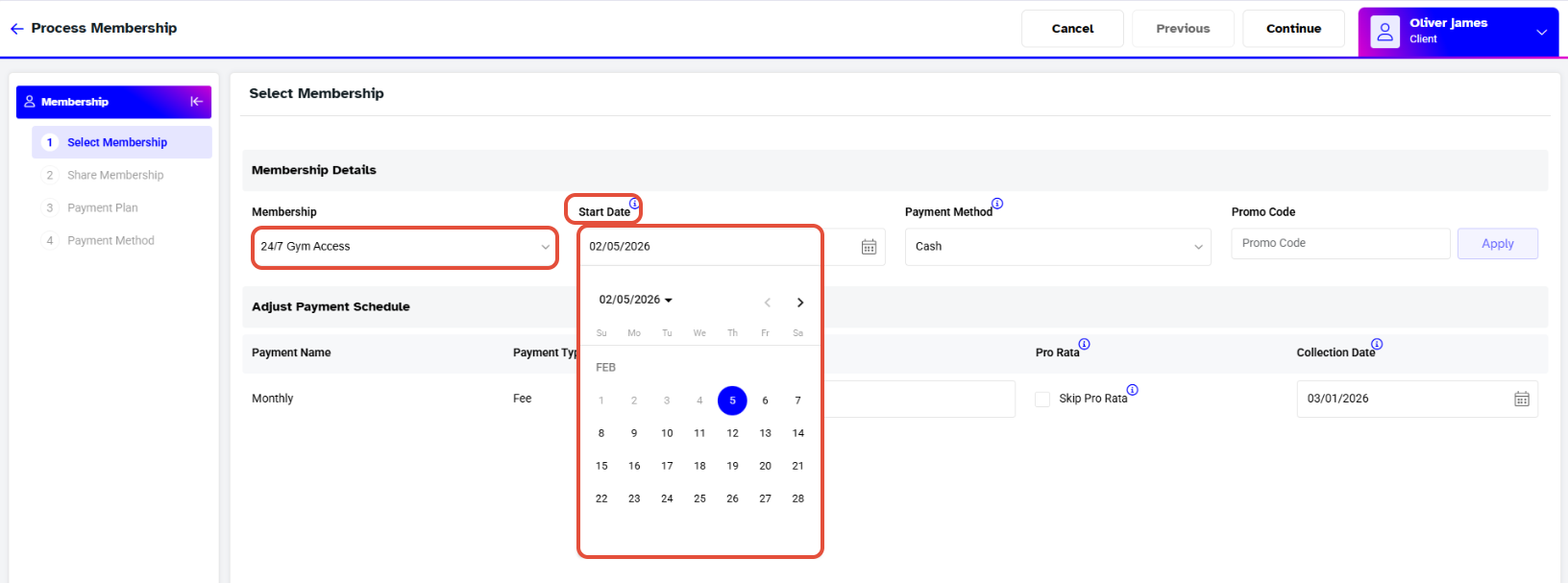
- Select the Start Date of Membership from the Calendar.
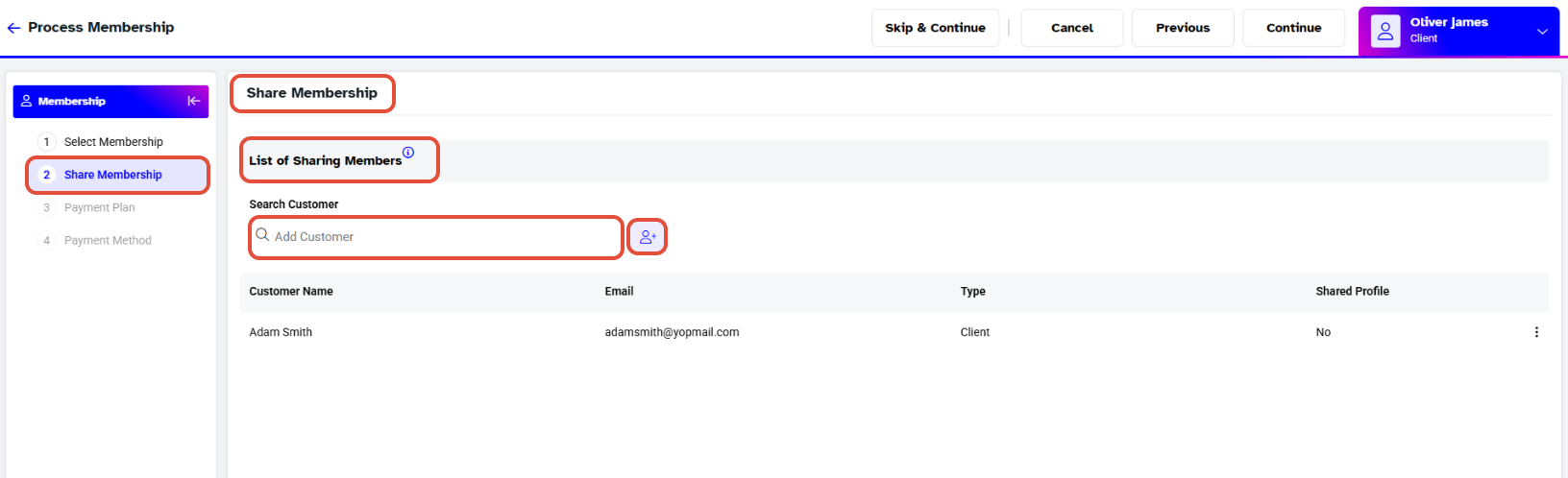
- Add the Customer to share the Membership if needed.
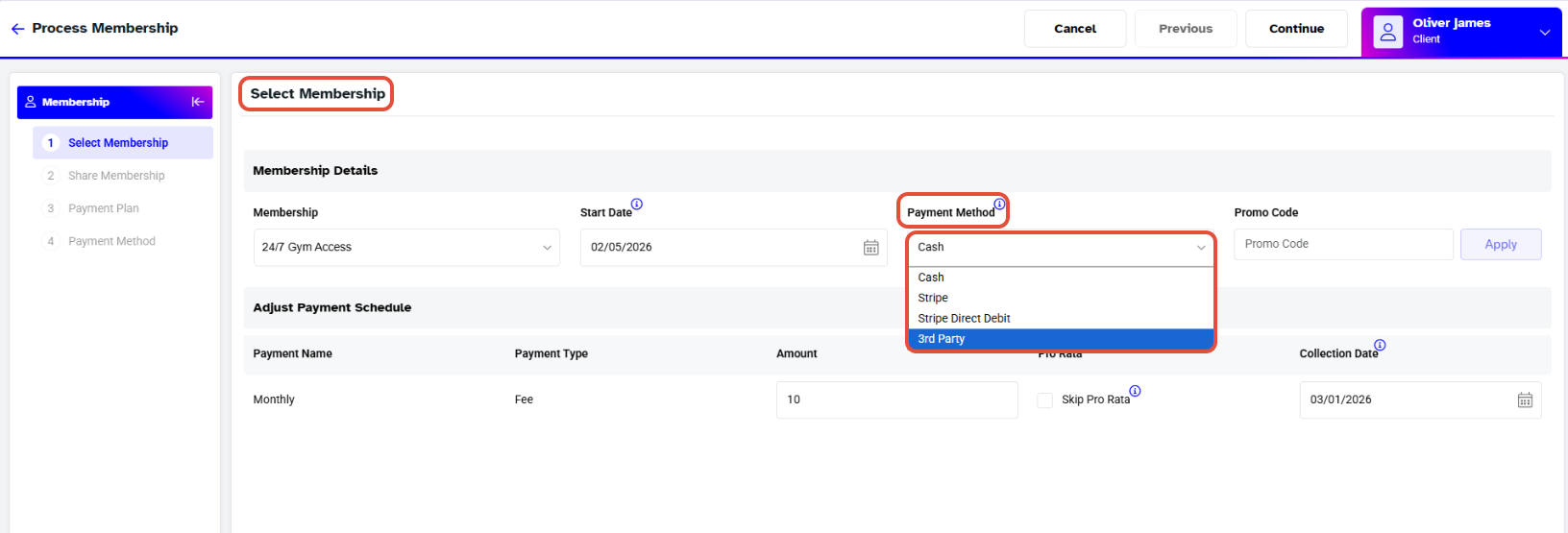
Step 3: Choose 3rd Party Payment Method
- Select the 3rd Party as a Payment Method from the Payment Method Dropdown.
- Click on the Continue Button.
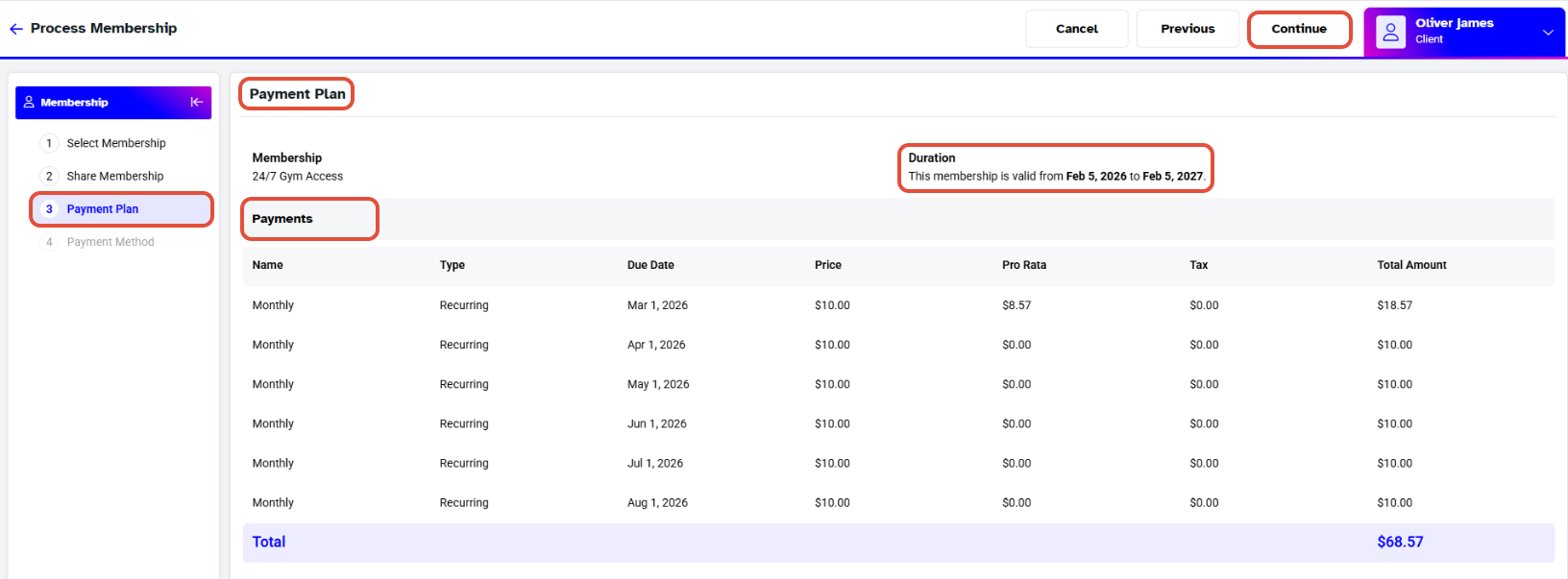
Step 4: Confirm and Save Membership
- Review all the information and click on Continue.
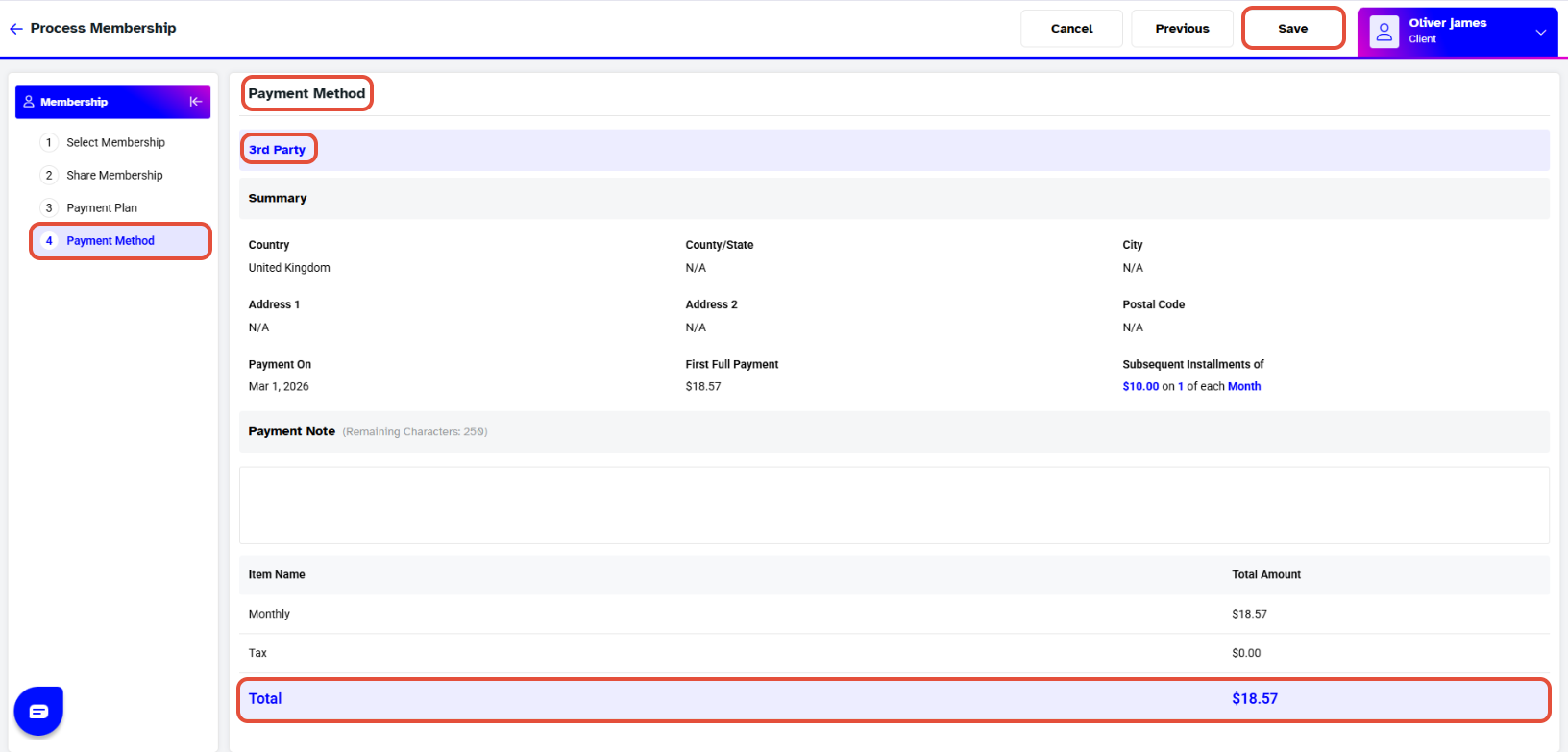
- The Payment Method section will show as 3rd Party.
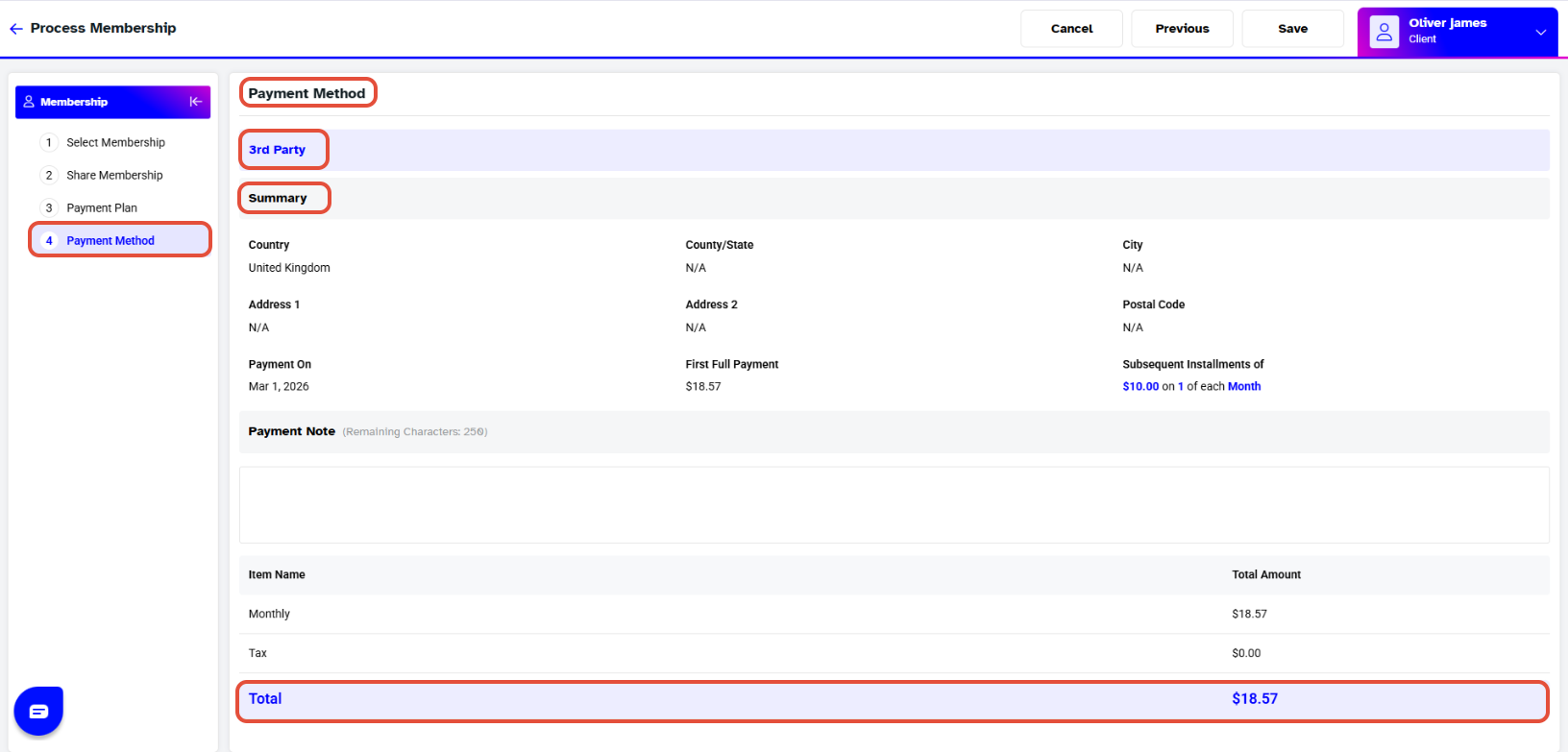
- Click on the Save Button.