

TABLE OF CONTENTS
- Step 1: Navigate to Configurations
- Step 2: Access Advanced Settings
- Step 3: Rename the Buy Membership Button
- Step 4: Save Changes
Overview
This guide explains how to customize the name of the Buy Membership button in Core. By following this guide, merchants can update the display name to better suit their business branding
Step 1: Navigate to Configurations
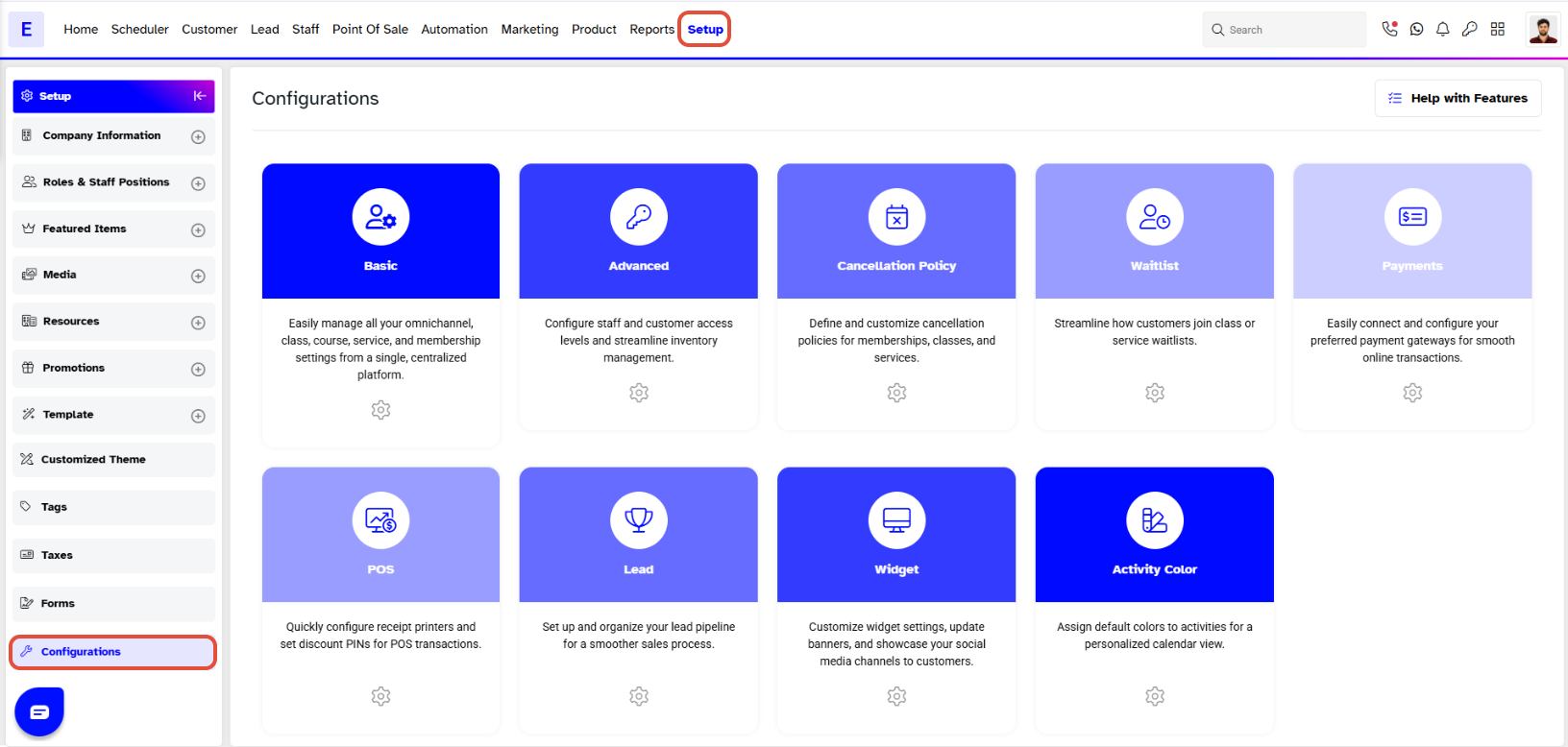
- Go to the Setup module in Core.
- Click on the Configurations tab.
Step 2: Access Advanced Settings
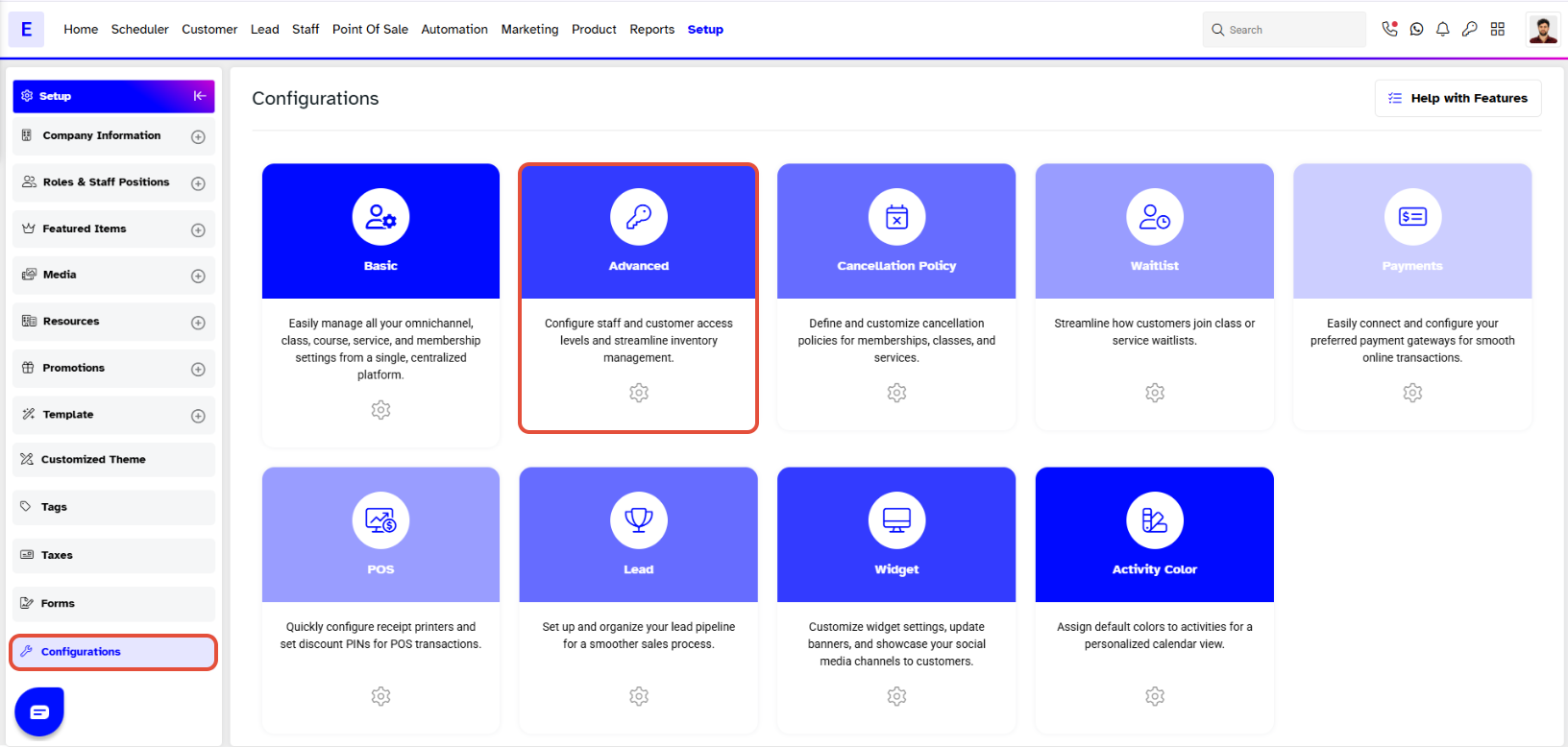
- The Basic tab will open by default.
- Navigate to the Advanced tab.
Step 3: Rename the Buy Membership Button
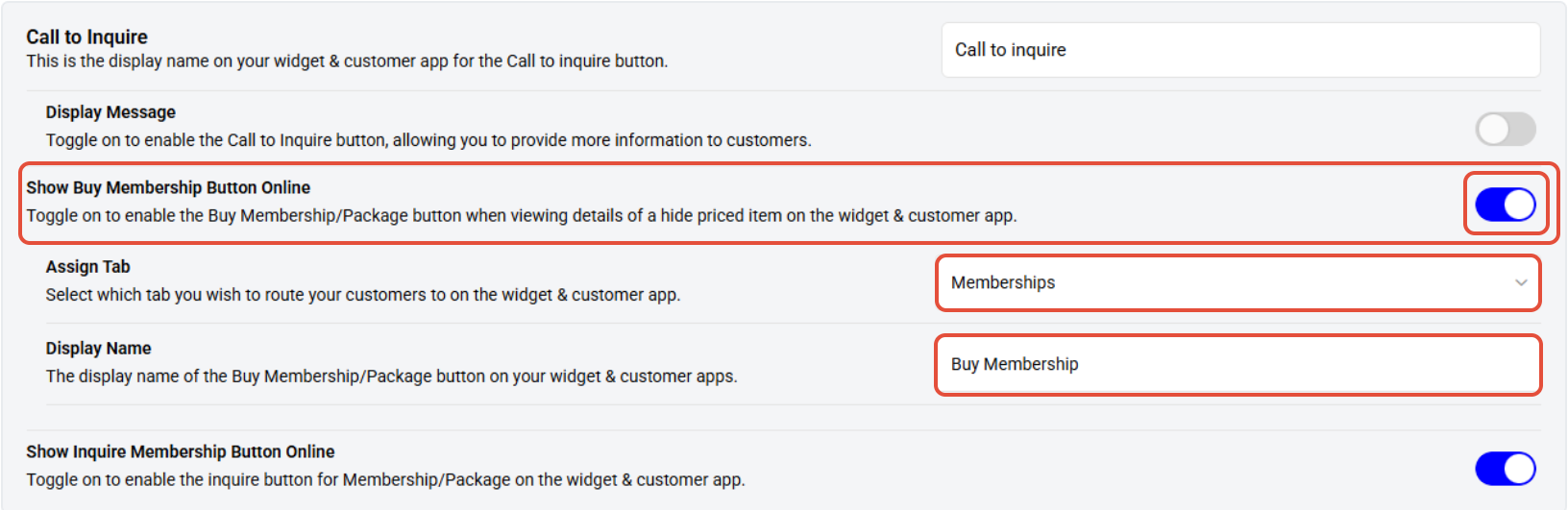
- Scroll down to the Show Buy Membership section.
- Locate the Display Name field and enter the desired name for the Buy Membership button.
Step 4: Save Changes
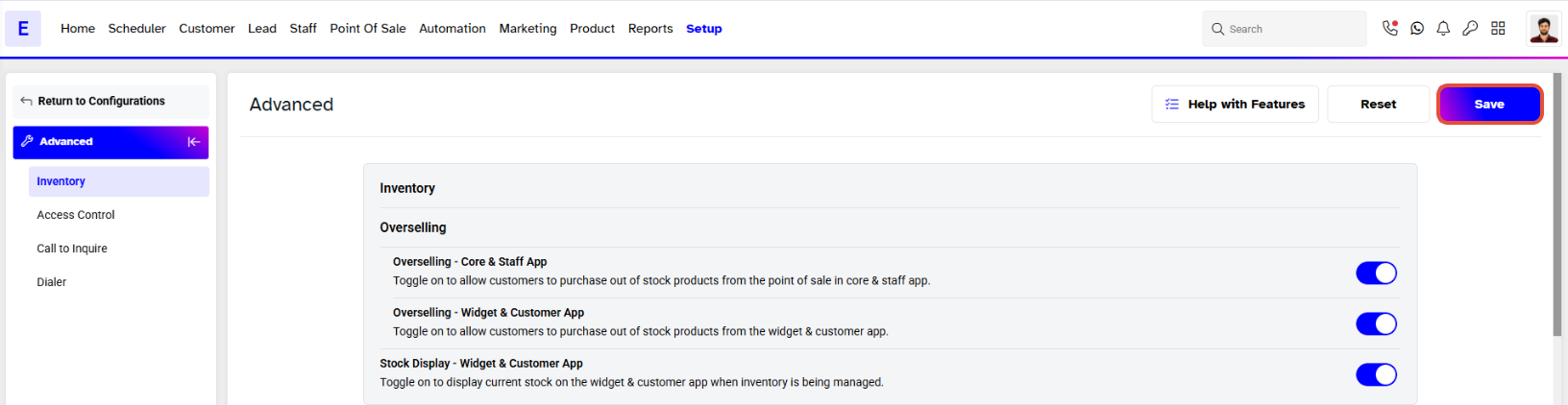
- Once the name has been updated, click on the Save button to confirm your changes.