


TABLE OF CONTENTS
To Enable the Buy Membership Button for Hidden Prices items on the Widget & App in Core, follow the steps below:
How To Enable The Buy Membership or Package Button For Hidden Price Items On The Widget & App In Core
An additional Buy Membership Button appears under Call to Inquire Button in Core, allowing Customers to view the Buy Membership/Package Button for Items with Hidden Prices on the Widget and Customer App. This Button directs Customers to the Membership or Packages Tab.
Go to the Setup Module in Core.

Click on the Configurations Tab.
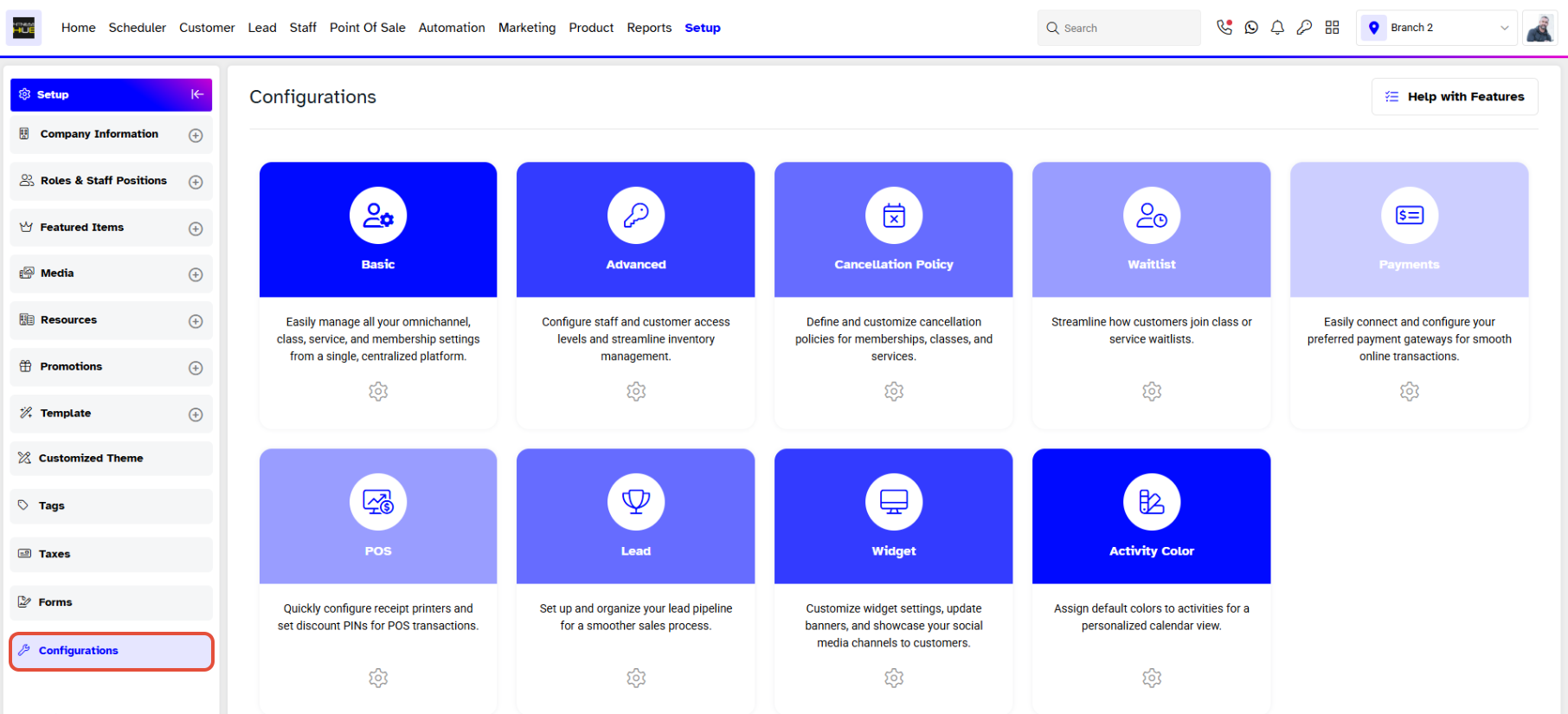
The Basic Tab will open by default.
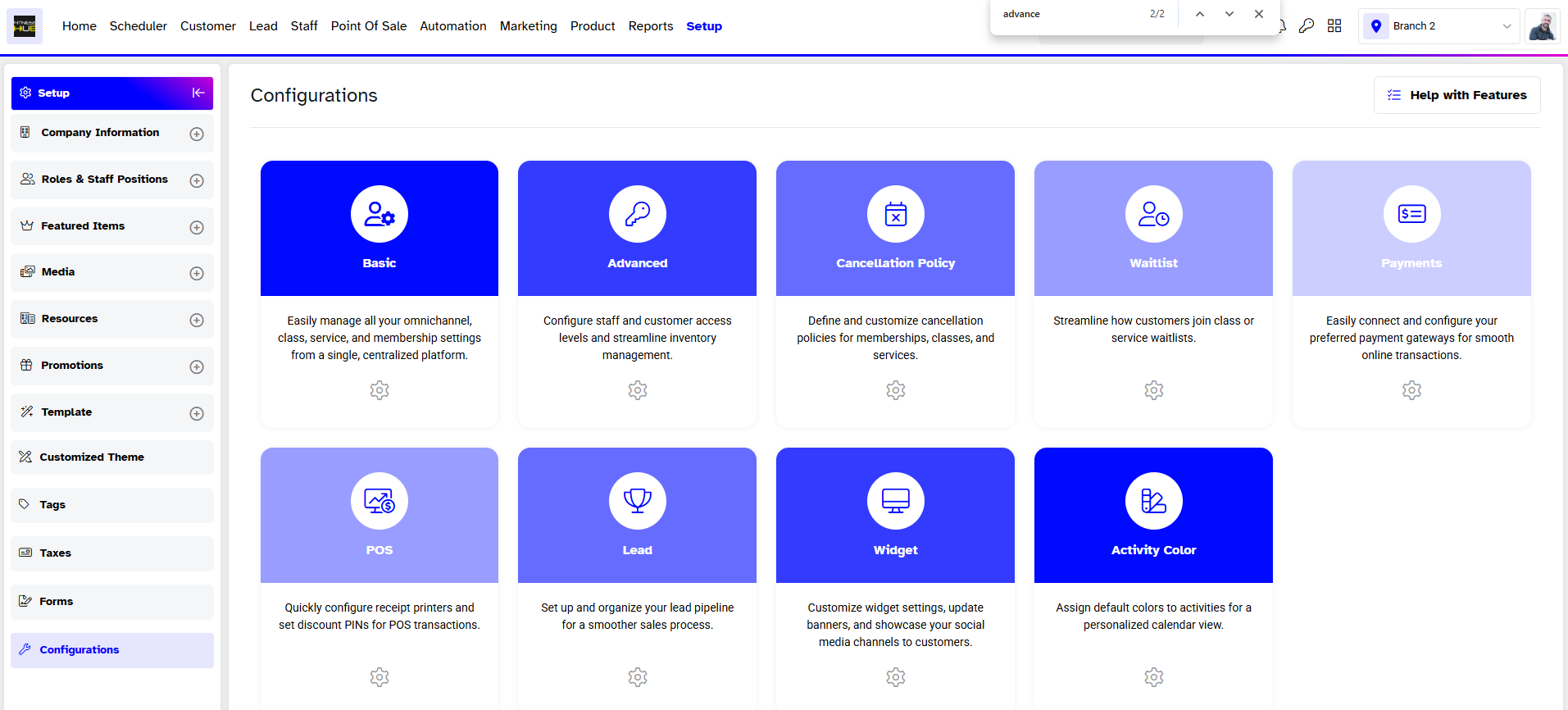
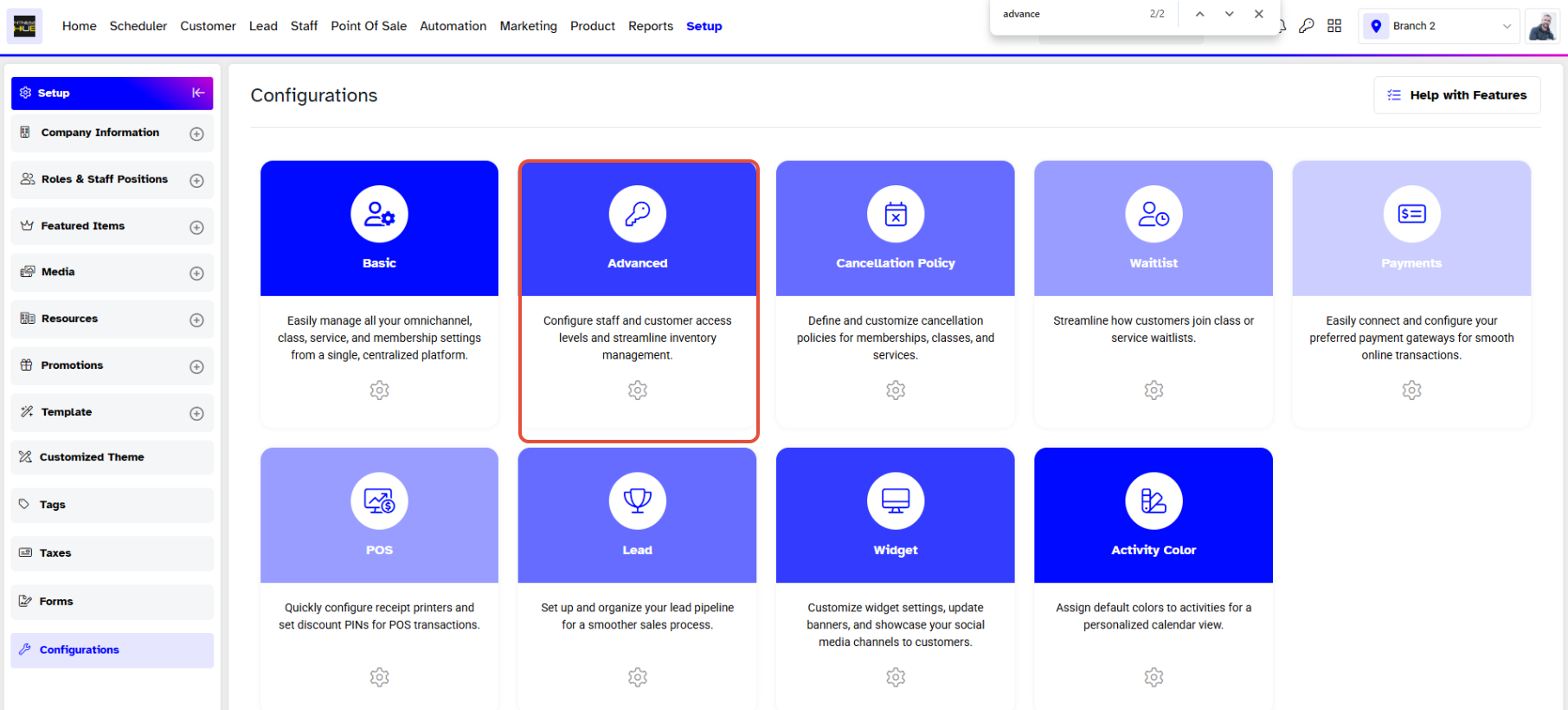
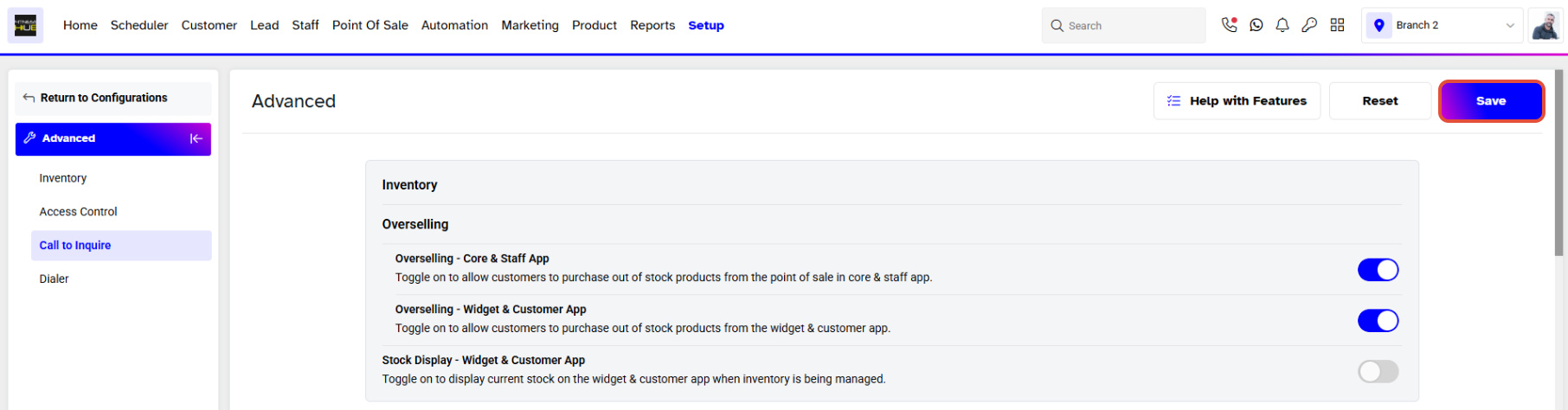
Navigate to the Advanced Tab.
Scroll down to the Call to Inquire Section.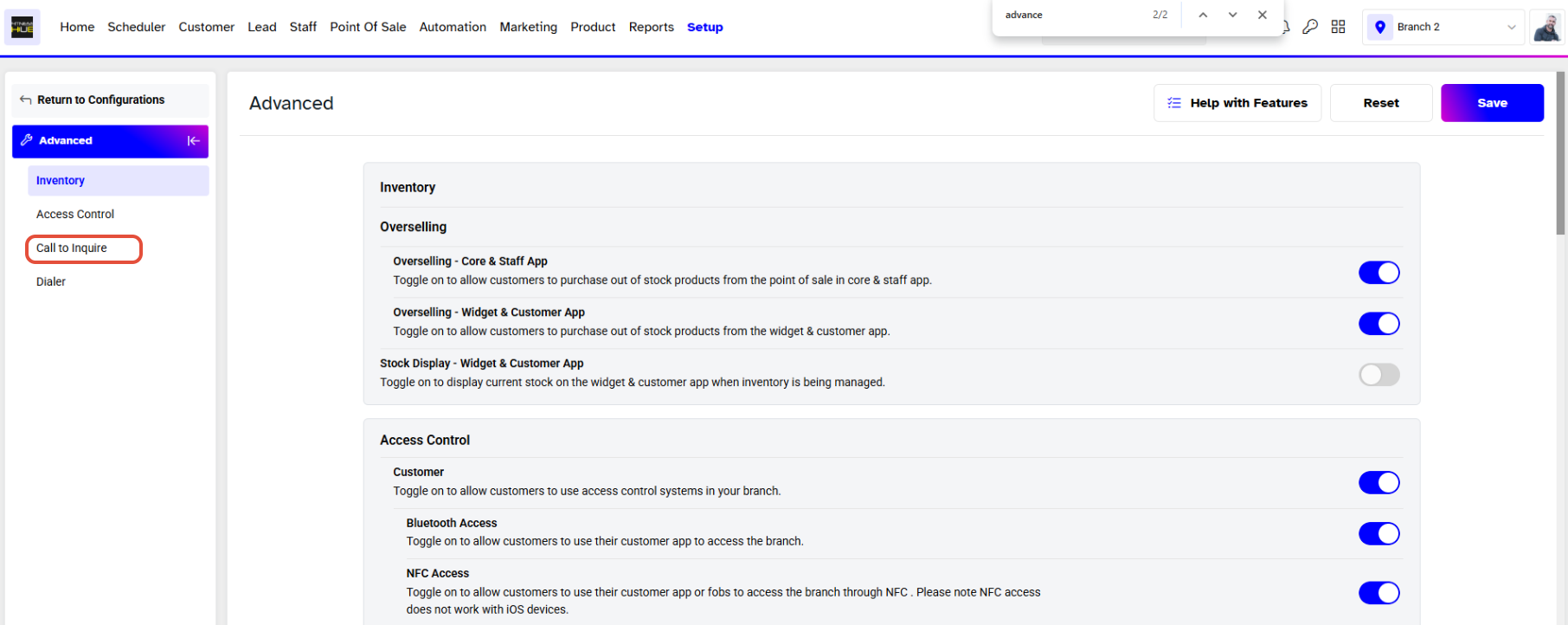
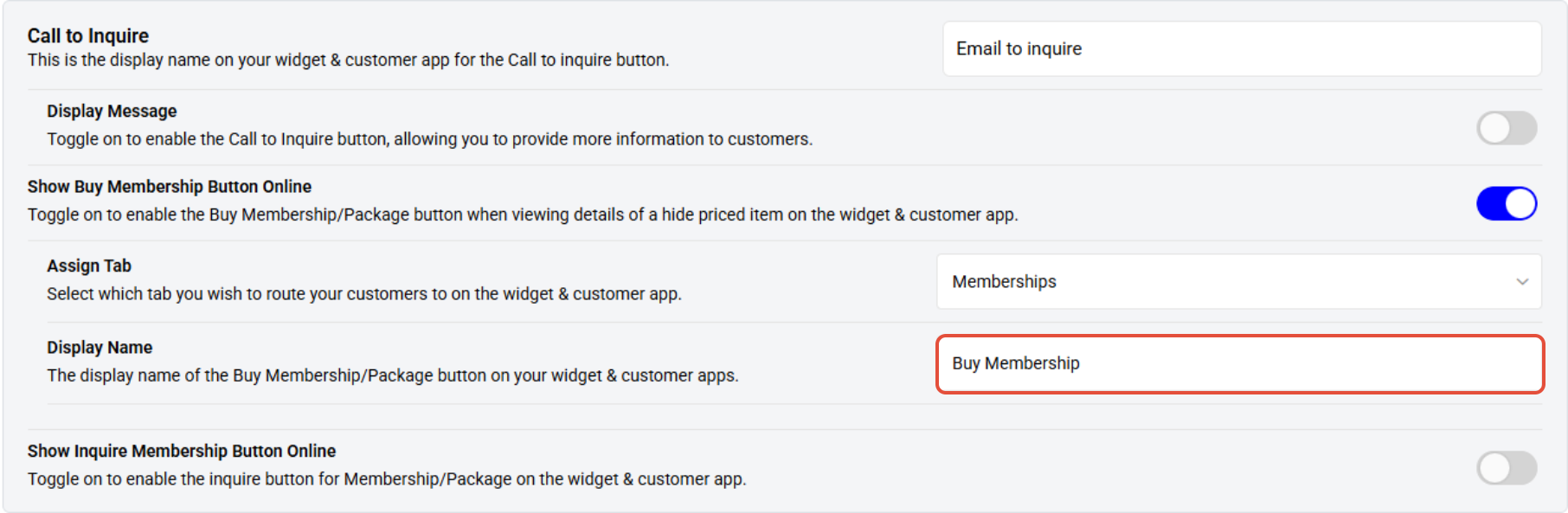
Under Call to Inquire, locate the Show Buy Membership Button Online option.
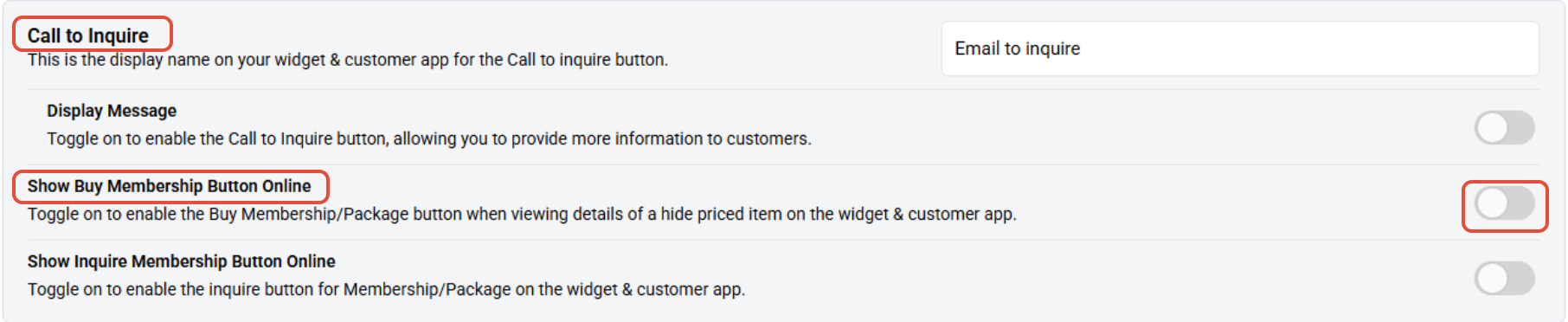
Toggle on to enable the Show Buy Membership Button for Hidden-priced Items on the Widget and App.
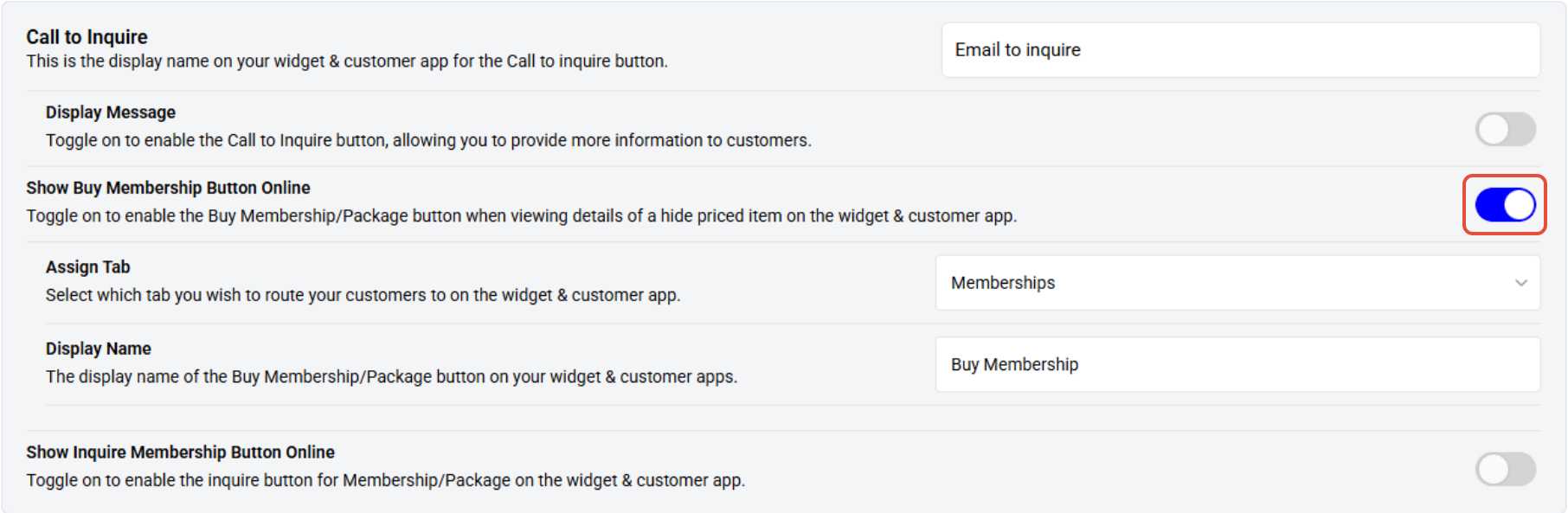
Once enabled, the Assign and Display Name fields will appear.
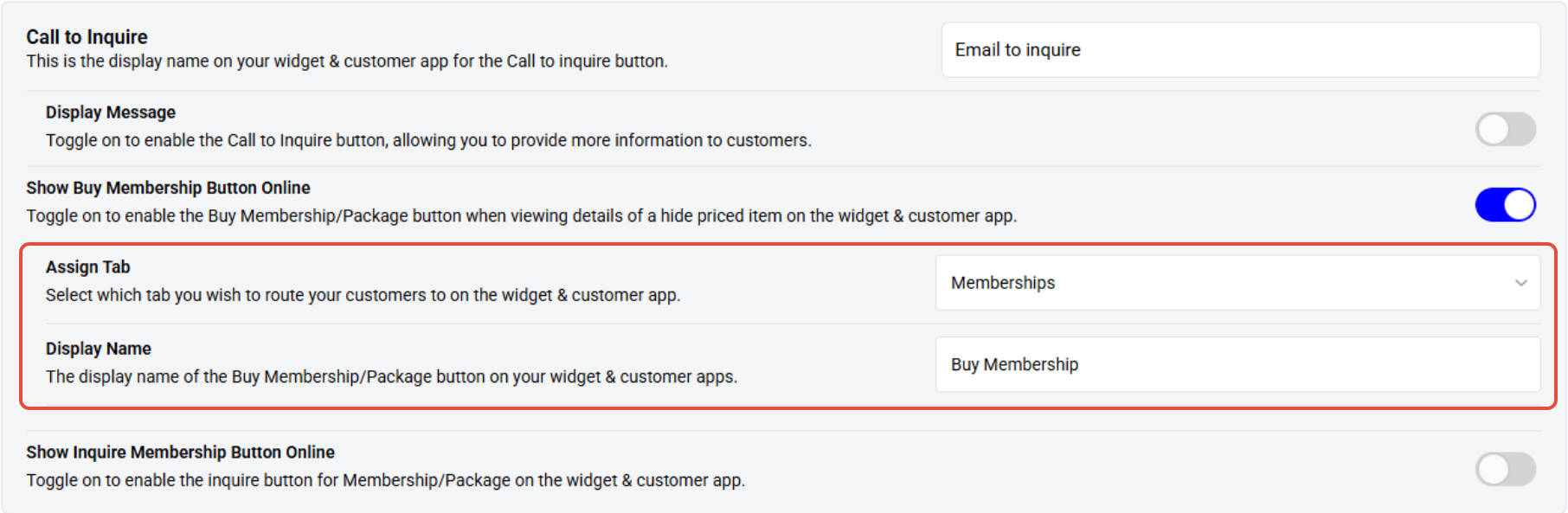
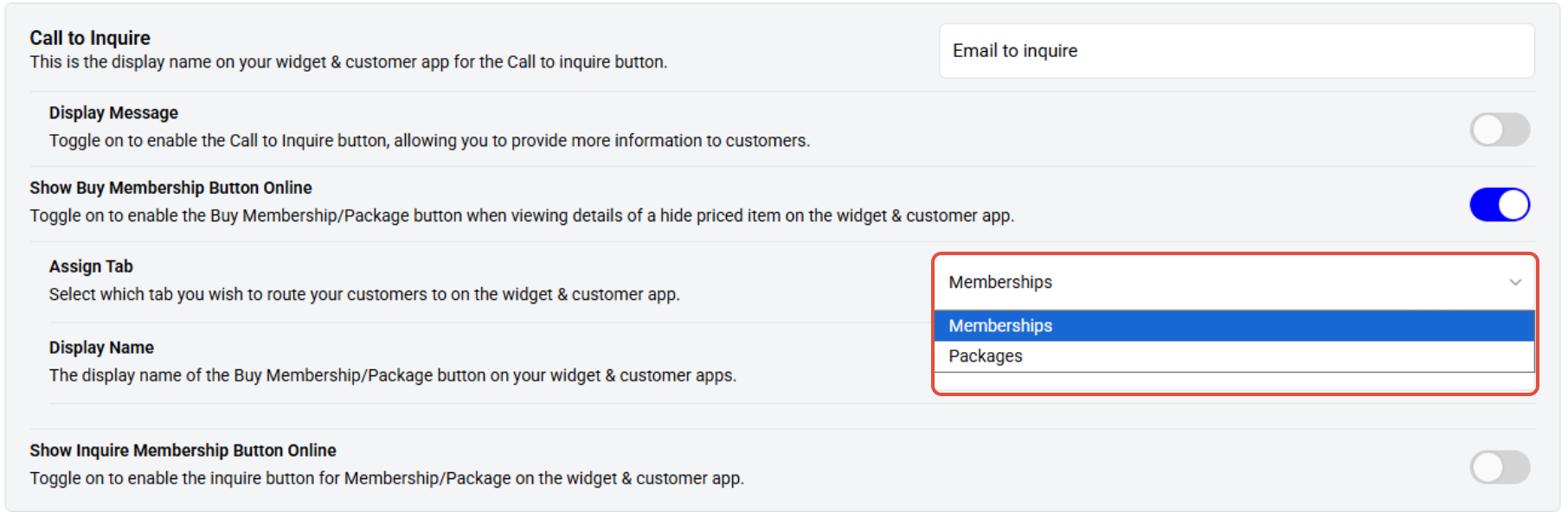
Select the Route tab between Membership and Package from the Assign field.
Merchants can change the Buy Membership Button Name using the Display Name field.
Once done, click on the Save Button.
This configuration does not affect Memberships or Packages, even if Hide Price Online is set to Yes.




