


TABLE OF CONTENTS
Overview
This guide explains how to view the Original and Scheduled Expiry of a member's membership through the Member Attendance Portal. By following this guide, you can quickly identify membership timelines and the next payment due date for your members.
Step 1: Access the Customer Attendance Portal
- Click on the Short Cut Icon.
- Now click on the Customer Attendance.
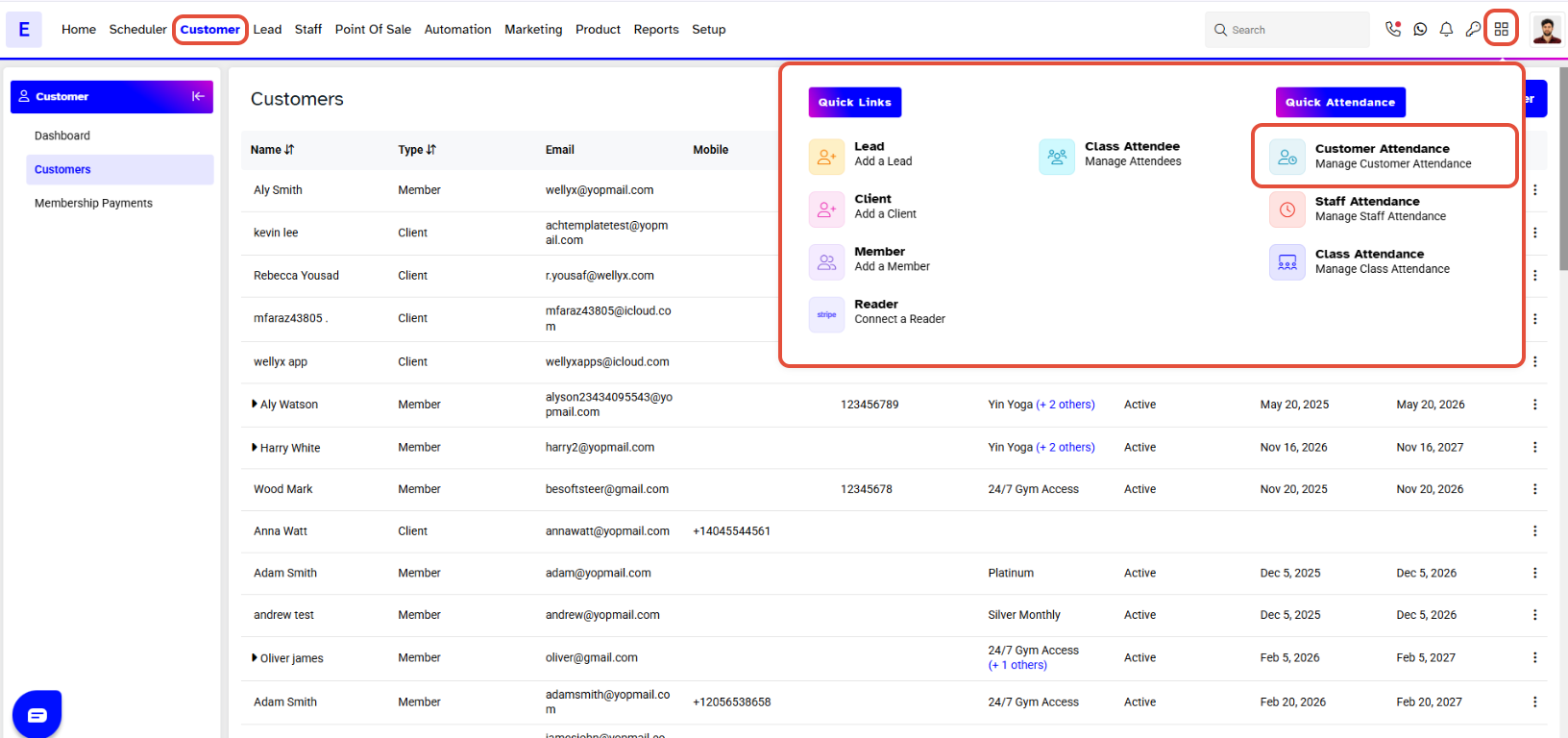
- The Customer Attendance Login Portal will open.
- Type the Email/Card Number and click on the Next Button.
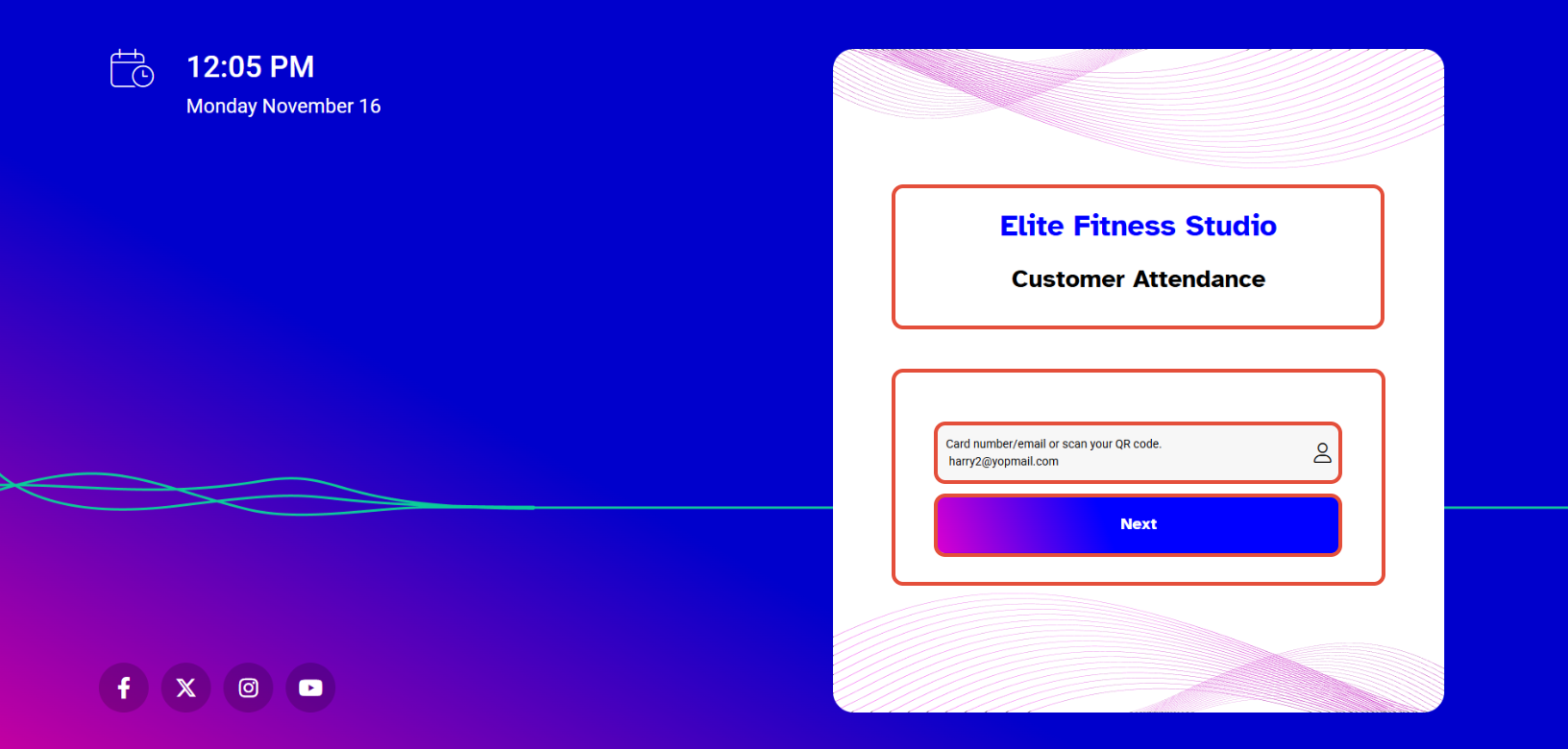
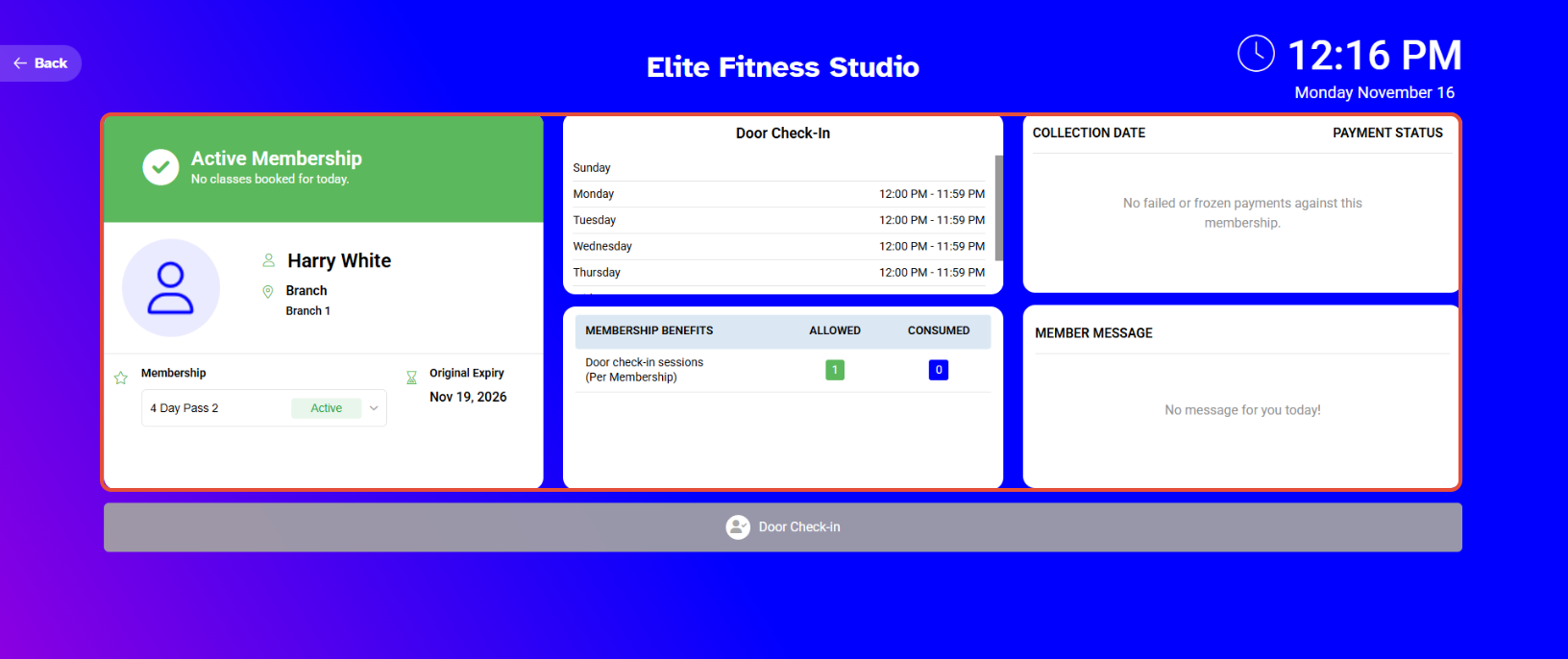
- The Customer Attendance Portal will open.
Step 2: Select Membership
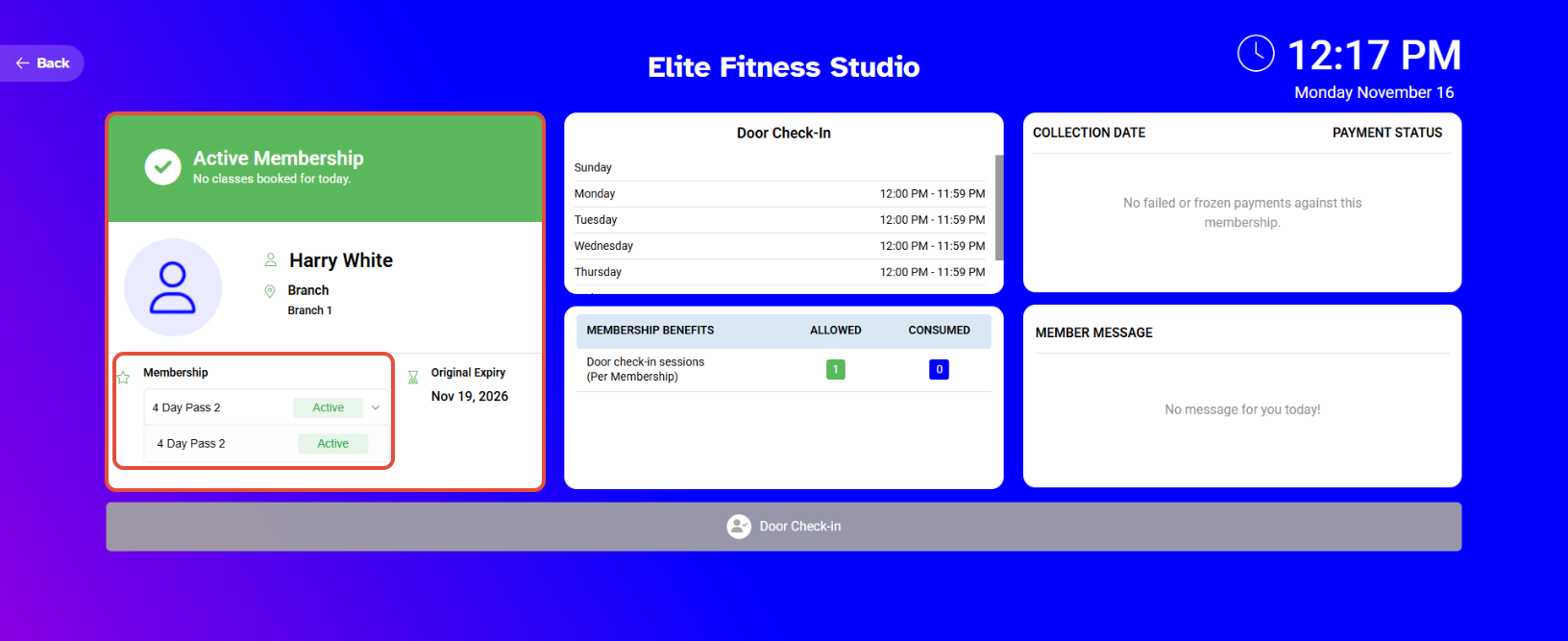
- Select the desired Membership from the Membership dropdown menu.
Step 3: View Expiry Details
- The Membership Original Expiry and Scheduled Expiry will display in front of the Membership Name.
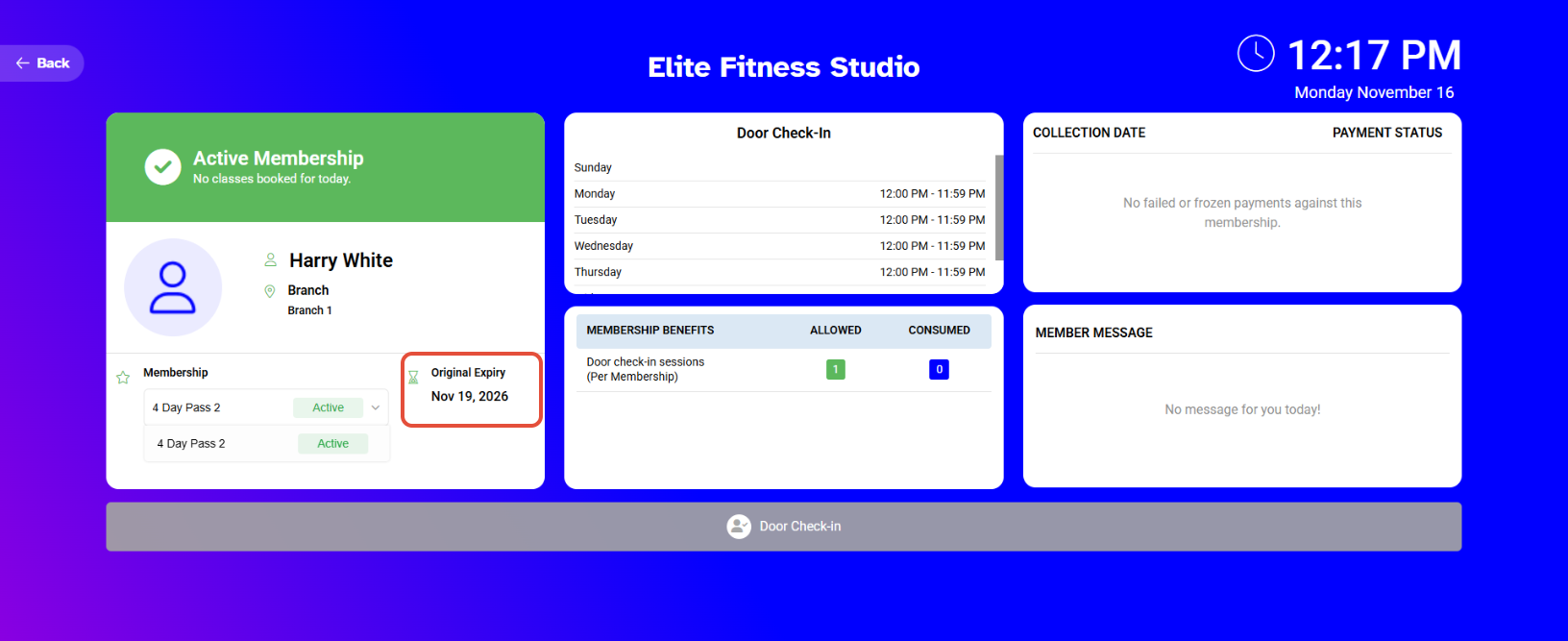
For Memberships with Auto Roll on the origional Expiry Date will not display.
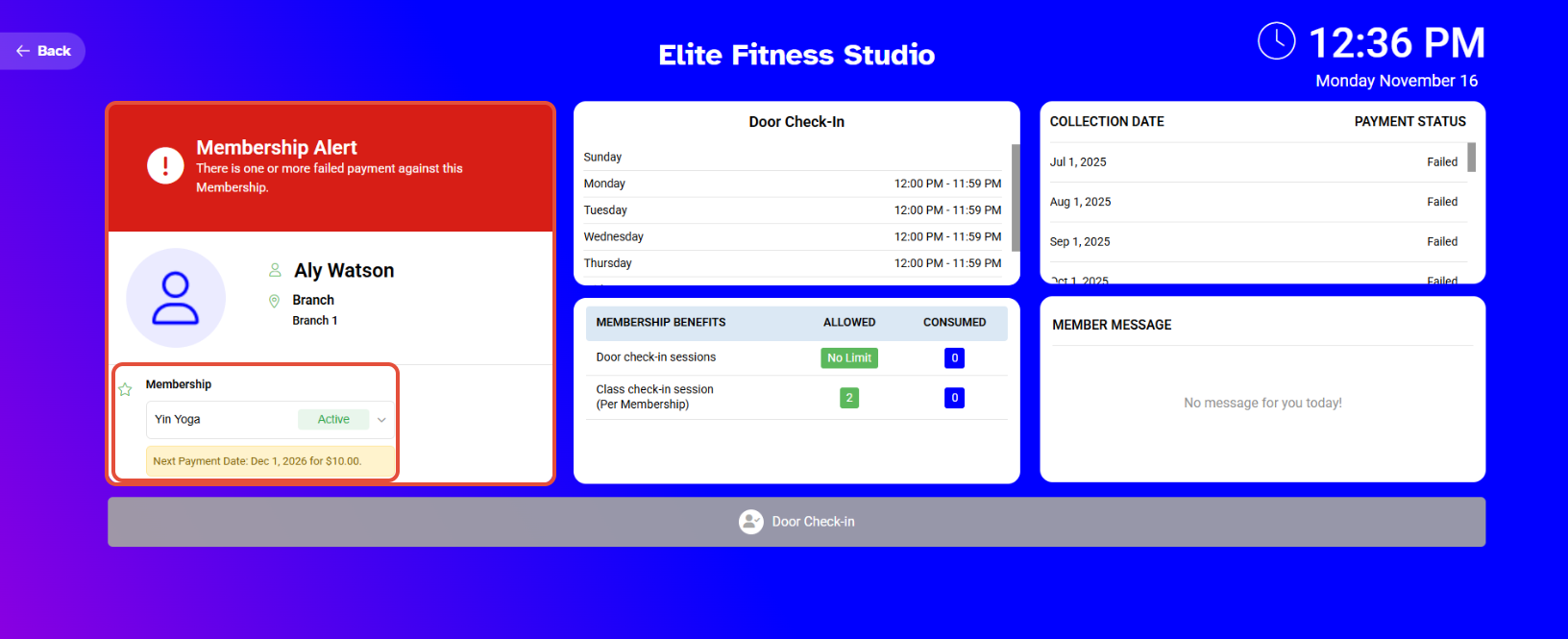
Next Payment Due Date will also display on the Member Attendance Portal.


