


TABLE OF CONTENTS
- Step 1: Navigate to Configuration
- Step 2: Access Member Configuration
- Step 3: Configure Capacity and Duration
- Step 4: Save Changes
Overview
This guide explains how to set the total capacity of members allowed and the average visit duration inside a branch in Core. By following this guide, merchants can manage branch occupancy and visit length settings effectively.
Step 1: Navigate to Configuration
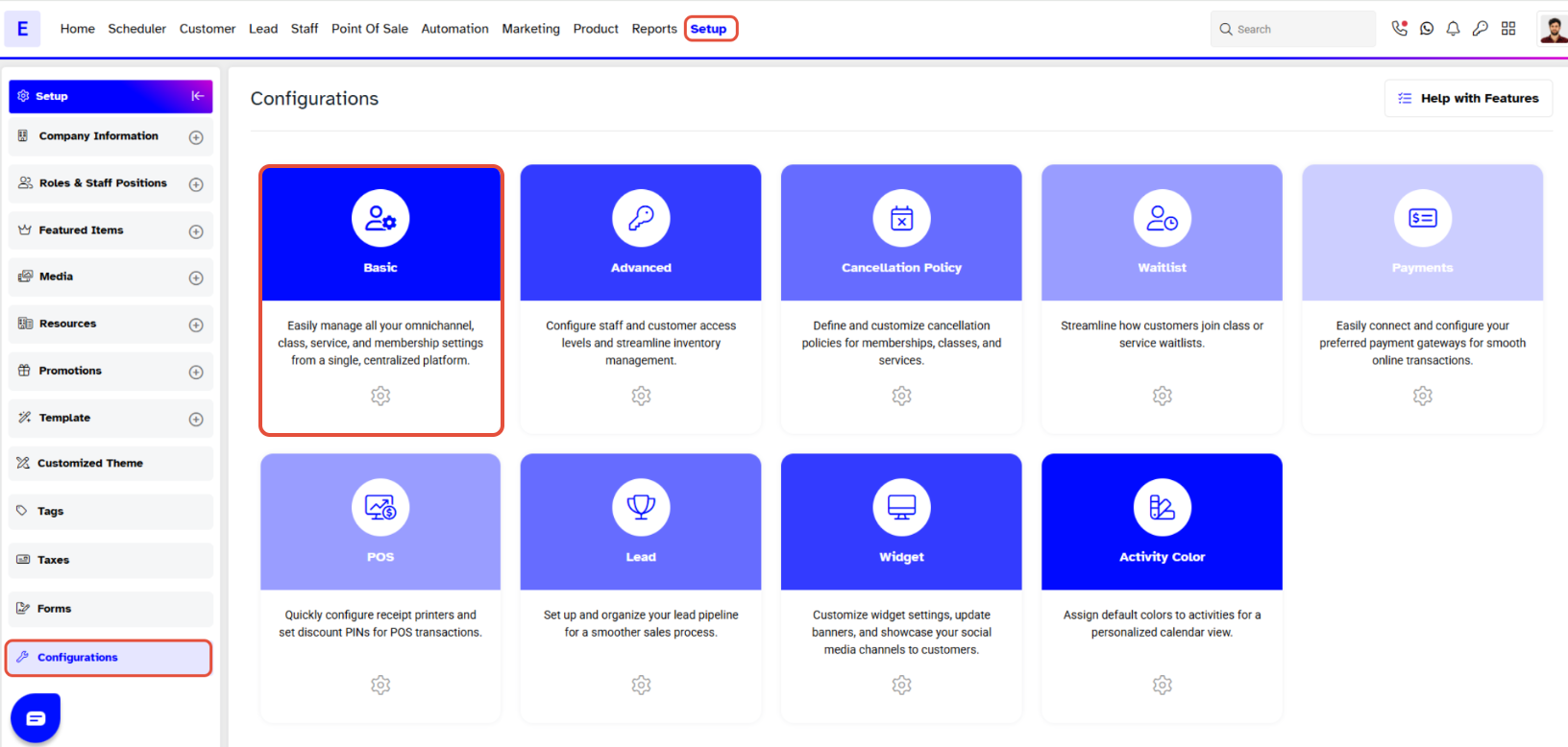
- Go to the Setup module in Core.
- Click on the Configuration tab.
- Select the Basic tab.
Step 2: Access Member Configuration
- Scroll down in the Basic section to find the Members Configuration section.
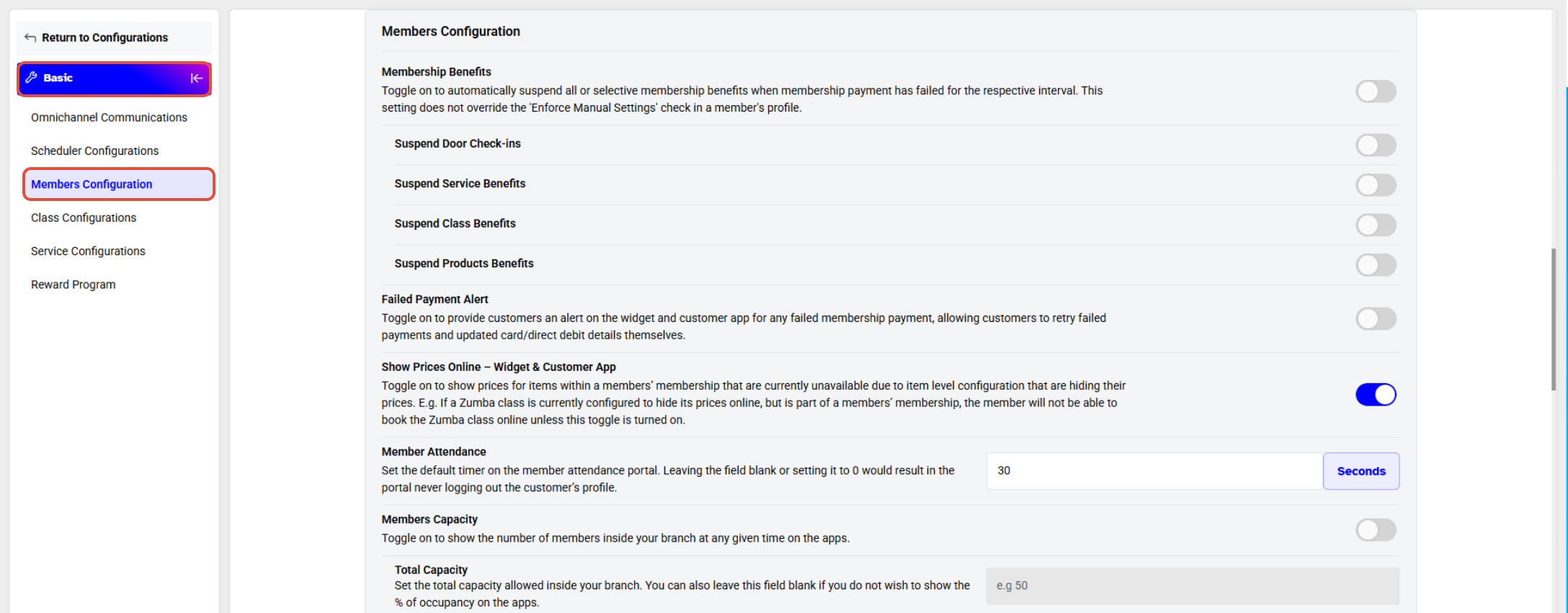
Before adding the Total Capacity, Member Capacity must be toggled on.
Step 3: Configure Capacity and Duration
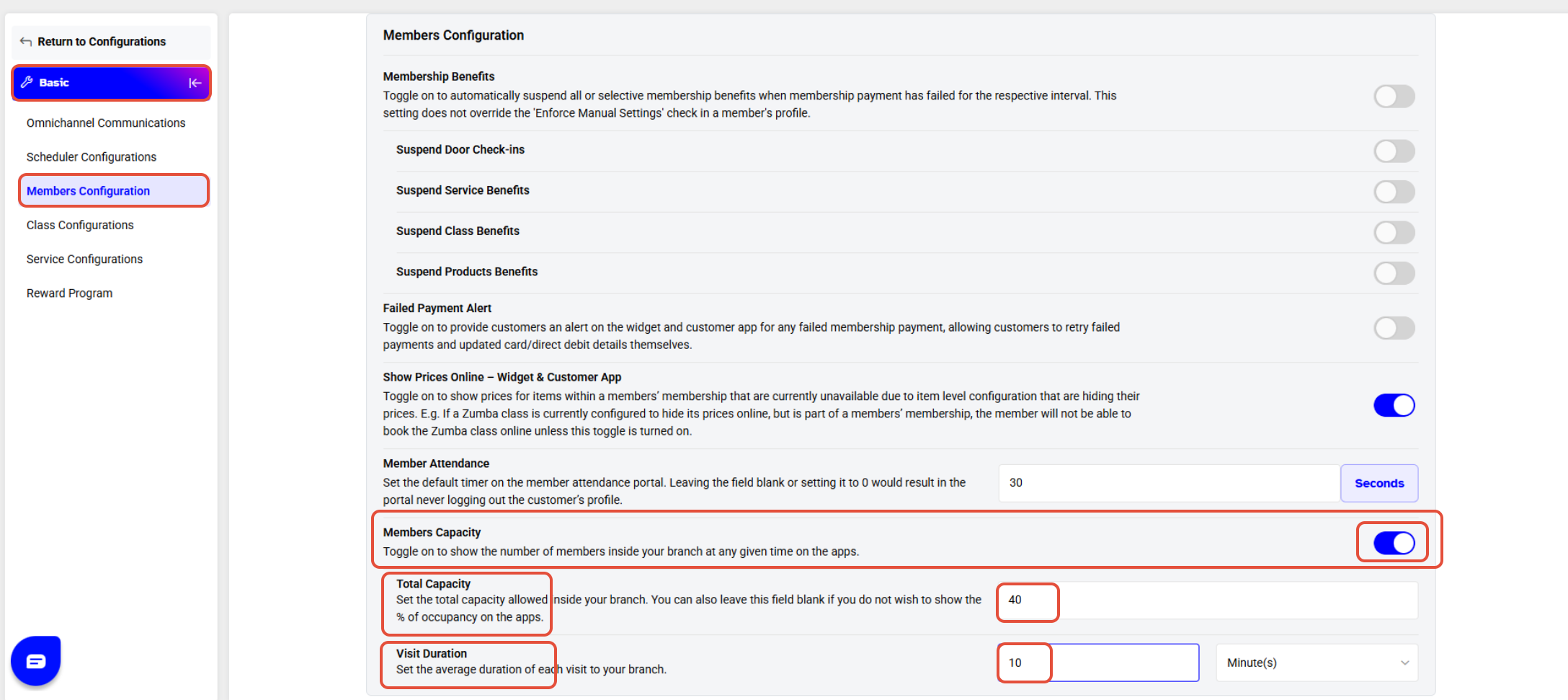
- Total Capacity of Members: Define the total number of members allowed in the branch.
- Average Duration of each visit: Specify the average length of each visit.
Step 4: Save Changes
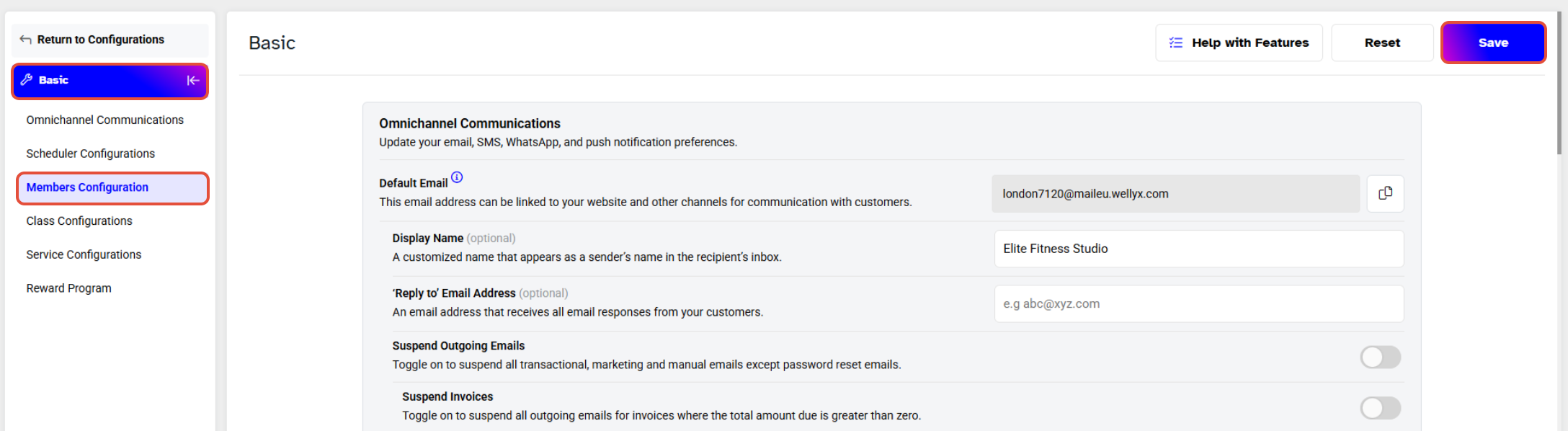
- Once all details are added, click on the Save button to confirm.
To see how the Member Capacity is visible on the Customer App, click here.
To see how the Member Capacity is visible on the Staff App, click here.
w
T
o Set The Total Capacity Of Members Allowed Inside The Branch In Core w To Set The Total Capacity Of Members Allowed Inside The Branch In Core