TABLE OF CONTENTS
Overview
This guide explains how to configure the Display Message pop-up box for the Call to Inquire button in Core. By following this guide, merchants can display a custom message to customers who click the Call to Inquire button on Hide Price Items via the Widget and Customer App
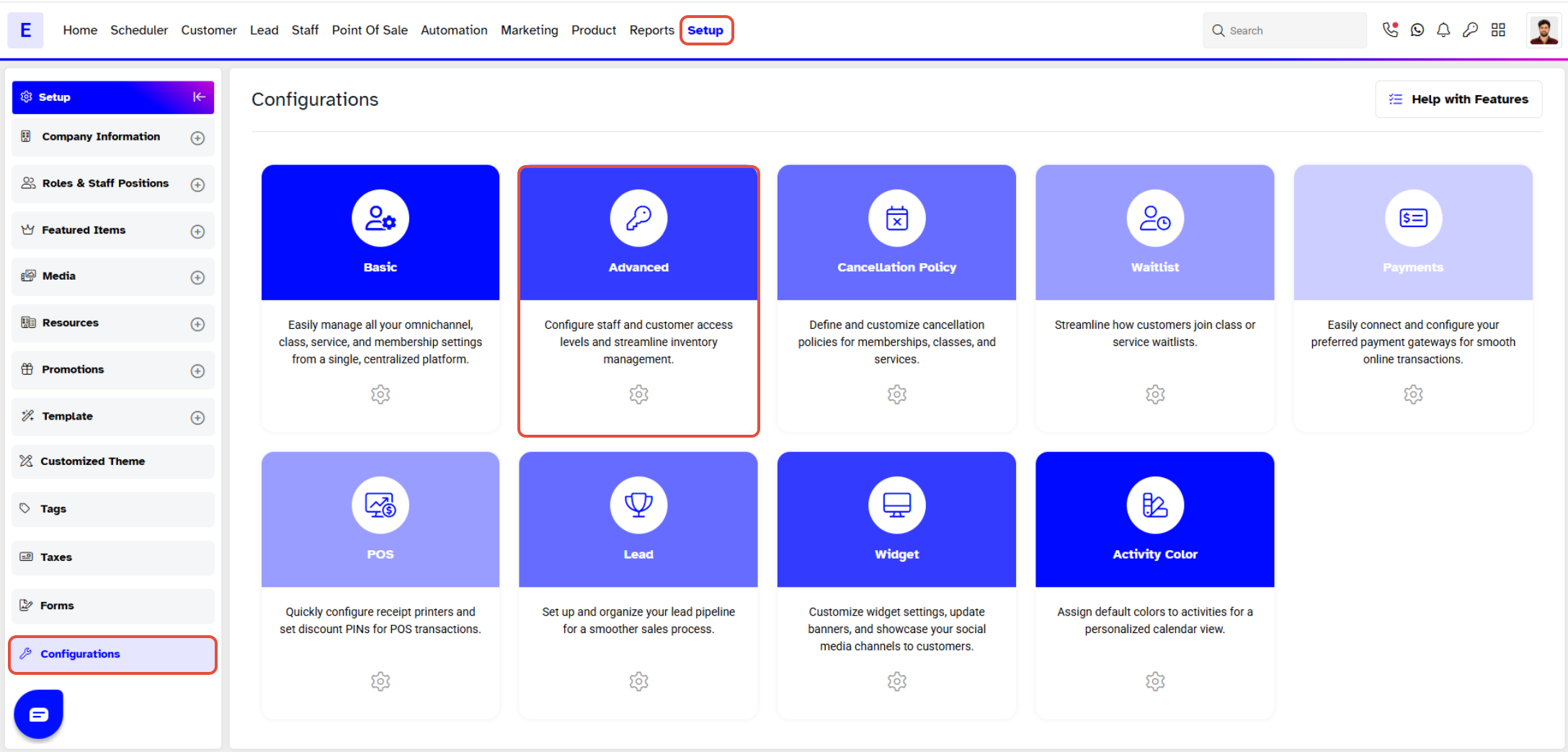
Step 1: Navigate to Configurations
- Go to the Setup module in Core.
- Click on the Configurations option.
- Select the Advanced tab.
Step 2: Enable the Display Message
- Locate the Call to Inquire label.
- Toggle the Display Message button to the ON position.
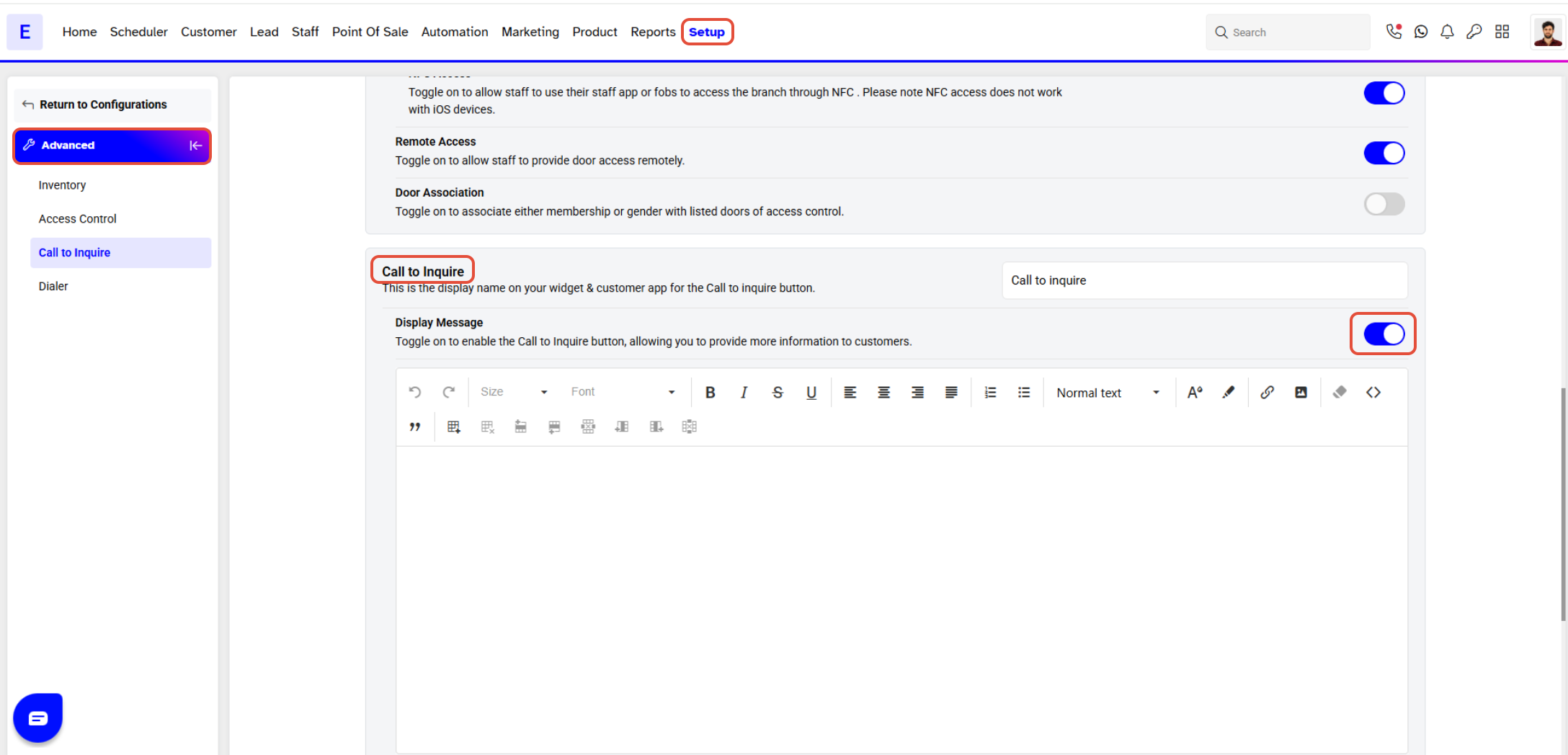
This message will appear on the Widget and Customer App when a customer clicks the Call to Inquire button on a Hide Price Item.
Step 3: Enter Message Details
- In the Display Message box, enter the relevant information you wish to show to customers.
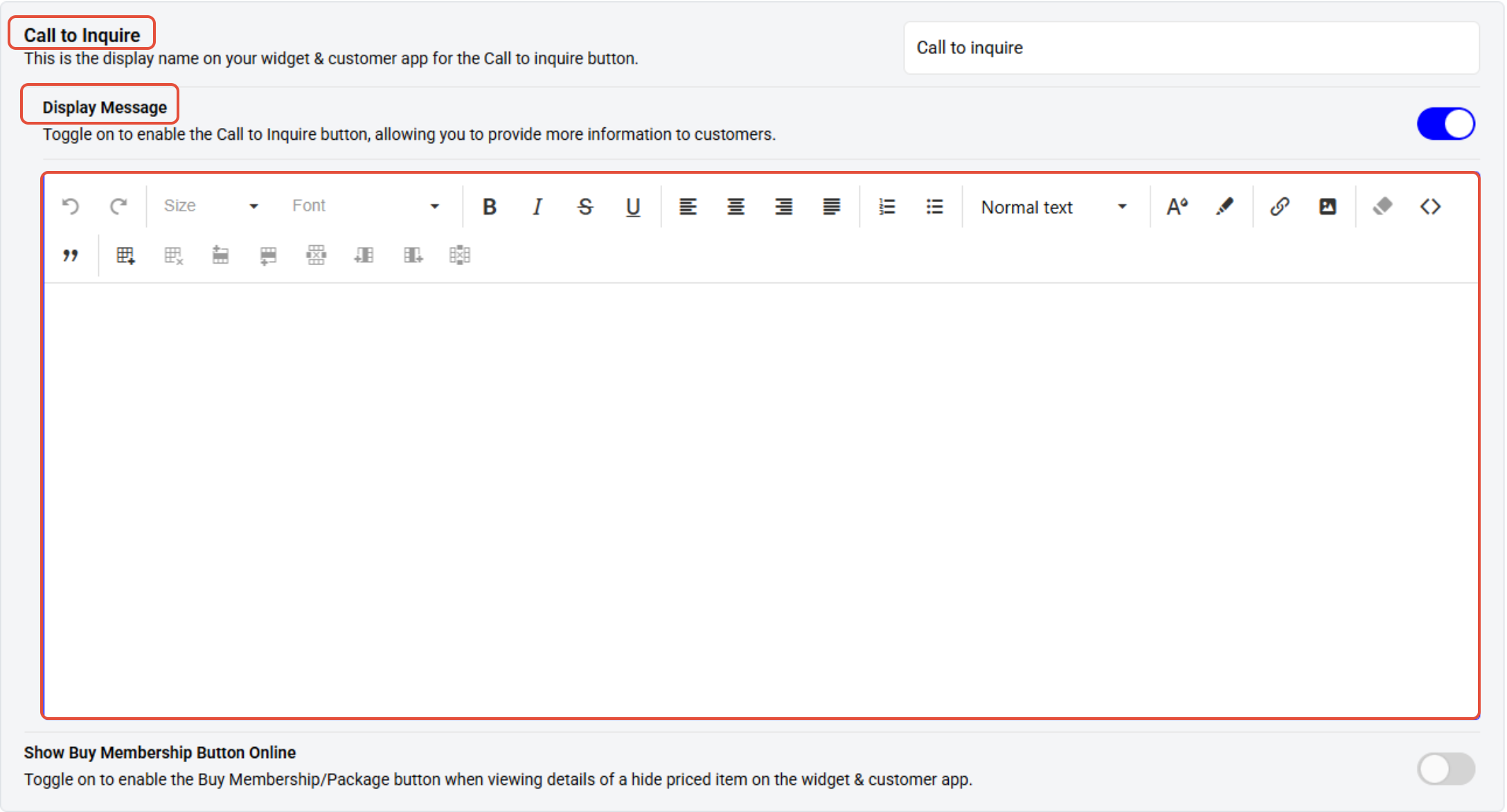
The Call to Inquire Button only appears on the Widget for line items (Classes, Services, Products and Gift Cards), not Packages or Memberships.
Step 4: Save the Configuration
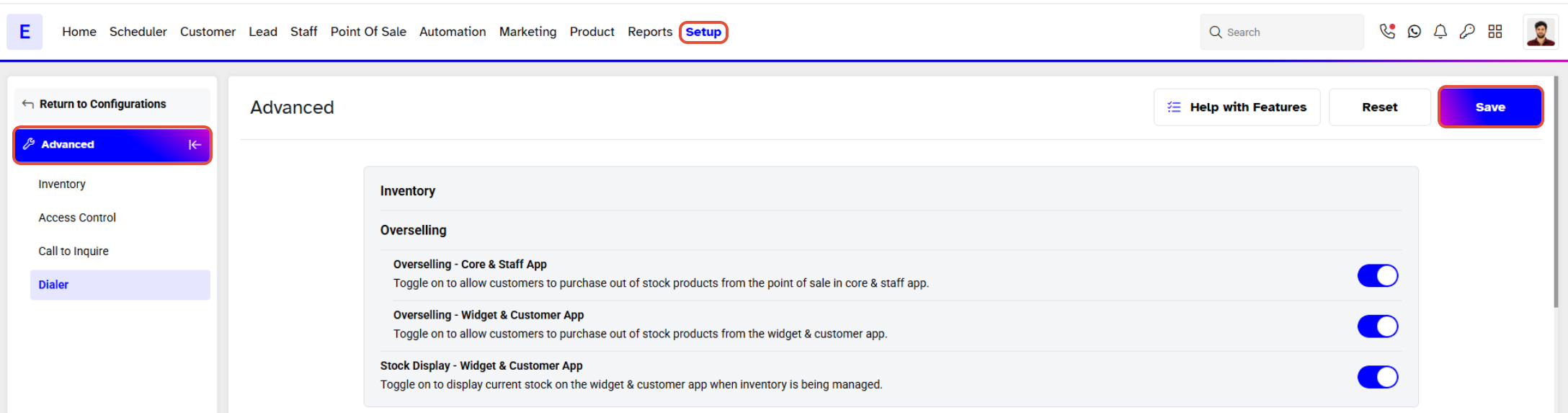
- Once you have added the required information, click the Save button to confirm your changes.