


TABLE OF CONTENTS
Overview
This guide explains how to display the prices of items included in a members' membership on the widget and customer app. Enabling this feature makes prices visible for items that may otherwise be hidden due to specific item-level configurations.
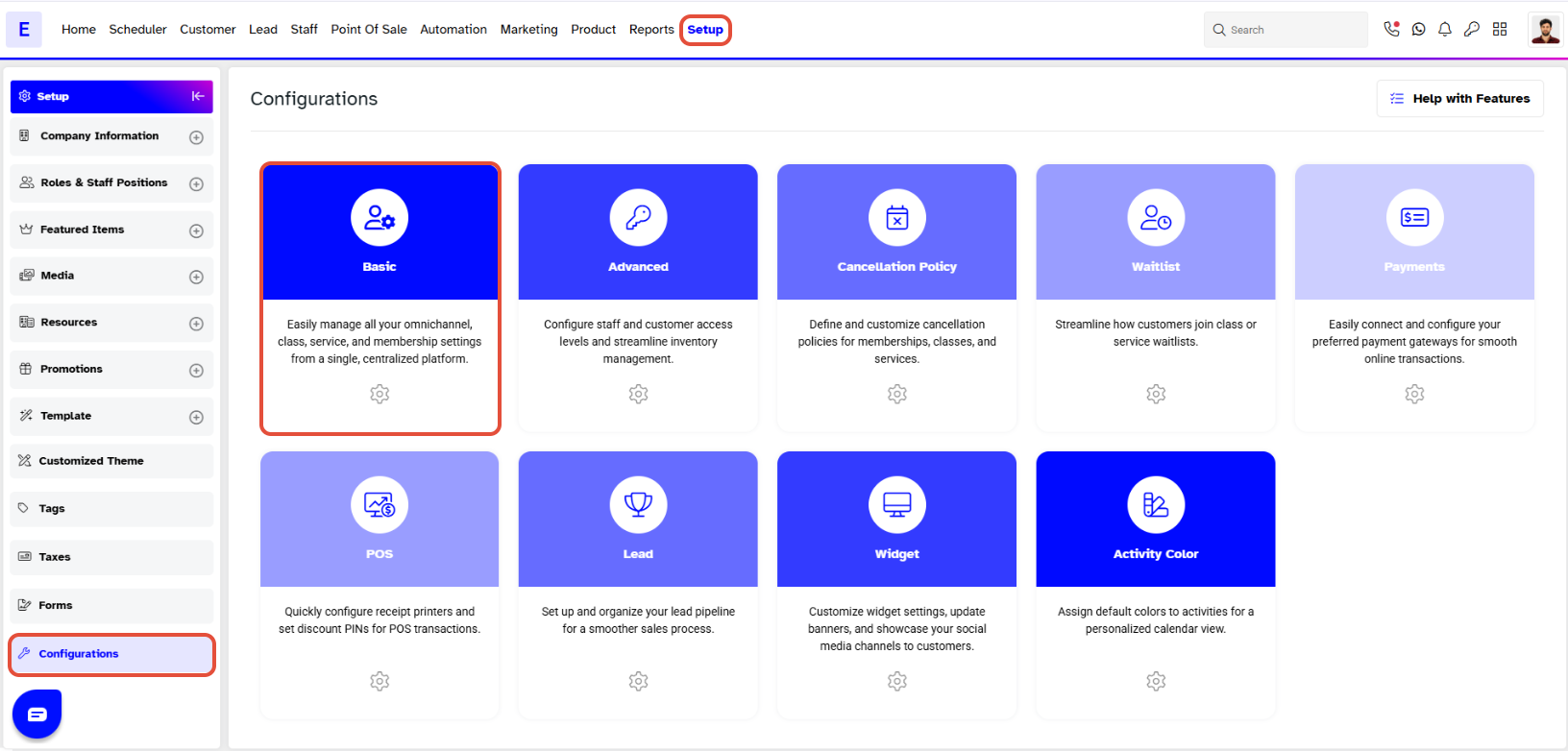
Step 1: Navigate to Configurations
- Go to the Setup module in Core.
- Select the Configurations tab.
- Click on the Basic tab .
Step 2: Enable Show Prices Online
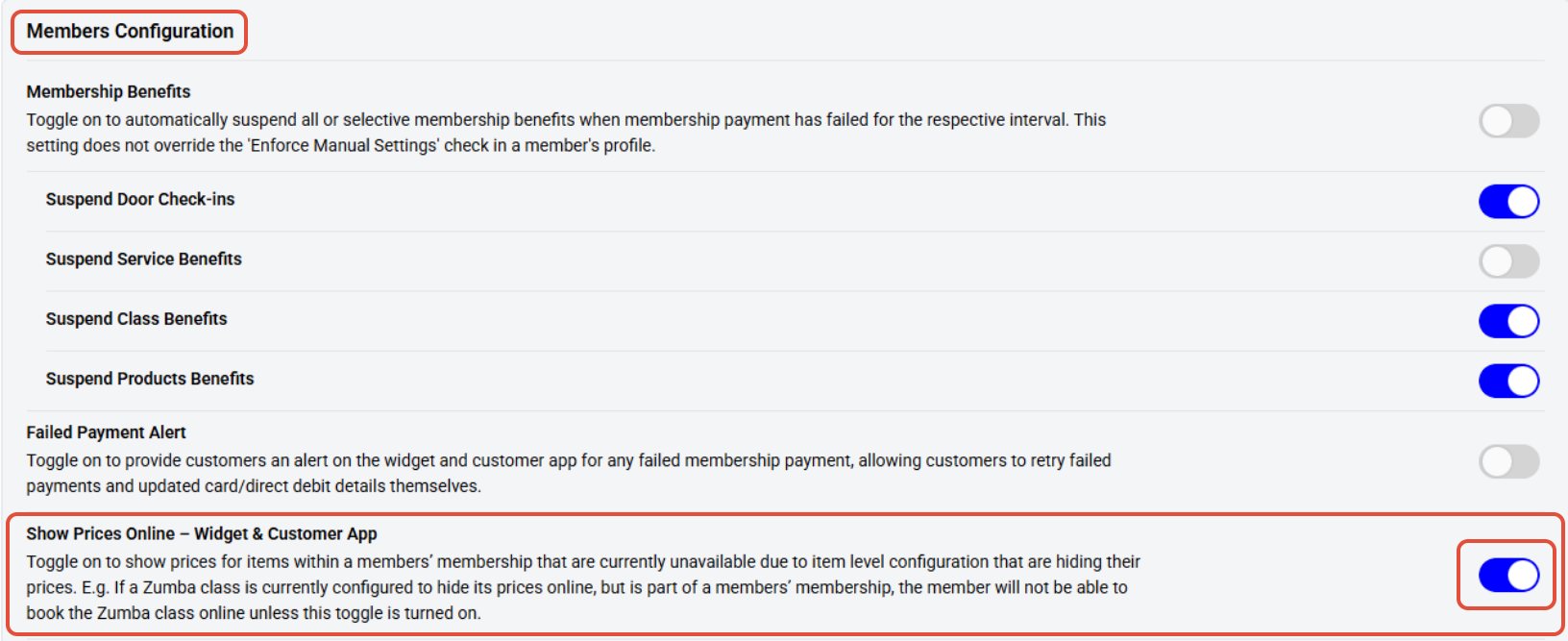
- While in the Configurations tab, scroll down to the Members Configuration .
- Toggle ON the Show Prices Online button.
Step 3: Save Changes
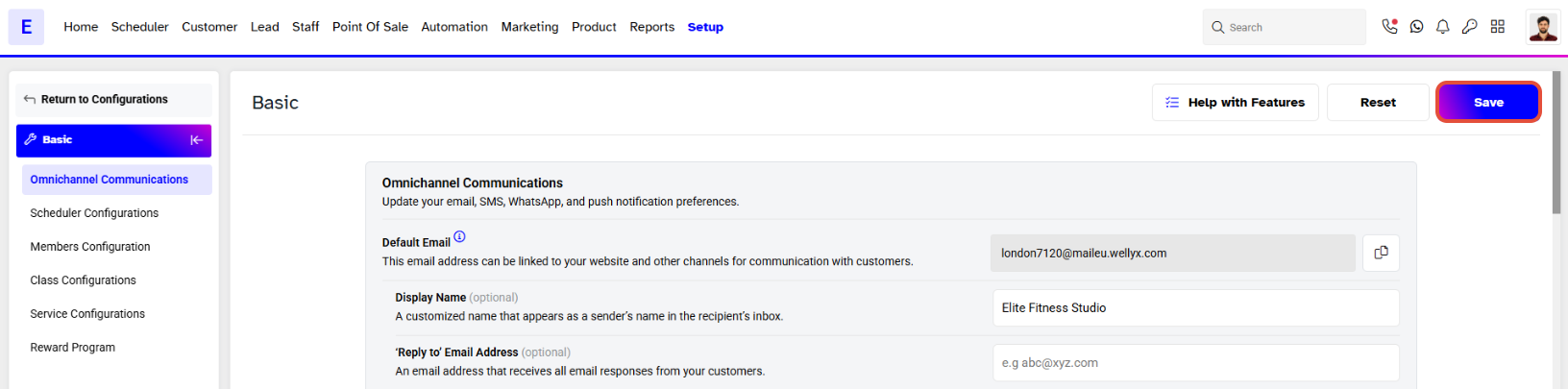
- Click on the Save button to confirm the changes.
Enabling the Show Prices Online Feature makes Prices avaialble on the Widget and Customer App for Items within a Members' Membership that are currently unavailable due to item level configurations that are hiding their Prices.