


TABLE OF CONTENTS
- Step 1: Navigate to Memberships
- Step 2: Edit Membership
- Step 3: Toggle ON Hide Price
- Step 4: Toggle Off Hide Price
- Step 5: Save Changes
Overview
This guide explains how to show or hide membership prices on the Widget and Customer App in Wellyx Core. Merchants can control pricing visibility by updating the membership settings, allowing them to display or hide prices from customers online.
Step 1: Navigate to Memberships
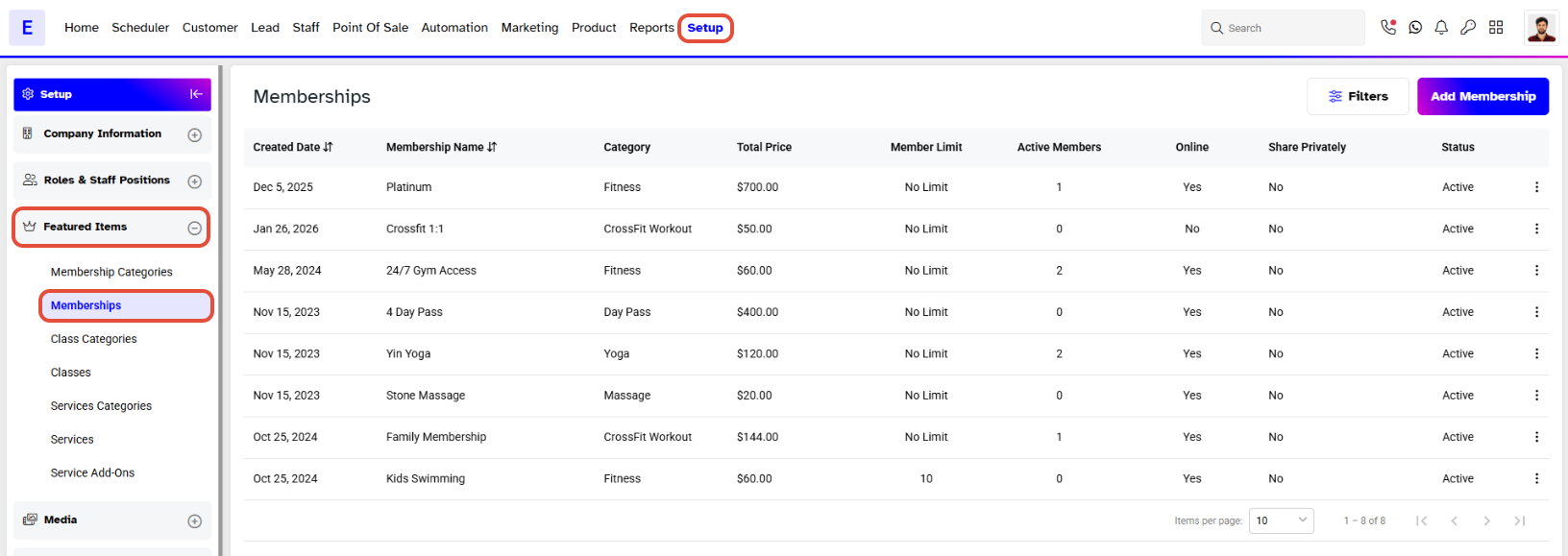
- Go to the Setup module in Core.
- Click on the Featured Items tab.
- Select Membership from the Featured Items tab.
Step 2: Edit Membership
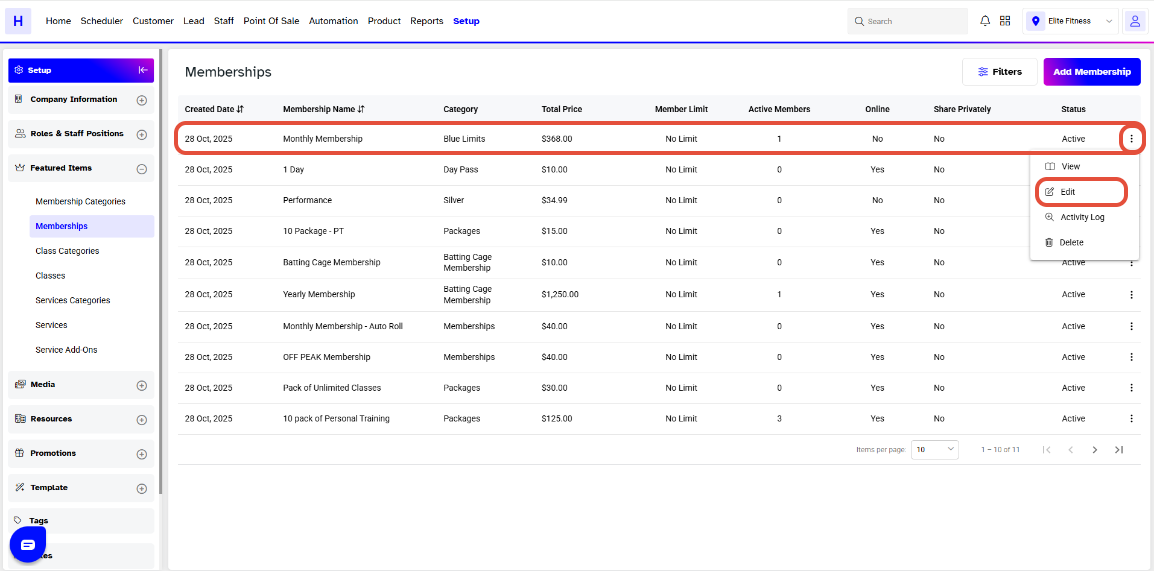
- Locate the desired membership in the list.
- Click on the Edit icon against the membership.
Step 3: Toggle ON Hide Price
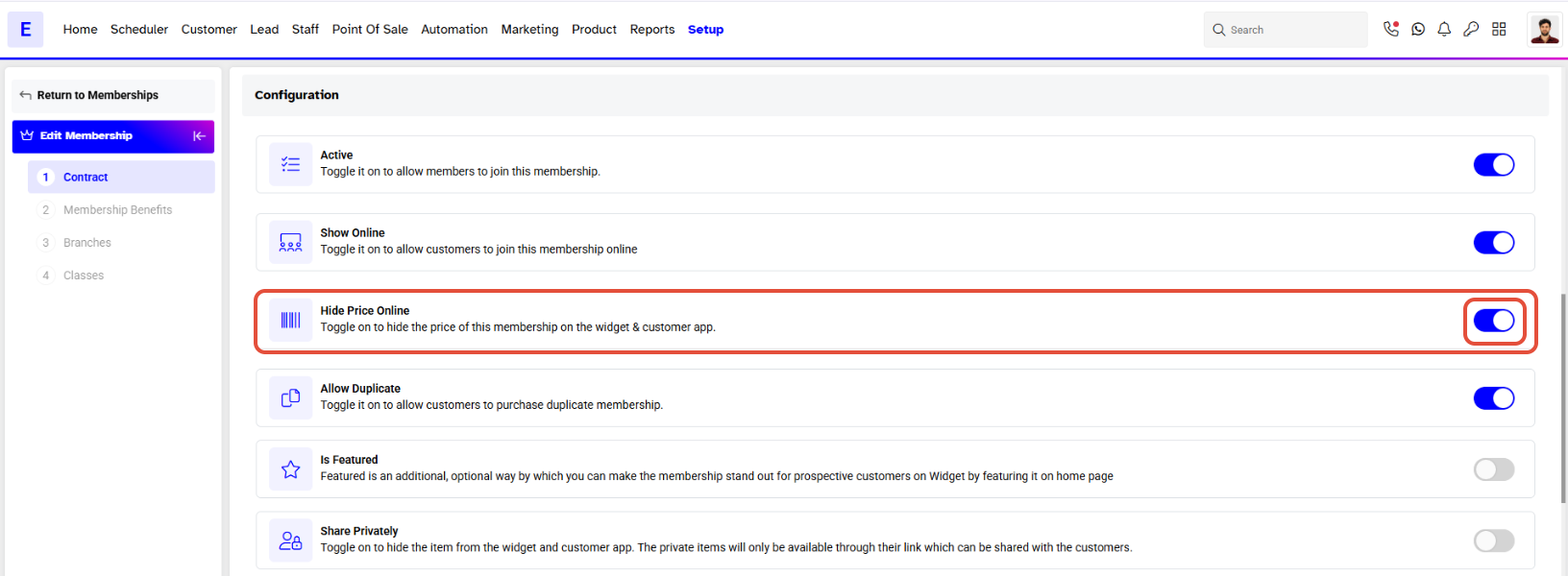
- Locate the Hide Price Online button.
- Toggle the button to the ON position.
- Click on the Continue button to proceed.
Step 4: Toggle Off Hide Price
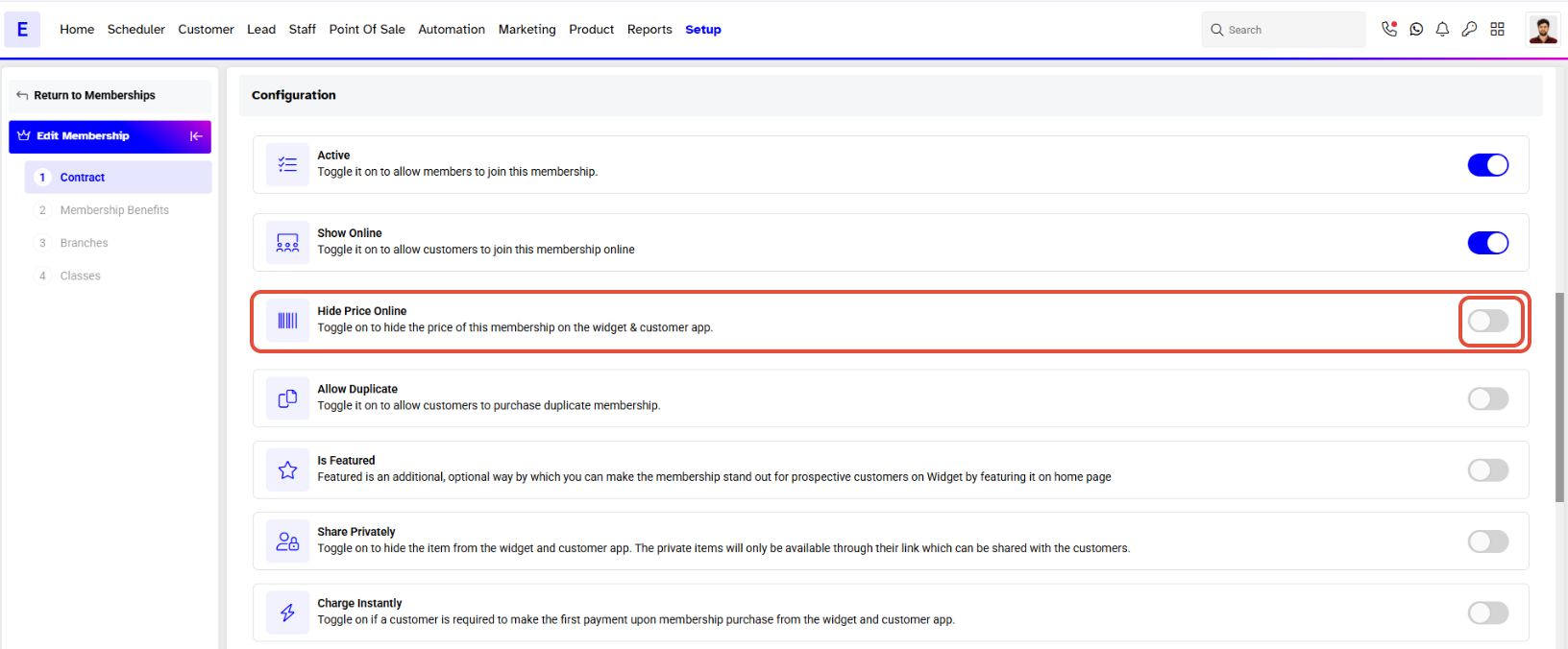
- Locate the Hide Price Online button.
- Toggle the button to the OFF position.
- Click on the Continue button to proceed.
Step 5: Save Changes
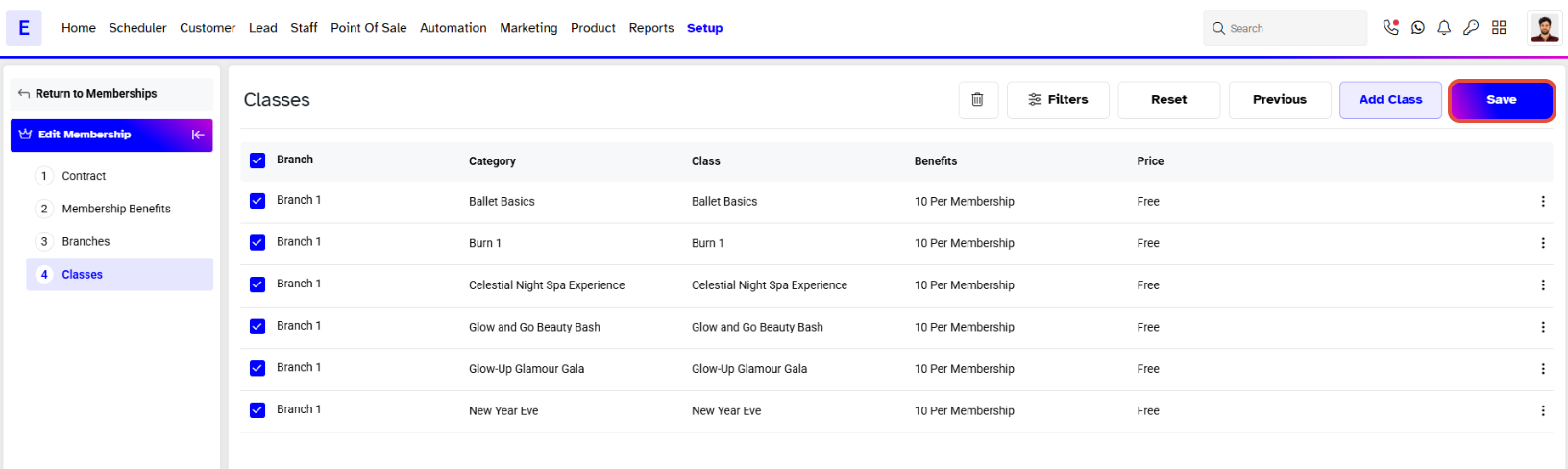
- Once you have made the changes, click on the Save button to confirm them.
Customers cannot purchase that Membership from the Widget and Customer App whose Hide Price Online Button has been toggled on.


