


How To Set Up Class-Based Access
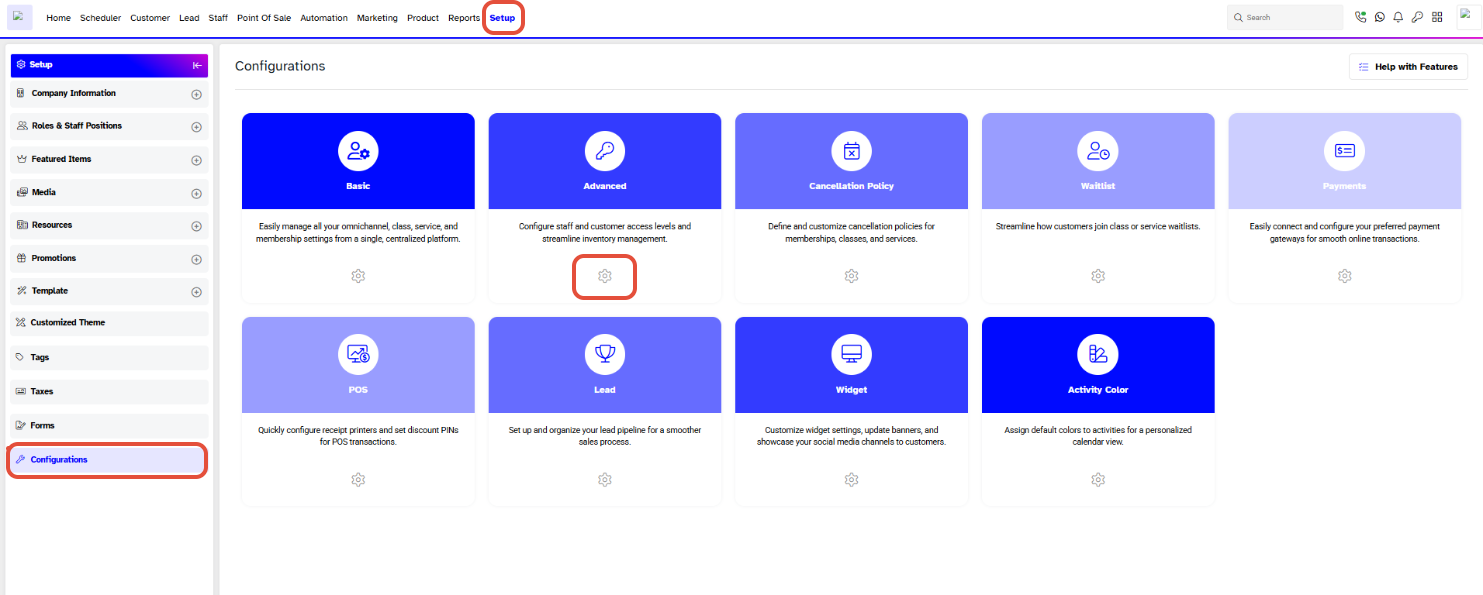
Go to the Setup Module in Core.
- Go to Configurations
- Click Advanced
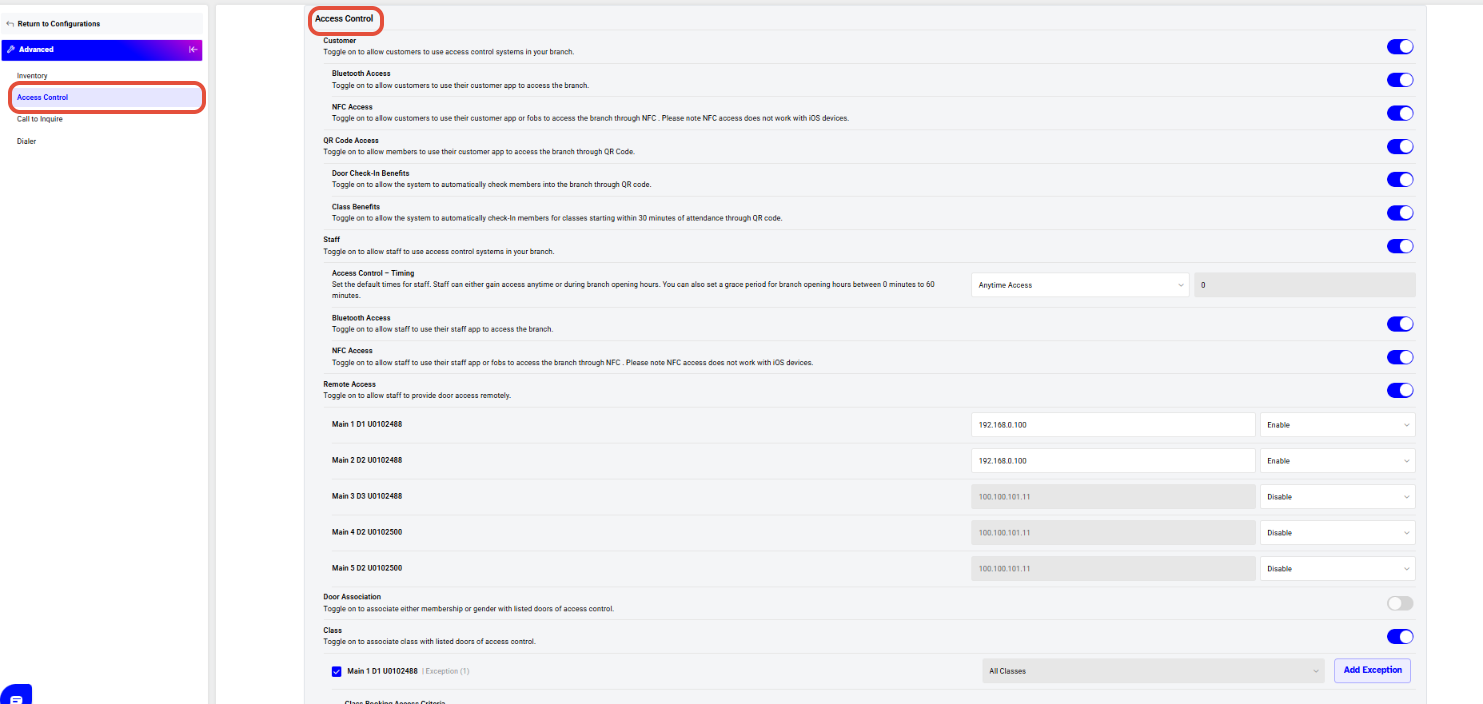
Scroll down in the Advanced Configuration to the access control
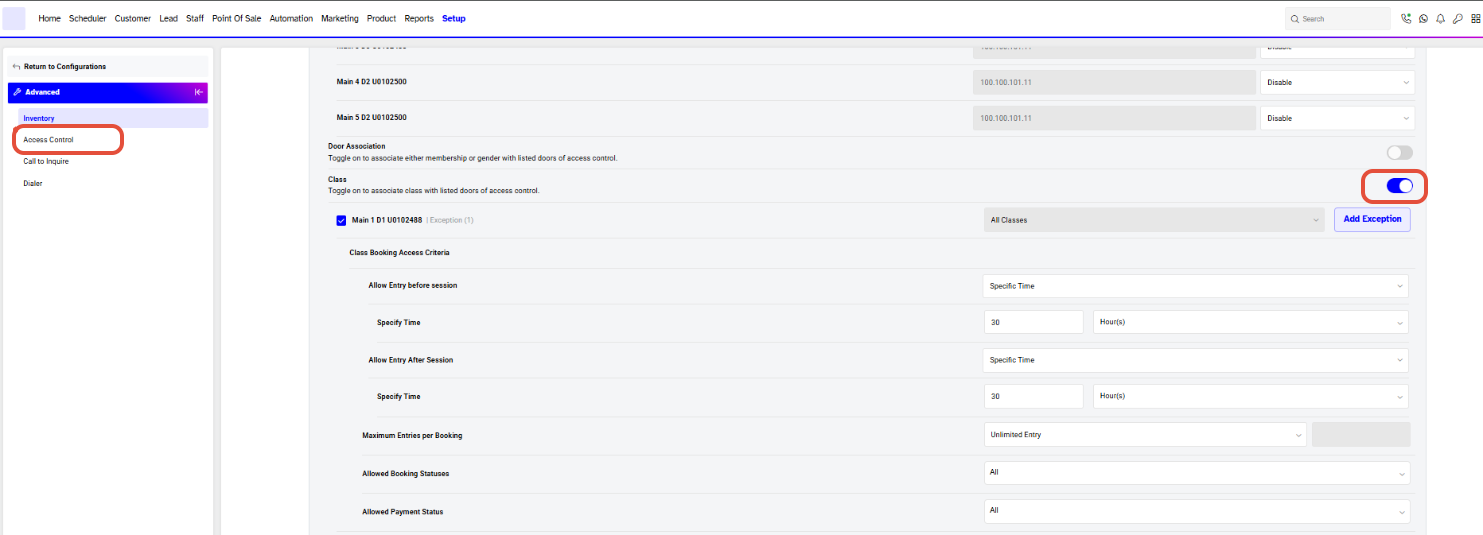
Enable Class-Based Access
This allows entry based on booked classes.
Turn ON “Class”
- Enables class-based access rules
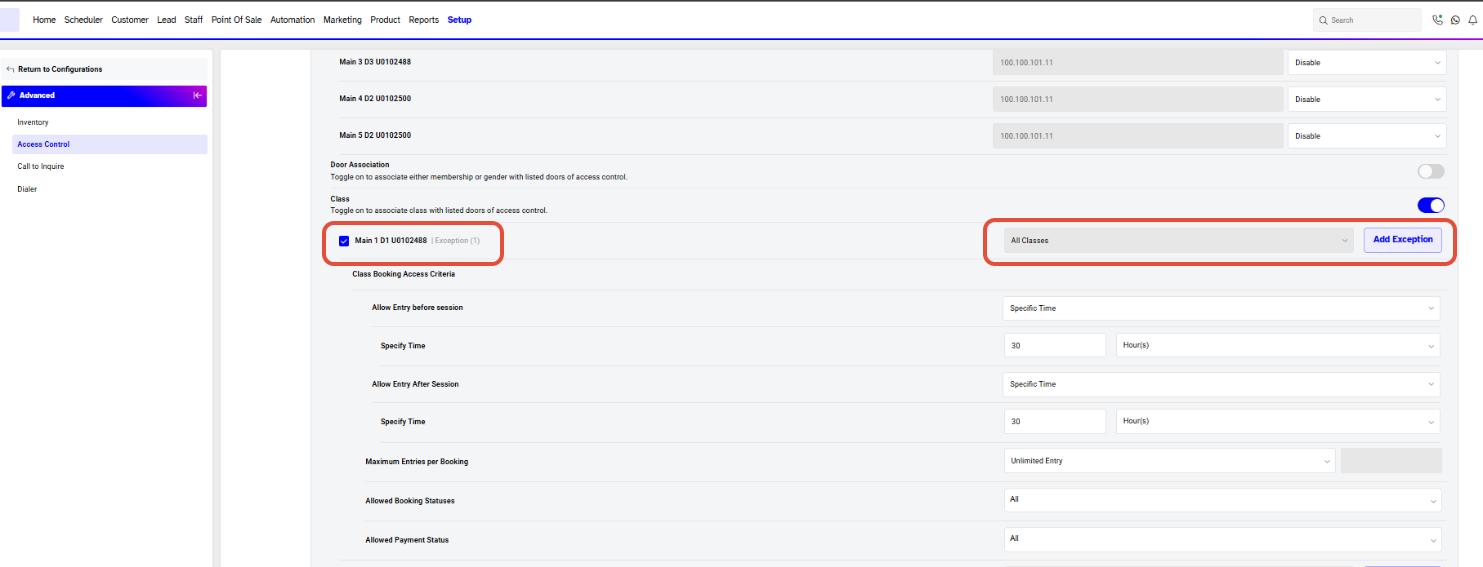
Configure Class Booking Access Criteria
Each door can have its own rules.
Step 1: Select Door
- Choose a door (e.g., Main Entrance)
Step 2: Assign Classes
- Select:
- All Classes, or
- Specific classes
- Use Add Exception to exclude certain classes
Define Entry Rules
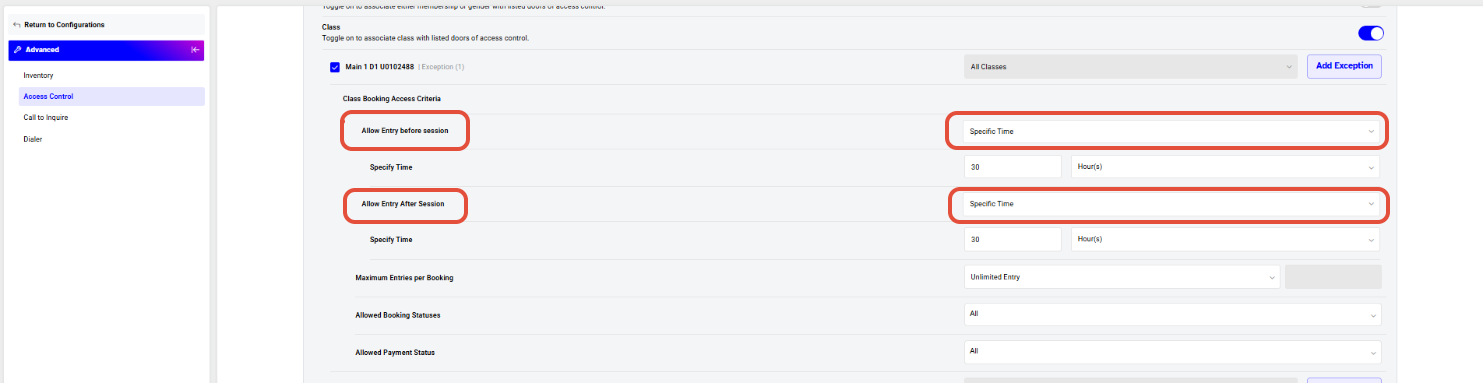
Allow Entry Before Session
- Choose Specific Time
- Example: 30 minutes before class
Allow Entry After Session
- Choose Specific Time
- Example: 30–45 minutes after class
Set Booking Limits
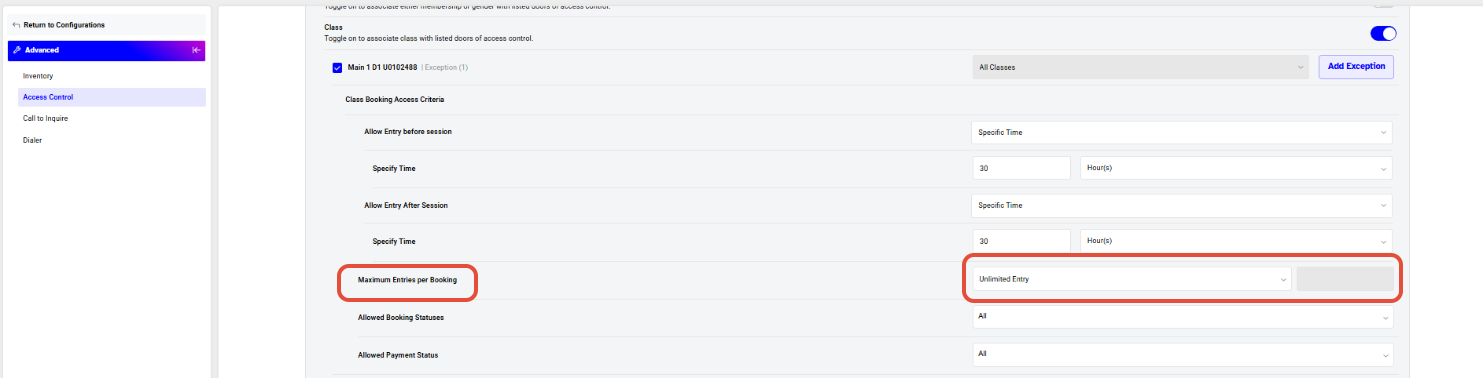
Maximum Entries per Booking
- Unlimited Entry – No restriction
- Or limit number of entries per booking
Restrict by Booking Status
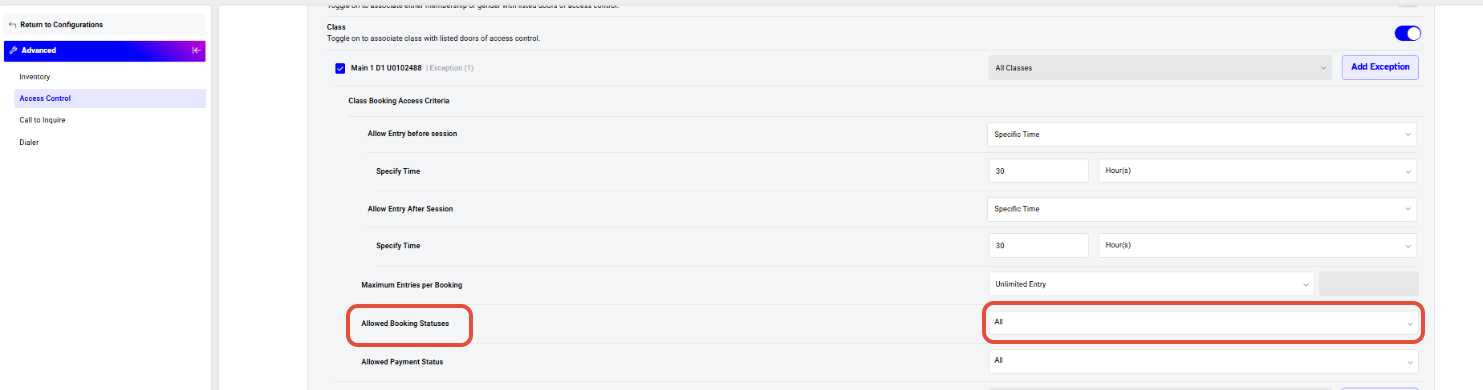
Allowed Booking Statuses
- Example:
- Booked
- Cancelled
- Select All or customize
Restrict by Payment Status
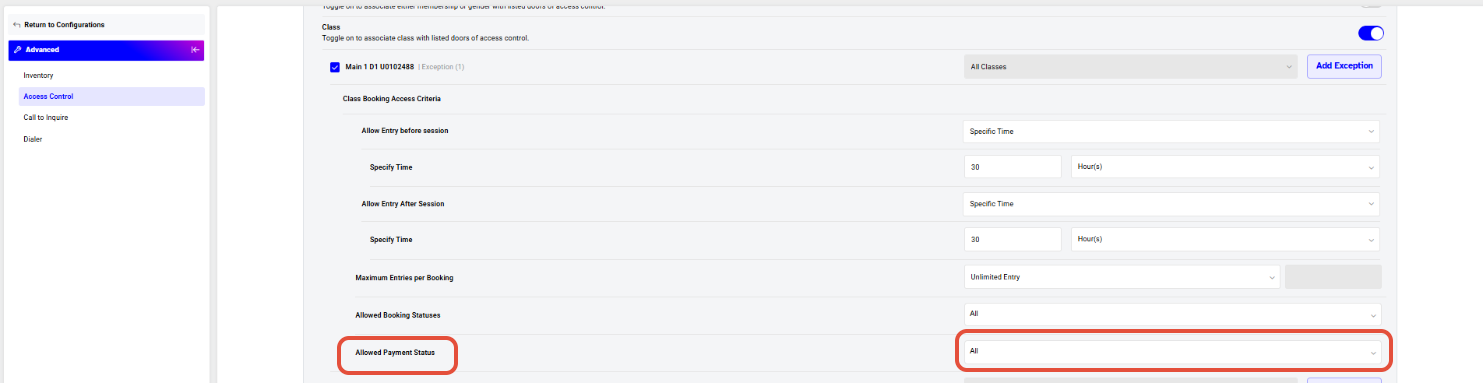
Allowed Payment Status
- Example:
- Paid
- Unpaid
- Helps prevent access for unpaid bookings
Once done, click on the Save Button.





