TABLE OF CONTENTS
- Overview
- Step 1: Navigate to Classes
- Step 2: Add a New Class
- Step 3: Enter Class Details
- Step 4: Configure Class Settings
- Step 5: Save the Class
Overview
This guide explains how to create a Class in Core. It covers every step, from entering class details and uploading images to configuring booking and cancellation settings. By following this guide, merchants can easily set up classes that customers can view and book online.
Step 1: Navigate to Classes
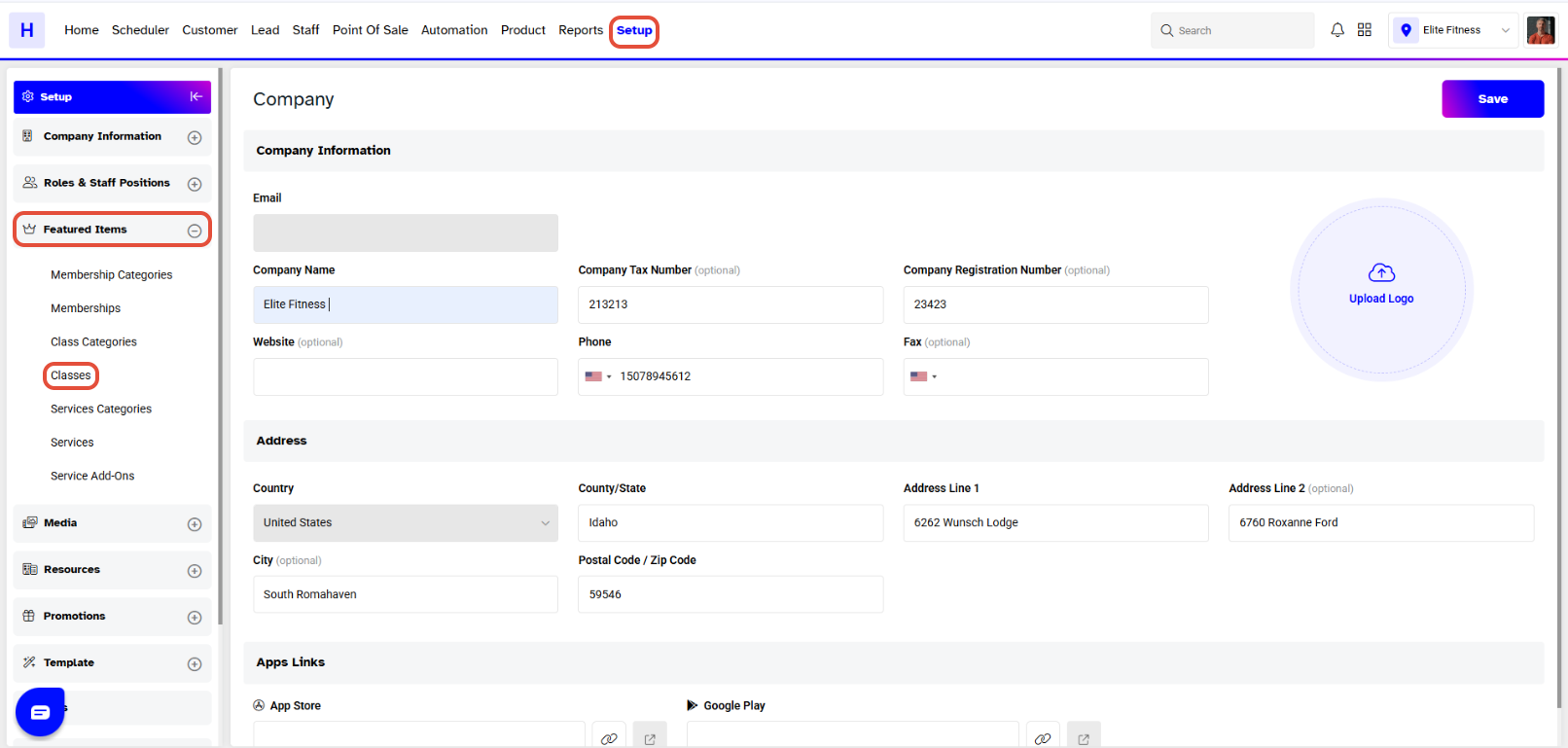
Go to the Setup module in Core.
Click on the Featured Items tab.
Select Classes from the Featured Items tab.
Step 2: Add a New Class
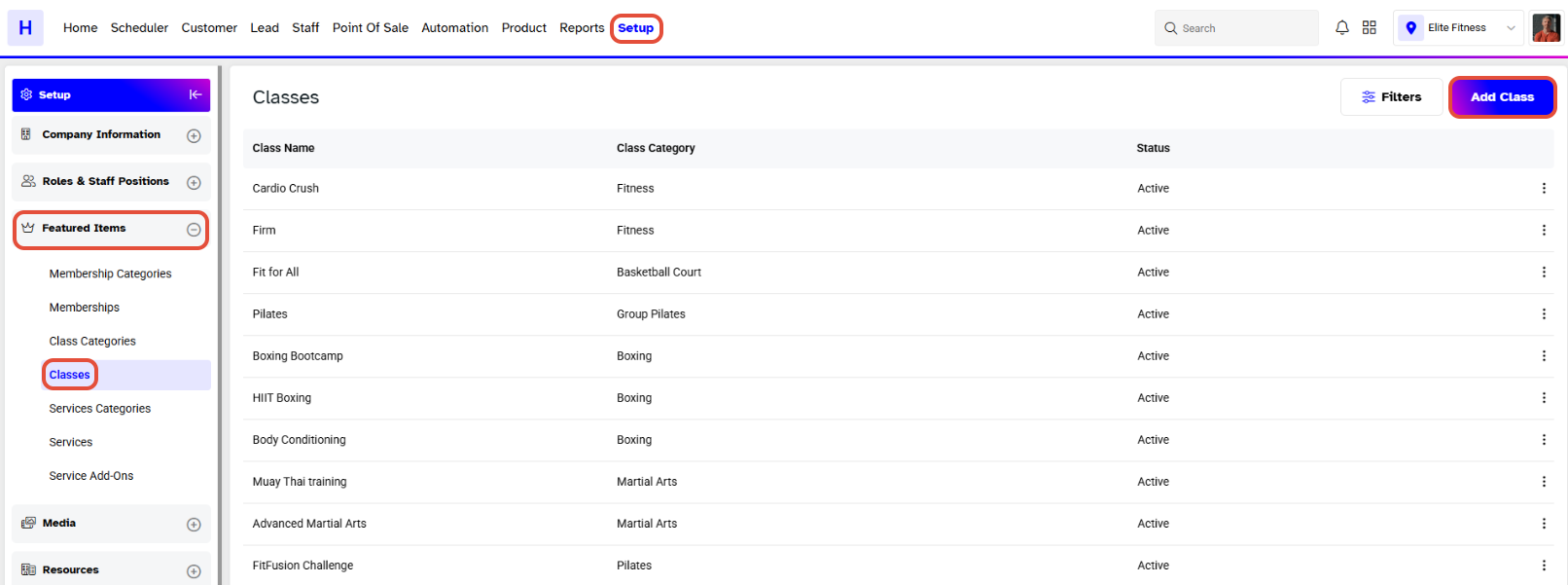
Click on the Add Class button.
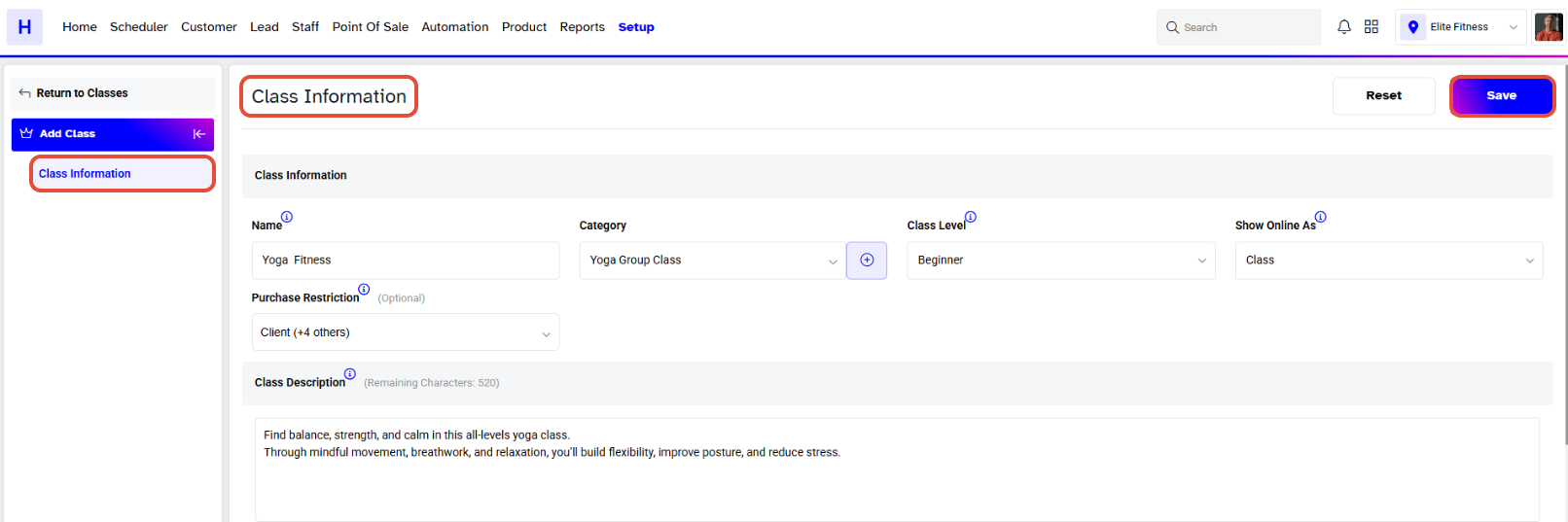
The Class Information Box will appear on the screen.
Step 3: Enter Class Details
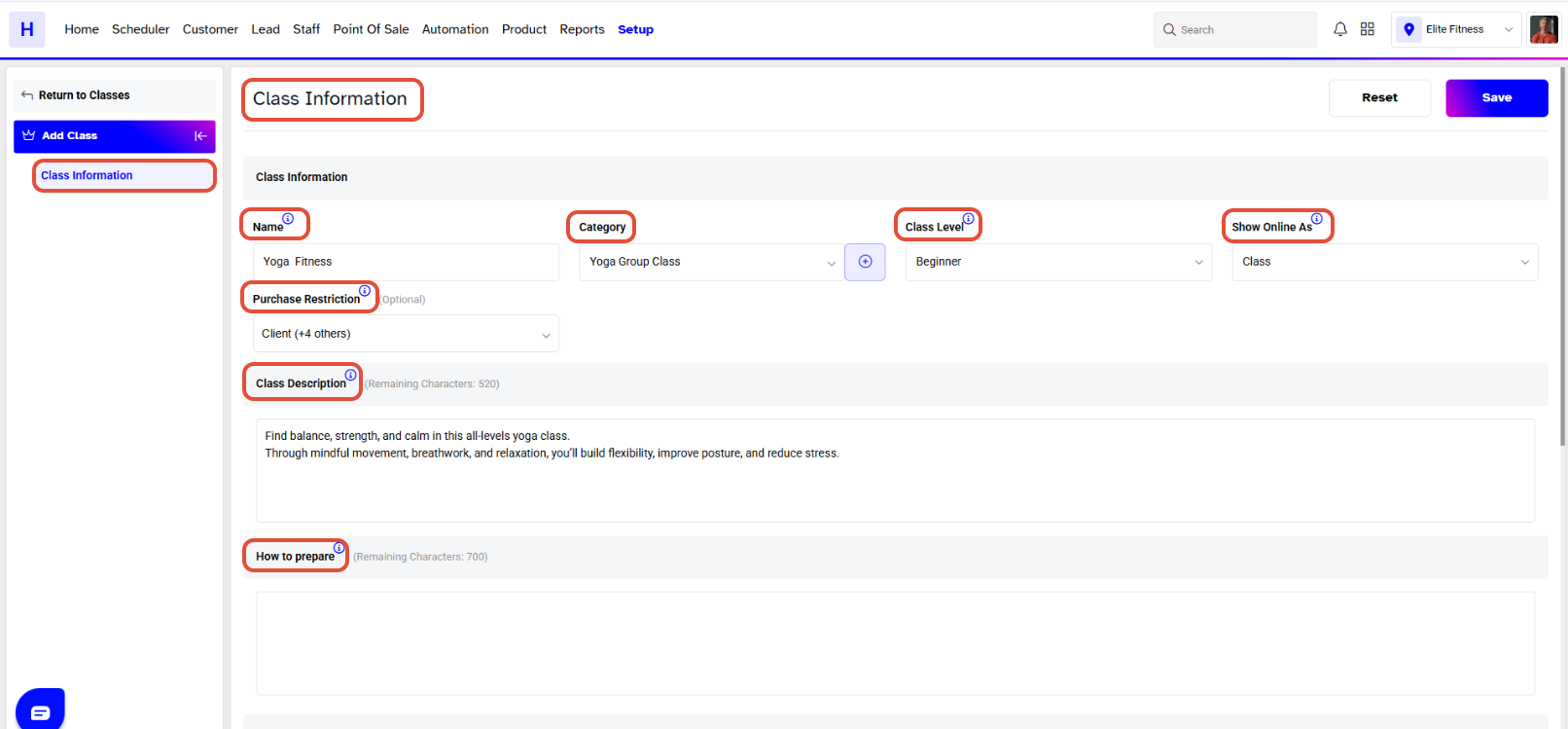
Fill in the following fields in the Class Section:
Class Name (Mandatory): Enter a unique name for the Class.
Class Category (Mandatory): Choose from a pre-existing Class Category or create a new one by clicking the + button.
Class Level (Optional): Select the Class Level — Beginner, Intermediate, or Advanced.
Show Online As (Optional): Choose how the Class appears online — as a Class or an Event.
Purchase Restriction (Optional): Apply purchase limits if needed.
Class Description (Optional): Add a description (up to 700 characters).
How to Prepare (Optional): Add preparation instructions for customers.
Step 4: Configure Class Settings
In the Class Configuration section, define class booking and cancellation preferences:
Booking Starts Before (Optional):
Specify how long before the class customers can start booking (in minutes, hours, or days).A value of
0or leaving it blank allows booking as soon as it’s available online.- Exceptions can be added for different customer types — Member, Client, Lead.
The Merchants can add Exceptions for Booking Starts Before based on Customer Types (Member, Client, Lead).
There is no Start Booking Exception for the new Customer. New Customers who have not been added to the system must follow the Booking Start Time set in the Class Configuration.
Booking Closes Before (Optional):
Define when booking will close before the class start time.A value of
0or blank allows booking until the last minute.
Cancellation Ends Before (Optional):
Specify how long before the class start time a customer can cancel.A value of
0or blank allows cancellation up to the last minute.Class Duration (Minutes) (Optional):
Set the total duration of the class session in minutes.

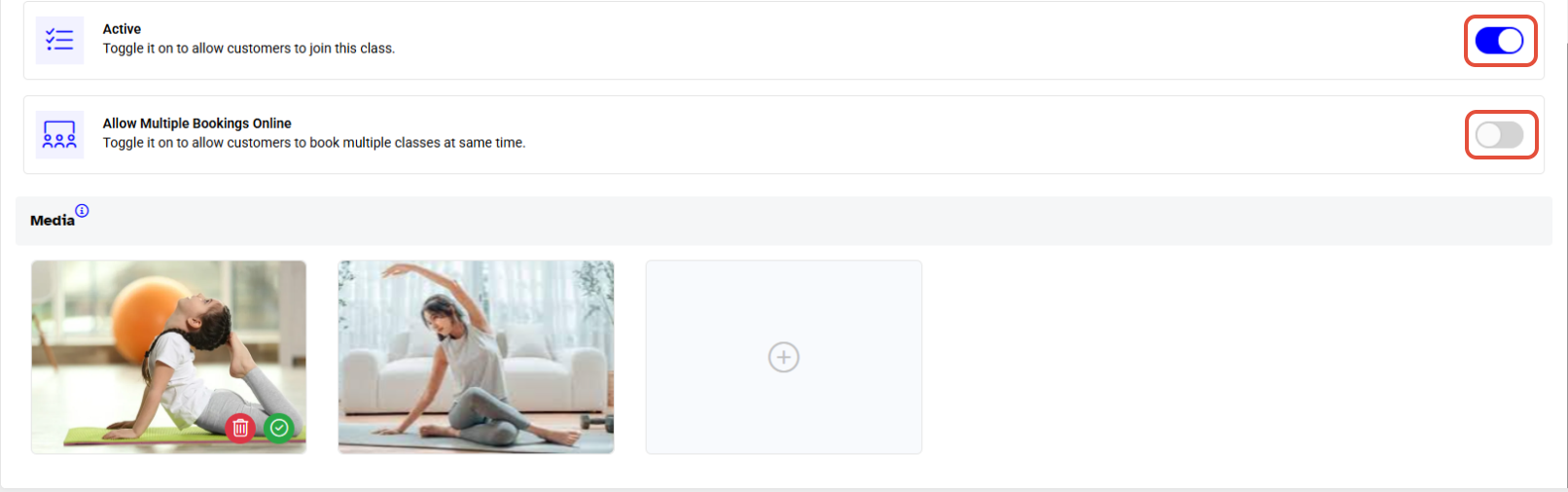
Active Toggle:
Turn Active On/Off to activate or deactivate the Class.
Inactive Classes are not visible to customers.Allow Multiple Bookings Online:
Toggle this option ON if you want customers to book recurring classes online.
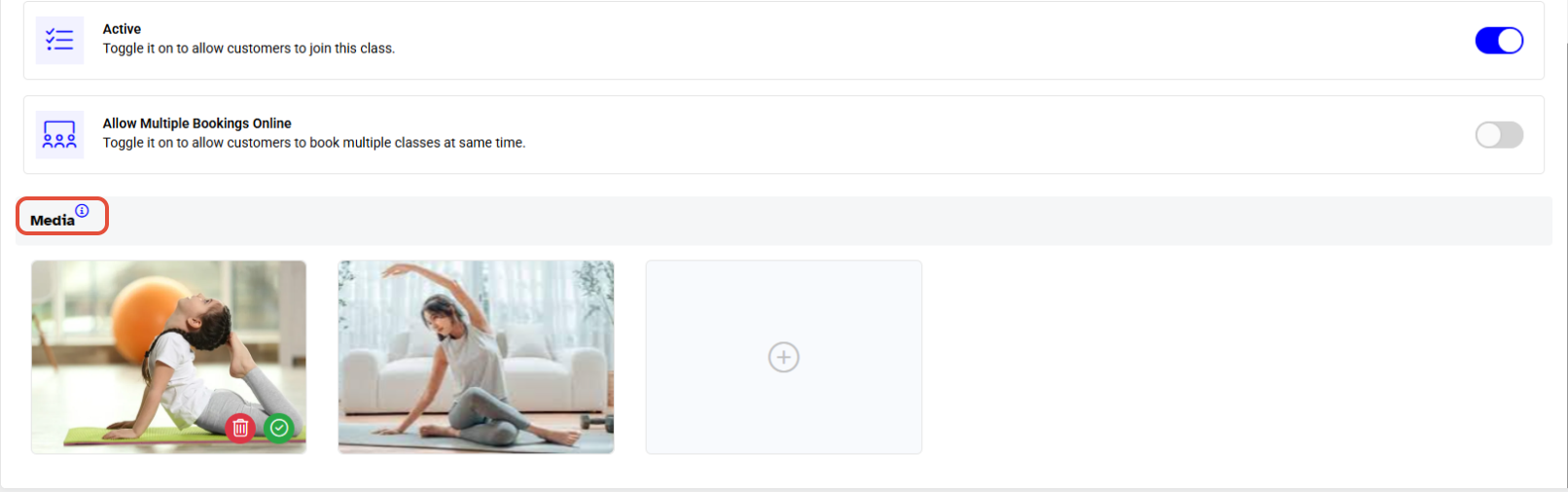
Step 5: Media
Image (Optional): Upload up to five images for the Class.
Recommended Image Size: 720 × 460 pixels.
Step 6: Save the Class
Once all details are added, click on the Save button to confirm.
The new class will now appear in the class list.