


TABLE OF CONTENTS
- Step 1: Navigate to the Scheduler
- Step 2: Select the Class
- Step 3: Edit the Series
- Step 4: Enable the Is Featured Toggle
- Step 5: Save the Changes
Overview
This guide explains how to enable the Is Featured toggle for a Class in Core. By following this guide, merchants can ensure that specific classes appear on the Home Page of the Widget and the Featured Page on the Customer App.
Step 1: Navigate to the Scheduler
- Go to the Scheduler module in Core.

Step 2: Select the Class
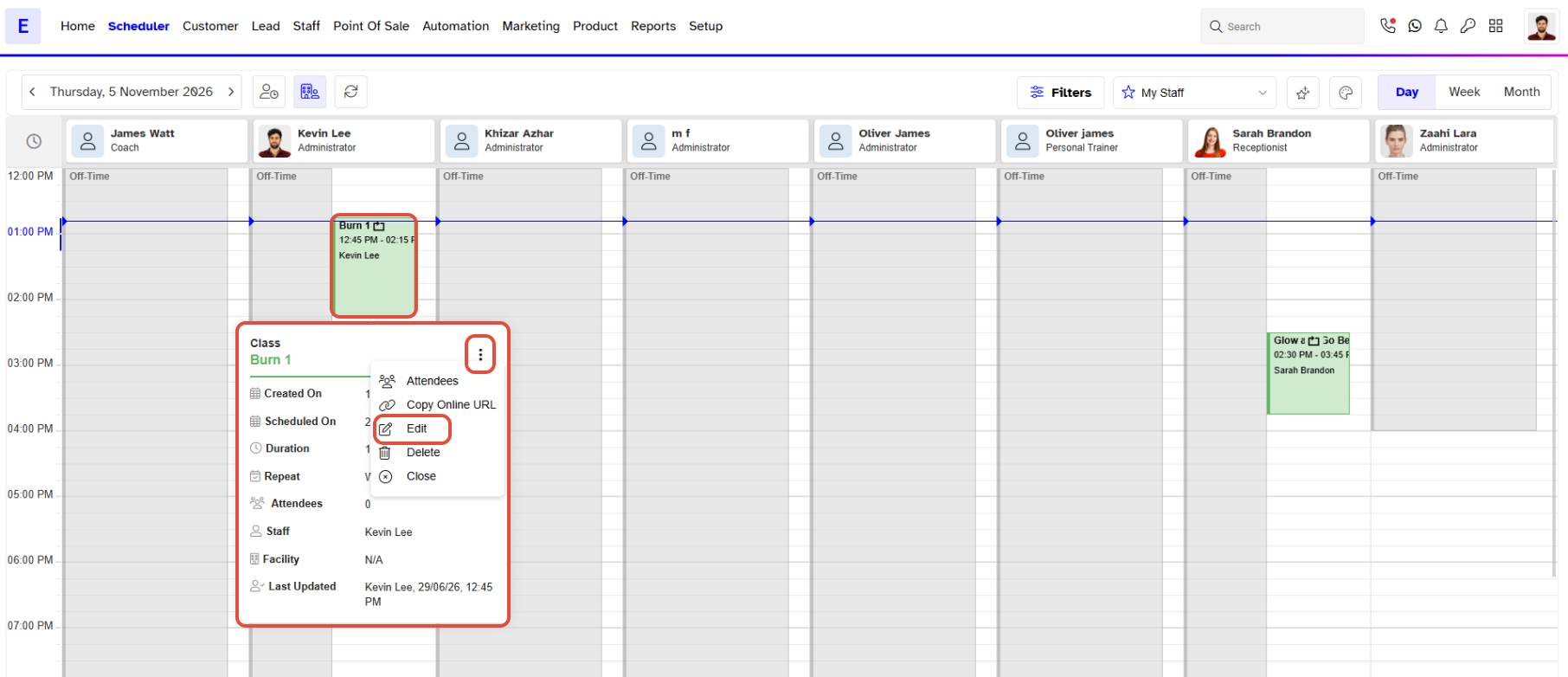
- Locate the desired class and click on the Edit Icon.
Step 3: Edit the Series
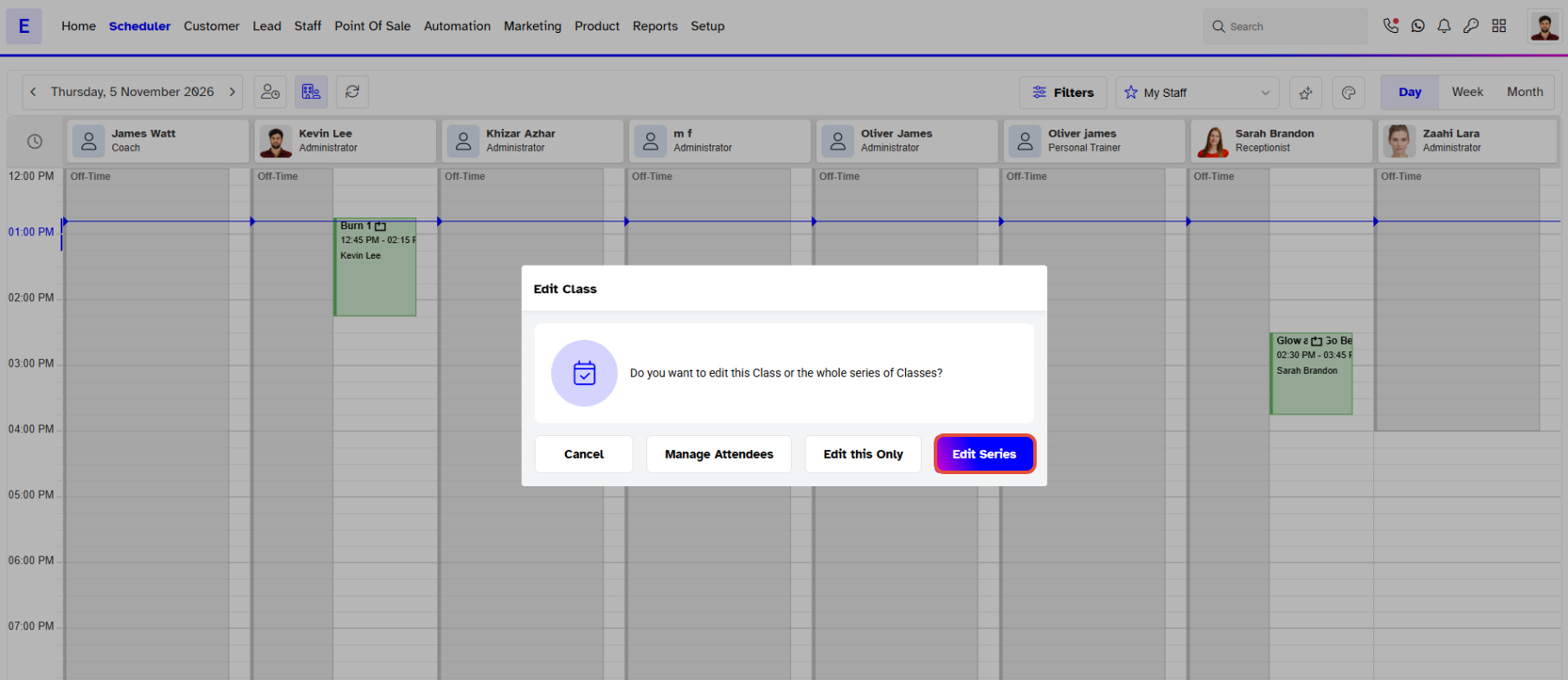
- In the Edit Series Box, click on the Edit Series button.
Step 4: Enable the Is Featured Toggle
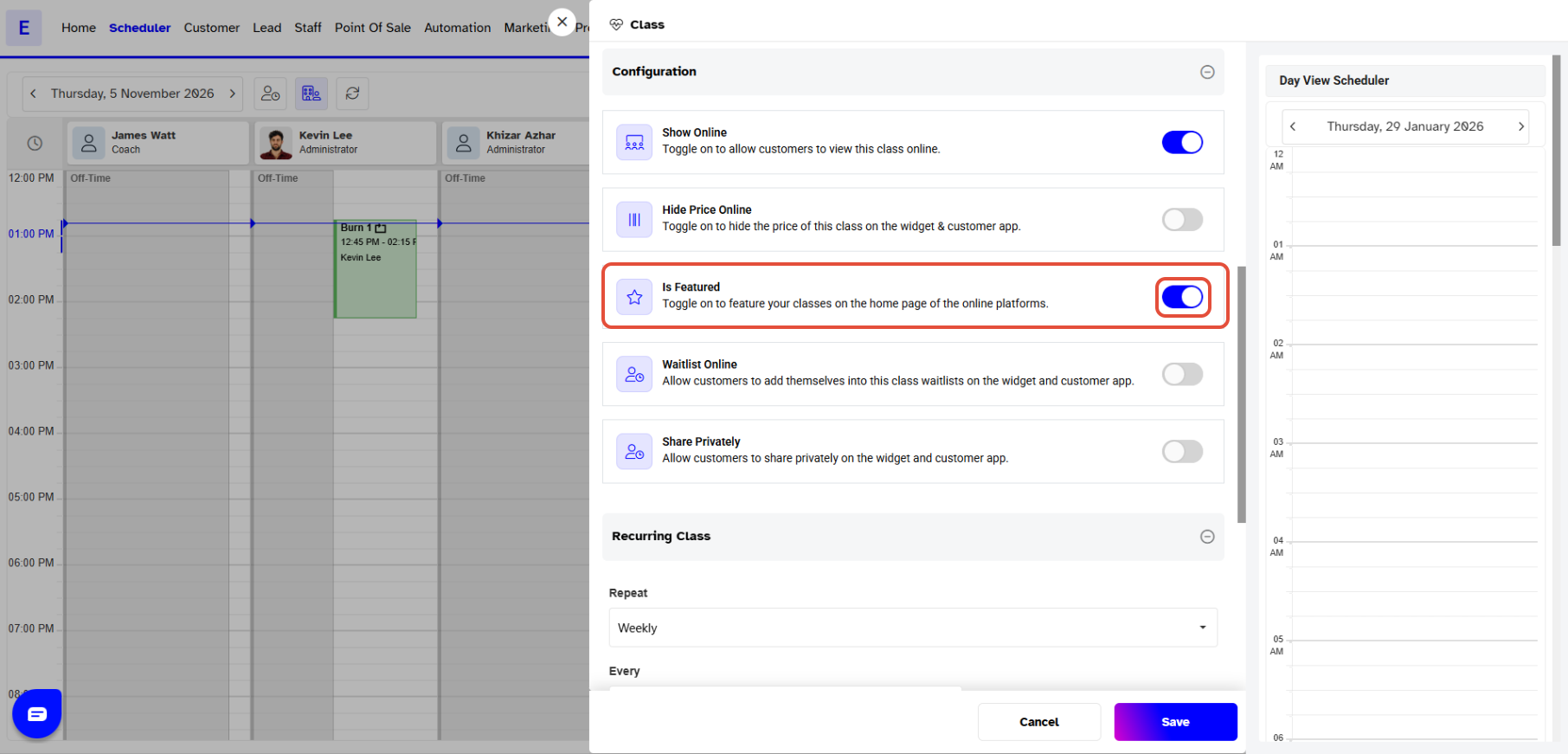
- Toggle the Is Featured button to the ON position.
Step 5: Save the Changes
- Click on the Save button to confirm the changes.
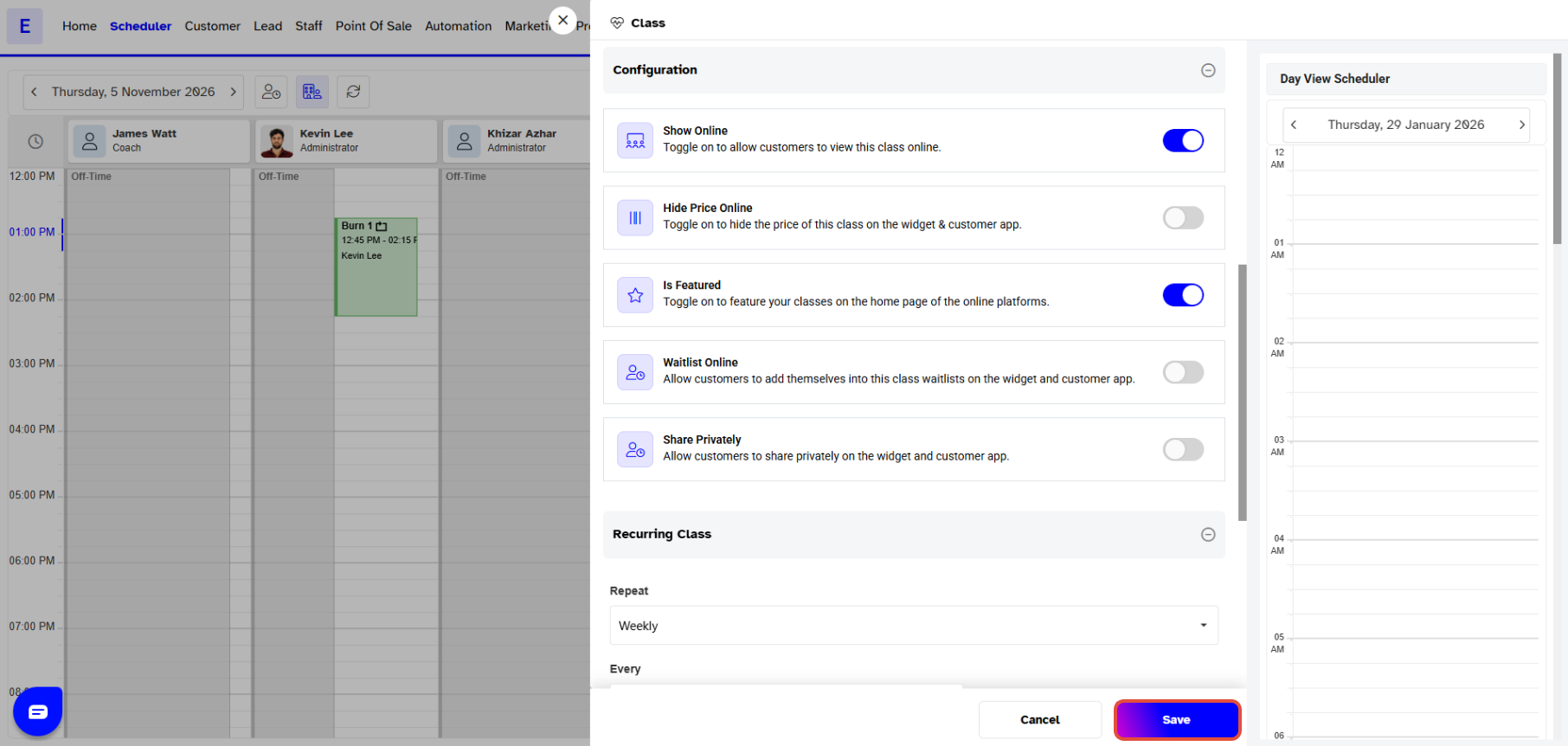
Classes that have Is Featured toggle on will appear at the Home Page on the Widget and the Featured Page on the Customer App.


