TABLE OF CONTENTS
- Step 1: Navigate to Featured Items
- Step 2: Add a New Category
- Step 3: Enter Category Details
- Step 4: Save the Category
Overview
This guide explains how to create a Class Category in Core. It covers every step, from navigating to the category settings and defining category names to associating colors and saving the entry. By following this guide, merchants can organize their classes effectively.
Step 1: Navigate to Featured Items
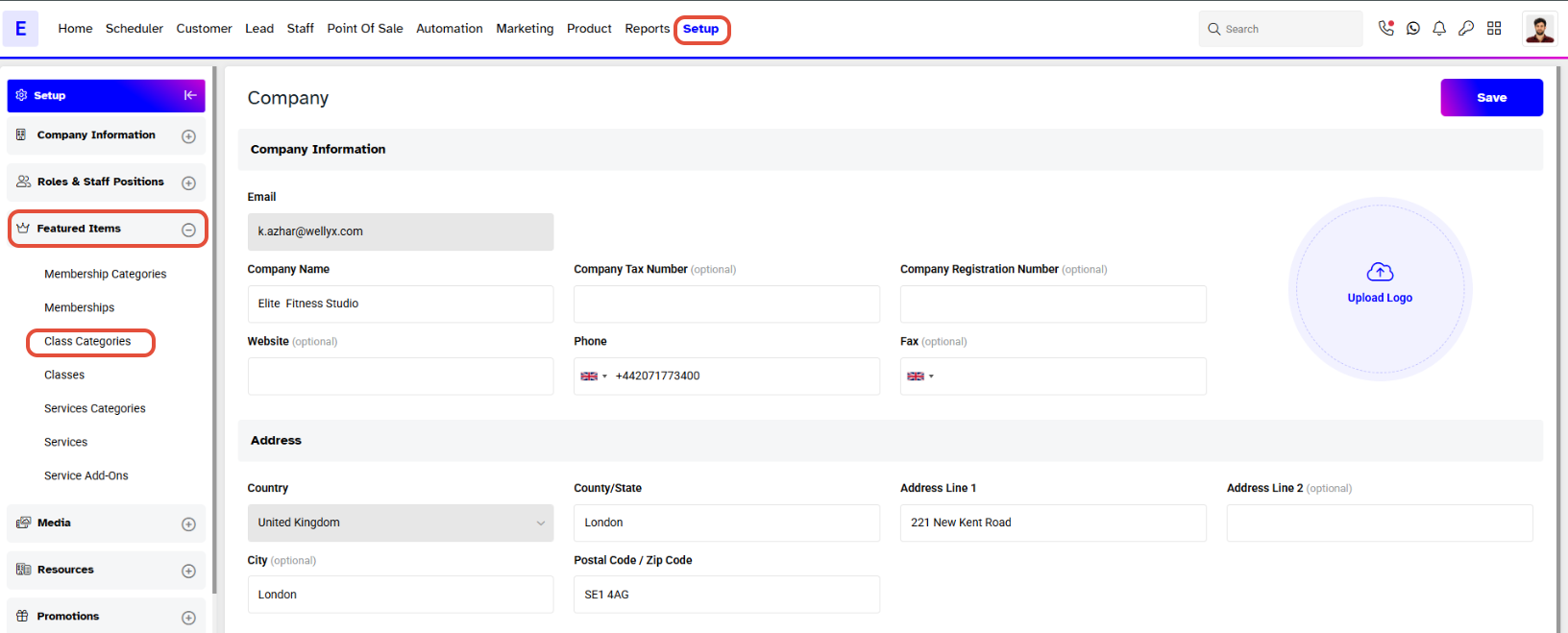
- Go to the SetupModule in Core.
- Click on the Featured Tab and choose Class Categories from the Dropdown Menu.
Step 2: Add a New Category
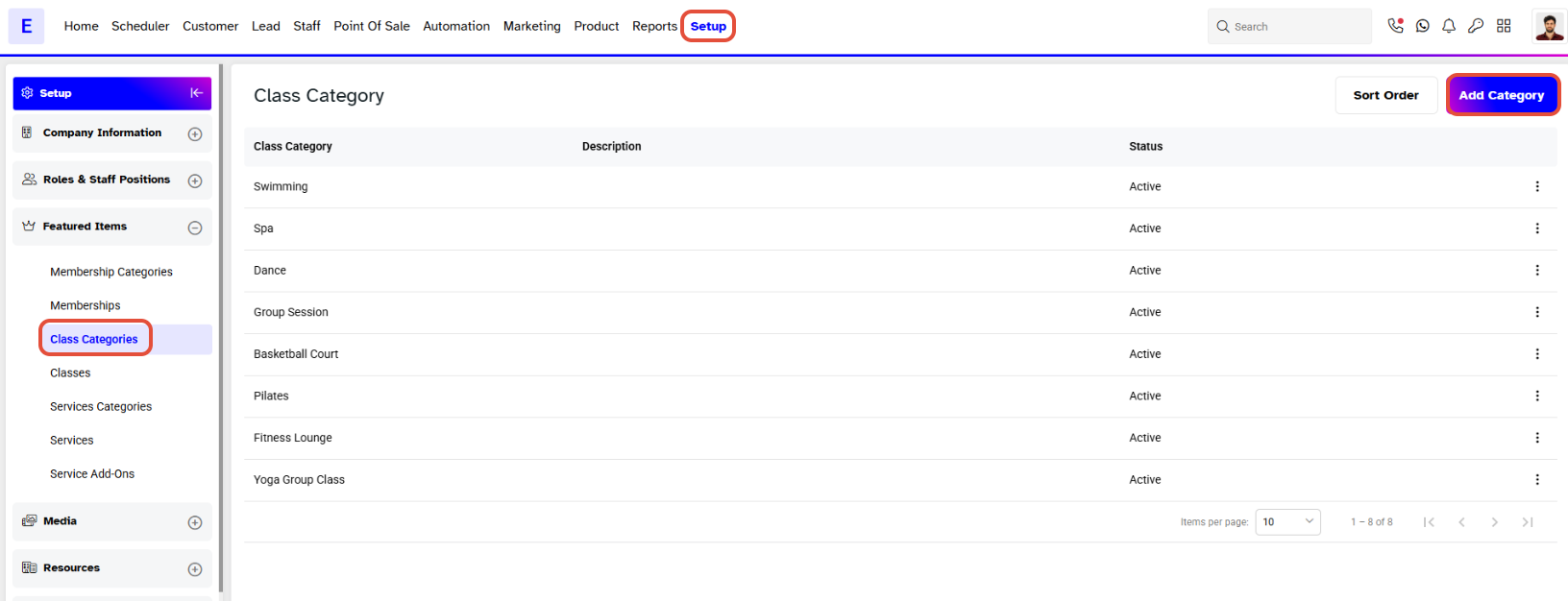
- Now, click on the Add Category Button.
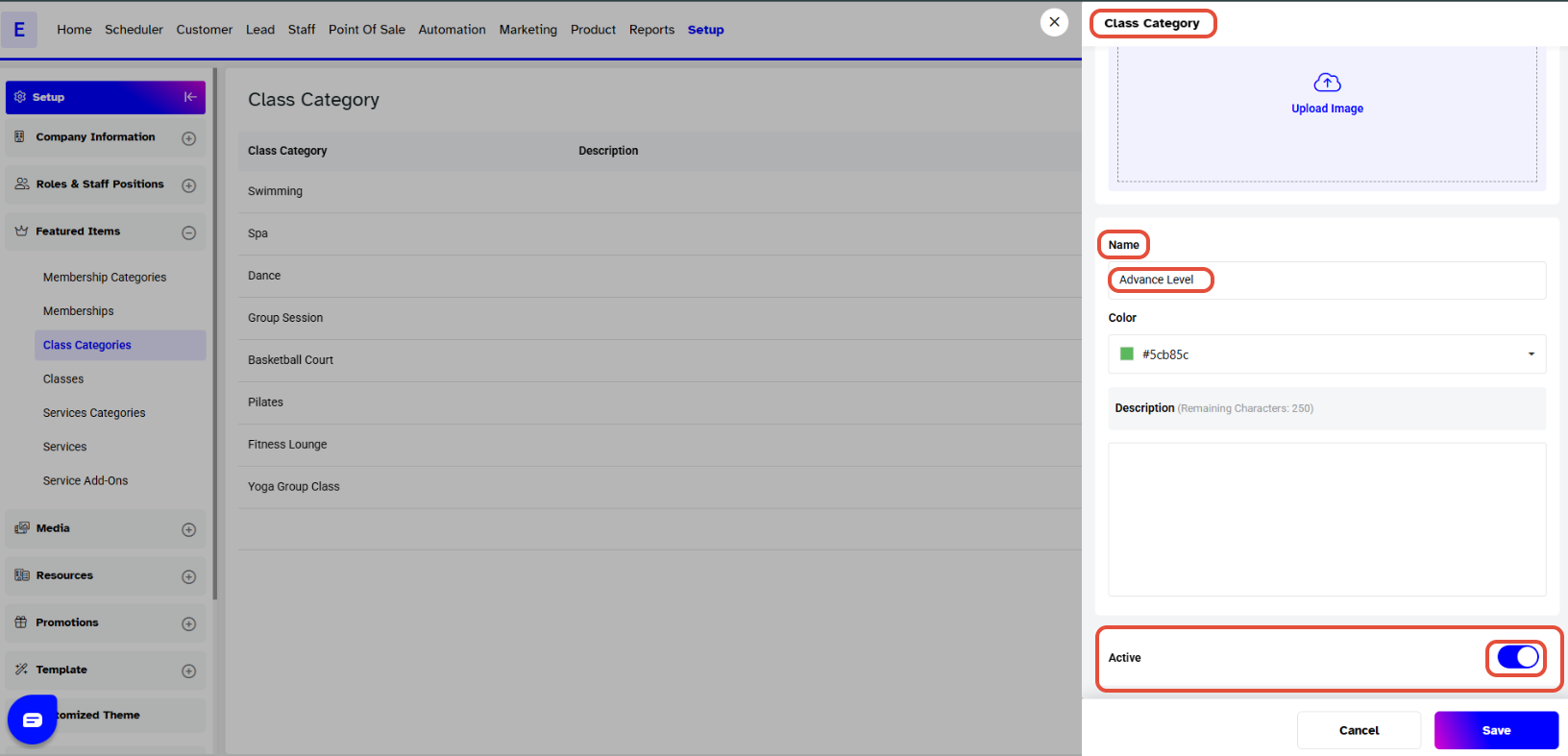
- The Class Category box will appear on the screen.
Step 3: Enter Category Details
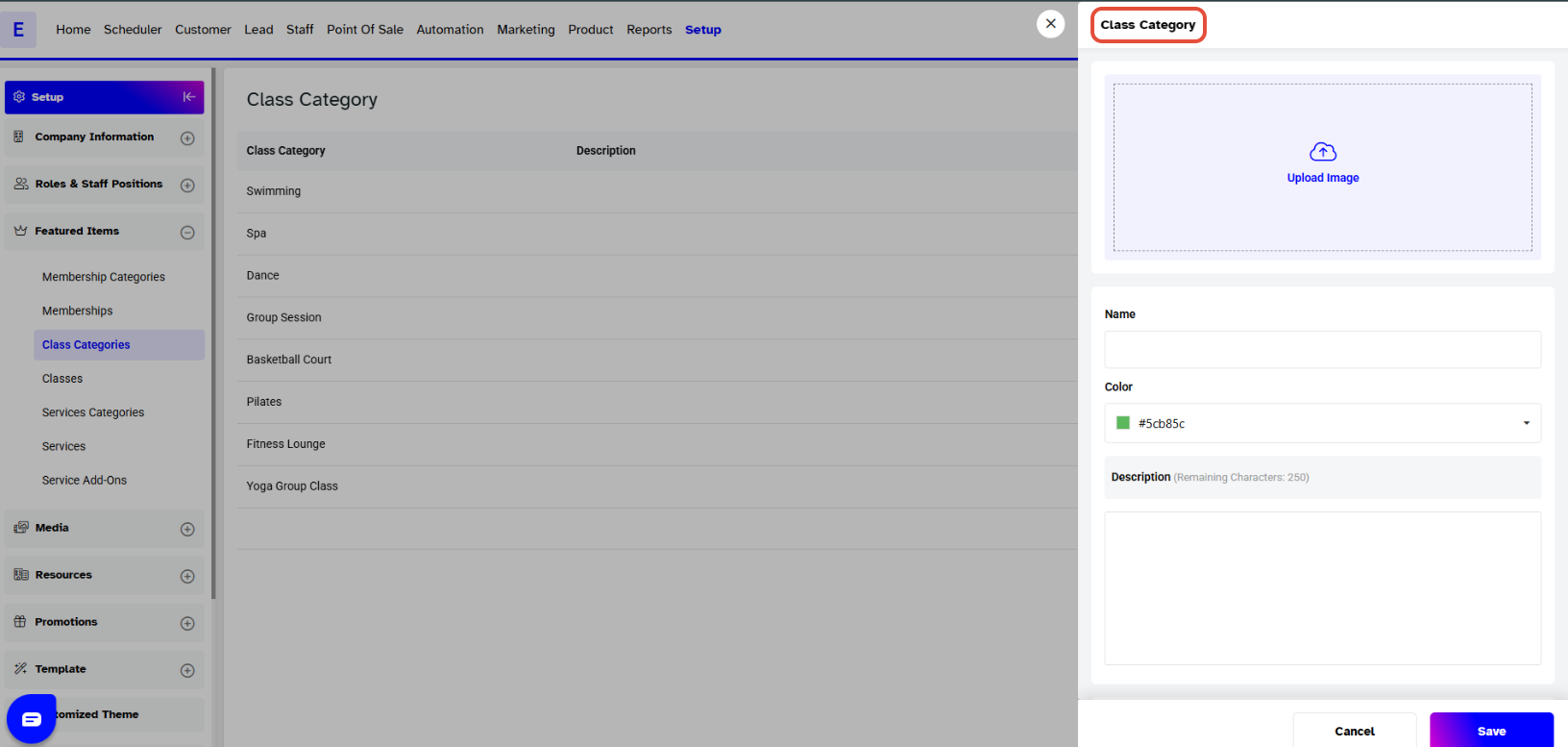
Configure the following fields for the Class Category:
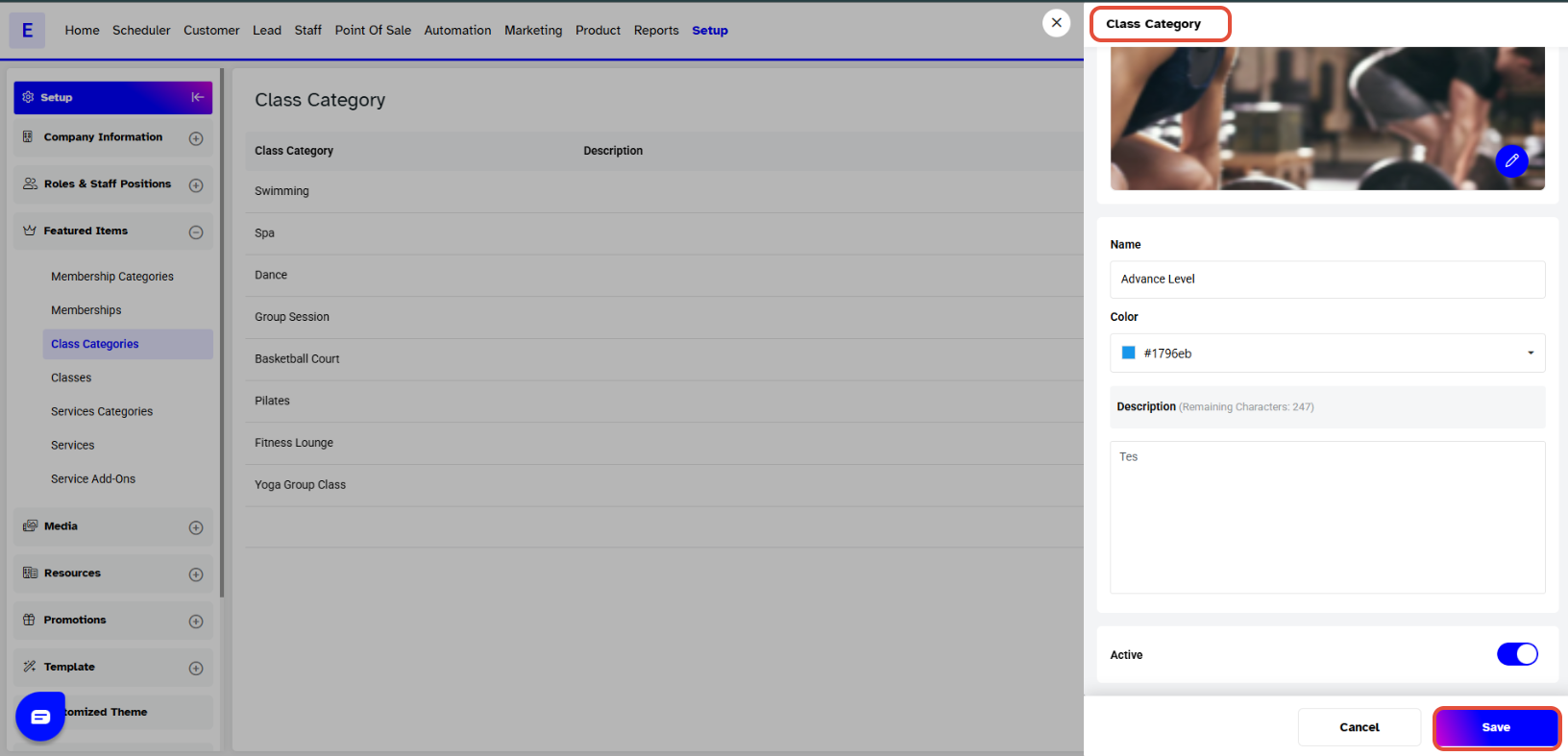
Active Toggle: Turn Active On/Off to activate or deactivate the Category.
Category Name (Mandatory): Enter the name of the Category in the Name field.
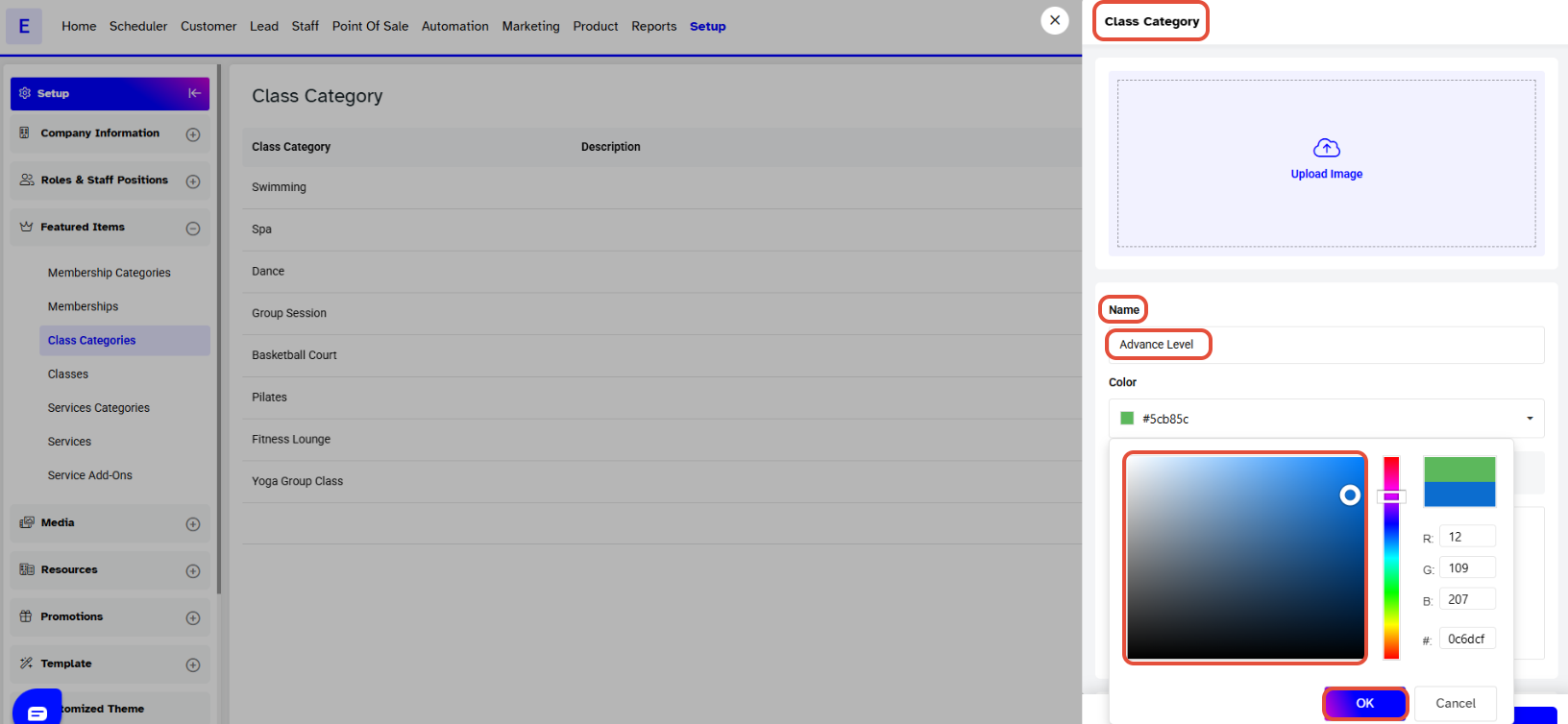
Color (Optional): Associate a color with the Class Category from the dropdown menu. The assigned color will appear on the Scheduler when a Class of this category is scheduled.
Merchants can also associate a Colour with a Class Category from the dropdown menu. The assigned Color will appear on the Scheduler when a Class of this Category is Scheduled.
- The Class Category Description and Image are Optional Fields that can be added if needed.
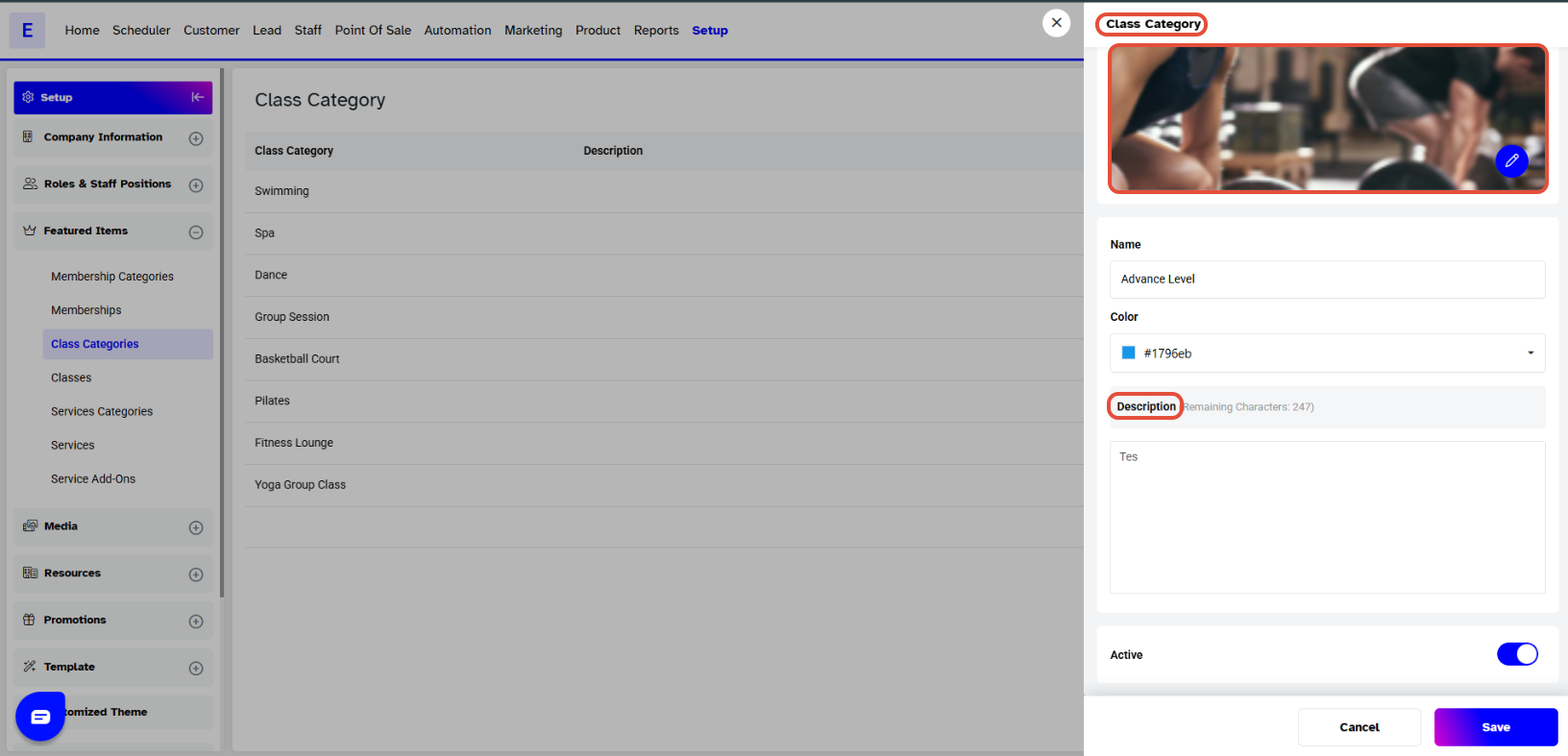
The picture uploaded for a Class Category is not visible either on the Widget or the Customer App. Hence, uploading or not uploading a picture has no affect on any Class.
Step 4: Save the Category
- Once all details are added, click on the Save button to confirm.
- The new class category will now be saved.