TABLE OF CONTENTS
- Step 1: Navigate to the Membership Promo Code Redemption Report
- Step 2: Apply Search Filters
- Step 3: Download the Report
To View the Membership Promo Code Redemption Report, follow the steps below:
Step 1: Navigate to the Membership Promo Code Redemption Report
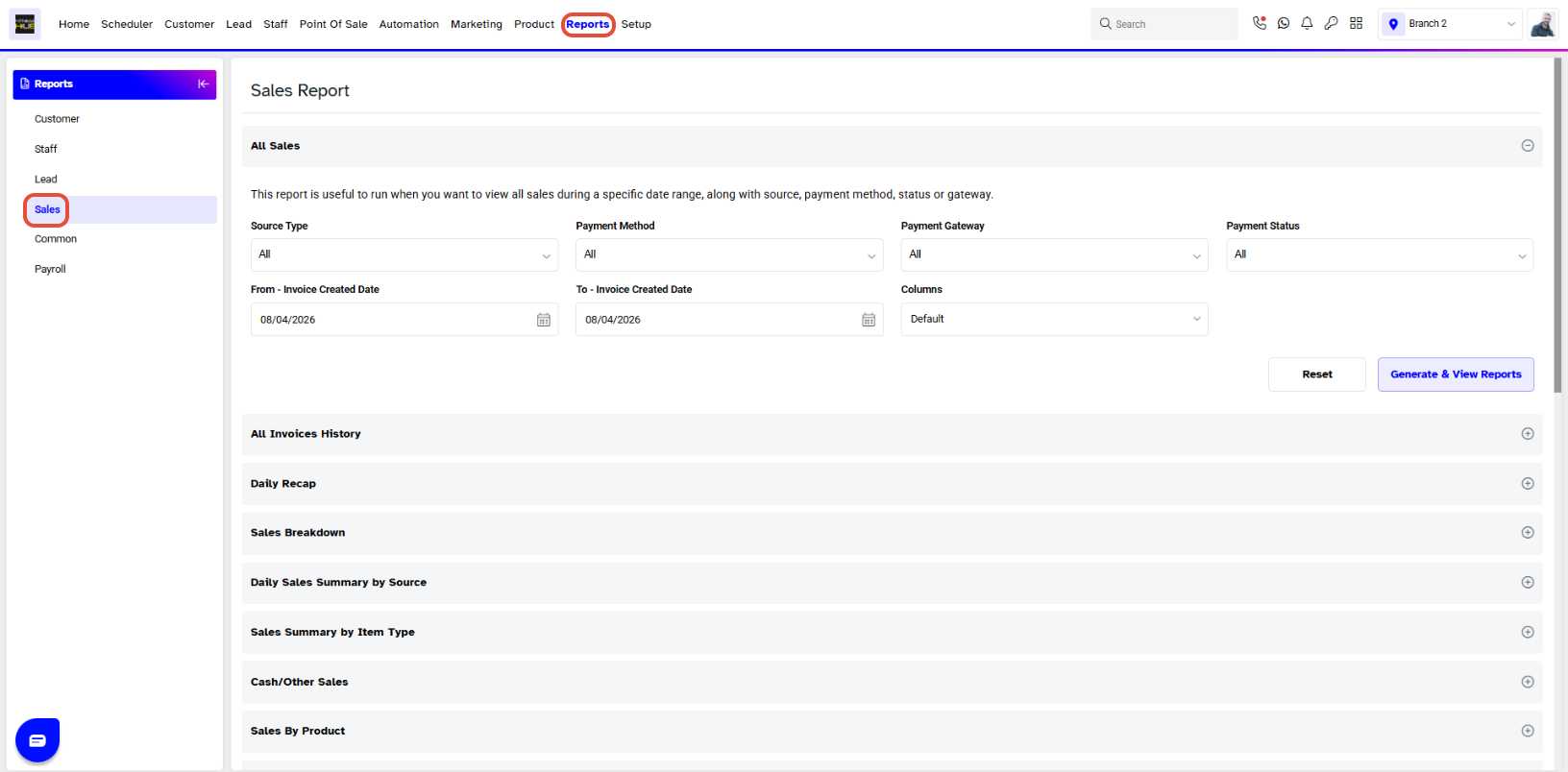
- Go to the Reports Module in Core.

- By default, the Sales Tab will open.
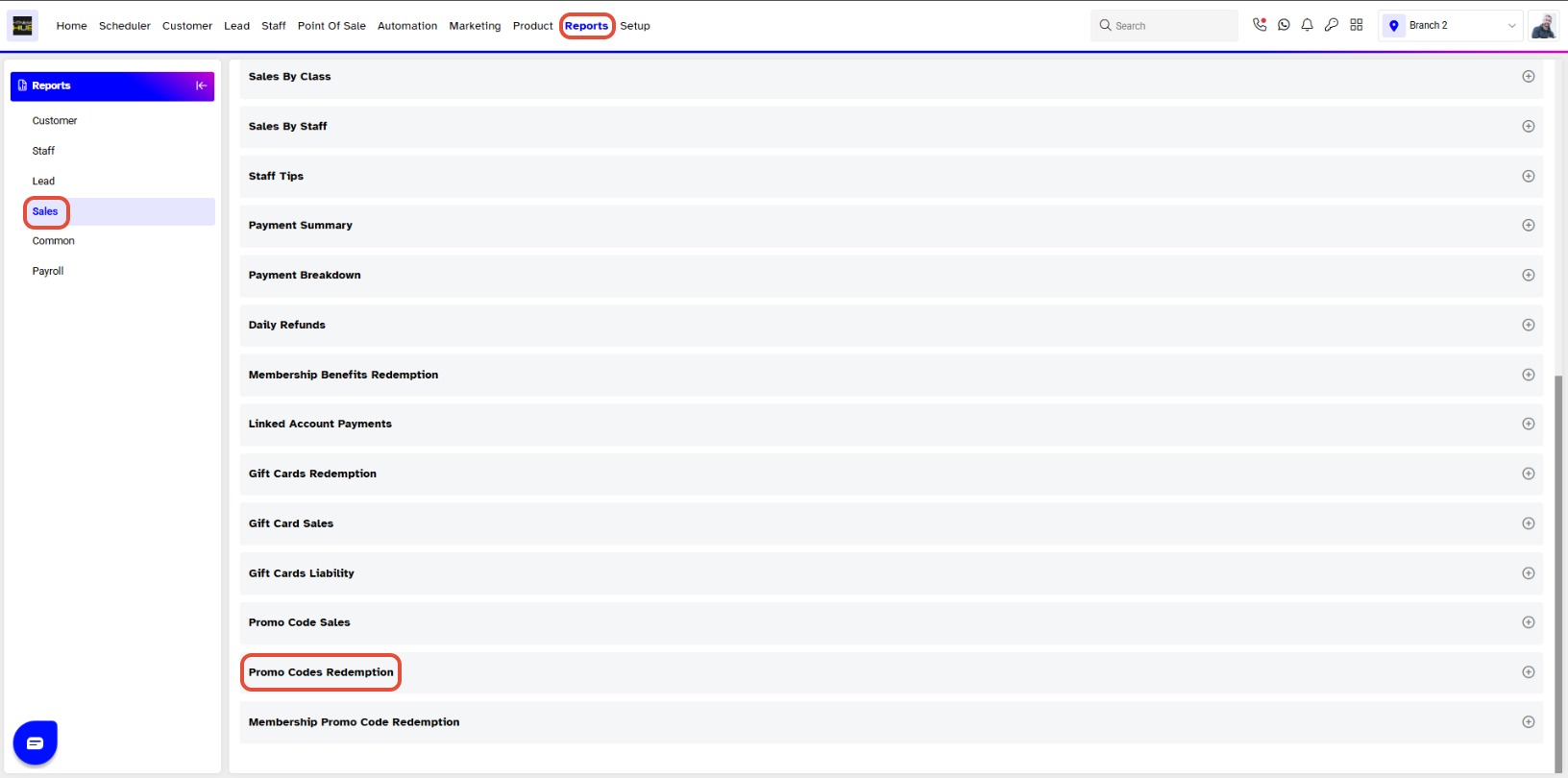
- Click on the Membership Promo Codes Redemption Report.
Step 2: Apply Search Filters
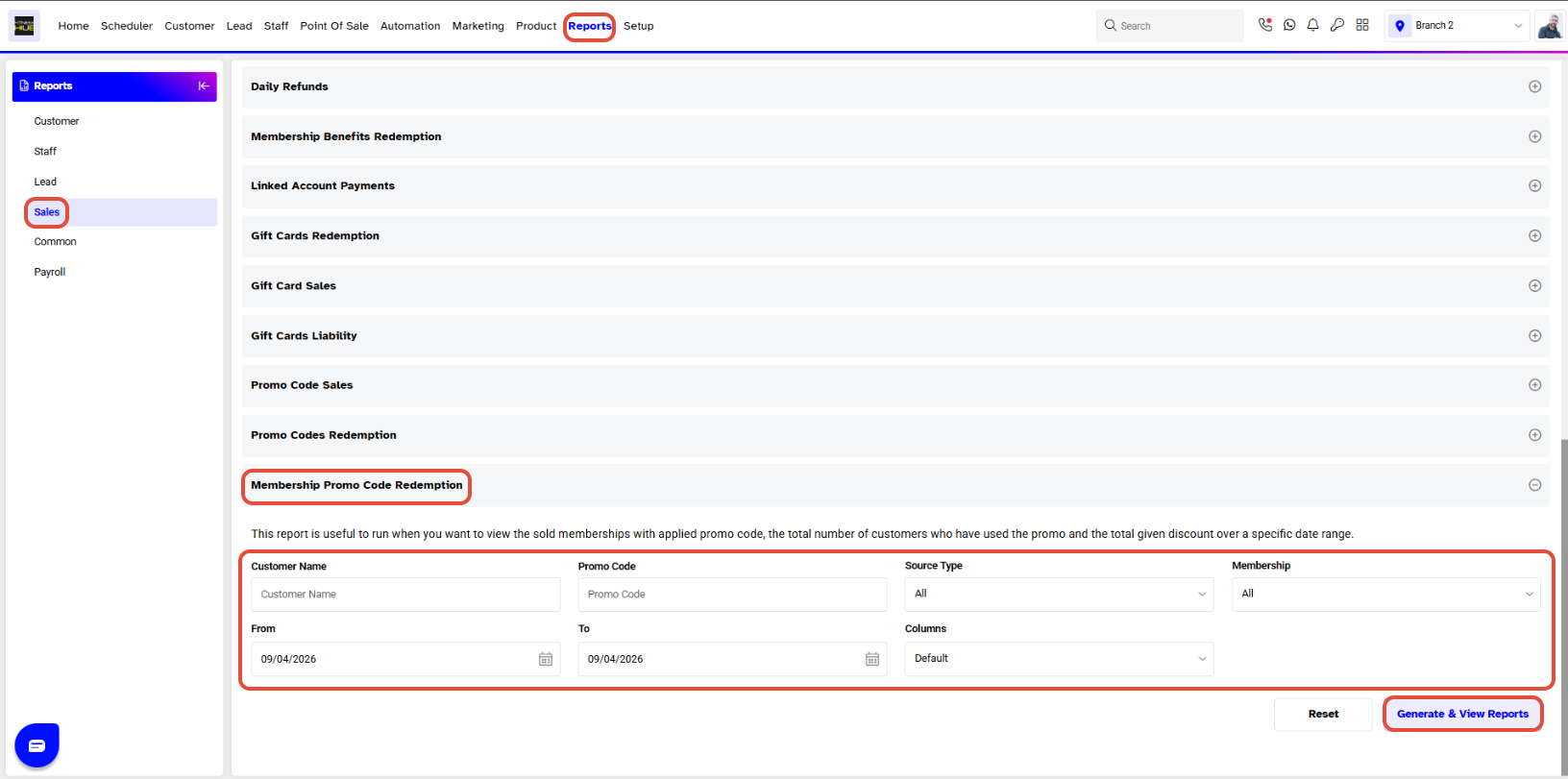
The following fields can be filled:
- Customer Name: Type the name of the Customer.
- Promo Code: Write the Promo Code Name.
- Source Type: Select Core, Widget, Customer App, Staff App, or All to view the related sales report.
- Membership: Choose the Membership from the dropdown.
- From-Invoice Created Date: Set the Start Date for the search.
- To-Invoice Created Date: Set the End Date for the search.
It is not mandatory to use all the search fields to generate the Report.
- Once done, click on the Generate and View Button.
Step 3: Download the Report
- Select your desired Report format.
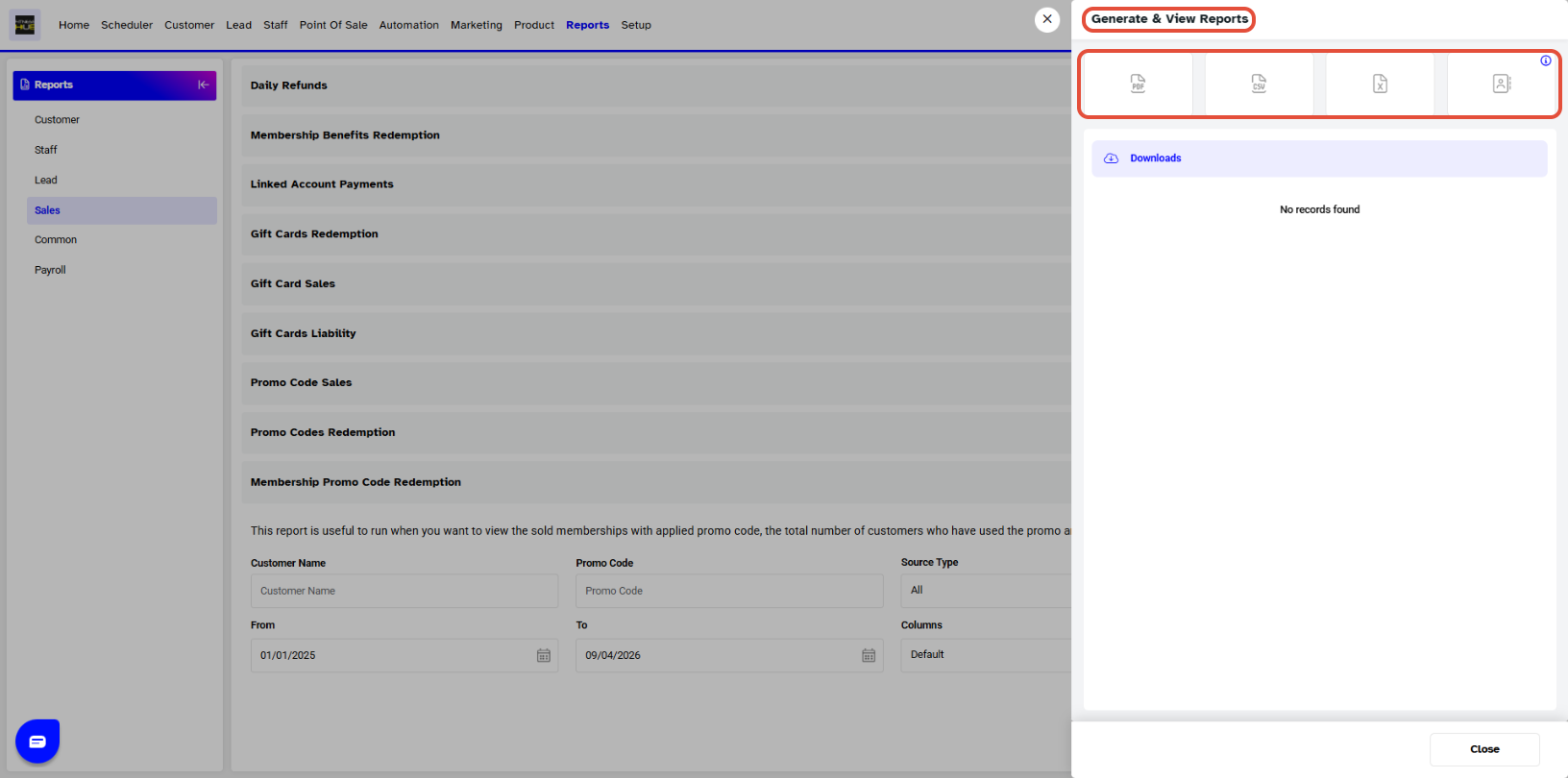
- Once clicked, The Report will be automatically downloaded.
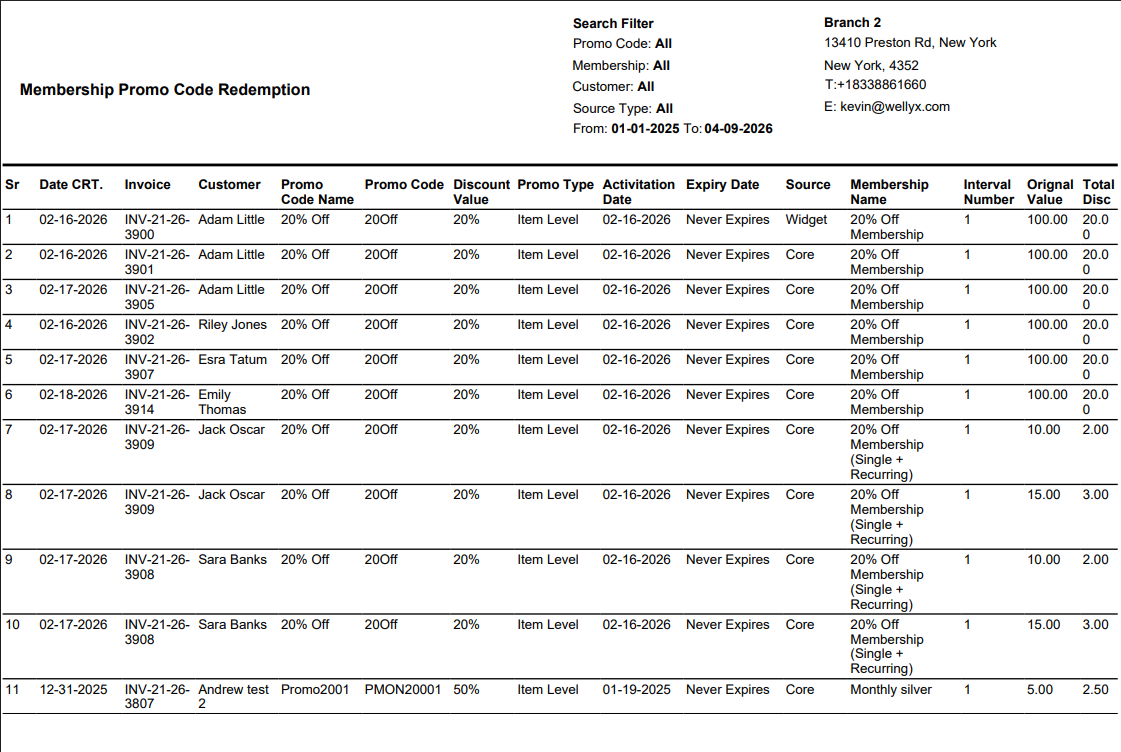
The Membership Promo Code Redemption Report displays a list of members who have purchased memberships by applying a promo code. This report contains the following information:
- Sr. #
- Date CRT.
- Invoices
- Customer Name
- Promo Code Name
- Discount Value
- Promo Type
- Activation Date
- Expiry Date
- Source
- Membership Name
- Interval Number
- Original Value
- Total Disc