TABLE OF CONTENTS
- Step 1: Navigate to Daily Refunds
- Step 2: Enter Report Details
- Step 3: View the Report for a Specific or All Customer
- Step 4: Export and Download Report
This guide explains how to view the Daily Refunds Report in Core.
Step 1: Navigate to Daily Refunds
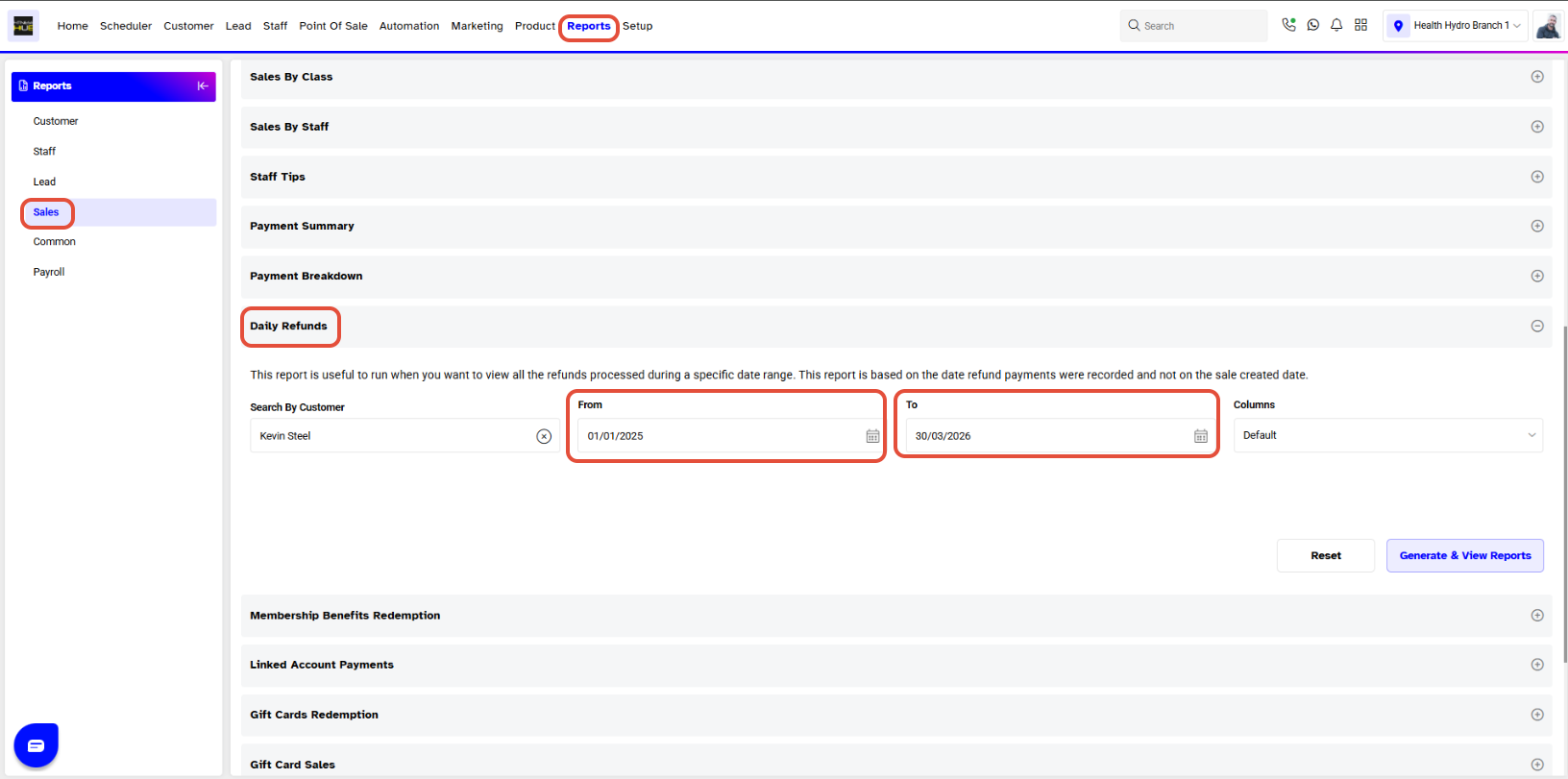
- Go to the Reports Module and click on the Sales Tab.
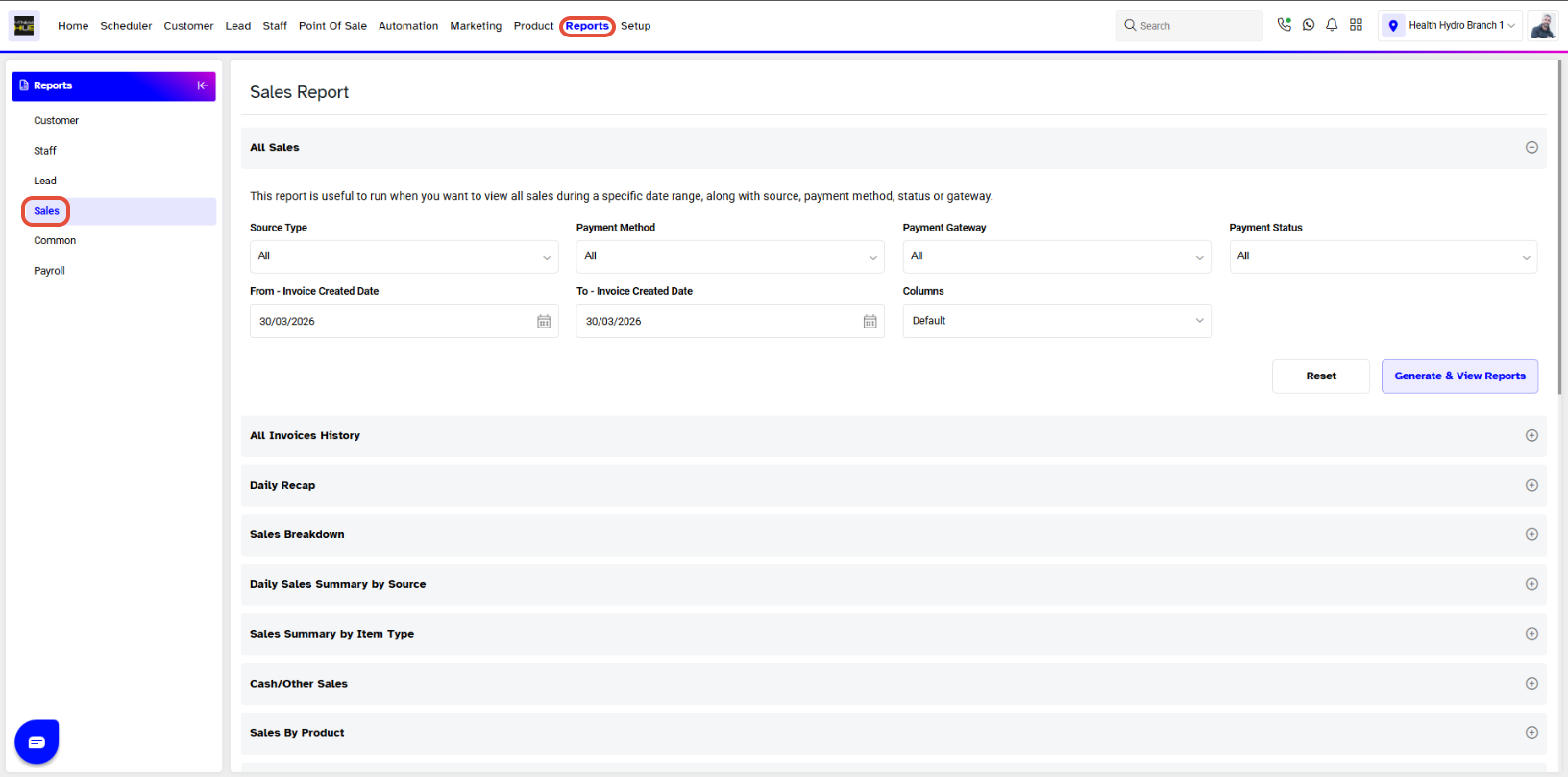
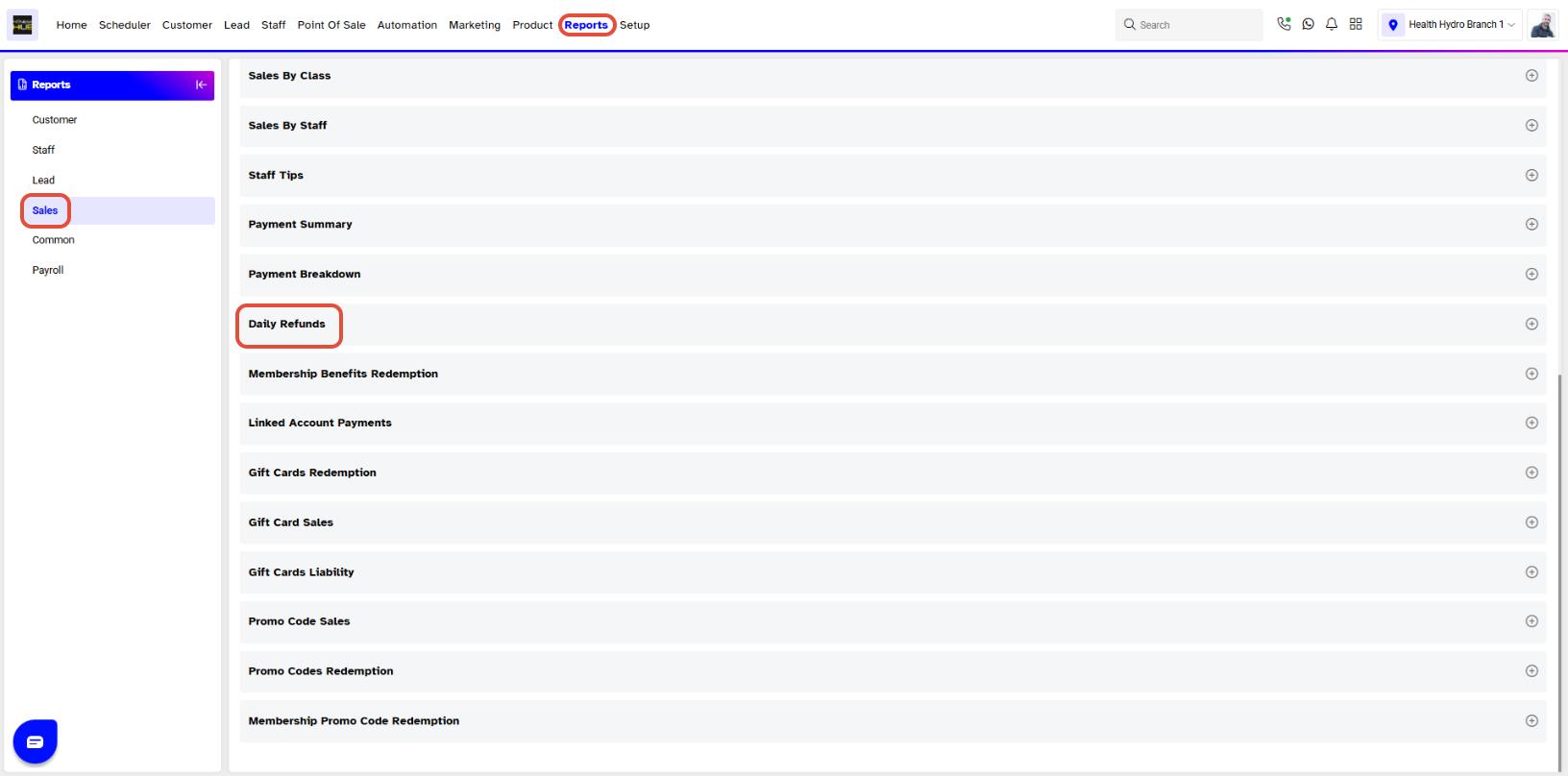
- Select the Daily Refunds option
Step 2: Enter Report Details
The Daily Refunds Report requires the following information:
- Customer Name: Type in the name of a specific Customer to view just their report.
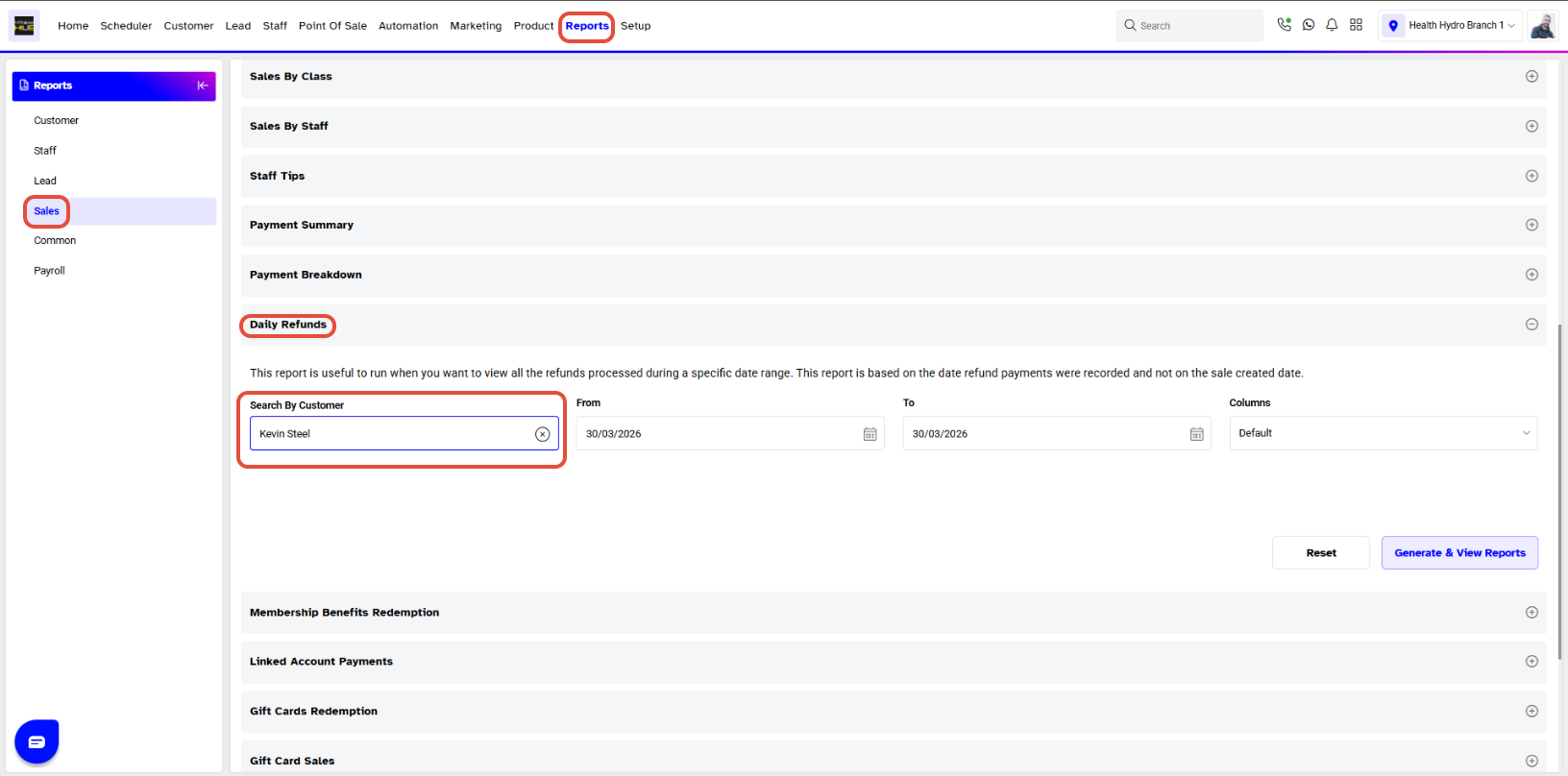
- From: The Start Date for the search.
- To: The End Date for the search.
Step 3: View the Report for a Specific or All Customer
- Enter the Customer Name in the Search By Customer Box. For all customers, leave the Customer Name Box empty.
- Click on the View Button.
- The Report will display Refunds for the Specific Customer or all customers within the Set Date Range.
Step 4: Export and Download Report
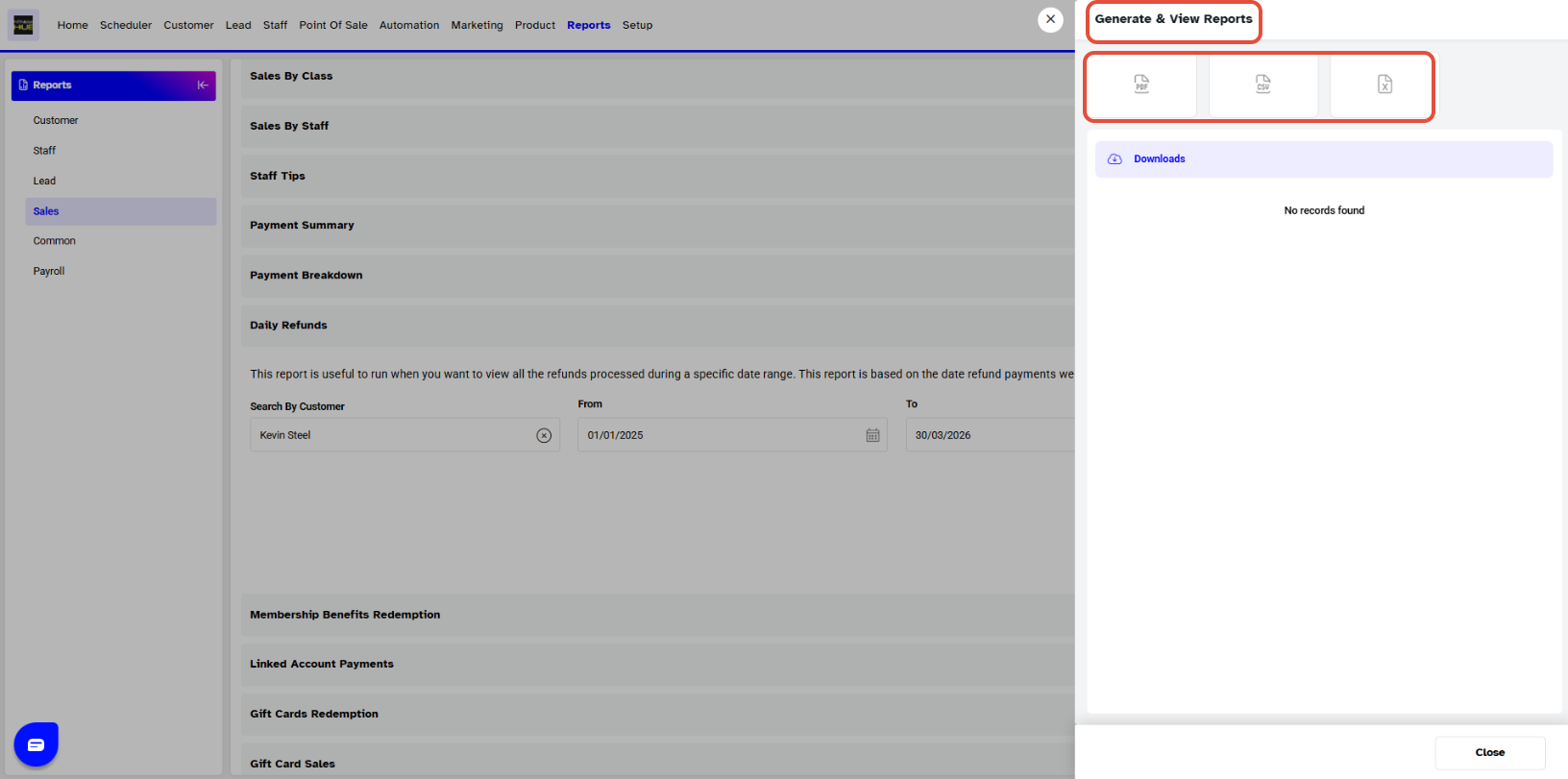
- The Daily Refunds Report can be viewed in PDF, Excel, and System Window by clicking on the PDF, Excel, and View Buttons
- The report can be downloaded by clicking the Download button.
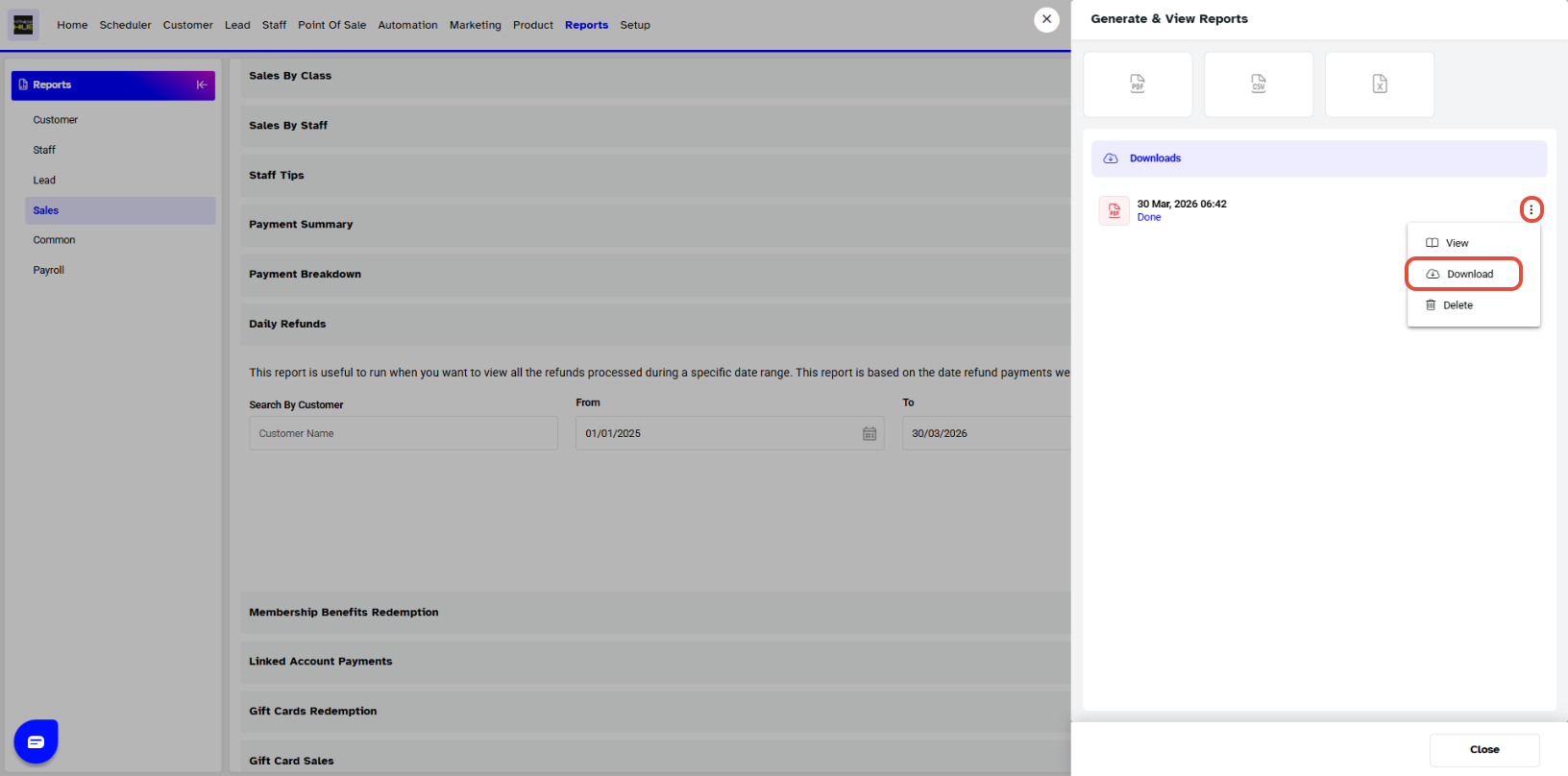
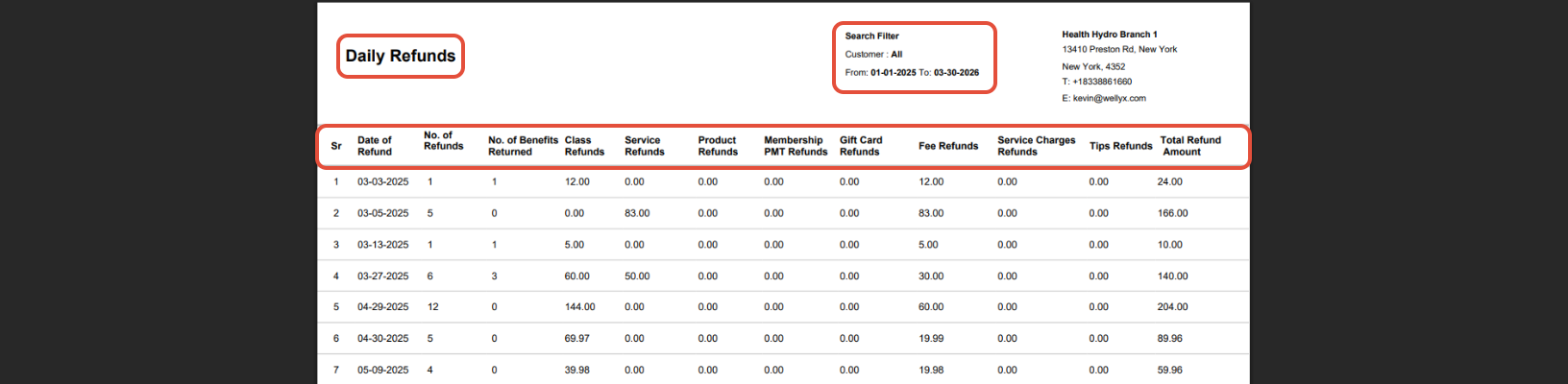
The report will appear as: