Overview
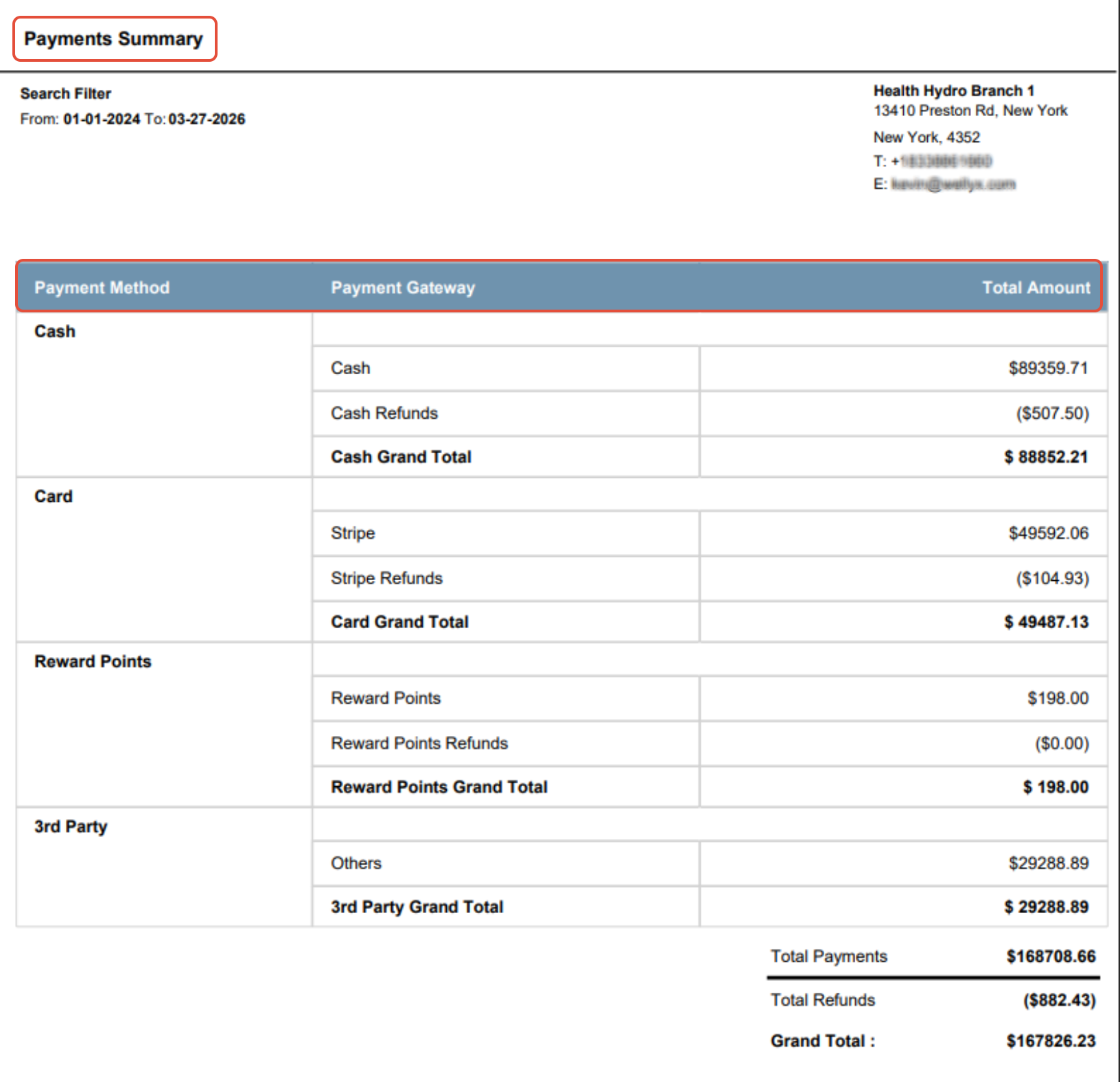
This guide explains how to view the Report on Payments Summary. It covers how to navigate to the report, configure date filters, and export or view the report.
TABLE OF CONTENTS
In this basic scenario, we have some information regarding viewing the Report on Payments Summary.
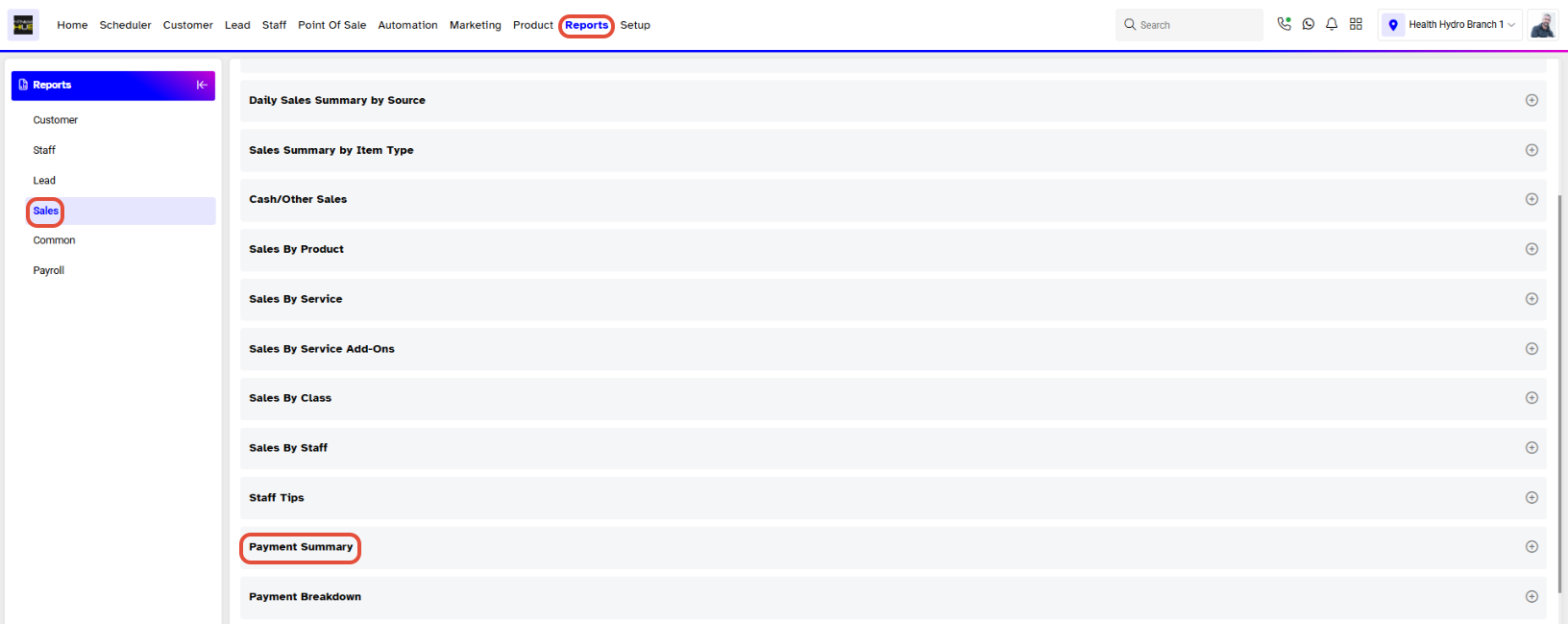
Step 1: Navigate to the Reports Module
- Go to the Reports Module

By default, you will be in the Sales Tab.
Step 2: Access Payments Summary
- In the Sales Tab, click on Payments Summary.
Step 3: Configure Report Filters
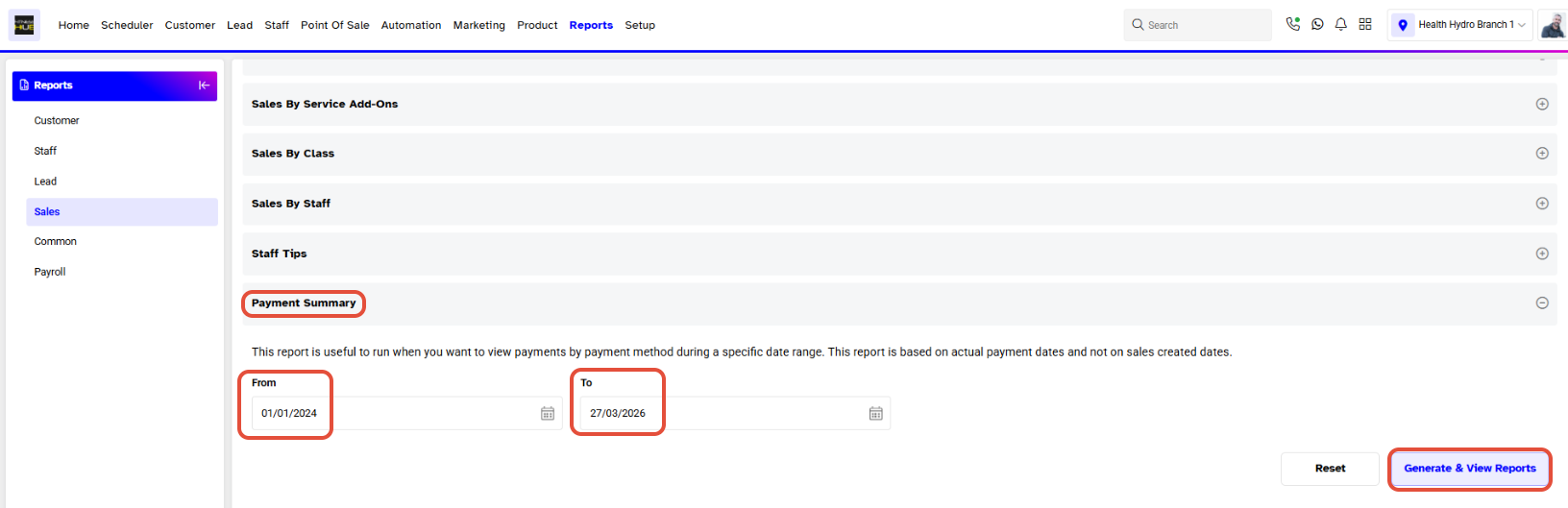
- Here you can see two options:
From: The Start Date for the search
To: The End Date for the search.
Step 4: View or Export the Report
- You can either download the report in PDF or Excel format by clicking on the PDF File and Excel File Icons.
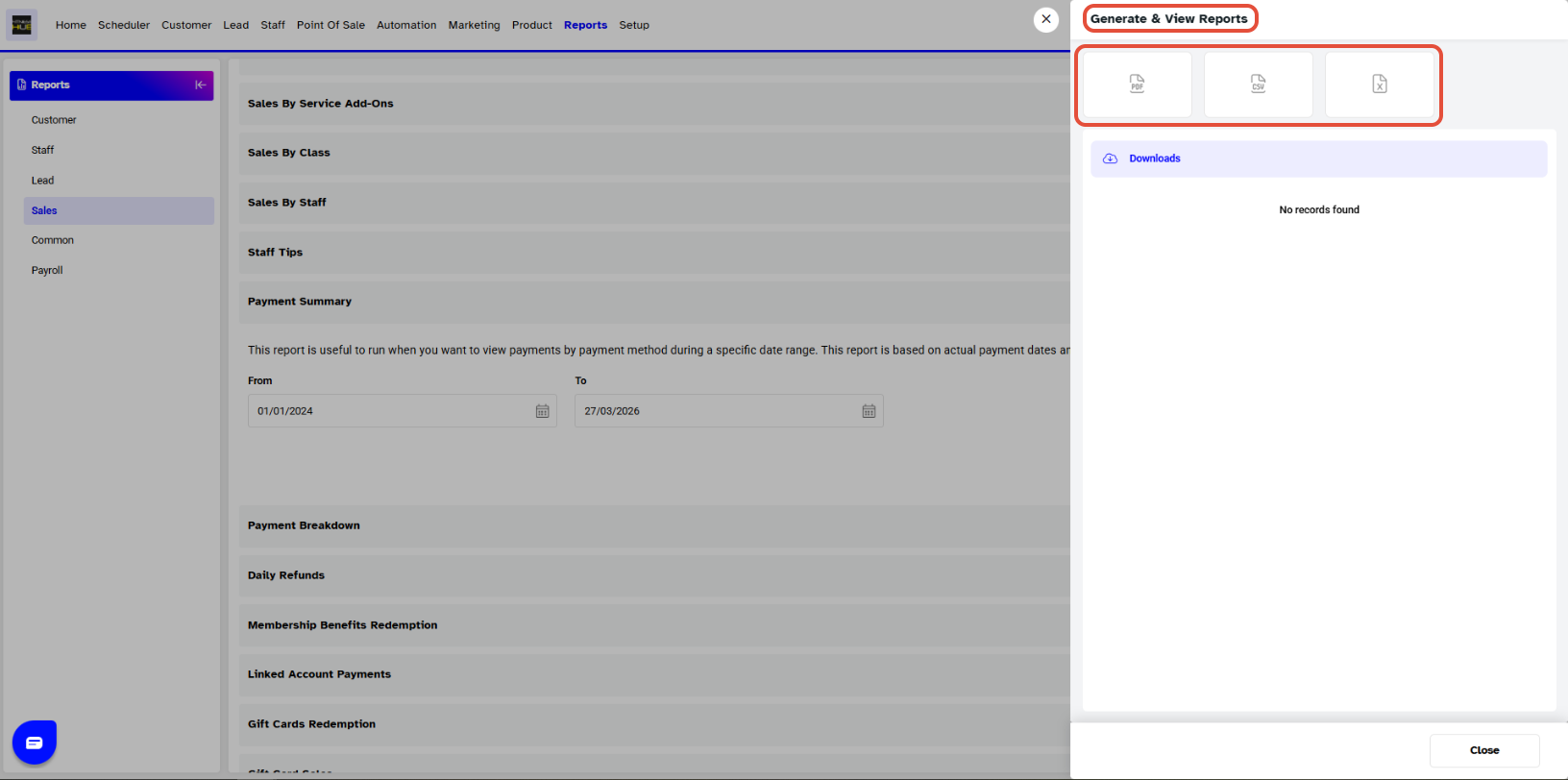
- You can view the file by clicking the View File icon or download it using the Download button.
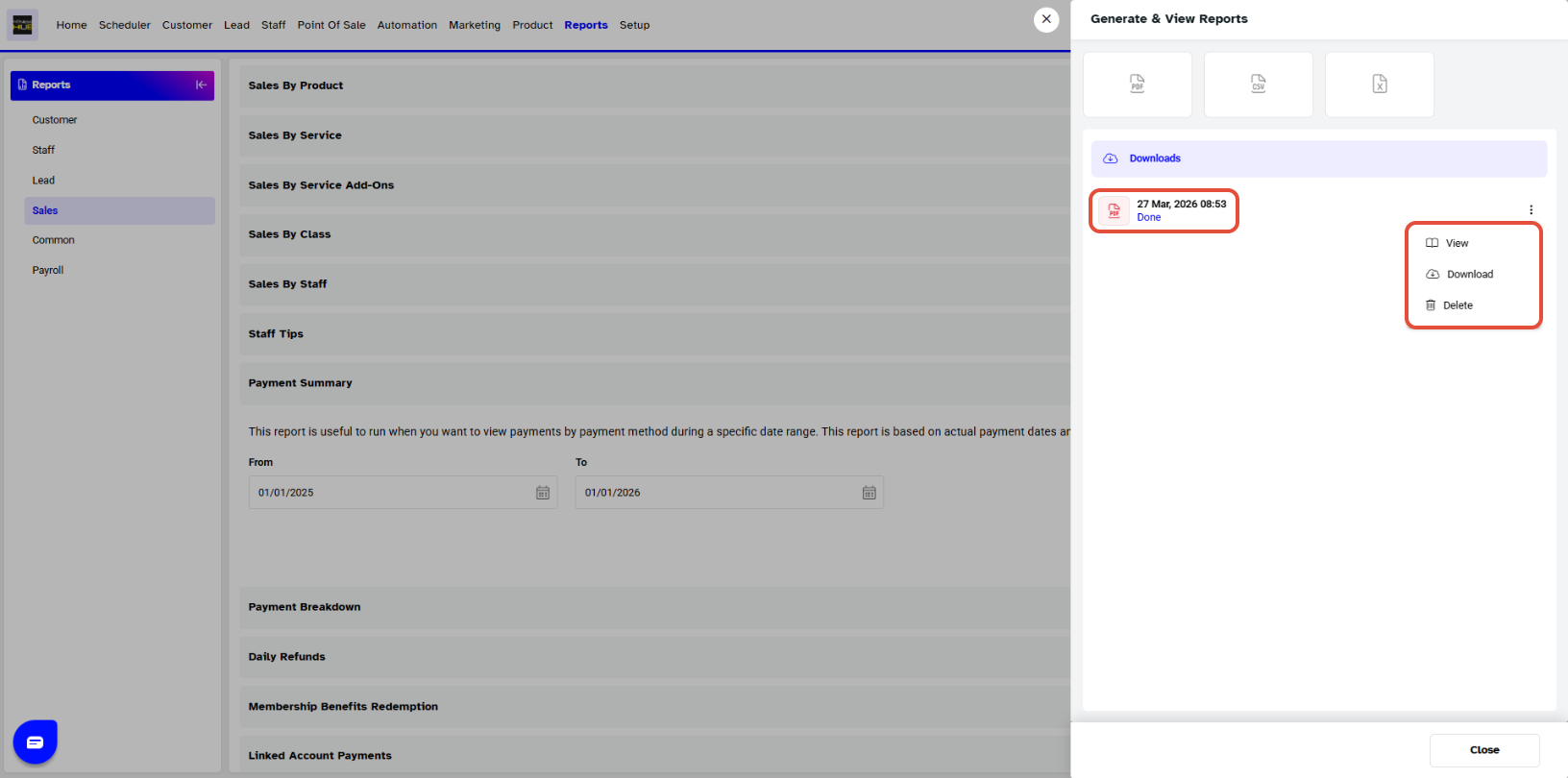
- The report will be shown in the following manner: