TABLE OF CONTENTS
- Step 1: Navigate to the Gift Cards Redemption Report
- Step 2: Define Report Parameters
- Step 3: Generate and Download the Report
To view the Gift Cards Redemption Report in Core, follow the steps below.
Step 1: Navigate to the Gift Cards Redemption Report
- Go to the Reports Module.

- By default, the Sales Tab will open
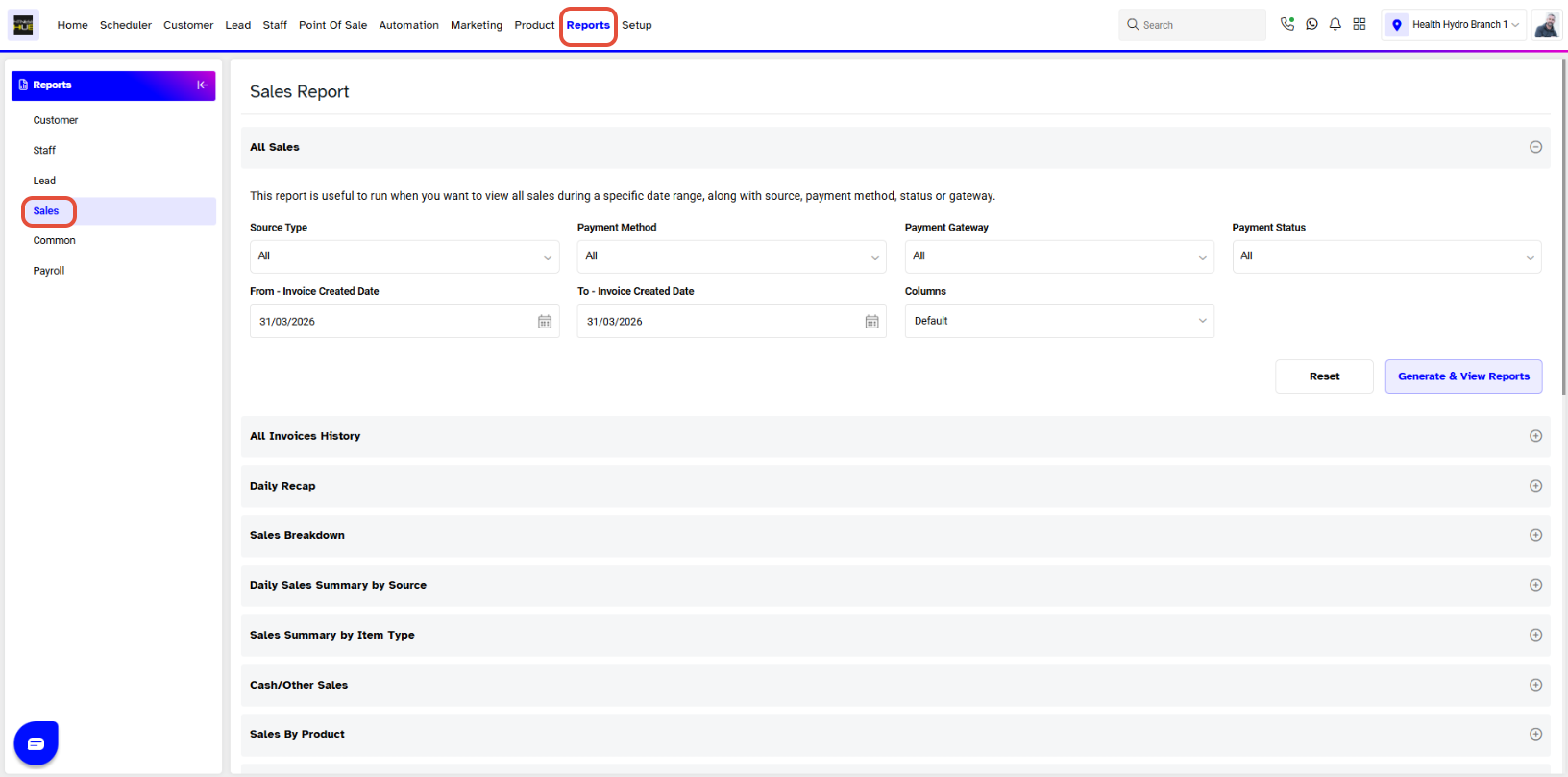
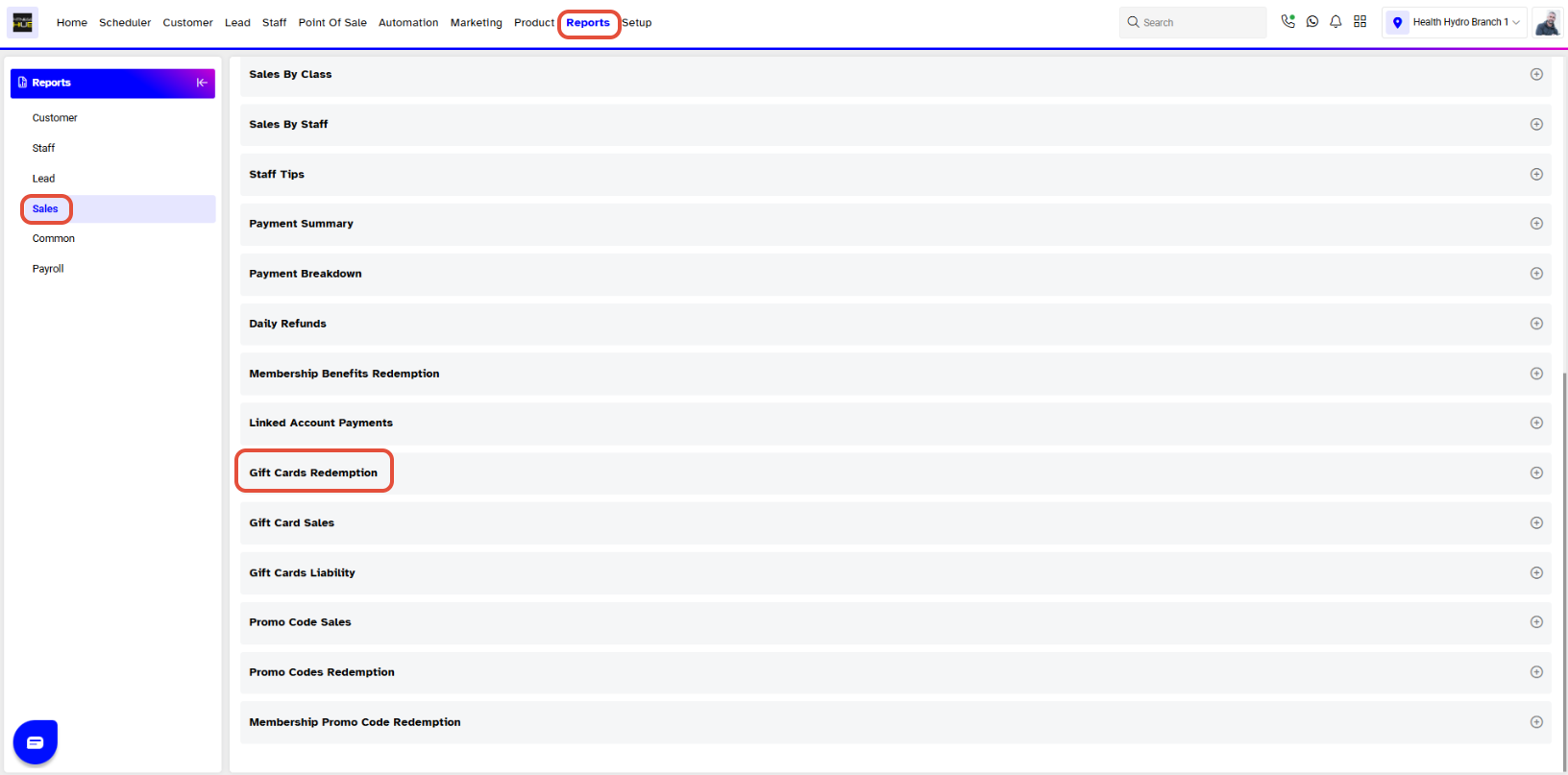
- Scroll down and click on the Gift Cards Redemption Report.
Step 2: Define Report Parameters
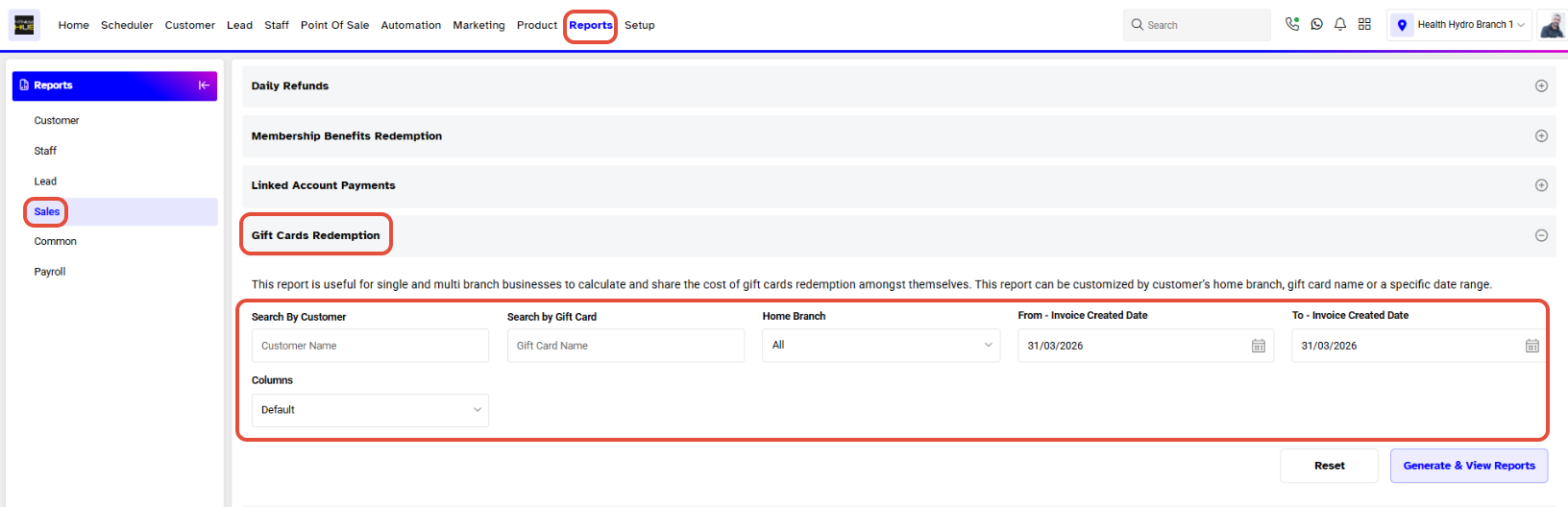
The following fields can be filled:
- Search By Customer: Write the Customer Name.
- Search By Gift Card: Type the Gift Card Name.
- Home Branch: Select the Branch from the drop-down menu.
- From-Invoice Created Date: Set the Start Date for the search.
- To-Invoice Created Date: Set the End Date for the search
Step 3: Generate and Download the Report
- Choose the Report Format (PDF or Excel) by clicking on their respective icons.
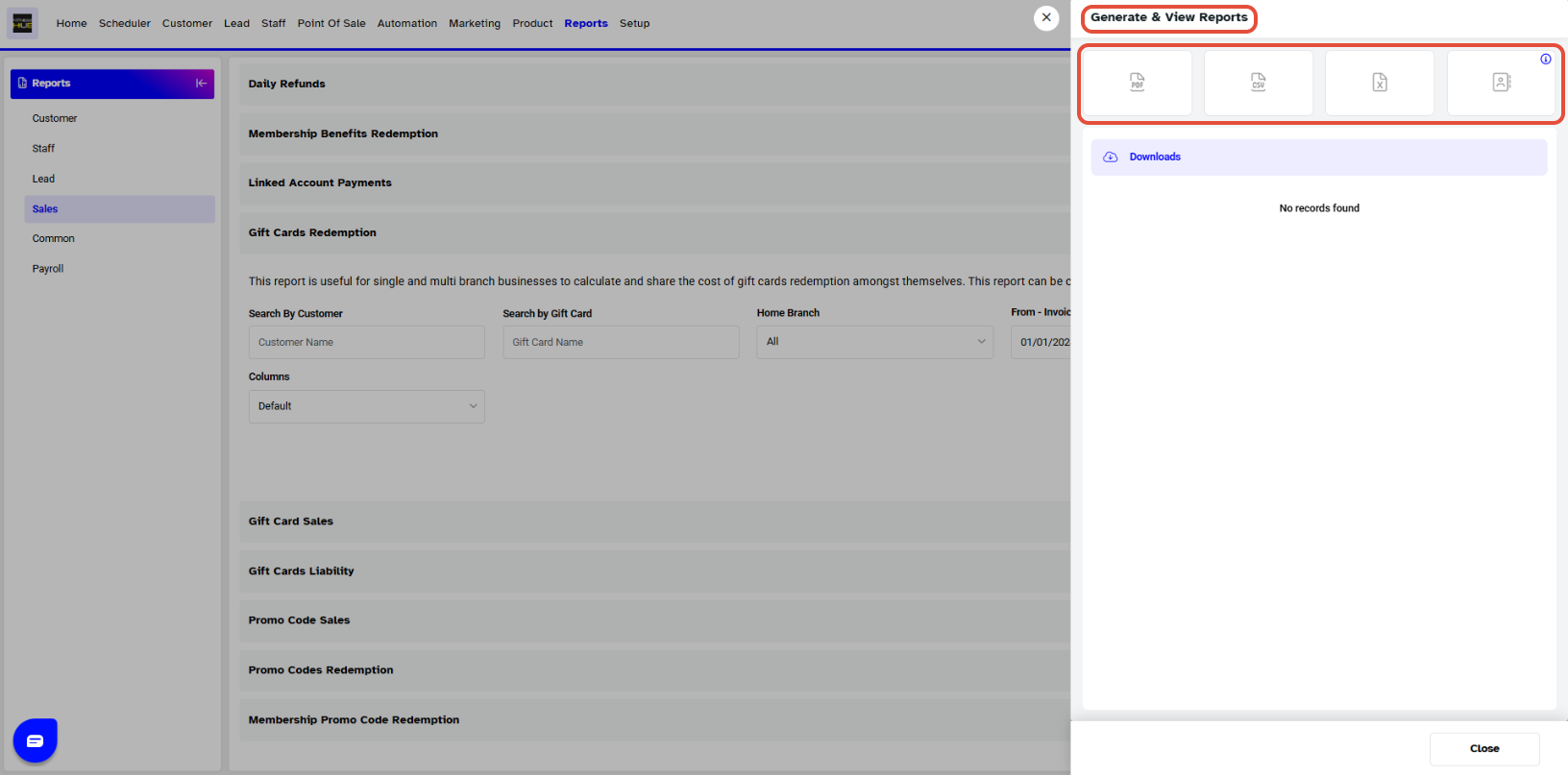
- Once generated, click the View icon to view the report or the Download button to save the Gift Cards Redemption Report.
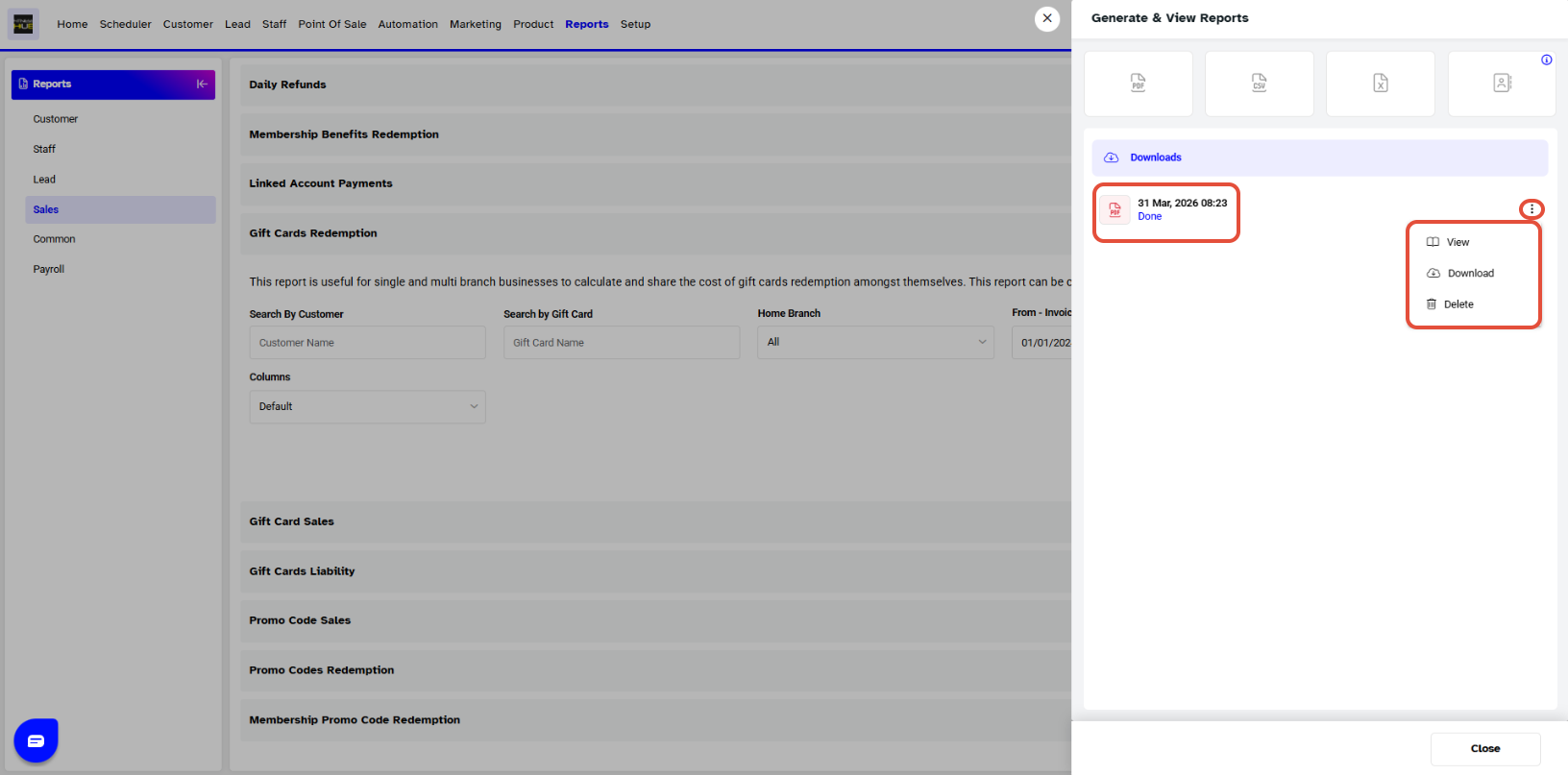
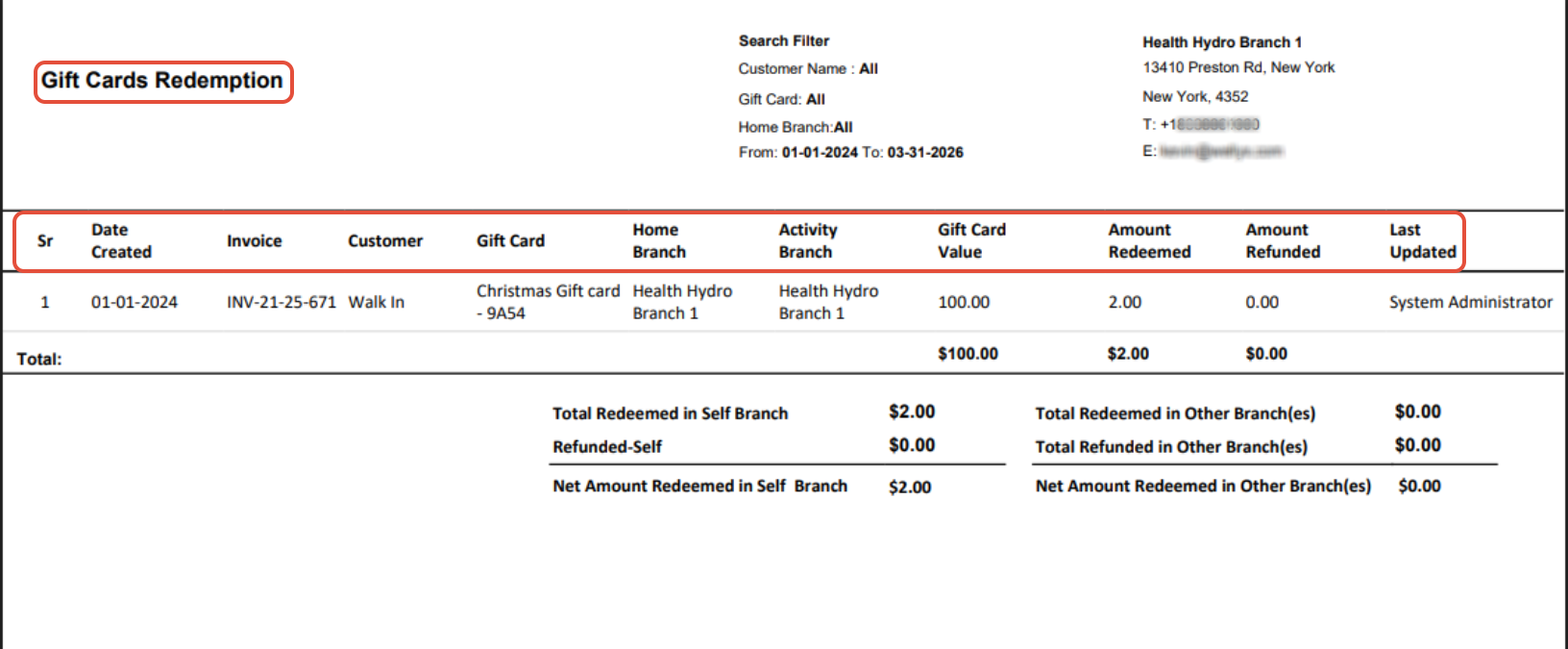
A Gift Cards Redemption detail page will open up in a separate tab. This page will display the following information:
- Sr. #
- Date Created
- Invoice
- Customer
- Gift Card
- Home Branch
- Activity Branch
- Gift Card Value
- Amount Redeemed
- Amount Refunded
- Last Updated