


Overview
This guide explains how to view the All Sales Report in Core. It covers all essential steps — from navigating to the report and applying search criteria to selecting columns and generating the report. By following this guide, merchants can analyze all sales within a specific date range, broken down by payment method or source.Step 1: Navigate to All Sales Report
- Go to the Reports Module.
- You will be taken to the Sales Tab.
- By default, the All Sales Filter will open.
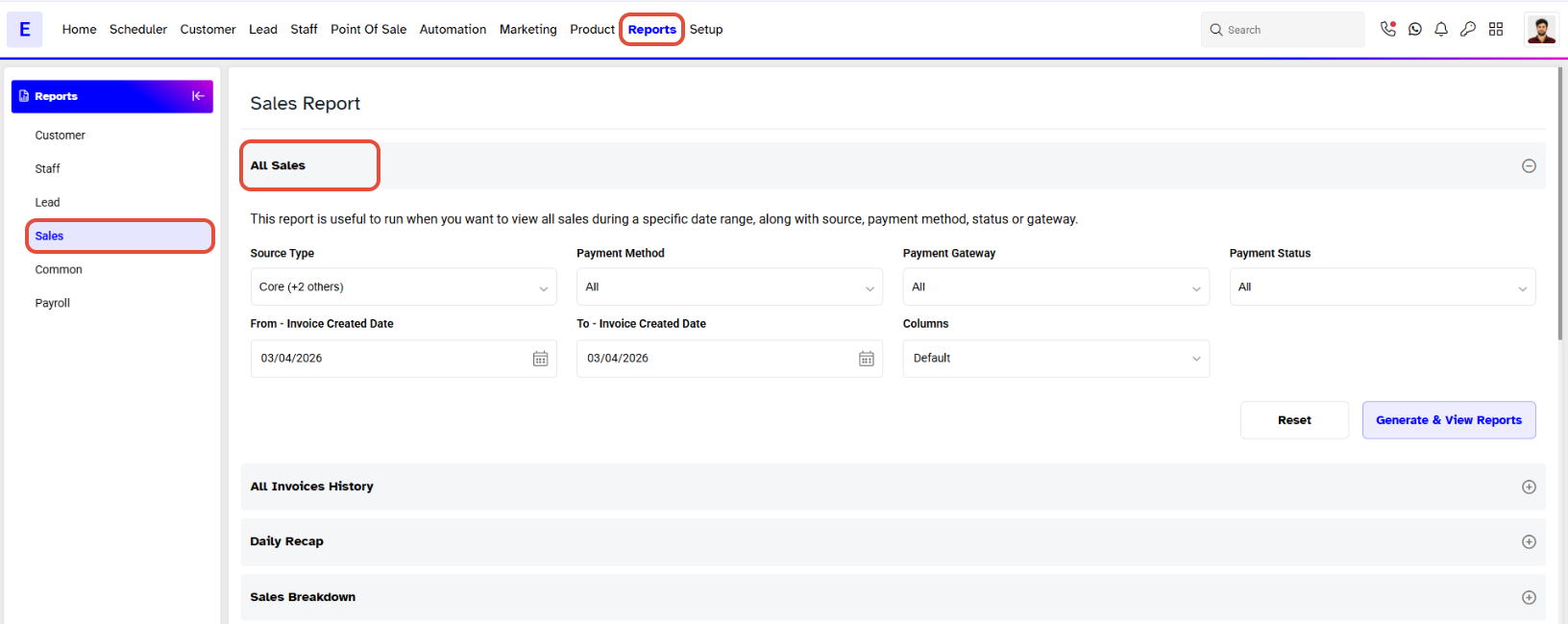
Step 2: Apply Search Criteria
Enter your search criteria in the following fields to filter your search results:
- Source Type: Select a Source Type from the dropdown menu list.
- Payment Method: Choose a Payment Method from the options in the dropdown menu.
- Payment Gateway: Select the Payment Gateway from the dropdown menu.
- Payment Status: Select the Payment Status which you want to view from the dropdown menu.
- Duration: Choose a duration for which you want to view the activities, and select the starting date under From and an ending date under To.
Merchants have the option to apply multiple selection filters for each parameter.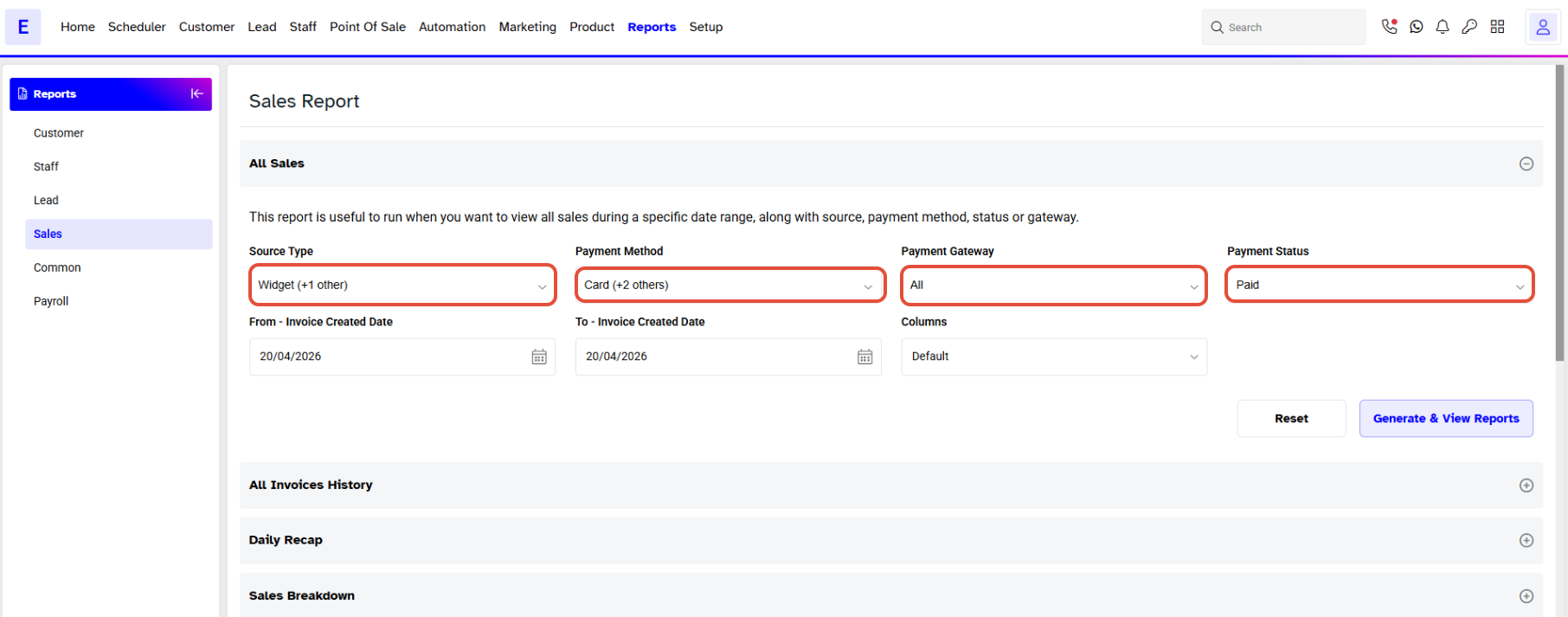
Now. choose the desired Customized Column Names from the drop-down menu next to the Columns field to be included in the Report.
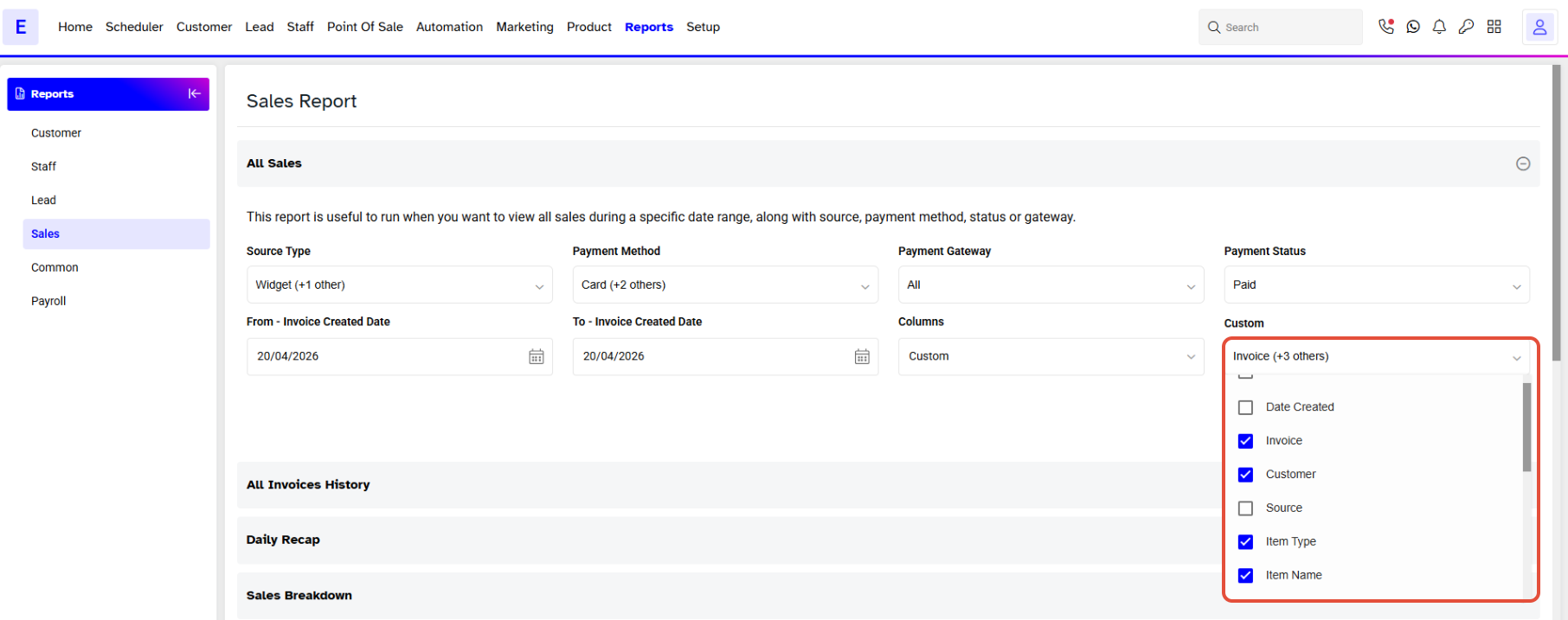
Once done, click on the Generate & View Reports Button.
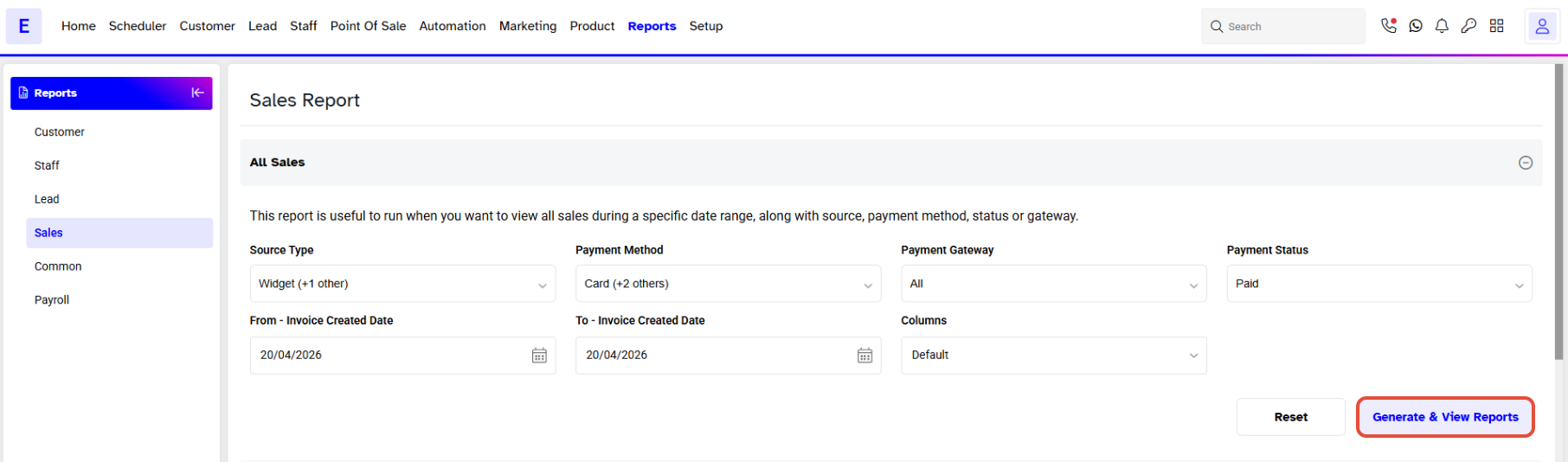
To generate the Report, select the desired format.
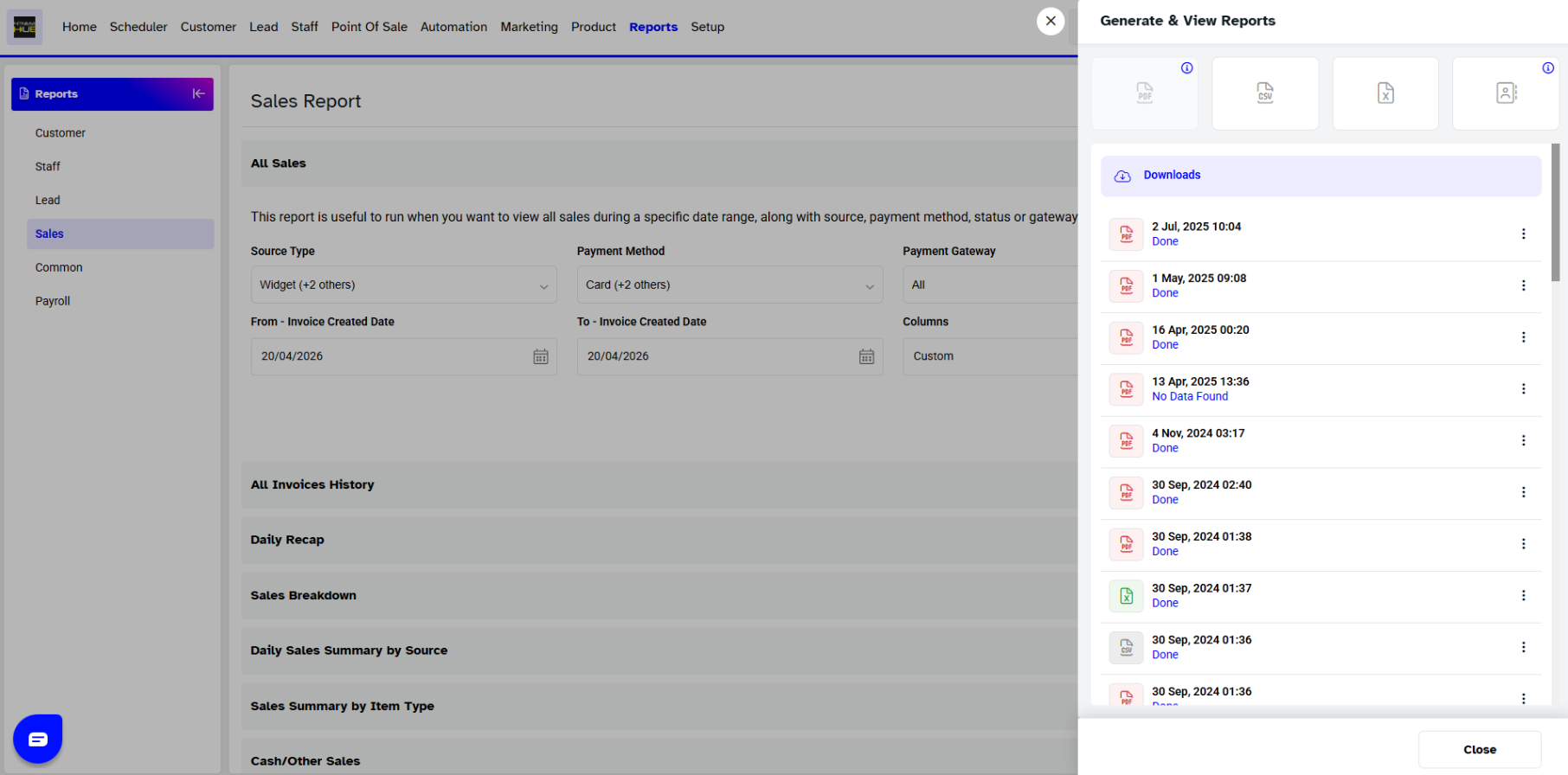
Now, your Report will automatically download or Downloaded by clicking on the Download Icon.
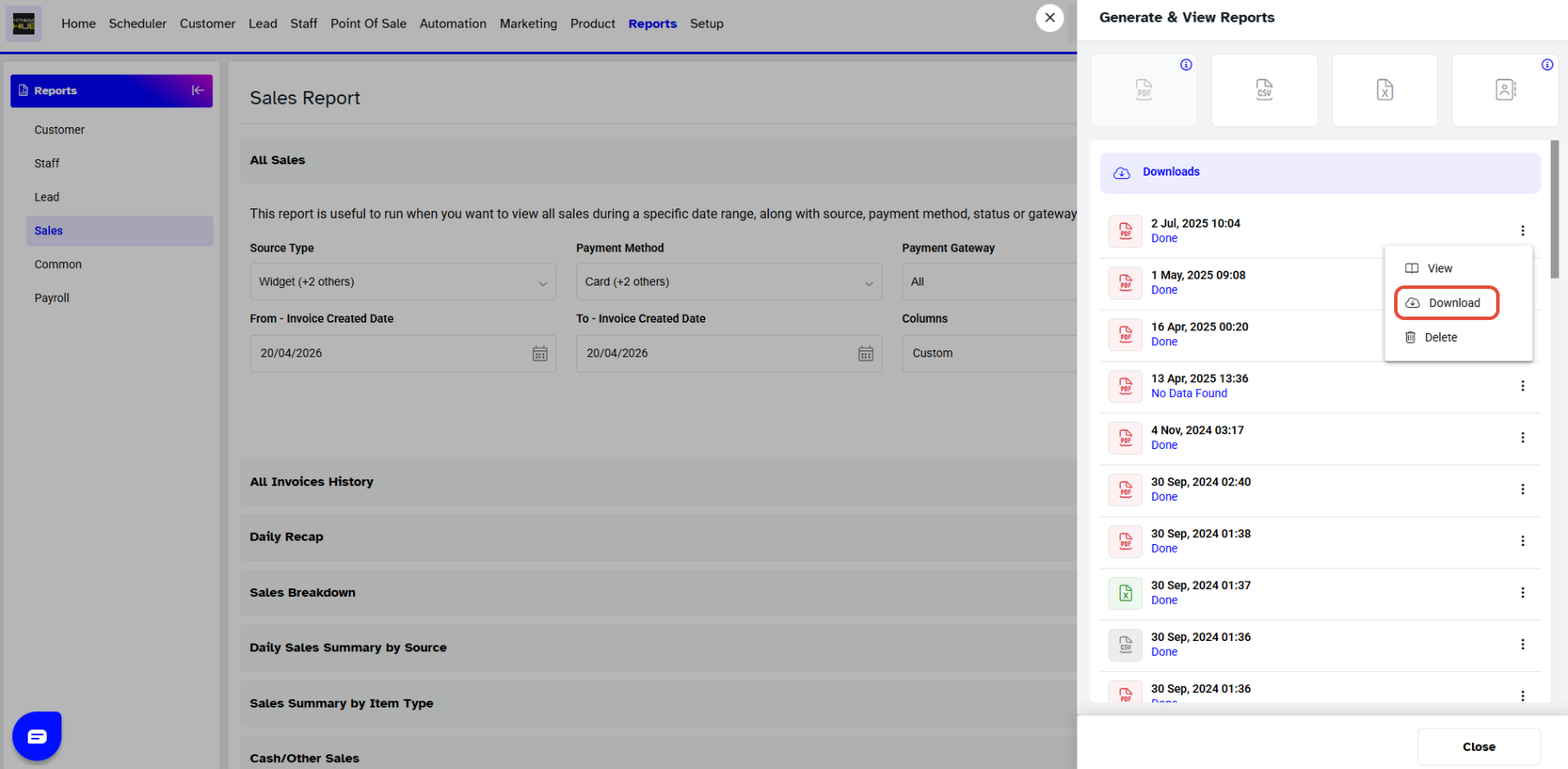
The genrated Report can be downloaded multiple times within 30 Days.
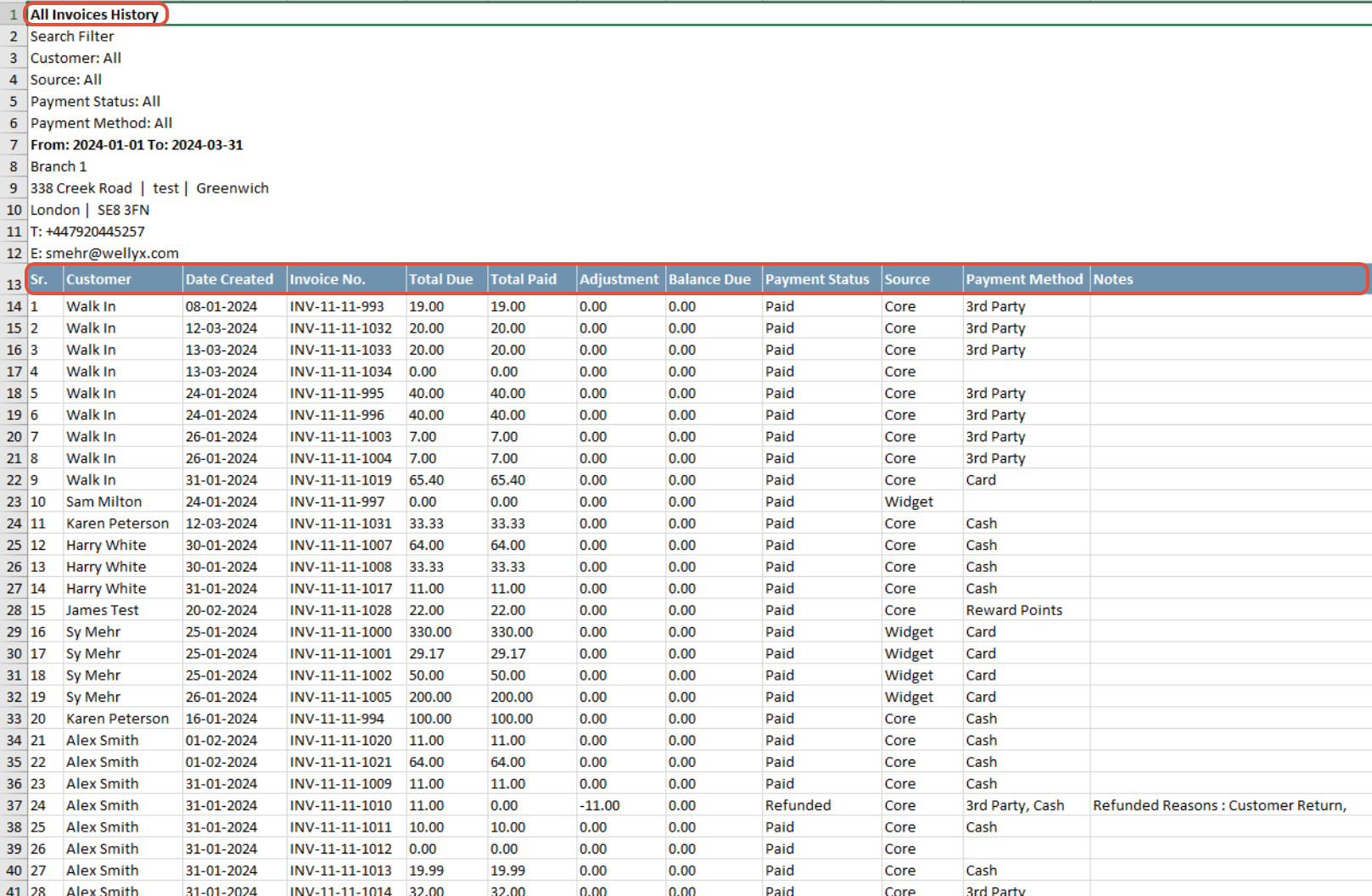
The All Sales Detail Report will display the following Tabs:
Sr. #
Sale Date
Invoice
Customer
Sales Source
Item Type
Item Name
Per Unit
Booking Start Date/ Time
Per Unit Disc.
Discount Reason
Qty
Sub Total
Total Tax
Total Due
Payment Method
Processed By
For a list of terms used in the Wellyx application & across the support website, please consult our Glossary.




