TABLE OF CONTENTS
- Step 1: Navigate to the Sales By Product Report
- Step 2: Enter Search Criteria
- Step 3: Generate and View the Report
- Step 4: Download the Report
Overview
This guide explains how to view the Sales By Product Report in Core. This report is useful for analyzing sales information for products sold, enabling merchants to track product performanceStep 1: Navigate to the Sales By Product Report
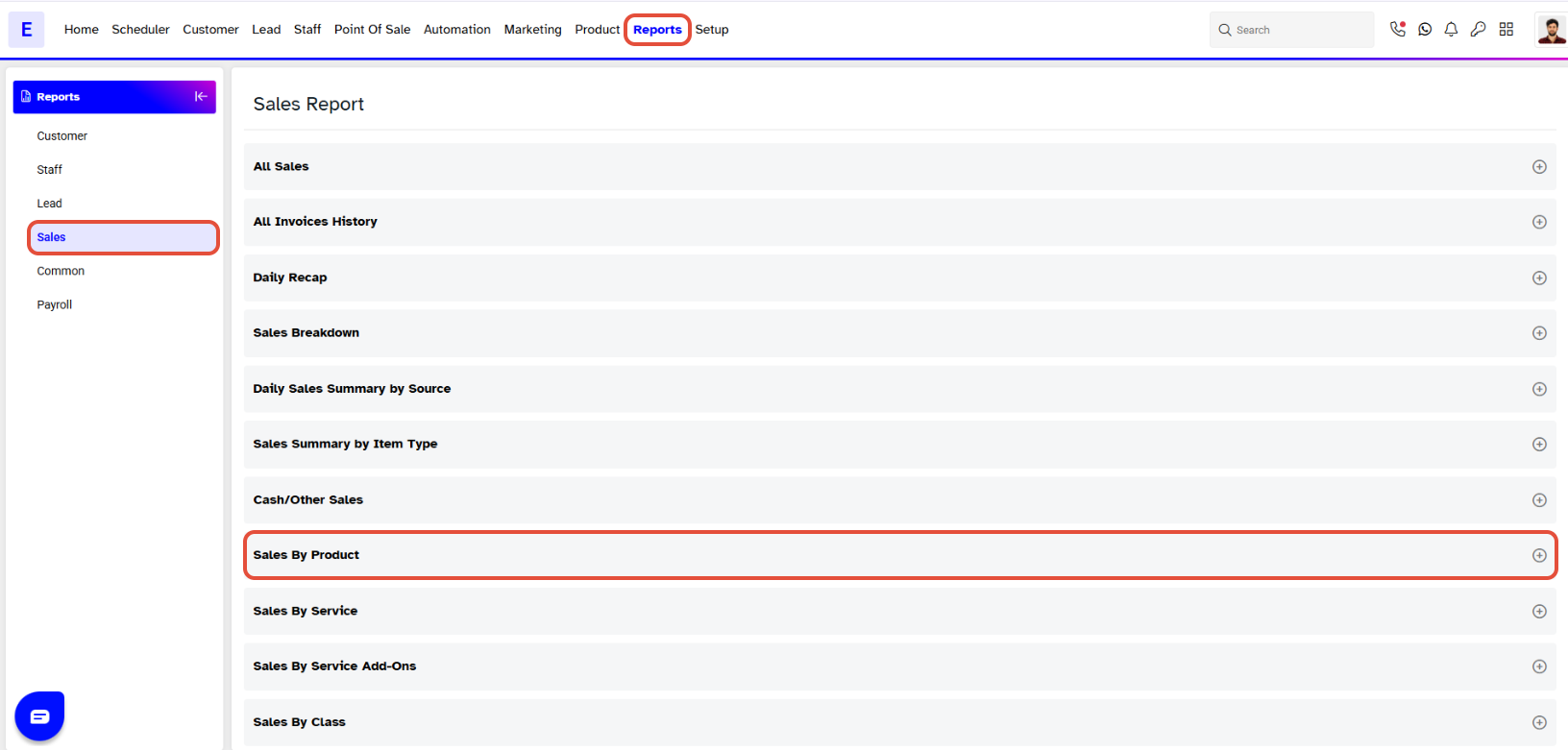
- Go to the Reports Module.
- The Sales Tab will appear by default.
- Scroll down and click on Sale By Product.
Step 2: Enter Search Criteria
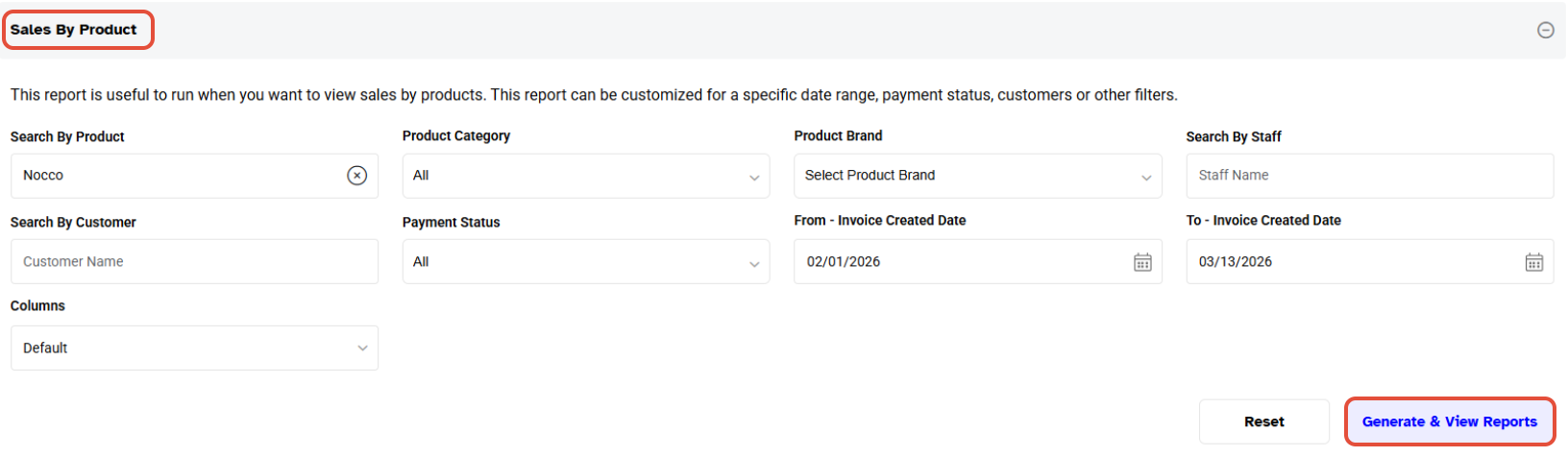
Enter your search criteria in the following fields to filter your search results.
- Product: Type the Product Name.
- Product Category/Brand: Select a Product Category/Brand from the dropdown menu.
- Assigned To Staff: Enter the Staff Member's name.
- Customer: Search by Customer whose sales you want to view.
- Payment Status: Select the Payment Status from the dropdown.
- Date Range: Choose a date range for which you want to view the Product sale
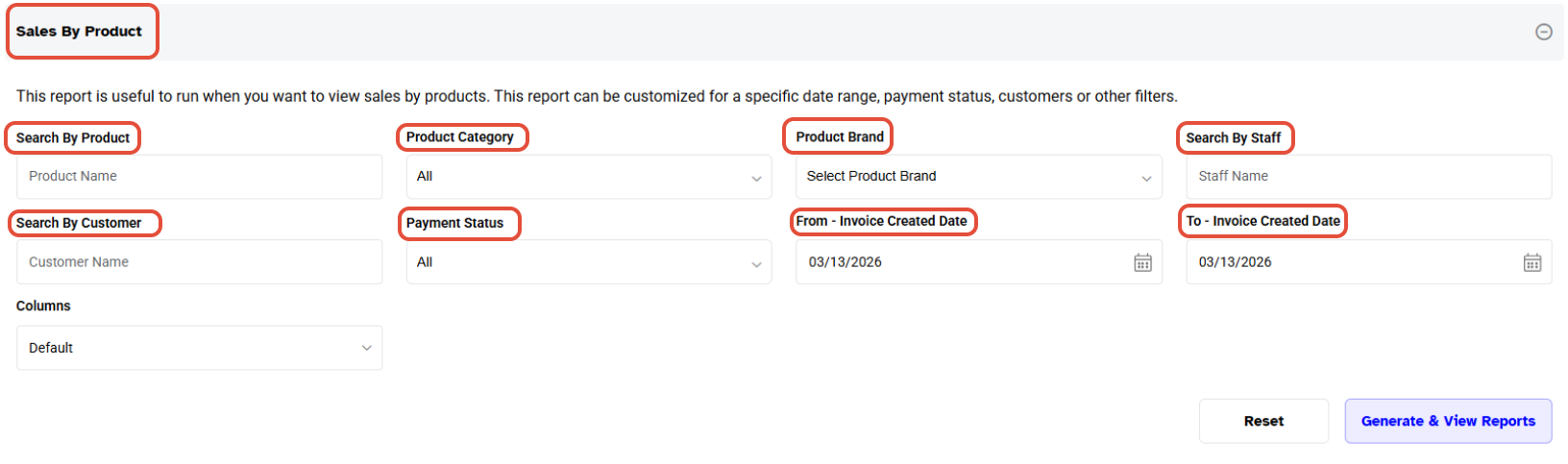
If the Product Name is left empty, the Report will be for all products present in the system.- Choose the desired Customized Column Names from the dropdown menu next to the Columns field to be included in the Report.
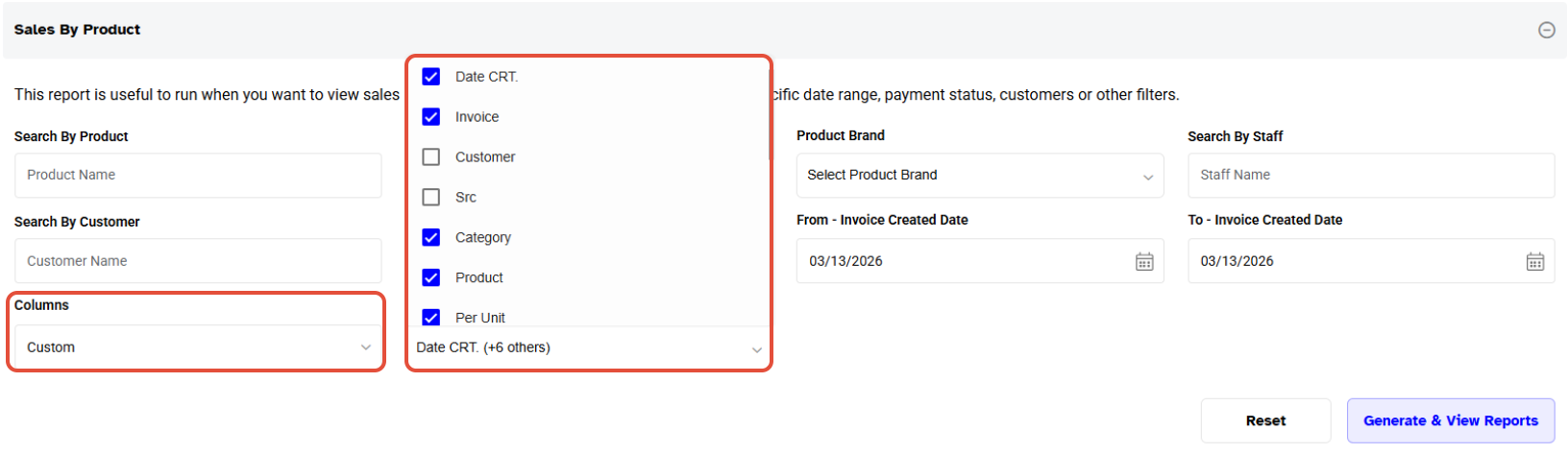
Custom Columned Reports can't be downloaded in PDF.
Step 3: Generate and View the Report
- Once done, click on the Generate & View Reports Button.
Step 4: Download the Report
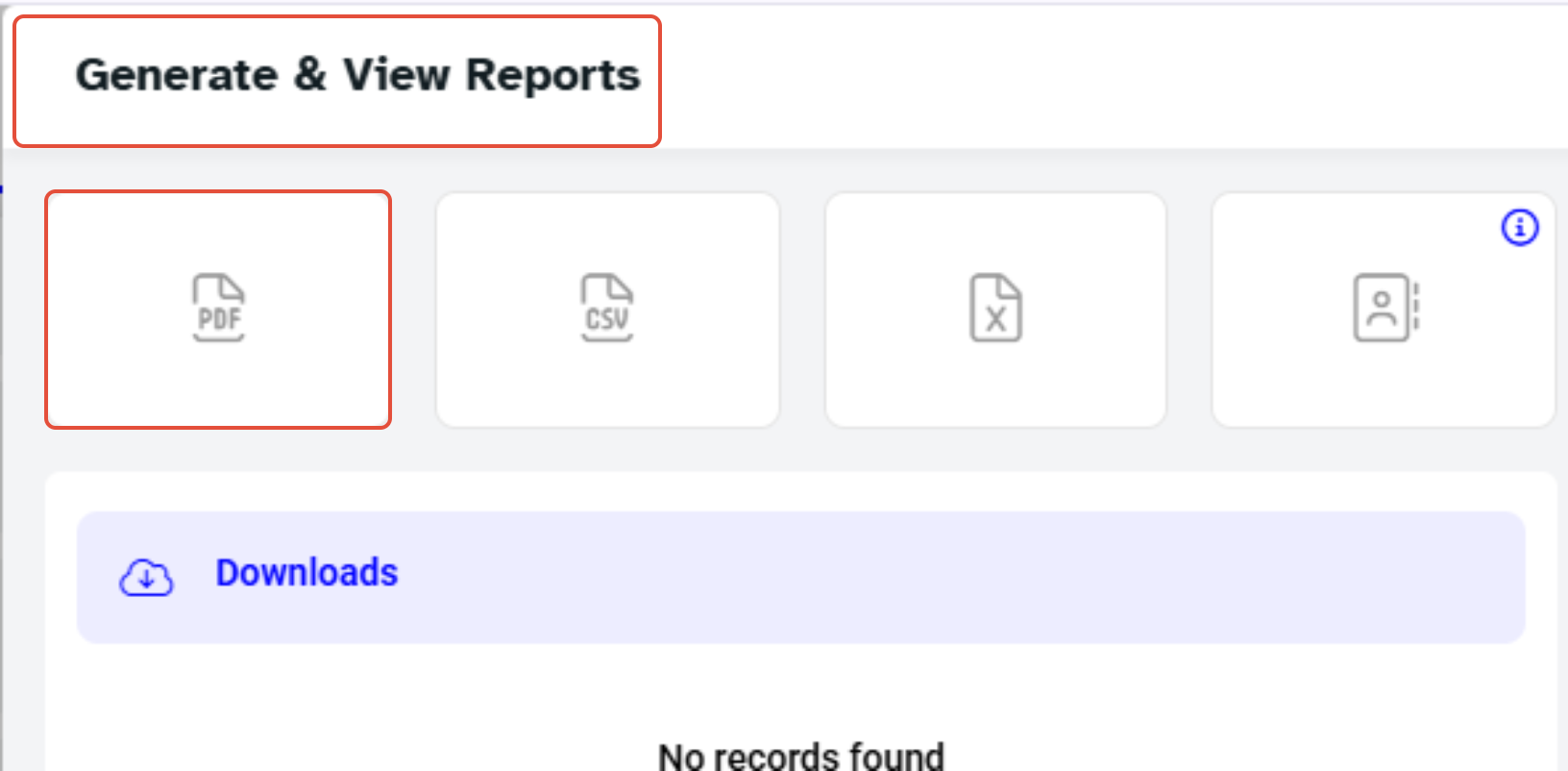
- To generate the Report, select the format you want to Download it .
- After generating the Report, you can download it by clicking the Download Icon.
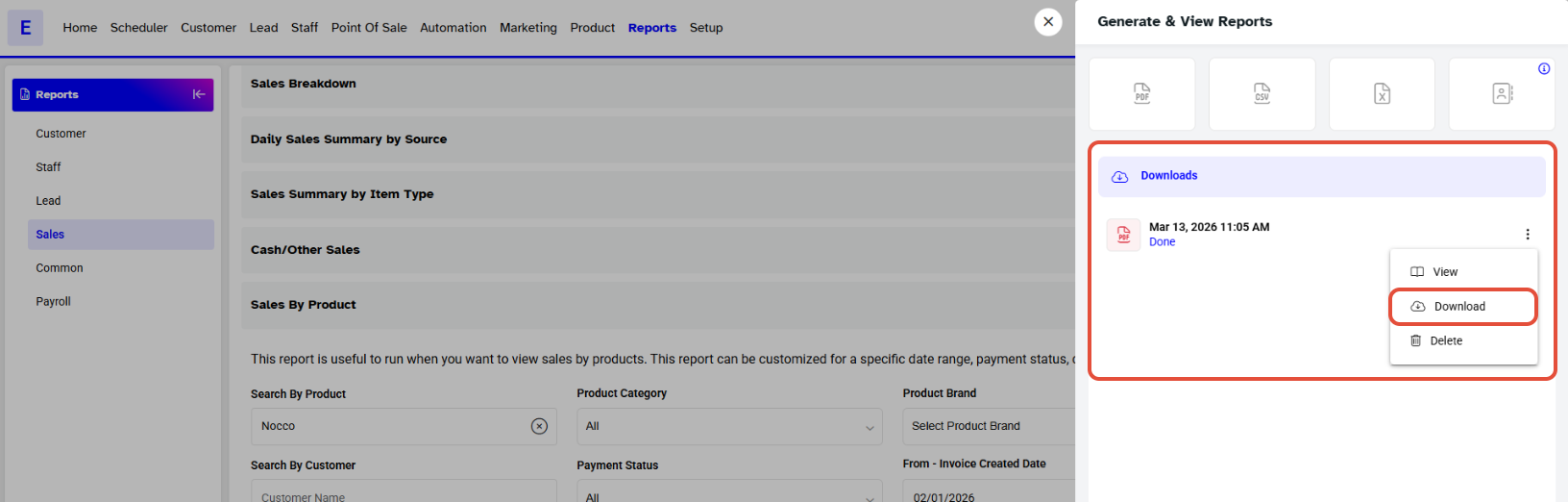
After generating a Report, it can be downloaded multiple times within 30 Days.
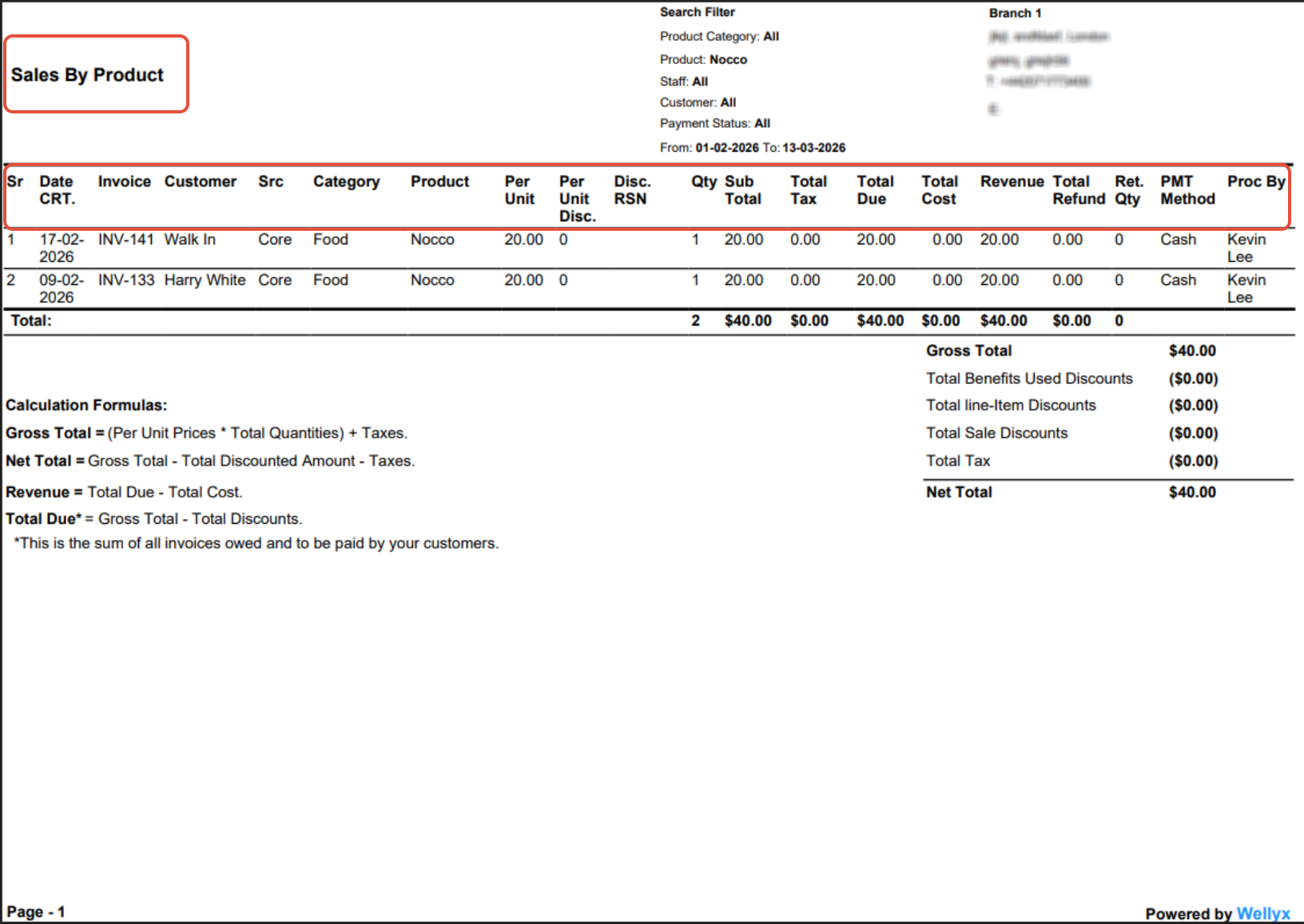
Sale By Product Report will display the following fields.
- Sr.#
- Date CRT
- Invoice
- Customer
- Src
- Category
- Product Name
- Per Unit
- Per Unit Discount
- Disc. RSN
- Qty
- Sub Total
- Total Tax
- Total Due
- Total Cost
- Revenue
- Total Refund
- Ret.Qty
- PTM Method
- Proc By