


TABLE OF CONTENTS
- Step 1: Navigate to the Reports Module
- Step 2: Access Membership Benefits Redemption
- Step 3: Configure Report Settings
- Step 4: Select the format of report
- Step 5: Download the report
By following this guide, merchants can access and manage redemption data for their memberships.
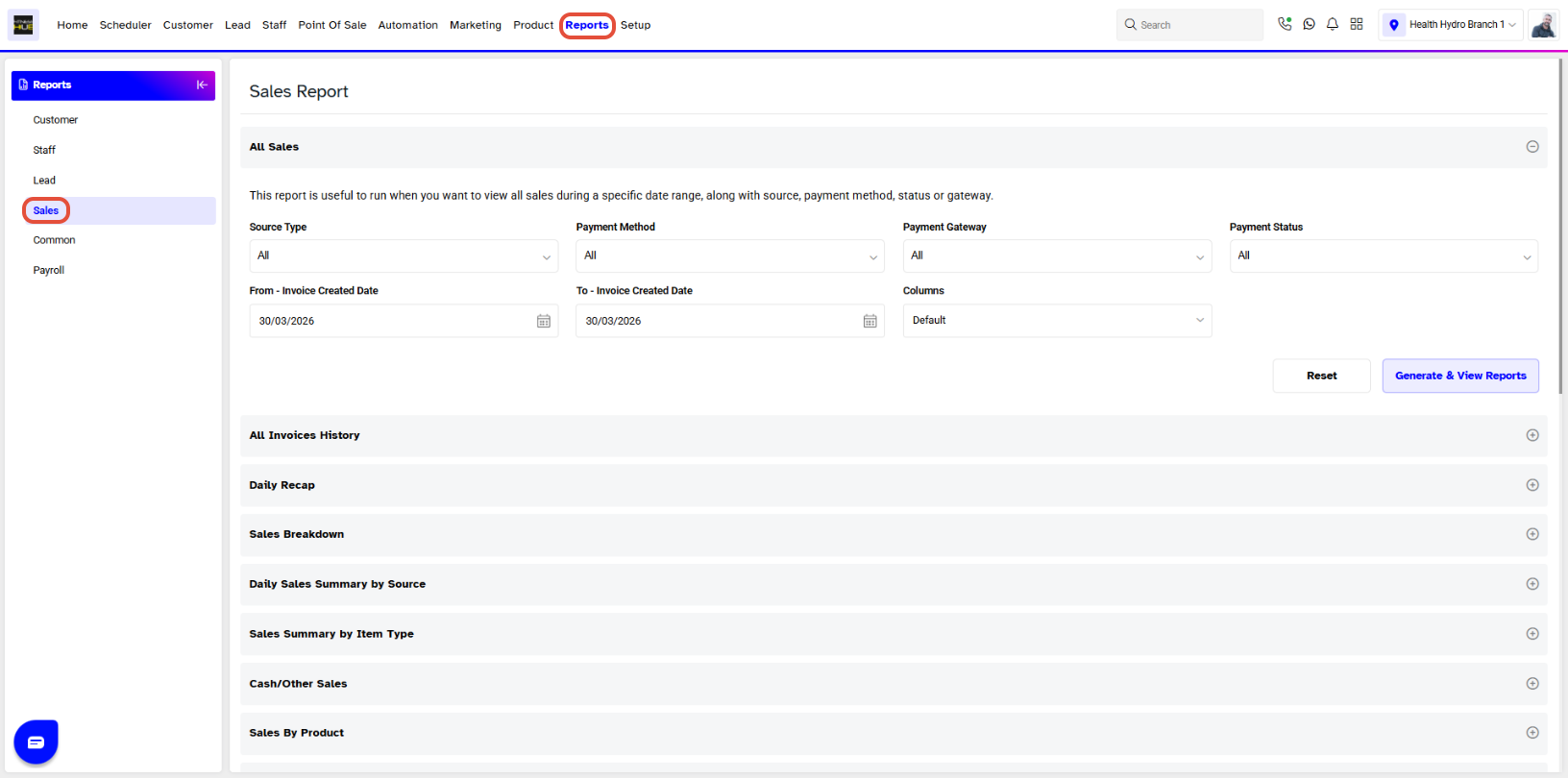
Step 1: Navigate to the Reports Module
- Go to the Reports Module.
- The Sales Tab will be open by default.
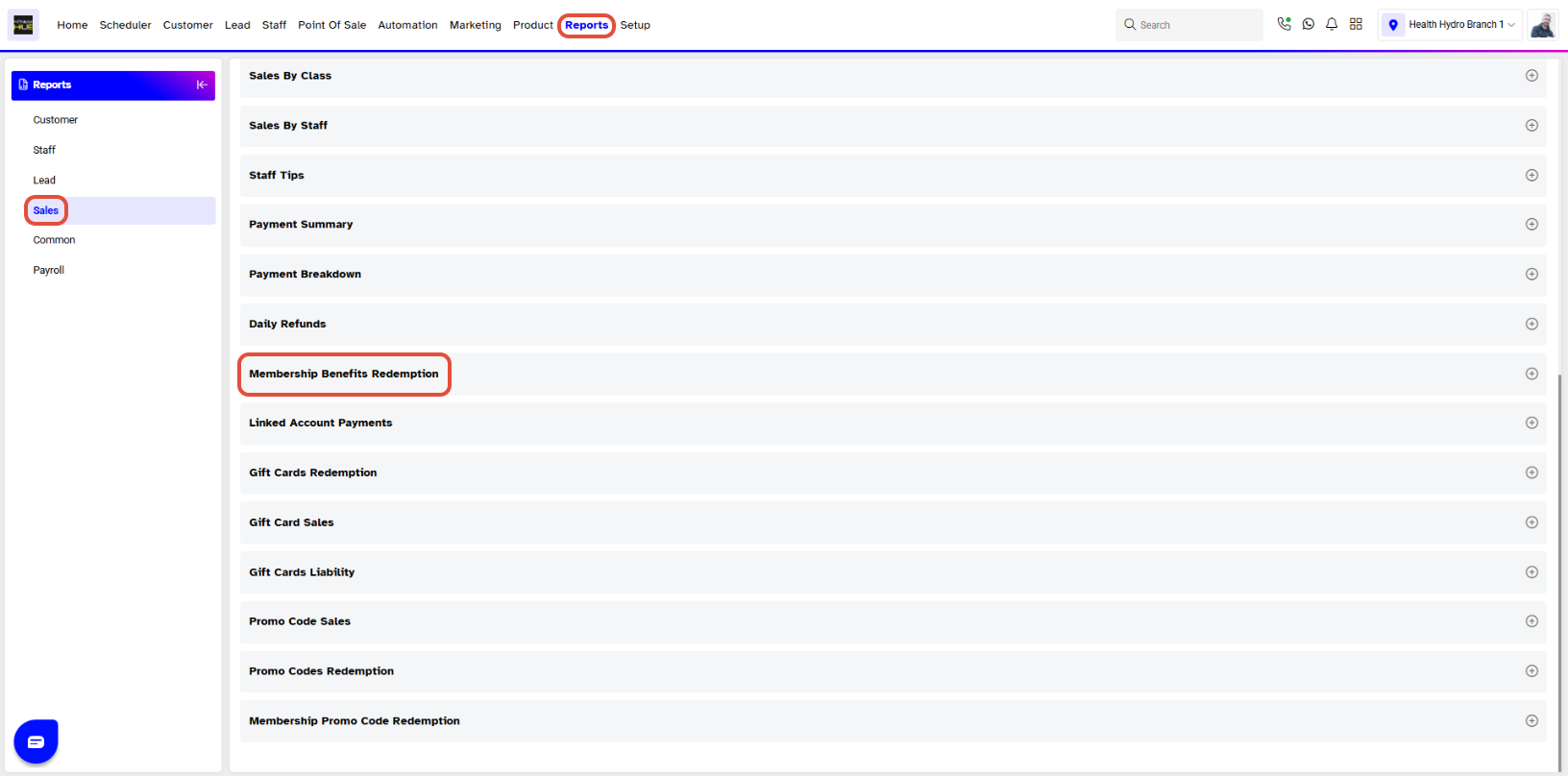
Step 2: Access Membership Benefits Redemption
- In the Sales Tab, click on Membership Benefits Redemption.
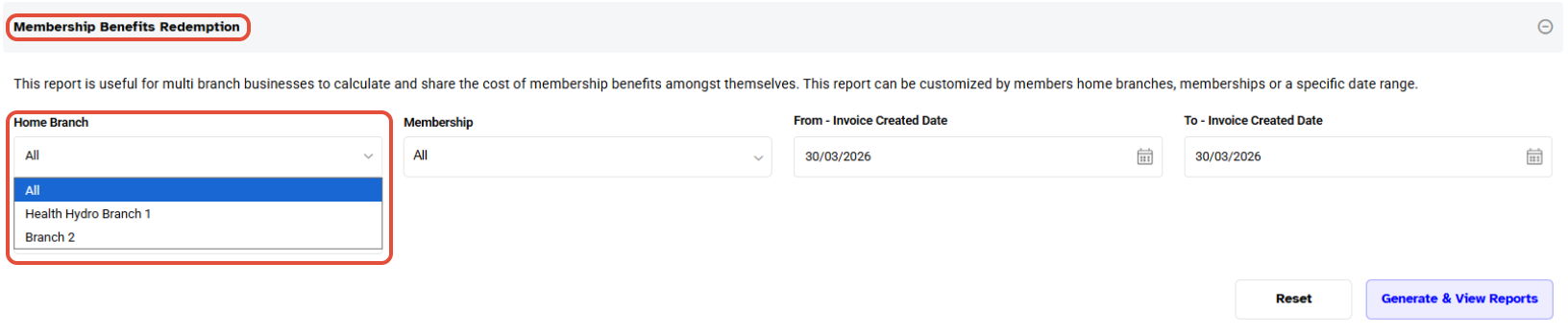
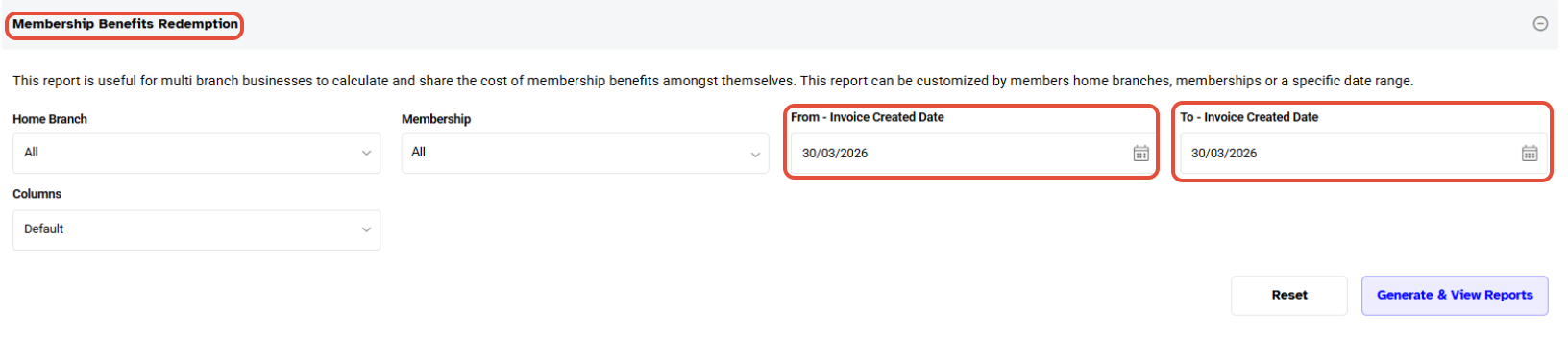
Step 3: Configure Report Settings
Configure the following options:
- Branch: Select a single branch or all branches.
- Membership: Select a single membership or all memberships.
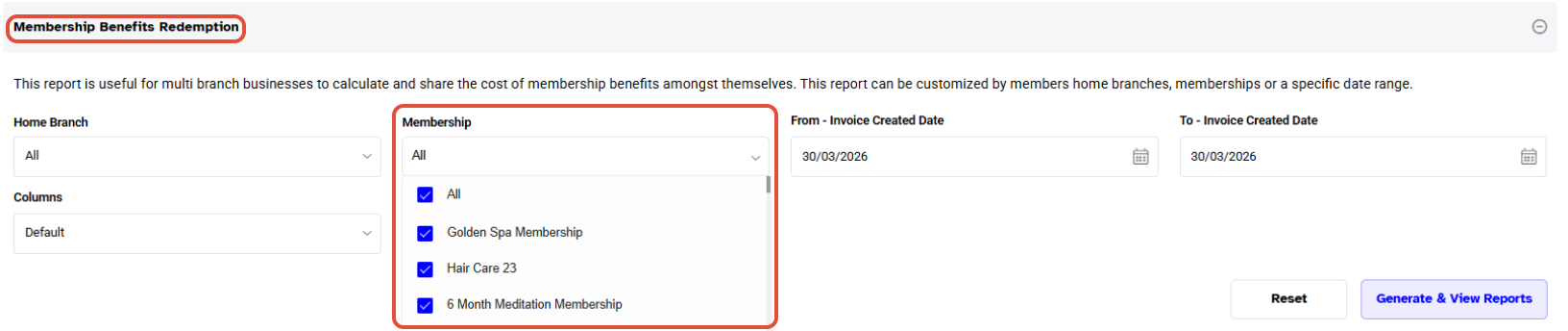
- From: Enter the start date for the search.
- To: Enter the end date for the search.
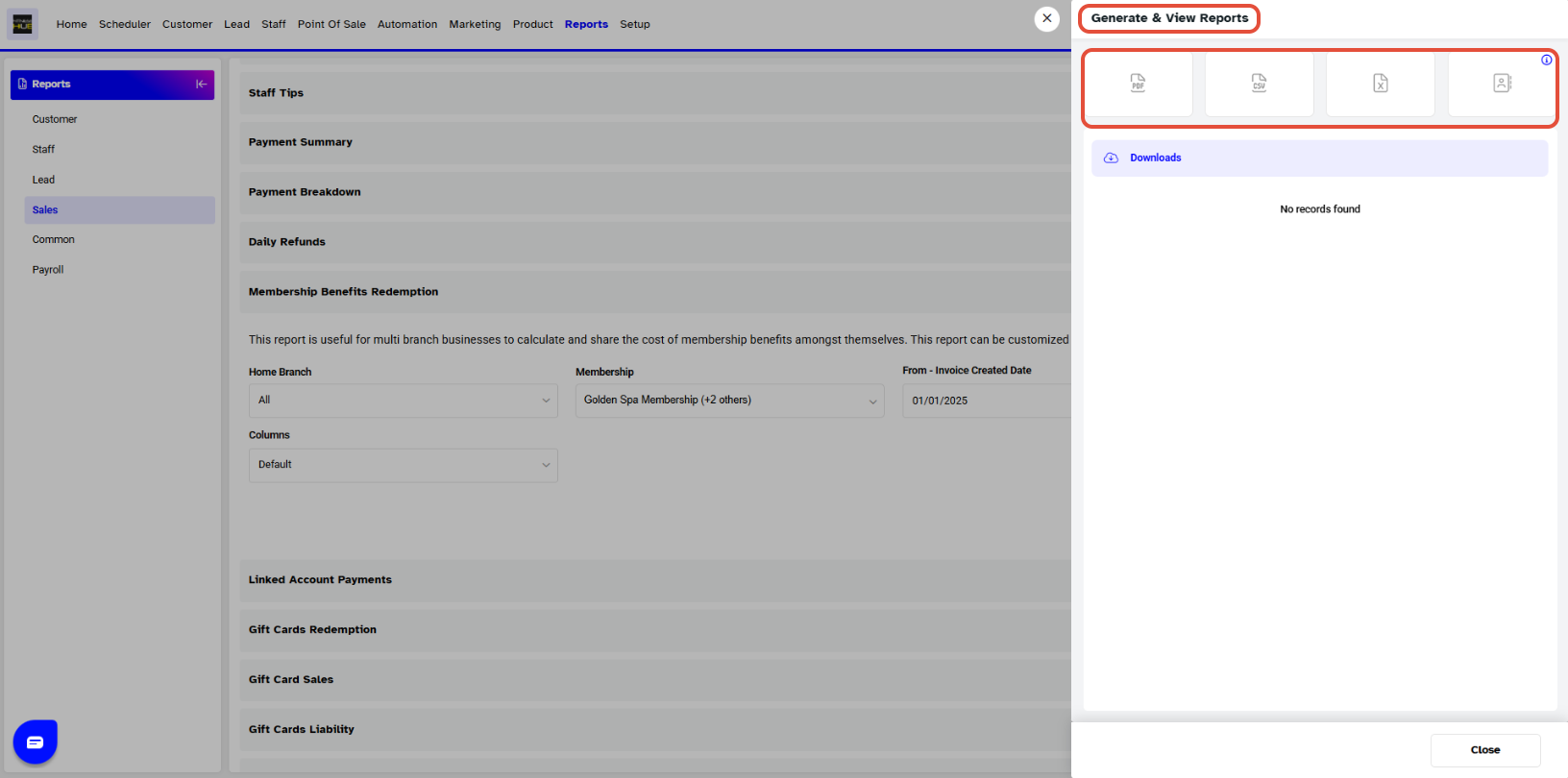
Step 4: Select the format of report
- Click on the PDF File icon to download the report in PDF format.
- Click on the Excel File icon to download the report in Excel format.
- Click on the View File icon to view the report.
Step 5: Download the report
Once it’s generated, you can download the report by clicking the Download button.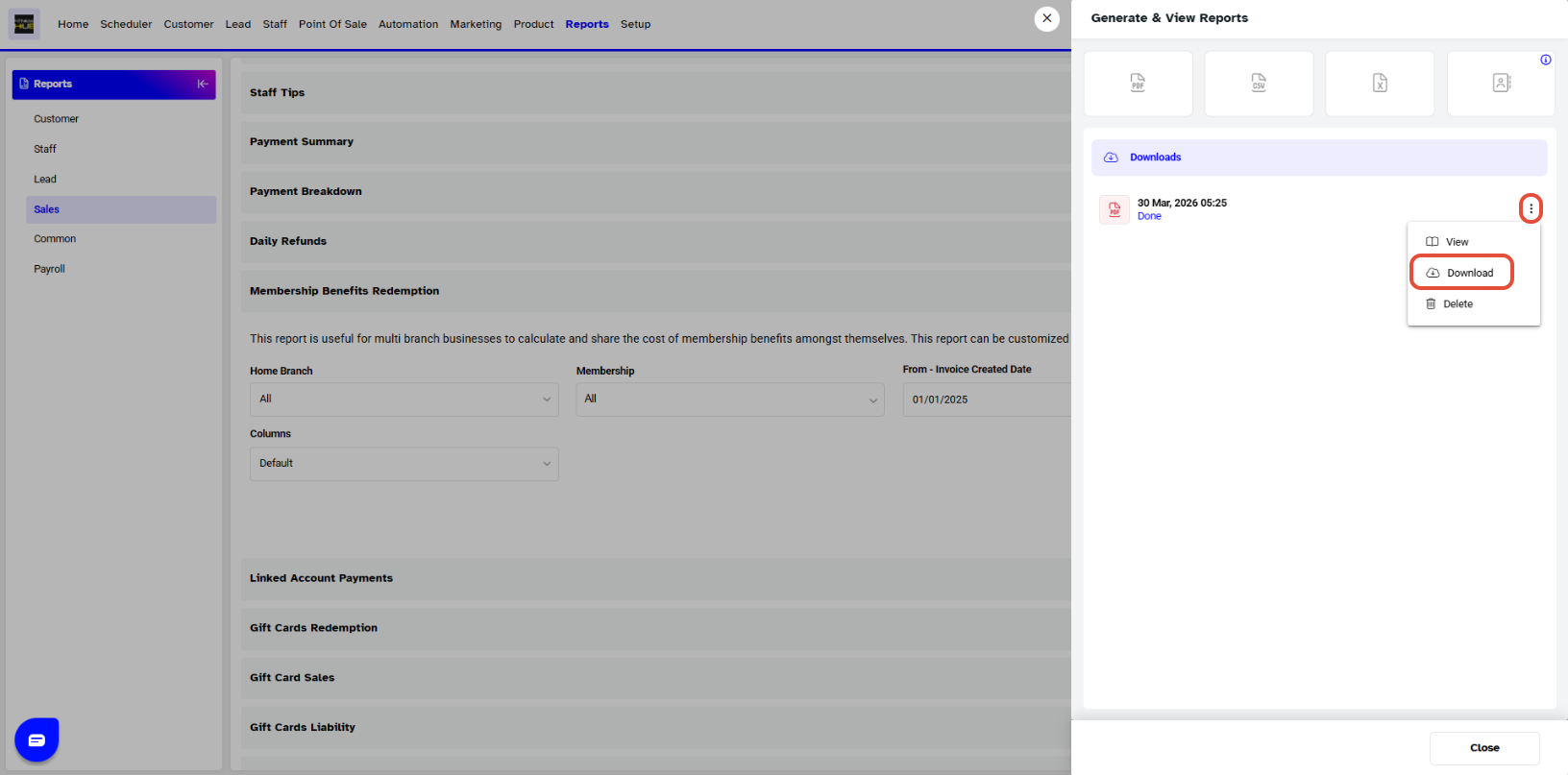
The report will be visible as follow:




