TABLE OF CONTENTS
This guide explains how to view the Gift Cards Sales Report in Core. It covers navigating to the report, filtering data, and understanding the displayed information.
How To View The Gift Cards Sales Report
Step 1: Navigate to Gift Card Sales Report
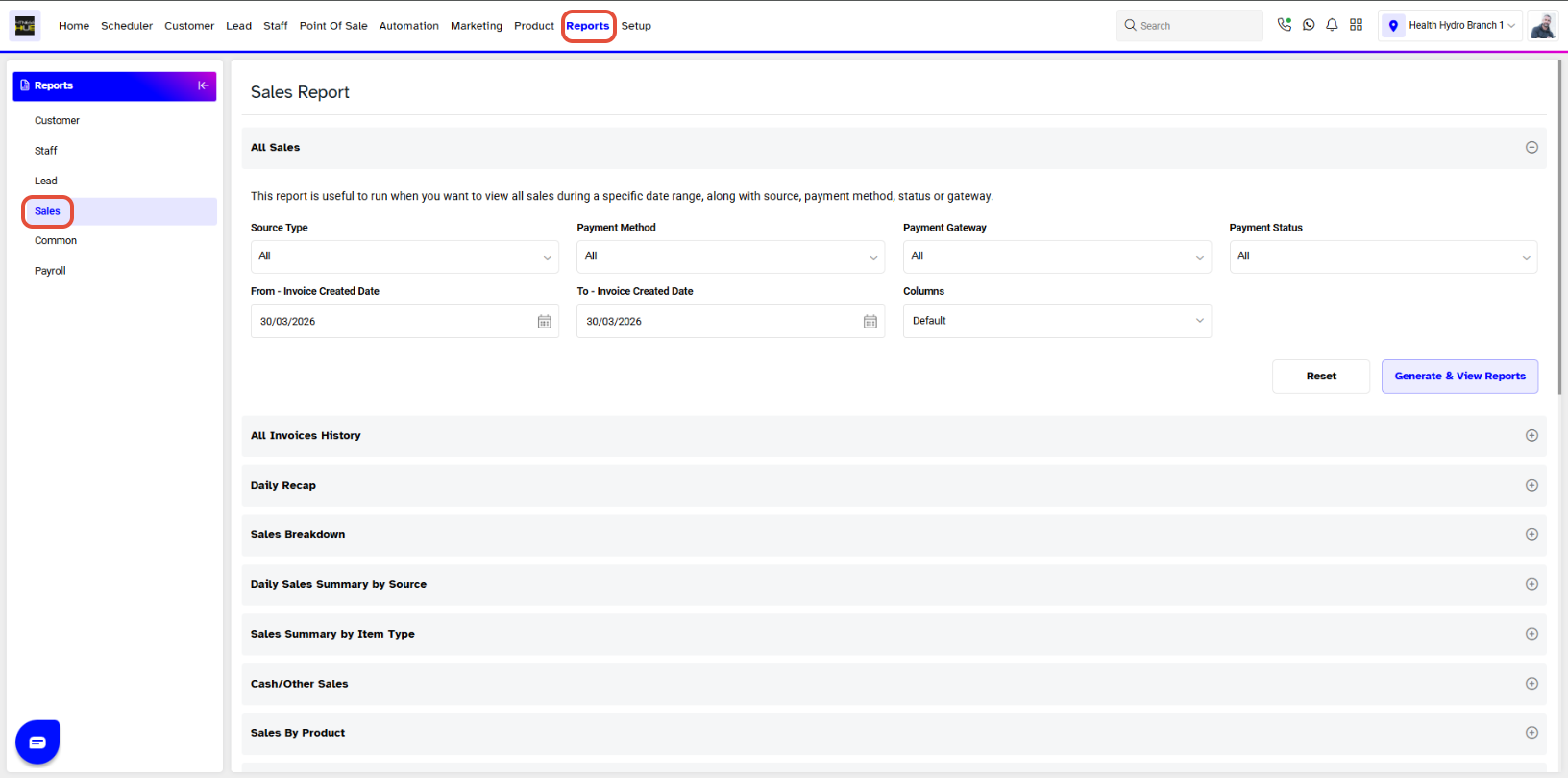
- Go to the Reports Module in Core.
- By default, the Sales Tab will open.
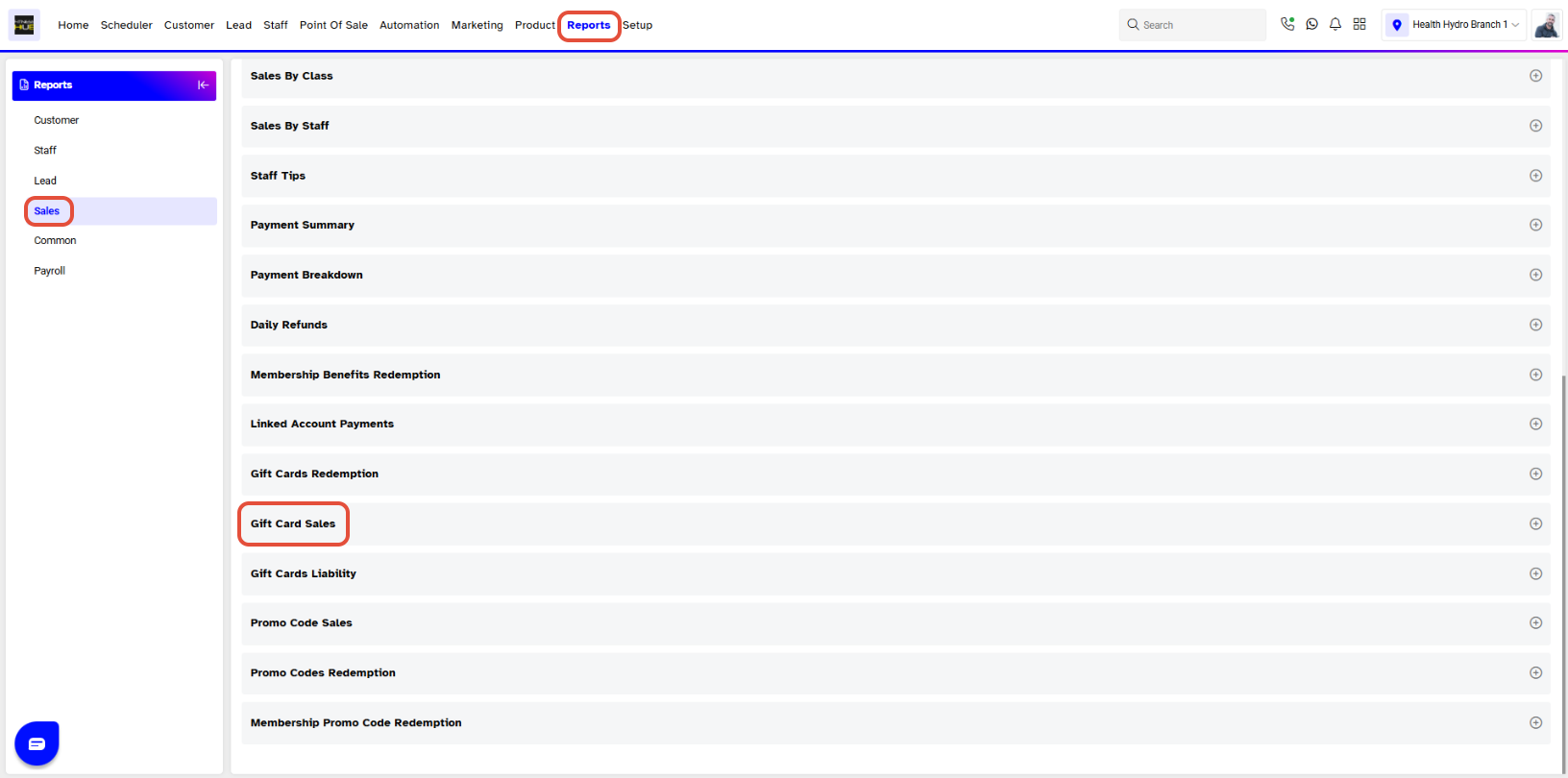
- Scroll down and click on the Gift Card Sales Report.
Step 2: Filter Report Data
Enter the following details to filter the report:
Gift Card Category: Select the Gift Card Category from the drop-down menu.
Gift Card Name: Enter the Gift Card Name.
Source Type: Select the source type from the drop-down menu (Core, Widget, Customer App, Staff App, or All).
Payment Method: Select the payment method from the drop-down menu (Cash, Card, Direct Debit, 3rd Party, or All).
Payment Gateway: Select the Payment Gateway from the drop-down menu.
Payment Status: Choose a Payment Status.
From-Invoice Created Date: Set the Start Date for the search.
To-Invoice Created Date: Set the End Date for the search.
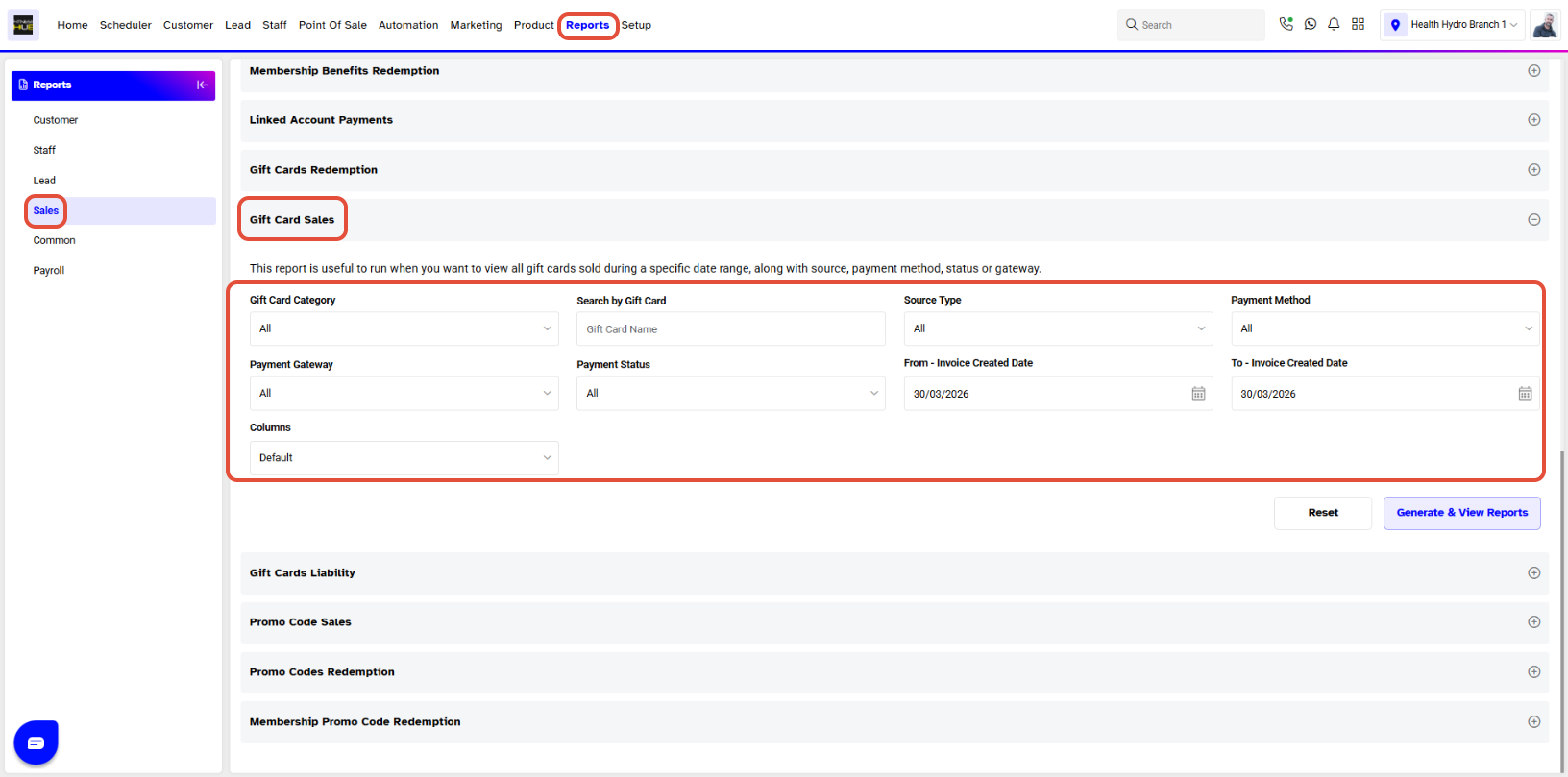
These search fields are (Optional) to fill.
Step 3: Generate and Download the Report
- Once the details are entered, choose the report format by clicking on its icon (PDF or Excel).
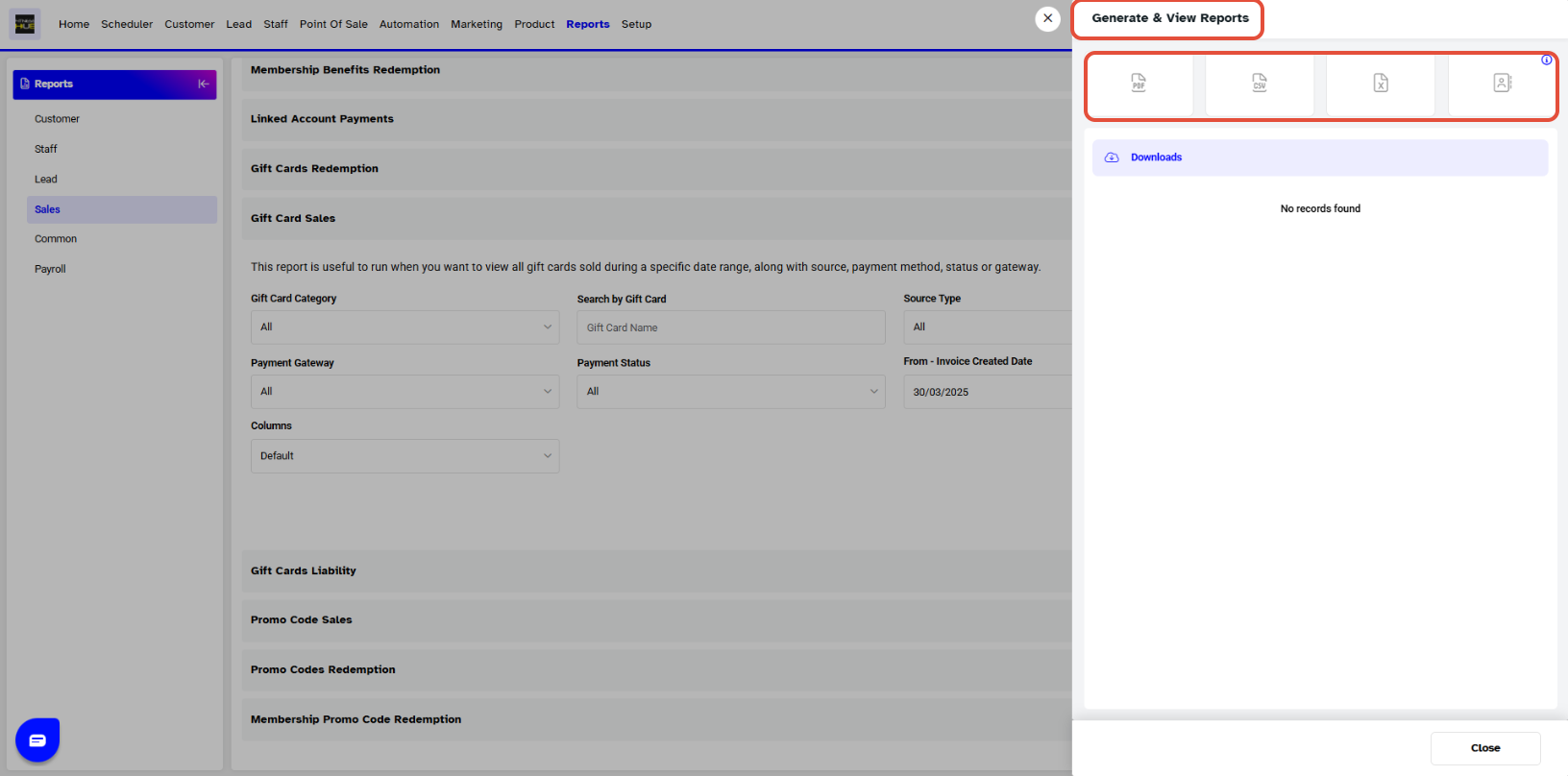
- The report can be downloaded by clicking the Download Button.
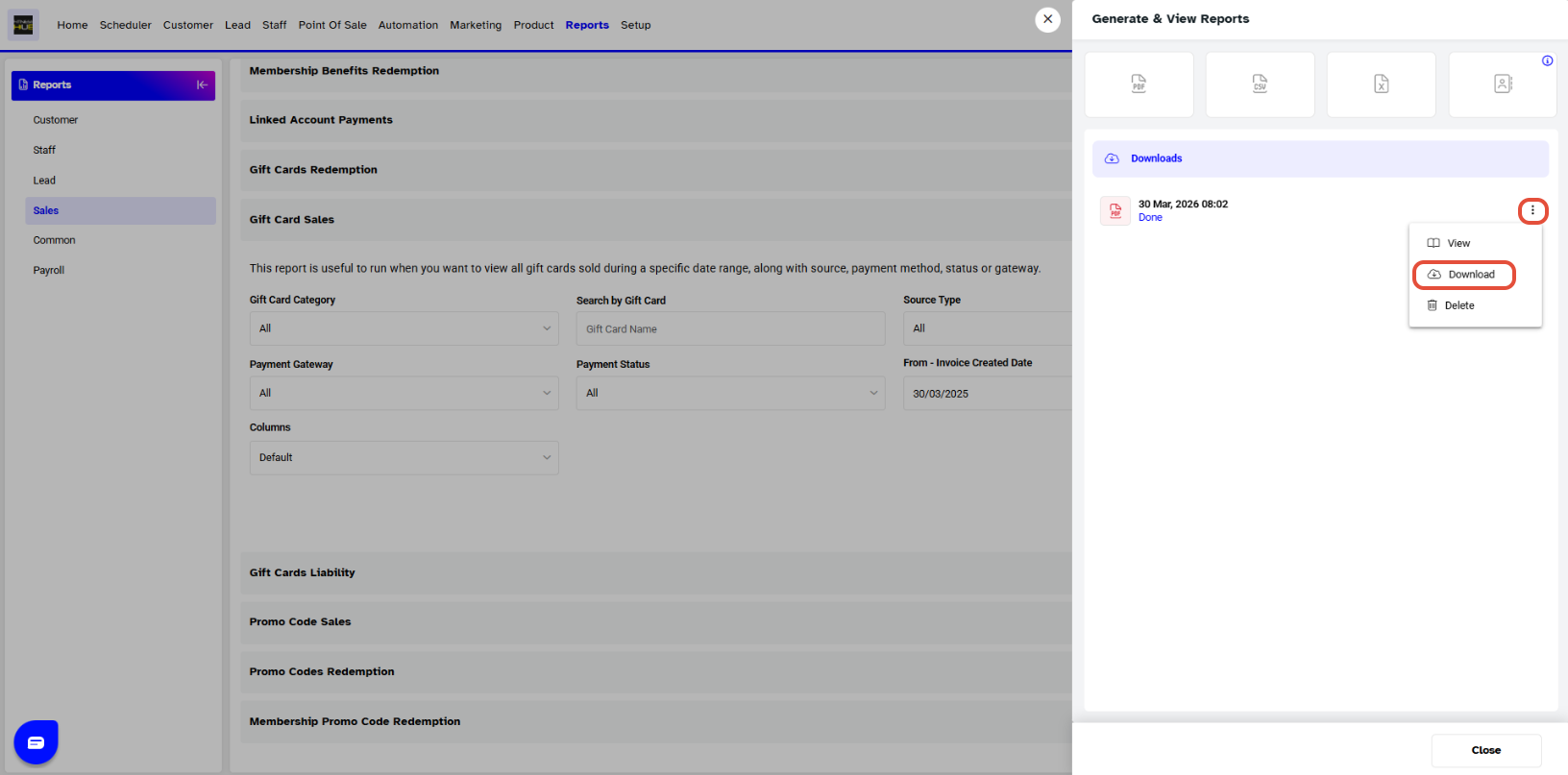
Step 4: View Report Details
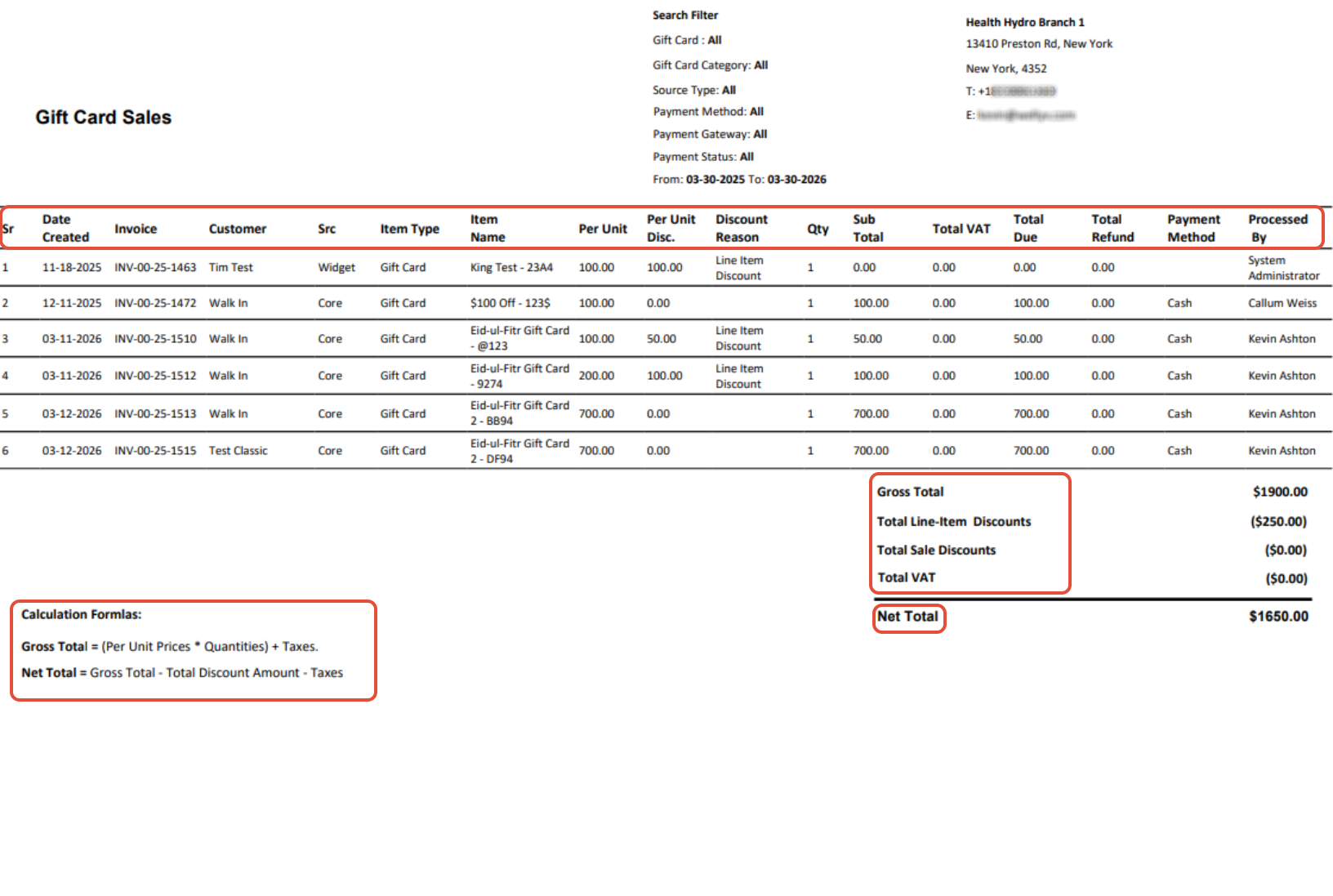
- This page will display the following information:
- Sr. #
- Date Created
- Invoice
- Customer
- Src
- Item Type
- Item Name
- Per Unit
- Per Unit Disc.
- Discount Reason
- Qty
- Sub Total
- Total Tax
- Total Due
- Total Refund
- Payment Method
- Processed By
The Gift Card Sales Report also includes the Gross Total, Total Line-Item Discounts, Total Sale Discounts, Total Taxes, Net Total, and Calculation Formula.