


TABLE OF CONTENTS
This Report is useful to run when you want to see Sales Information for Memberships/Products/Services/Classes sold by Staff.
How To View The Sales By Staff Report In Core
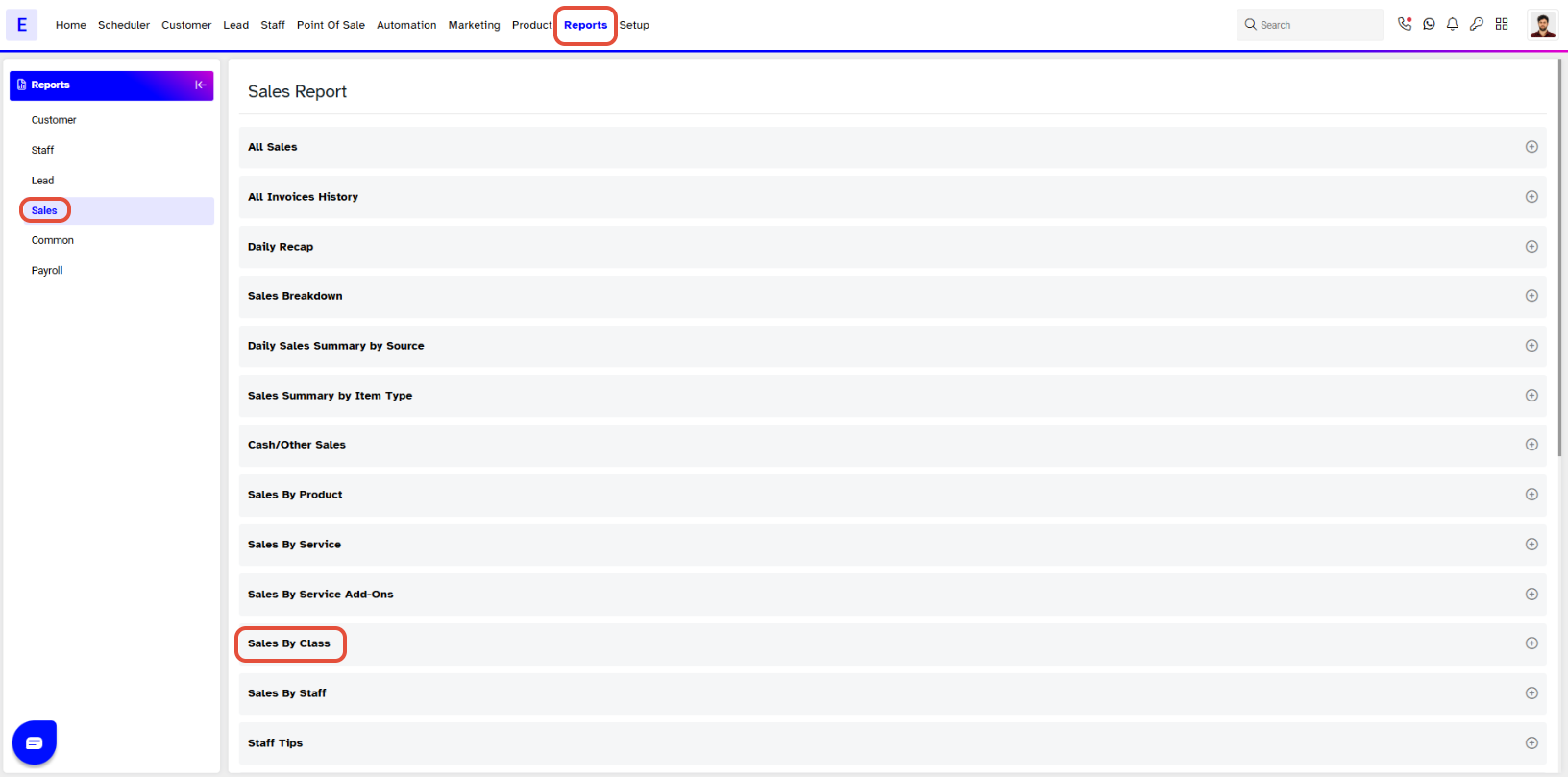
Step 1: Navigate to the Reports Module
- From the Core Menu, go to the Reports Module.

By default, you will be taken to the Sales Segment
Step 2: Select the Sales By Staff Report
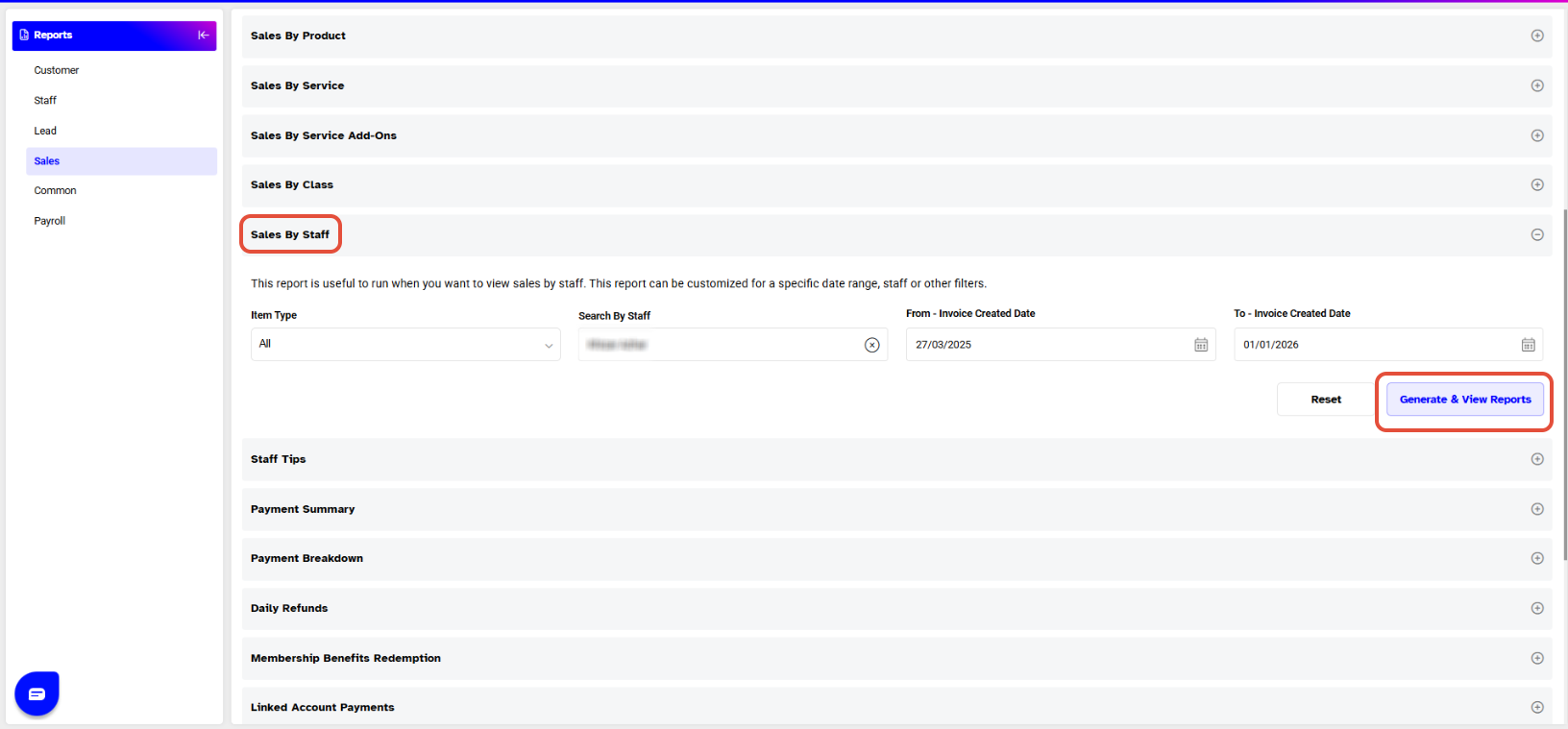
- Scroll down to the Sales By Staff Report.
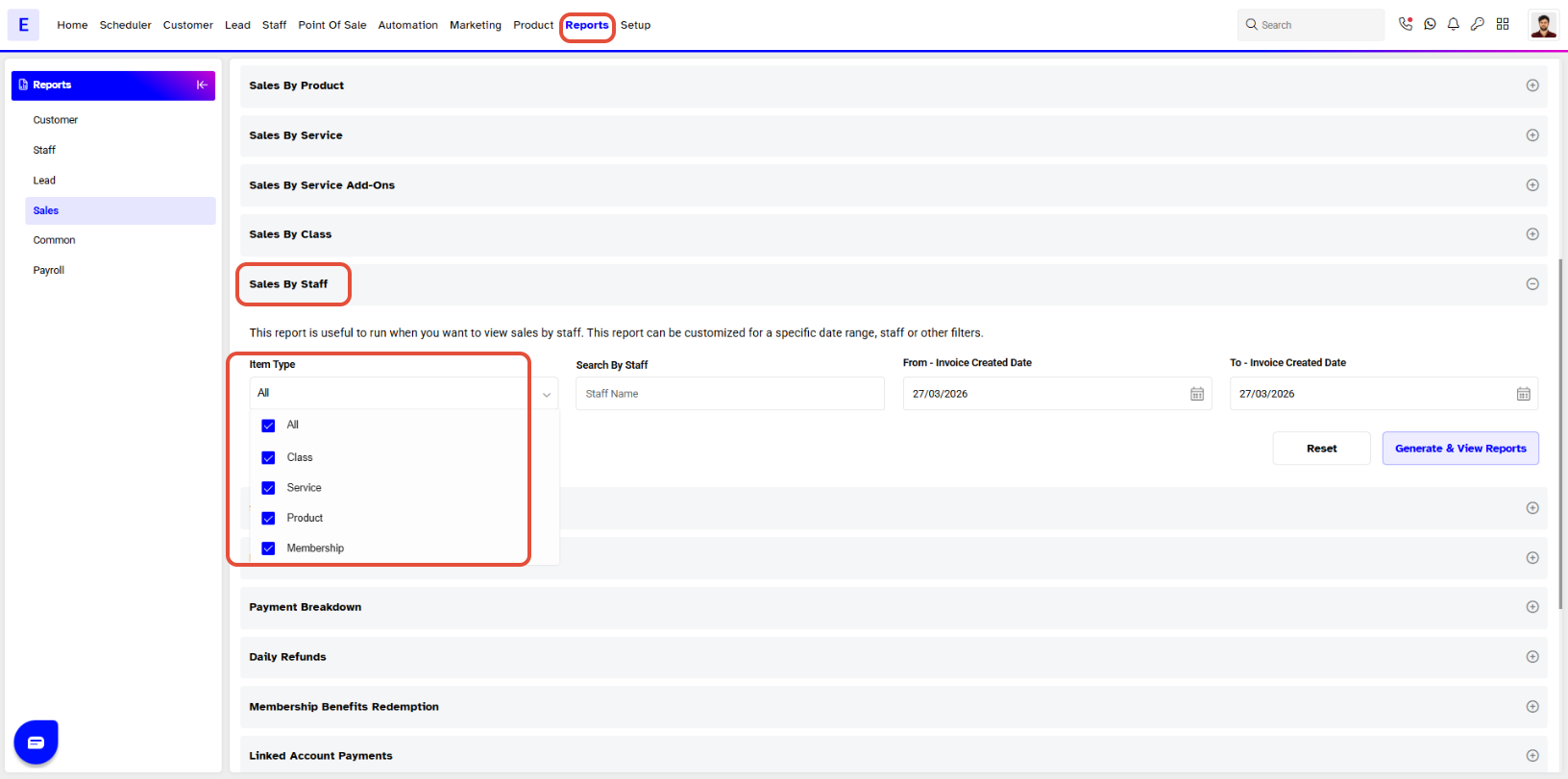
Step 3: Configure Report Filters
- Select an Item Type or All Items from the drop-down menu.
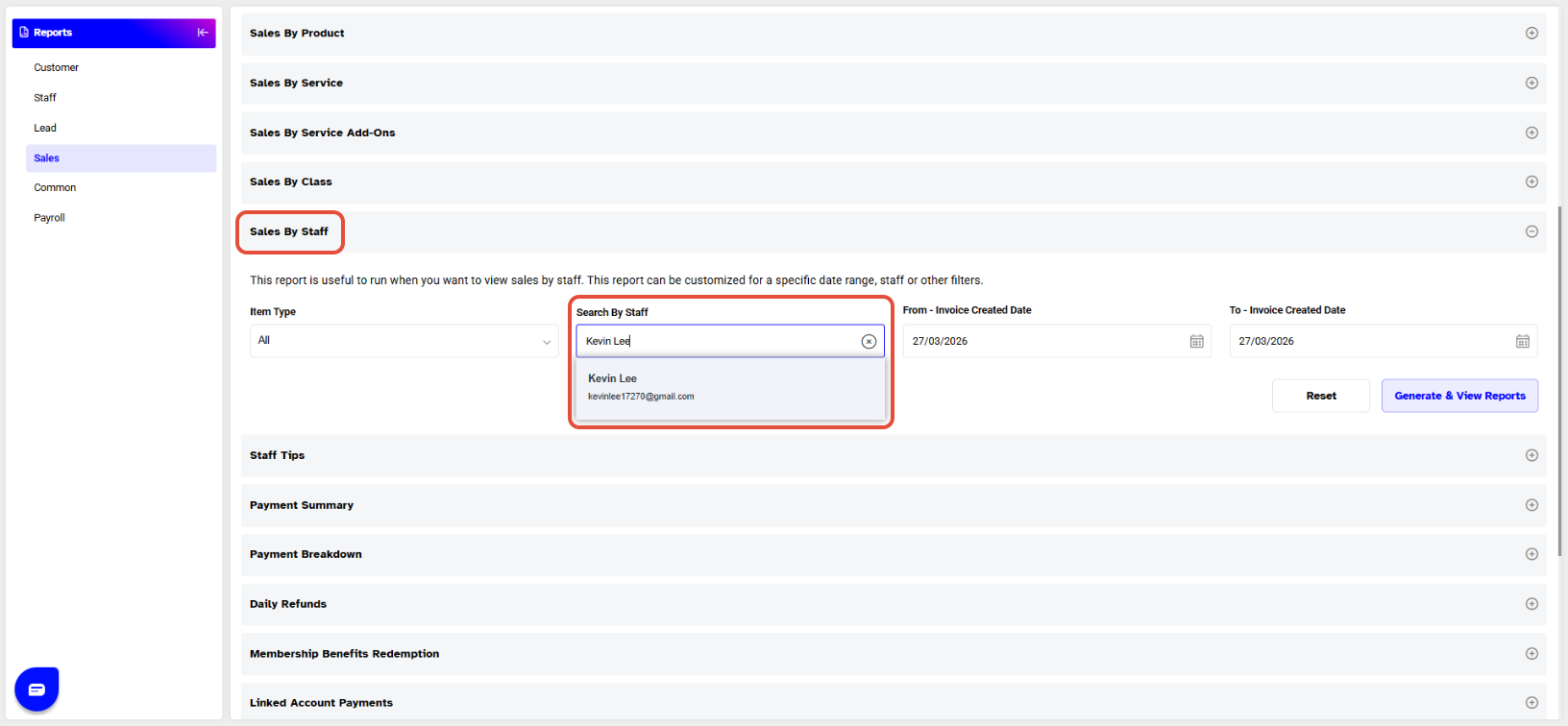
- Search by Staff whose sales information you want to view.
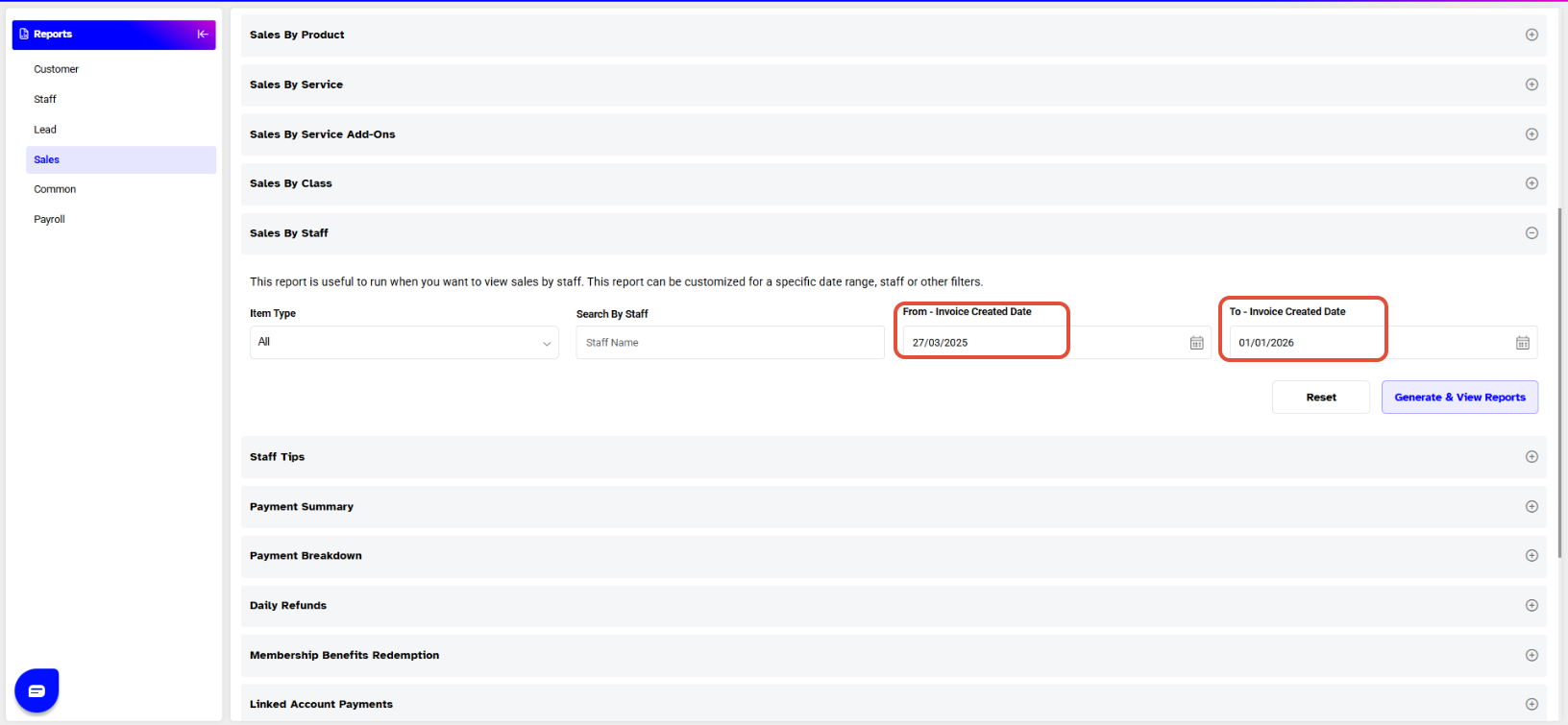
- Choose a Date Range for which you want to view the items sold. Select a starting date under From and an ending date under To.
Step 4: Generate and Download the Report
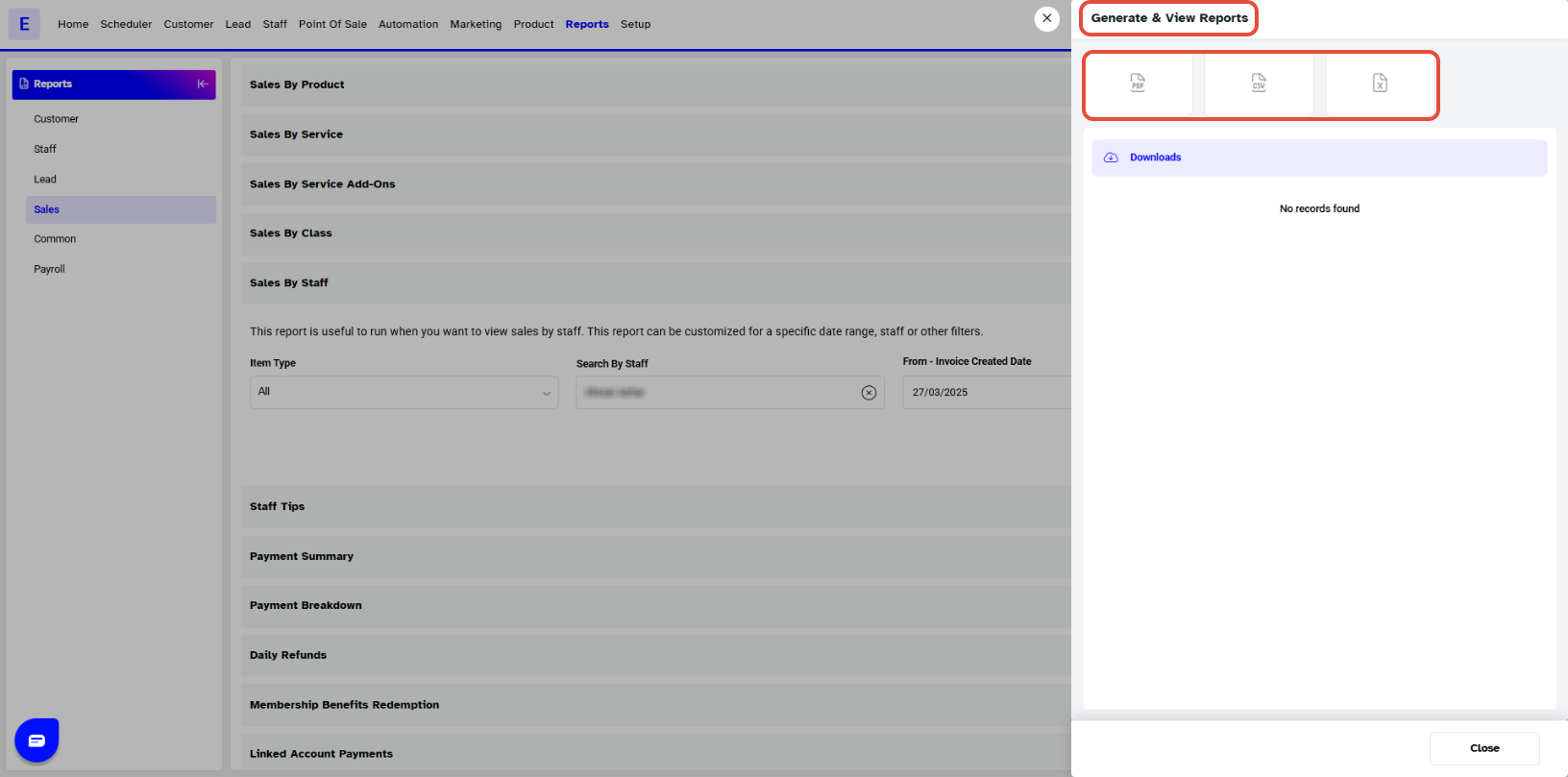
- Once done, click on the Generate & View Reports button.
- Select the format in which you want to download the Report.
- After generating the Report, you can download it by clicking on the Download Icon
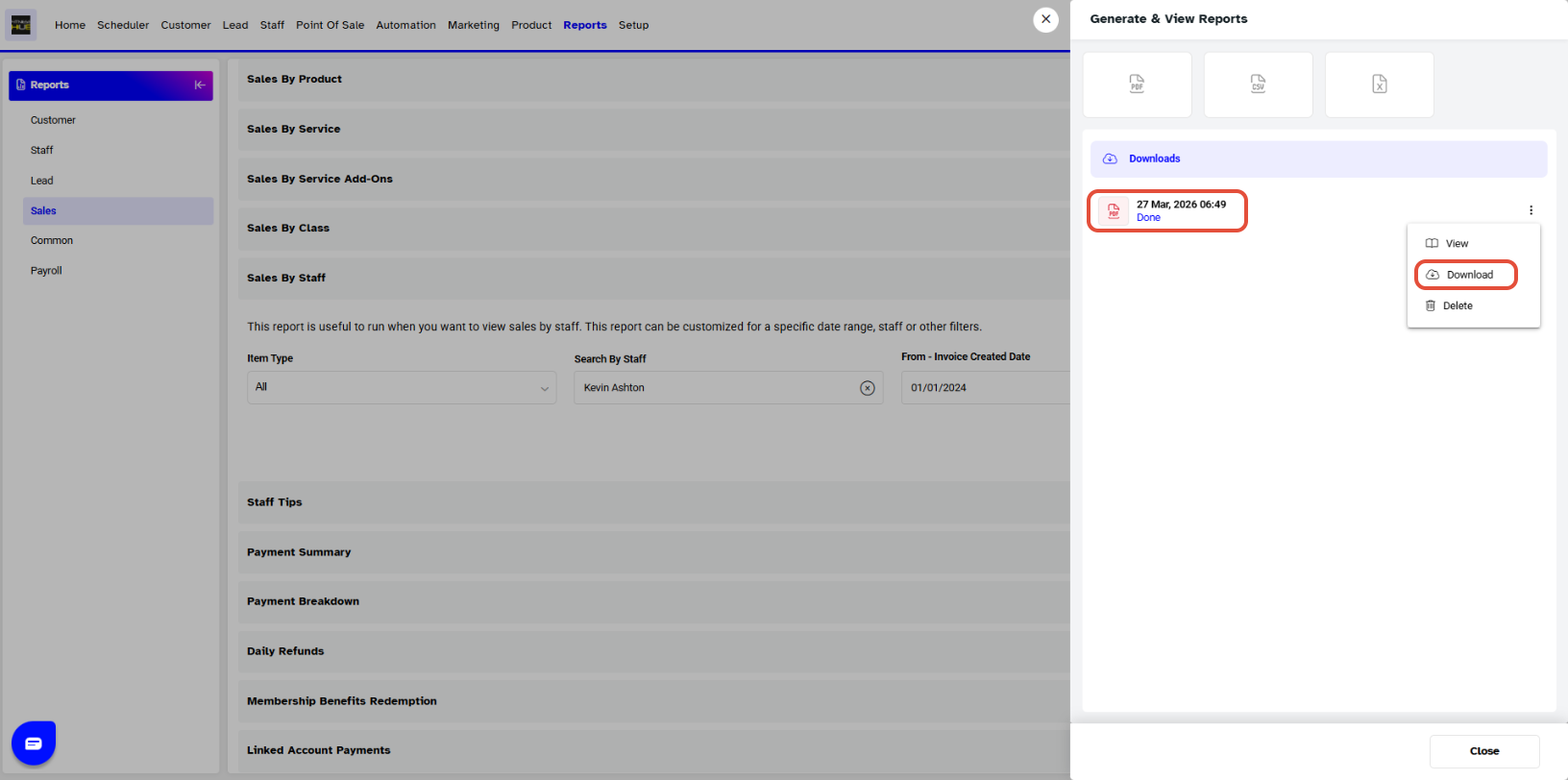
The generated report is available for download for 30 Days.Understand Report Details
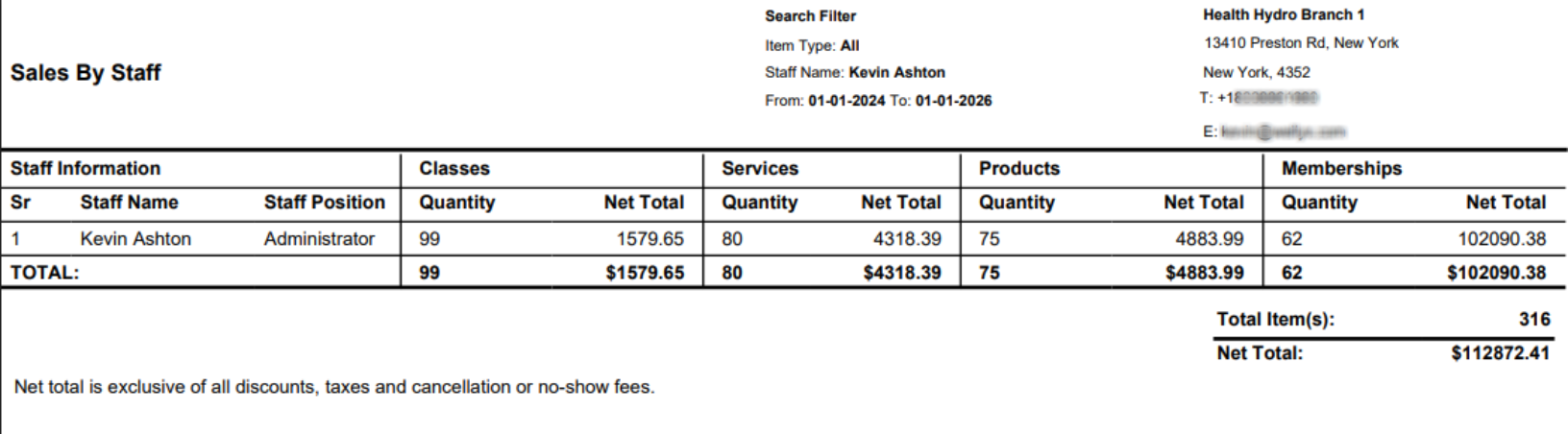
A Sale By Staff detail page will open up in a separate tab. This page will display the following information:
- Sr. #
- Staff Name
- Staff Position
- Classes Quantity
- Classes Net Total
- Services Quantity
- Services Net Total
- Products Quantity
- Products Net Total
- Memberships Quantity
- Memberships Net Total
- Total Items
For a list of terms used in the Wellyx application & across the support website, please consult our Glossary.




