TABLE OF CONTENTS
- Step 1: Navigate to the Gift Cards Liability Report
- Step 2: Define Report Parameters
- Step 3: Generate and Download the Report
This guide explains how to view the Gift Cards Liability Report in Core.
Step 1: Navigate to the Gift Cards Liability Report
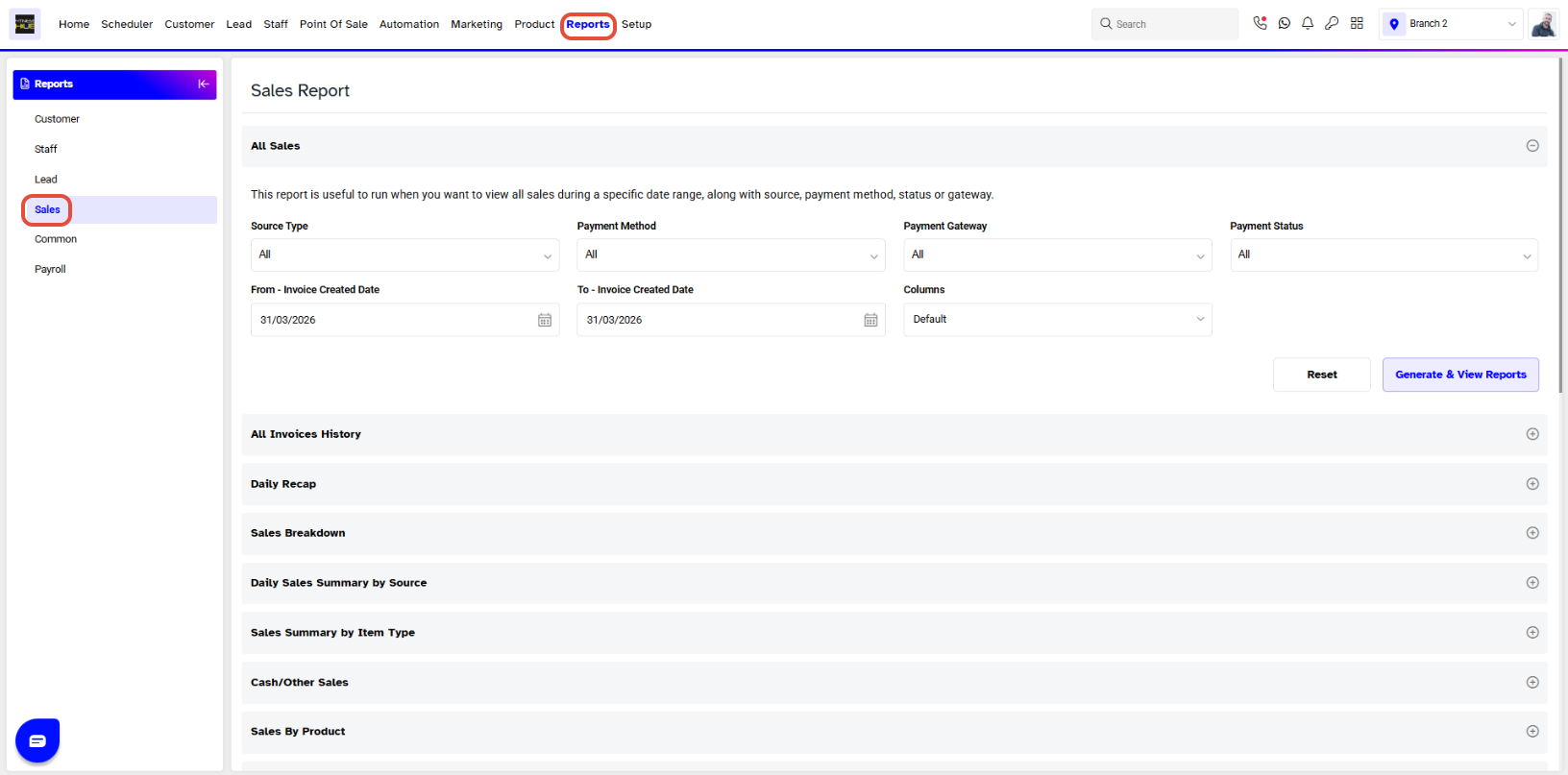
- Go to the Report Module

- By default, the Sales Tab will open.

- The Sales Tab will open by default.
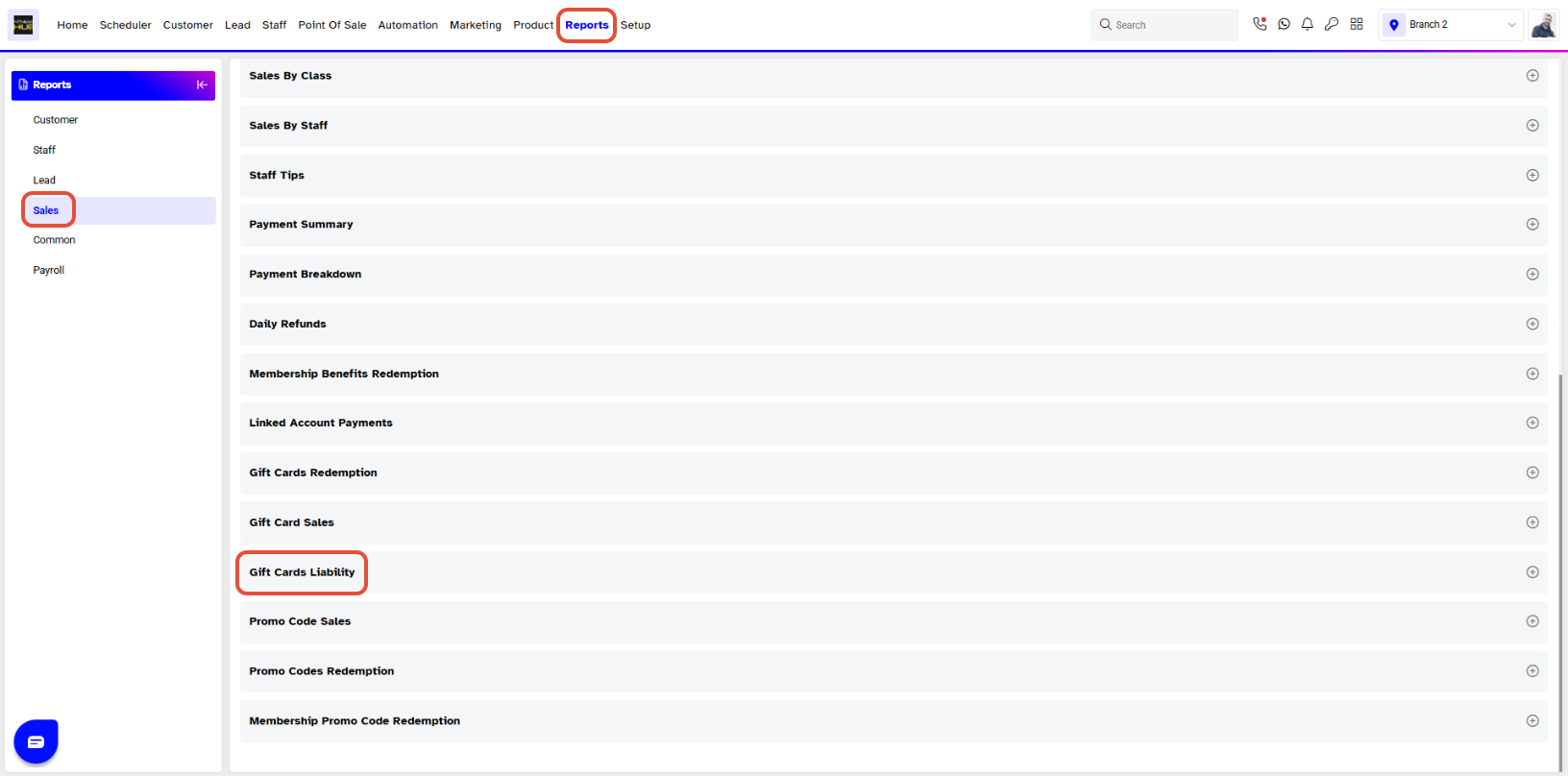
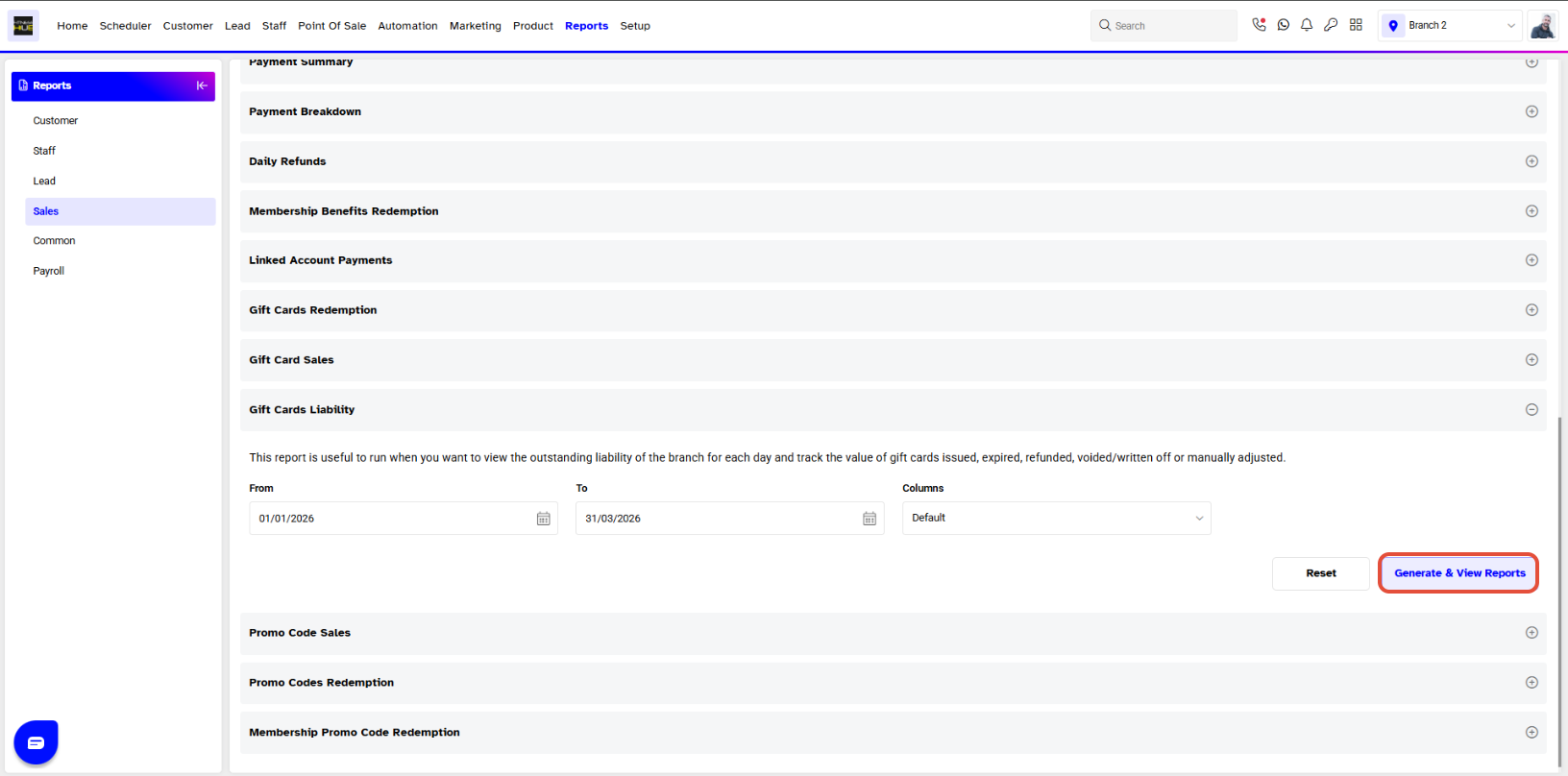
- Scroll down and click on the Gift Cards Liability Report
Step 2: Define Report Parameters
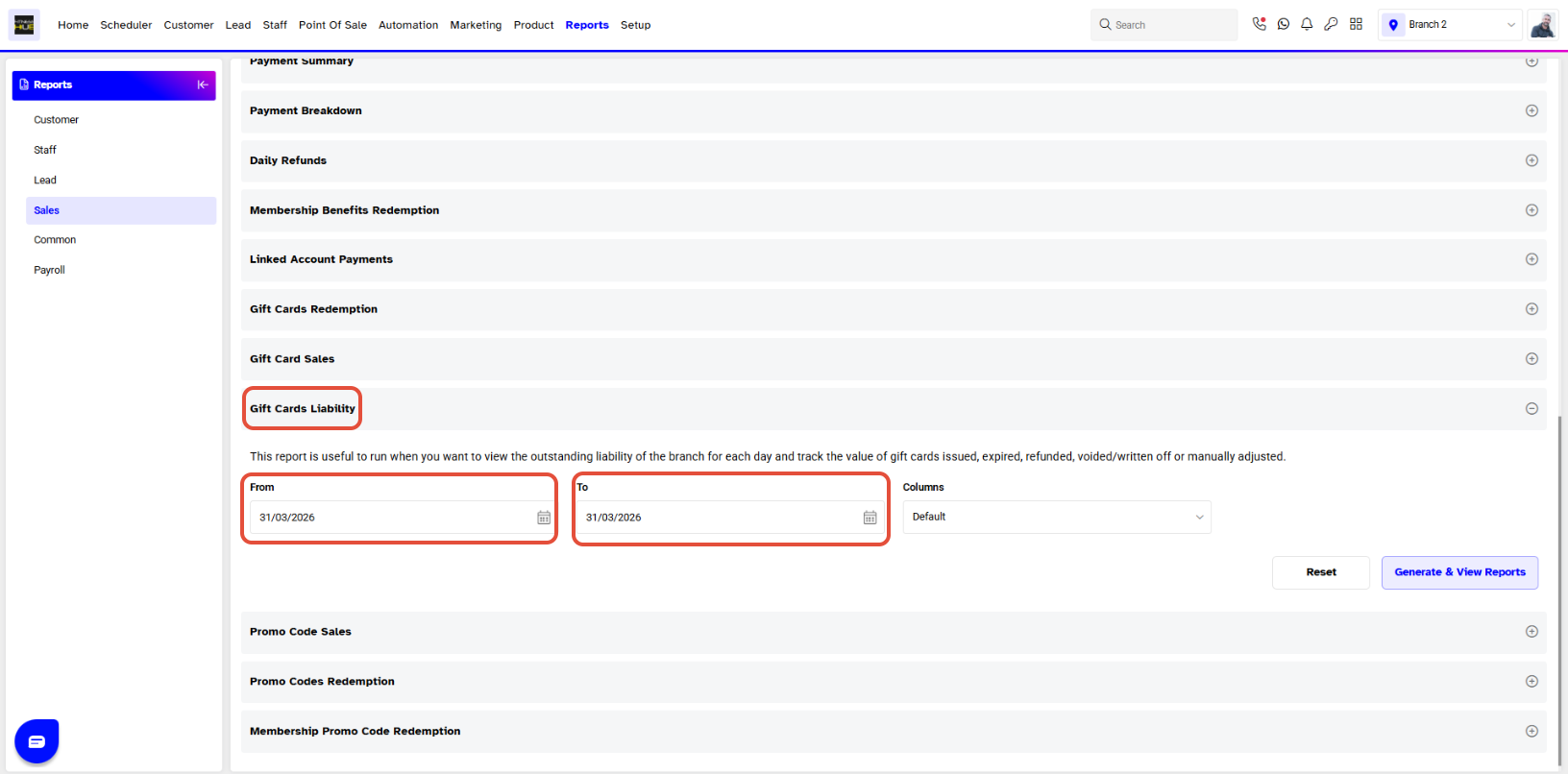
- The following fields can be filled:
FROM: Set the start date for the search.
TO: Set the end date for the search.
Step 3: Generate and Download the Report
- After entering the dates in the FROM and TO fields, click the Generate and View Reports button.
- Choose the Report Format (PDF or Excel) by clicking on the respective icons.
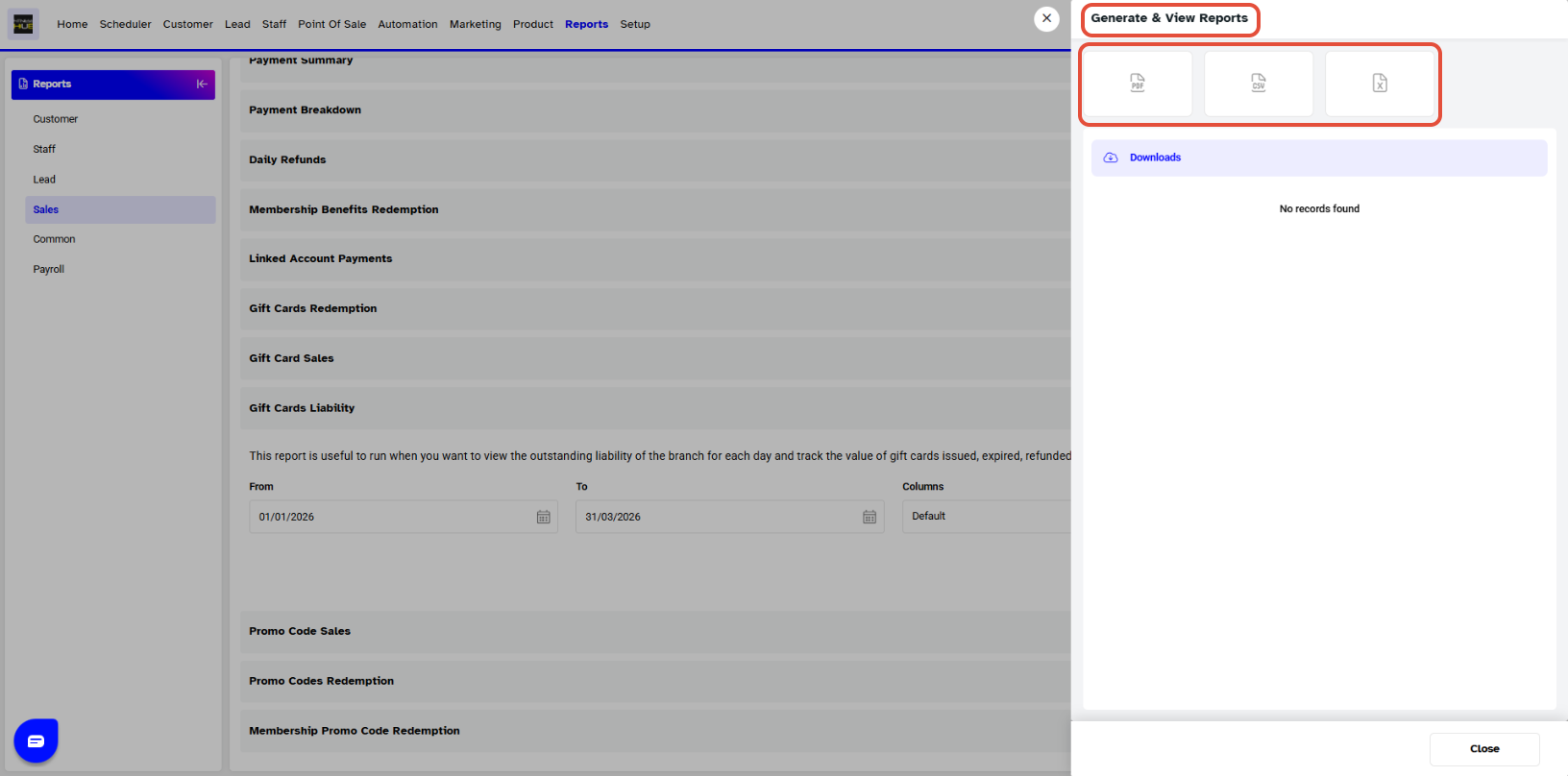
- Once the report is generated, you can either download it by clicking the Download button or view it Online.
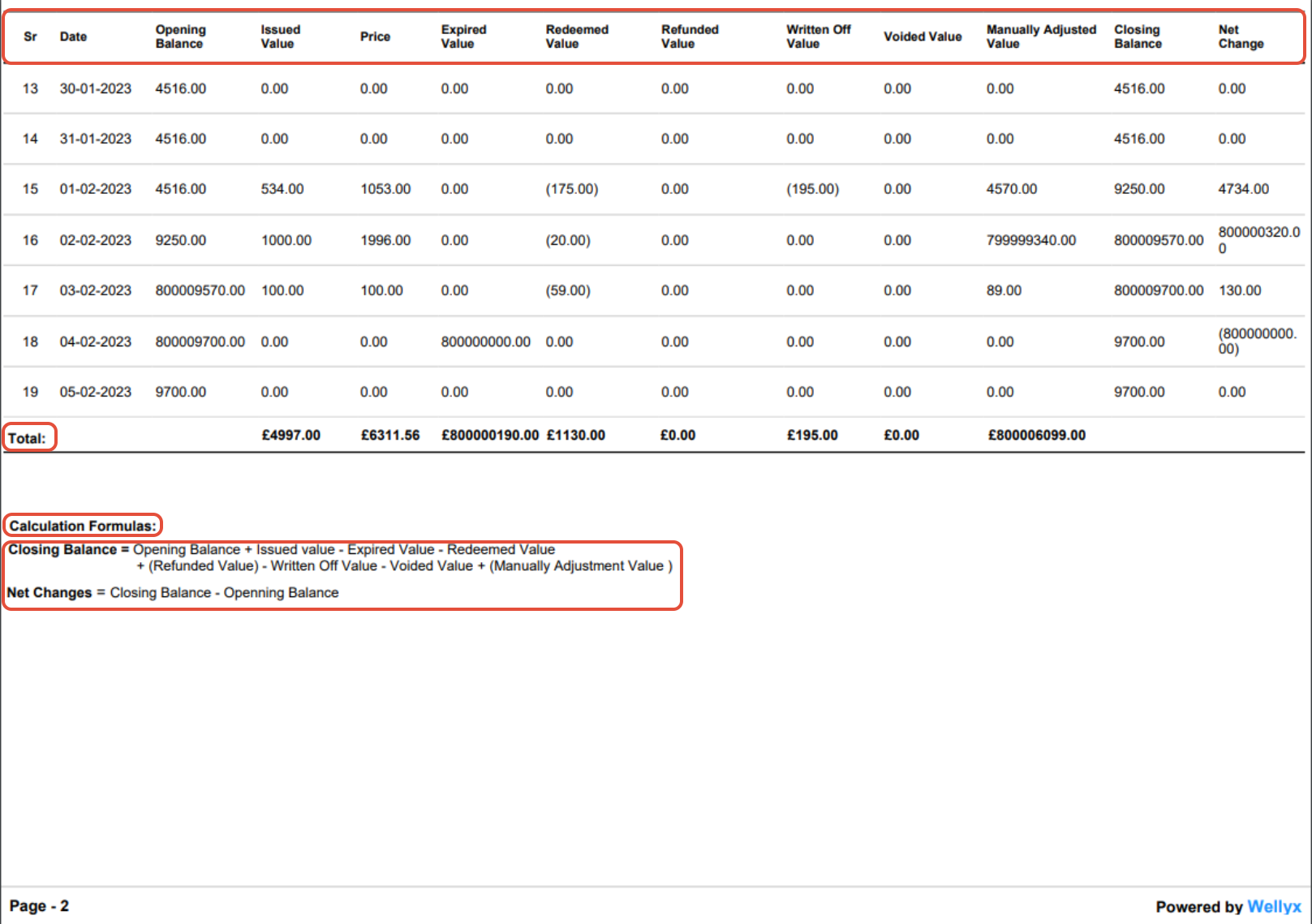
A Gift Cards Liability detail page will open up in a separate tab. This page will display the following information:
- Sr. #
- Date
- Opening Balance
- Issued Value
- Price
- Expired Value
- Redeemed Value
- Refunded Value
- Written Off Value
- Voided Value
- Manually Adjusted Value
- Closing Balance
- Net Change
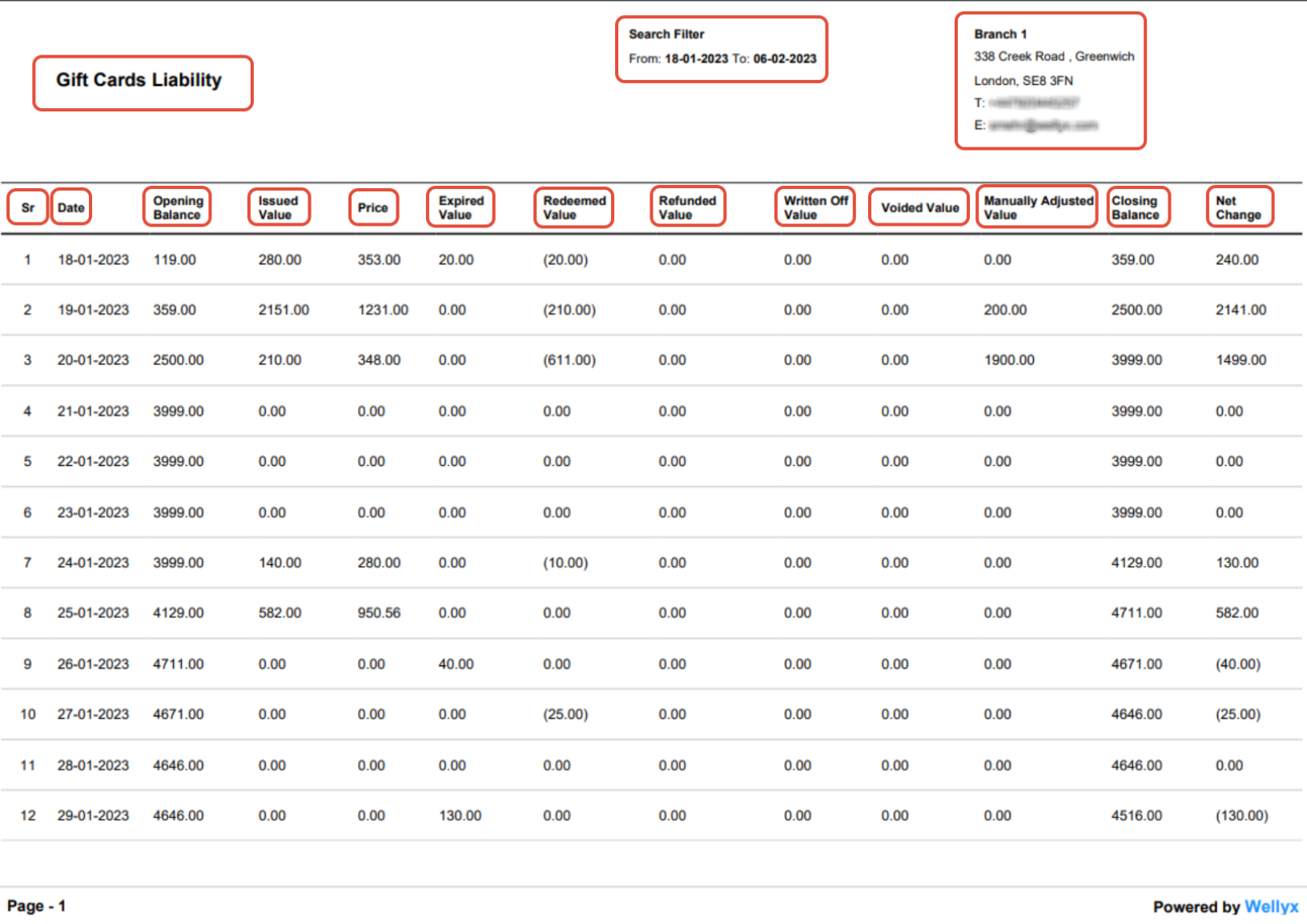
The Gift Card Liability Report also shows the calculation formula for Closing Balance and Net Changes.