


TABLE OF CONTENTS
To create an Automation Rule for when a Member's Membership is about to expire, follow the steps below:
How To Create An Automation Rule For When A Member's Membership Is Near To Expiry
Go to the Automation Module and click on Add Automation Button.

There are the following sections adding Automation:
- Add Automation
- Schedule
- Options
- Audience
- Template
Add Automation
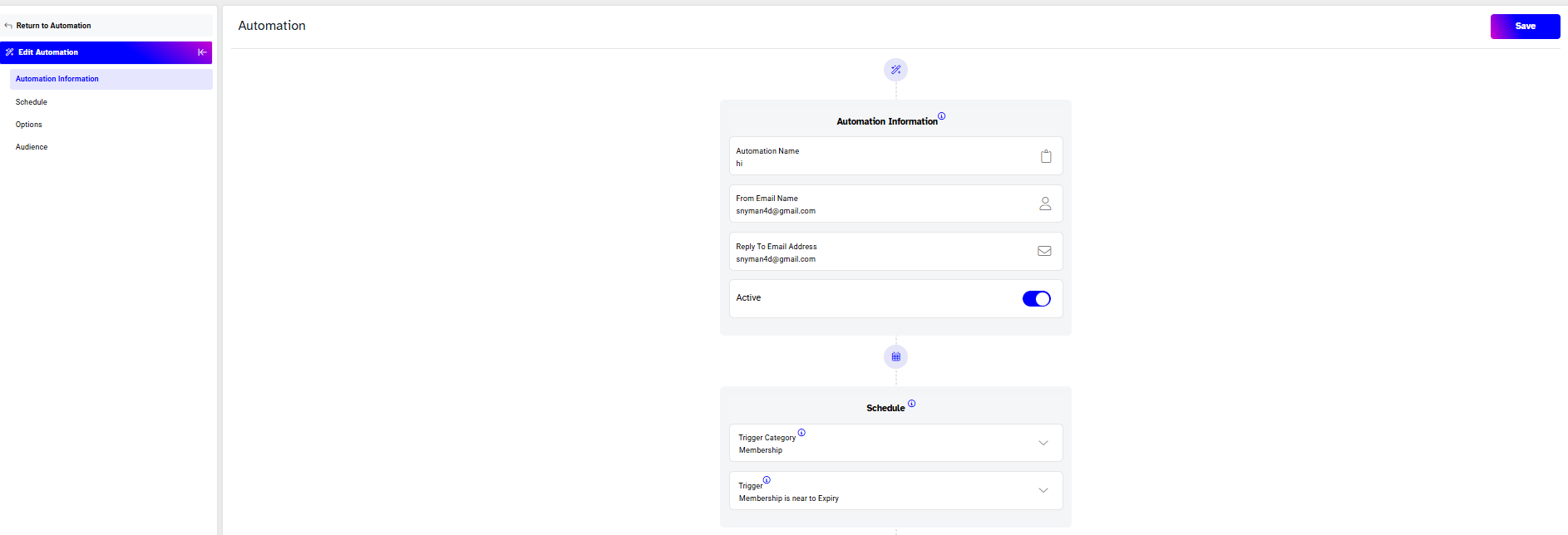
- Automation Name - allocate a name for the Automation.
- From Email Name - enter a name for the email that will appear to the recipients when they will receive it.
- Reply Email Address - enter the Email address that your recipients can respond to.
Schedule
- Trigger Category - select Membership from the dropdown menu.
- Trigger - select Membership is near to Expiry from the dropdown menu.
Options
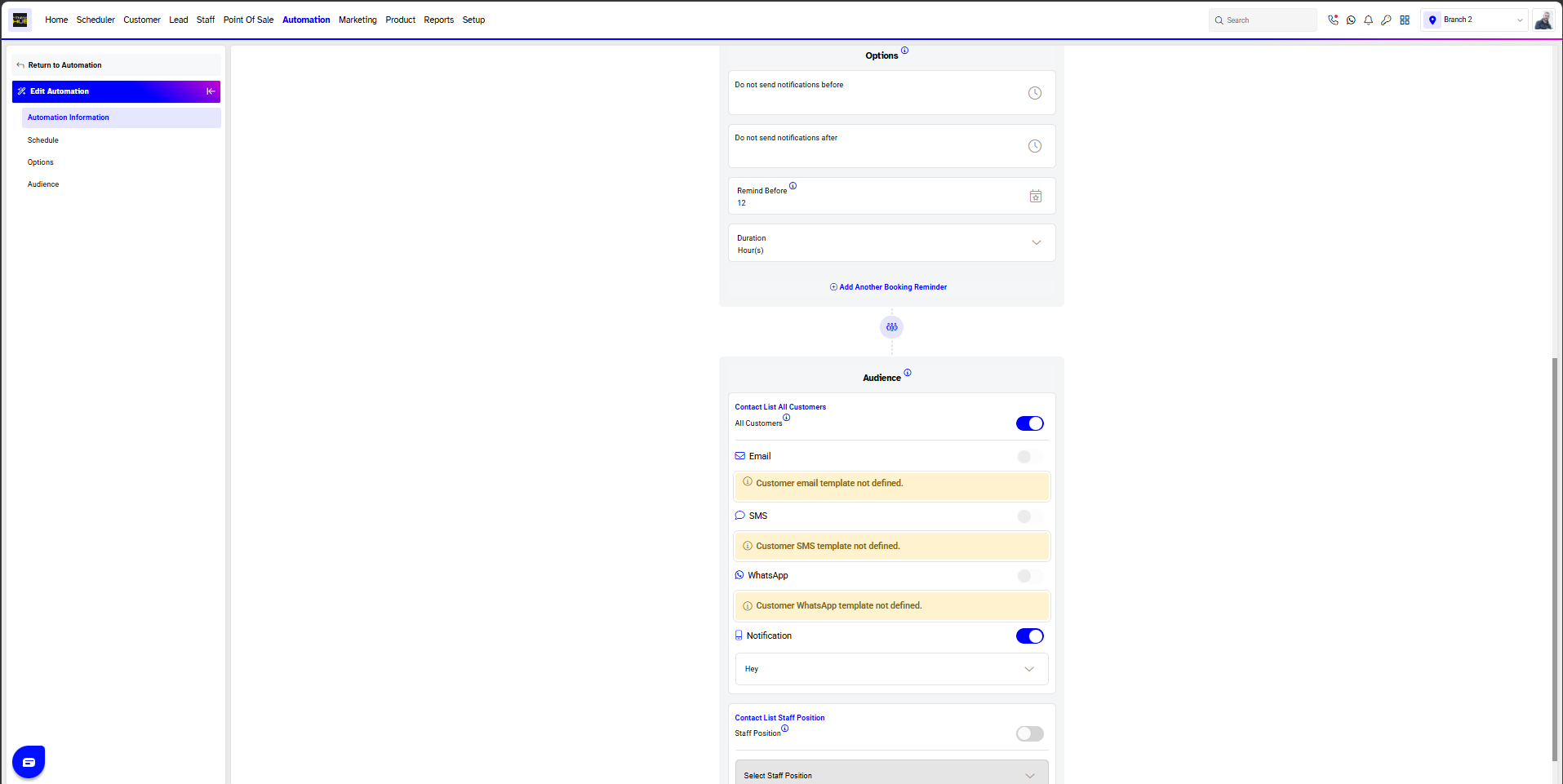
- Do not send notifications before - from the dropdown menu merchants will select a time slot before which the notification will not be sent to the customer.
- Do not send notifications after - from the dropdown menu merchants will select a time slot after which the notification will not be sent to the customer.
- Remind Before - specify the time interval before which the customer will be sent this template. By default, this is set to send out every 24 hours.
Audience
Select the recipients of this Automation Template between Customers or Staff.
Select the Staff Position from the dropdown menu if the Staff Position check box is checked.
Once done, click on the Save Button.
An Automation Rule Saved Successfully message will appear and the new Automation can be seen under the main Automation page.