
TABLE OF CONTENTS
Create An Automation Rule
Go to the Automation Module and click on the Add Automation Button.

Add Automation
The Add Automation Section provides the following options:
- Automation Name - Type in the Name for the Automation.
- From Email Name - Type in the Name that will be visible to the Customers when they will receive the Automation.
- Reply Email Address - Type in the Email to which the Customers can respond back to after receiving the Automation.
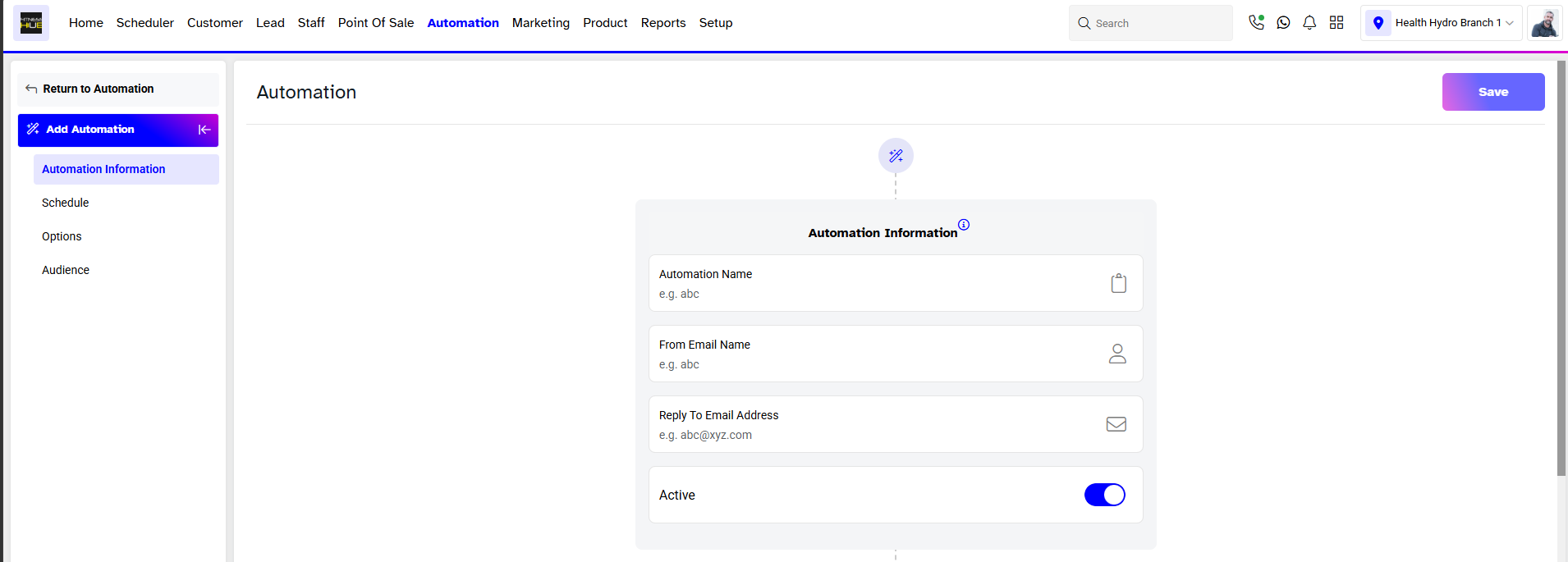
If the From Email Name field is left Empty, then the Automation sent to the Customer will contain the Default Email of the Company.
Schedule
The Schedule Section provides the following options:
- Trigger Category - Select a Trigger Category from the dropdown menu. The Trigger Categories available are Class, Service, Lead Enquiry, Membership, Shift, and Customer Activities.
- Trigger - Select a Trigger from the dropdown menu.
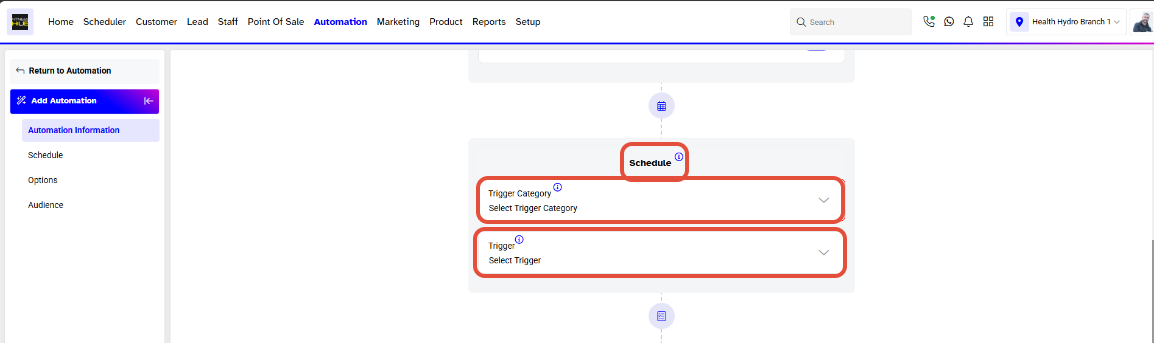
The Trigger depends on the Trigger Category. After the Trigger Category has been selected, only then the dropdown menu of the Trigger related to that category will be available to use.
The Trigger will only work when the Merchant has created an Automation Template for it in the Setup Module.
Options
- Do not send notifications before - The Merchant can specify a time before which notification would not be sent to the Customer.
- Do not send notifications after - The Merchant can specify a time after which notification would not be sent to the Customer.
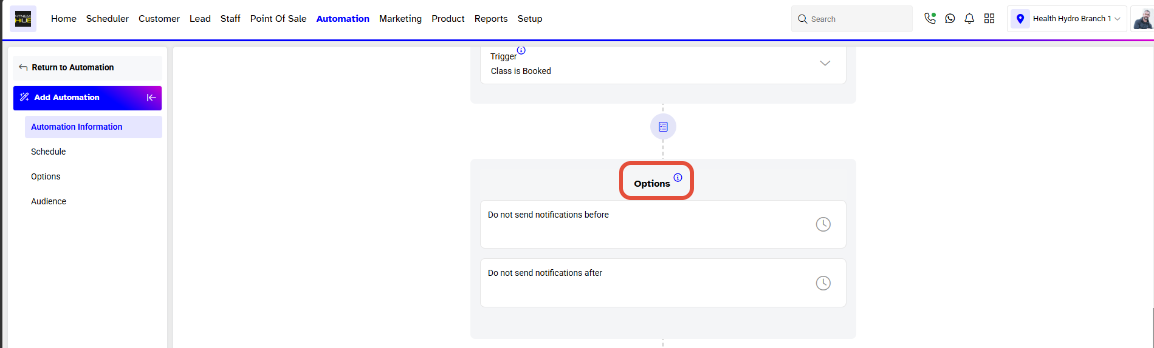
If both of these Boxes are left empty, then the Notification will be sent to the Customer at any time of the Day.
There are some additional options available for certain Triggers.
- Remind Before - The Merchant can specify a specific time for the Automation.
- Duration - The Merchant can select among Minutes, Hours, and Days for the Duration according to the data set in the Remind Before option.
Audience
The Audience selection for the Automation will vary based on the Trigger Category and Trigger selected in the Schedule Section. The Audience can be a Customer, Staff, or both.
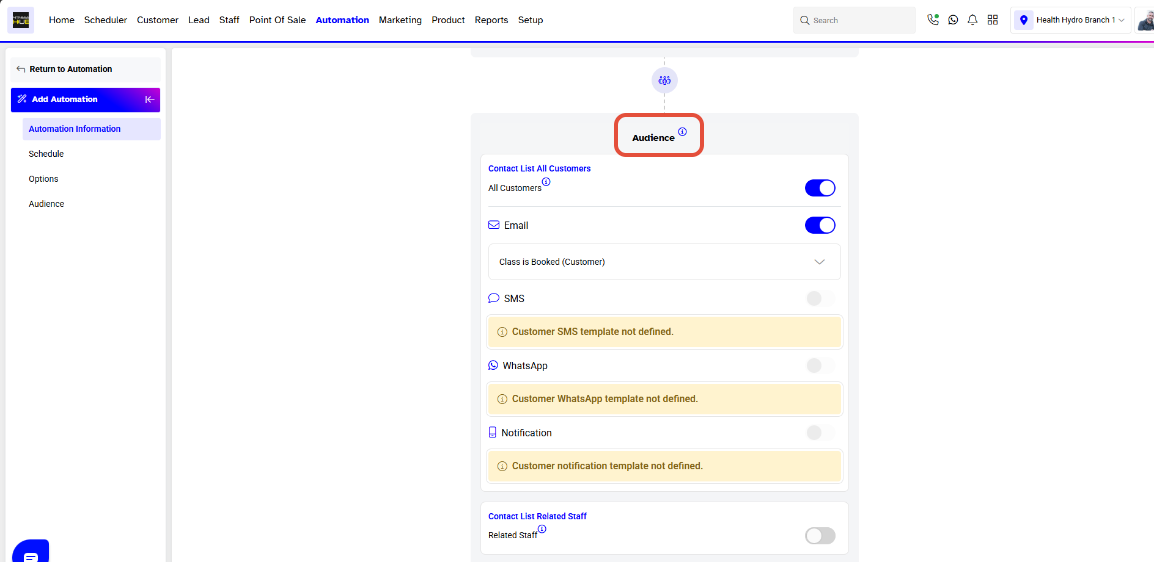
Merchants will only be able to select a target Audience once a Trigger Category and Tigger have been selected.
For a list of terms used in the Wellyx application & across the support website, please consult our Glossary.