


TABLE OF CONTENTS
To create an Automation Rule for when a Member's Payment Fails, follow the steps below:
How To Create An Automation Rule For Member Payment Failure In Core
Go to the Automation Module and click on Add Automation.

There are the following sections to add Automation:
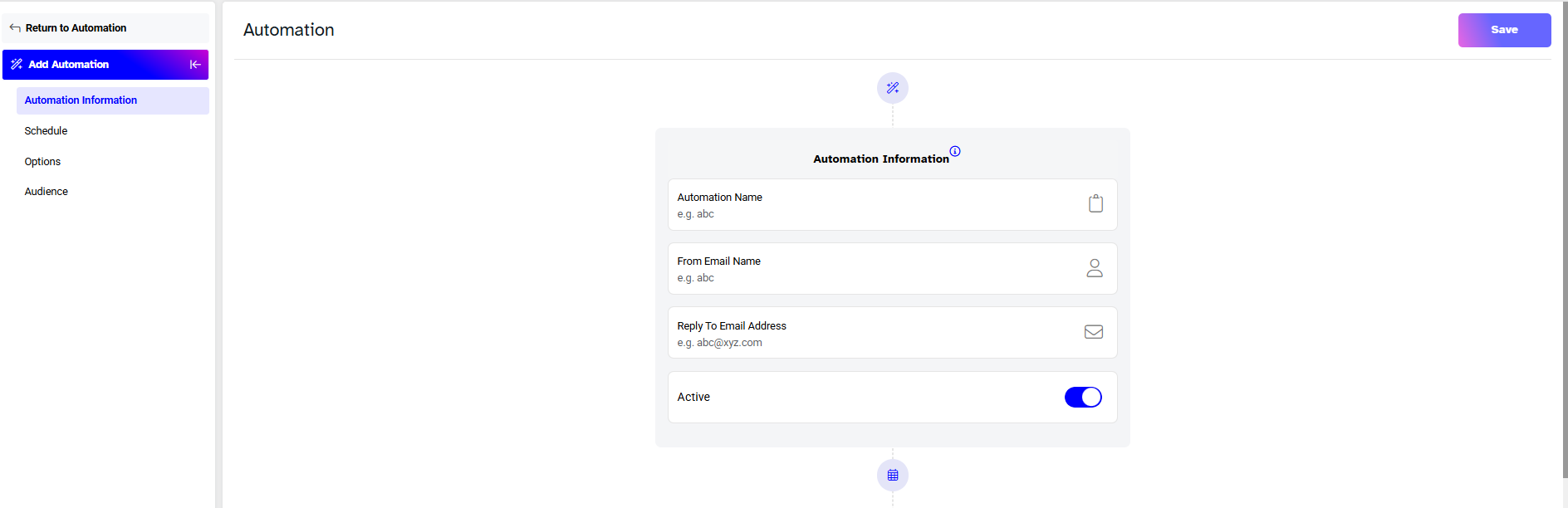
Add Automation
- Automation Name - allocate a name for the Automation.
- From Email Name - enter a name for the email that will appear to the recipients when they will receive it.
- Reply Email Address - enter the Email address that your recipients can respond to.
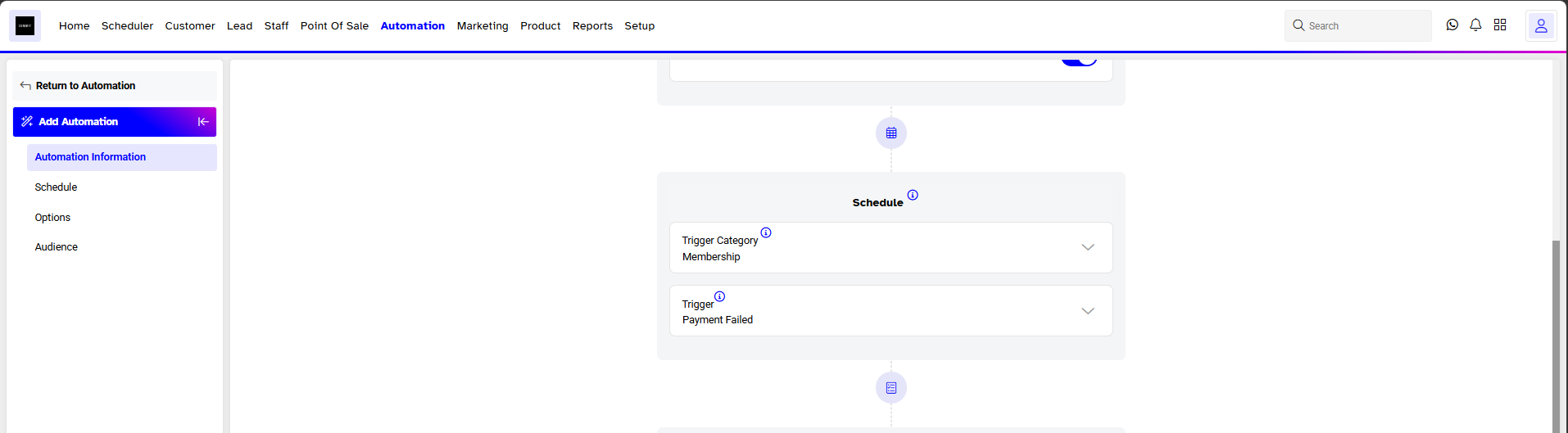
Schedule
- Trigger Category - select Membership from the dropdown menu.
- Trigger - select Payment Failed from the dropdown menu.
Options
- Do not send notifications before - from the dropdown menu merchants will select a time slot before which the notification will not be sent to the customer.
- Do not send notifications after - from the dropdown menu merchants will select a time slot after which the notification will not be sent to the customer.
- Repeat Every - specify the interval after which the email will be sent again. By default, this is set to send out every 24 hours.
- Duration - from the dropdown menu select Minute(s), Hour(s), or Day(s)
- End Repeat Occurrence(s) - from the dropdown menu Merchants can select after how many instances the Automation alert should be stopped.
Audience
To choose the contact type, check the box next to your preferred option: All Customers or Staff Positions.
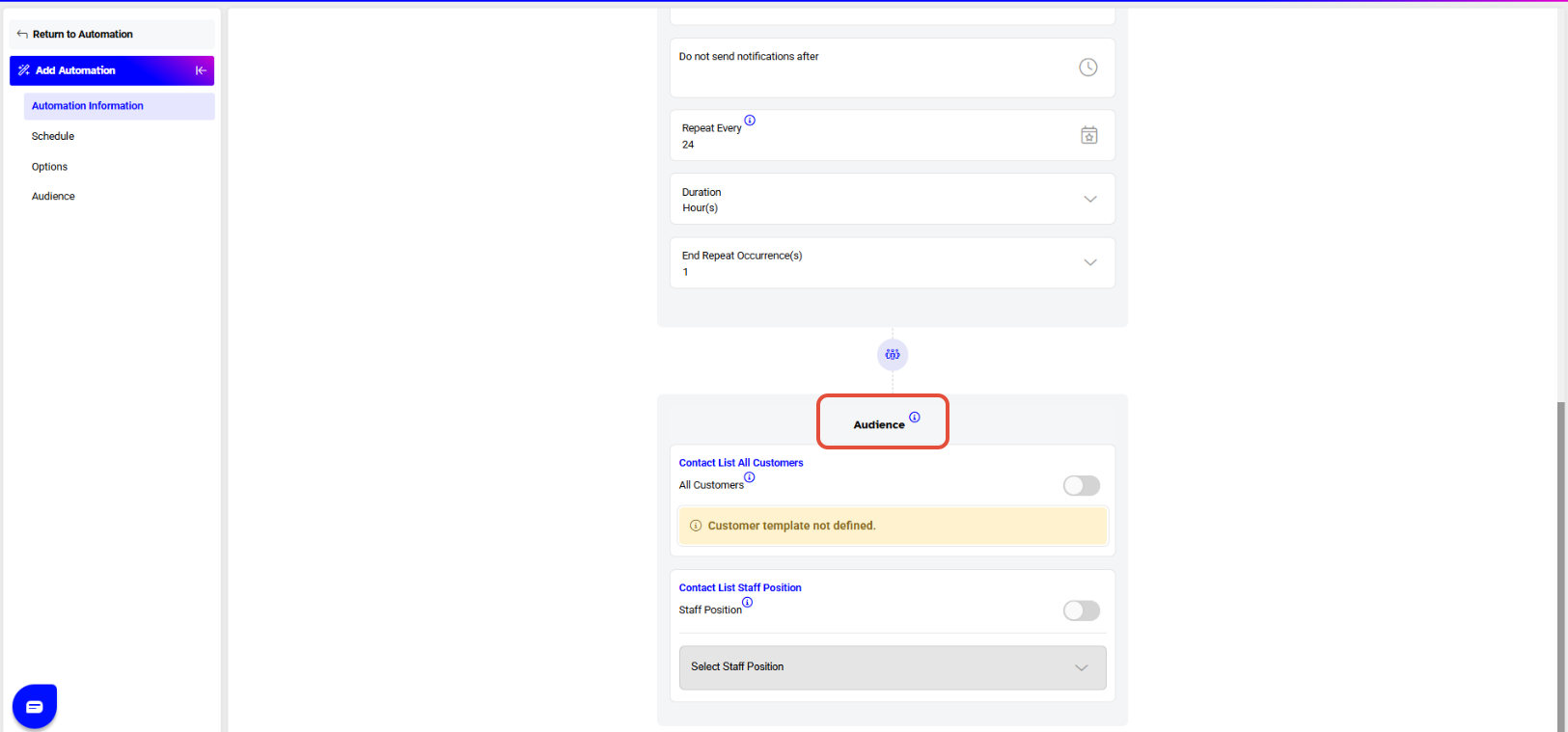
Select the Staff Position from the dropdown menu if the Staff Position check box is checked.
Since both Customers and Staff were selected in the Audience section, Merchants will see dropdown menus next to each medium from which Merchants can choose predefined Automation Templates.