


TABLE OF CONTENTS
To create an Automation Rule for Class Booking in Core, follow the steps below:
How To Create An Automation Rule For Class Booking In Core
Go to the Automation Module and click on Add Automation.

There are the following sections to add Automation:
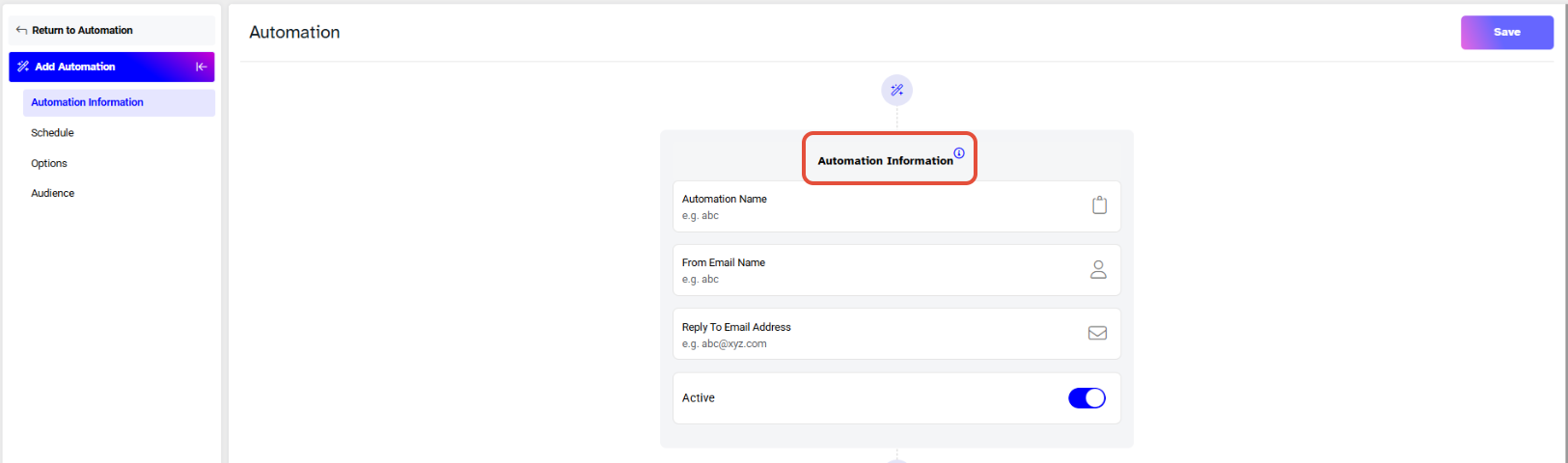
Add Automation
- Automation Name - allocate a name for the Automation.
- From Email Name - enter a name for the email that will appear to the recipients when they will receive it.
- Reply To Email Address - enter the Email address to which your recipients can respond.
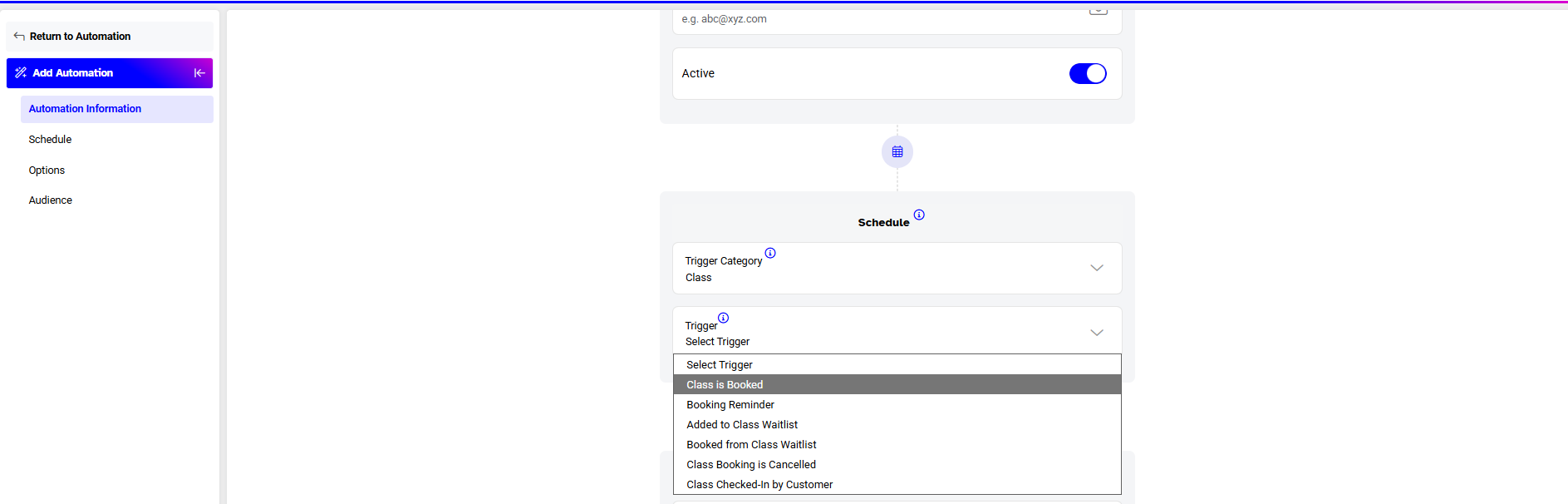
Schedule
- Trigger Category - select Class from the dropdown menu.
- Trigger - select Class is Booked from the dropdown menu.
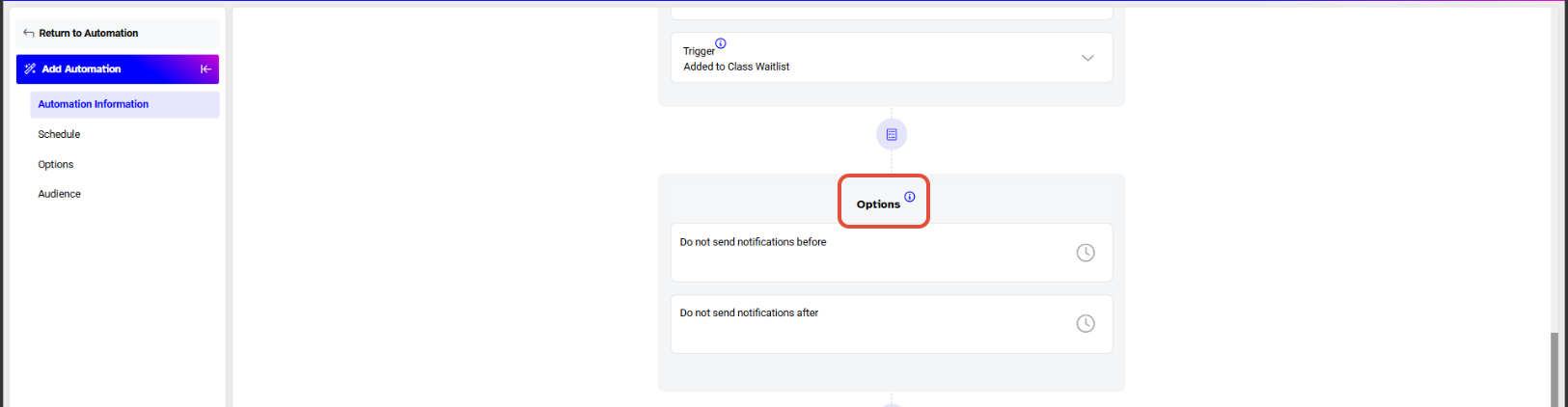
Options
- Do not send notifications before - from the dropdown menu merchants will select a time slot before which the notification will not be sent to the customer.
- Do not send notifications after - from the dropdown menu merchants will select a time slot after which the notification will not be sent to the customer.
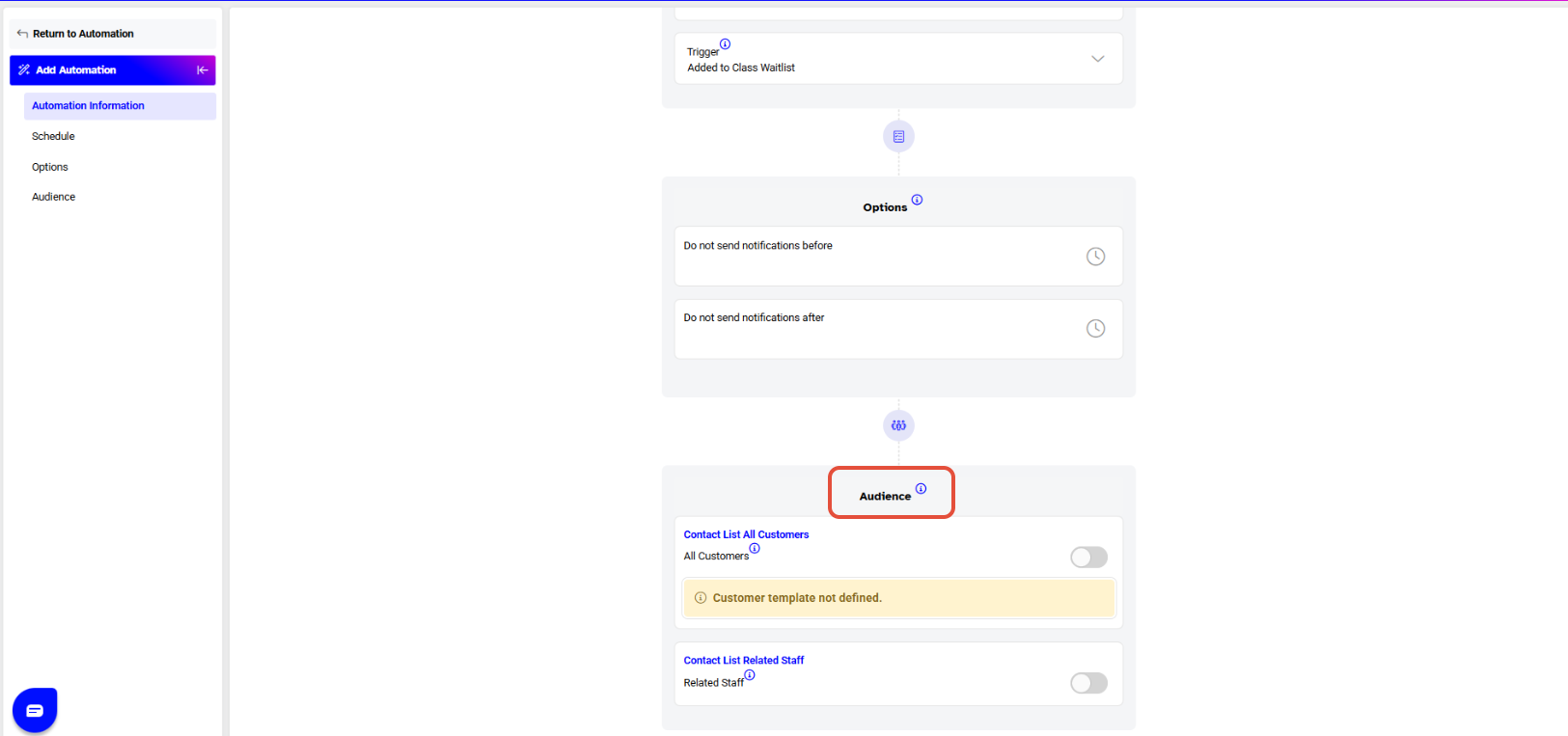
Audience
To choose the contact type, check the box next to the option you prefer: All Customers, Related Staff, or both.
Once done, click on the Save Button.