TABLE OF CONTENTS
- Step 1: Navigate to the Member Attendance Report
- Step 2: Apply Search Filters
- Step 3: Generate the Report
Step 1: Navigate to the Member Attendance Report
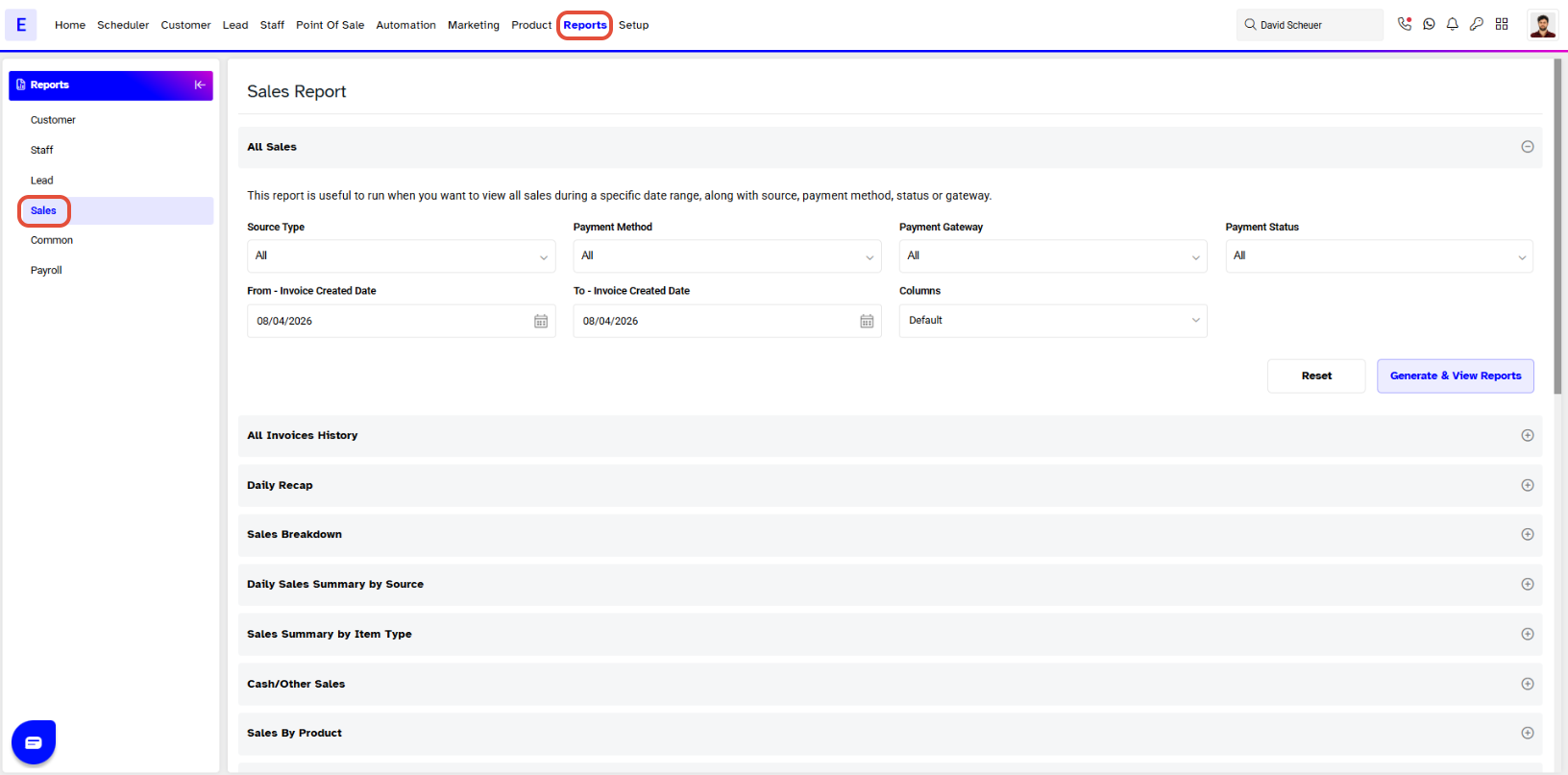
- Go to the Reports Module in Core.

- By default, the Sales Tab will open
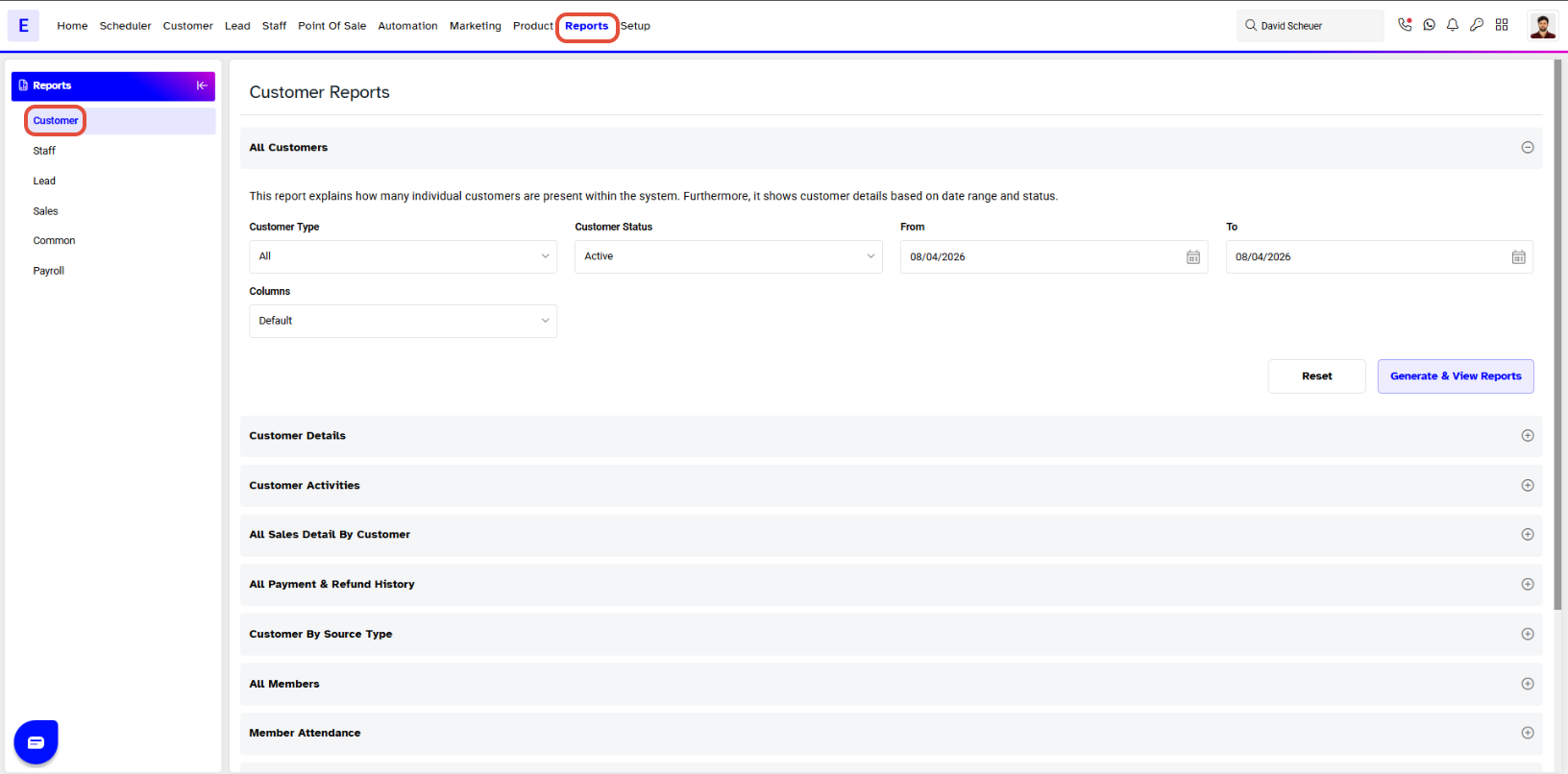
- Navigate to the Customer Tab
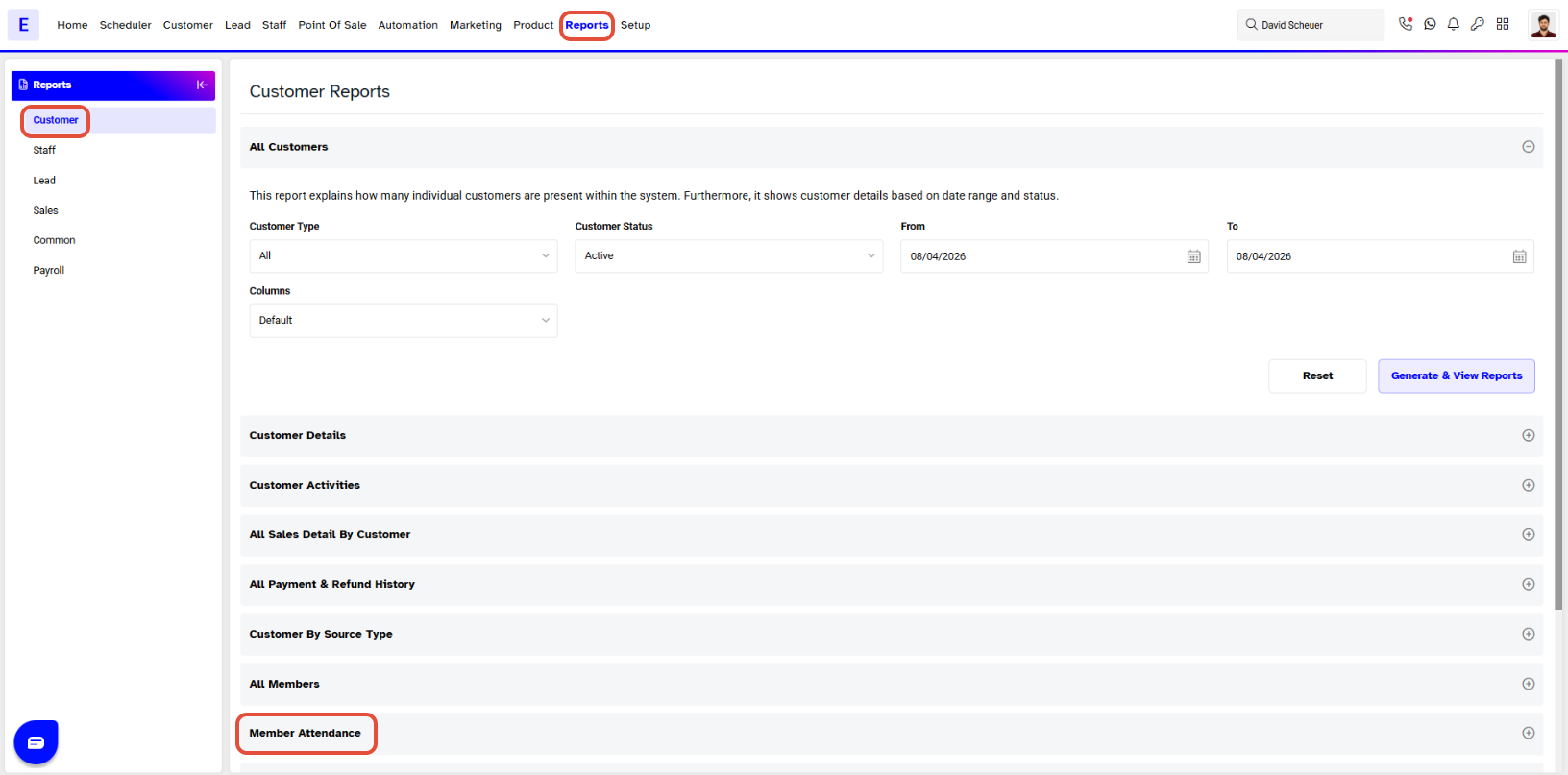
- Click on the Member Attendance Report
Step 2: Apply Search Filters
- The Member Attendance Filter Popup Box will appear on the Screen.
- Fill in the following details as required:
Search by Member: Type the Name of a Member.
Membership: Select Membership from the drop-down.
Status: Select the Status Granted or Denied and All from the drop-down.
Door: Select the Door from the drop-down.
From-Invoice Created Date: Choose the Start Date for the search.
To-Invoice Created Date: Choose the End Date for the search.
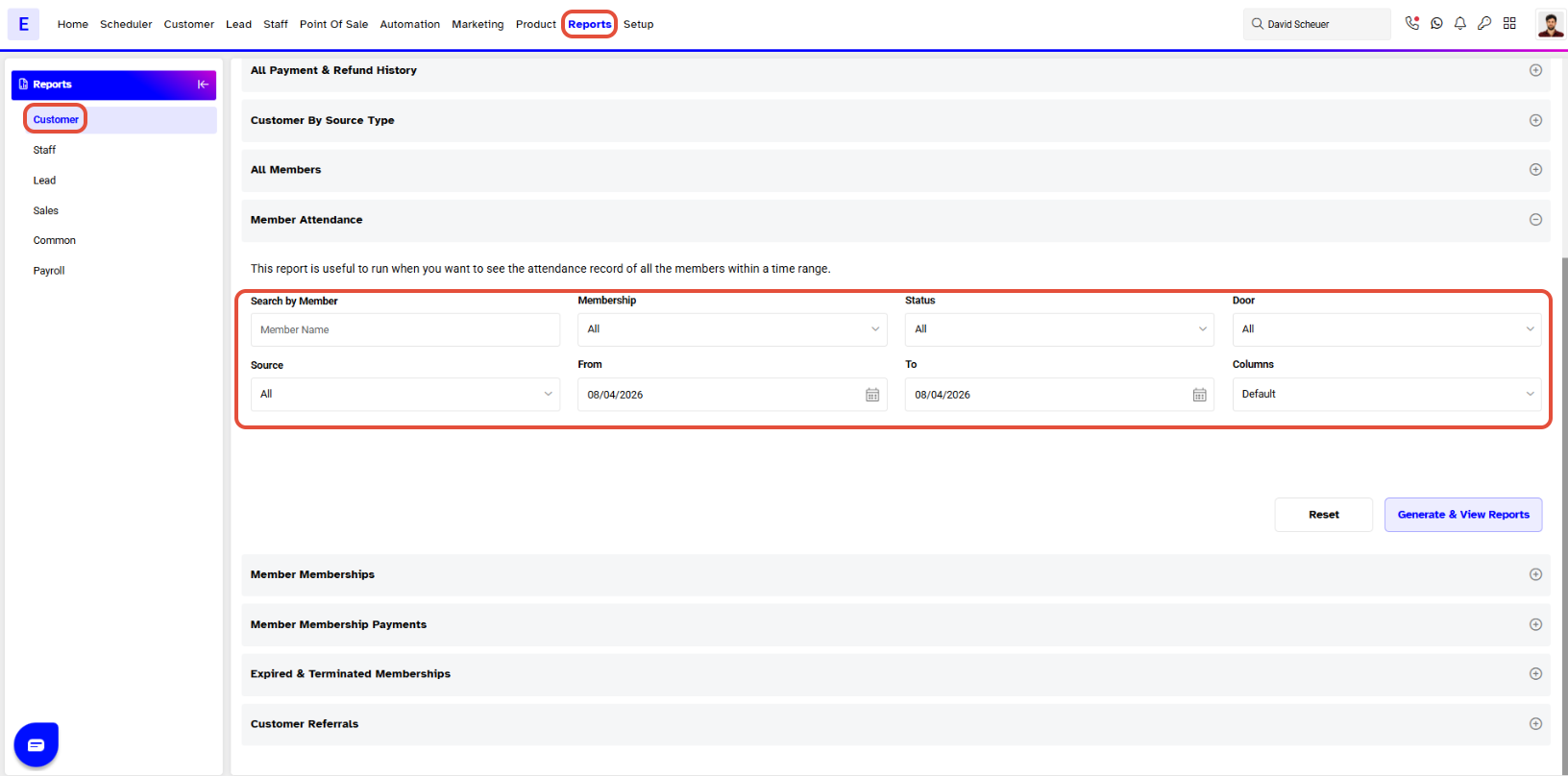
It is not mandatory to use all the search fields to generate the report.- Once input the details, Click on Generate & View Reports to generate the report.
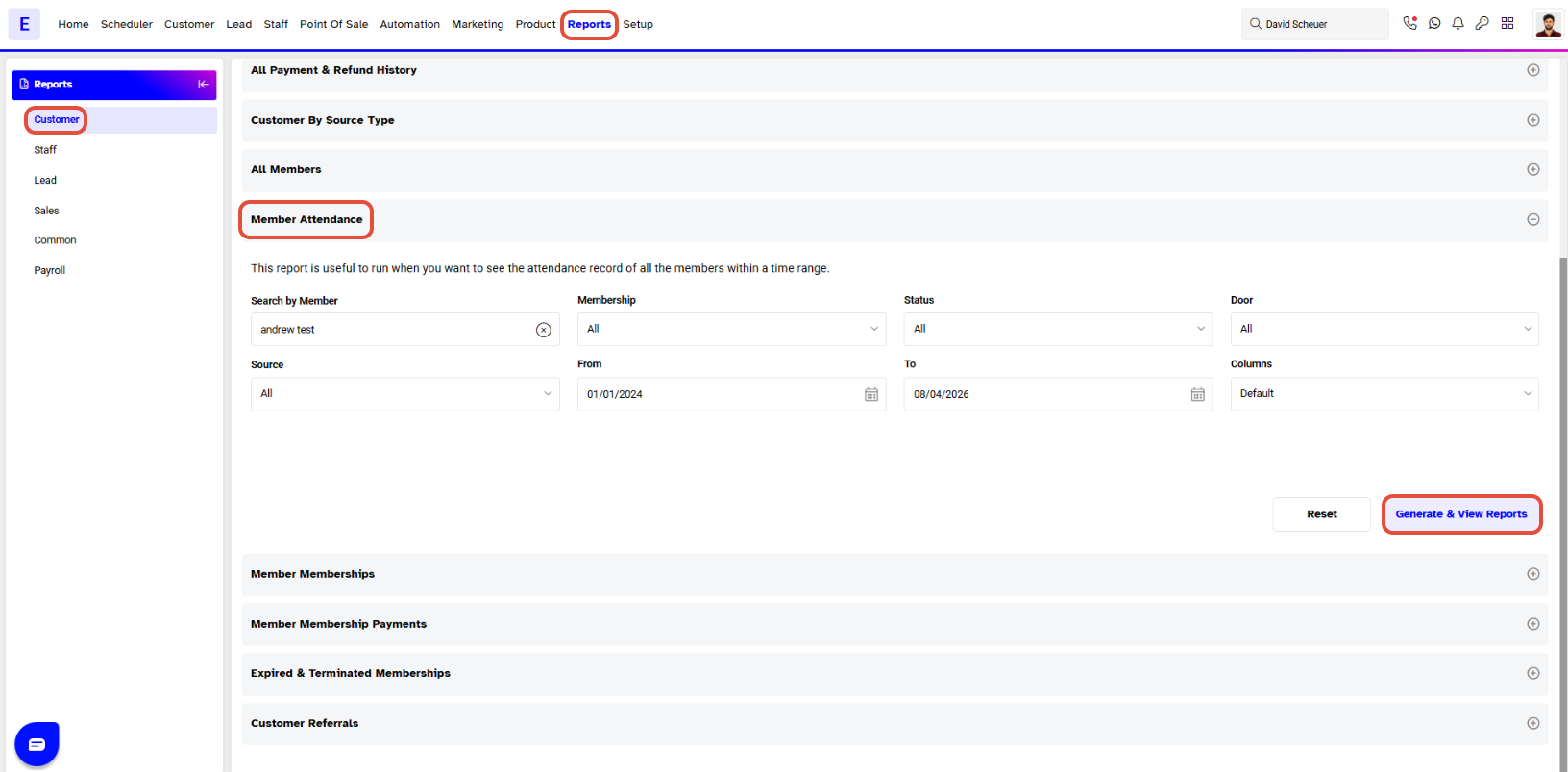
Step 3: Generate the Report
- Once done, select the desired download format for the Report.
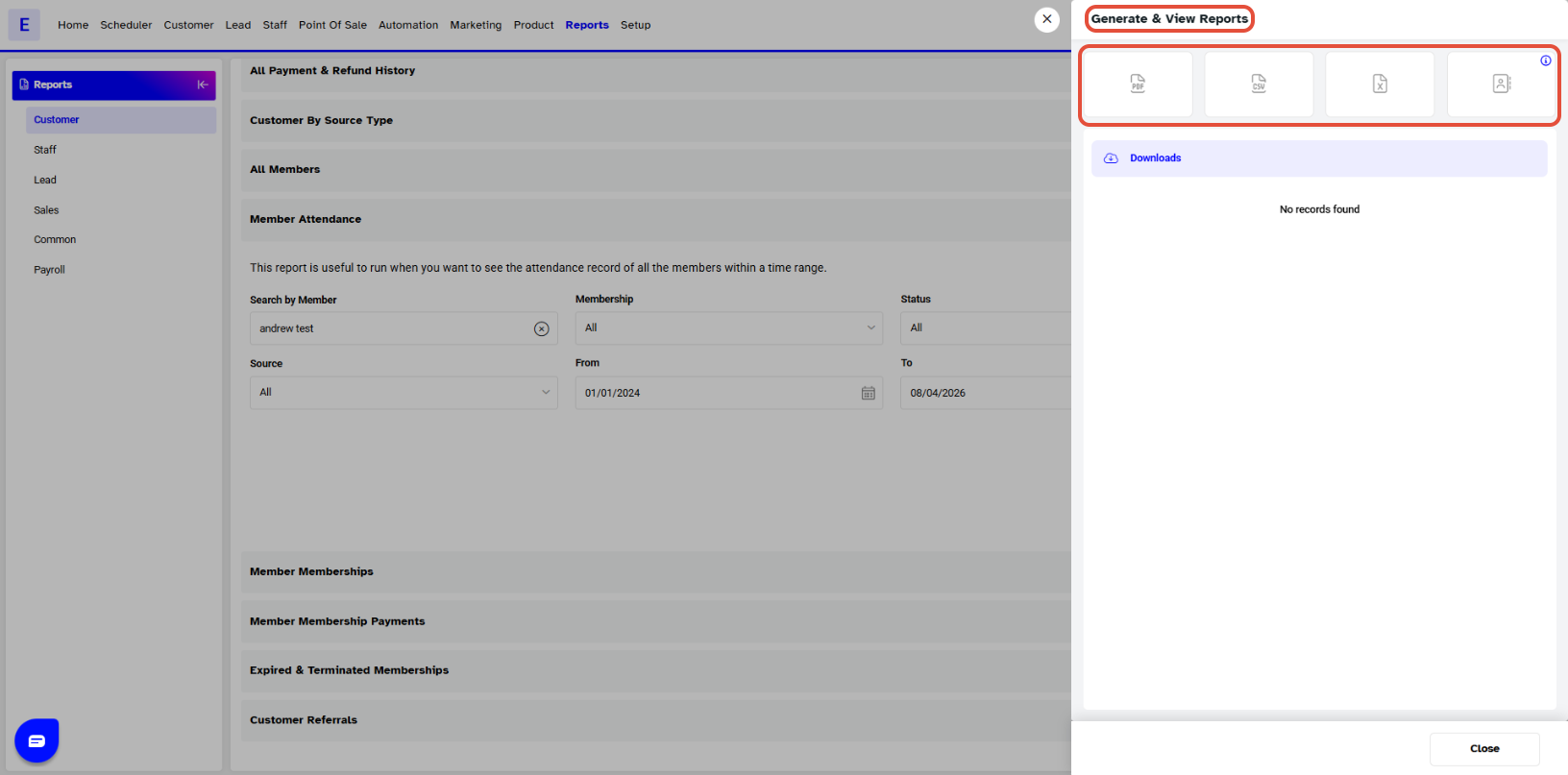
- Once completed, the report can be viewed online or downloaded.
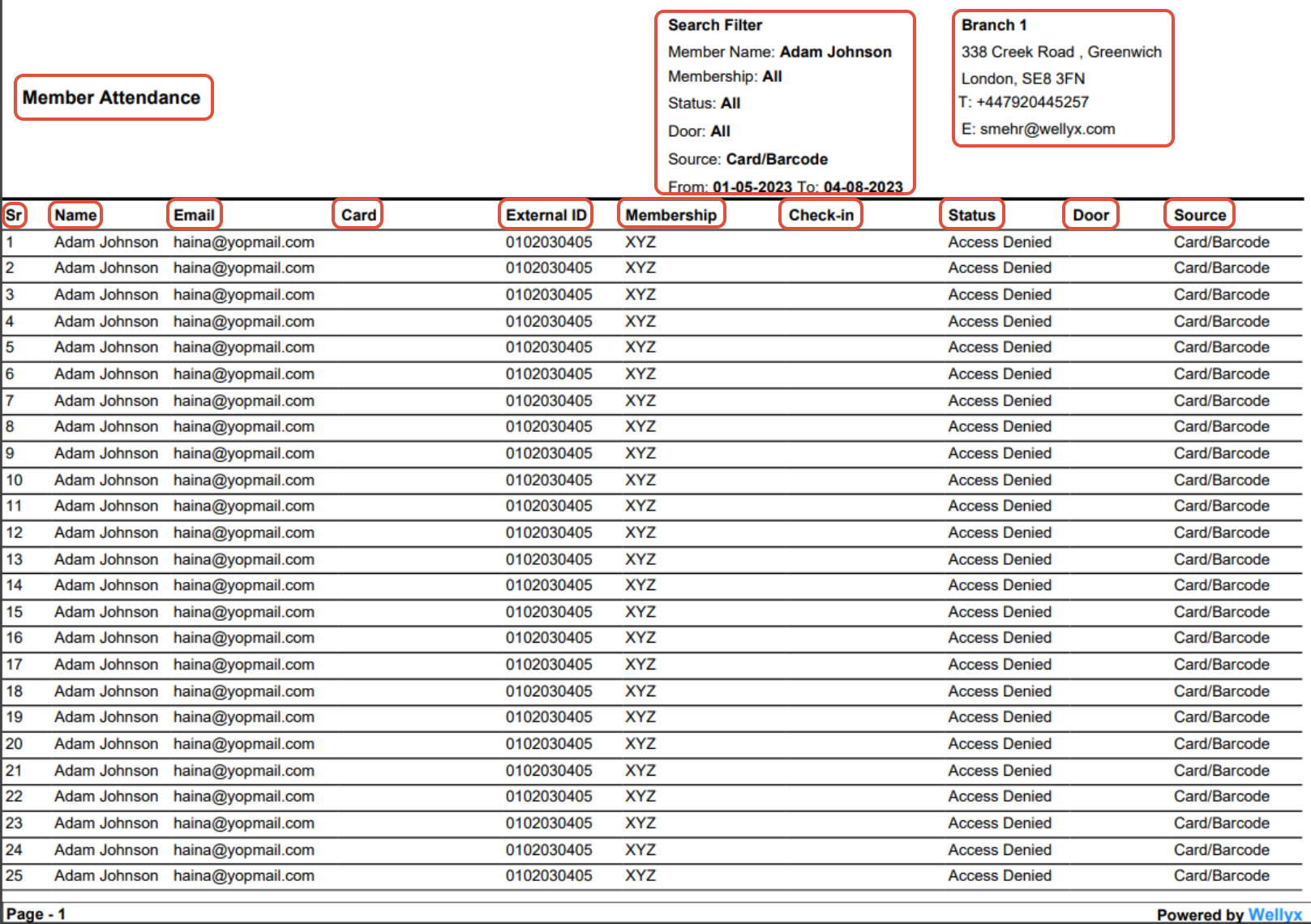
A Member Attendance Report detail Report will display the following information:
- Sr#
- Name
- Card
- External id
- Membership
- Check-In
- Status
- Door
- Source