TABLE OF CONTENTS
To View the Linked Account Payments Report, follow the steps below:
Step 1: Navigate to the Linked Account Payments Report
- Go to the Reports Module in Core.

- By default, the Sales Tab will open.
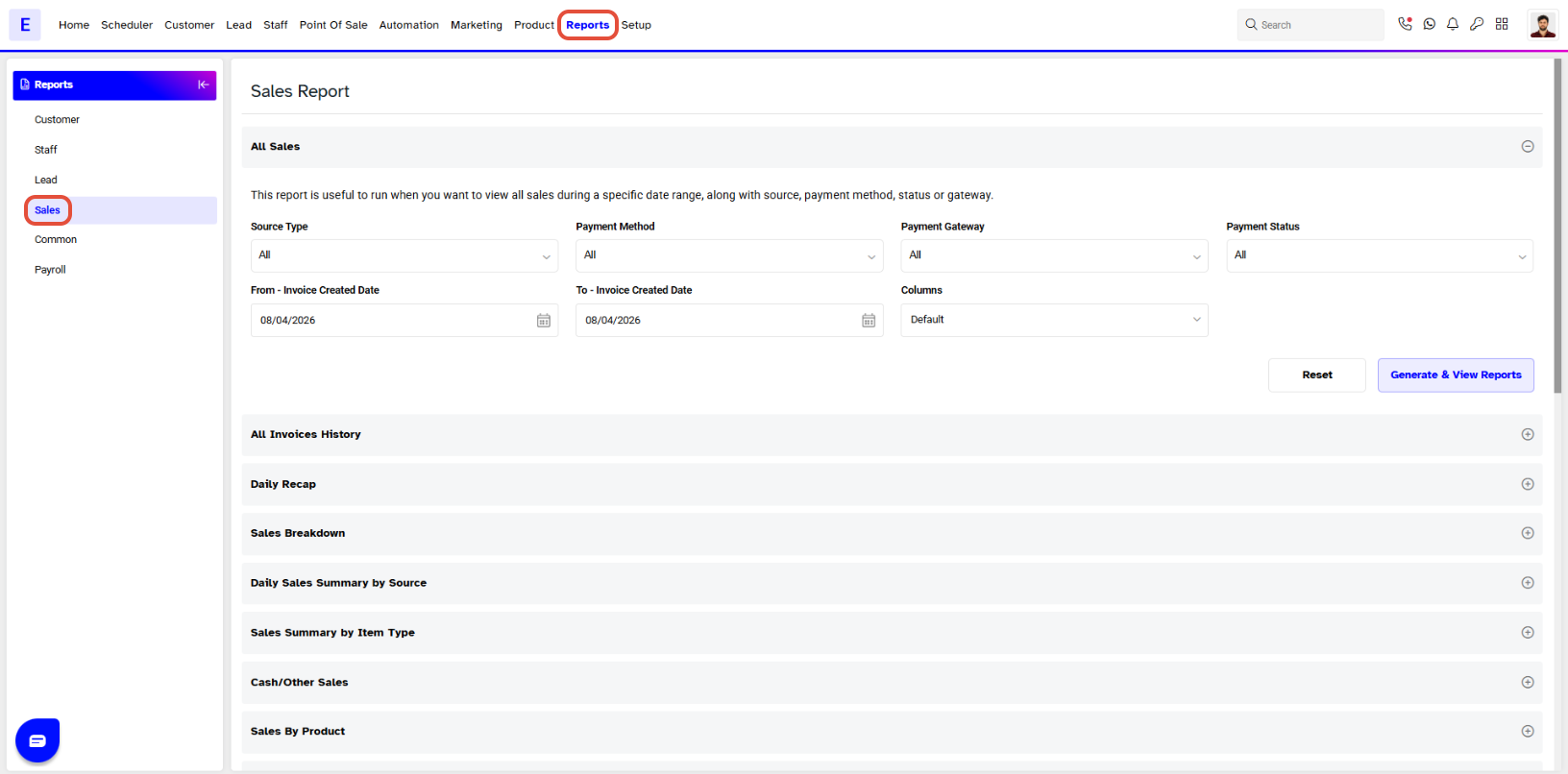
- Click on the Linked Account Payments Report.
Step 2: Apply Search Filters
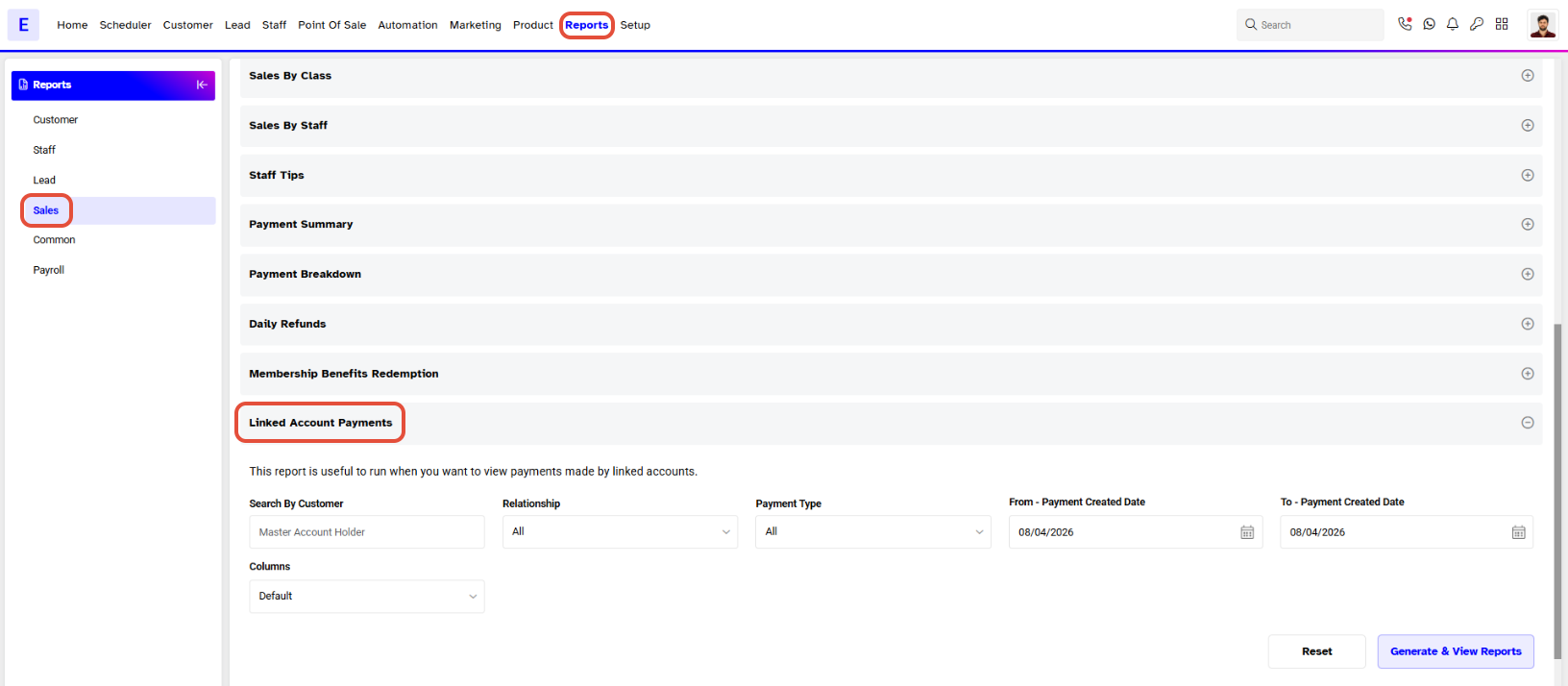
- The Linked Account Payments Report Search Filter Popup Box will appear on the screen.
- Fill in the following details as required:
- Search By Customer: Type the Name of Customer.
- Relationship: Choose the Relationship from the Drop Down Menu or select the All option.
- Payment Type: Select the Payment Type (Membership or Retail Payment) from the Drop-down Menu.
- From - Payment Created Date: Set the Start Date for the search.
- To - Payment Created Date: Set the End Date for the search.
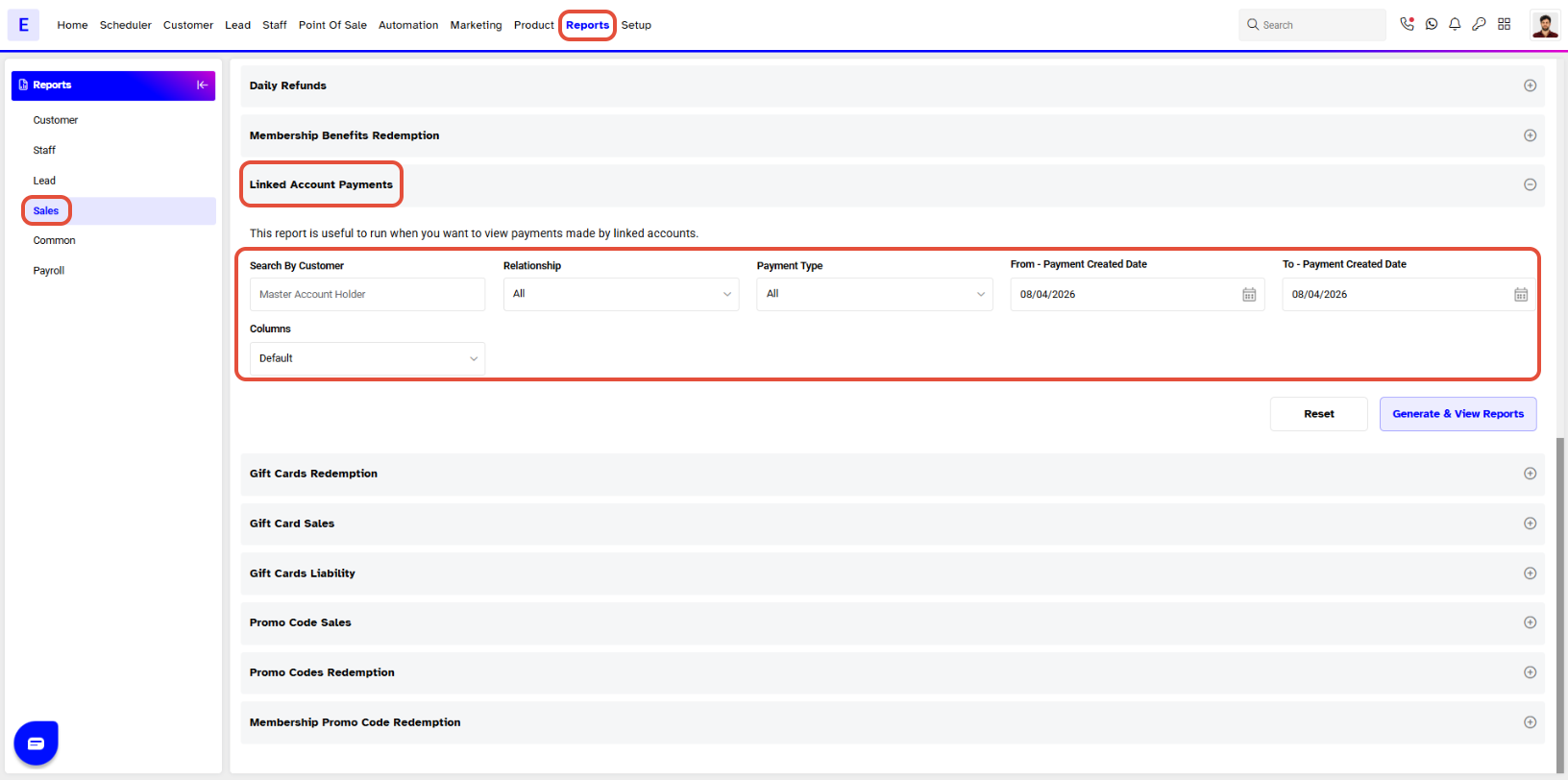
The Search By Customer field is a Mandatory field.- Click on the Reset Icon to reset the settings.
Step 3: Generate the Report
- Once done, choose the Report Format (PDF, Excel, or View) by clicking on their respective Icons.
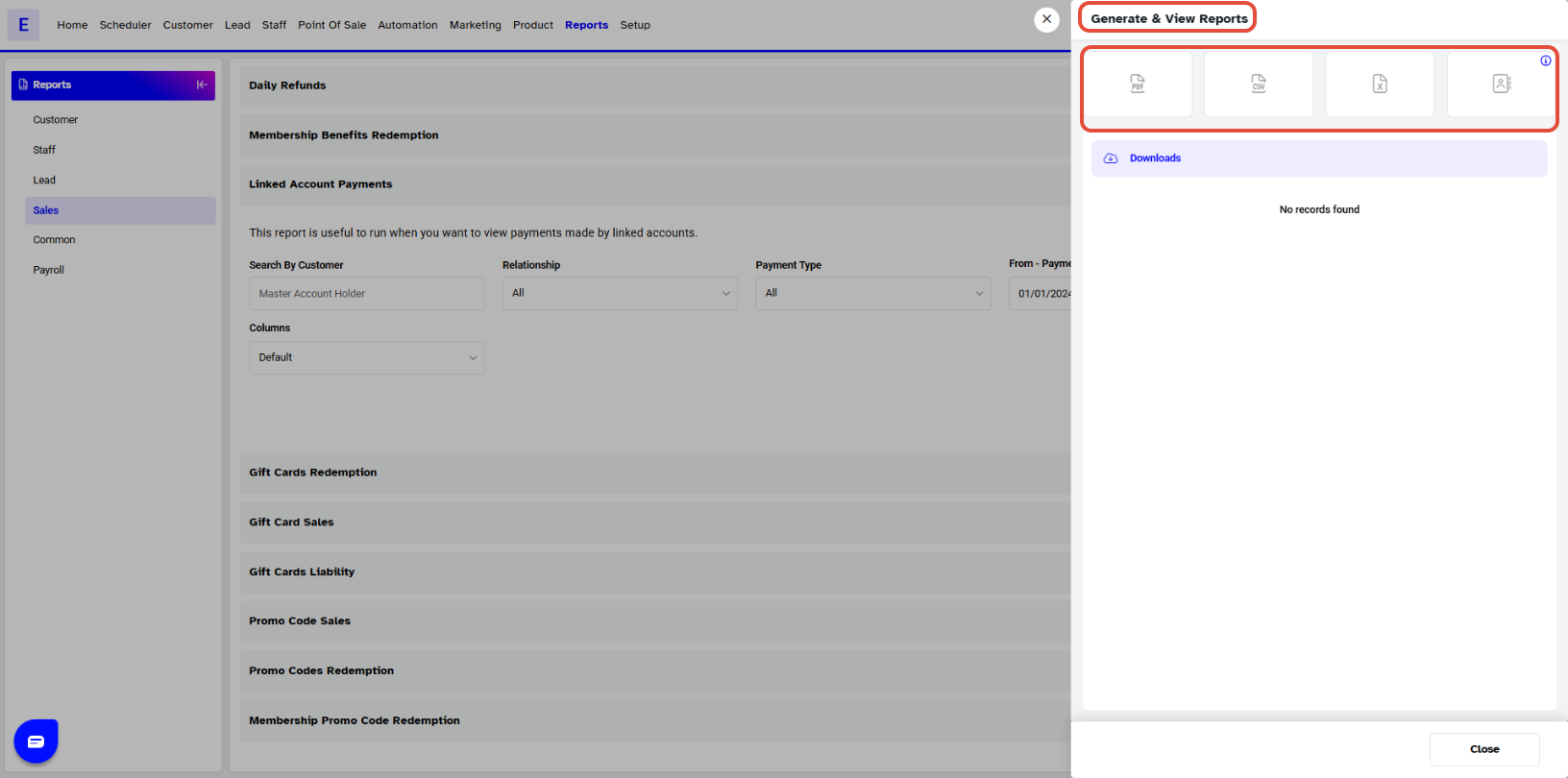
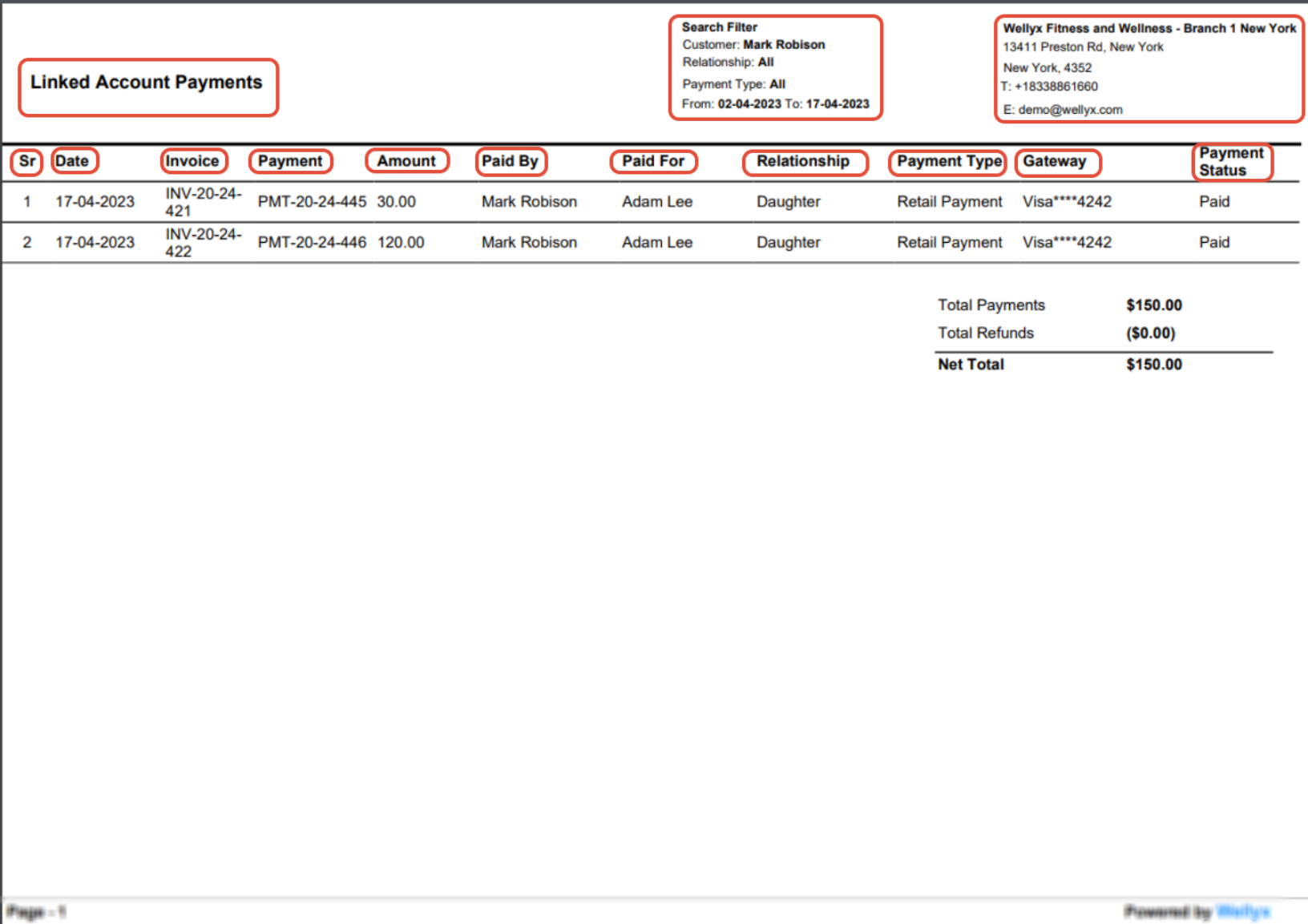
A Linked Account Payments detail page will open in a separate tab. This page will display the following information:
- Sr
- Date
- Payment
- Amount
- Paid By
- Paid For
- Relationship
- Payment Type
- Gateway
- Payment Status
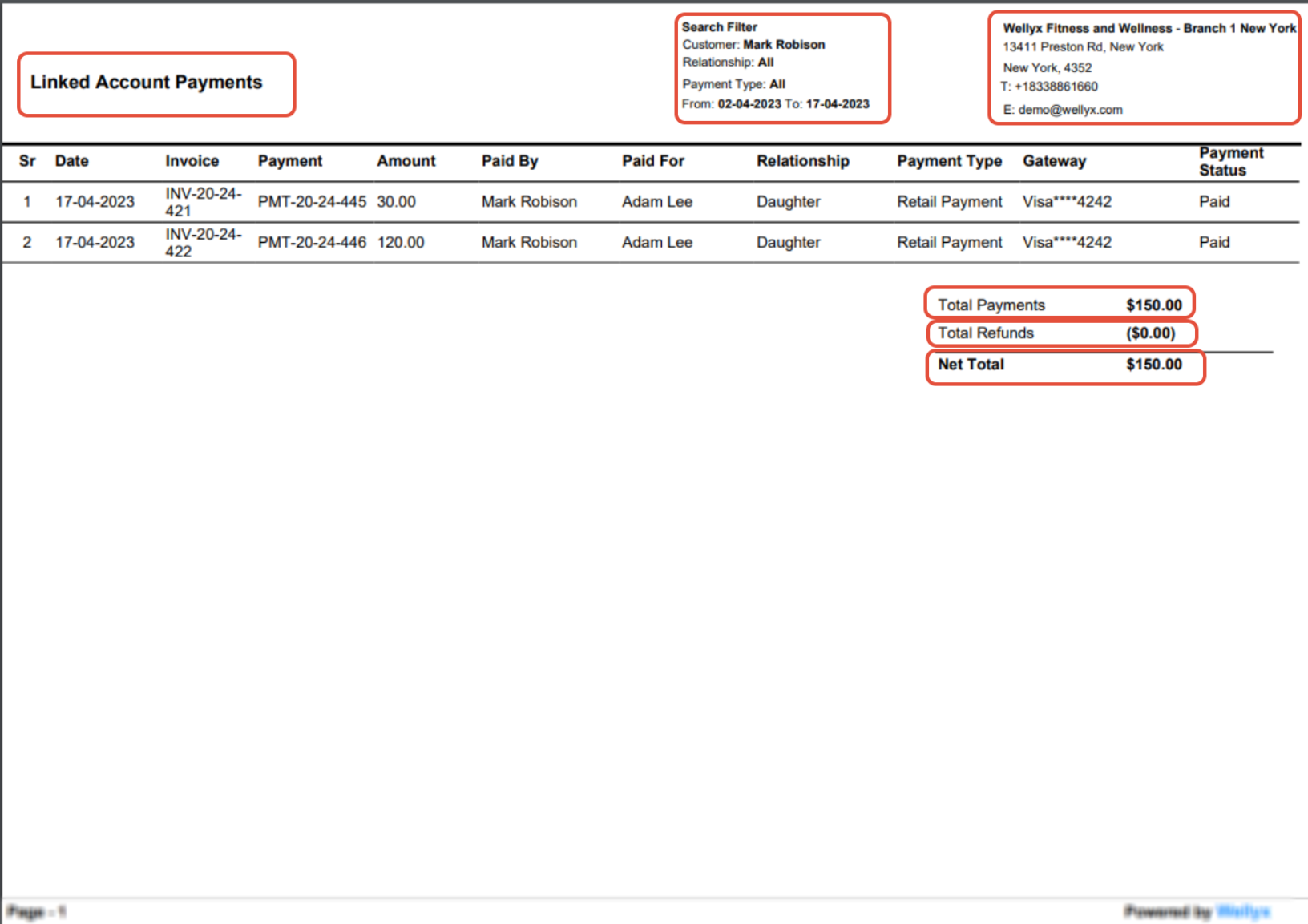
The Linked Account Payments Report also shows the Total Payments, Total Refunds, and Net Total.