TABLE OF CONTENTS
This guide explains how to view the Promo Code Redemption Report in Core.
Step 1: Navigate to the Promo Code Redemption Report
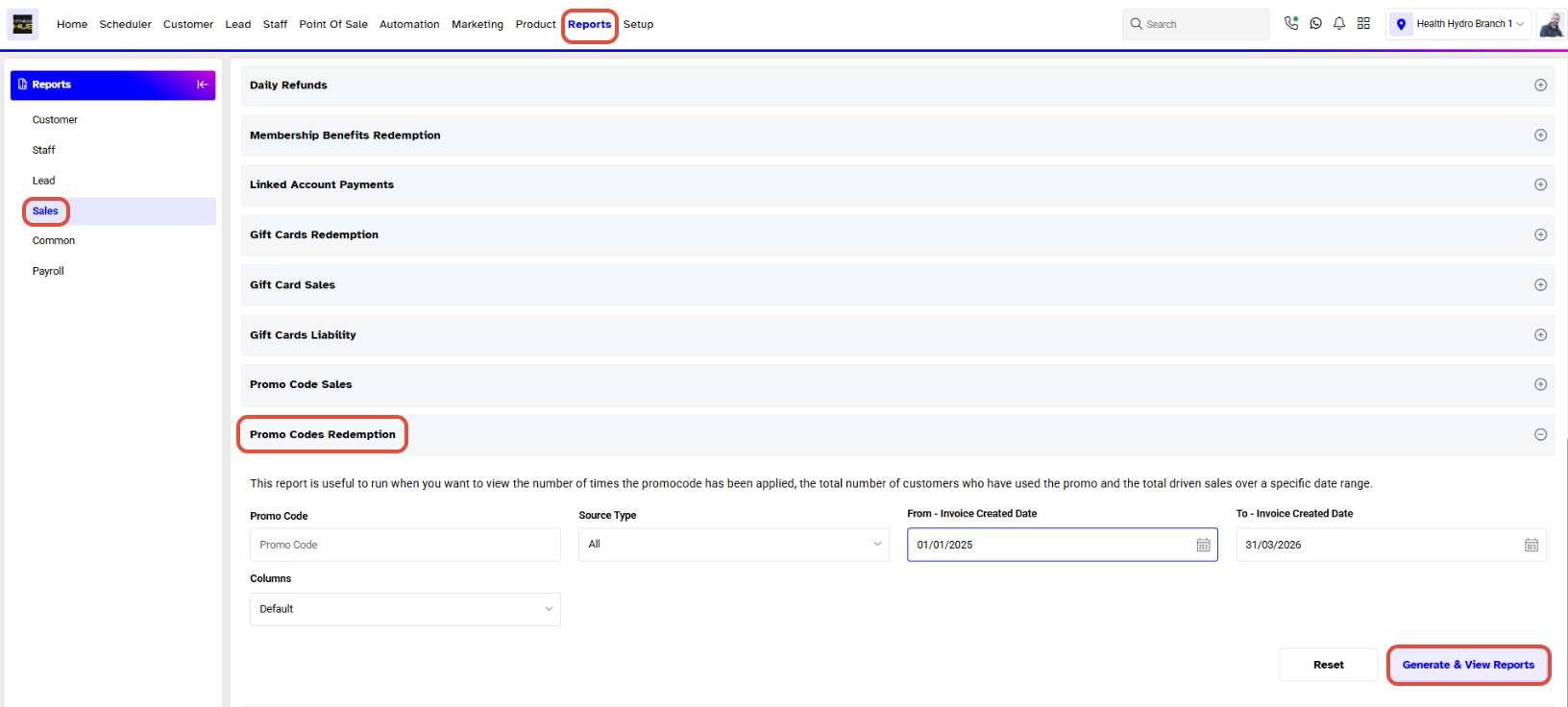
- Go to the Reports Module in Core.

- By default, the Sales Tab will open.
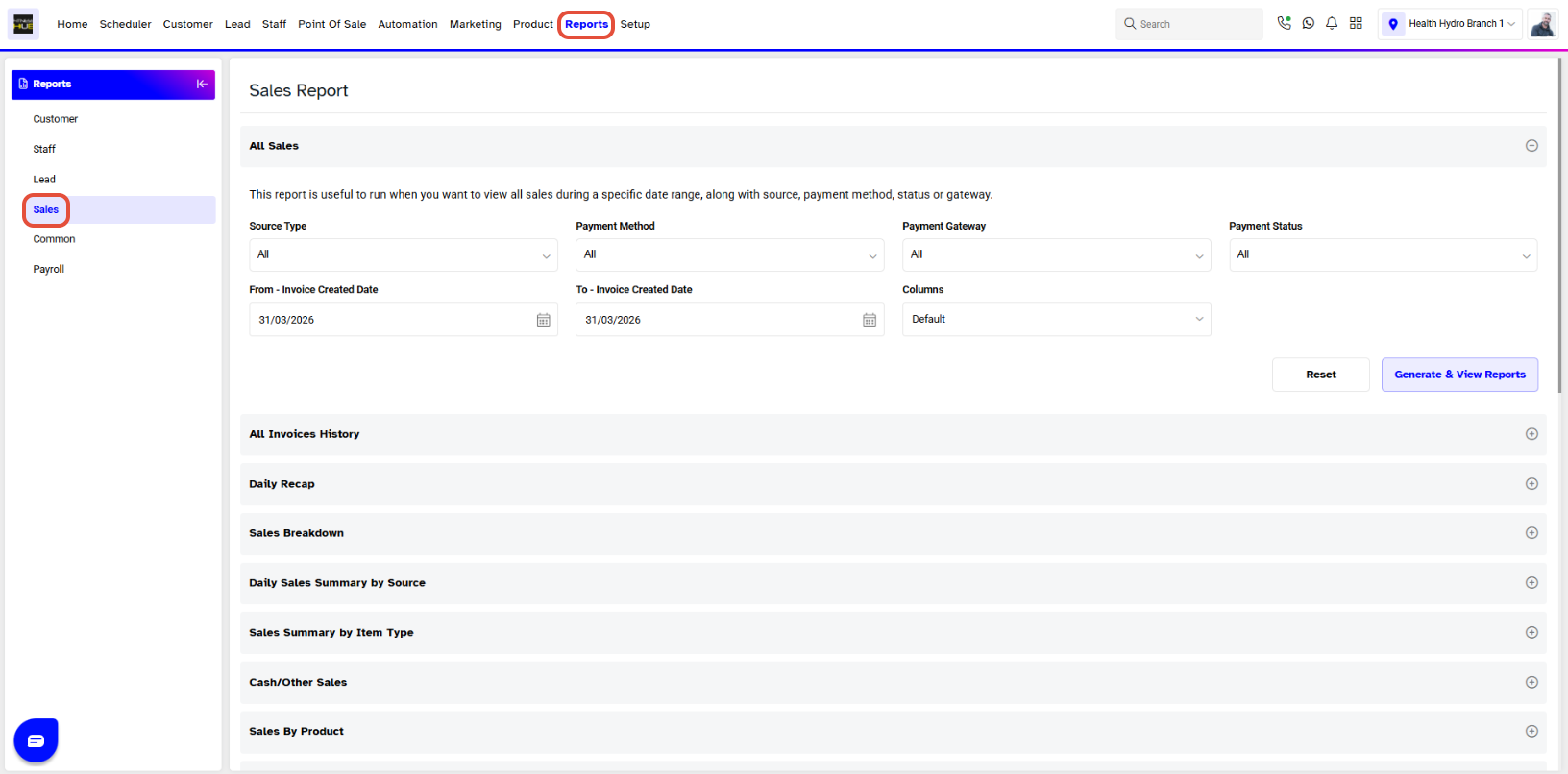
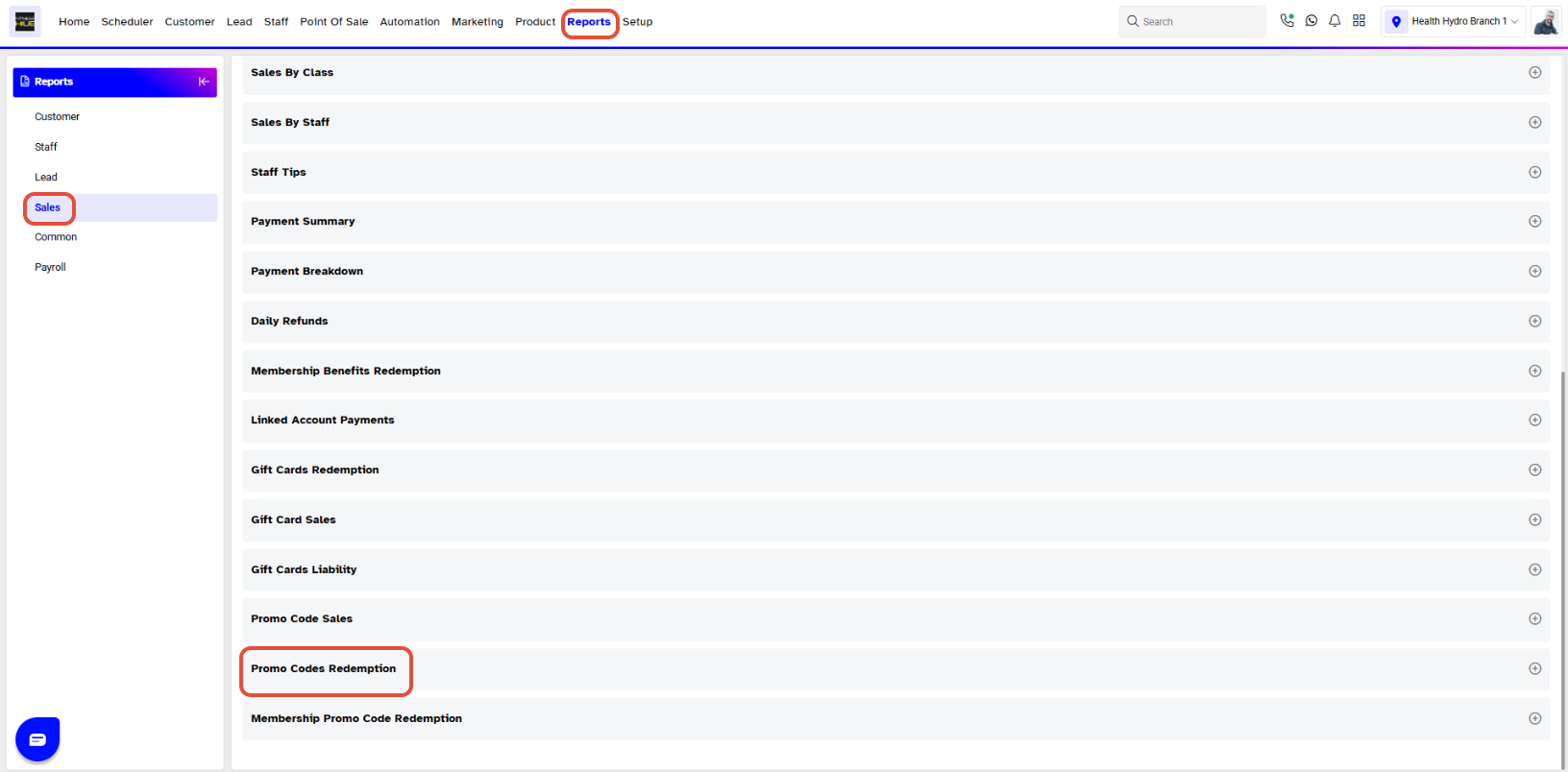
- Click on the Promo Codes Redemption Report.
Step 2: Apply Search Filters
- The Promo Code Redemption Report Search Filter Popup Box will appear on the screen.
- Fill in the following details as required:
Promo Code: Enter the Promo Code Name.
Source Type: Select Core, Widget, Customer App, Staff App, or All to view the related sales report.
From-Invoice Created Date: Set the Start Date for the search.
To-Invoice Created Date: Set the End Date for the search.
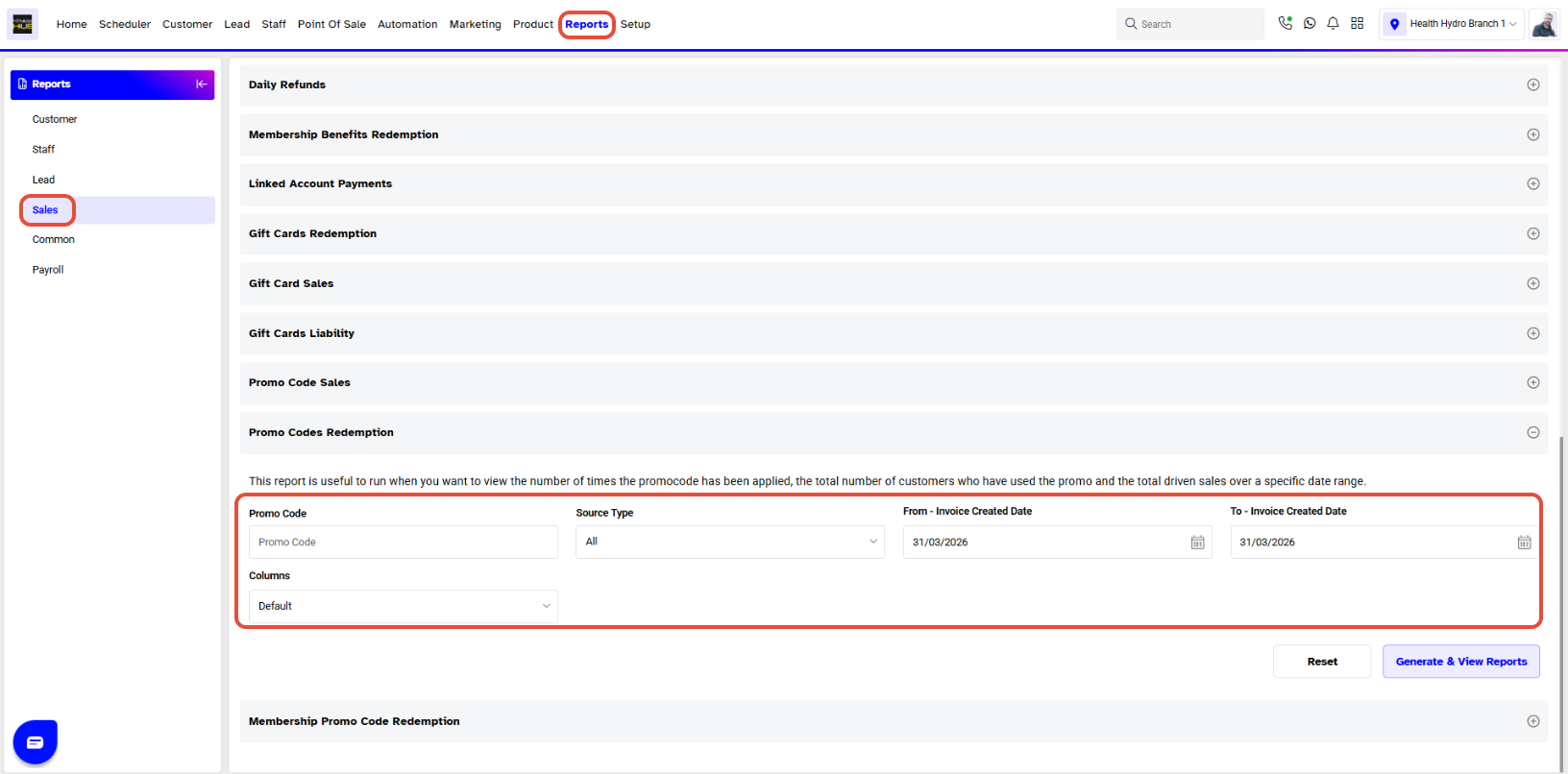
- It is not mandatory to use all the search fields to generate the report.
- Click on the Reset Icon to reset the settings.
- Click on Generate & View Reports to generate the report.
Step 3: Generate the Report
- Once done, choose the Report Format (PDF, Excel, or View) by clicking on their respective Icons.
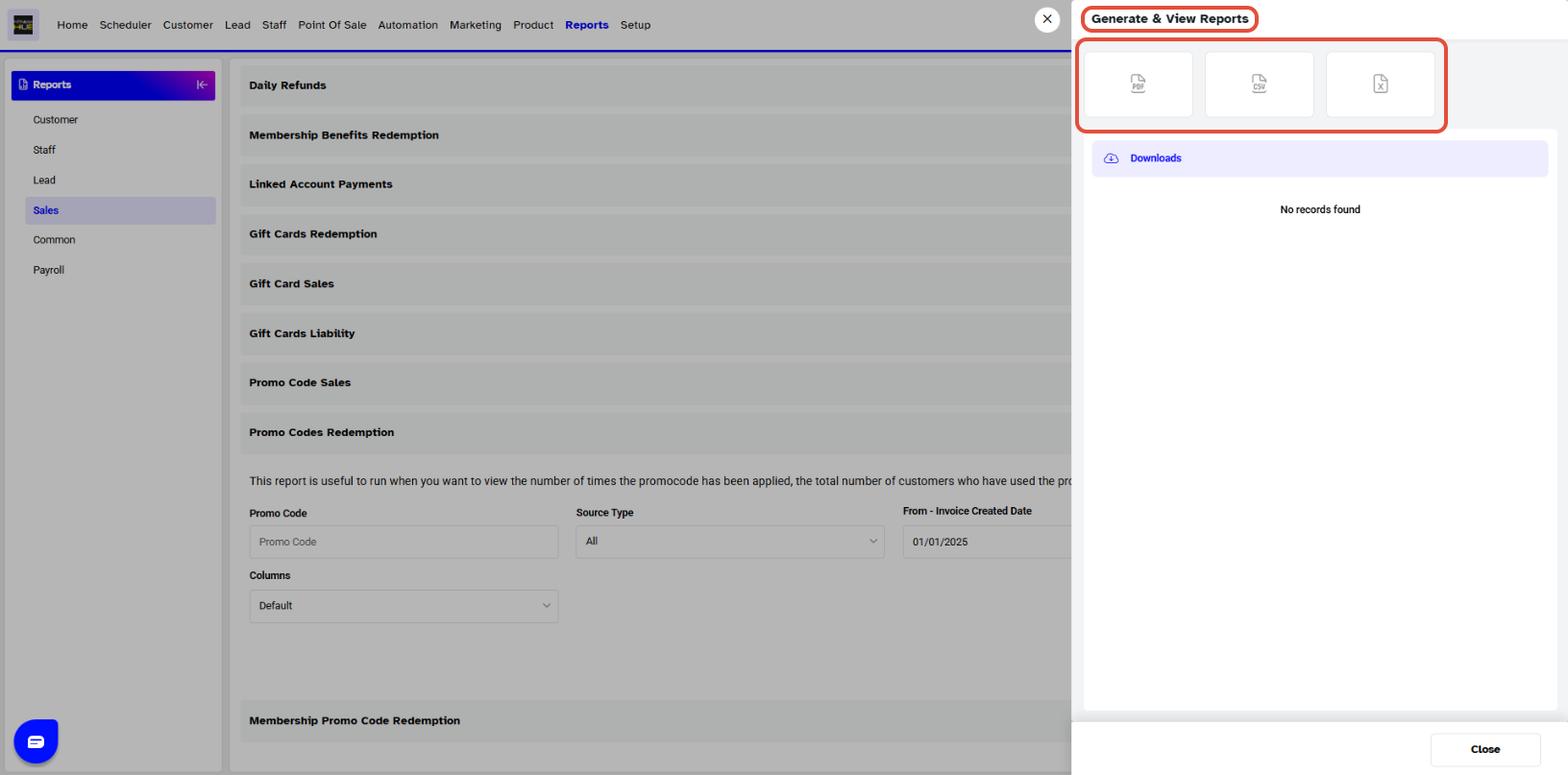
- The report can be downloaded or view online accordingly.

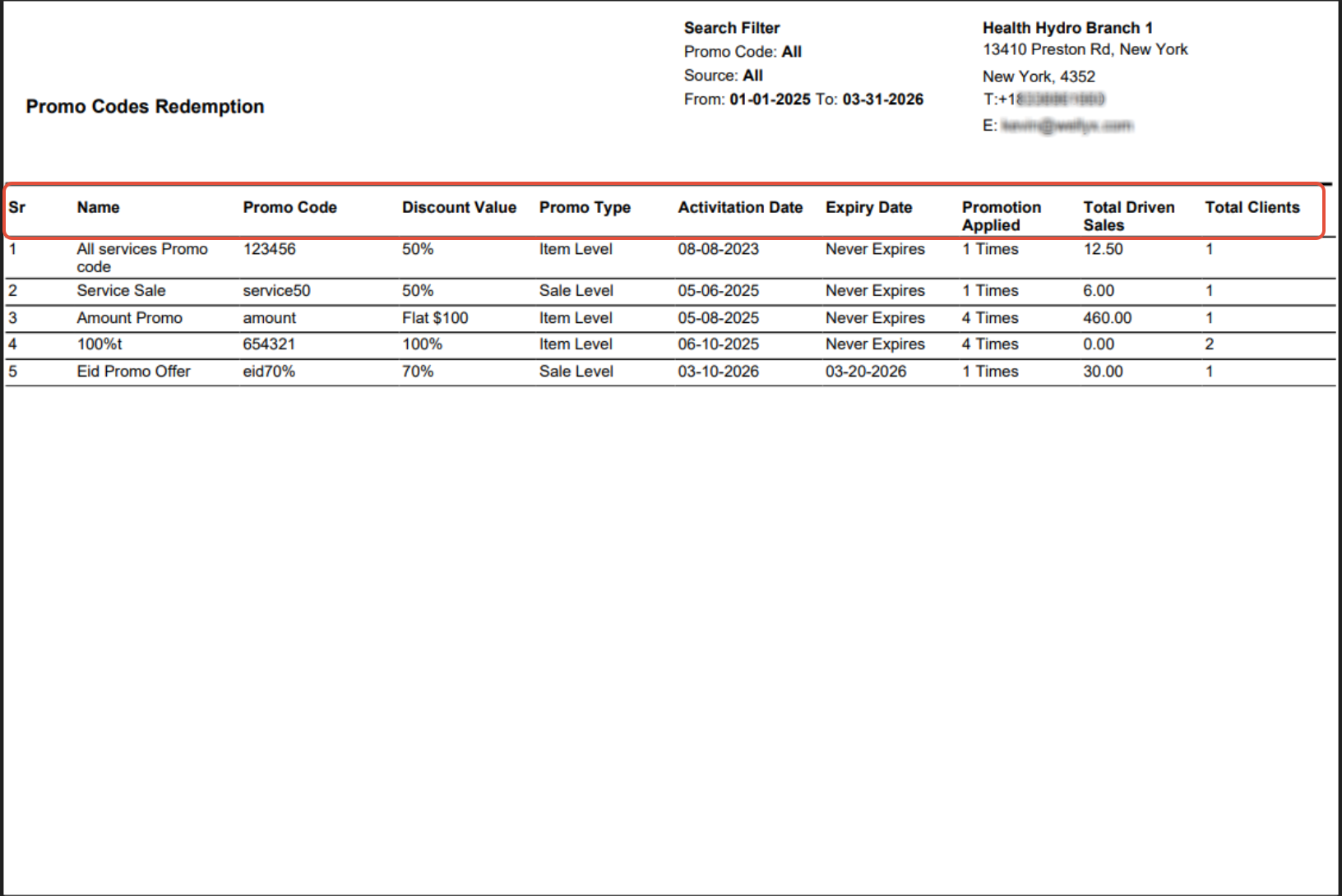
A Promo Code Redemption detail page will open in a separate tab. This page will display the following information:
- Sr. #
- Name
- Promo Code
- Discount Value
- Promo Type
- Activation Date
- Expiry Date
- Promotion Applied
- Total Driven Sale
- Total Clients