TABLE OF CONTENTS
To Customized the Widget Theme in Core, follow the steps below:
How To Customized The Widget Theme In Core
The Customized Theme is configured in Wellyx, allowing Merchants to create their own customized widget & customer app Themes to list them on their Customer App and Widget. Merchant can customize the colors, font size and background of Widget & Customer app.
To Customise the Widget Theme, go to the Setup Module in Core.
Click on the Customized Theme Tab.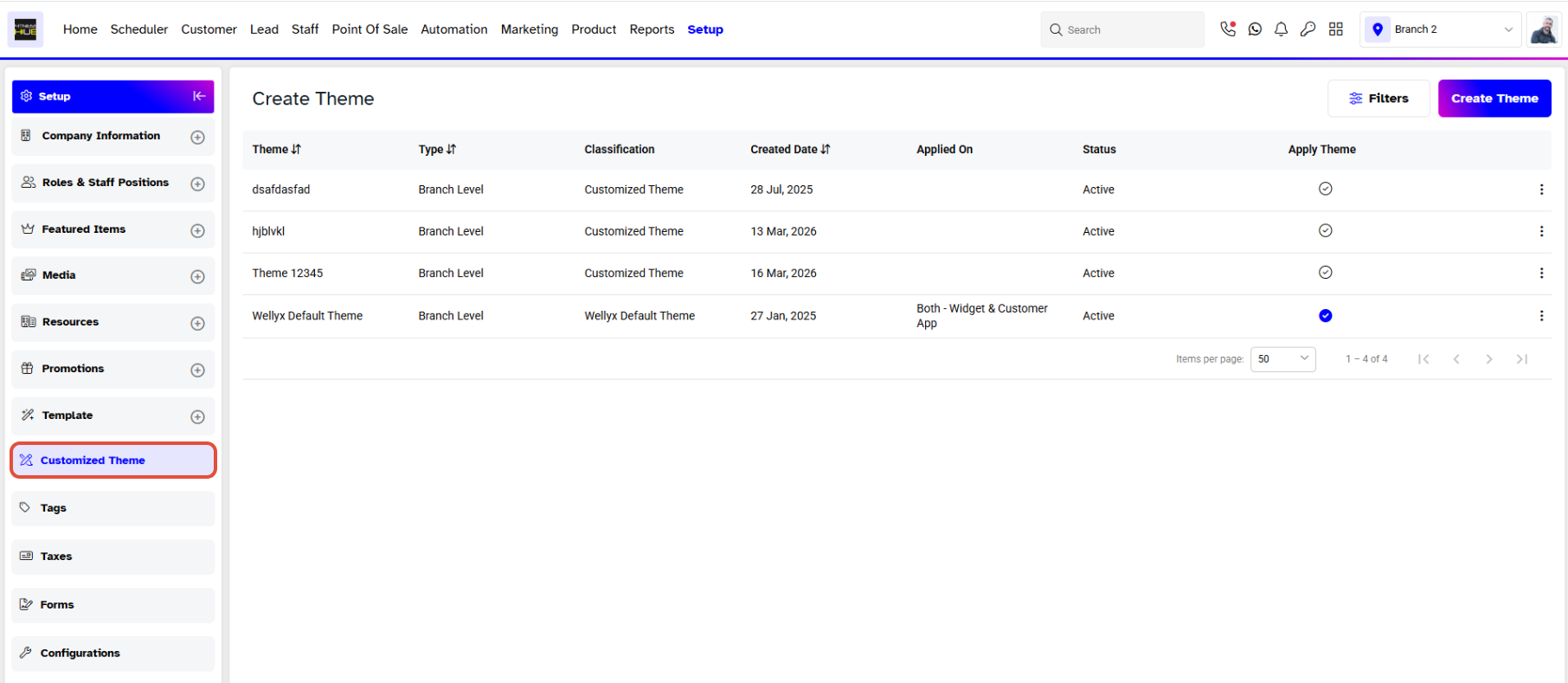
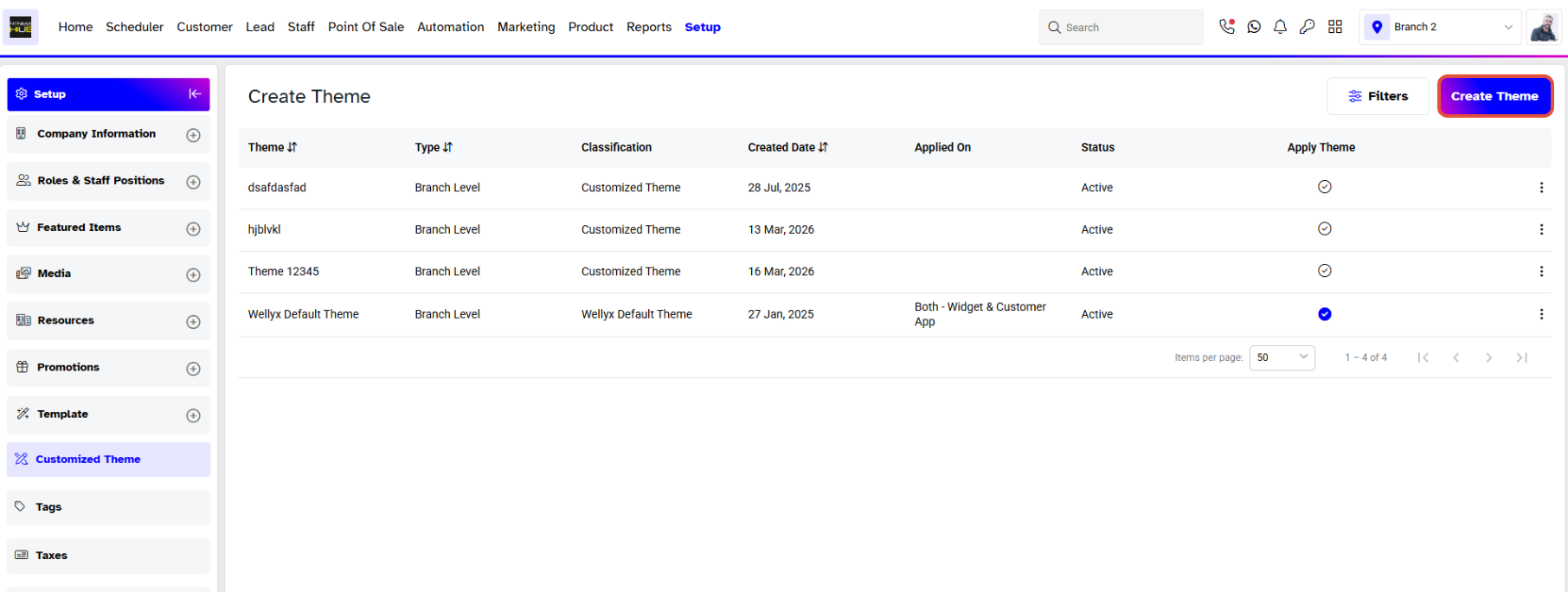
Click on the Create Theme
Template
By default, the Template section will open.
Creating a Customized Template is 4 steps process.
- Template
- Create
- Branched & Permissions
- Publish
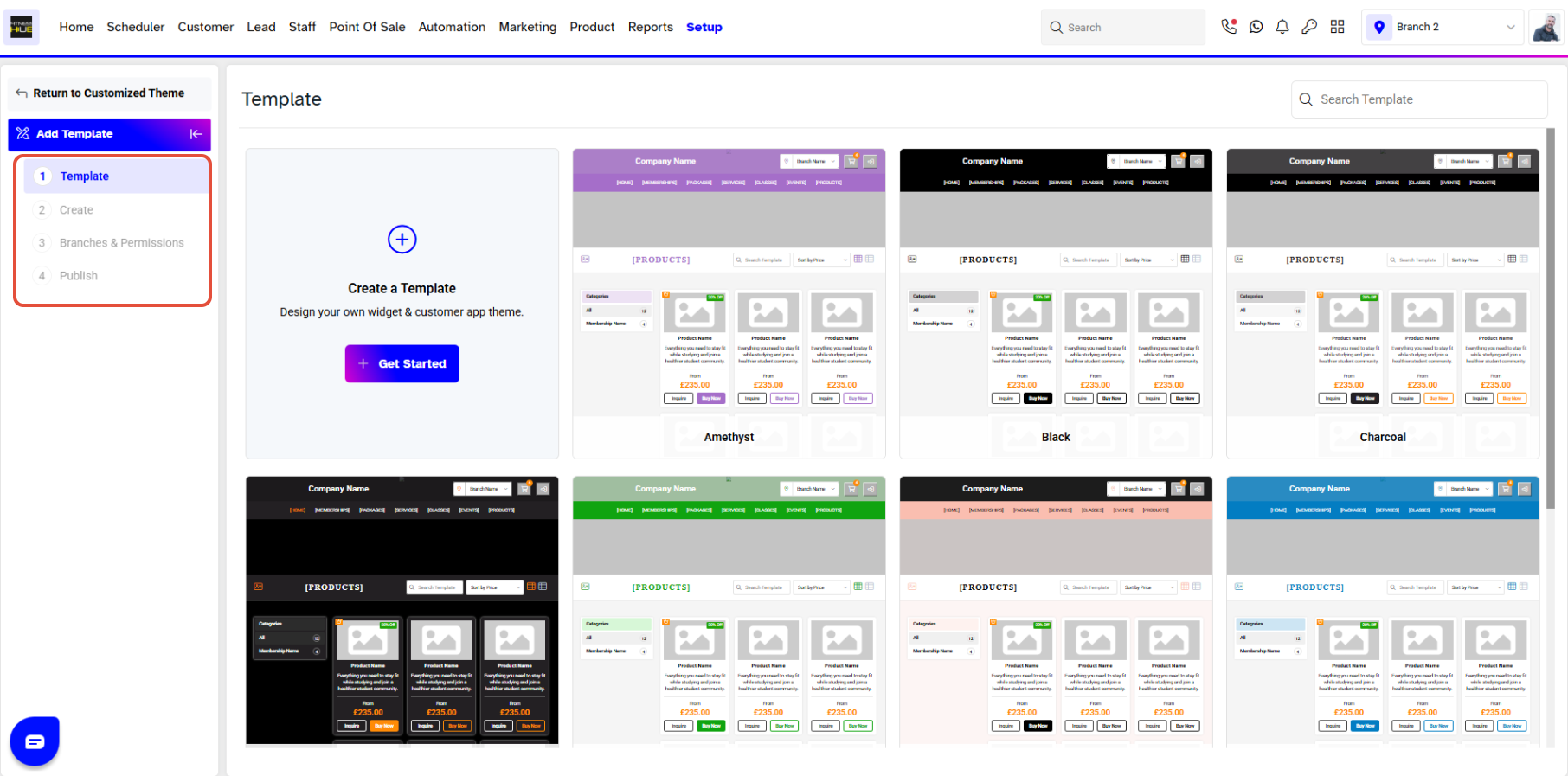
A Pre-made Template can be used, or Merchant can create a New Template as well.
Create
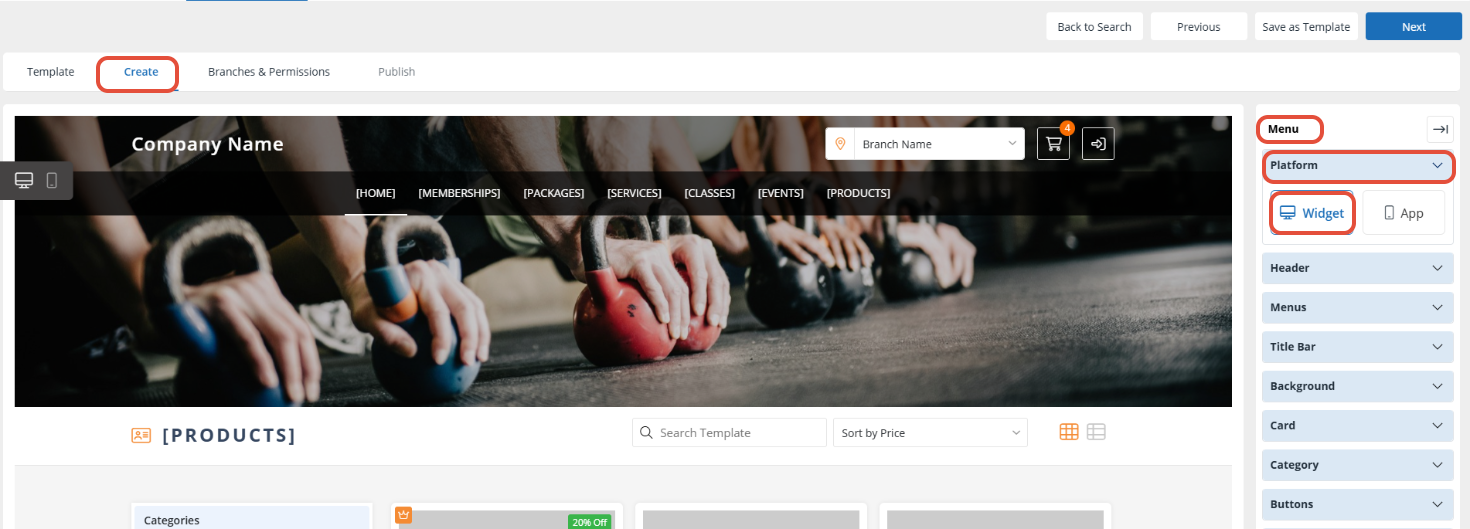
In the Create section, navigate to the Menu Bar and select the platform to customize the Widget or App.
1. Header
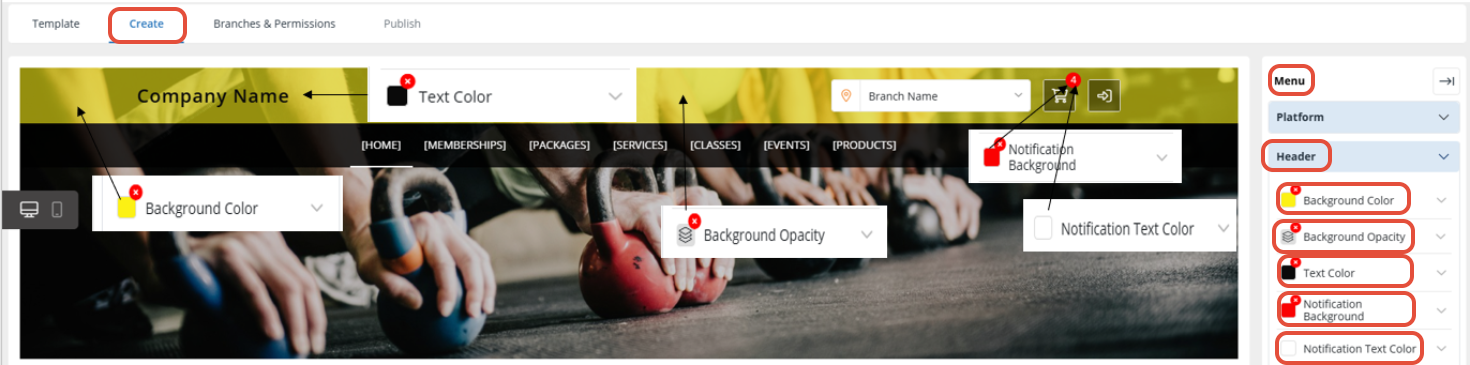
The header represents the area of the widget above the navigation bar.
Background Color: Choose any color from the dropdown color palette.
Background Opacity: Adjust the opacity from 1% to 100%.
Text Color: Set the color of the header text, currently displaying the “Company Name” for the widget.
Notification Background: Set the background color for the notification icon.
Notification Text Color: Set the text colour for the notification icon.
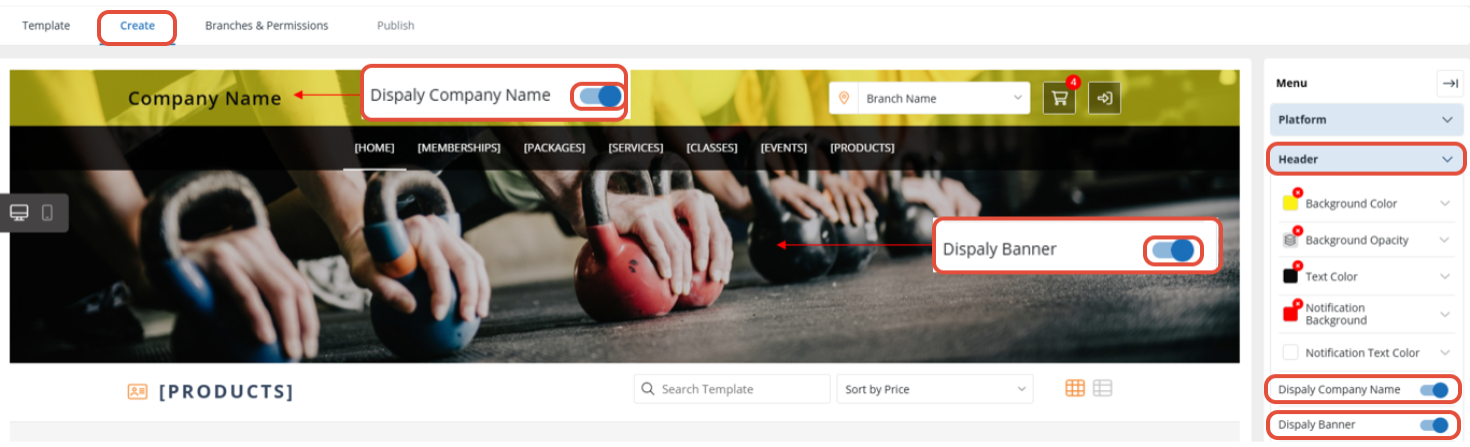
Display Company Name Toggle:
Toggle switched on: The company name will display on the widget.
Toggle switched off: The company name will be hidden on the widget.
Display Banner Toggle:
Toggle switched on: The banner will display on the widget.
Toggle switched off: The banner will be hidden, and the content below will move up.
2. Menu
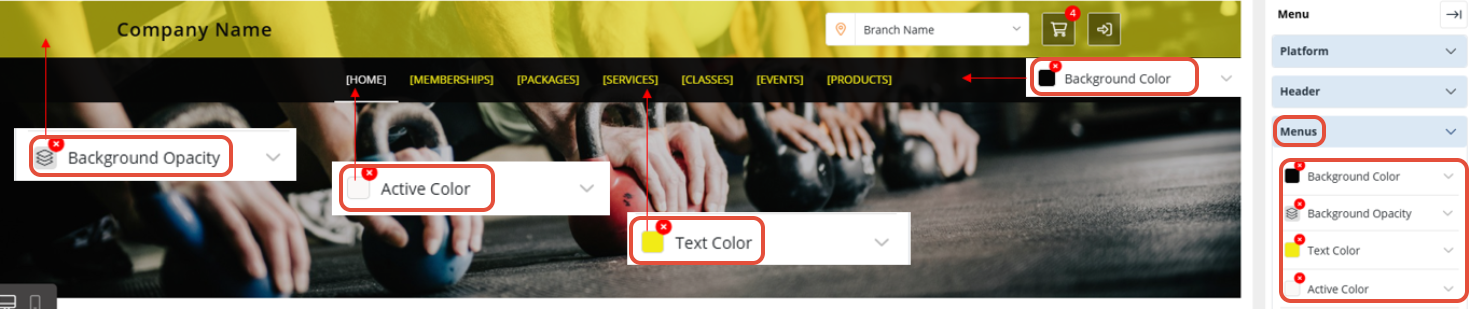
This represents the navigation menu on the widget.
Background Color: Choose a background colour from the dropdown colour palette.
Background Opacity: Adjust the opacity from 1% to 100%.
Text Color: Select the color for the navigation menu text.
Active Color: Define the colour for the selected or hovered state of the navigation menu.
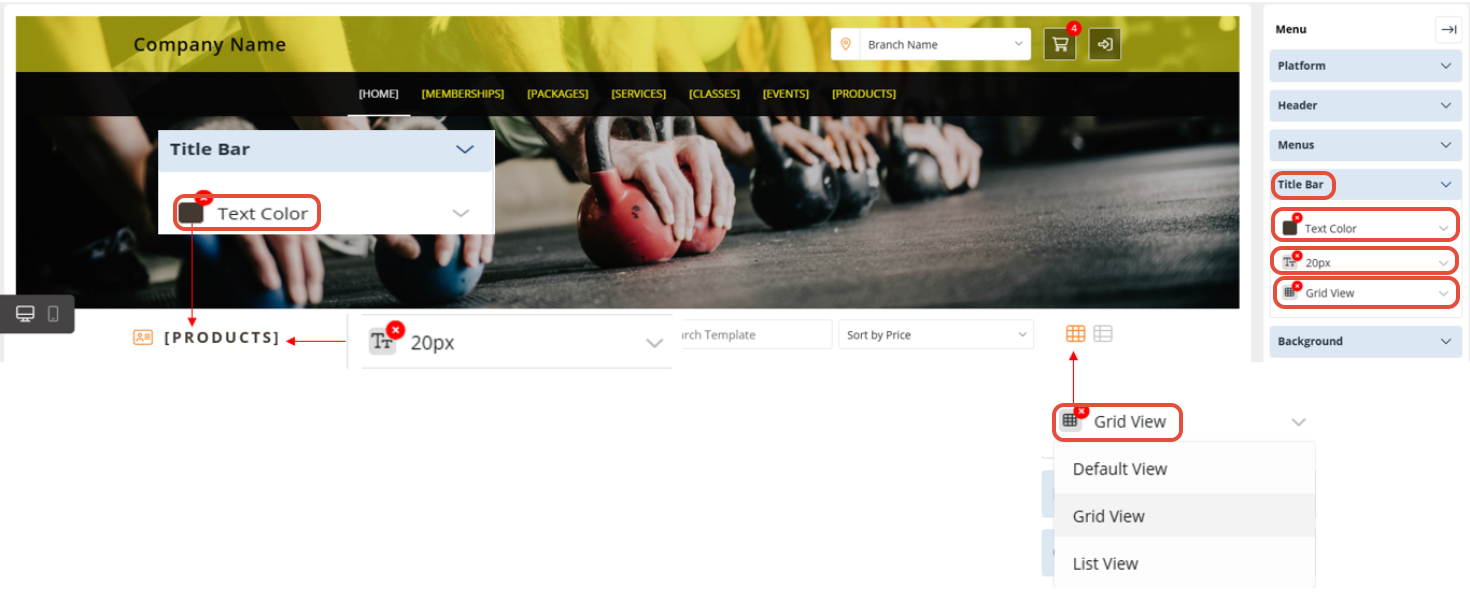
3. Title Bar
The title bar represents the title of the screen on the widget.
Text Color: Set the color of the title text.
Font Size: Choose a font size from the dropdown list.
Default Selection: Set the default view for item-type pages in the widget. Options include:
Default View
Grid View
List View
4. Background
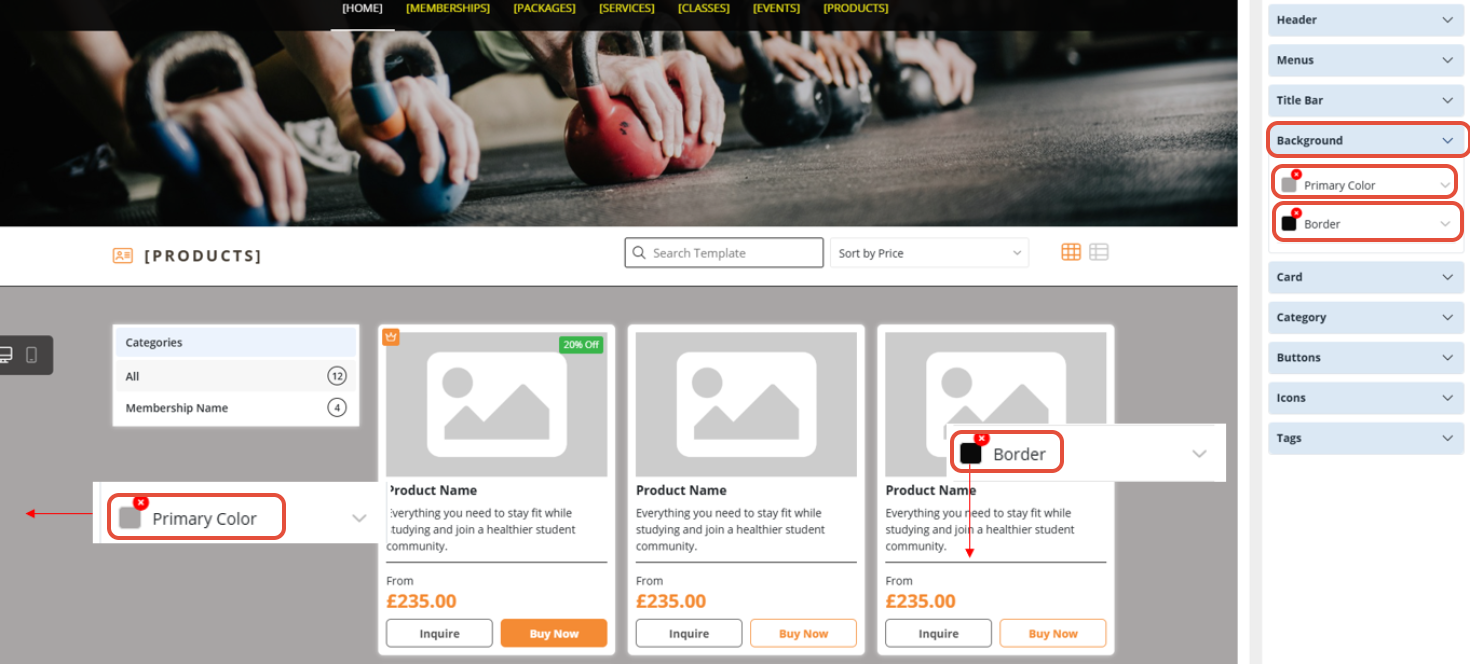
This represents the listing screen colour and border, excluding the popup background. The following screens are excluded:
Profile
Preference
Switch Plan
Switch Branch
Switch Profile
Change Password
Details:
Primary Color: Set the screen background colour.
Border: Customize the border around cards and search fields.
5. Card
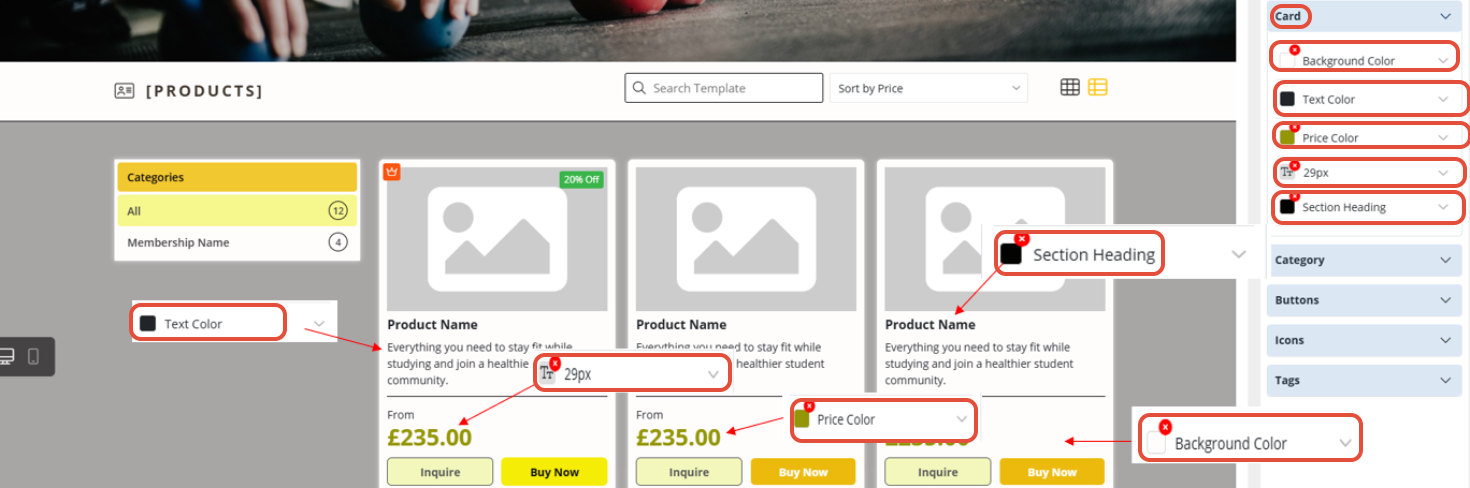
The card represents the tiles displaying items on the screen.
Background Color: Customize the background color for cards, popups, and the secondary background on the home page.
Text Color: Define the text colour for the item name and description.
Price Color: Customize the price colour and font size.
Section Heading: Customize the colour of headings like Home Address, Billing Address, etc.
6. Category
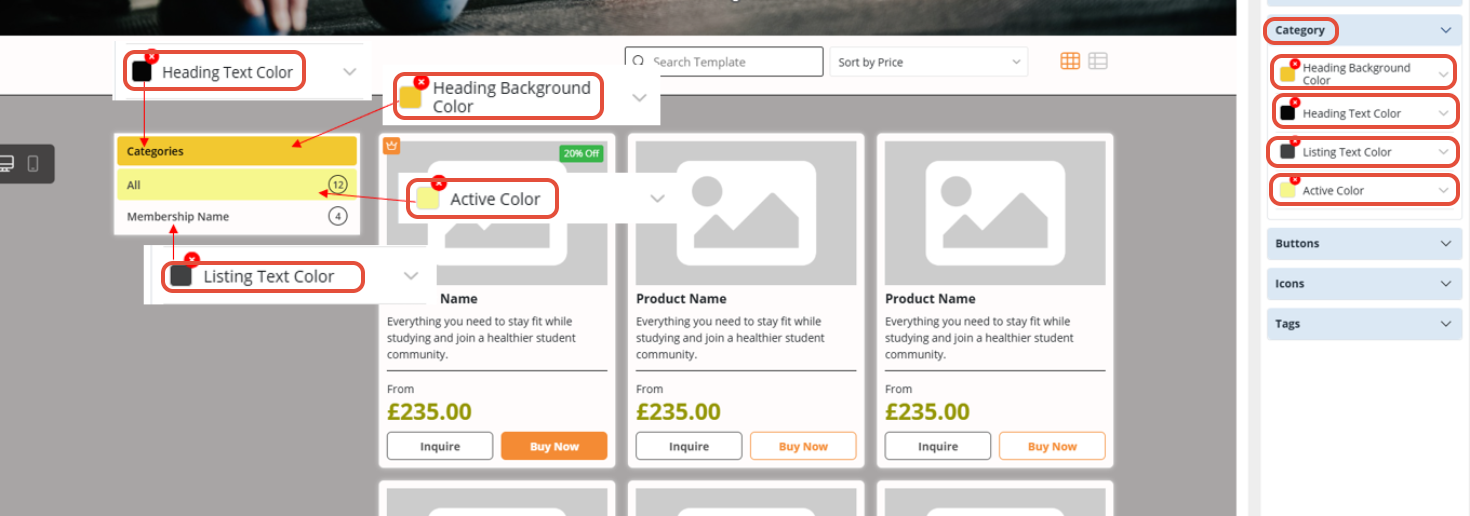
Categories represent each item type on the listing screen.
Heading Background Color: Set the color for category headings.
Heading Text Color: Customize the text color for category headings.
Listing Text Color: Define the text colour for items in the category listing.
Active Color: Set the colour for the selected or hovered state of the category menu.
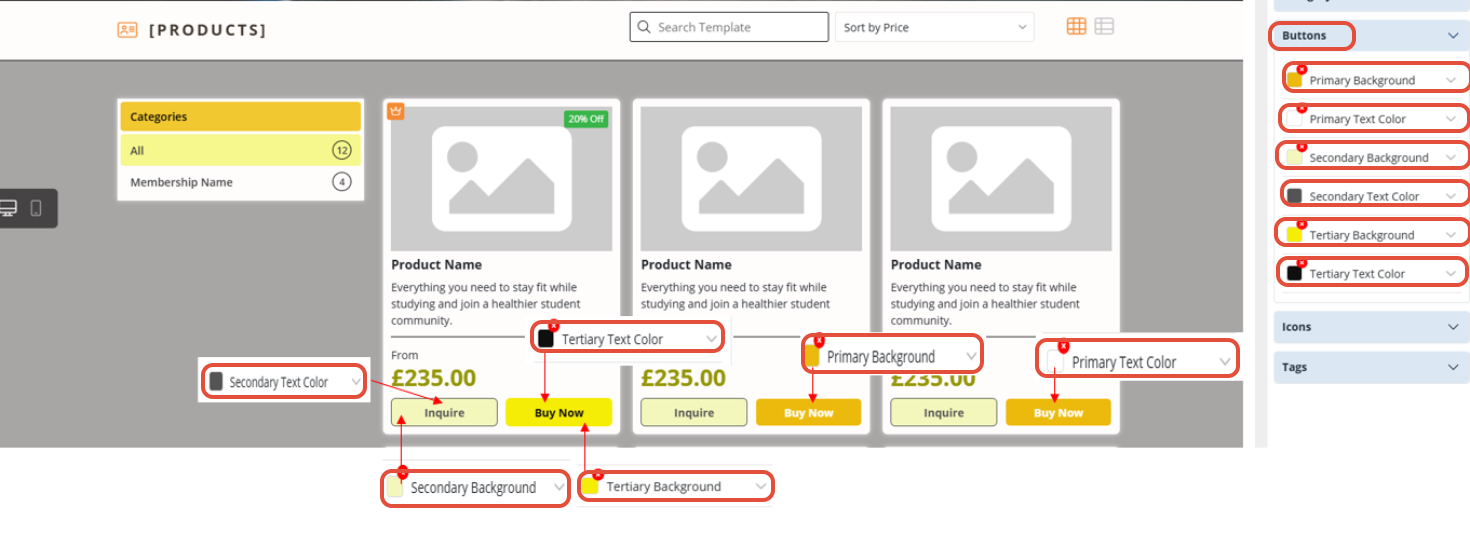
7. Buttons
Buttons represent actionable items on the widget.
Primary Background: Customize the background color of primary buttons (e.g., "Buy Now").
Primary Text Color: Set the text colour for primary buttons.
Secondary Background: Customize the background colour for secondary buttons (e.g., "Close").
Secondary Text Color: Set the text color for secondary buttons.
Tertiary Background: Customize the background colour for tertiary buttons (e.g., "Save").
Tertiary Text Color: Set the text colour for tertiary buttons.
8. Icons
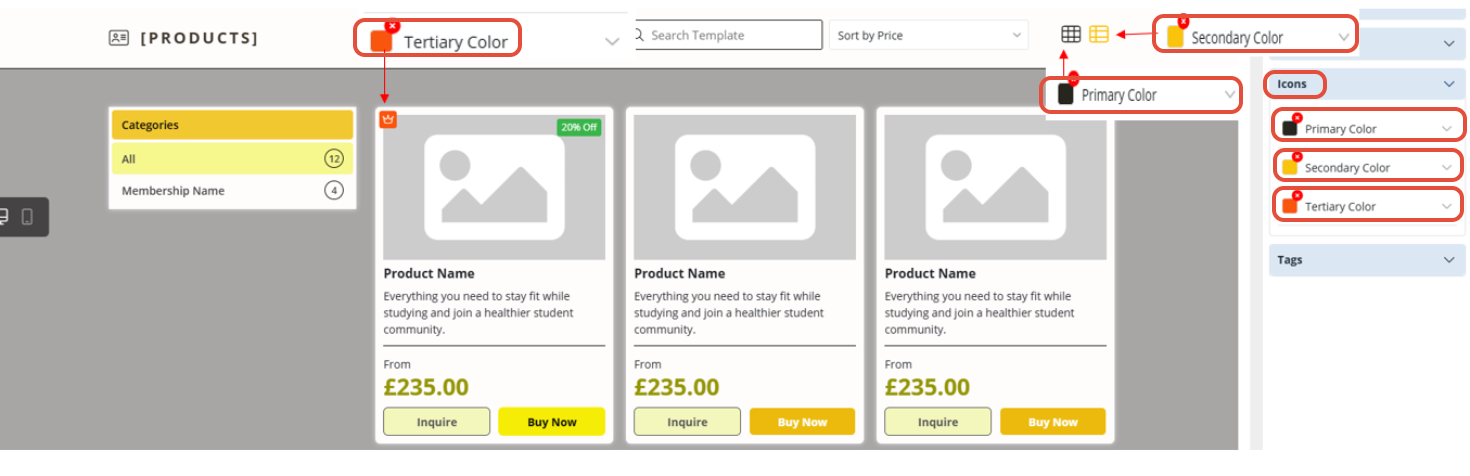
Icons represent various features like "Class," "Membership," and "Profile."
Primary Color: Set the colour for icons without a background or in a selected state.
Secondary Color: Define the color for icons in a non-selected state.
Tertiary Color: Customize the colour for icons with a filled background (e.g., "Benefit Crown").
9. Tags
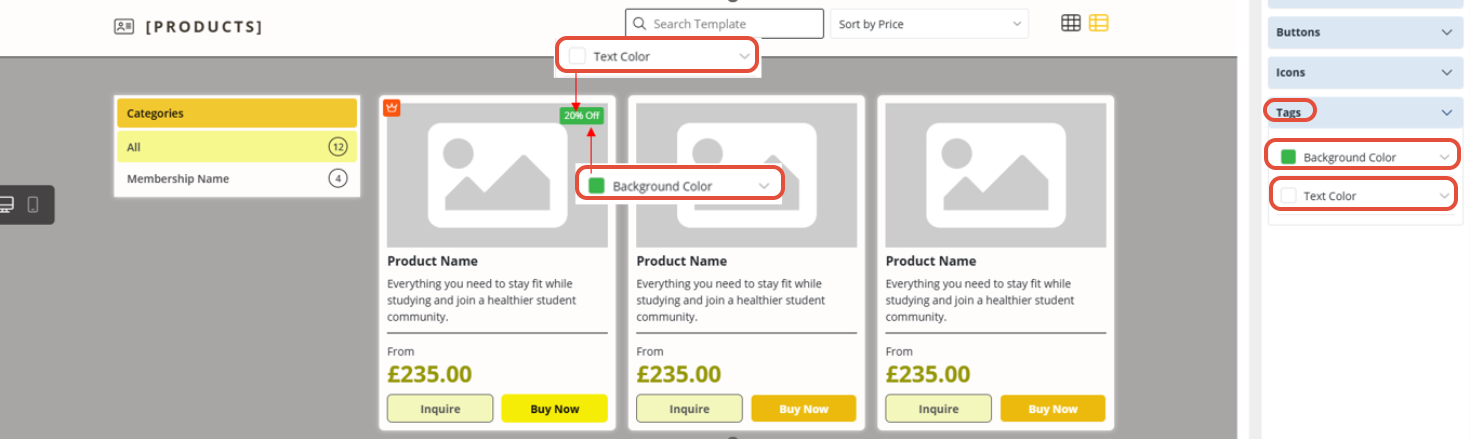
Tags represent labels for items like Free/Discount or discounted gift cards.
Background Color: Choose a background colour for tags from the dropdown palette.
Text Color: Set the text color for the tags.
Branched & Permissions
The Branches and Permissions section will open displaying the Branches. Check or Uncheck the Active checkbox.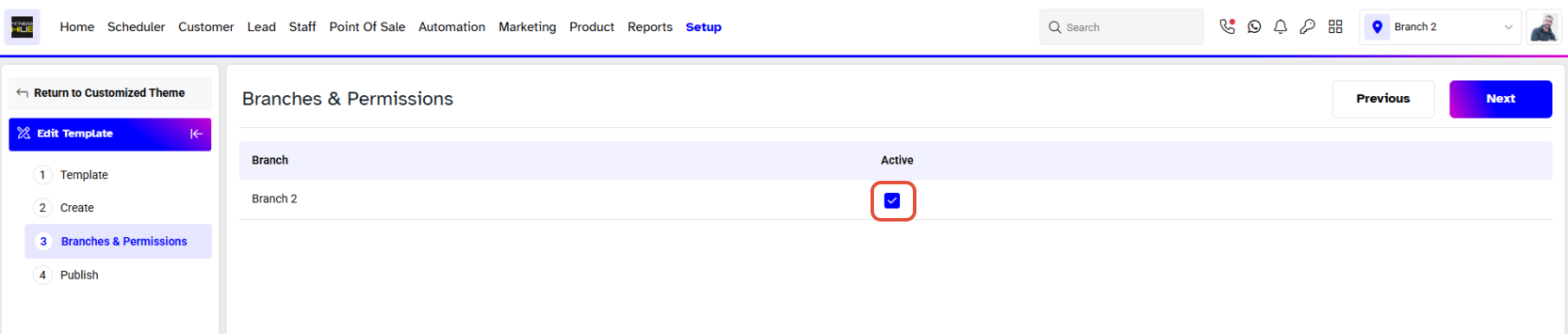
Now, navigate to the Publish section.
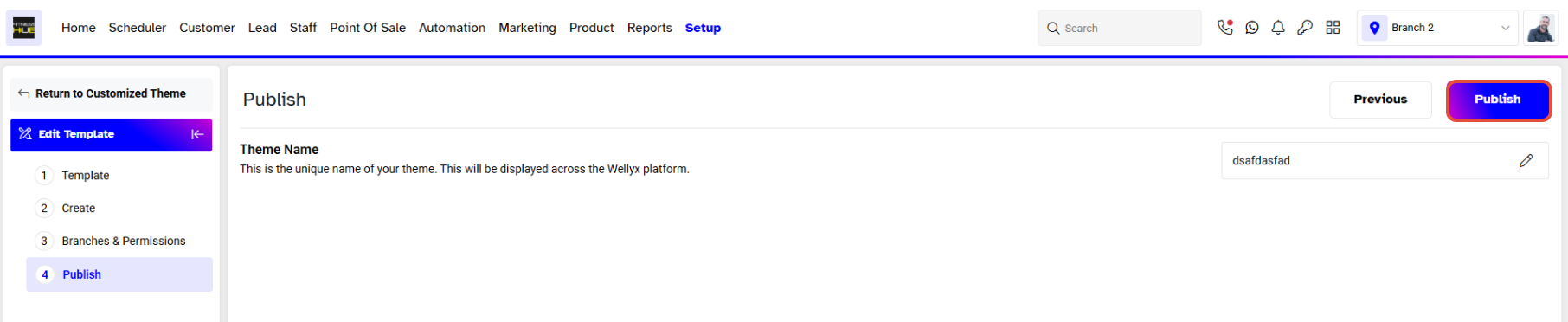
Publish
In the Publish section, add the name of the Widget Theme.
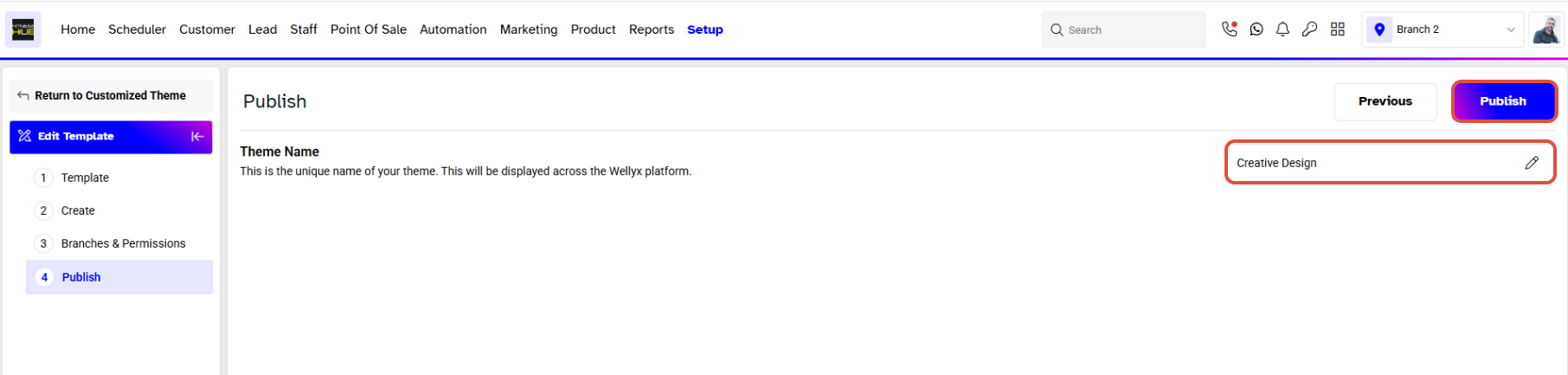
Once done, click on the Publish Button.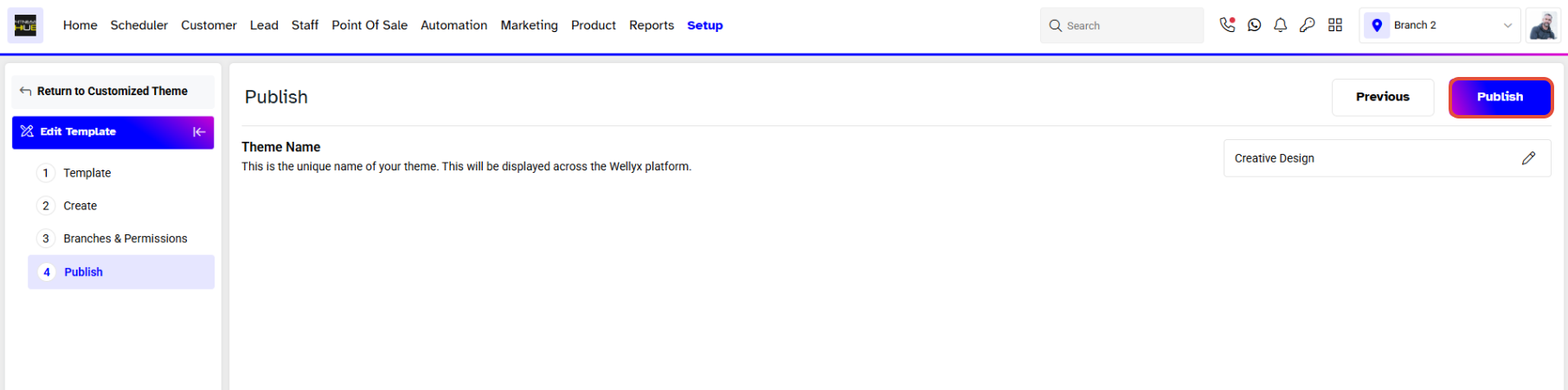
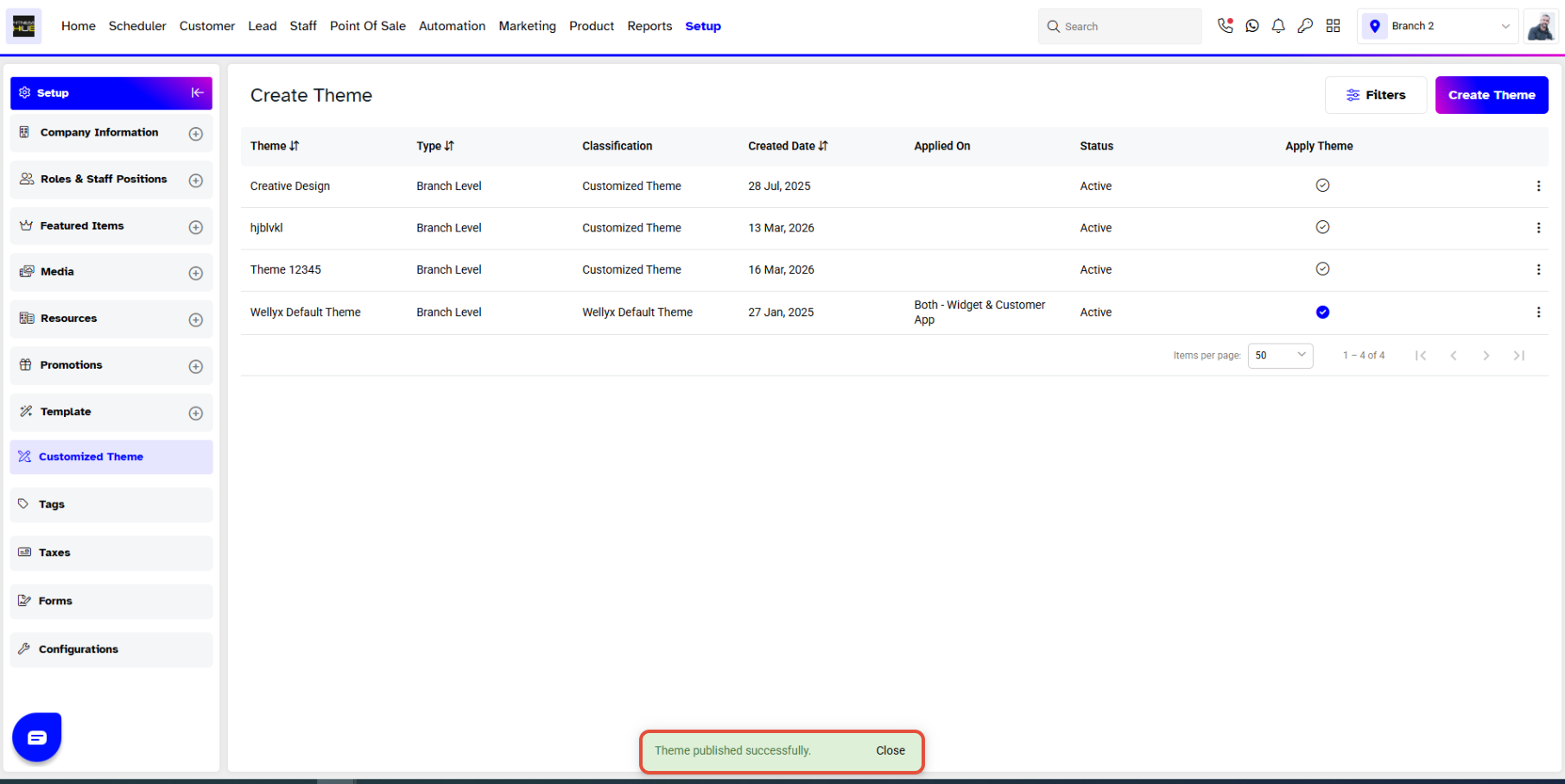
The Theme has been published successfully.