TABLE OF CONTENTS
To Book a Service through the Widget, follow the steps below:
How To Book A Service Through The Widget
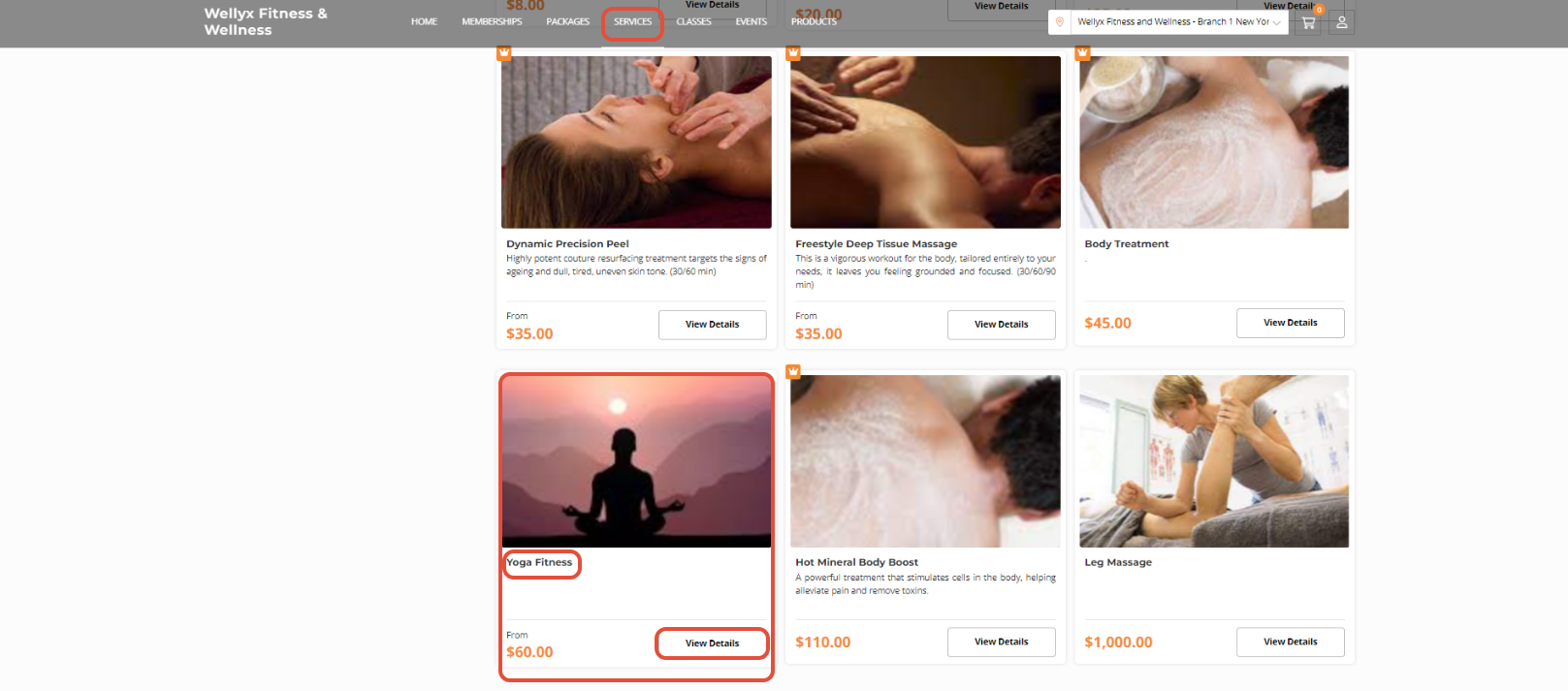
Go to the Service Section on the Widget.

Click on the View Details Button against the selected Service.
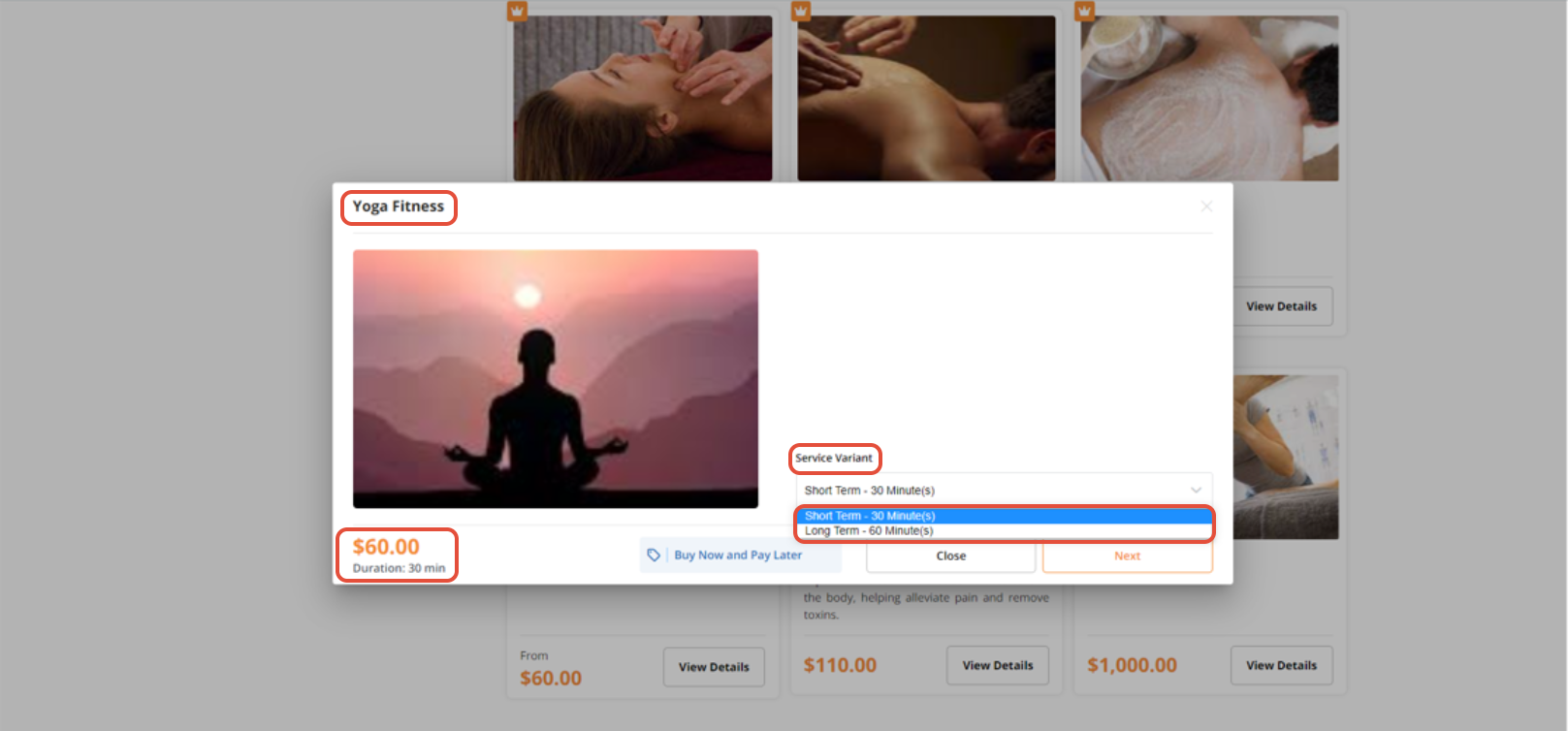
Select the Service Variant from the Dropdown Menu.
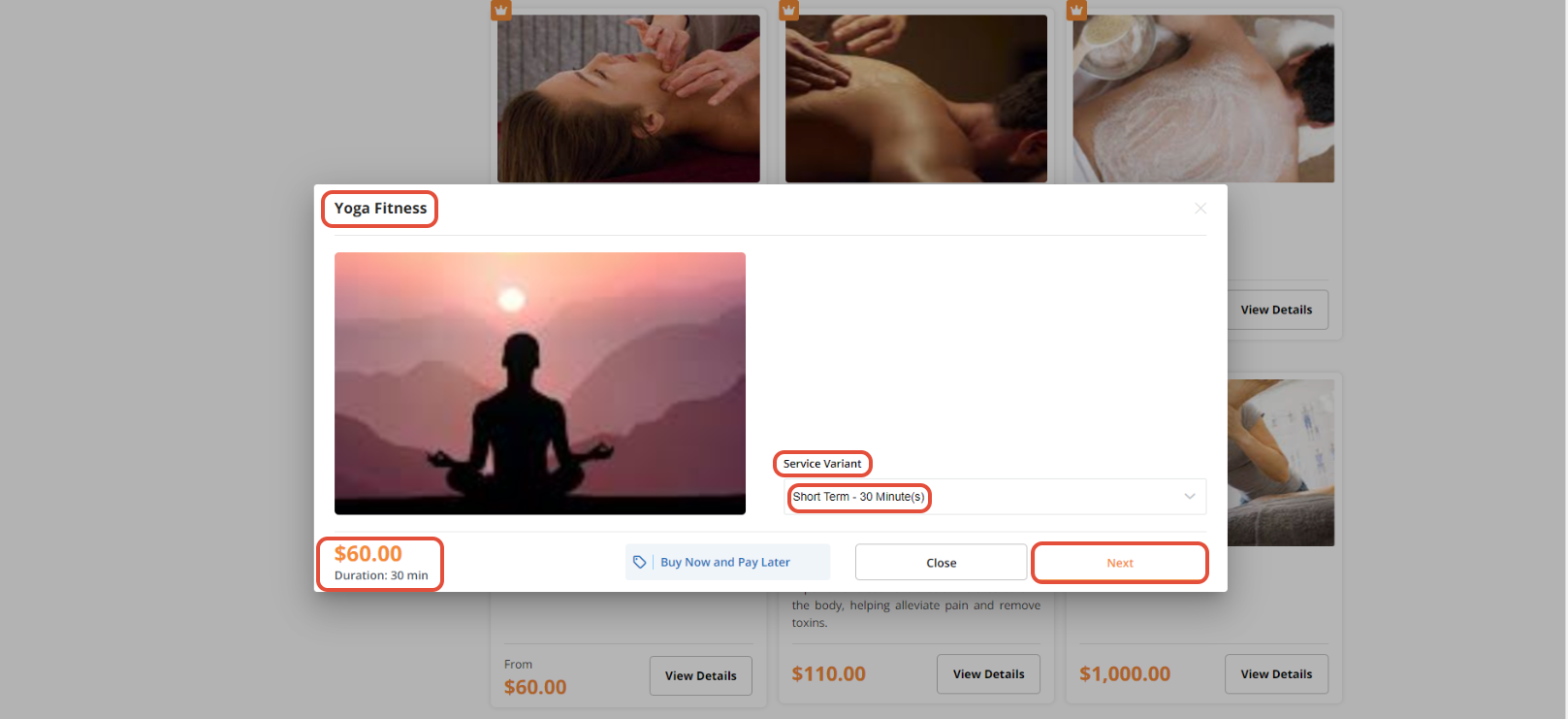
Click on the Next Button.
Now, add the Staff Member, Facility, and Asset. Click on the Next Button to go to the next screen.
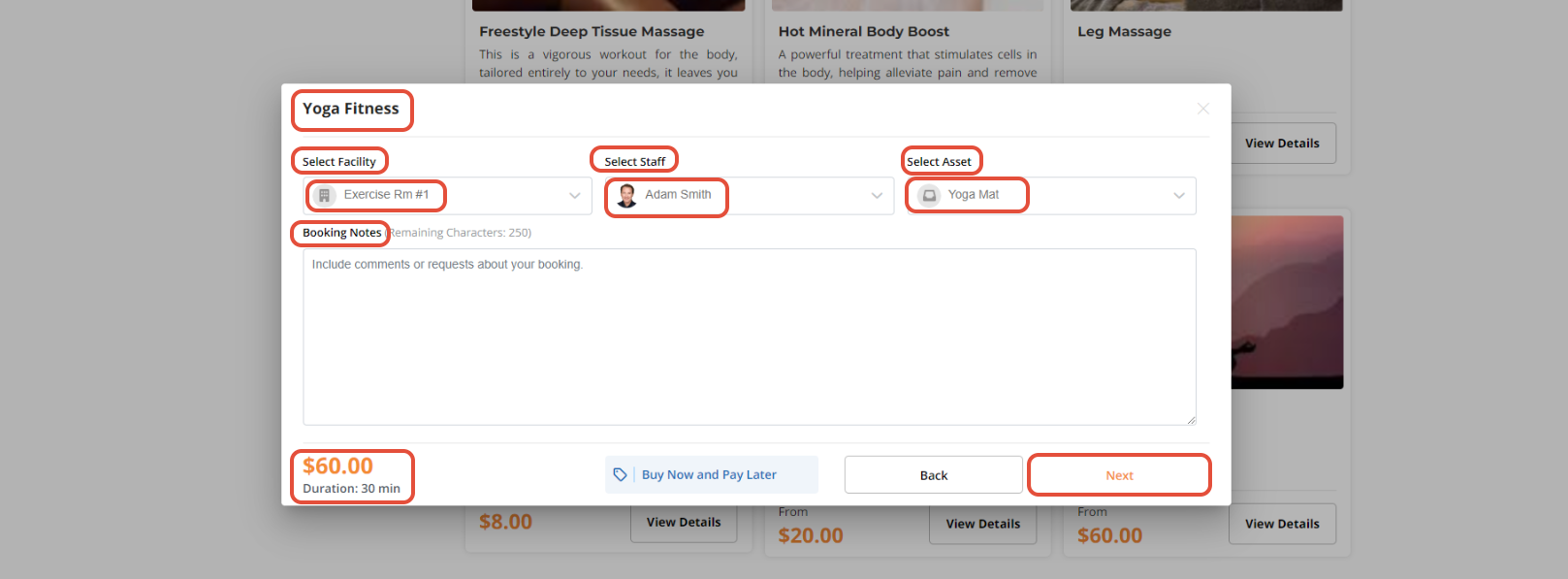
Booking Notes is an Optional field that can be added if needed.
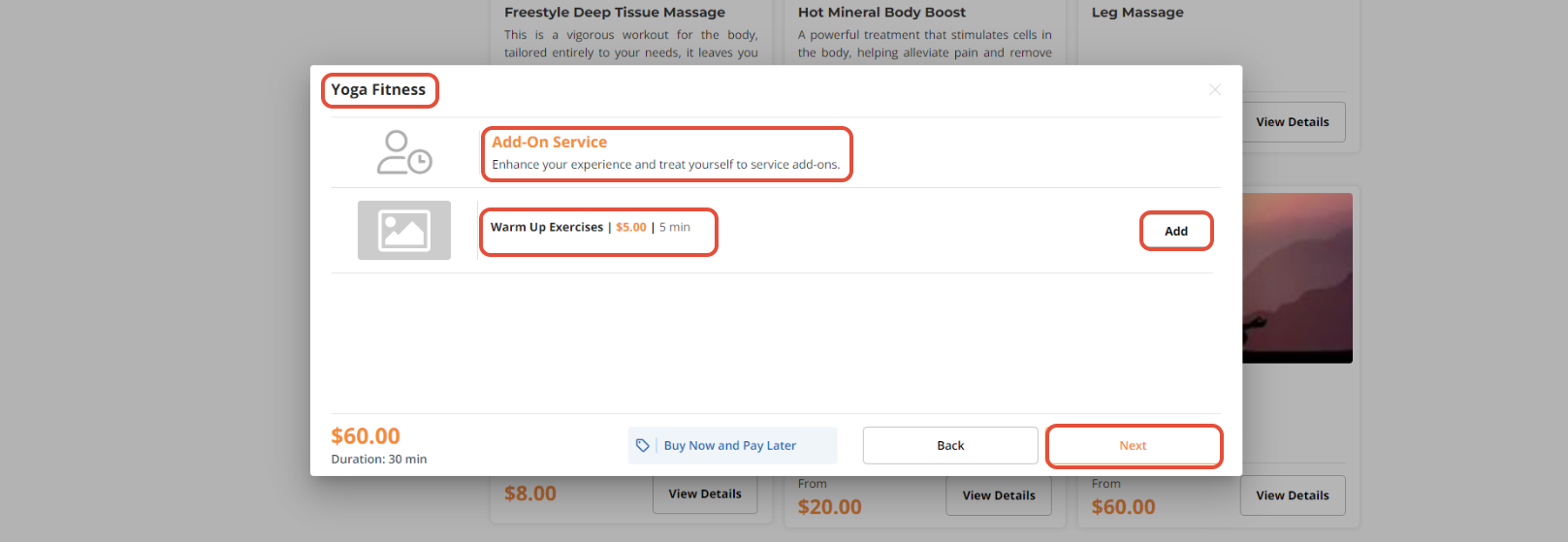
The Service Add-On page will appear on the Screen, click on the Add Button against the Add-On.
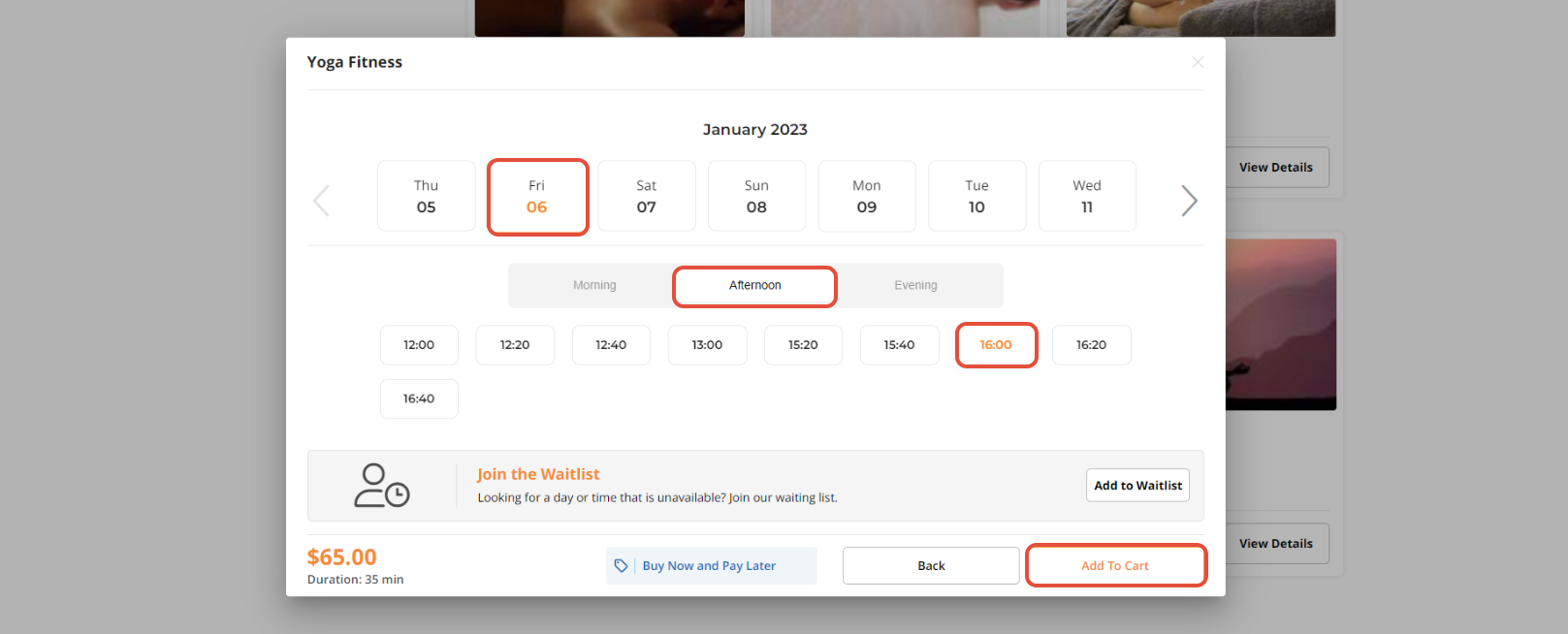
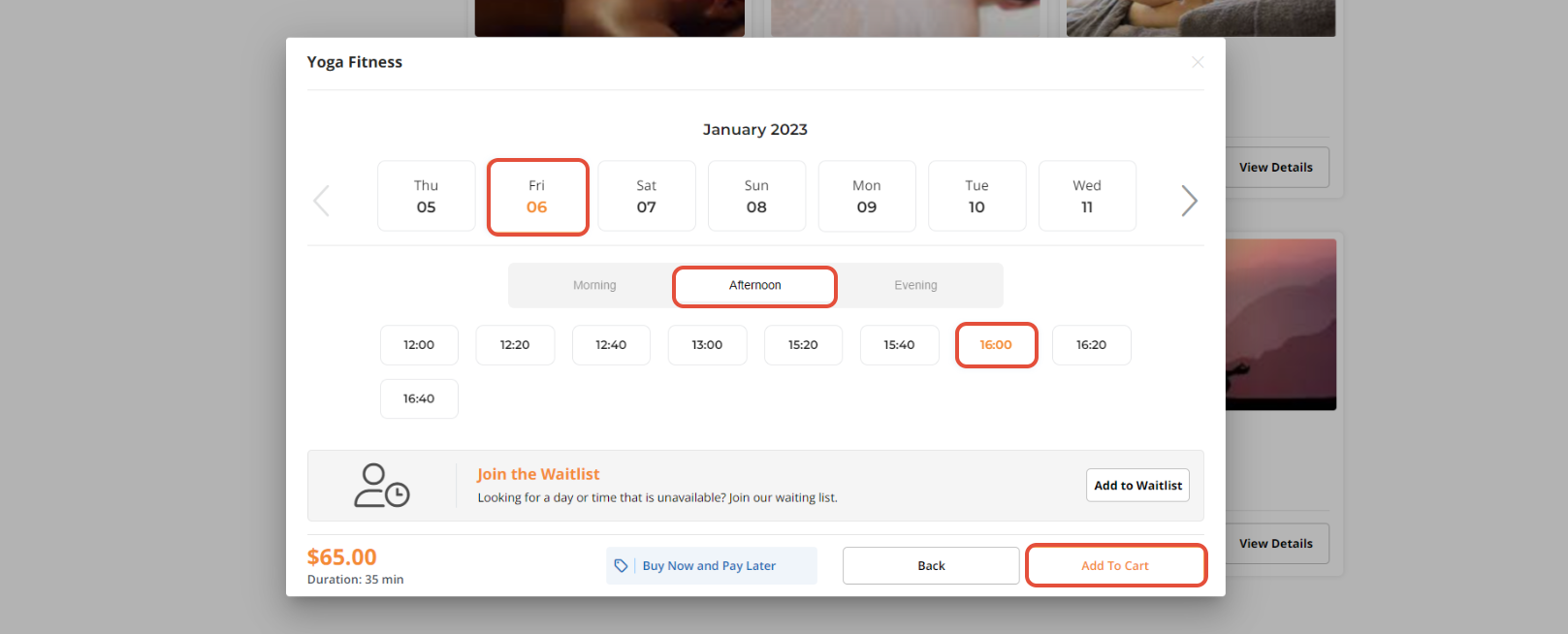
After selecting the Service information, select the desired Time slots.
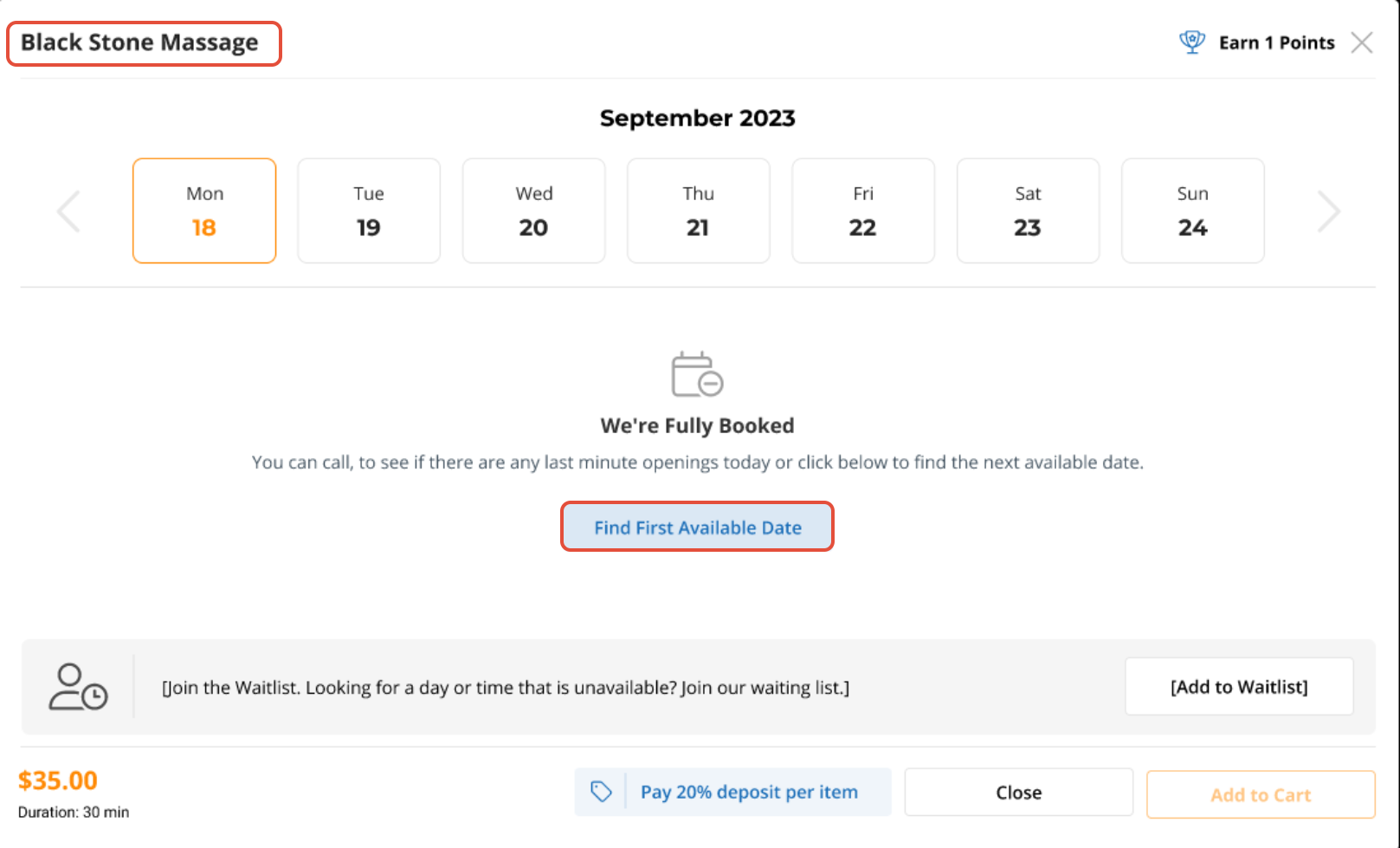
If the solt is not available. To find the First Available Slot, Customers simply need to click on the "Find First Available Date" option. This way, they won't have to manually navigate through different dates to find an available time slot.
Click on the Add To Cart Button to add Service to the Cart.
Access Checkout by clicking on the Cart Icon.
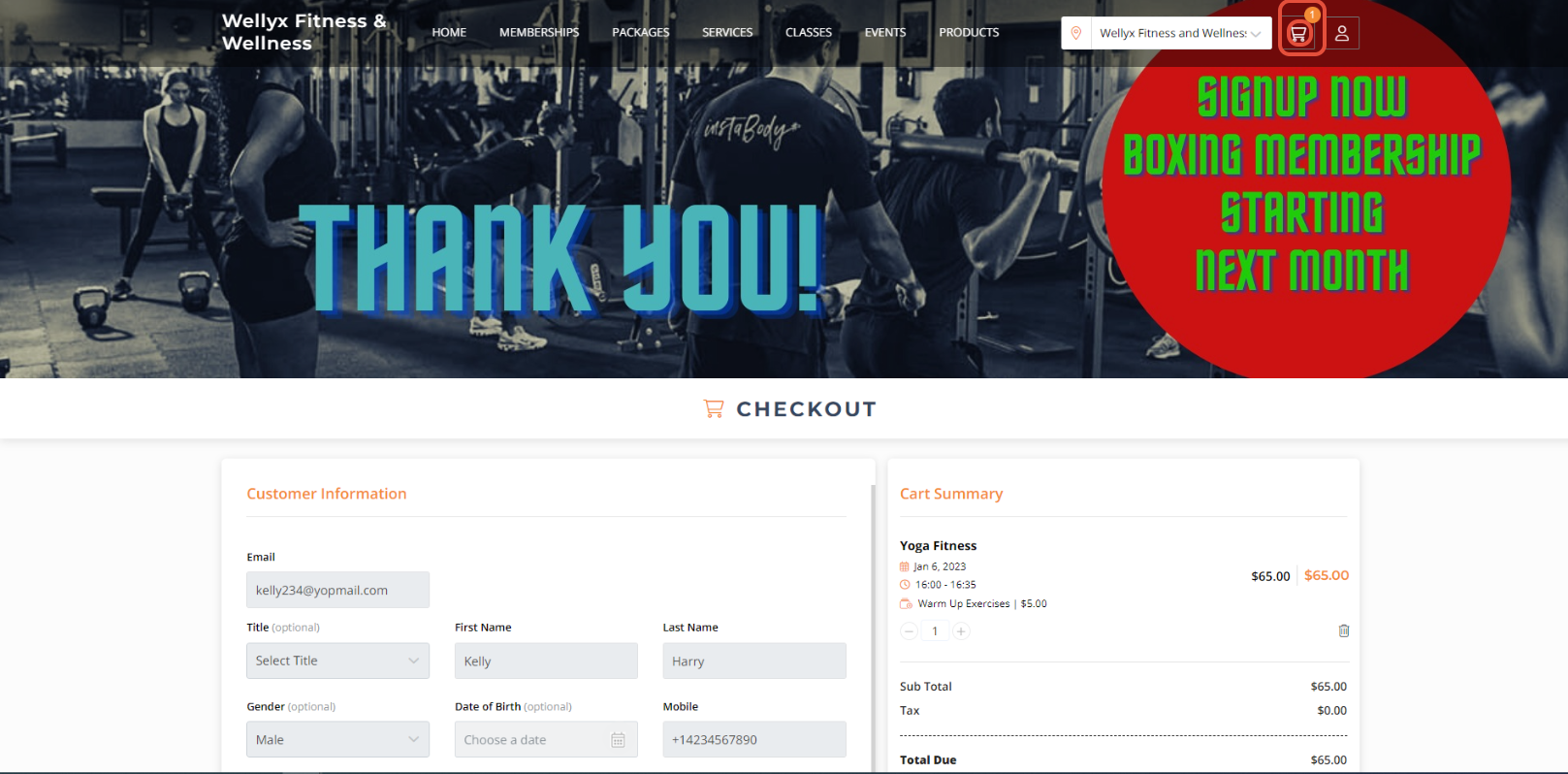
Whilst in the Checkout, check the Customer Information.
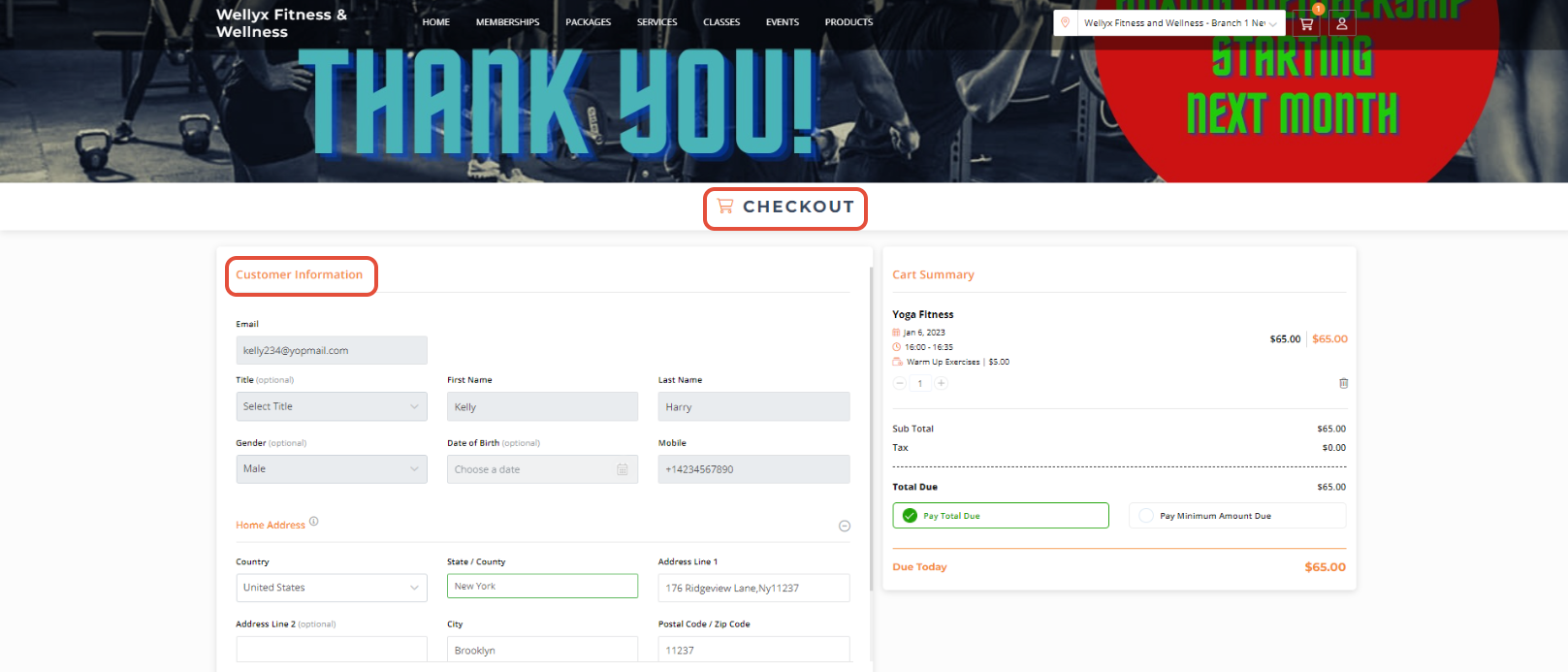
New customers will enter their details while existing ones can either check their information or modify it if required.
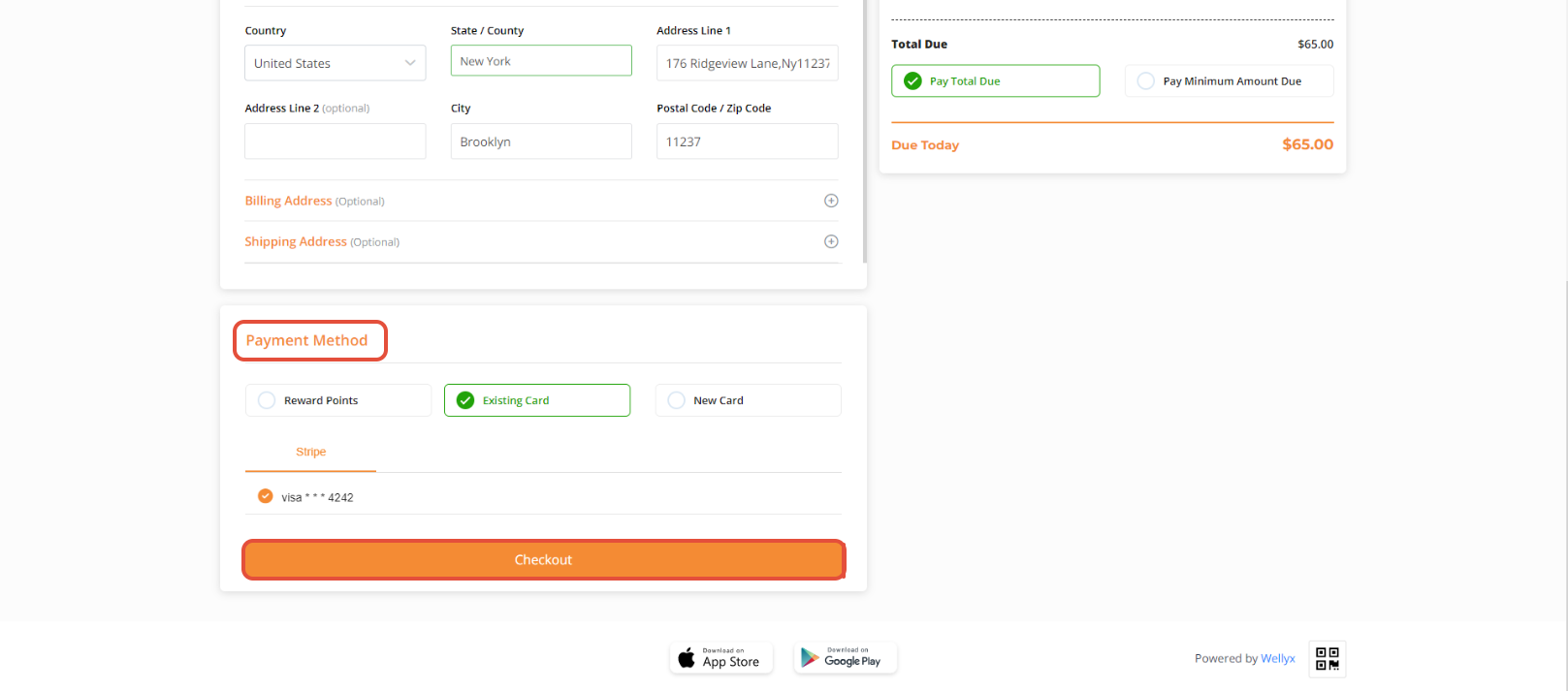
Now, navigate to the Payment Method section. Choose the Payment Method.
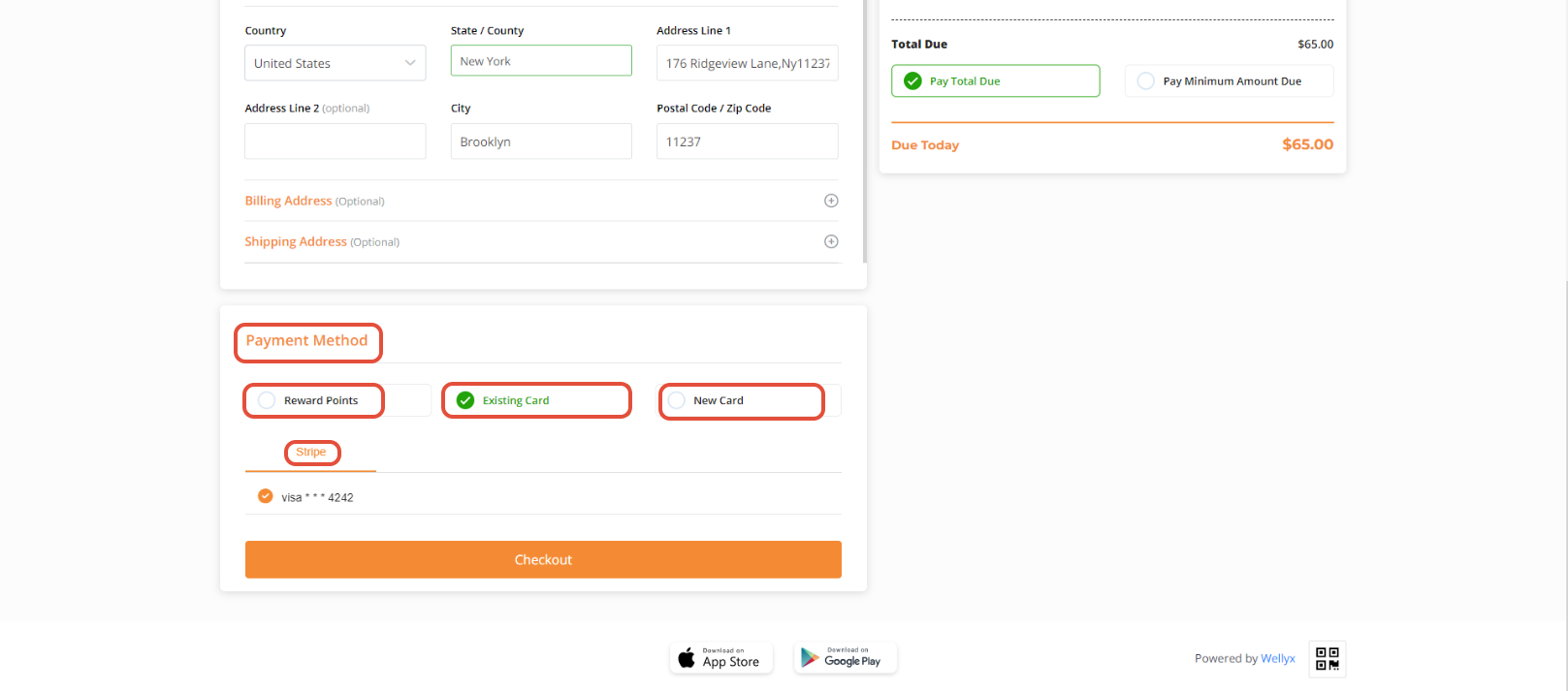
Once done adding Payment Information, click the Checkout Button to confirm the Booking.
The Service will be booked successfully.