


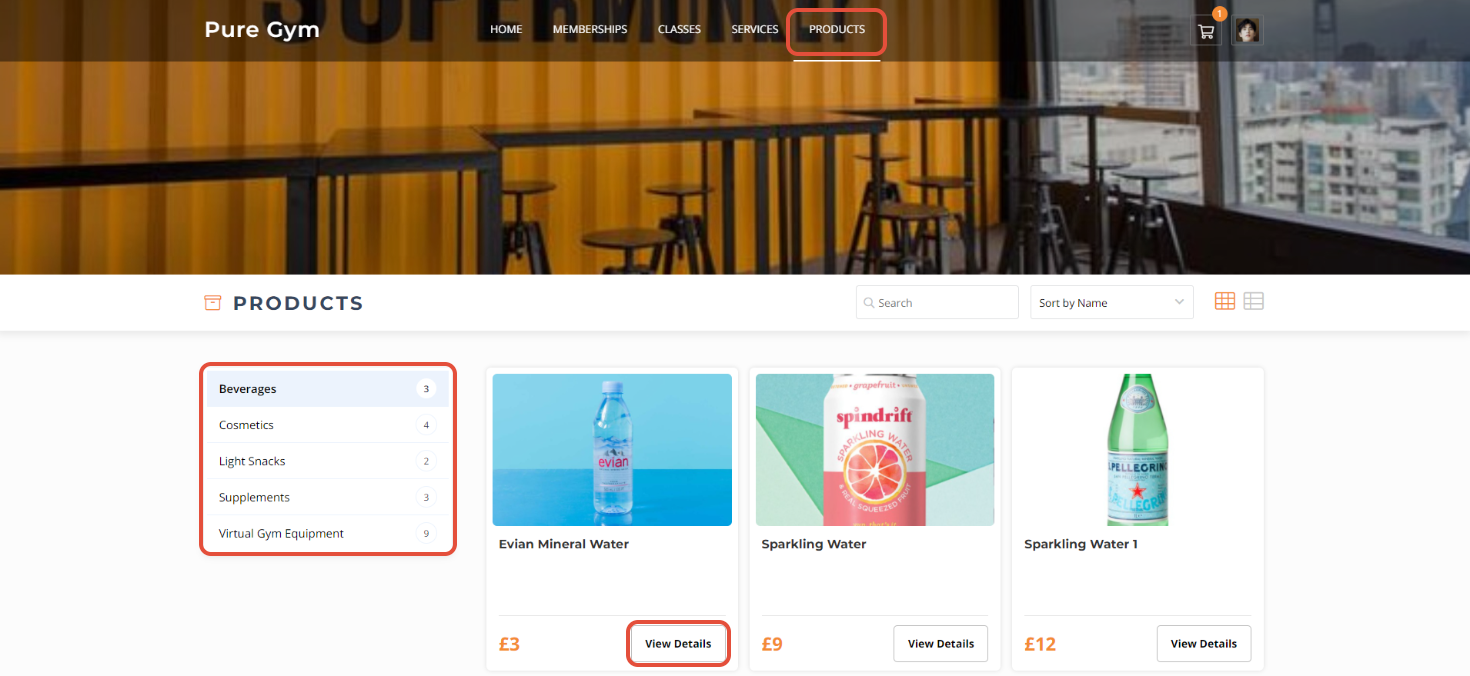
From the Homepage, click on the Products Tab.
The Products Tab will display the Products available according to category. Categories will be present on the left side of the page.
To purchase a Product, click on View Details.
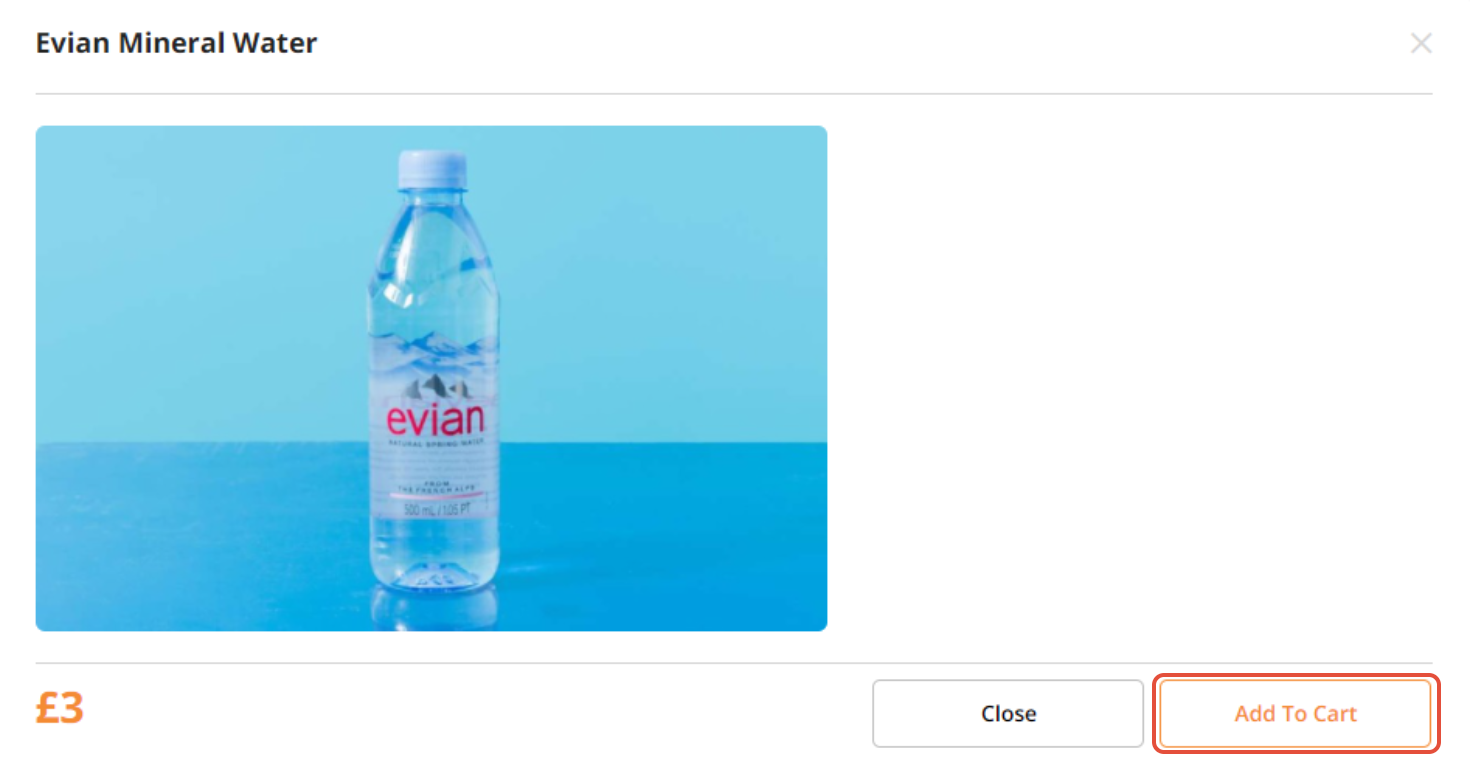
A Booking Window will pop up. Price will be displayed on the bottom left of the window. Click on Add to Cart.
A Confirmation message will appear at the top of the Homepage.
Click on the Cart icon towards top right of the Homepage.

You will be taken to the Checkout Screen. This screen will display the following 3 sections:
- Customer information
- Cart Summary
- Payment Method
Customer Information
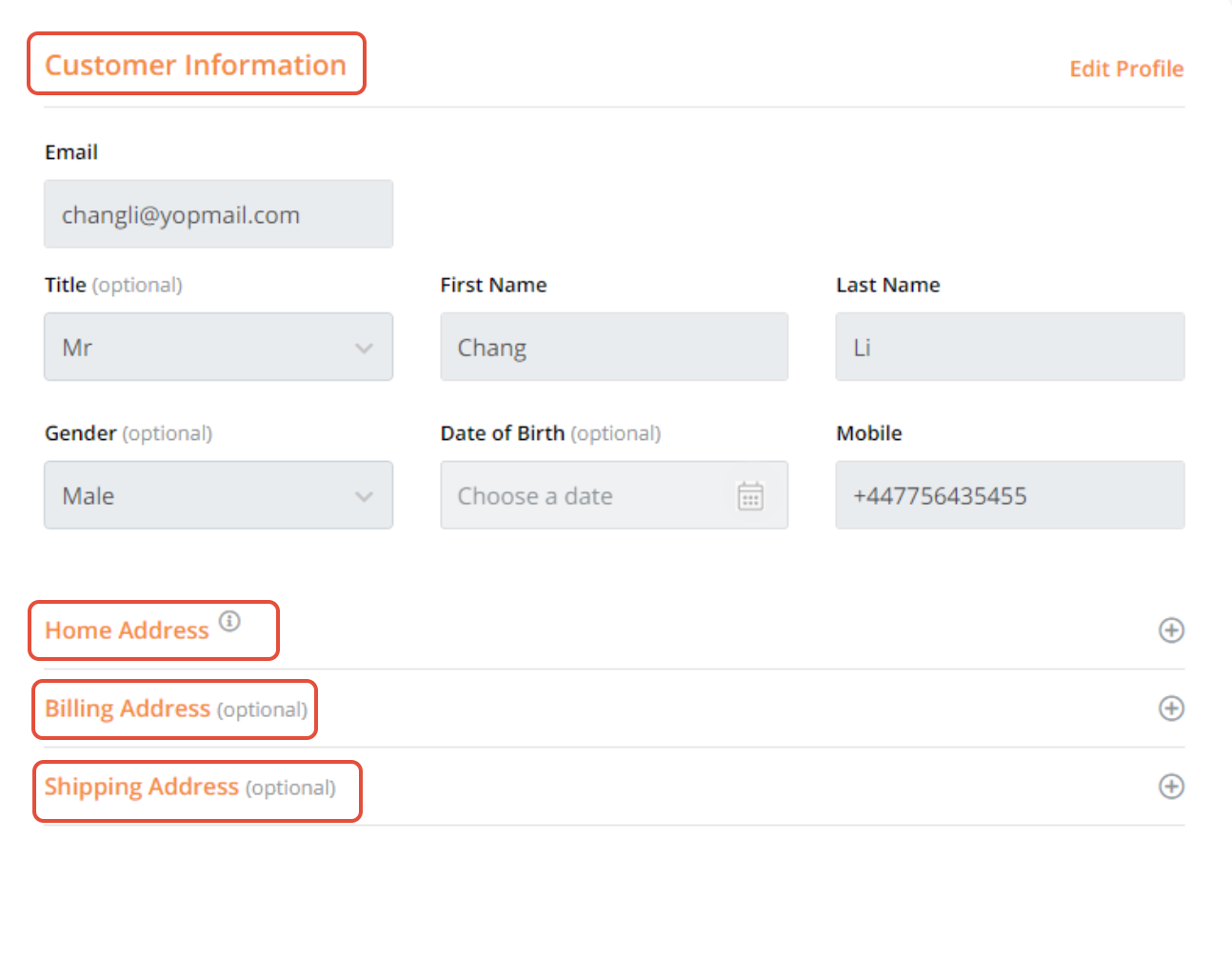
Customer Information will display sections for Personal Information, Home Address, Billing Address, Shipping Address.
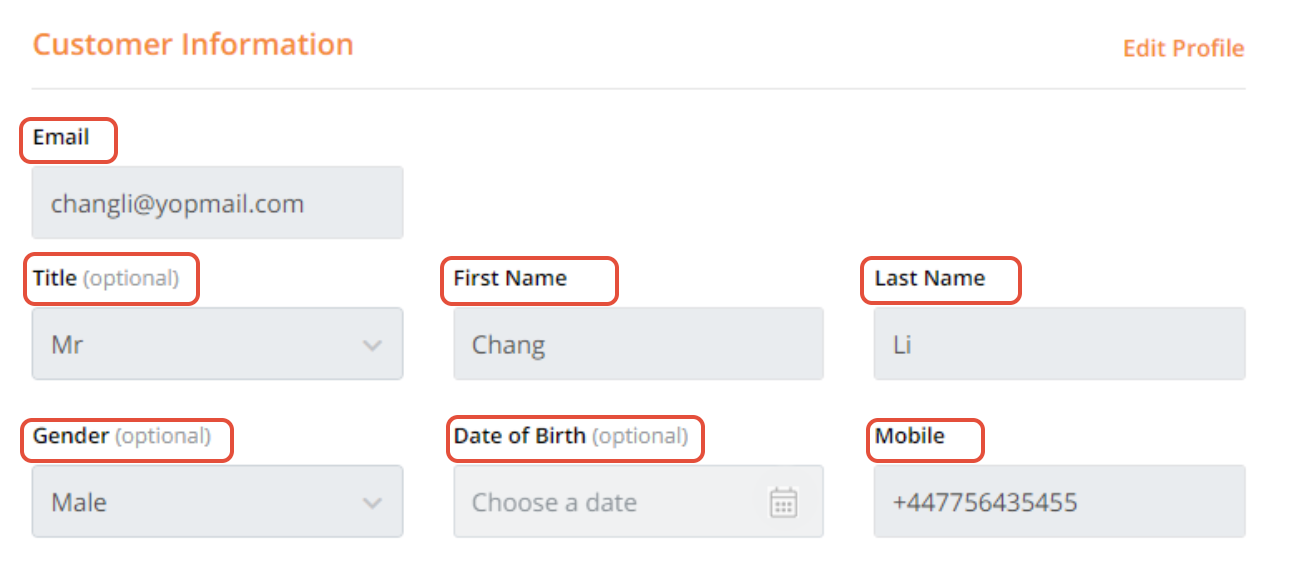
General Information
Add your Email, First Name Last Name and Mobile. Title, Gender and Date Of Birth are optional fields.
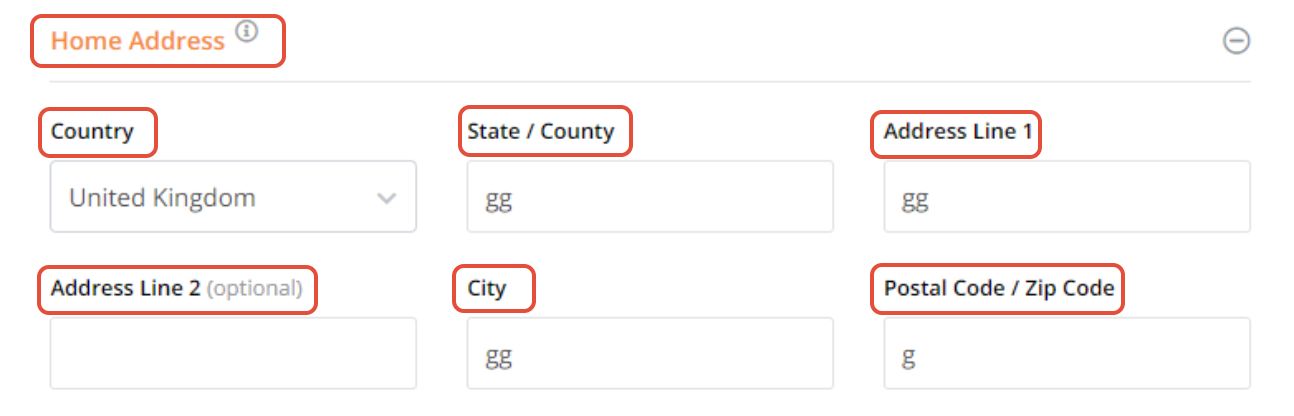
Home Address
Select a Country from the dropdown menu. Enter State/Country and Address Line 1. Under Address Line 2 you can add more details of an address such as apartment number etc. Enter City and Post Code/Zip Code.
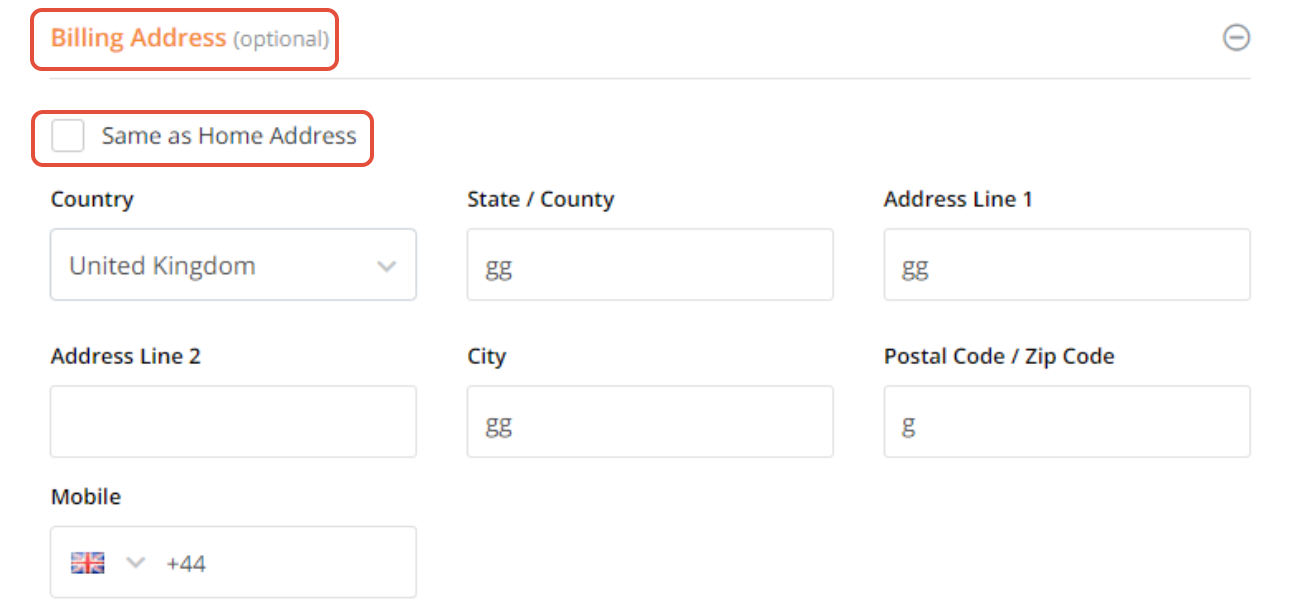
Billing Address: (Optional)
Click on the + icon to view this section. Merchants can check Same as Home Address to auto populate all the fields or enter relevant information if the Billing Address is different from Home Address.
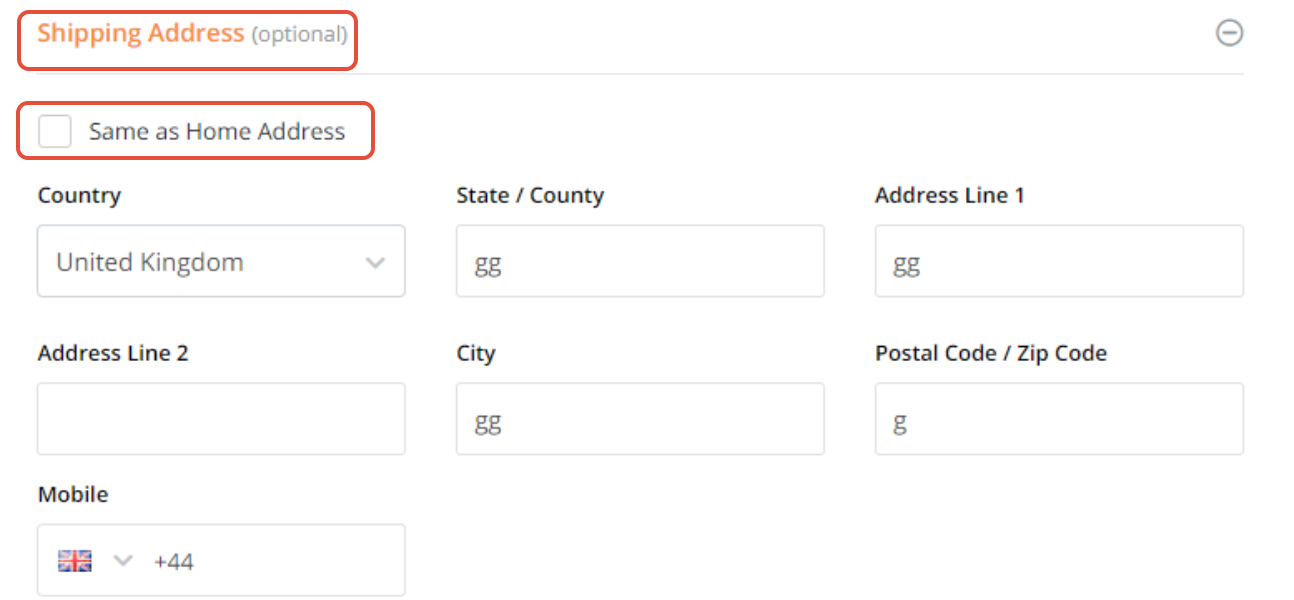
Shipping Address: (Optional)
Click on the + icon to view this section. Merchants can check Same as Home Address to auto populate all the fields or enter the relevant information if the Shipping Address is different from Home Address.
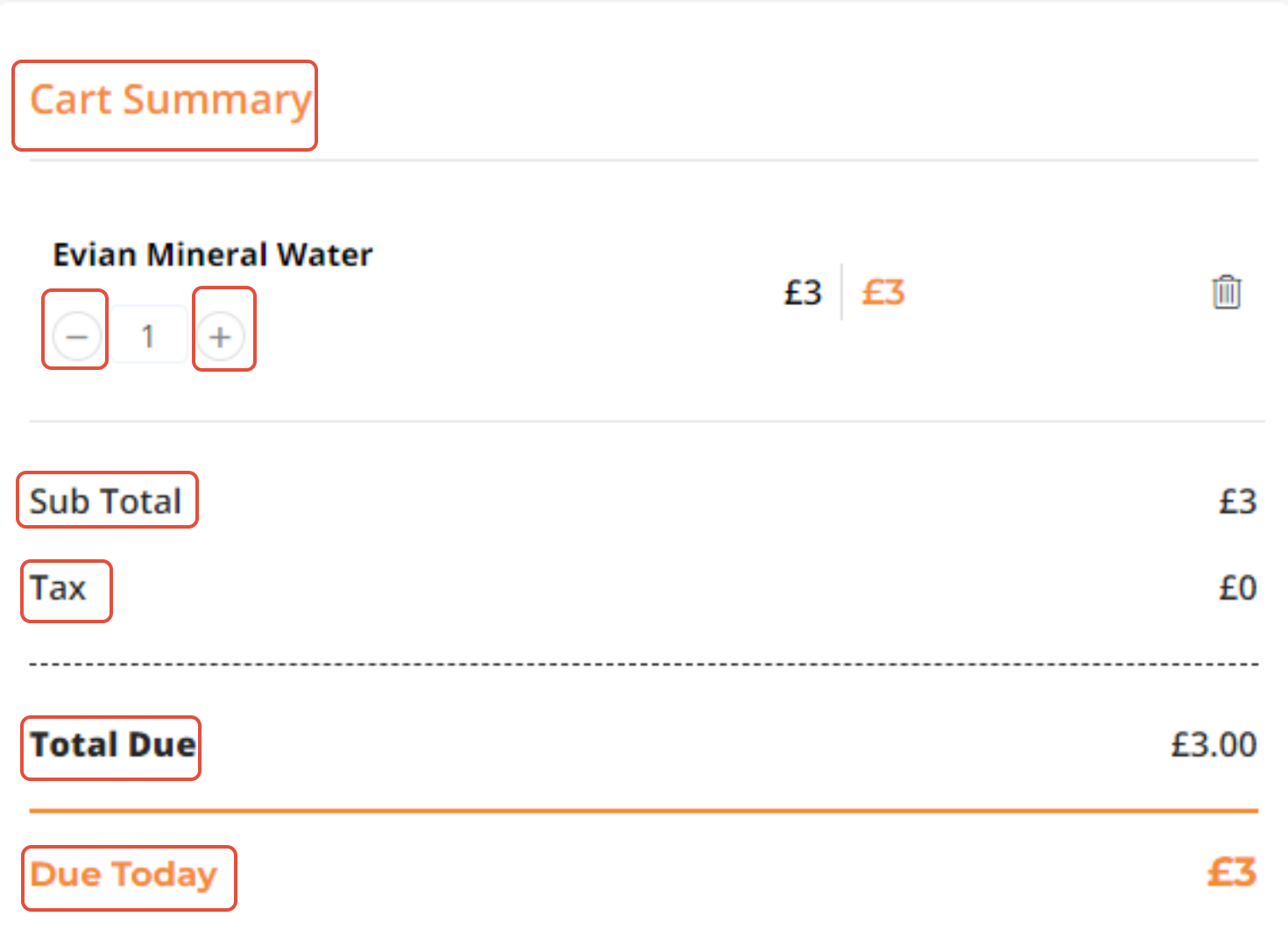
Cart Summary
This section will display a summary of the items that have been added in the Cart.
- Click on - or + to increase or decrease the units of an item.
- Sub Total will display the total price of the items exclusive of tax.
- Tax will display the Tax applicable.
- Total Due will display the total amount to be paid inclusive of tax.
- Due Today will show the amount to be paid up front.
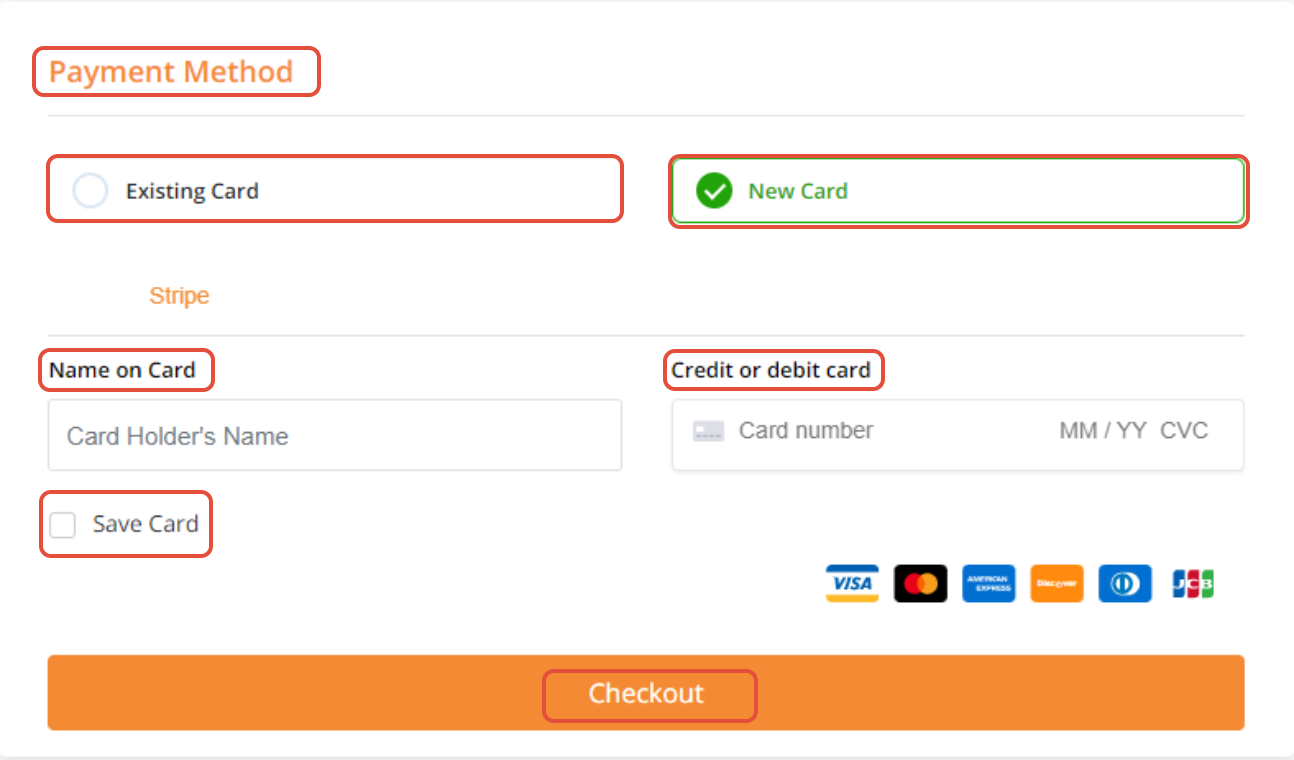
Payment Method
- Click on Existing Card if your have saved your card details in your profile.
- Click on New Card to add a new card.
- Enter the card holder's name under Name on Card.
- Add your Debit or Credit Card.
- Check Save Card to save your card details.
Click on Checkout.
A Thank You for Shopping with Us message will appear on a new screen.

For a list of terms used in the Wellyx application & across the support website, please consult our Glossary.




