


TABLE OF CONTENTS
A Customer can perform Recurring Class Bookings on the Widget by following the steps below:
How Can a Customer Perform Recurring Class Booking On The Widget
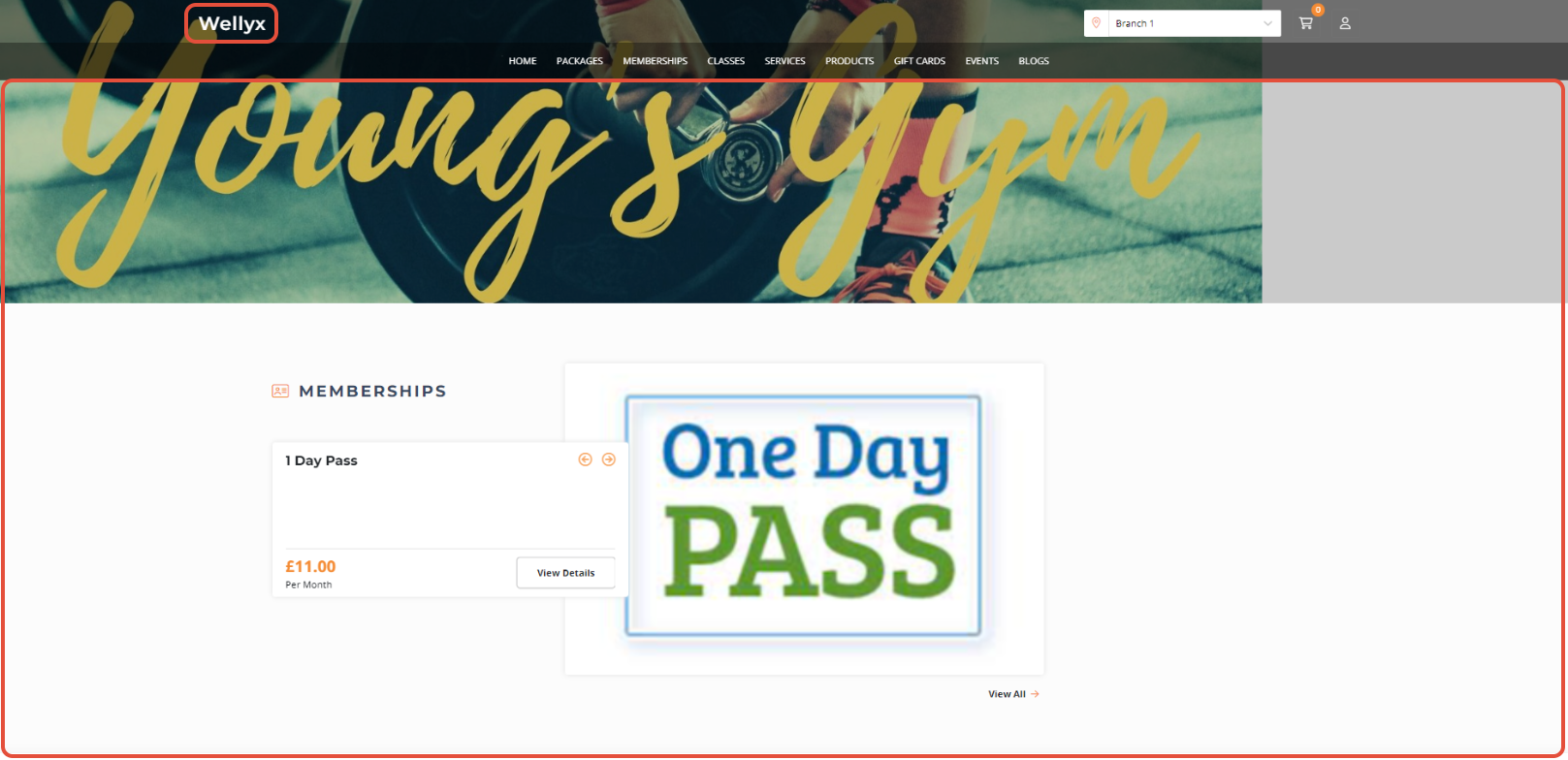
Open the Wellyx Widget
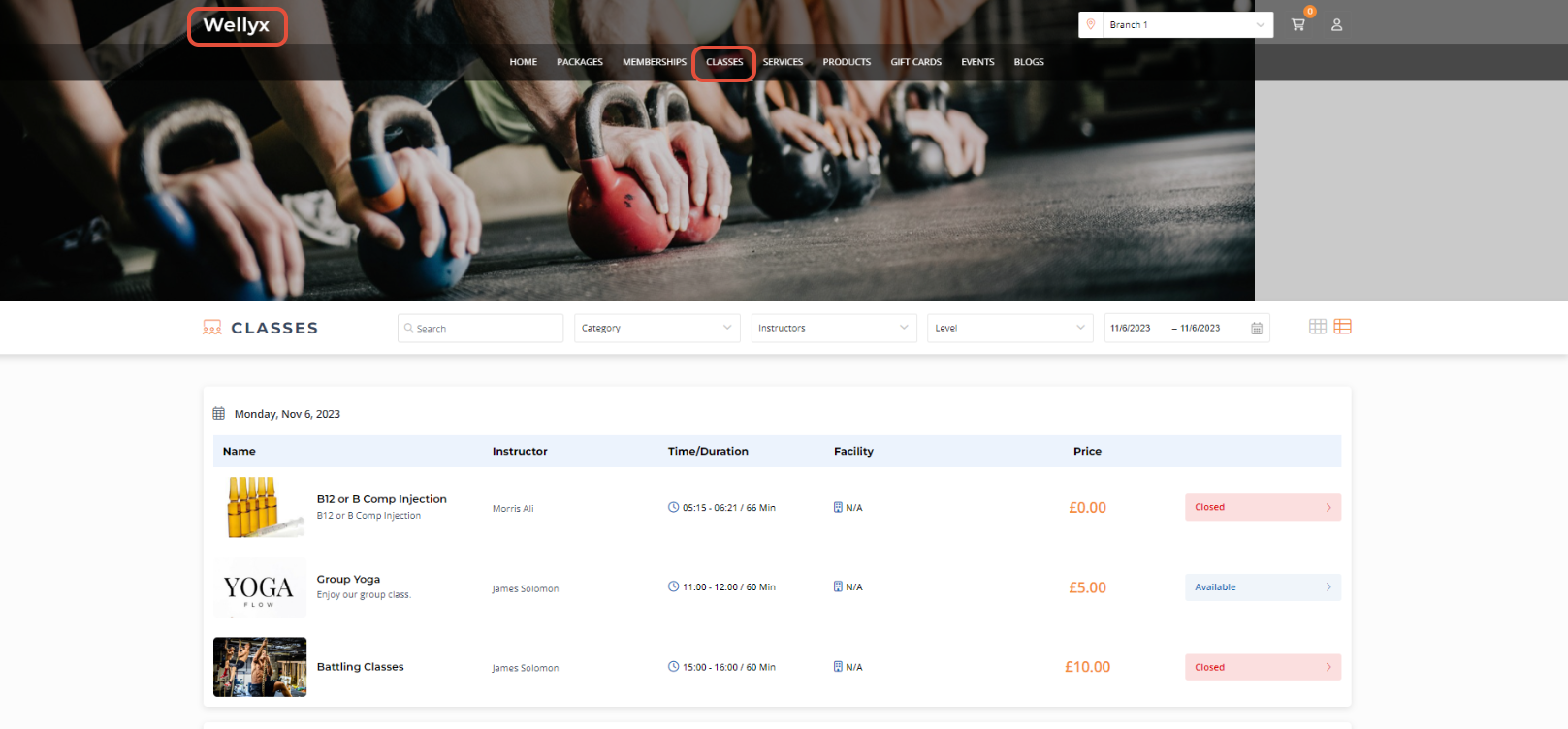
Click on the Classes Tab.
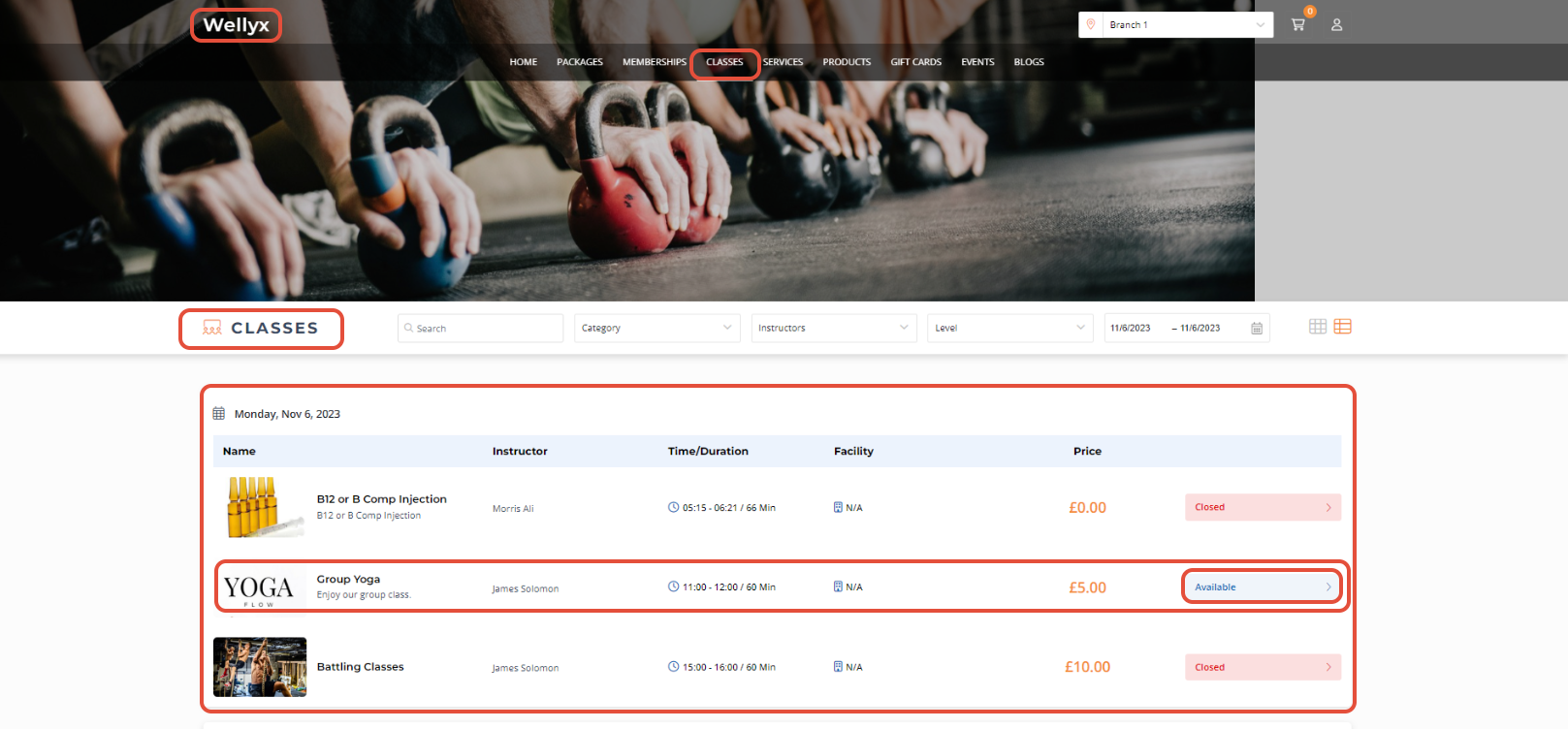
Now, click on the Available Button against the Class Name.
The Class Booking detail Box will pop up.
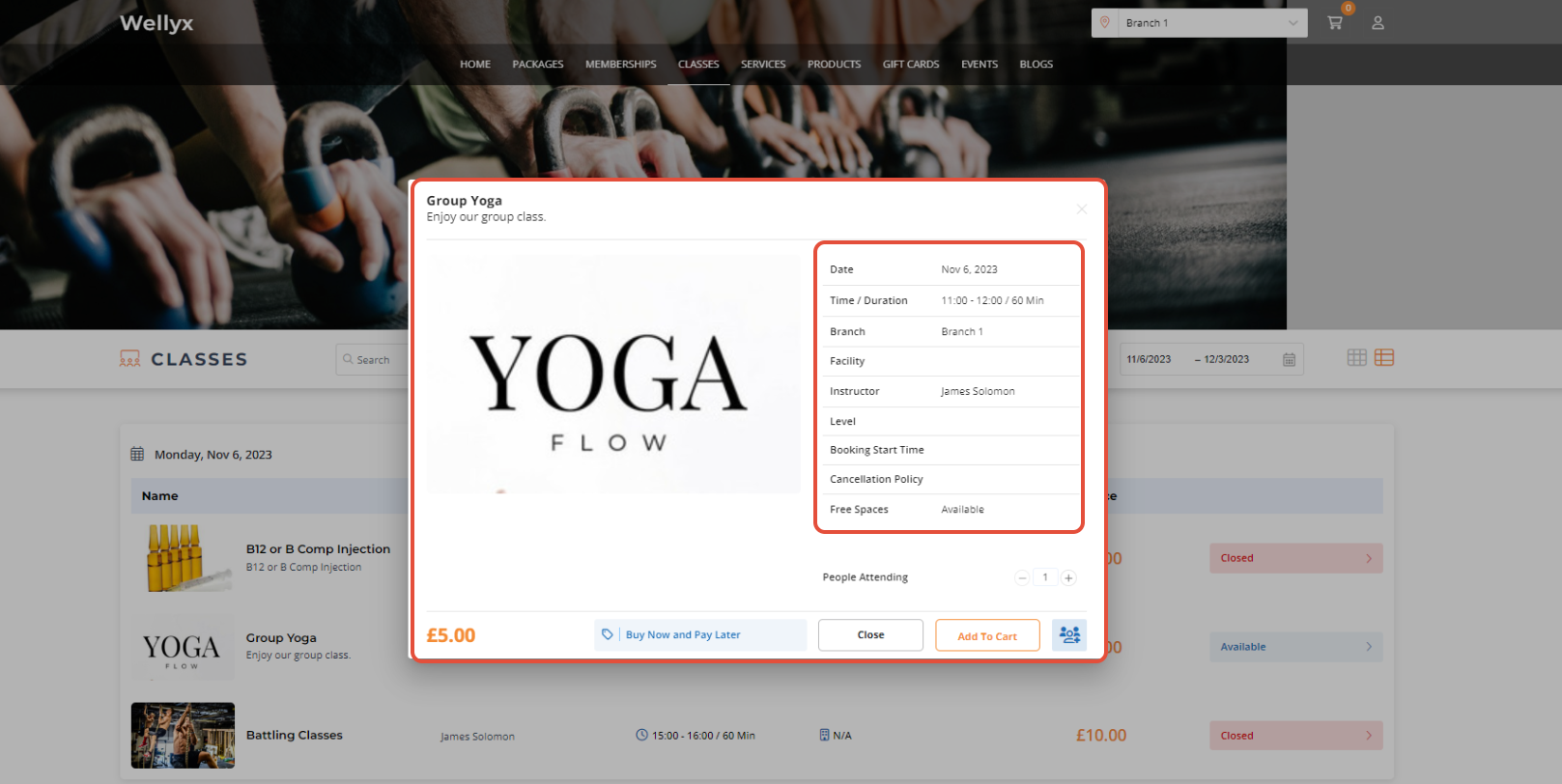
At the bottom of the Class Detail Popup Box, click on the Book Multiple Classes Button.
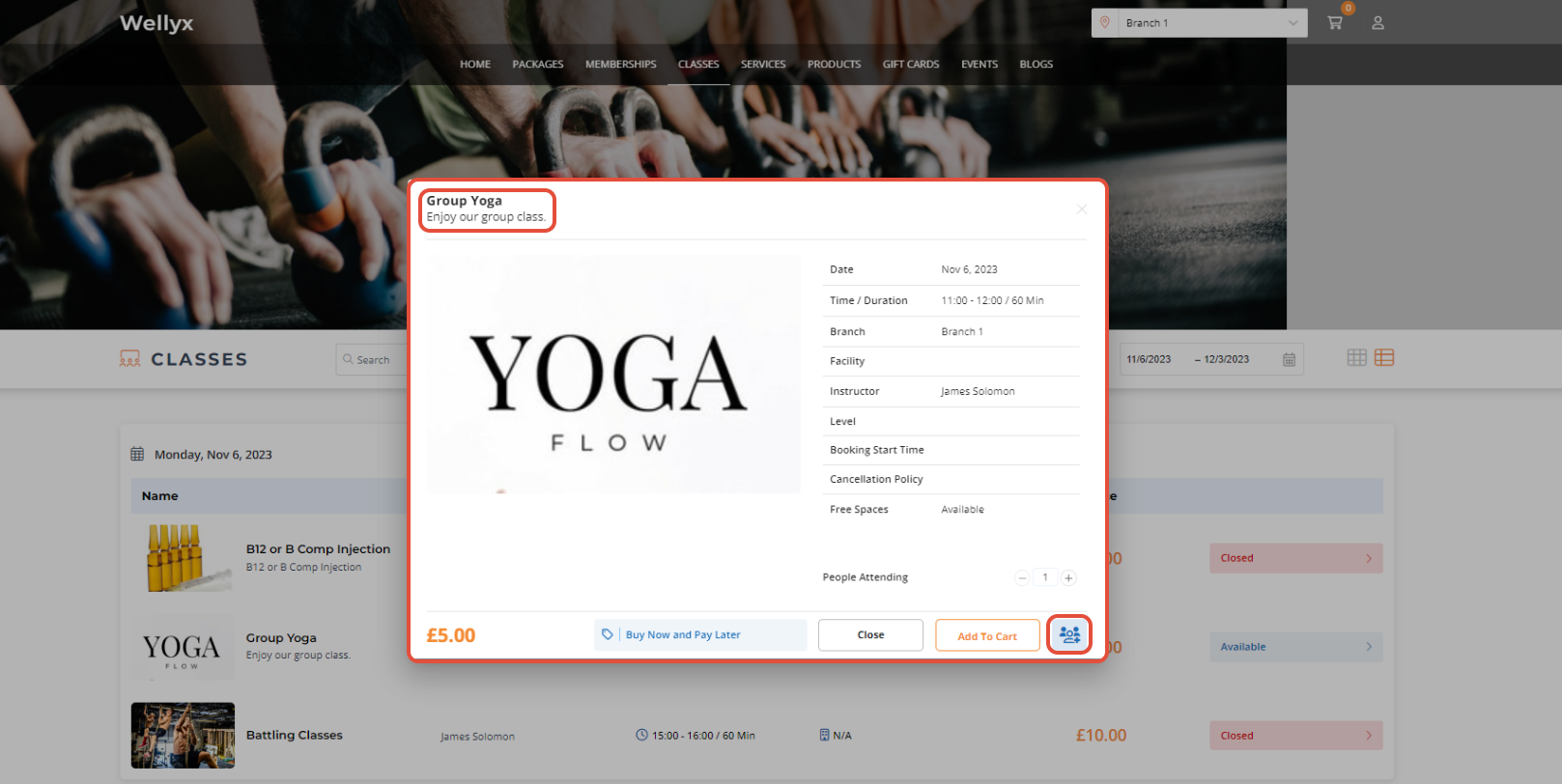
The Book Multiple Classes Button is only visible if the Allow Multiple Book Toggle has been switched on in Class Setup in Core.
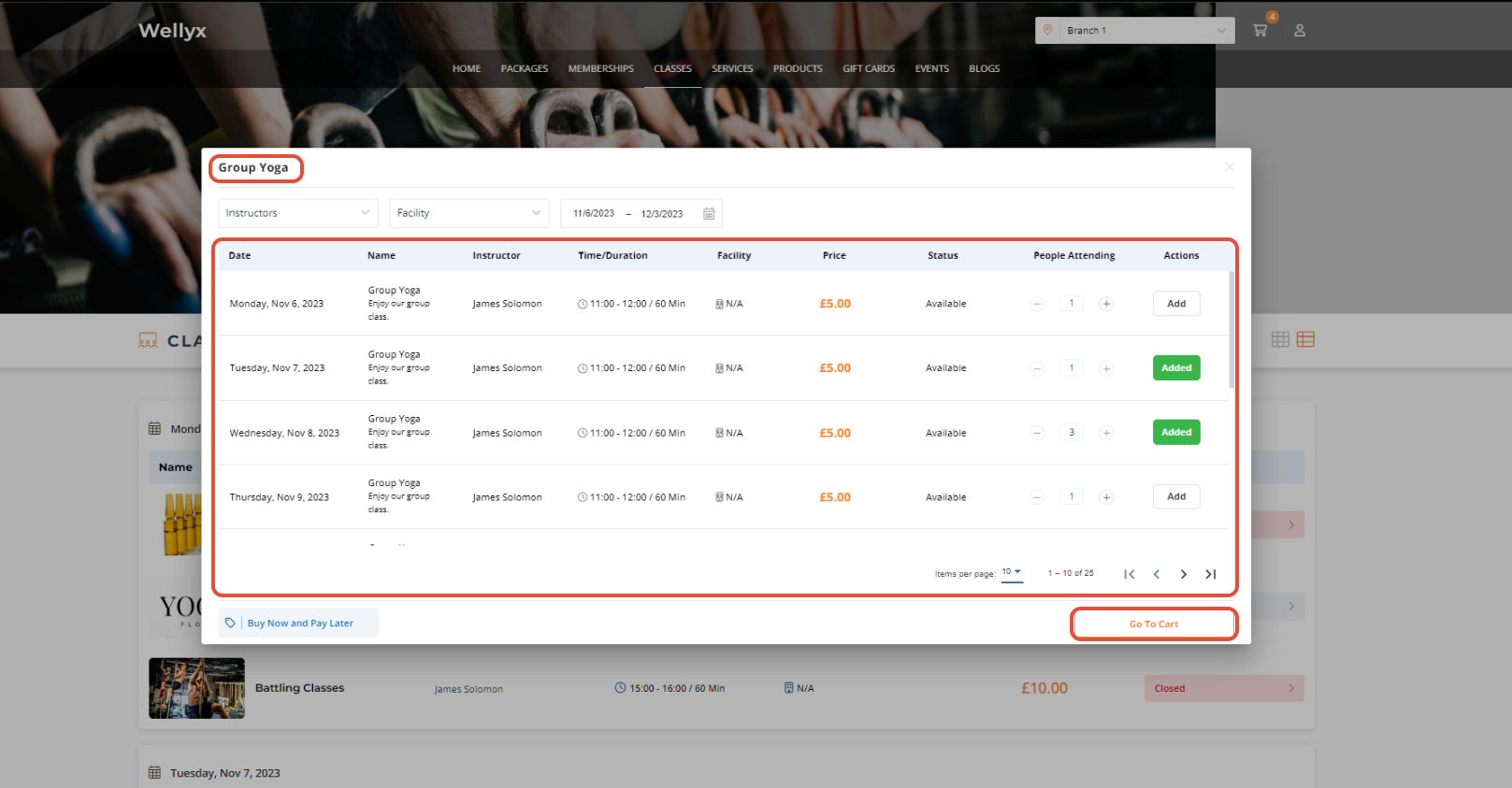
Now, all the Classes scheduled under the Class will be displayed on the Class Popup Box.
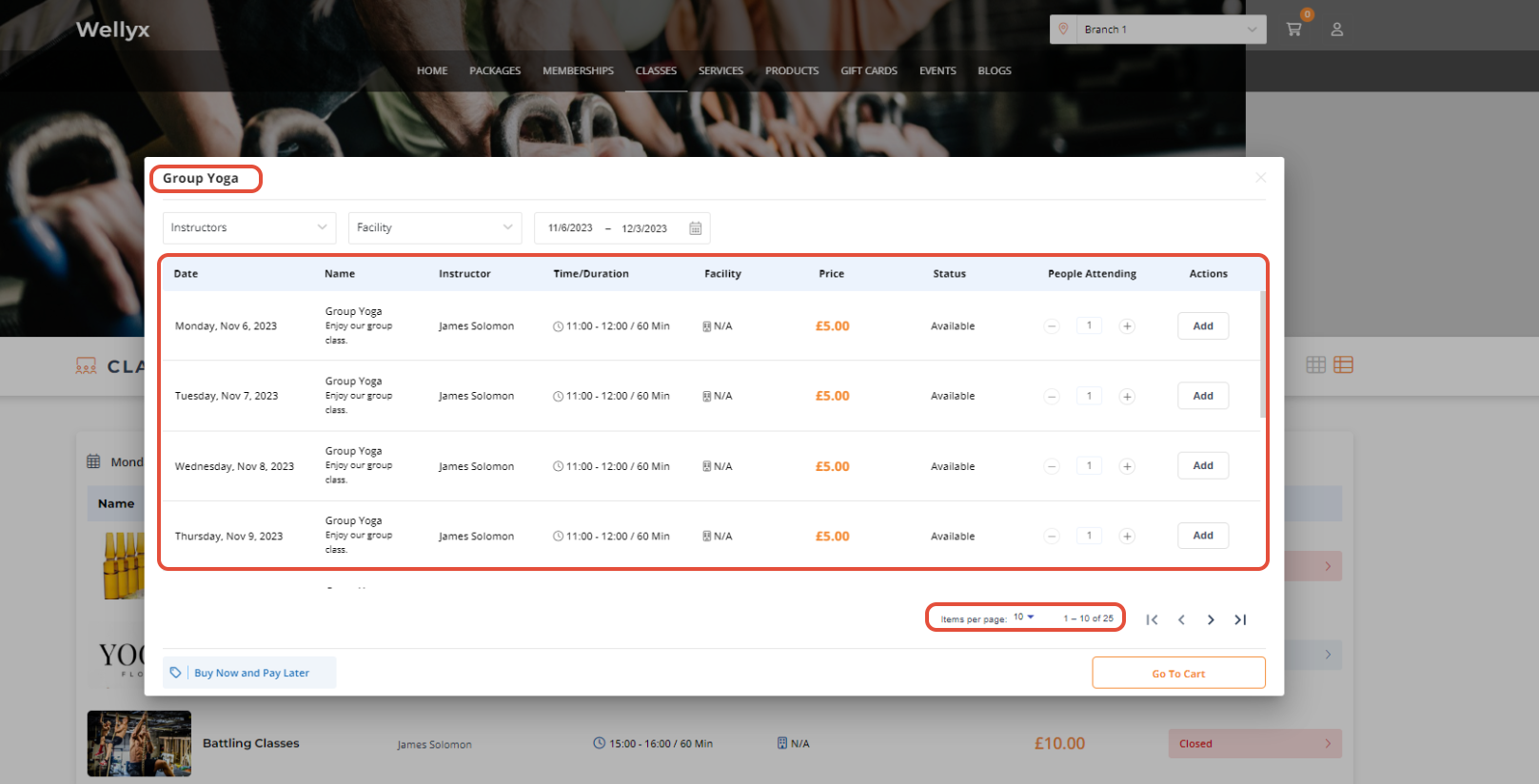
The Customer can add any Class to the Cart directly using the Add Button and will use the same Button to remove.
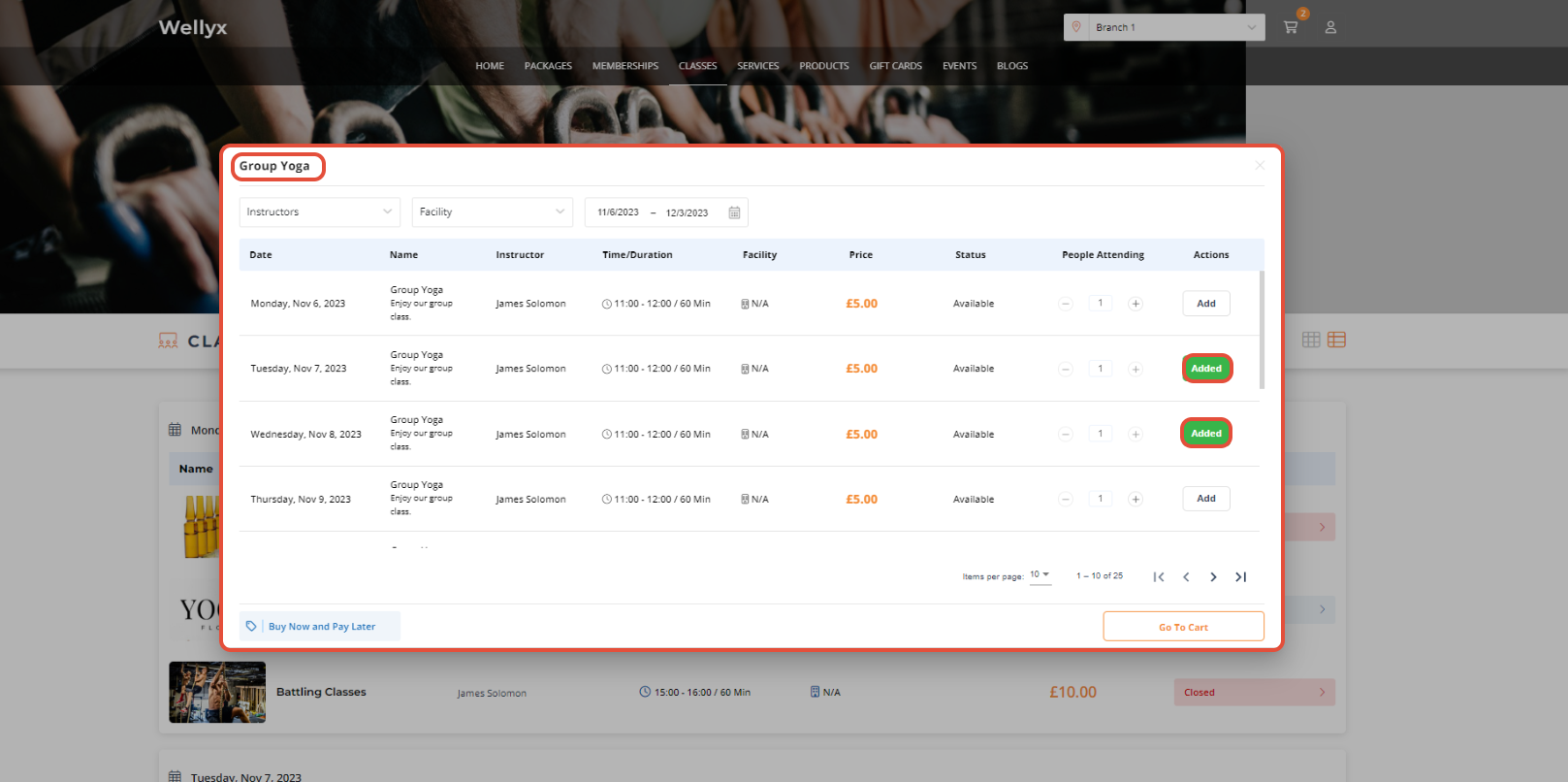
Customers can also Book Classes for Family and Friends.Furthermore, Members can Consume Memebrship Benefits for Recurring Booking as well.
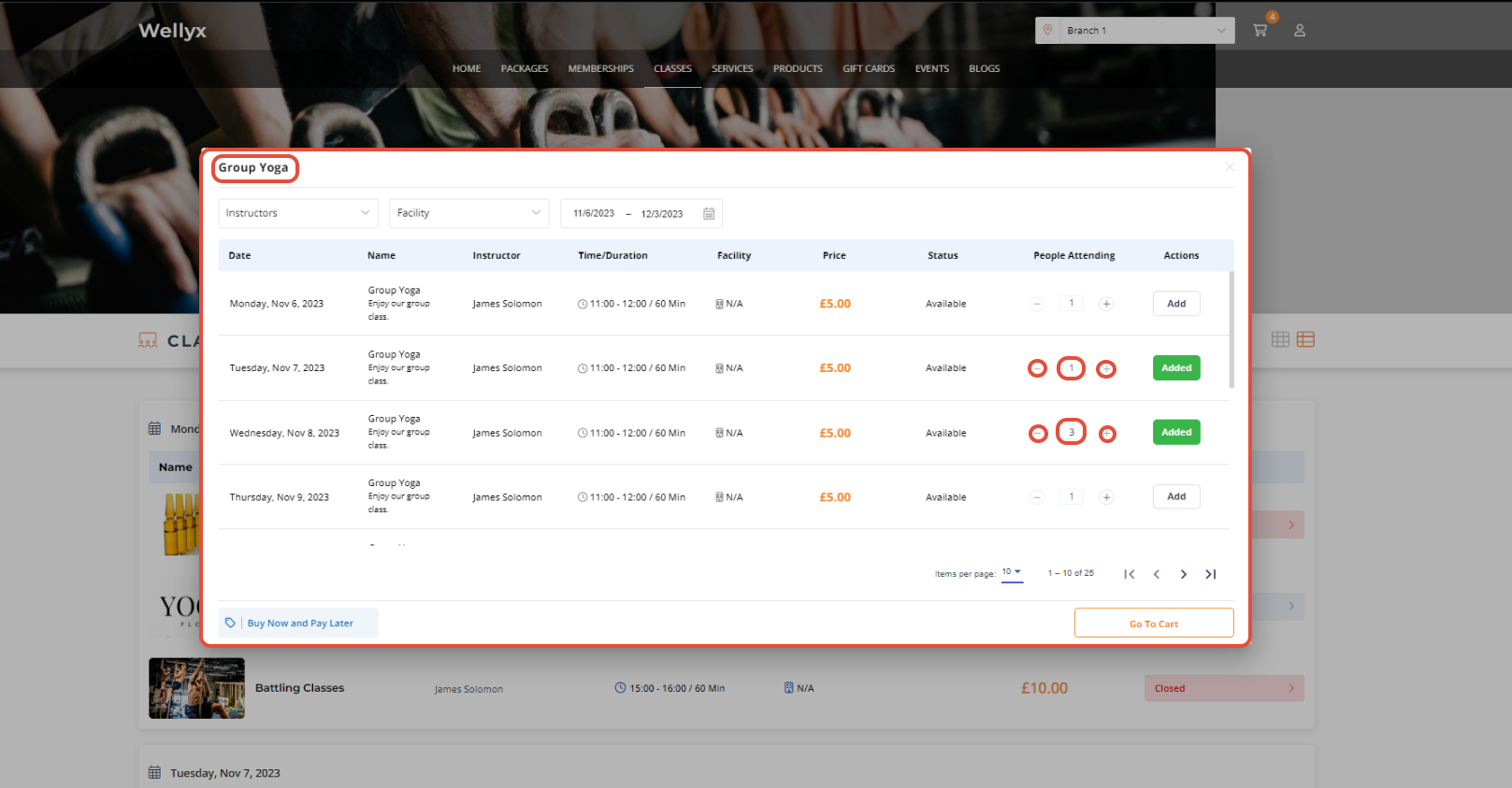
Once added, click on the Go To Cart Button.
Now, fulfill the Checkout Process.
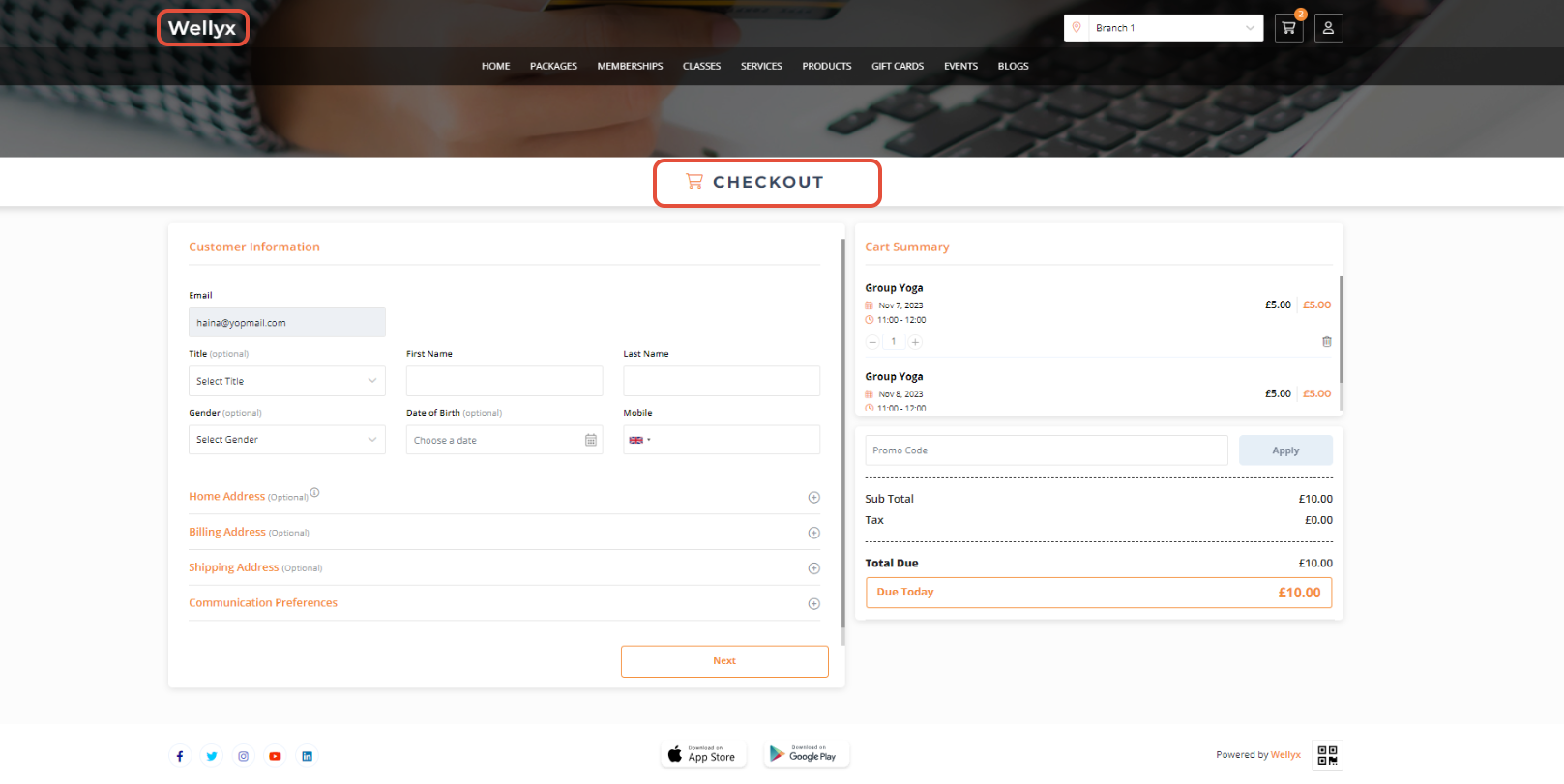
The Express Checkout and Waitlist option are not available for the Recurring Bookings.




