TABLE OF CONTENTS
To Park and Retrieve Sale from the Staff App, follow the steps below:
How To Park The Sale From The Staff App
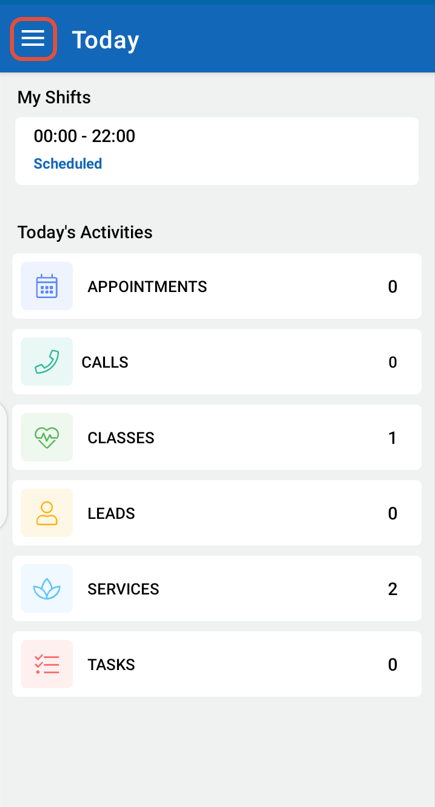
Click on the Three Lines at the top left corner of the screen.
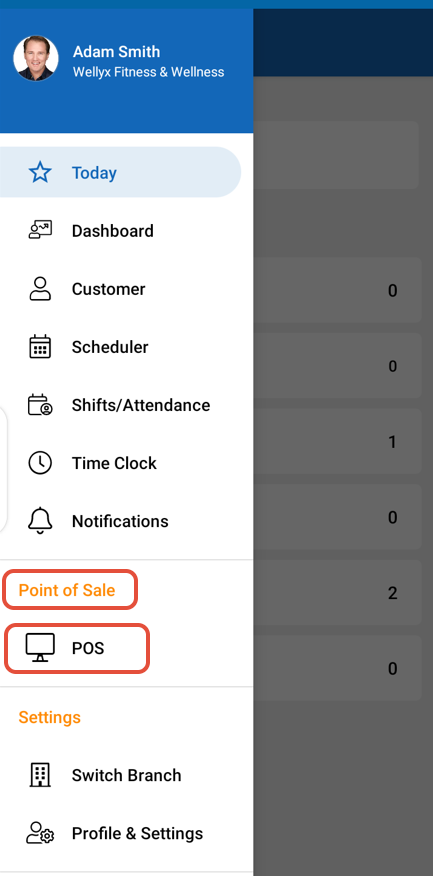
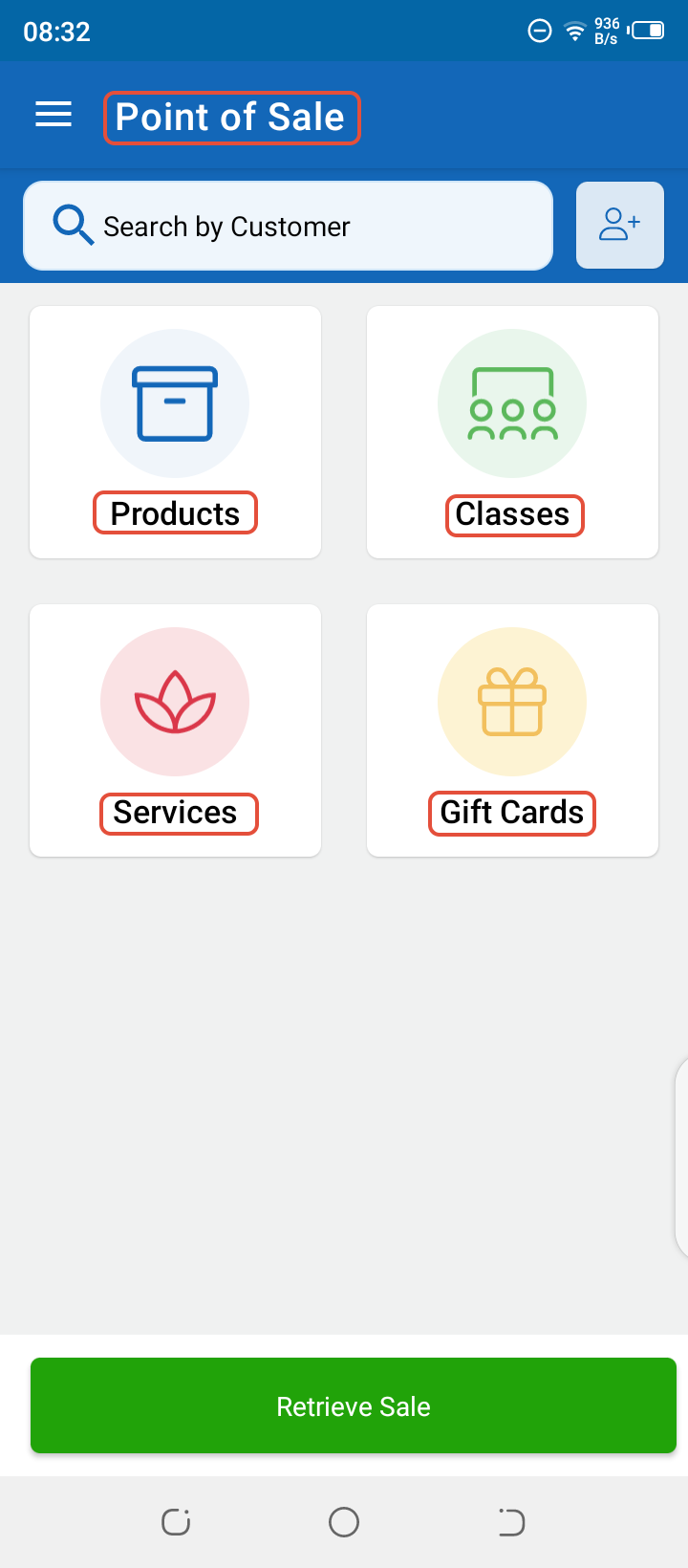
Select POS under the Point Of Sale label.
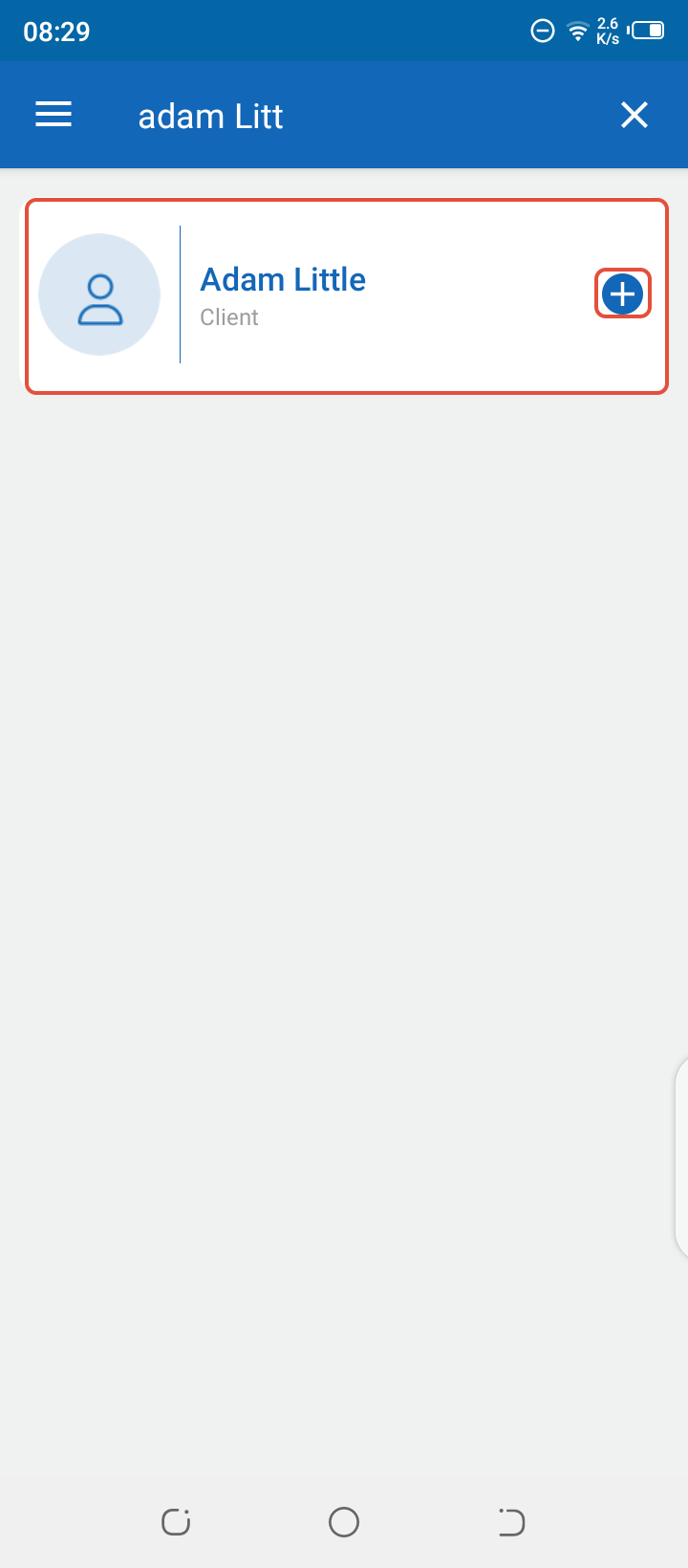
Add a Customer through the Search By Customer Box.
Add the required Items (Class, Service, Product, or Gift Card) to the Cart.
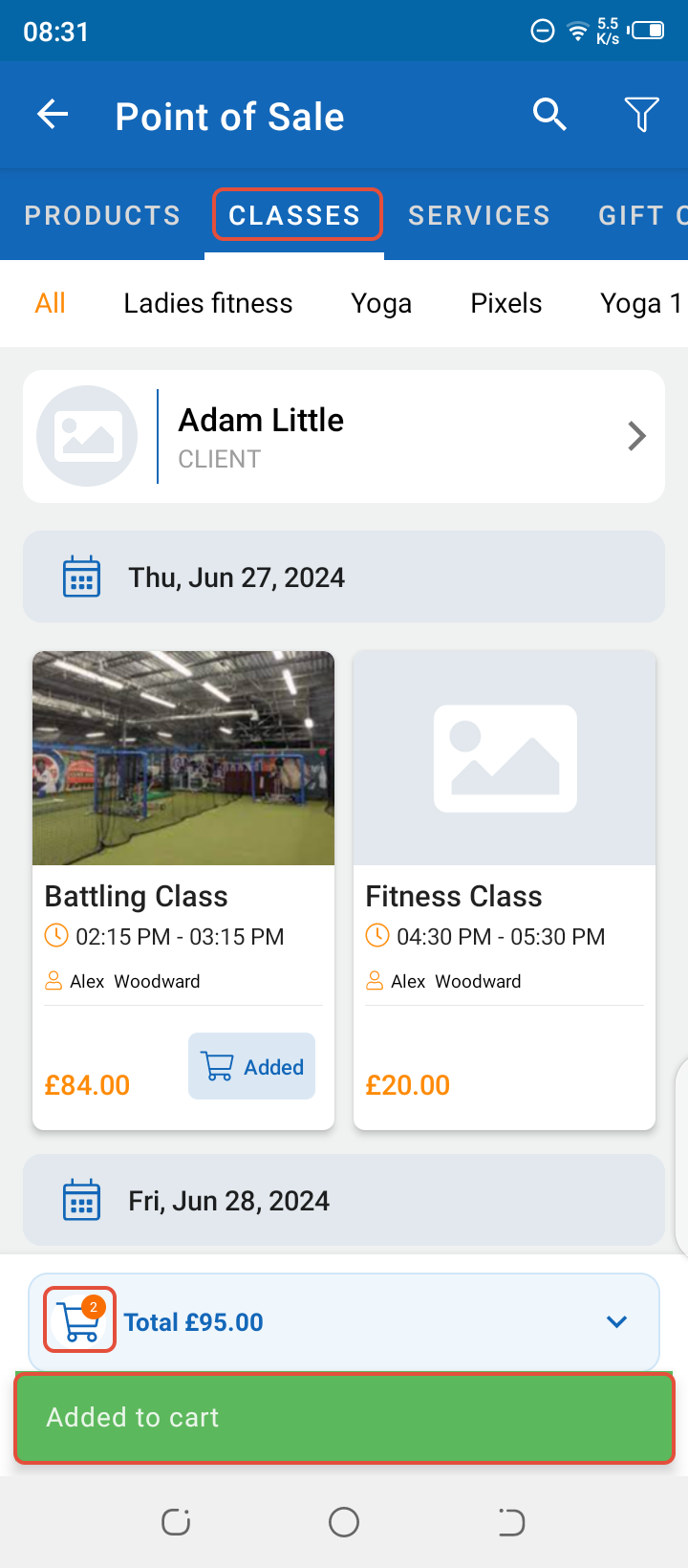
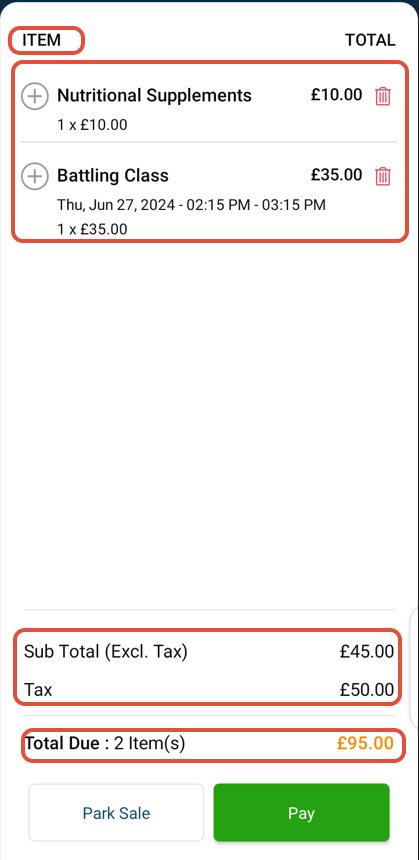
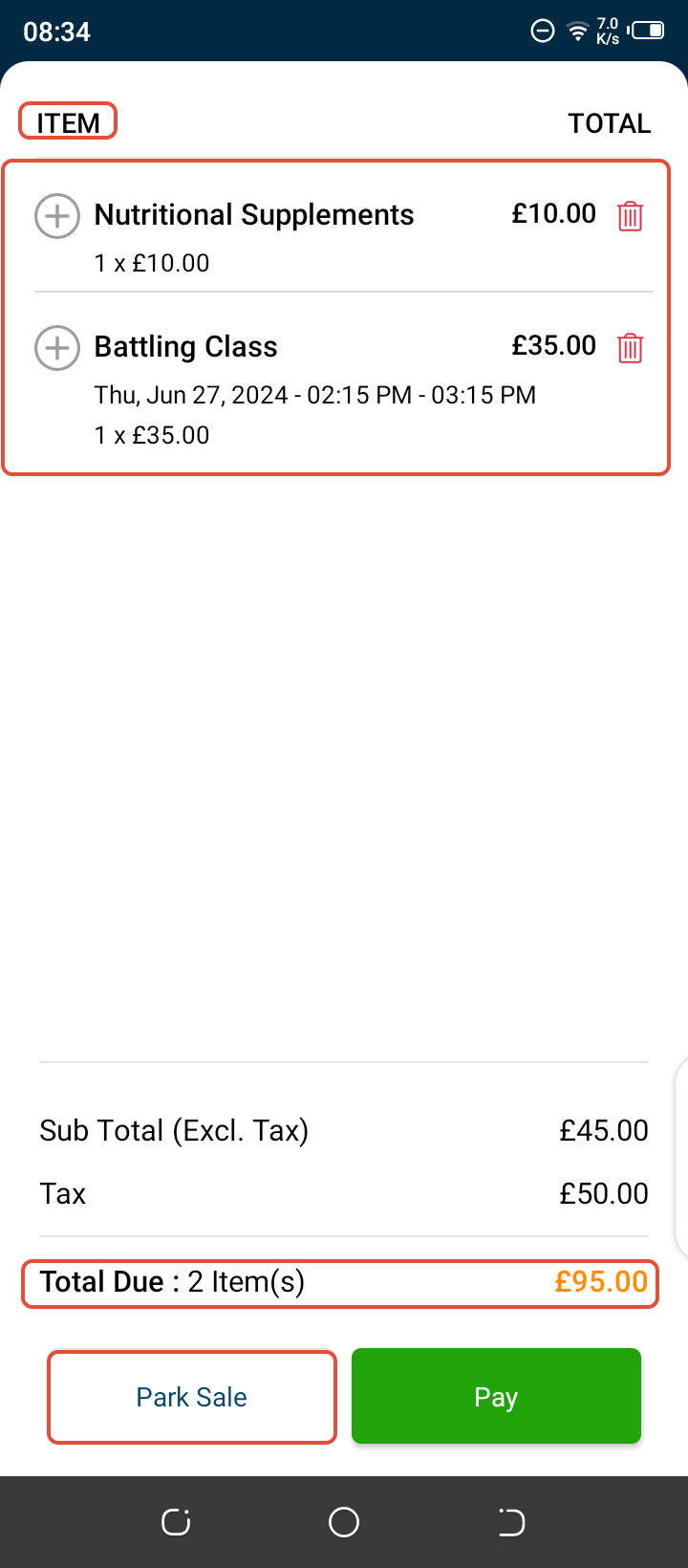
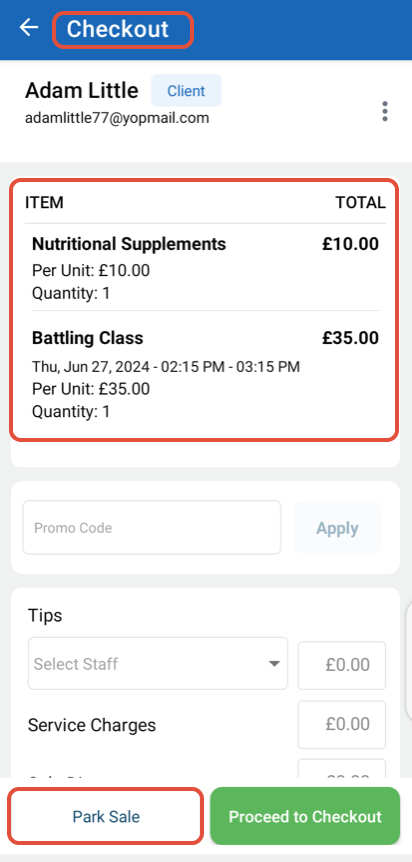
Now, open the Cart and click on the Park Sale Button.
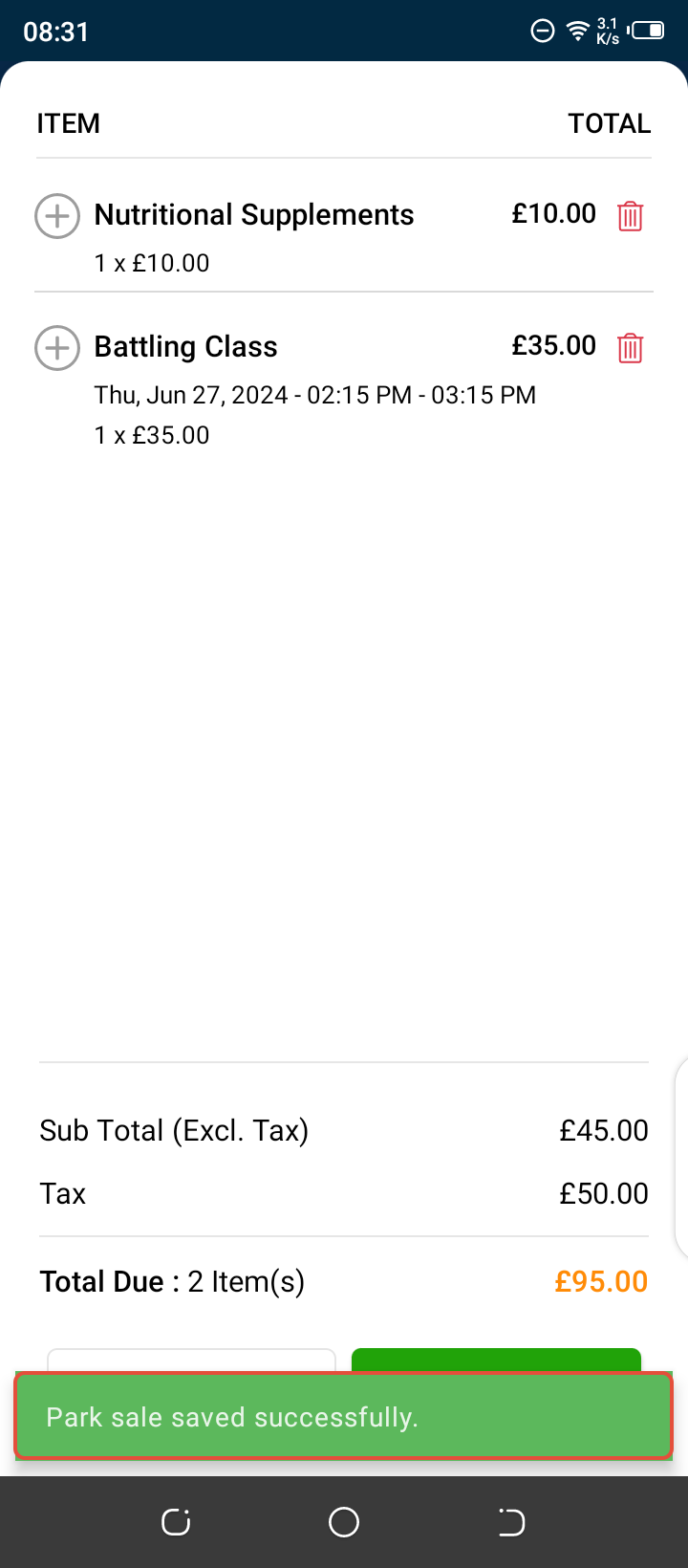
The Parked Sale has been successfully saved.
Park Sale can also be performed from the Checkout Screen.
How To Retrieve A Parked Sale From The Staff App
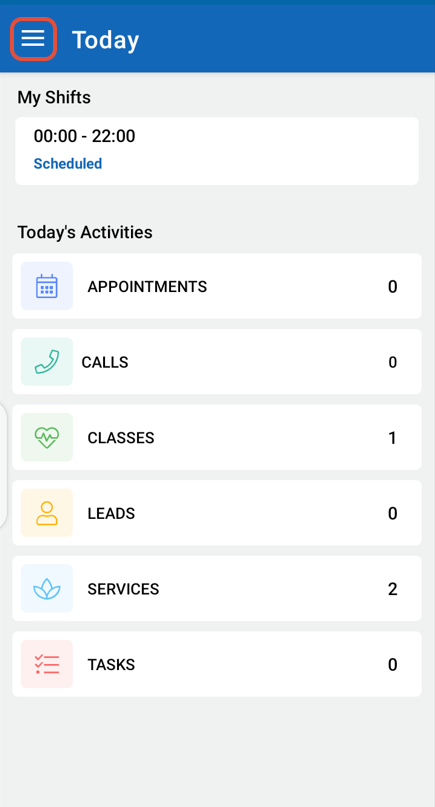
Click on the Three Lines at the top left corner of the screen.
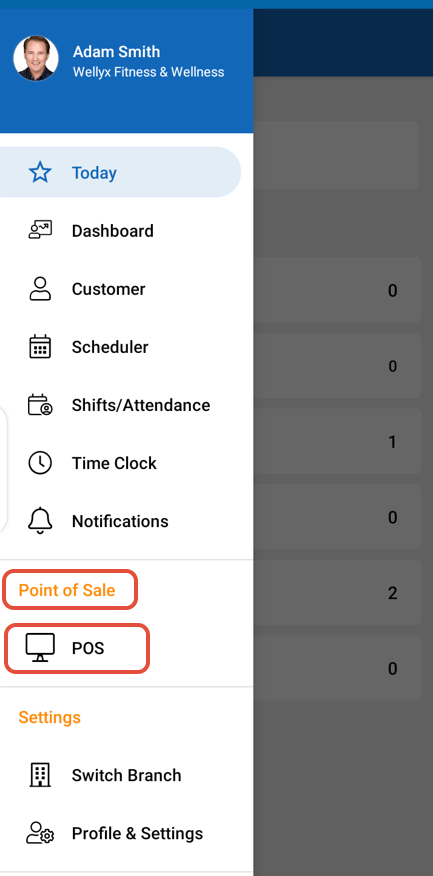
Select POS under the Point Of Sale label.
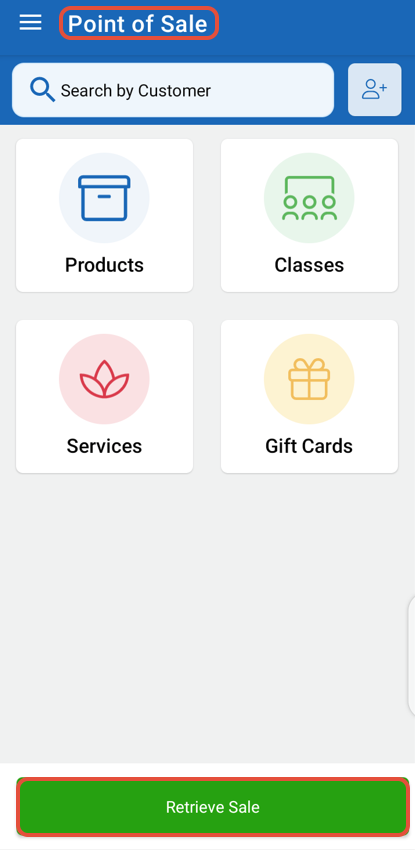
Once the POS screen will open, click on the Retrieve Button.
Now all the Park Sales will appear on the screen. Select the required Sale to Retrieve.
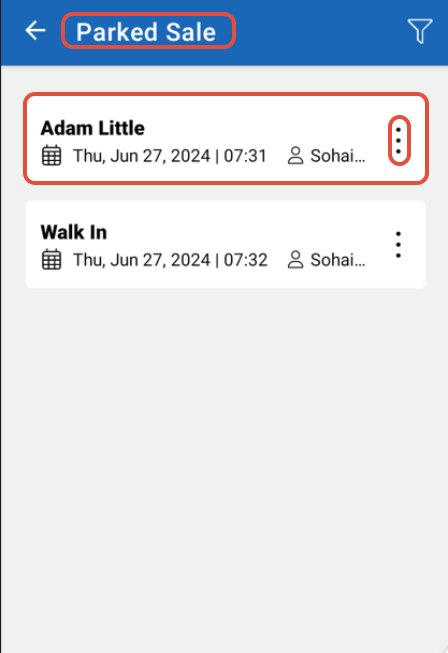
Click on the Retrieve Parked Sale option.
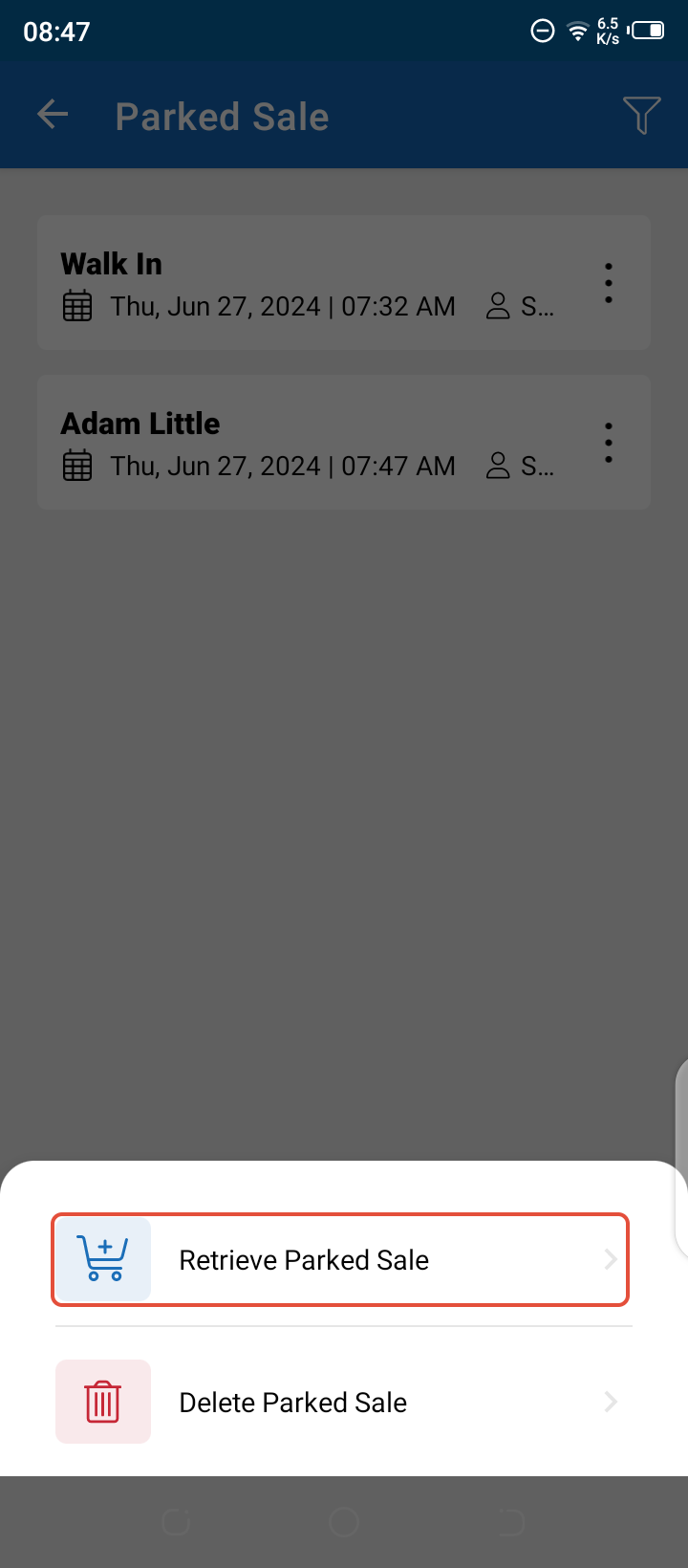
Once done, the Parked Sale has been successfully Retrieved.