TABLE OF CONTENTS
To associate a Tag with a Customer's Profile through the Staff App, follow the steps below:
How To Associate The Tag With The Customer Profile In The Staff App
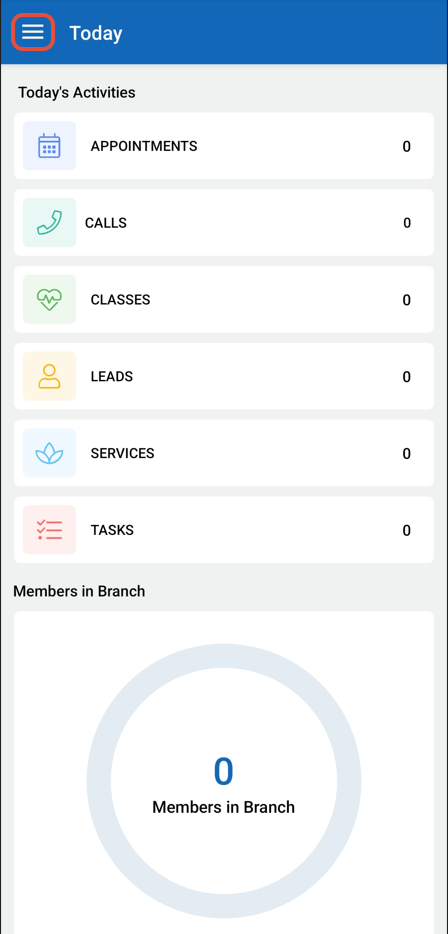
Access the SIde Menu by clicking on the Three Lines at the top left corner of the screen.
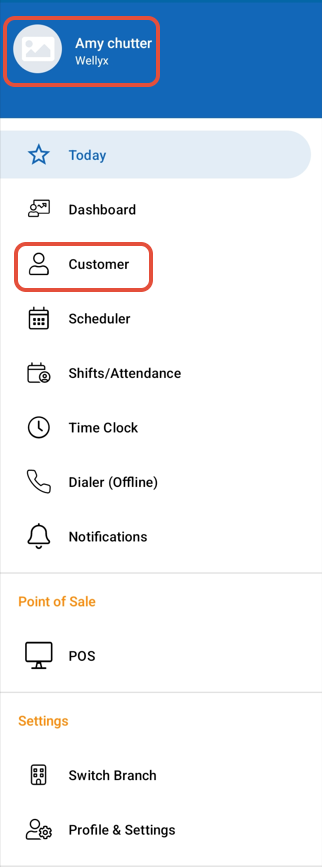
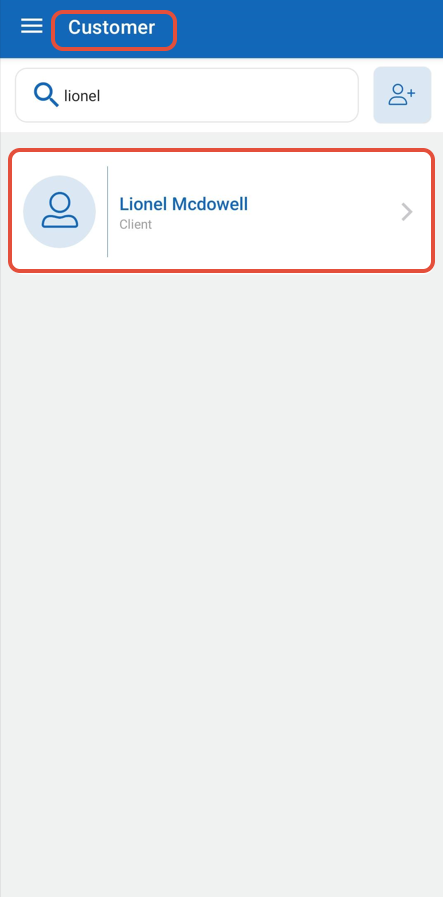
Select the Customer Tab.
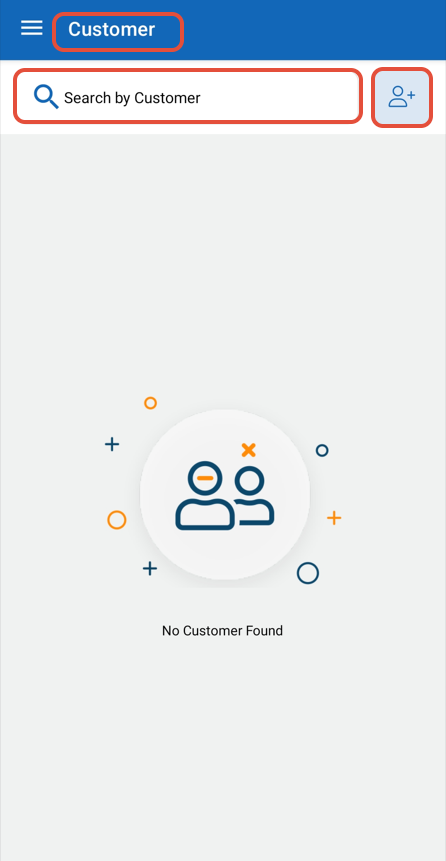
Search for an existing Customer or click the Add Customer Icon to create a new Customer in the system.
Now, click on the Customer Name.
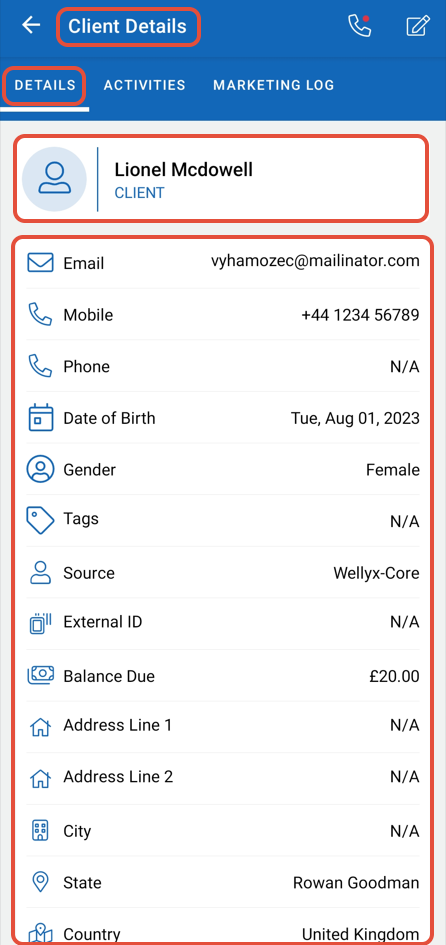
By default, the Customer Details Tab will open.
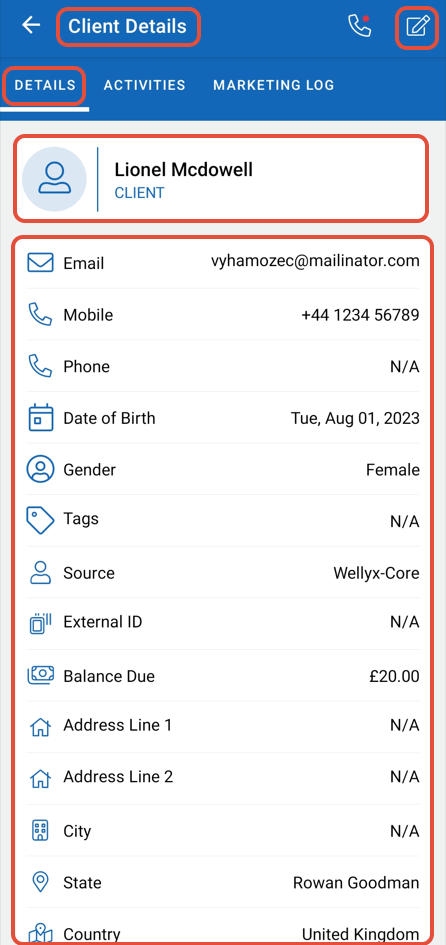
In the Client Details Tab, click the Edit Button at the top right corner of the screen.
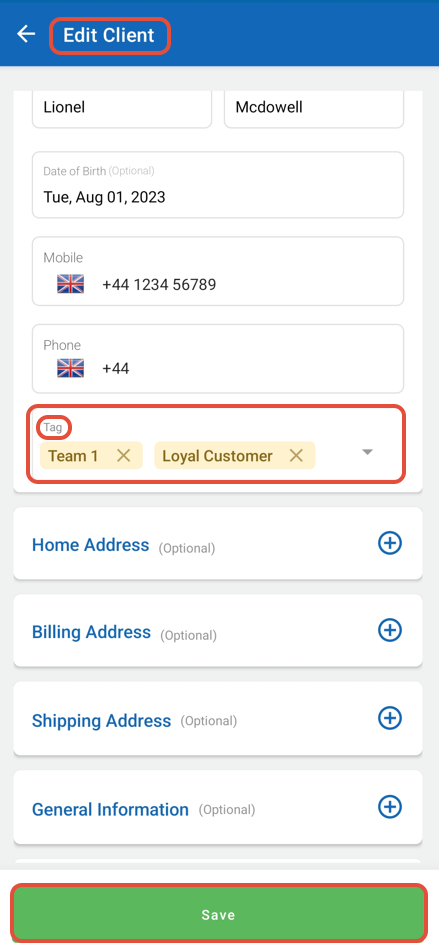
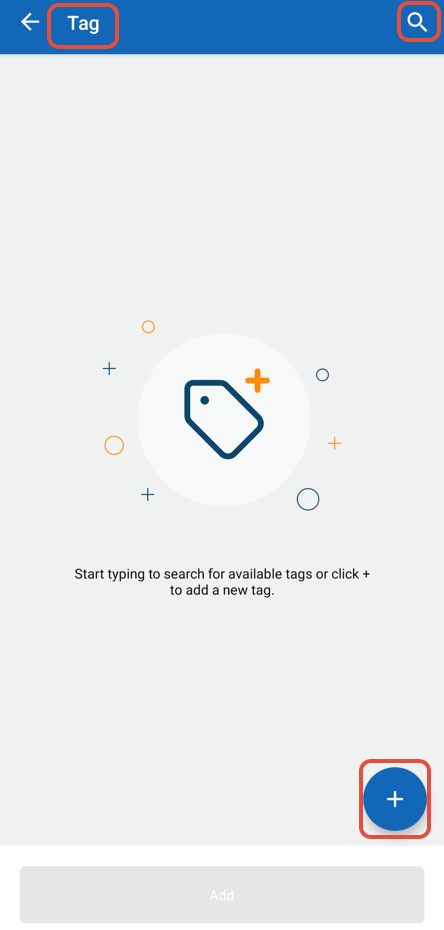
Now, click on the Tag field in the Customer Profile.
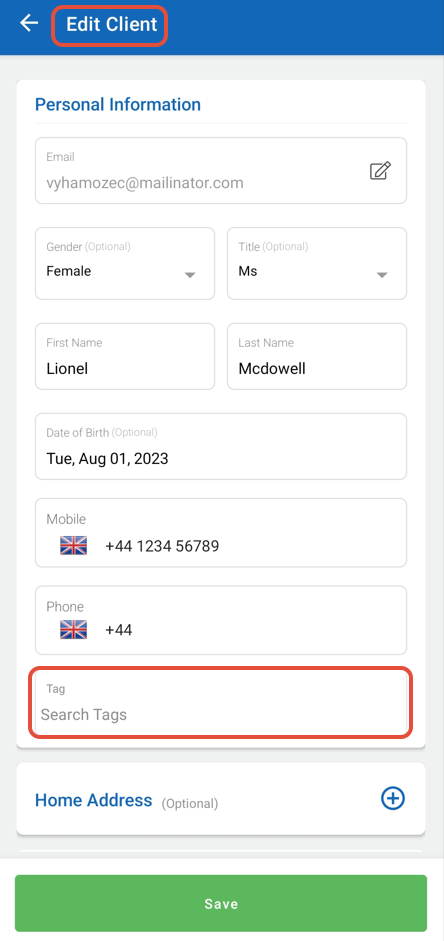
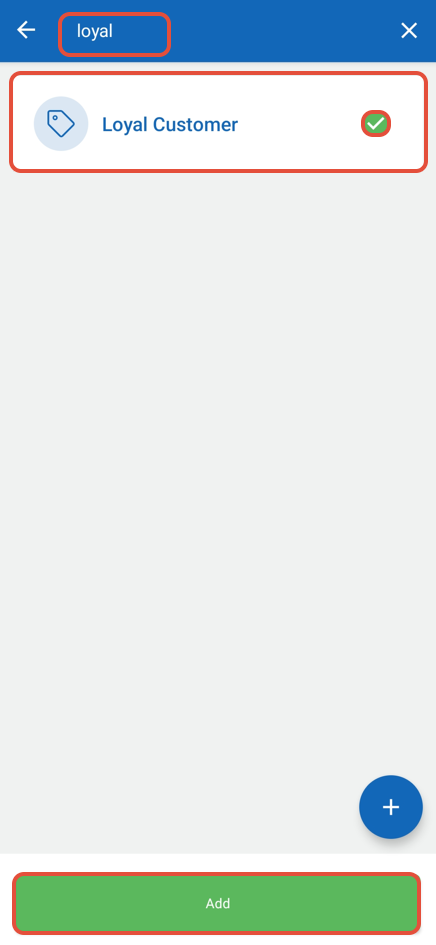
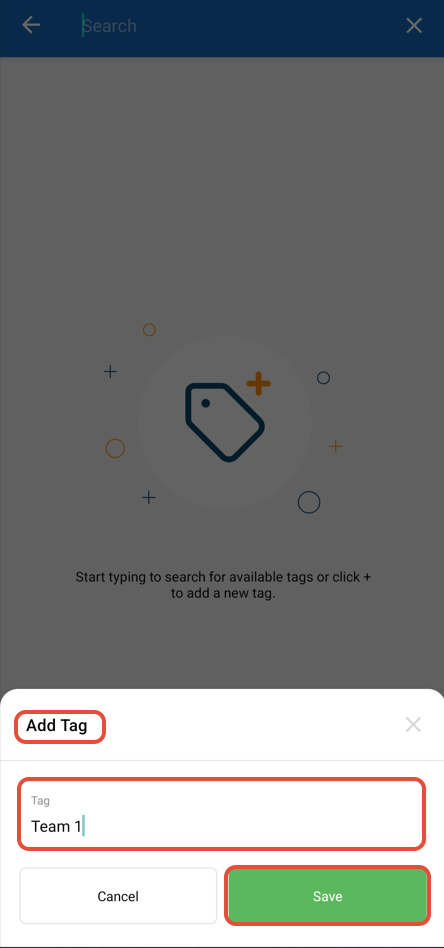
Add the Predefined Tag by searching the name of a Tag or create a New Tag by clicking on the + Icon and then typing the Name of it in that field.
After saving the Tags, they will be visible in the Customer's Profile.
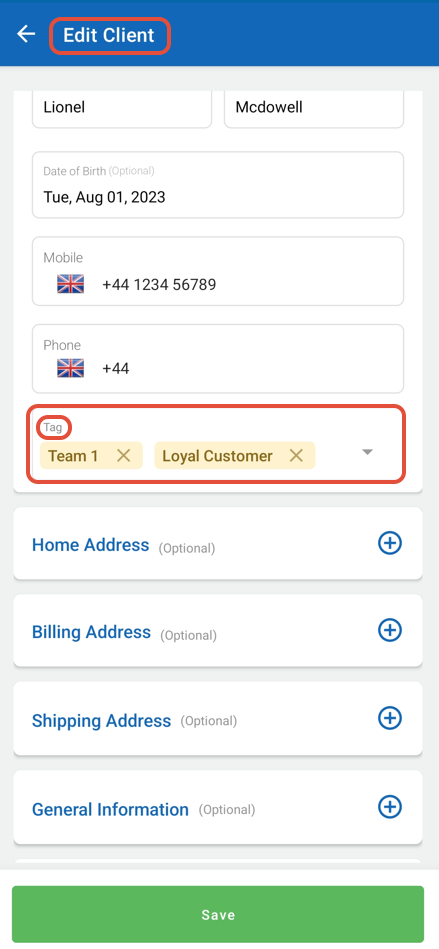
Once done with the , click on the Save Button.