TABLE OF CONTENTS
To send an Email to a Customer through the Staff App, follow the steps below:
How To Send An Email To A Customer Through The Staff App
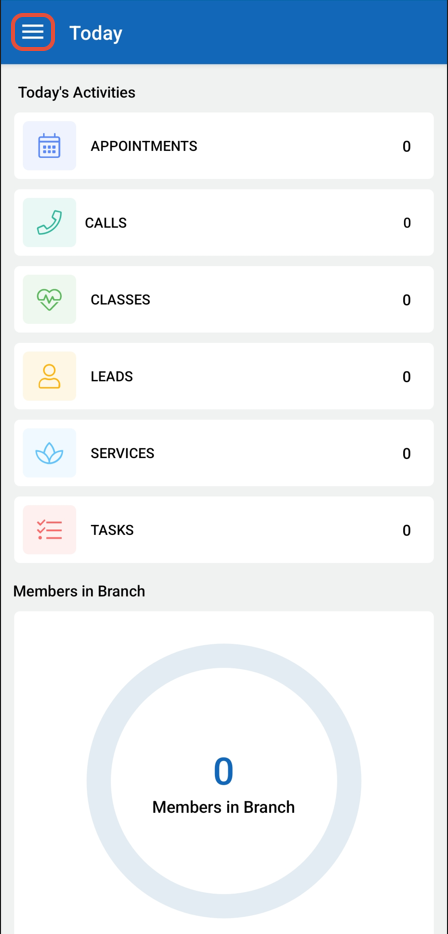
Open the Side Menu by clicking the Three Lines at the top left corner of the screen.
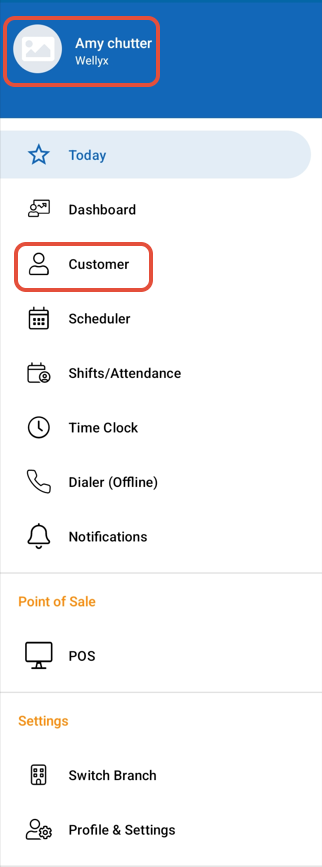
Select the Customer Tab.
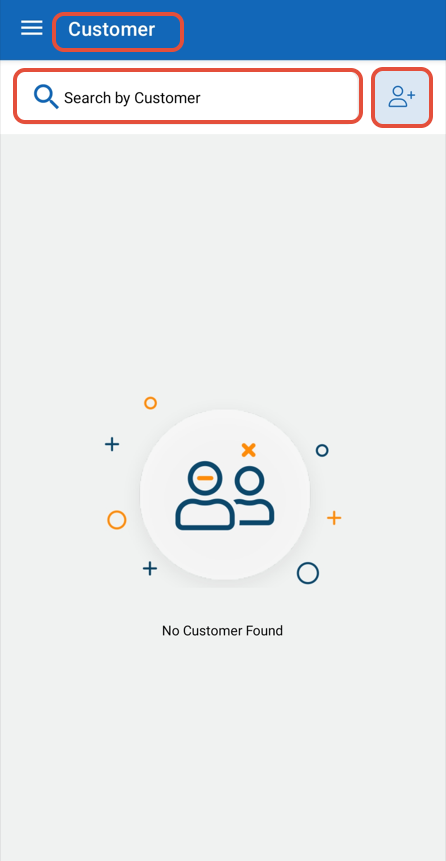
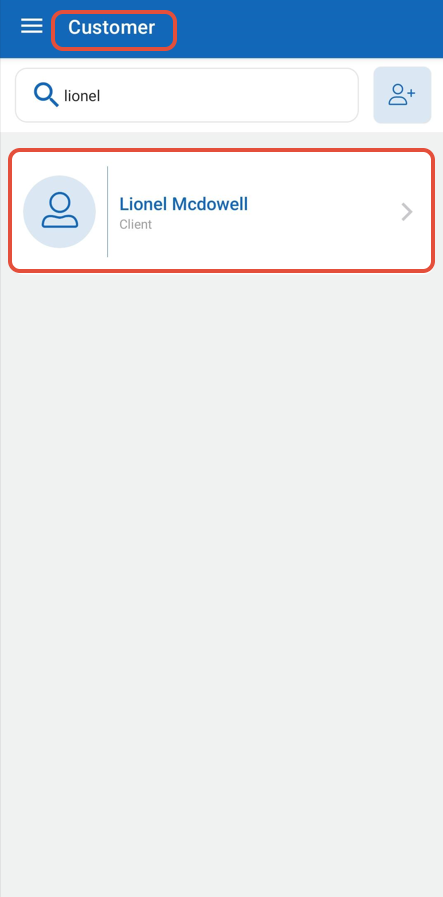
Merchants have the option to send Emails to both existing and new Customers.Search for an existing Customer or click on the Add Customer Icon to create a new Customer in the system.
Now, click on the Customer Name.
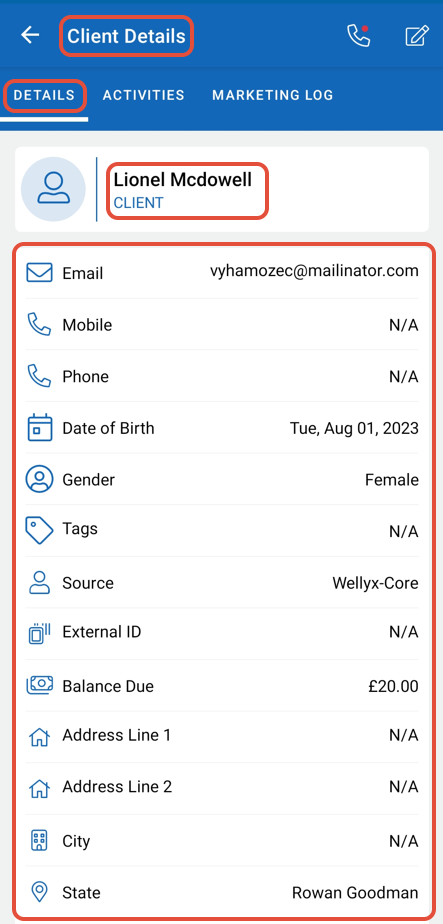
By default, the Customer Details Tab will open.
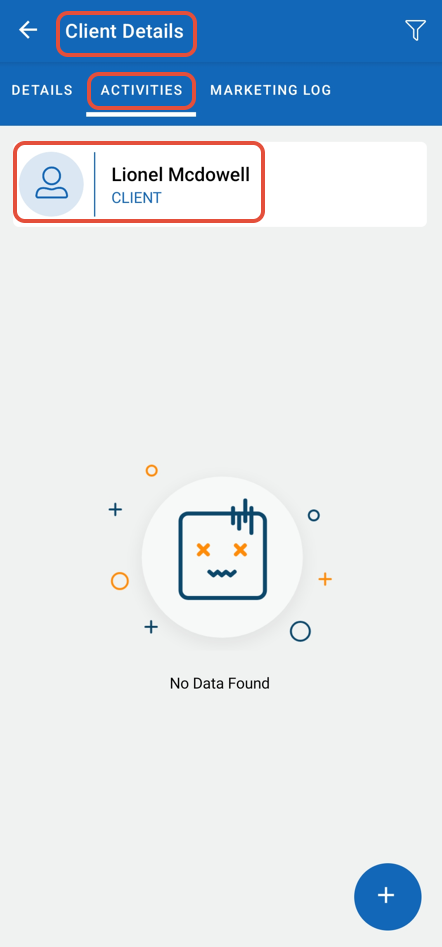
Click on the Customer Activities Tab.
Now, click on the Add Activity Button.
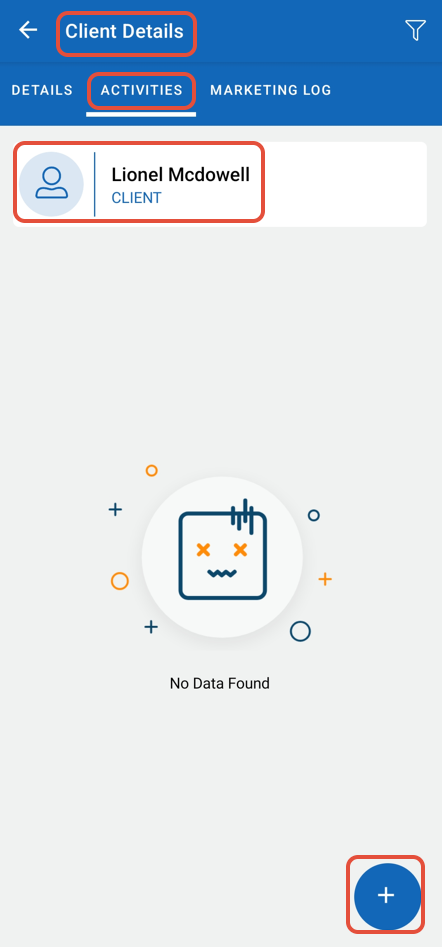
The List of Activities will Pop up.
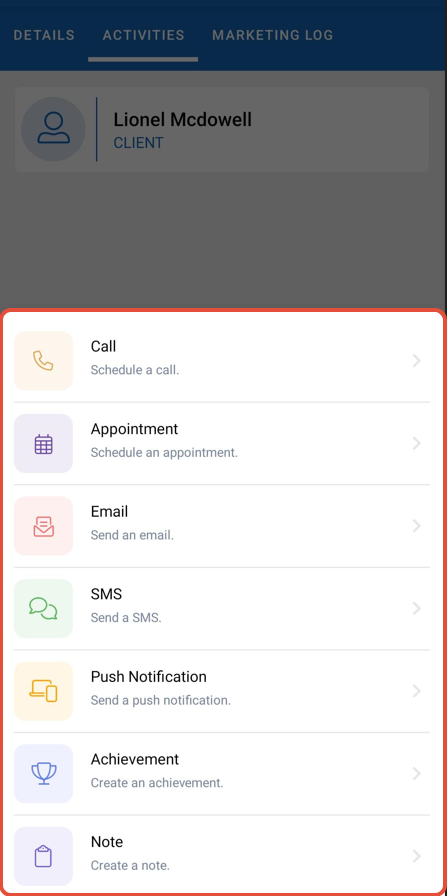
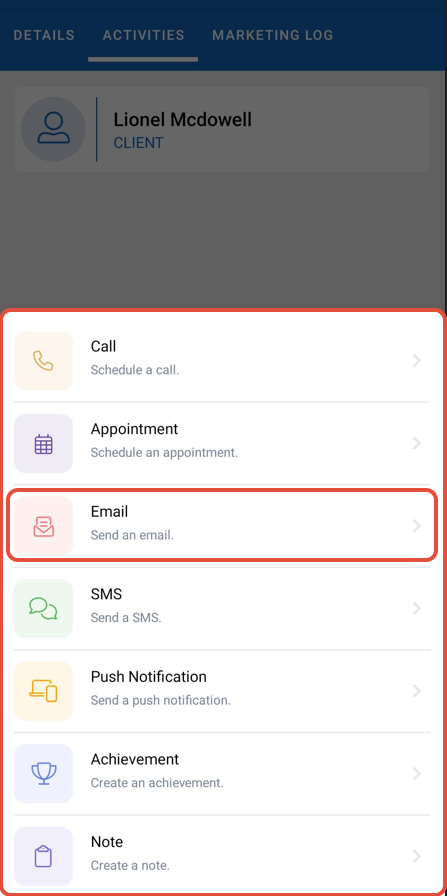
Select the Email option from the Popup Box.
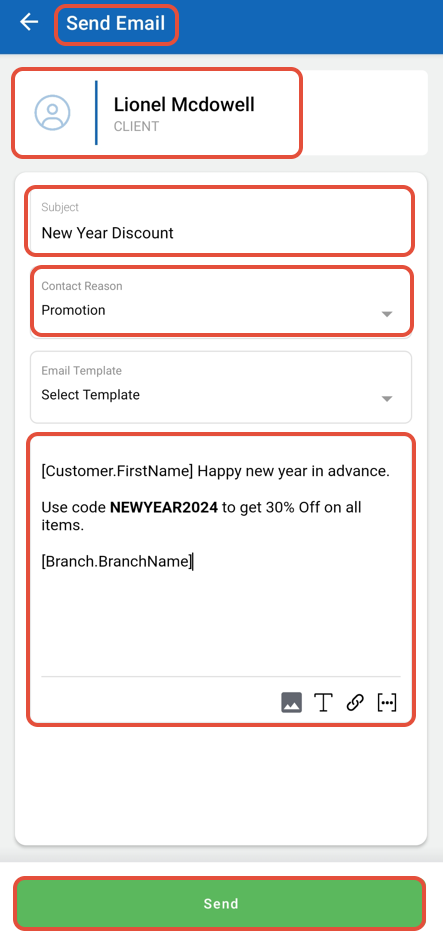
Once in the Send Email window, fill out the following information:
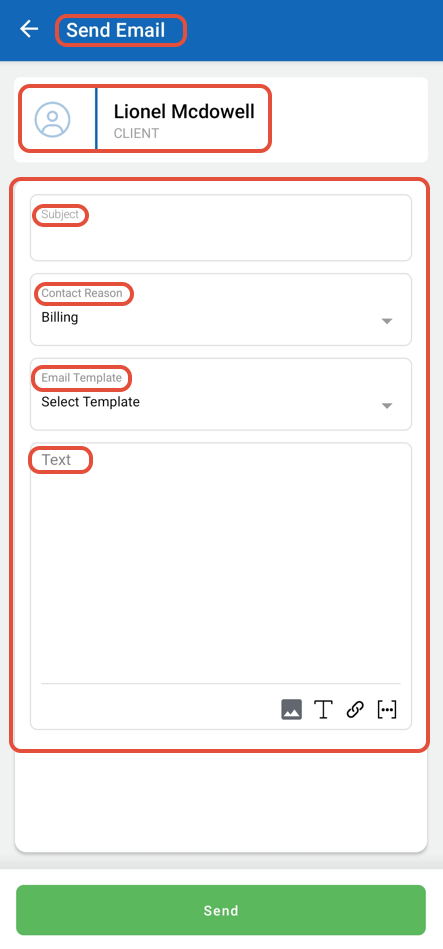
- Subject: Enter a subject for the Email.
- Contact Reason: Choose a contact reason from the dropdown menu.
- Email Template: You may select a saved email template from the dropdown menu.
- Text: Add text in the body of the Email.
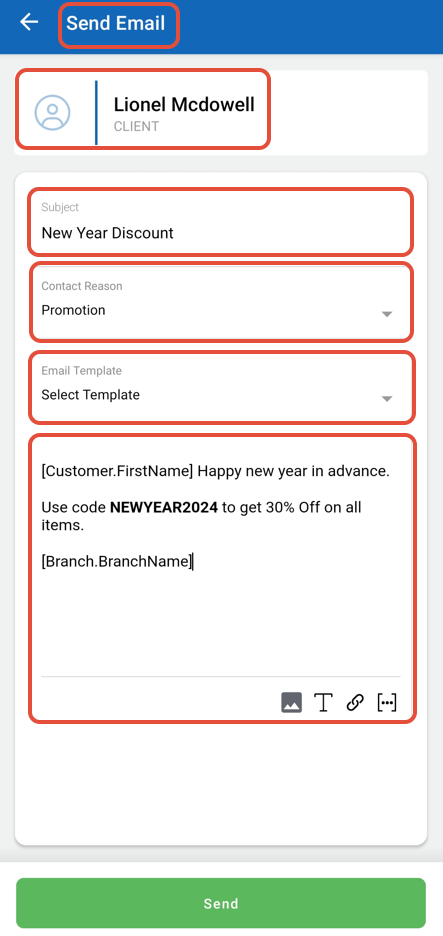
The Email Textbox allows adding Images, Links, and Varibales in the body of Email.
Once done, click on the Send Button.