TABLE OF CONTENTS
To book a Service through the Staff App, follow the steps below.
How To Book A Service Through The Staff App
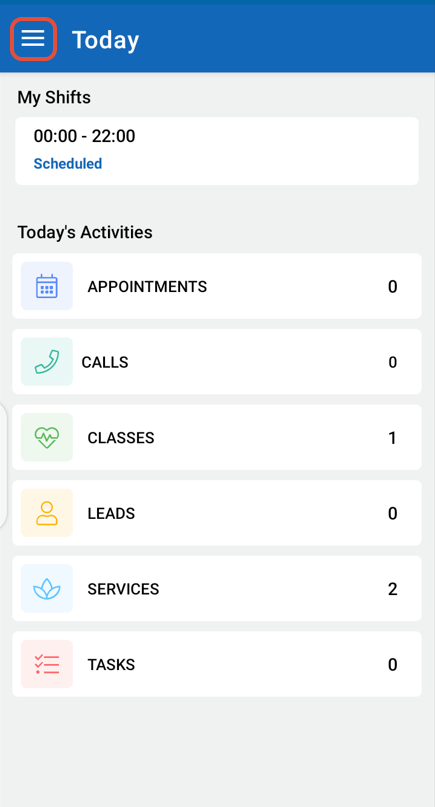
Click on the Three Lines at the top left corner of the screen.
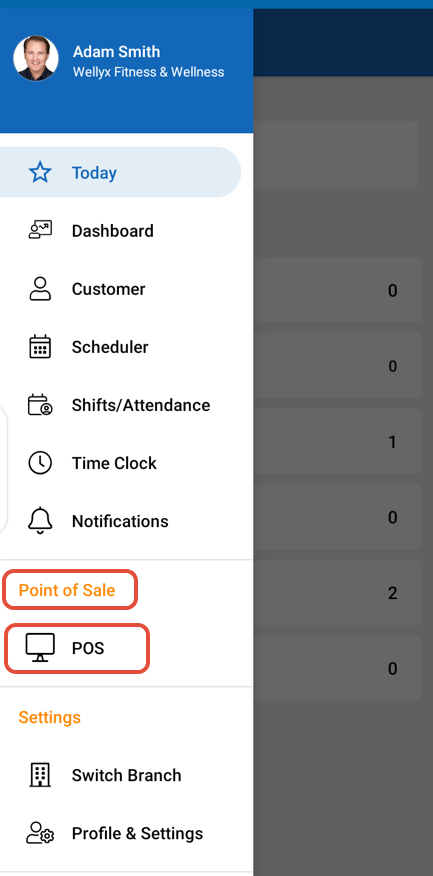
Select POS under the Point Of Sale label.
Add a Customer through the Search By Customer Box and then click on Services.
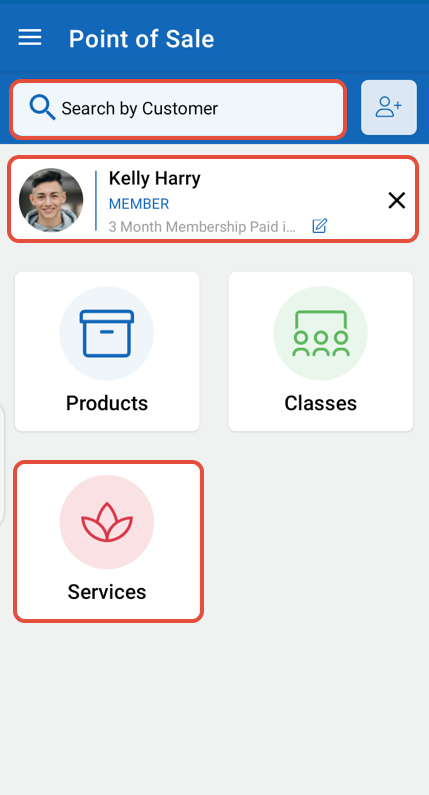
If No Customer is selected, then the system will proceed this Service Booking for a Walk In Customer.
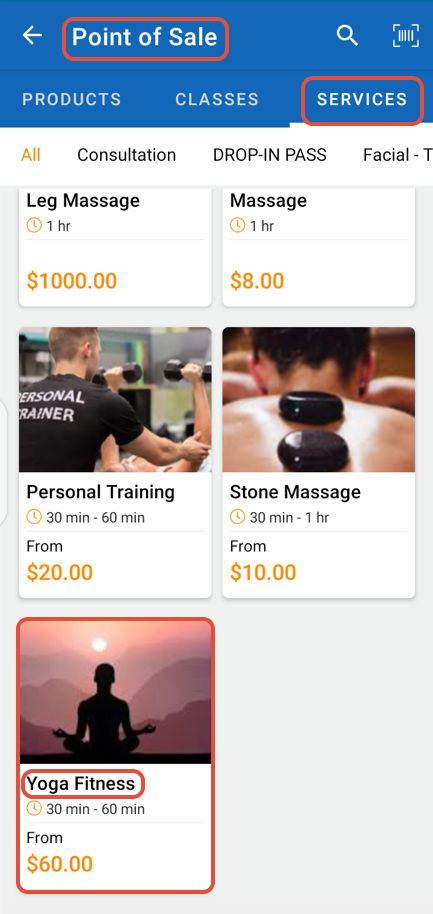
Whilst Point of Sale, select a Service from the Services Menu.
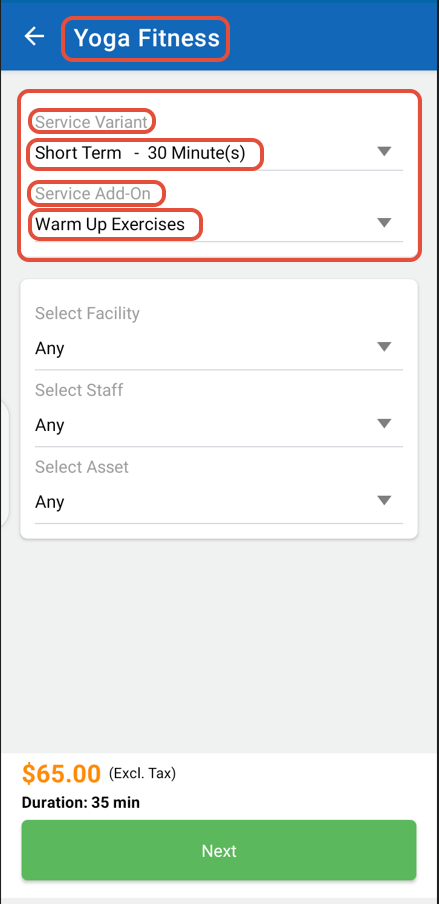
Choose the Service Variant and Service Add-On from the first section of the Service.
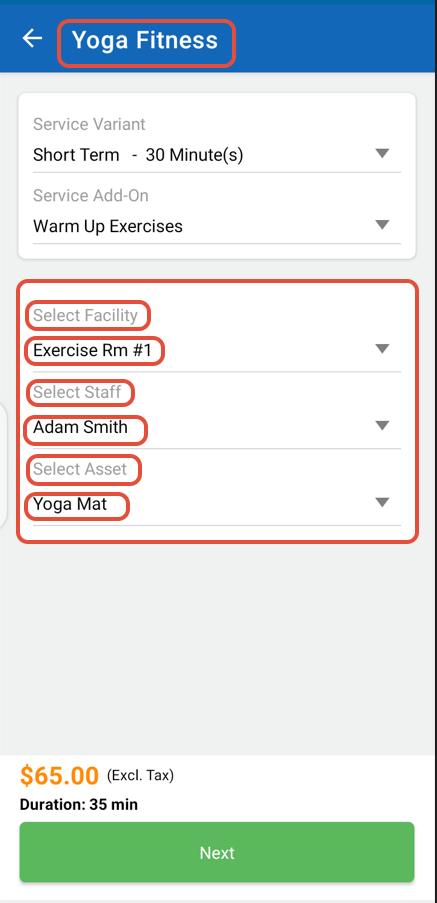
Now, choose Facility, Staff Member, and Asset from the second section of the Service.
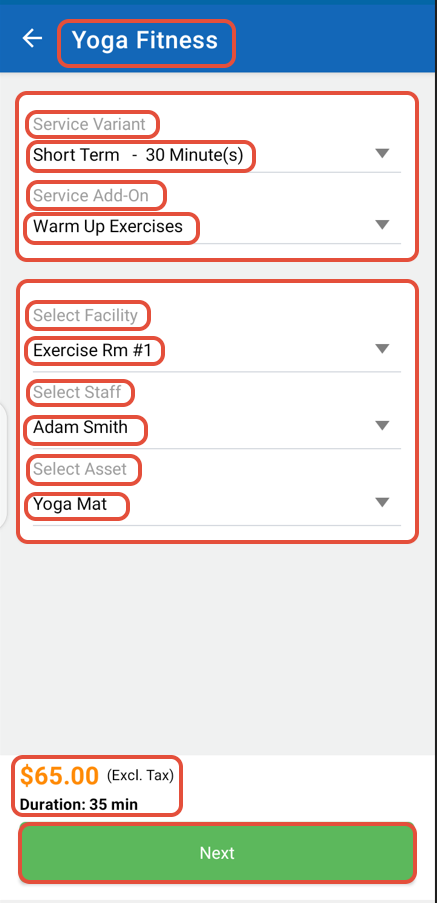
Click the Next Button after reviewing the Payment Plan and Duration of the Service.
Choose the Day, Date, and Time Slot for the selected Service. Click on the Add to Cart Button to add Service to the Cart.
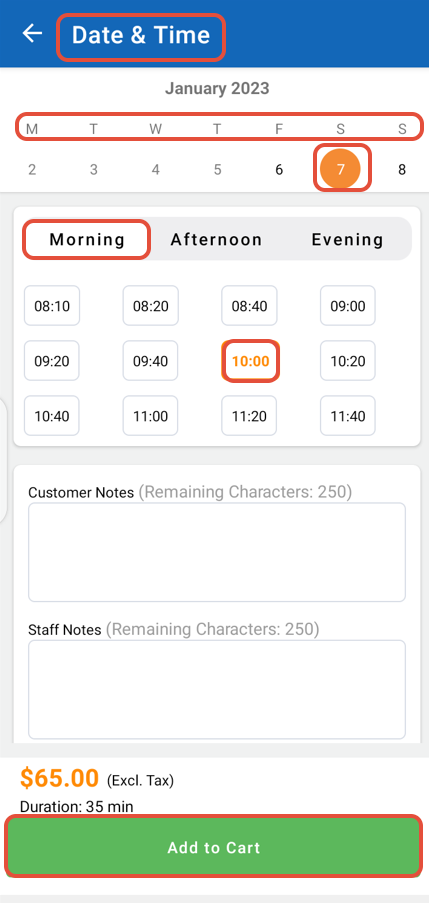
Now, click on Pay Button.
In Checkout, click on Proceed To Checkout Button.
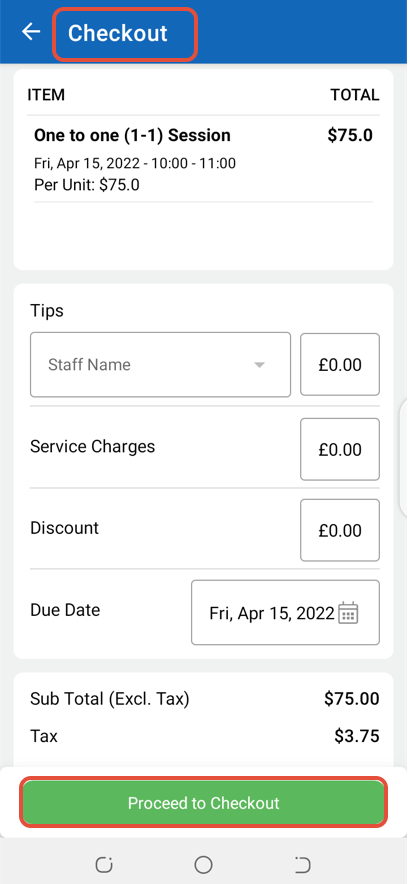
Select a Payment Method and then click on Pay Button.
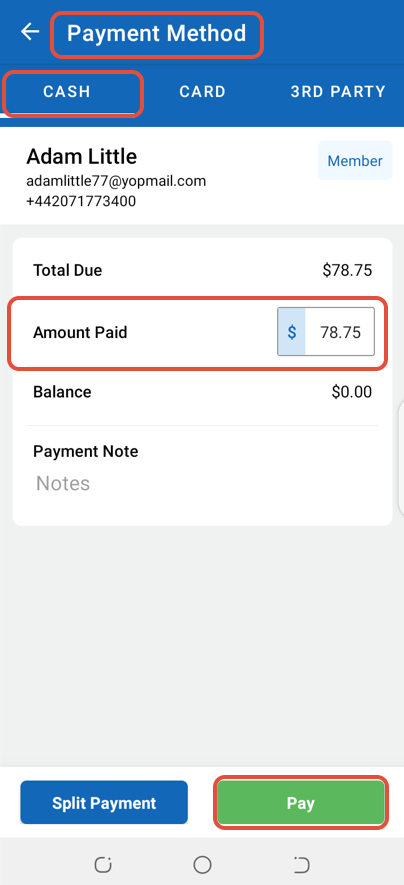
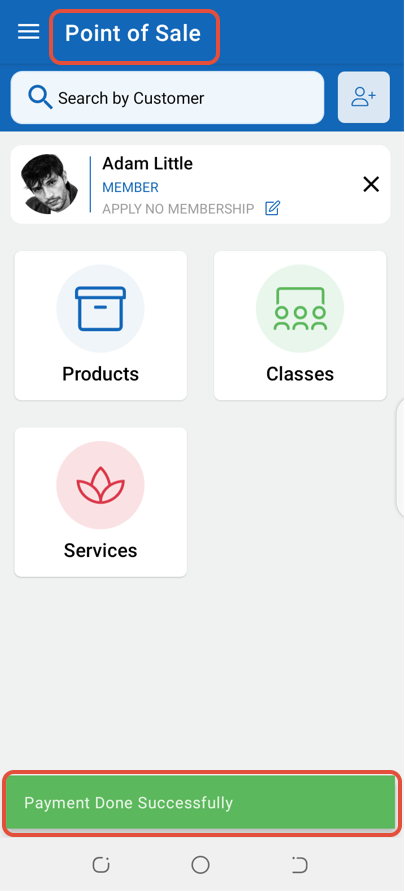
The Payment for the Service will be made successfully.