TABLE OF CONTENTS
- Overview
- Step 1: Navigate to the Customer Module
- Step 2: Open the Add Client Page
- Step 3: Enter Personal Information
- Step 4: Add Home Address (Optional)
- Step 5: Add Billing Address (Optional)
- Step 6: Add Shipping Address (Optional)
- Step 7: Fill General Information (Optional)
- Step 8: Set Client Permissions
- Step 9: Save the Client
Overview
This guide explains how to add a Client in Core. A Client is a non-member individual who interacts with your business—for example, by booking services or purchasing items without an active membership. The guide covers all sections required to create a client profile, including personal details, address information, general data, and permissions, helping you manage clients smoothly and efficiently.
Step 1: Navigate to the Customer Module
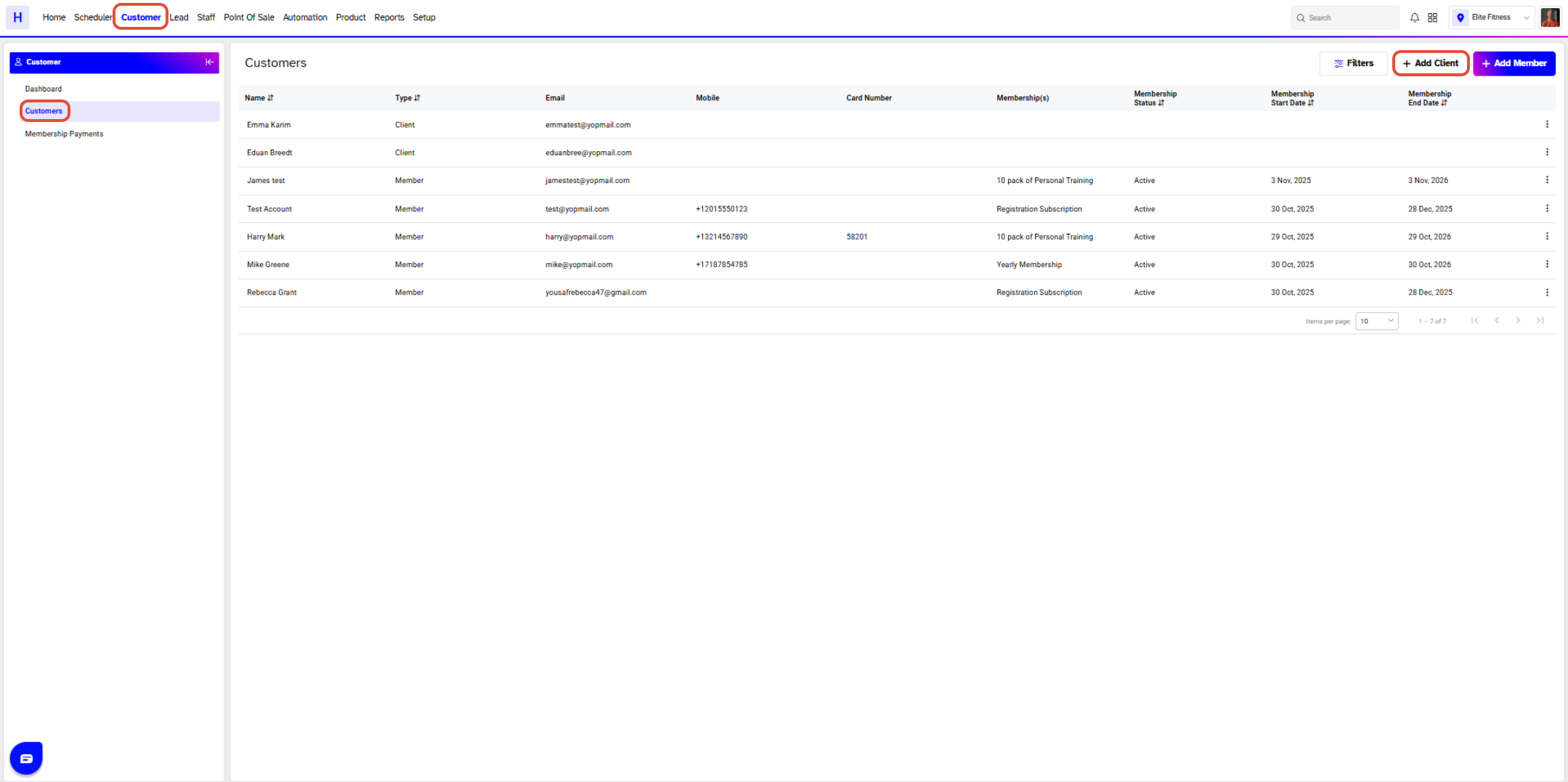
Go to the Customer Module.
By default, you will be in the Customers segment.
Click on the Add Client button.
Step 2: Add Client Details
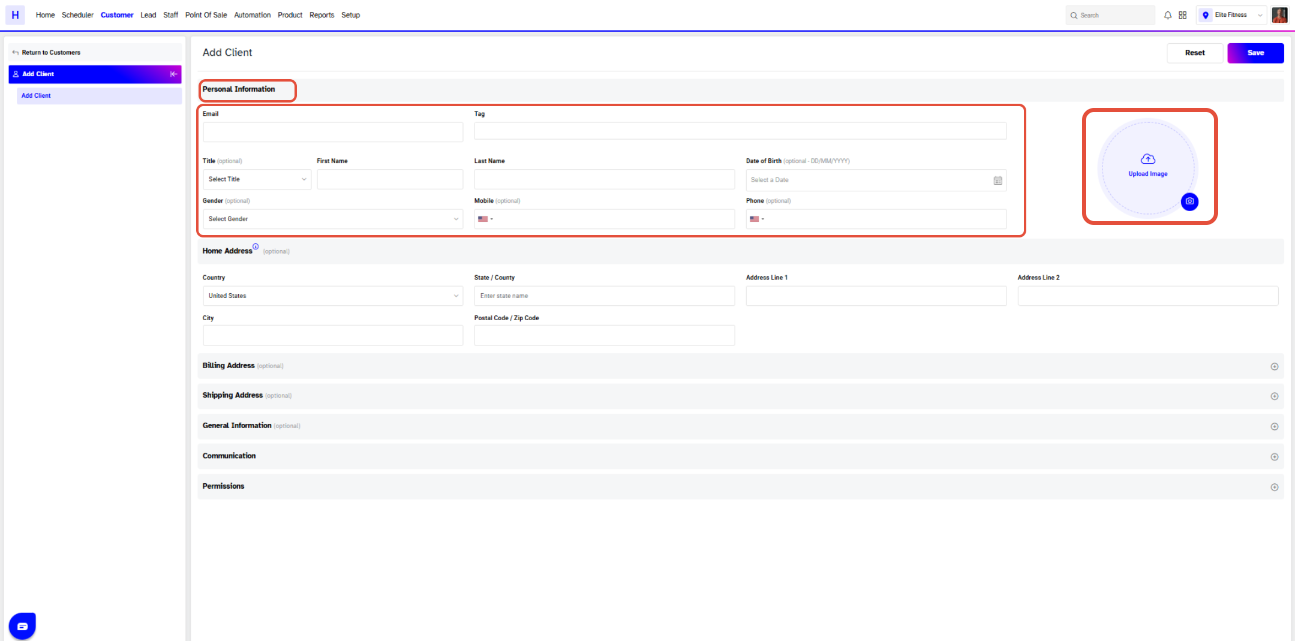
You will be taken to the Add Client page.
The page includes the following sections:
Personal Information
Home Address
Billing Address
Shipping Address
General Information
Permissions
Step 3: Enter Personal Information
Fill out all required and optional details:
Mandatory Fields:
Email
First Name
Last Name
Optional Fields:
Title
Gender
Date of Birth
Mobile
Phone
Upload Image (Optional):
Click Upload Image to open the image uploader. You can:
Capture Image
Browse Image
Step 4: Add Home Address (Optional)
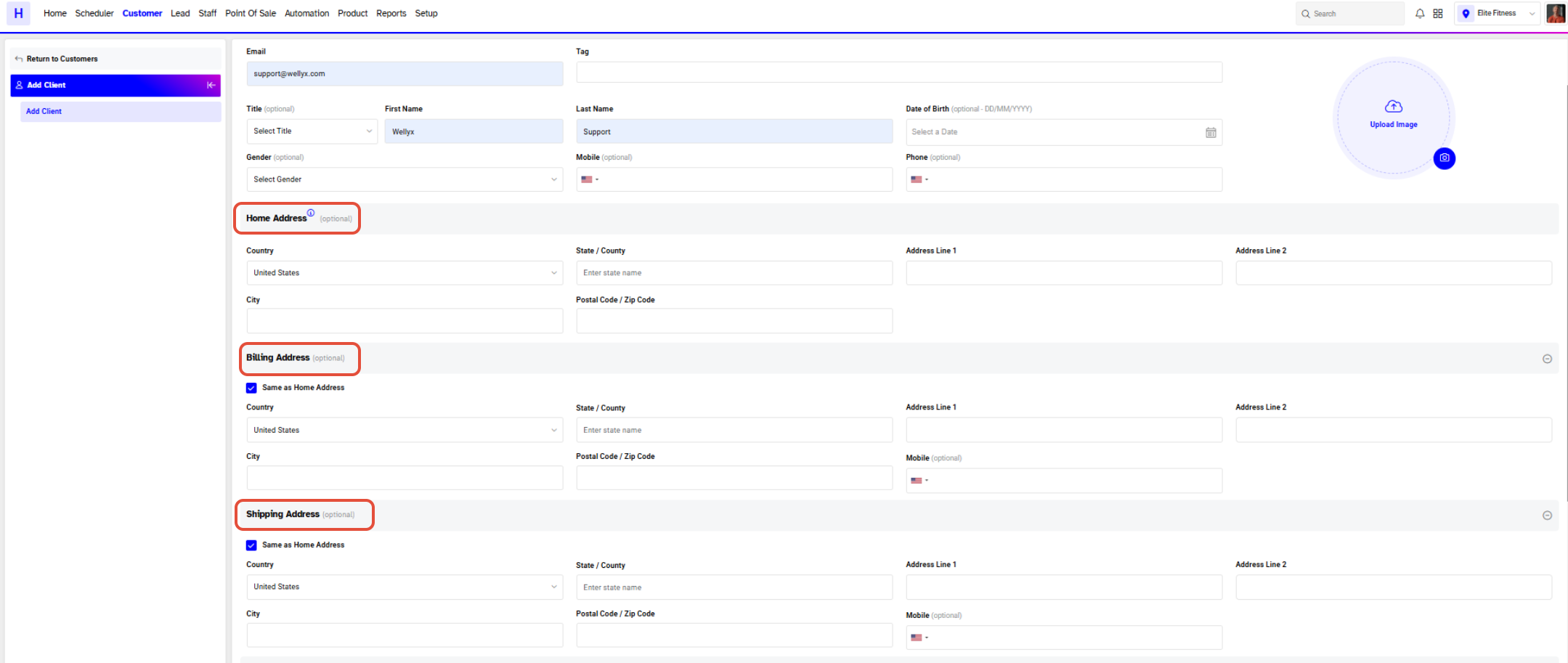
Provide the client’s home address details:
Country
State / County
Address Line 1
Address Line 2 (optional details such as apartment number)
City
Post Code / ZIP Code
Step 5: Add Billing Address (Optional)
Click the + icon to expand this section.
You may:
Check Same as Home Address to auto-fill fields
OR enter a separate billing address
Step 6: Add Shipping Address (Optional)
Click the + icon to expand this section.
You may:
Check Same as Home Address to auto-populate
OR enter a different shipping address
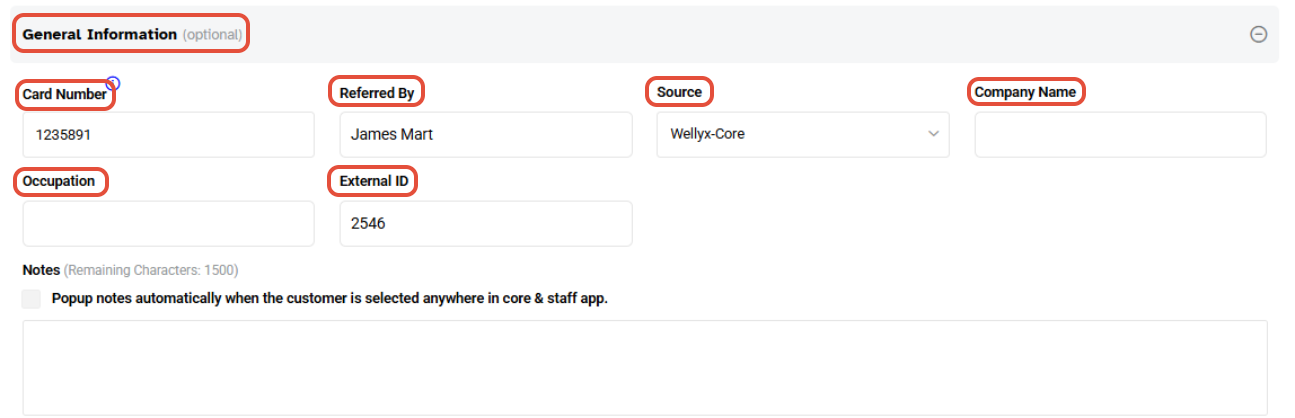
Step 7: Fill General Information (Optional)
Click the + icon to open the General Information section.
You can fill in:
Card Number
Referred By
Source (dropdown)
Company Name
Occupation
Unique ID
Notes
If the client has a shared membership, they can mark attendance using their Card Number through the Member Attendance Portal.
Step 8: Set Client Permissions
Click the + icon to open the Permissions section.
Toggle ON the permissions you want to enable:
Postal Mail – Allows sending mail to the client's address
Phone Call – Allows staff to call the client
Email – Allows email communication
SMS – Allows sending text messages
Push Notifications – Allows app notifications
First Aid – Indicates the client can receive first aid if needed
Partial Payment – Core – Allows partial payments in Core
Partial Payment – Widget – Allows partial payments via the widget

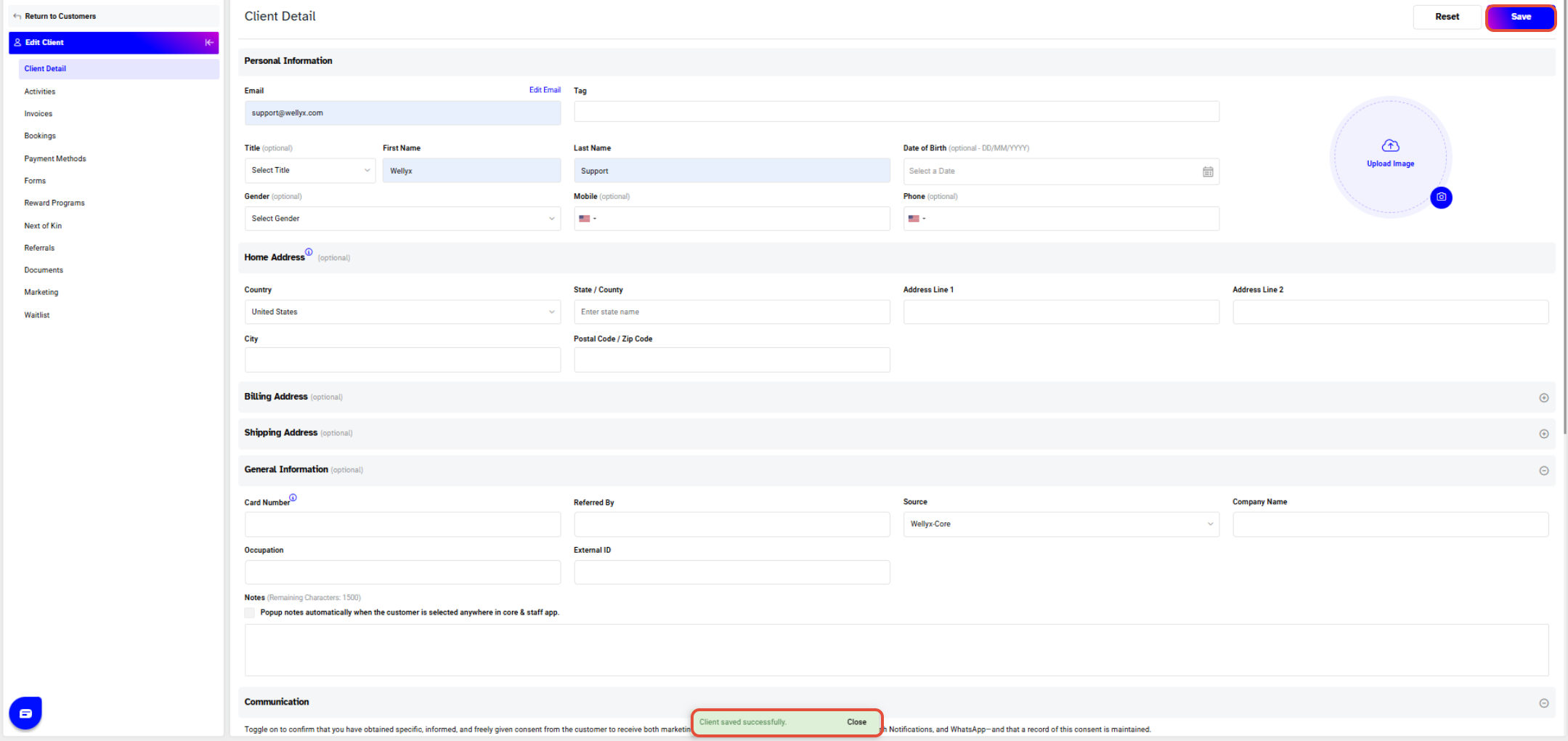
Step 9: Save the Client
Click Save.
A message “Client Saved Successfully” will appear at the bottom-right of the screen.
To clear all fields, click Reset.