TABLE OF CONTENTS
- Overview
- Step 1: Navigate to the Customer Module
- Step 2: Access Memberships Tab
- Step 3: Select Duplicate Membership Details
- Step 4: Enable Duplicate Membership Option
- Step 5: Continue to Payment Plan
- Step 6: Review Payment Method and Save the Membership
Overview
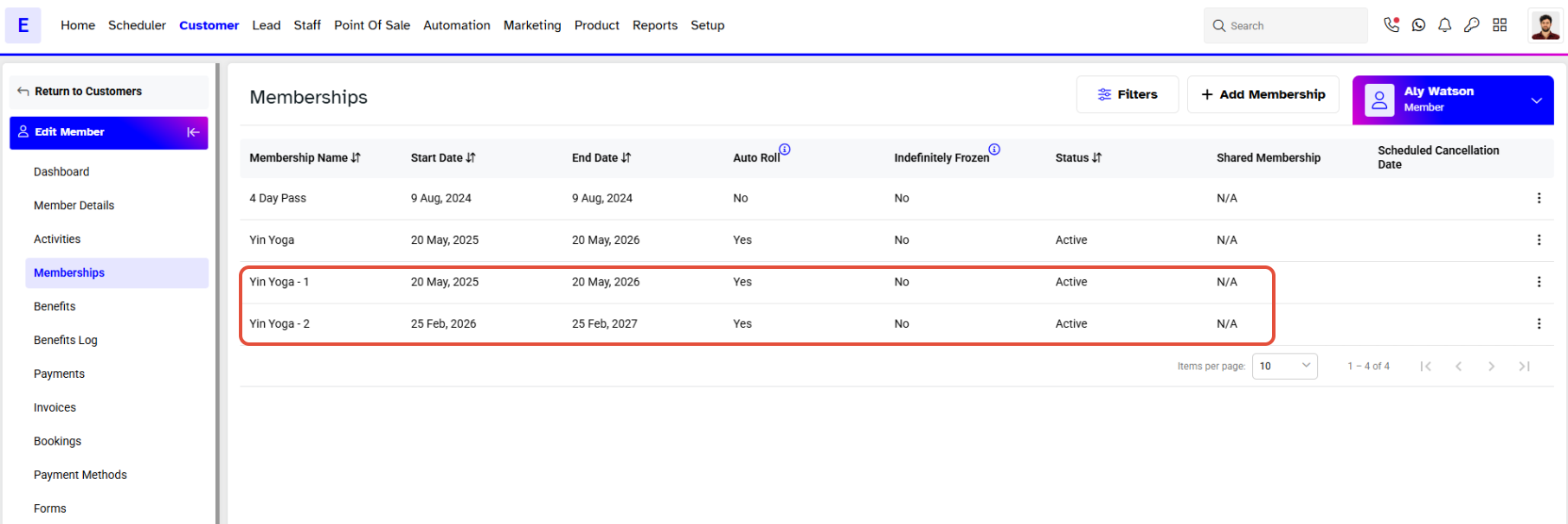
This guide explains how to add a duplicate membership for an existing member step by stepStep 1: Navigate to the Customer Module
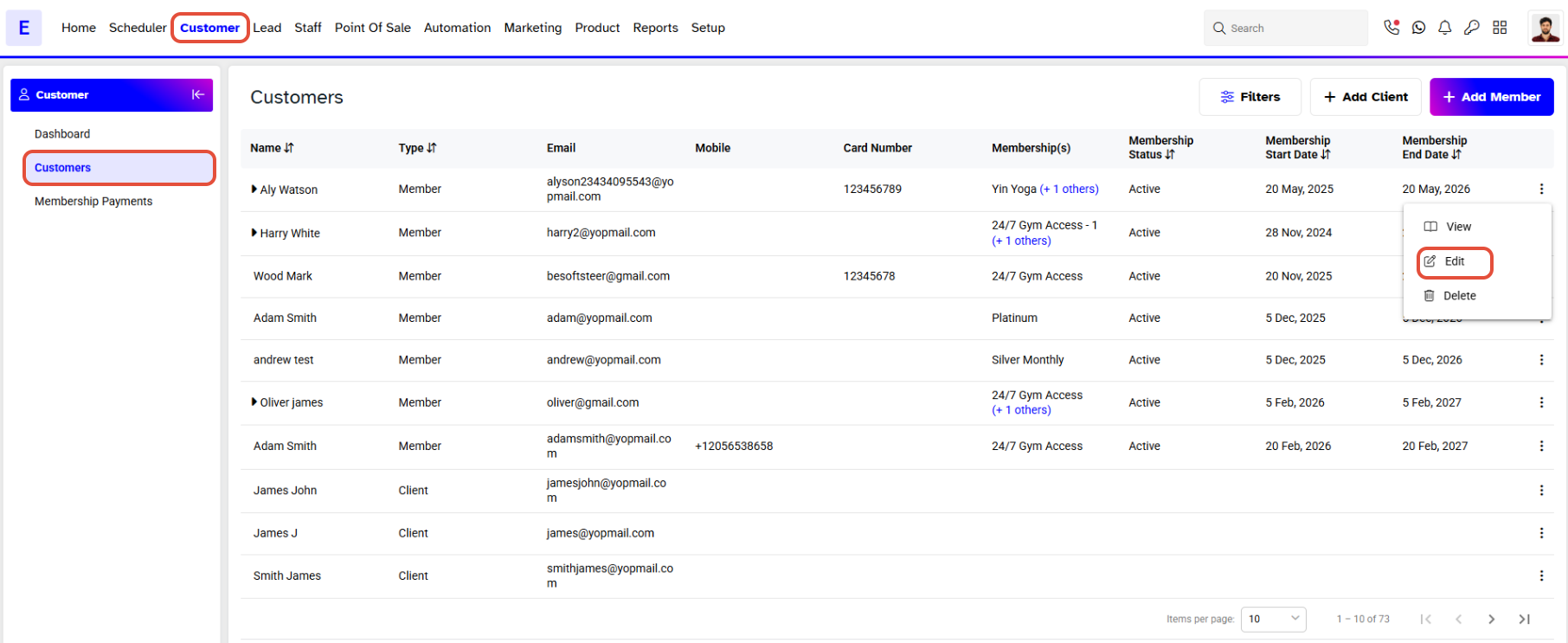
- Go to the Customer Module.
- Click on the Edit Icon against the Member's Name.
Step 2: Access Memberships Tab
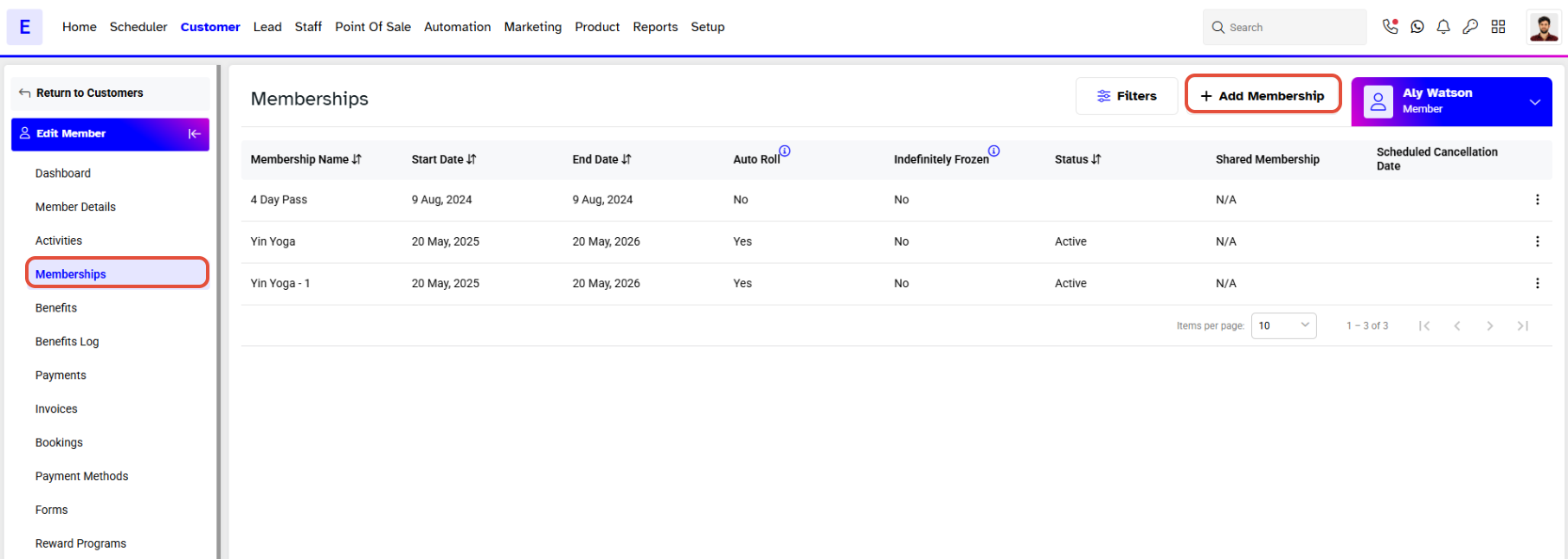
- Go to the Memberships Tab.
- Click on the Add Membership Button.
Step 3: Select Duplicate Membership Details
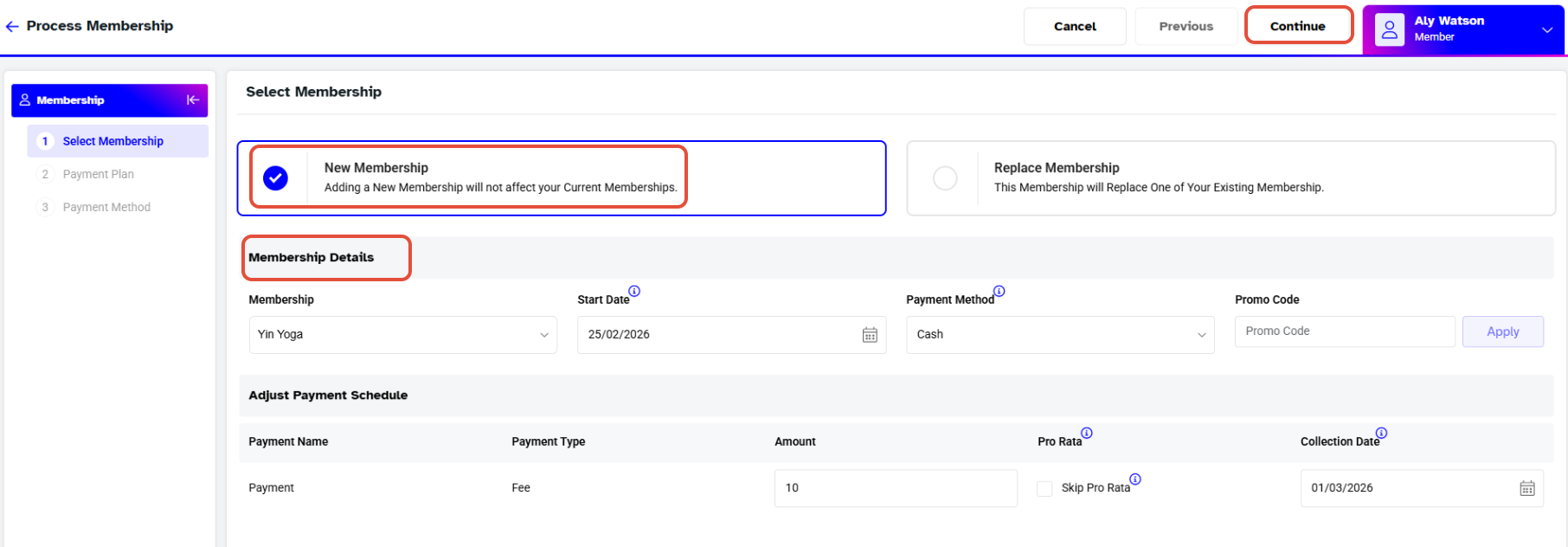
- A pop-up box will open.
- Select the Same Membership from the dropdown box.
- Choose the option to Add a New Membership.
- Click on the Continue button.
Step 4: Enable Duplicate Membership Option
- To allow a duplicate membership, the option must be toggled ON from the Memberships Tab in the Setup Module.
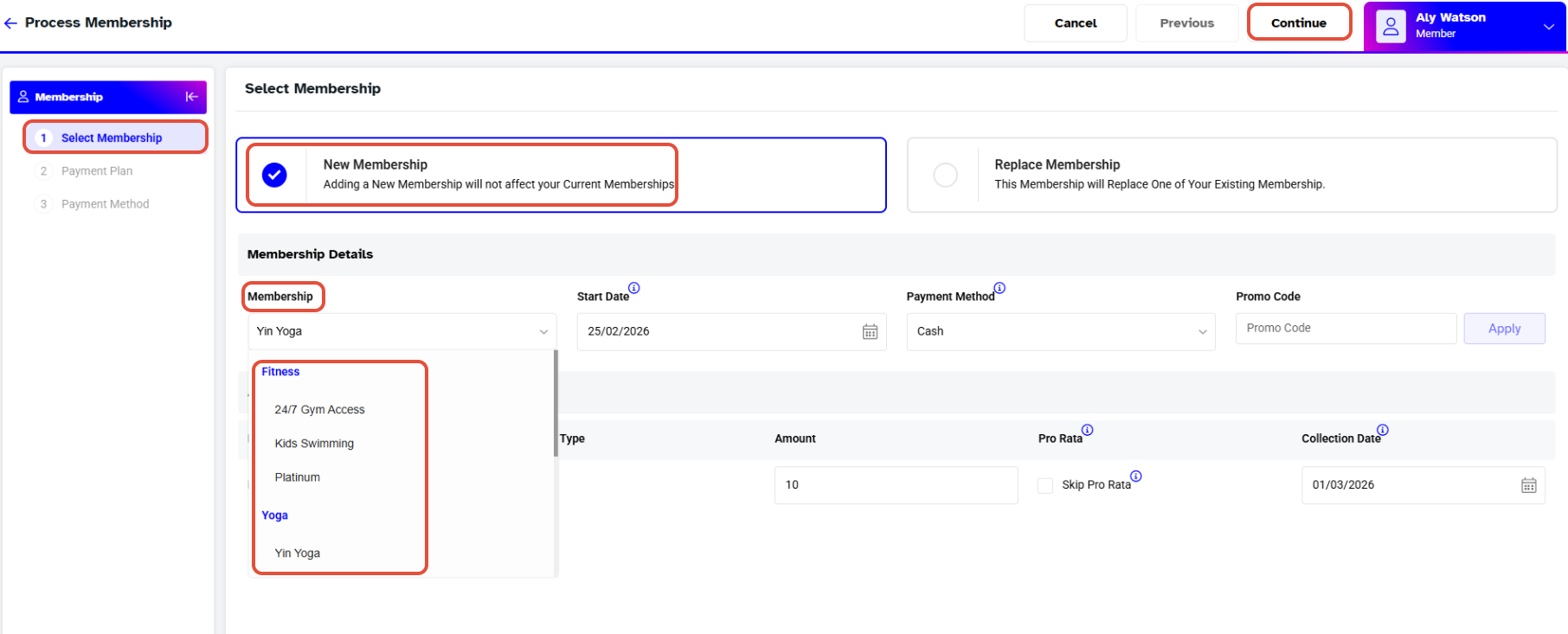
Step 5: Continue to Payment Plan
- Click the Continue button to proceed.
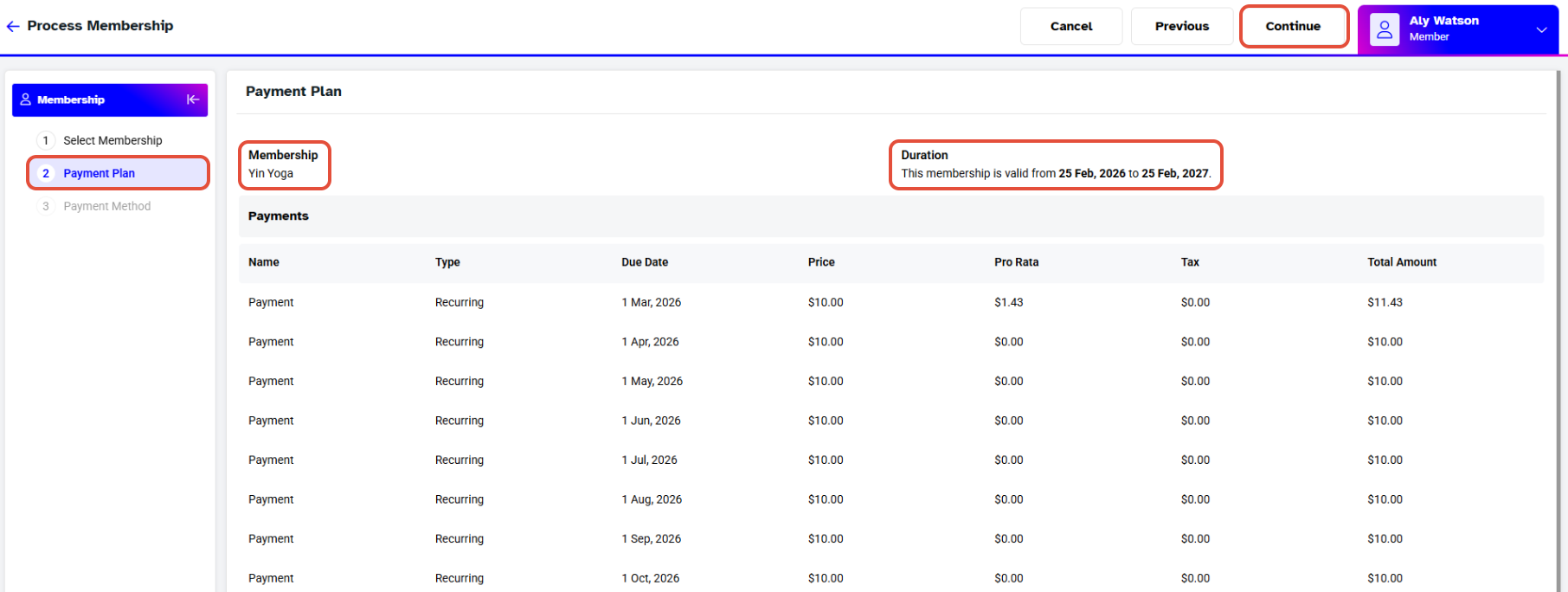
Step 6: Review Payment Method and Save the Membership
- Review all details.
- Click on the Save button to confirm.
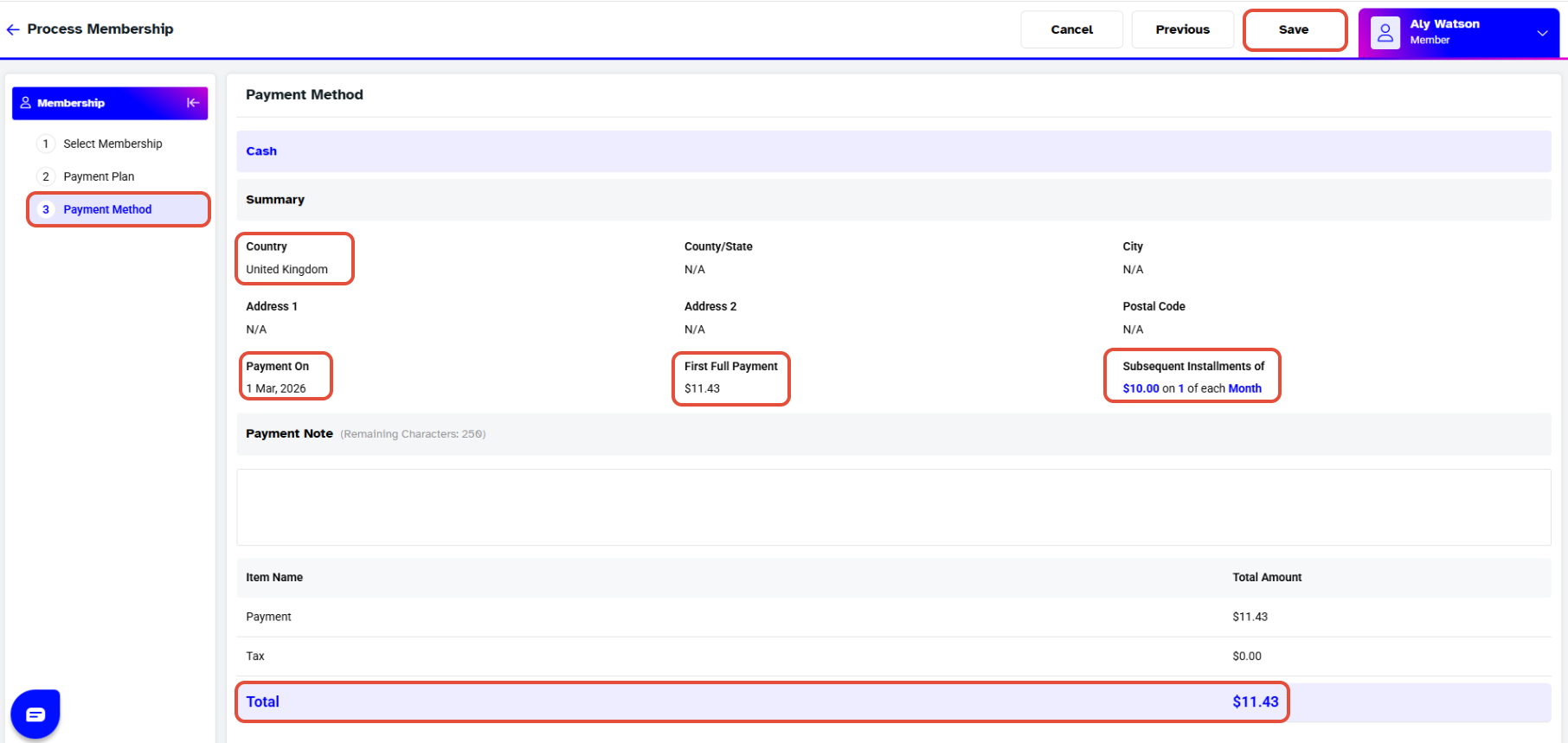
- Now the Duplicate Membership is Saved and has been Added against the Member.