


TABLE OF CONTENTS
To create a Favourite View through Scheduler, follow the steps below:
How To Create A Favourite View In The Scheduler
Go to the Scheduler Module in Core.
Move to the Filter option on the left side of the Scheduler.
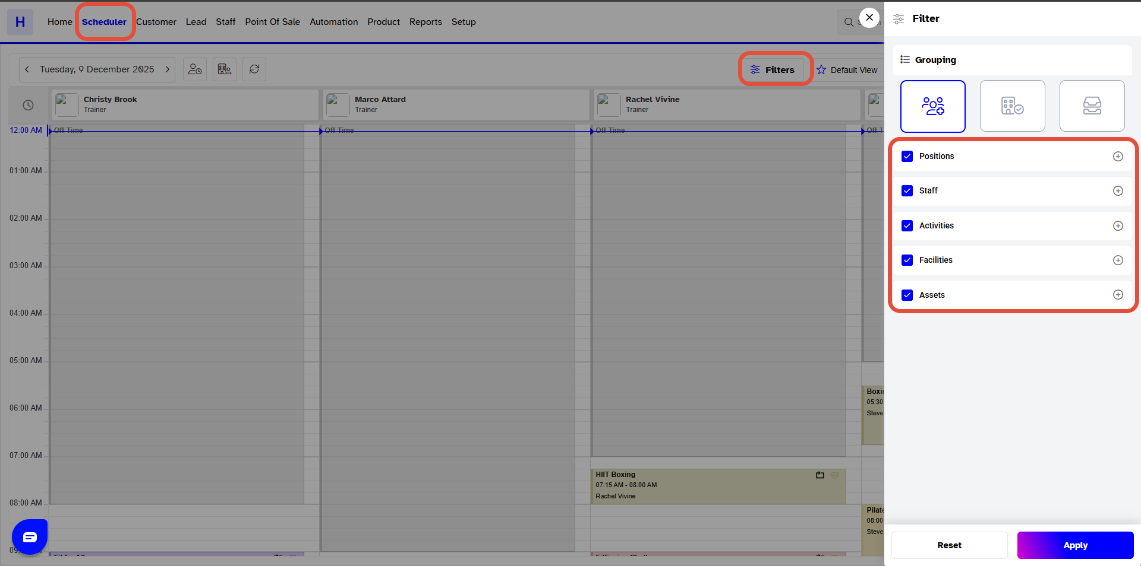
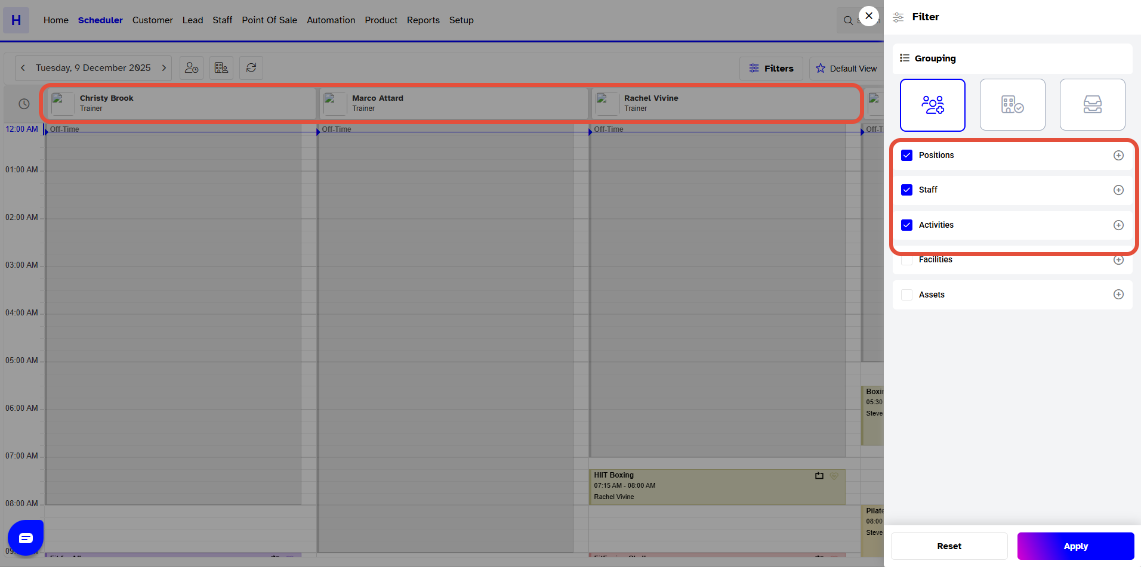
Apply the necessary Filters. Once done, click on the Favourites View Icon in the Scheduler.
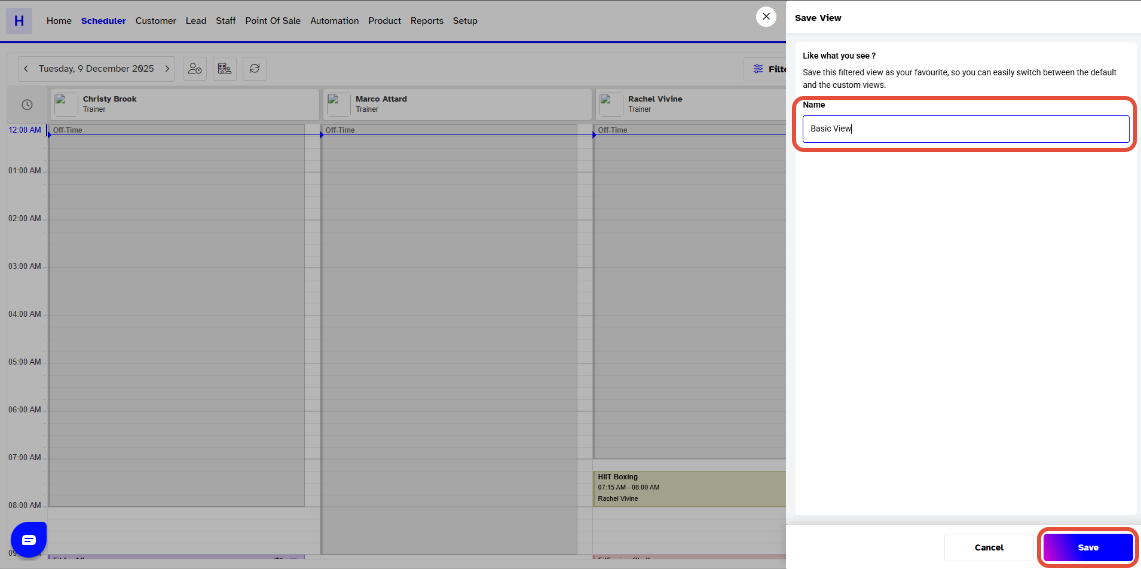
Give a Name to the Favourite View.
Once done, click on the Saved Button.
A Maximum of 5 Favourites Views can be set in your Scheduler at a time.
A Favourite View can be created against Staff Members, Fcailities and Assets on the Scheduler.
The Scheduler View can be switched between the Default View and Favourites View by clicking on their buttons.




