
TABLE OF CONTENTS
- Overview
- Step 1: Navigate to the Scheduler
- Step 2: Understand Grouping Options
- Step 3: Filter by Positions
- Step 4: Filter by Staff
- Step 5: Filter by Activities
- Step 6: Filter by Facilities
Overview
This guide explains how to view activities and tasks using the filters available in the Scheduler. By using these filters, you can effectively manage and monitor your daily, weekly, and monthly operations. For a list of terms used in the Wellyx application and across the support website, please consult our Glossary.
Step 1: Navigate to the Scheduler
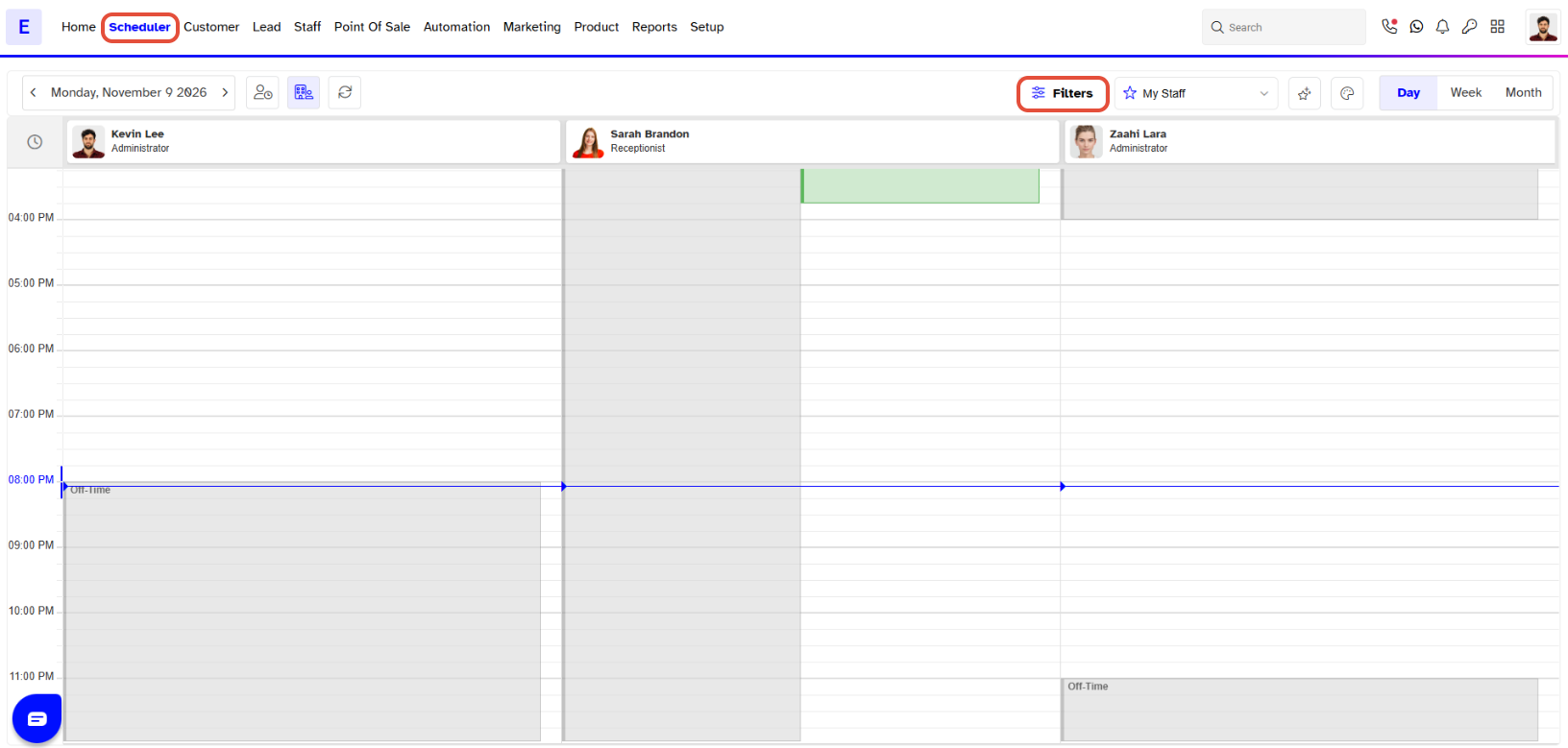
- Go to the Scheduler module.
Use the filter menu located on the right side of the screen to view activities and tasks based on your requirements.
Step 2: Understand Grouping Options
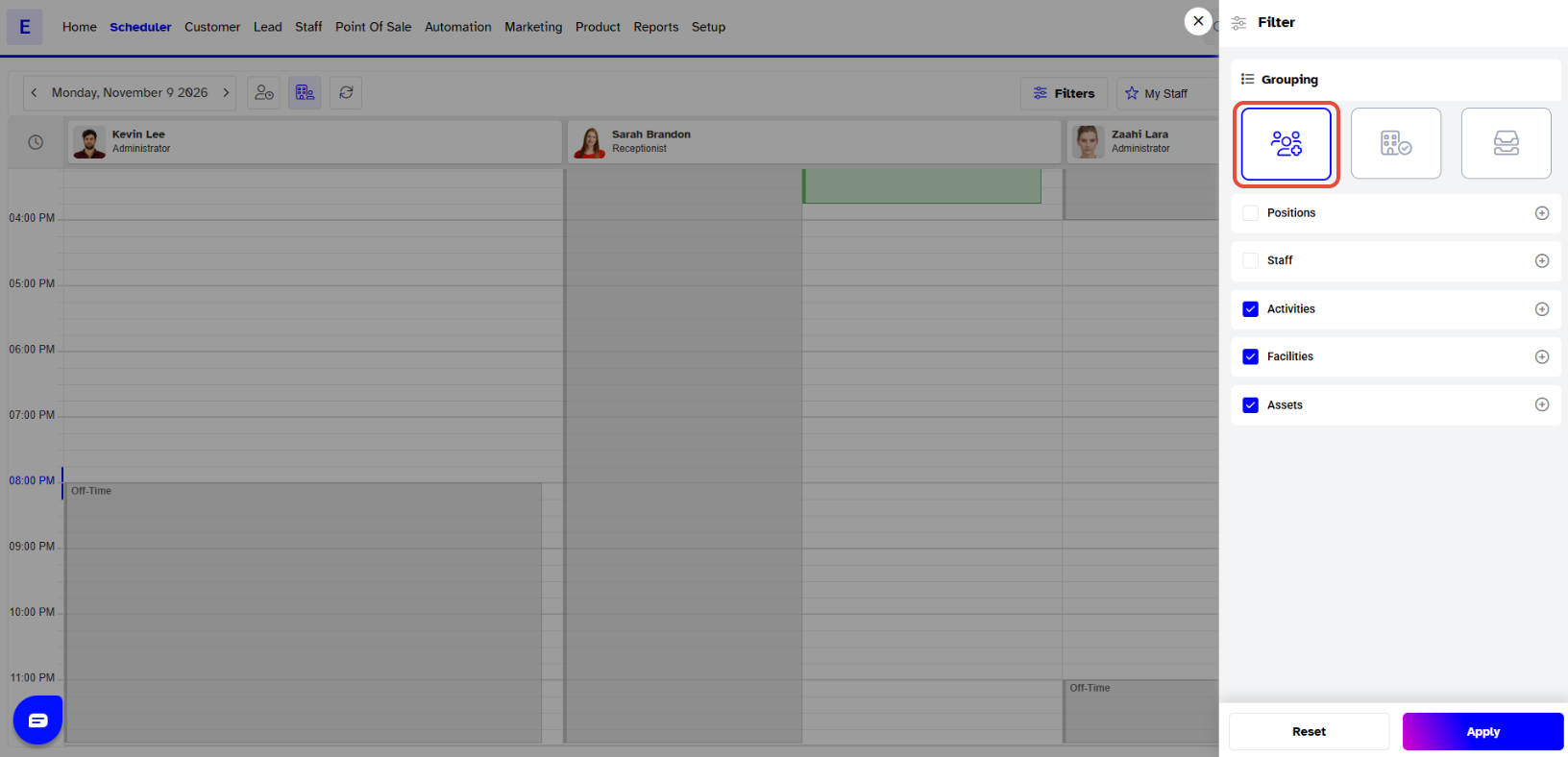
- The Grouping option allows you to organize your view by Staff or Facility.
You can select either Group by Staff or Group by Facilities; you cannot select both simultaneously.
Step 3: Filter by Positions
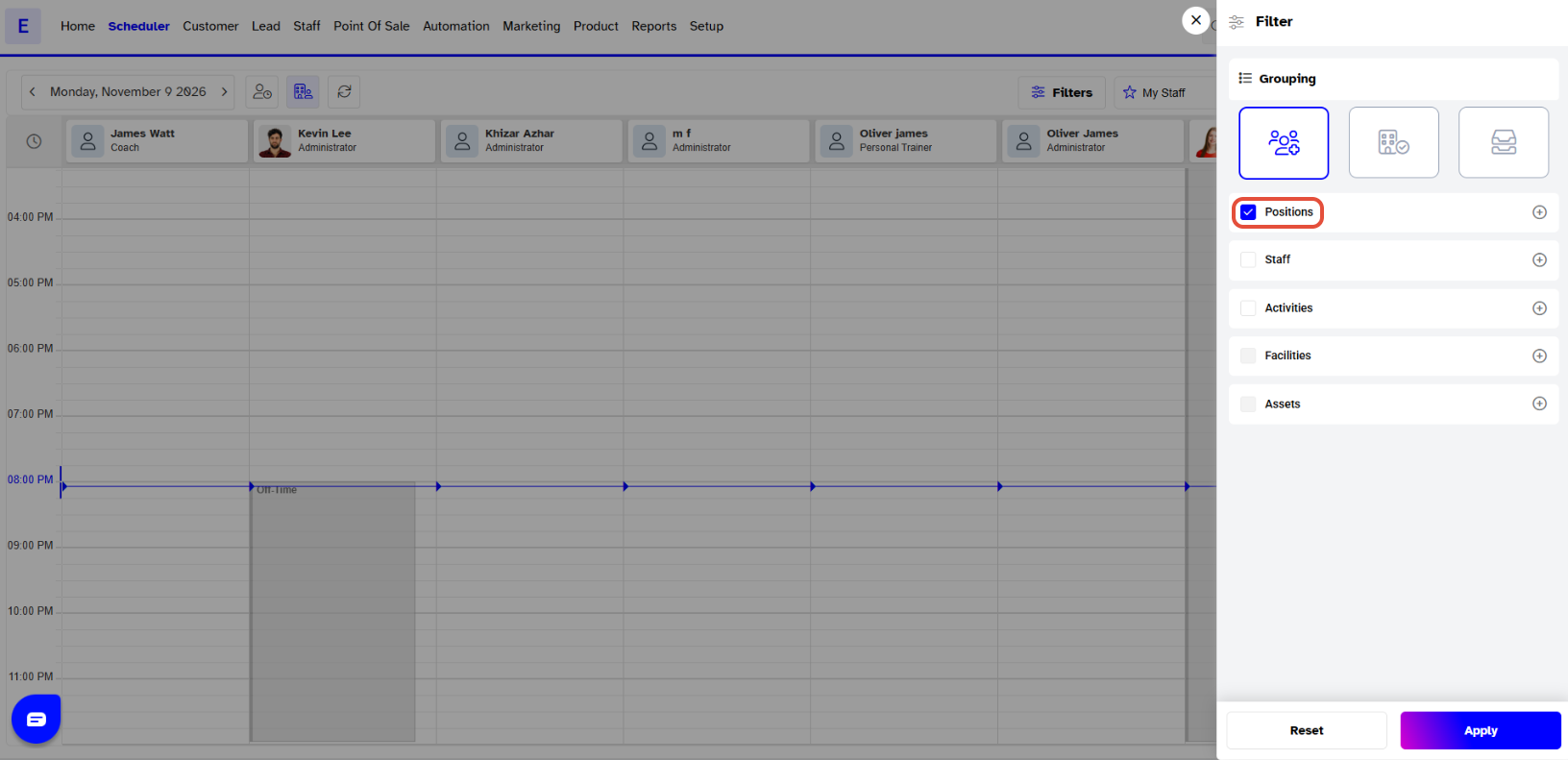
- All positions created in Core are displayed in this section.
- To view tasks or appointments associated with specific roles, check the boxes corresponding to the desired positions.
Step 4: Filter by Staff
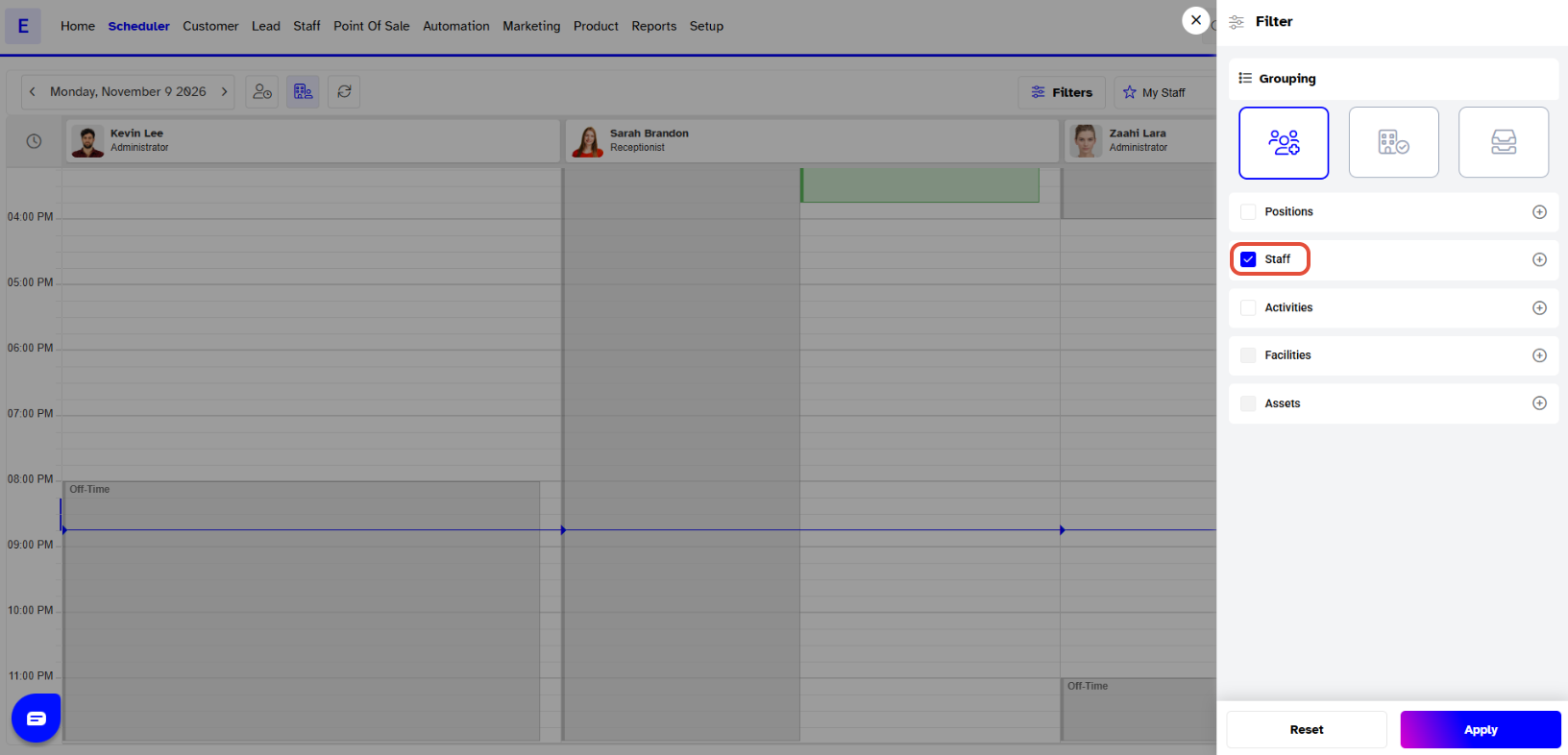
- The names of your employees are listed in this section.
- Check the boxes next to Staff names to filter and view their specific shifts, work, tasks, and activities through the Scheduler.
Step 5: Filter by Activities
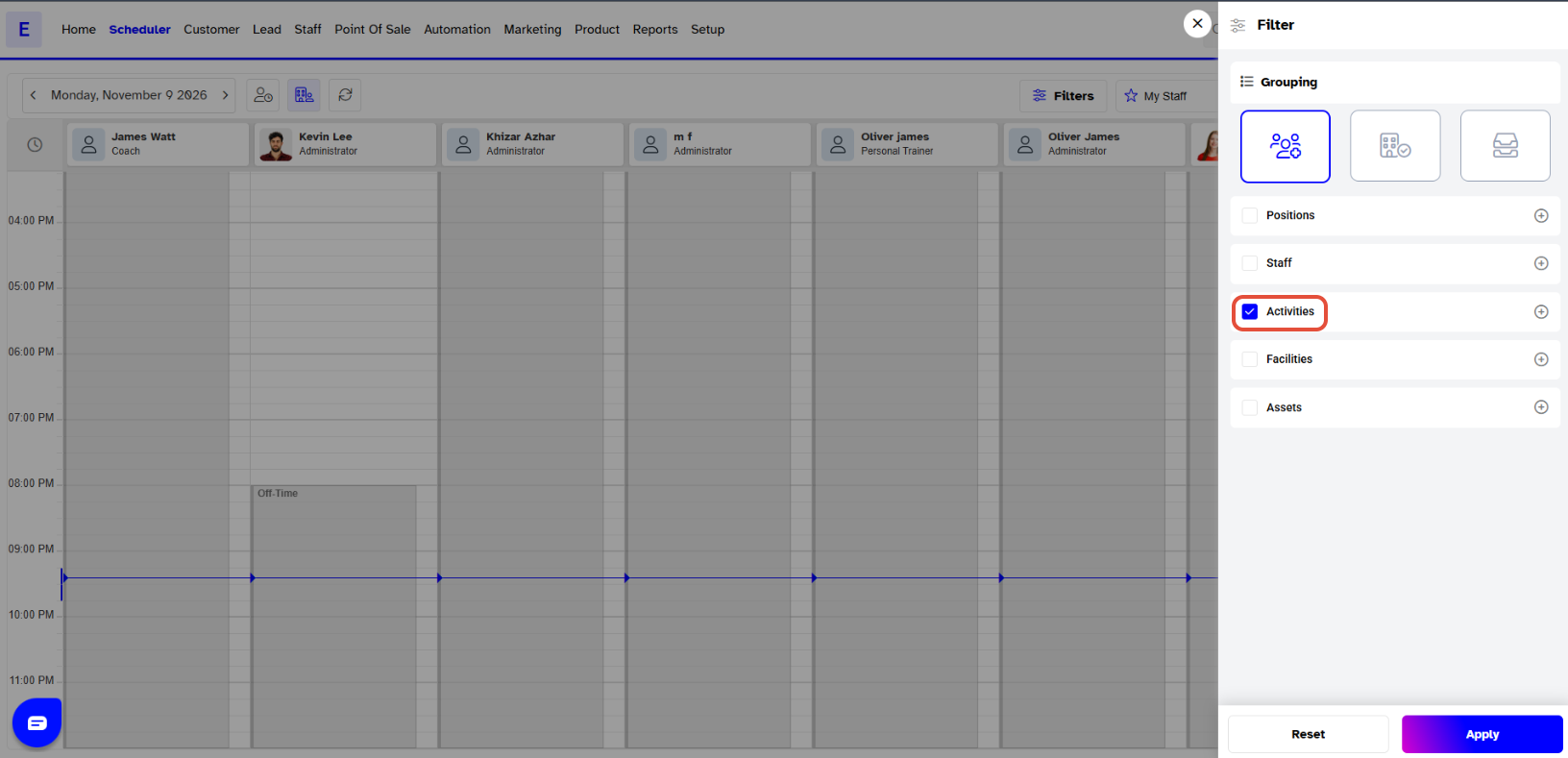
- Use the Activity filter to see detailed activity information.
- This allows you to identify who is responsible for a specific activity or view the tasks scheduled for the day, week, or month.
Step 6: Filter by Facilities
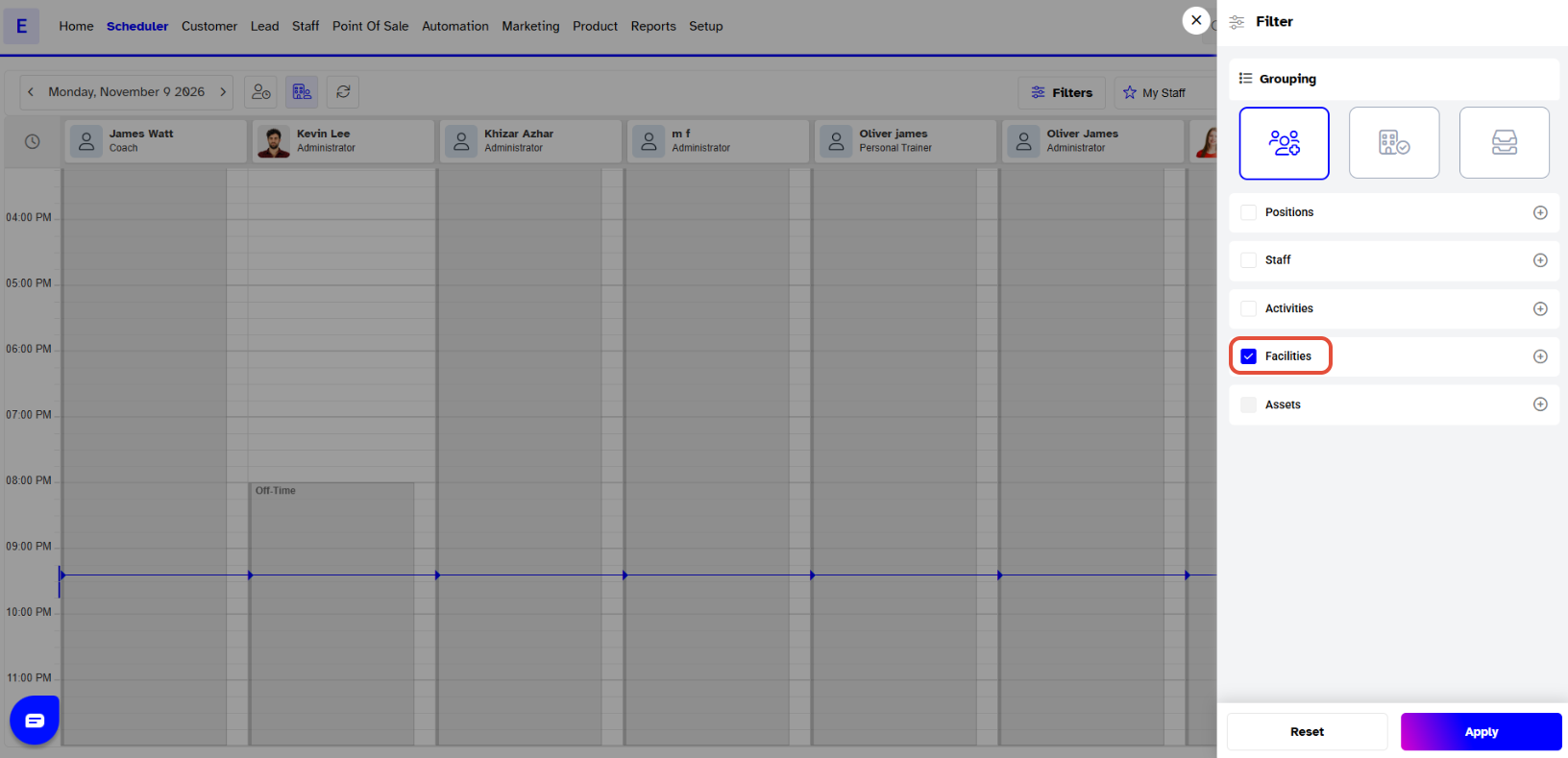
- Use the Facility filter to monitor which clients are using specific facilities.
- Additionally, you can use this filter to check the availability of a facility for the upcoming day, week, or month.