

In Core, users can create forms for a number of reasons such as Waivers, Health Questionnaire or simply for Customer Feedback. These forms can be created for new Customers or attached against Products, Classes, Services and Memberships.
These forms can be configured to be Auto-Triggered or can be attached Manually. The Core has a cumulative repository for these forms, meanwhile, they can be viewed individually against Client/Leads/Members or Staff.
This article covers the following topics:
For a list of terms used in the Wellyx application & across the support website, please consult our Glossary.
Form Directory
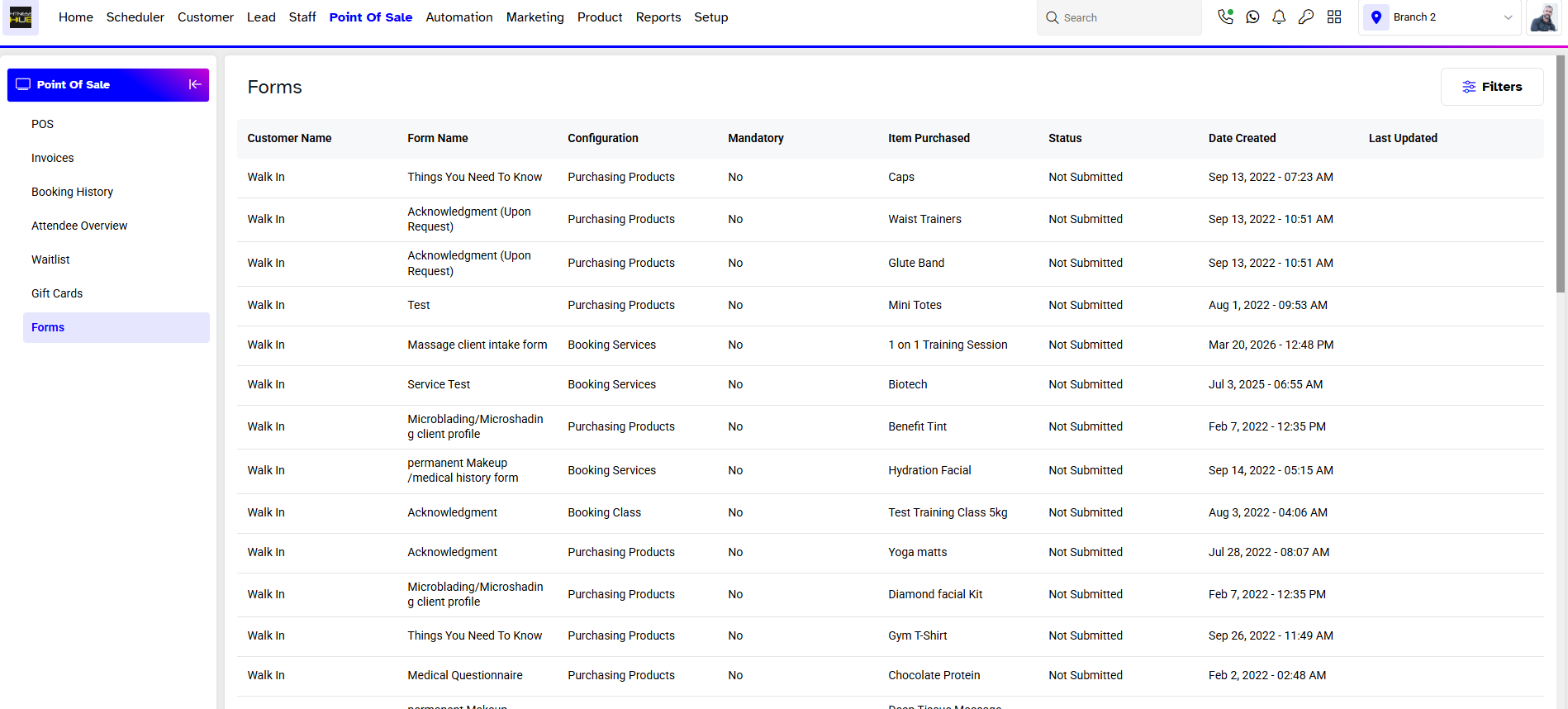
Form repository for the branch can be viewed at POS > Forms. From here these forms can be viewed, edited or deleted depending on the privileges assigned to the user. Information such as Customer Name, Form Name, Configuration (auto or manual), Item Purchased, Status of the form, Date Created, Last Updated and Actions can also be viewed.
Customer & Staff Forms
Forms can also be viewed, edited or deleted individually against Leads, Clients, Members and Staff depending on the assigned privileges.
Leads
Click on Leads > Select the Lead > Forms. Staff can manually attach forms and also view, edit and delete the form. Information such as Customer Name, Form Name, Configuration (auto or manual), Item Purchased, Status of the form, Date Created, Last Updated and Actions can also be viewed.
Client
Click on Client > Select the Client > Forms. Staff can manually attach the forms, view, edit and delete the form. Information such as Customer Name, Form Name, Configuration (auto or manual), Item Purchased, Status of the form, Date Created, Last Updated and Actions can also be viewed.
Members
Click on Members > Select the Member > Forms. Staff can manually attach the forms, view, edit and delete the form. Information such as Customer Name, Form Name, Configuration (auto or manual), Item Purchased, Status of the form, Date Created, Last Updated and Actions can also be viewed.
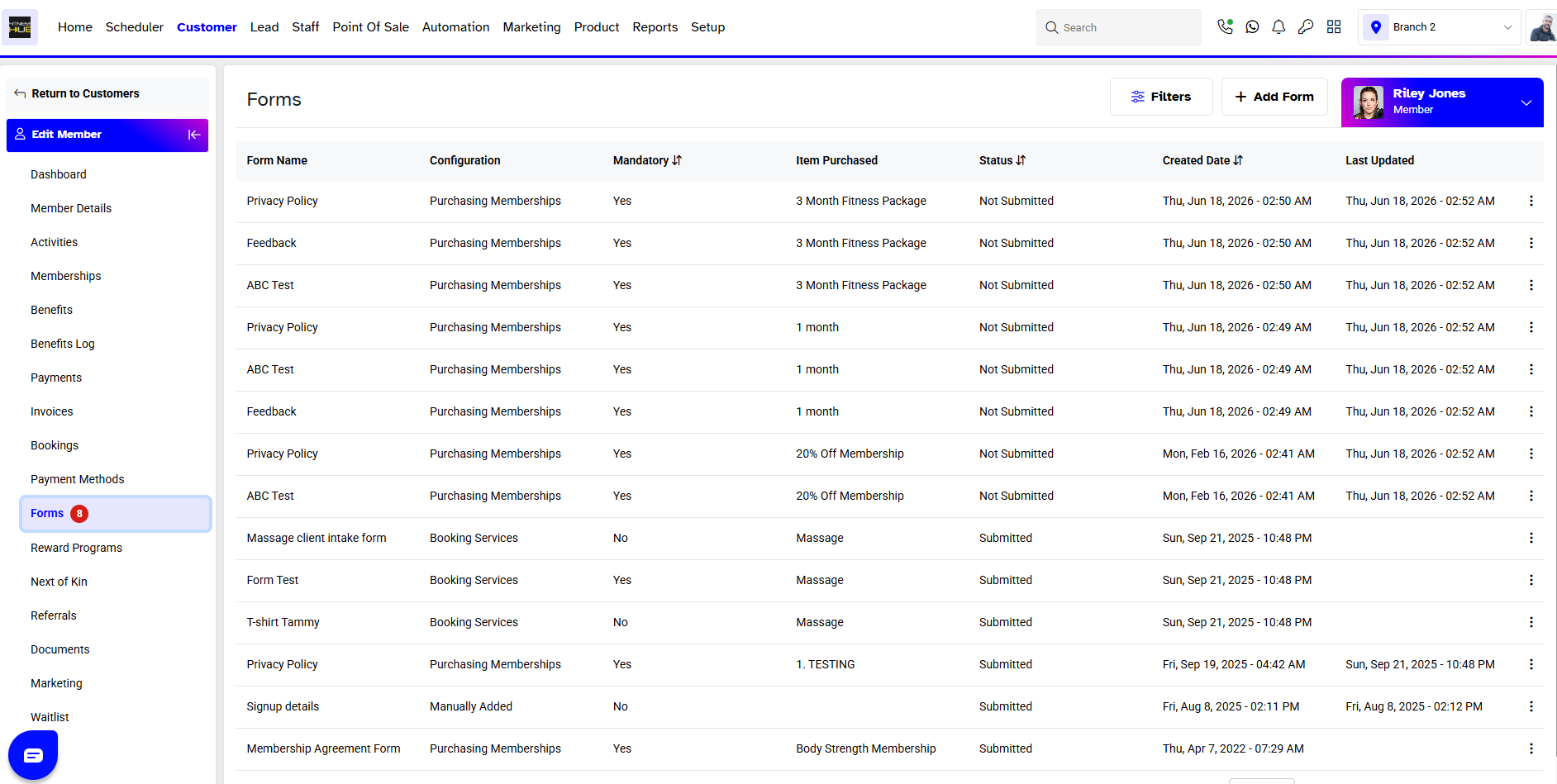
Note: If the form is mandatory, the form icon will appear in Red and in Yellow if the form is non mandatory. In Core as the user has the option to skip mandatory forms, user can either fill or skip the form before completing the purchase.
Staff
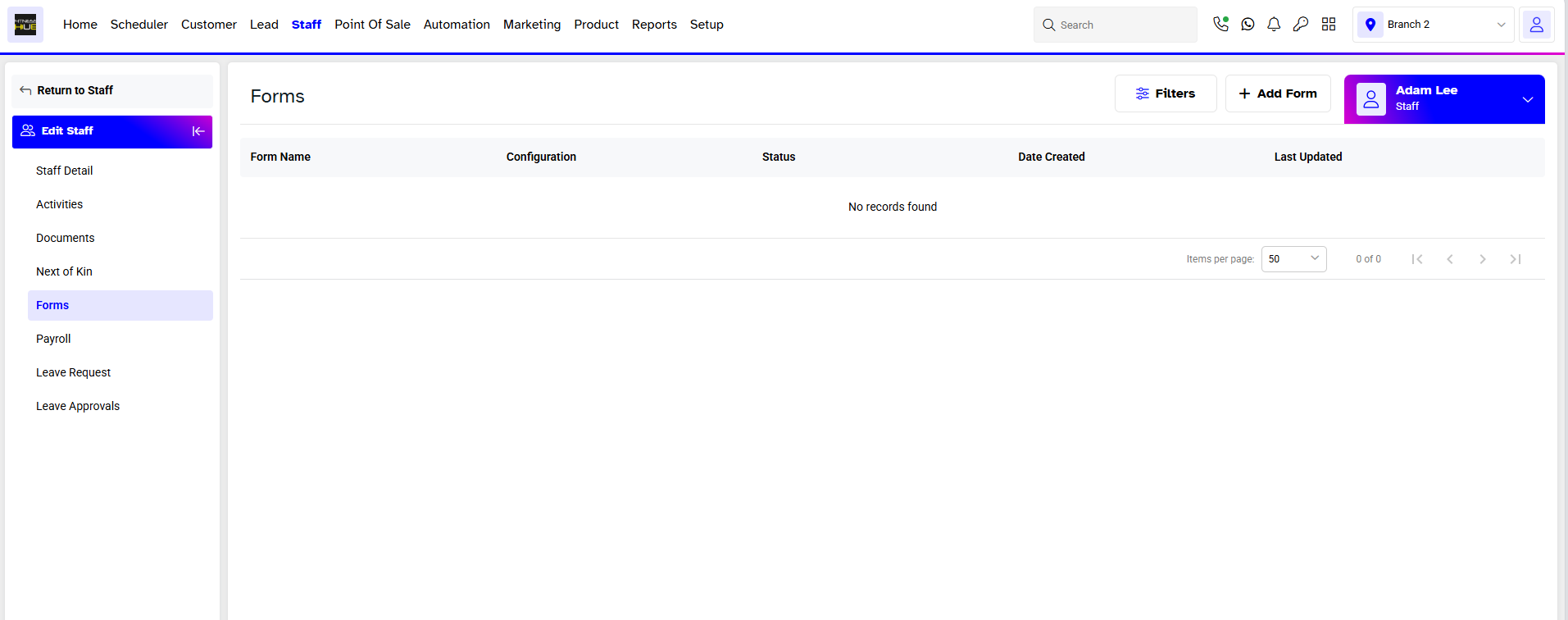
Click on Staff > Select the Staff > Forms. These are manually attached and you can also view edit and delete the form. Information such as Form Name, Configuration (auto or manual), Item Purchased, Status of the form, Date Created, Last Updated and Actions can also be viewed.