


Use forms to gather important information about your Customers and Staff. In Core, you can easily create forms and attach them to your customers, these forms are also available on the merchant's Widget.
This article covers the following topics:
- Creating Forms
- Types of Forms
- Require Form upon Customer Signup
- Require Form upon Customer Purchases
- Require Form upon Request
- Require Form on Service Completions
For a list of terms used in the Wellyx application & across the support website, please consult our Glossary.
Creating Forms
- In your Core account, navigate to Setup > Forms.
- In the upper right, click Add Form.
- Now you can create a new form for Customers or Staff to complete.
- Form Name and Description appear every time a form is opened and both are mandatory fields. The description is limited to 350 characters and always appears below the form name.
- Active: Only Active forms can be submitted by staff/customers.
- Mandatory Online: A mandatory form online will mean that a customer cannot complete a booking/purchase unless the form is Completed.
- Toggle on the Submitted Forms Button to allow the Customer to view the Submitted Form in their Profile.
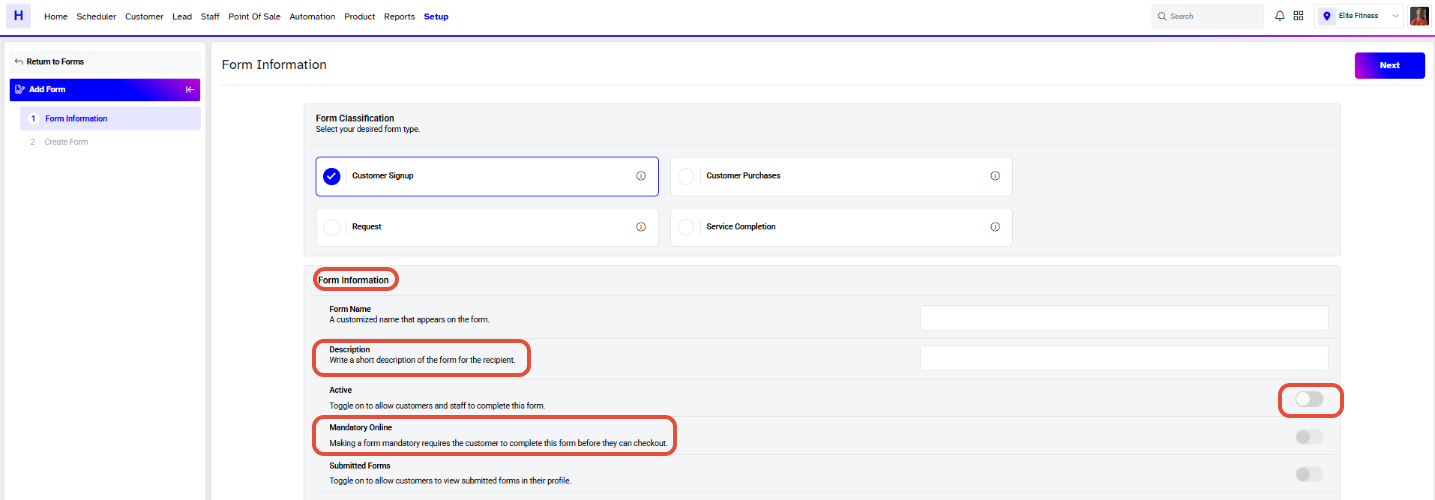
Note: Forms can be skipped in Core by staff. Mandatory online only enforces customers to complete the form in the widget.
Types of Forms
There are Four Types of Forms you can create in Core:

- Require Form upon Customer Signup: These forms will be used for new customers who register with merchants, i.e. they become a Member, Client or Lead.
- Require Form upon Customer Purchases: These forms will be triggered when customers book or purchase Classes, Services or Products.
- Require Form upon Request: These forms will be stored and used manually as and when required by merchants.
- Require Form On Service Completions: These forms will be triggered once the service is marked as completed. Both the staff and customer will be notified to fill out a form.
Require Form upon Customer Signup
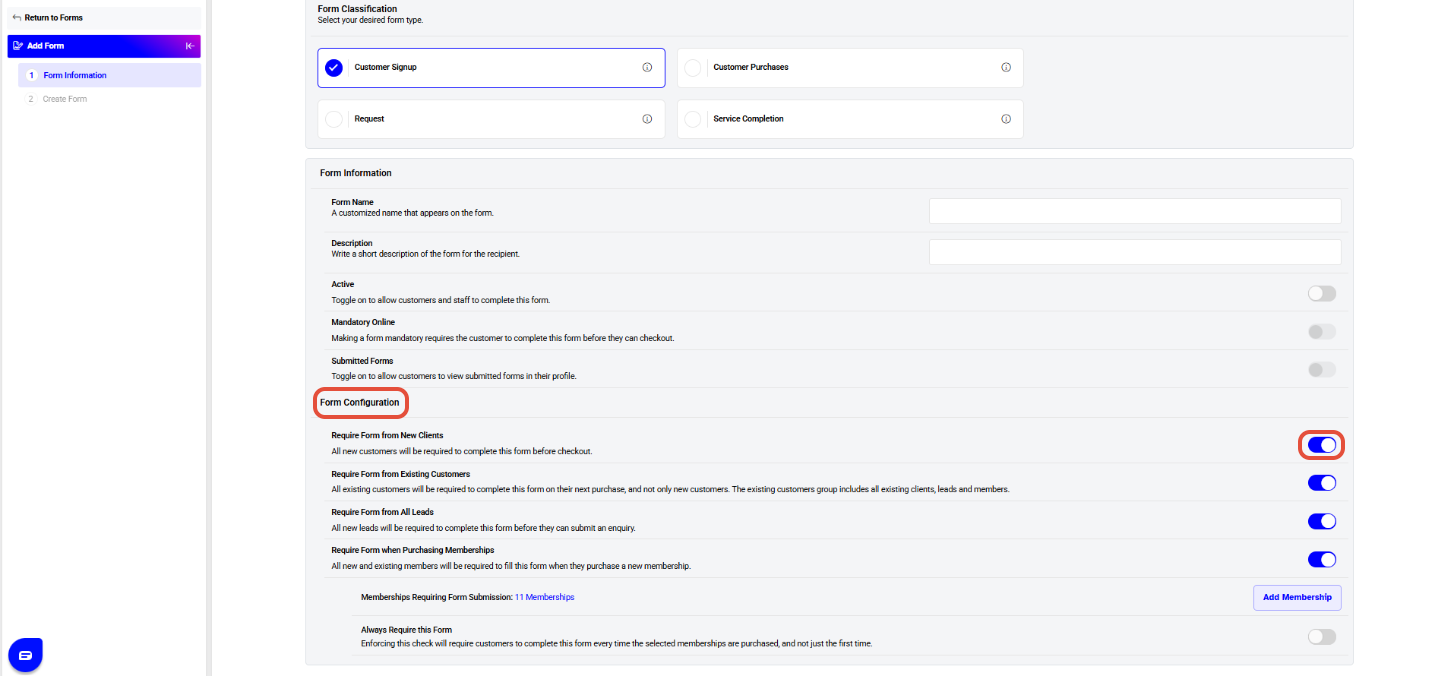
As explained above, these forms are primarily for new customers being created in Core, i.e. Members, Clients or Leads. These forms offer a number of configurations, such as;
- Require Form from New Clients: This configuration will prompt all new Clients being created in Core to complete the form.
- Require Form from Existing Customers: This configuration will prompt all existing Customers to complete the form on their next purchase/booking.
- Require Form from All Leads: This configuration will prompt all new Leads being created in Core to complete the form.
- Require Form when Purchasing Memberships: This configuration will prompt Customers purchasing memberships in Core to complete the form. Merchants have the option to configure these forms for all or selective memberships.
Require Form upon Customer Purchases
As explained above, these forms will be triggered when customers book or purchase classes, services or products, therefor form ‘name’ and ‘description’ are mandatory fields. These forms offer a number of configurations, such as;
Require Form when Booking Classes: This configuration will prompt Customers purchasing/booking services in Core to complete the form. Merchants have the option to configure these forms for all or selective classes by clicking on Add Classes. By default, all the services are selected.
Require Form when Booking Services: This configuration will prompt Customers purchasing/booking services in Core to complete the form. Merchants have the option to configure these forms for all or selective classes by clicking on Add Services. By default, all the services are selected.
Require Form when Purchasing Products: This configuration will prompt Customers to purchase products in Core to complete the form. Merchants have the option to configure these forms for all or selective classes by clicking on Add Products.
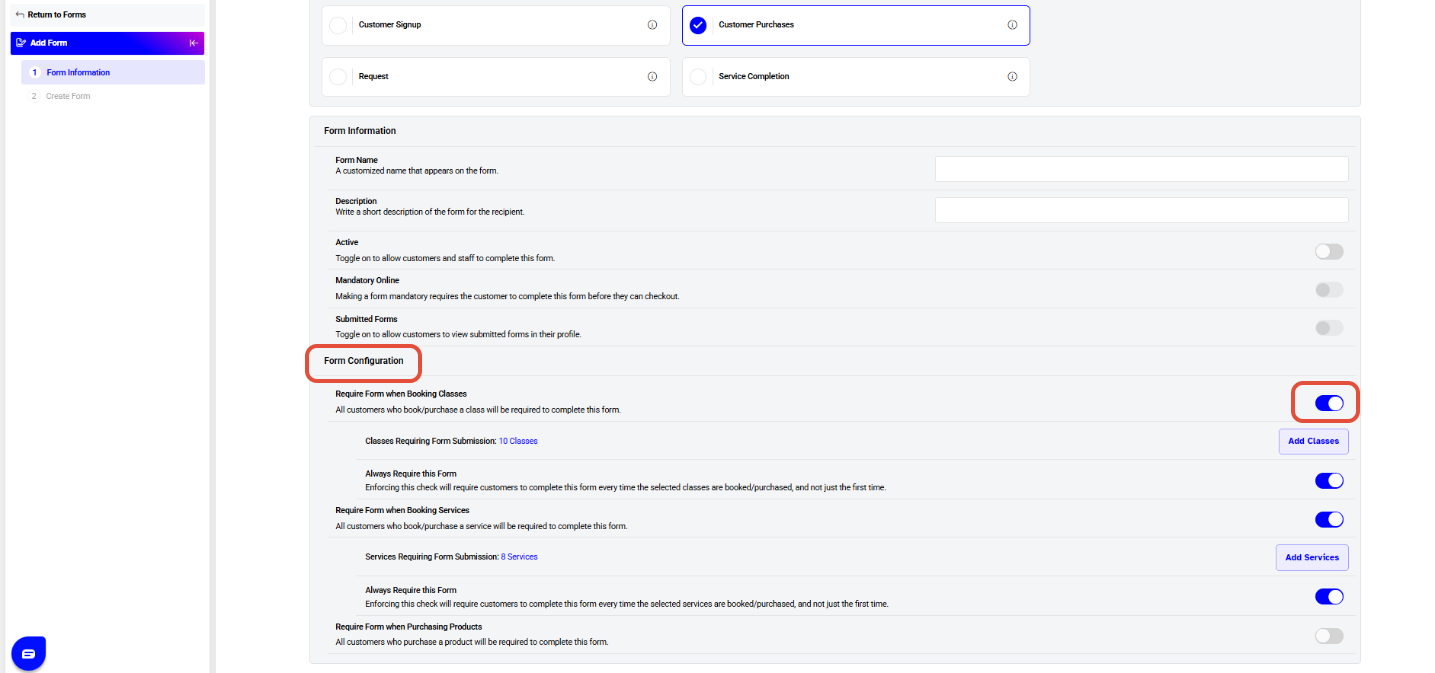
Note: Always Require this Form: This configuration will require customers to fill out the same form every time they book/purchase the class, service or product. If this toggle is turned off, the customer would only be required to fill out the associated form the first time he makes a purchase and not every time he purchases the same class/service/product.
Example: A merchant offers pregnancy massages as a service and require customers to fill out a health questionnaire every time they book a message. Likewise, a merchant might offer HIT classes, but only wants a health questionnaire filled in the first time a customer attends the class.Require Form upon Request
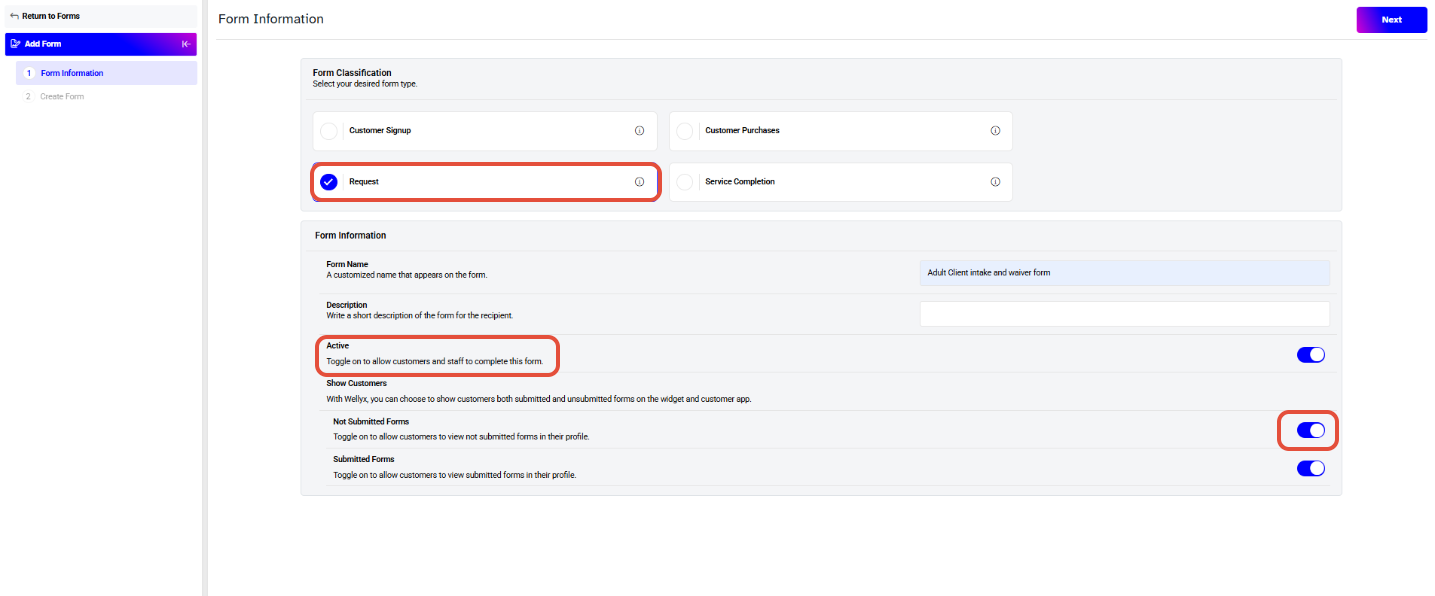
These forms will be stored and used manually as and when required by merchants.
Toggle on the Submitted Forms Button to allow the Customer to view the Submitted Form in their Profile.
Example: A merchant requires members who brings children to a health club to complete a special waiver. On arrival, the merchant can request the member complete this wavier before entry.
Require Form on Service Completions:
These forms are used to gather feedback from customers or staff after the completion of a service. They will be triggered once the service is marked as completed, and both the staff and customer will be notified to fill out a form.
Once a service is marked as completed on the scheduler, a customer feedback form will be displayed or stored in customer profile. Staff-related forms will not be shown on the scheduler when the service is marked as completed; instead, these forms will only appear on the staff profile under the 'Forms' tab.




