TABLE OF CONTENTS
To set up a Service Feedback Form in Core, follow the steps below:
How To Create A Service Feedback Form In Core
These type of Forms are used to gather Feedback from Customers or Staff after the completion of a Service.
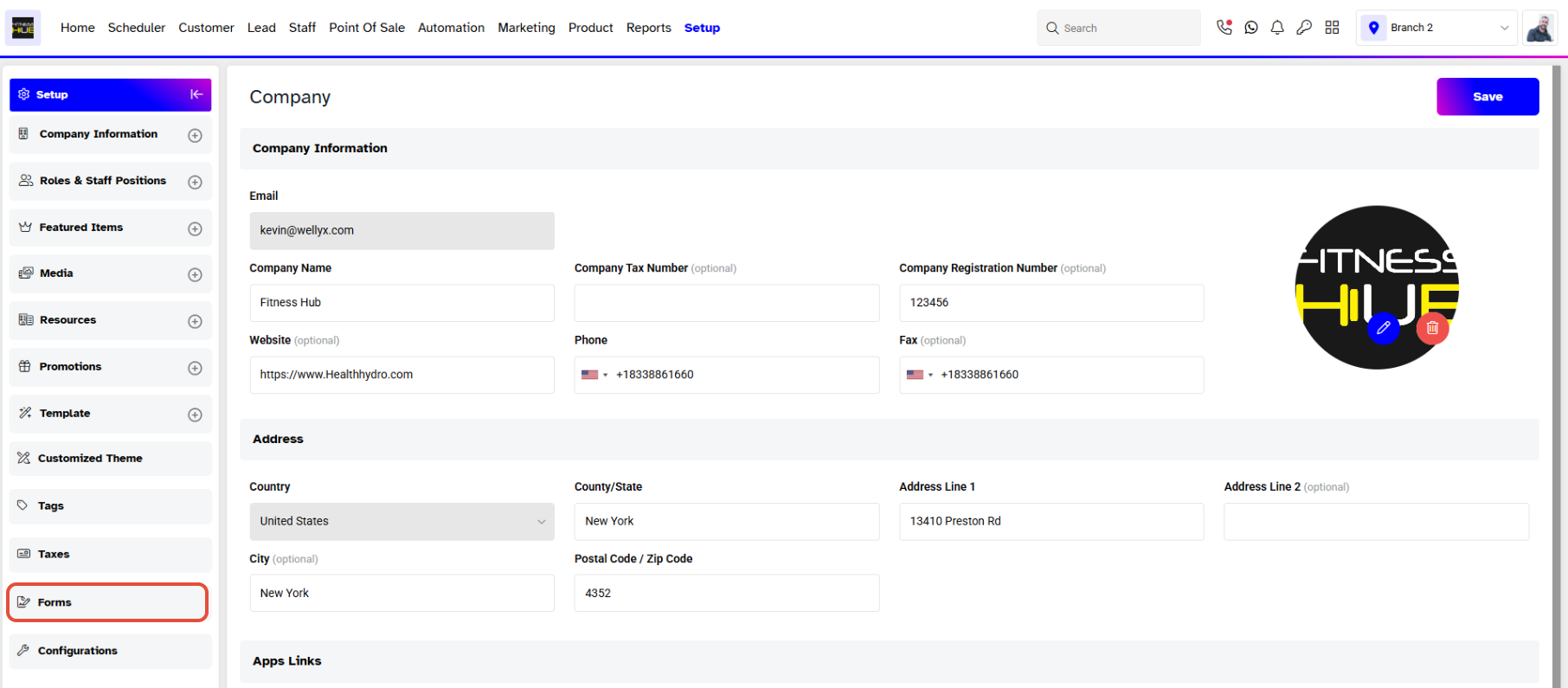
Go to the Setup Module in Core.

Click on the Forms Tab.
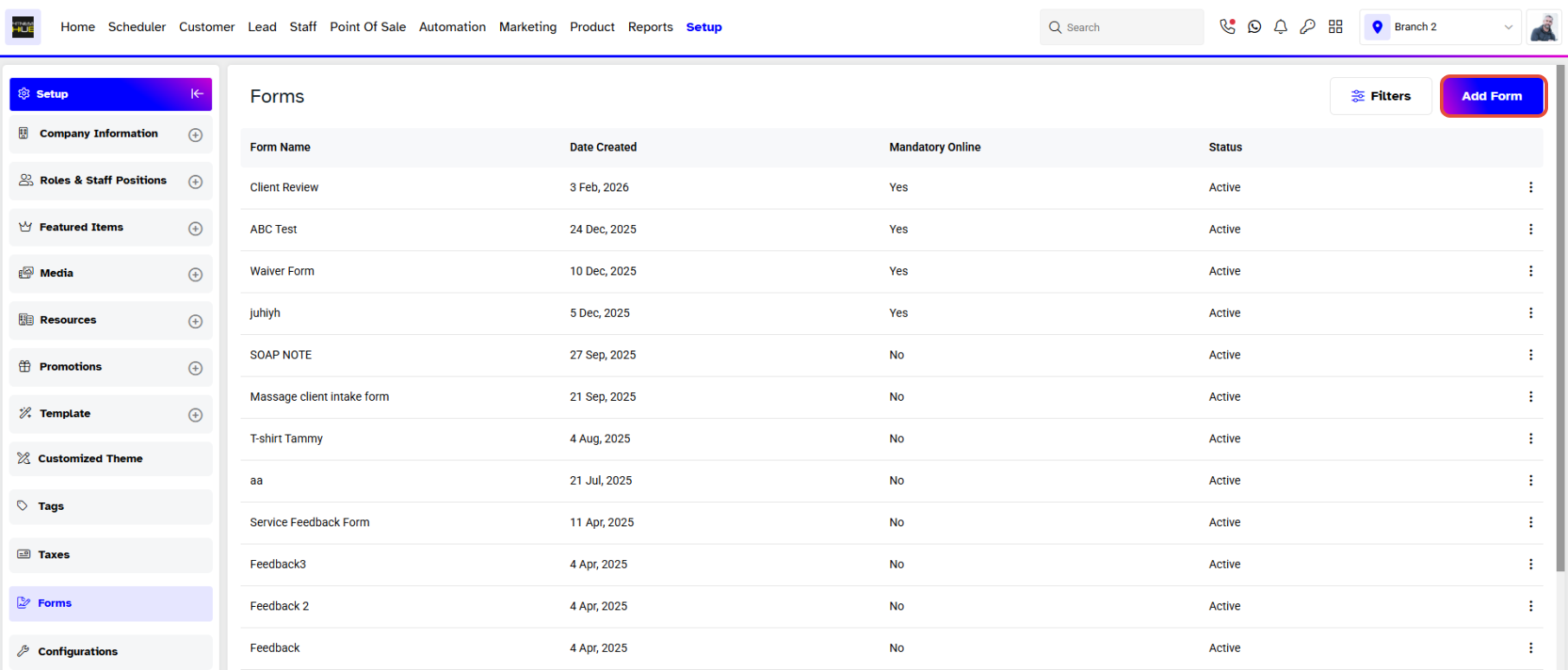
To add a new Form, click on the Add Form Button.
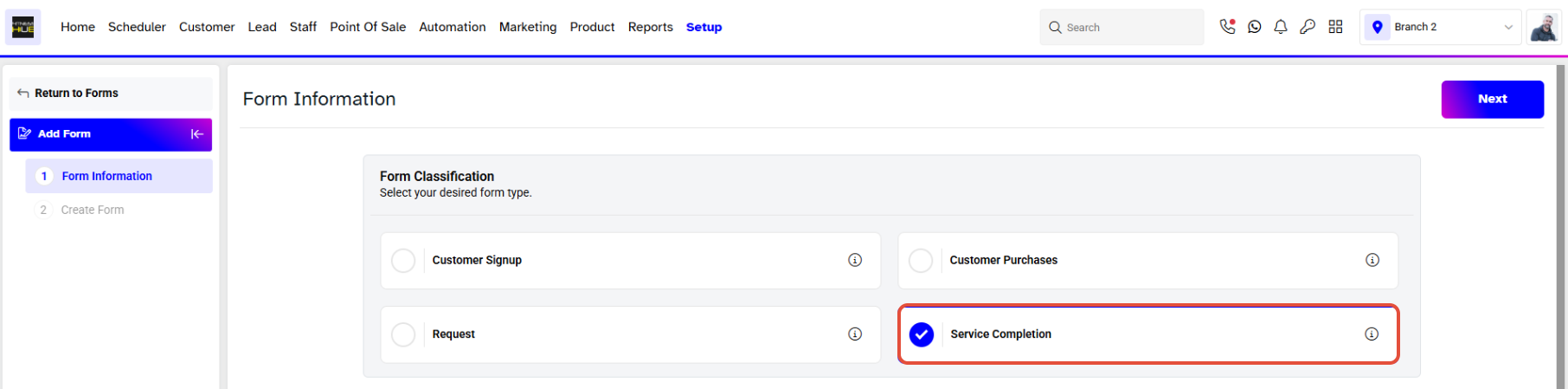
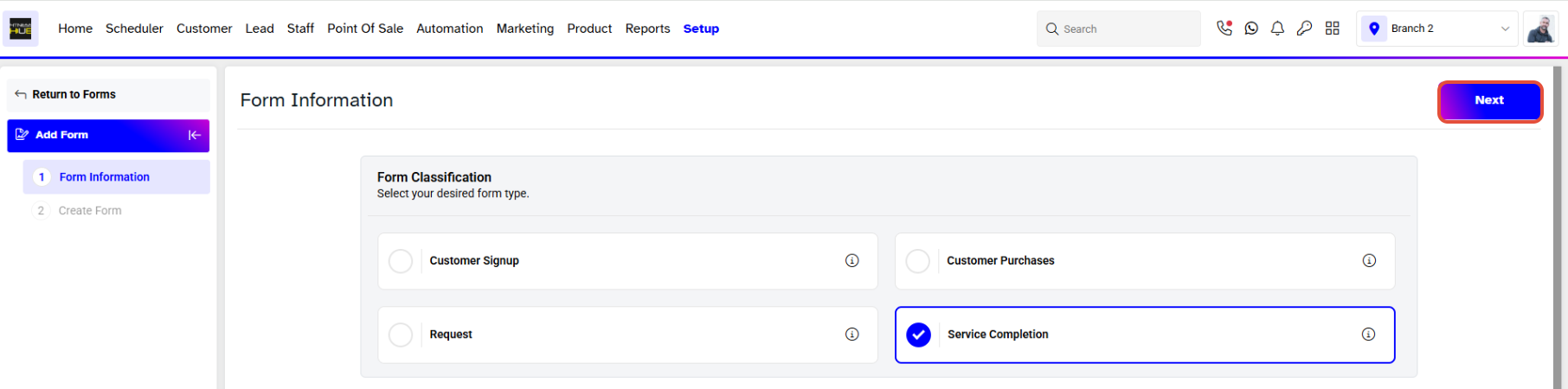
Select "Require Form on Service Completion" as the form type.
Form Name: Enter the name of the Form. This is a required field that can include alphanumeric characters, with a limit of 50 characters.

Description: This is the description field of the form, which can include alphanumeric characters. The character limit is 350.

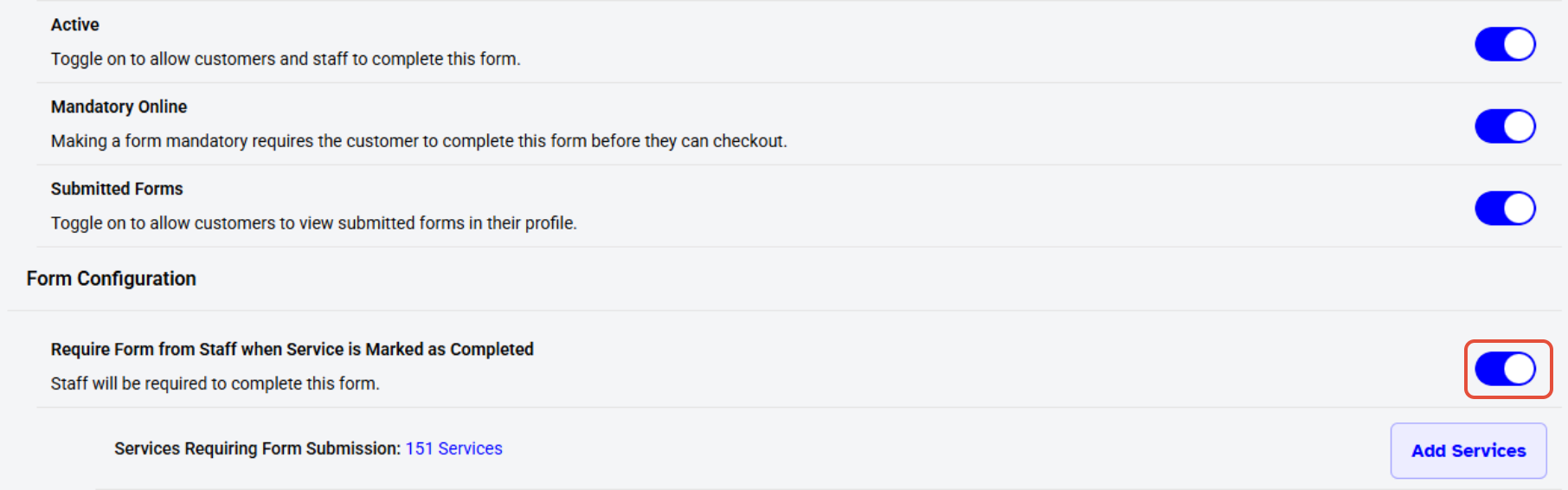
Active Toggle: This toggle determines whether the form is active or inactive in the branch.

Mandatory Toggle: This toggle determines whether the form is mandatory for customers to complete.

Show Submitted Forms: This toggle allows the customer to view submitted forms in their profile.

Require Form from Staff: This toggle determines if the related staff must fill out the form when the service is marked as completed.
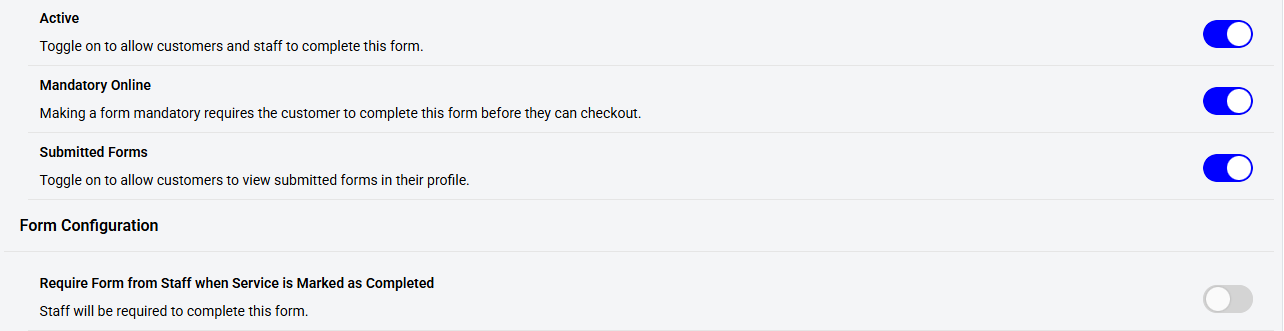
When the "Require Form from Staff" toggle is turned on, the "Services Requiring Form Submission" option will appear.
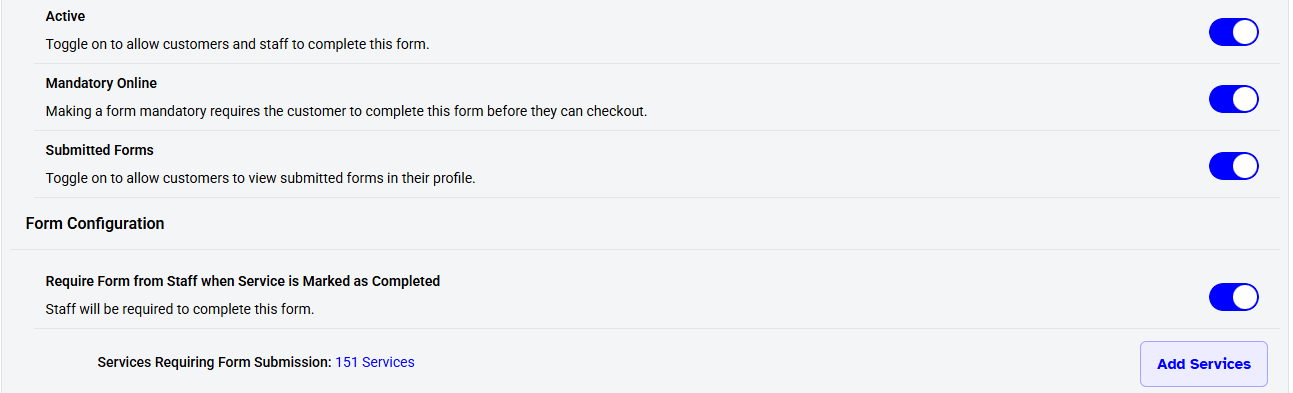
From the "Services Requiring Form Submission" section, add the list of services that require staff to fill out the form when marked as completed.
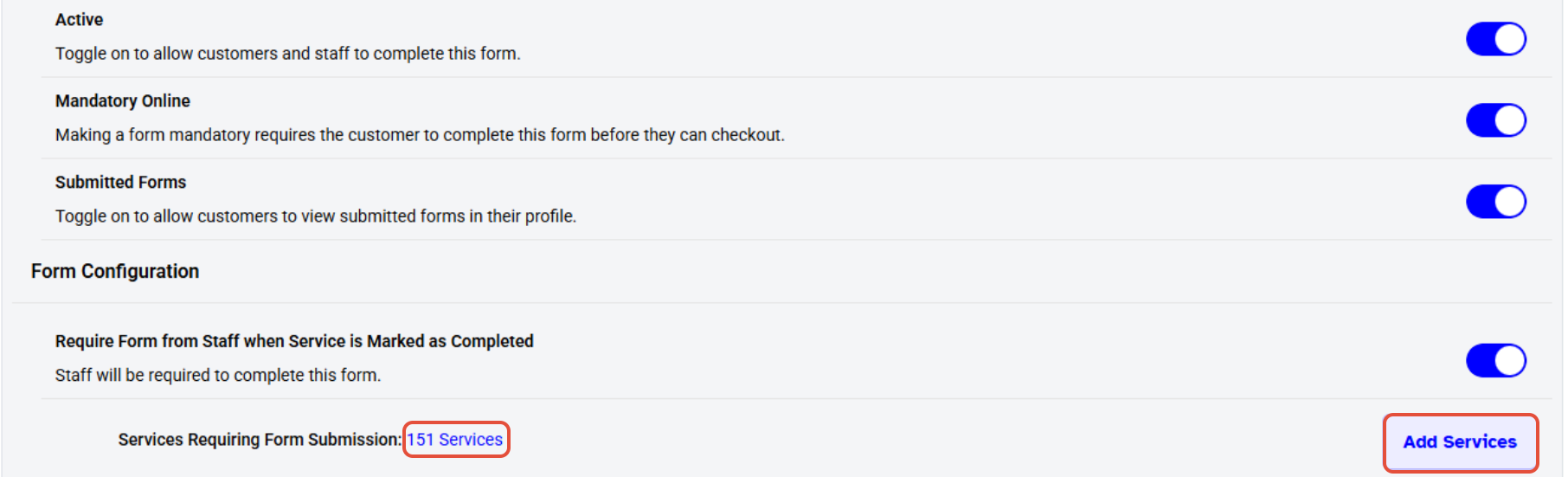
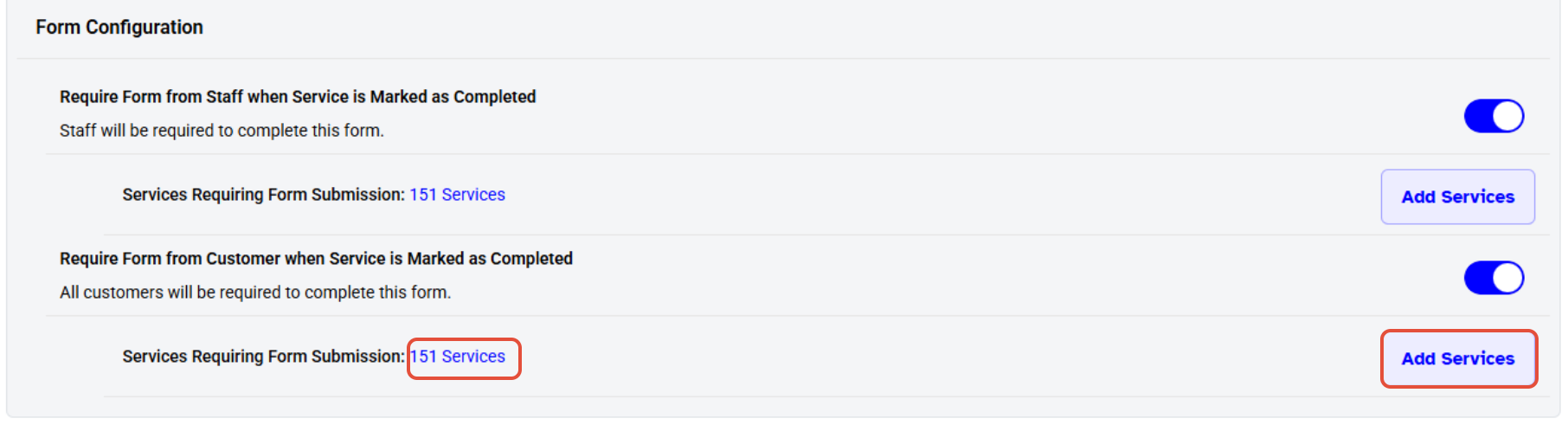
Require Form from Customer: This toggle determines if the customer must fill out the form when the service is marked as completed.
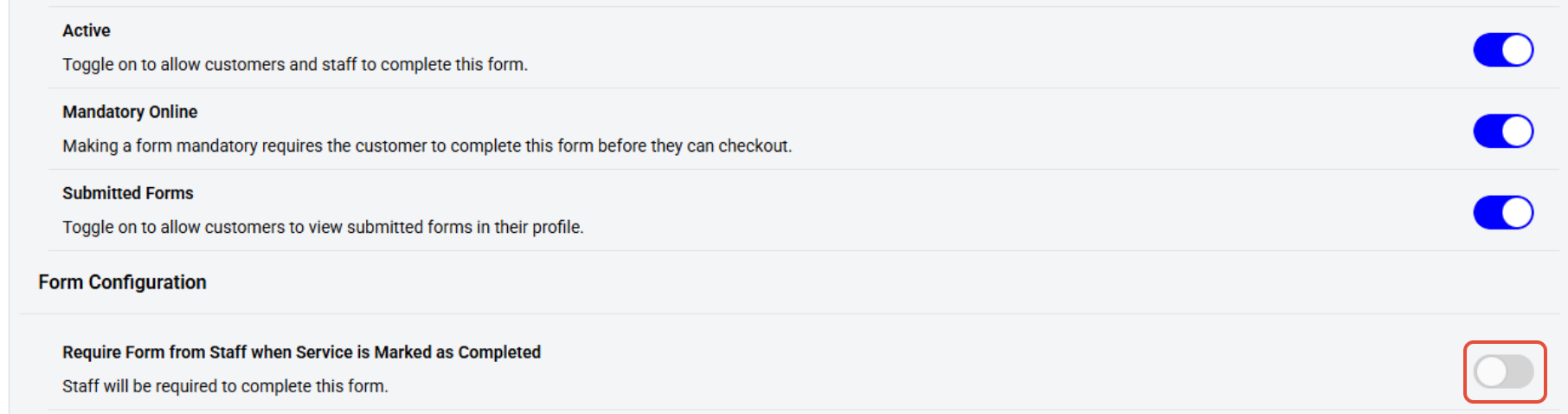
When the "Require Form from Customer" toggle is turned on, the "Services Requiring Form Submission" option will appear.
From the "Services Requiring Form Submission" section, add the list of services that require customers to fill out the form when a staff member is marked as completed.
Once done, click the Next Button.
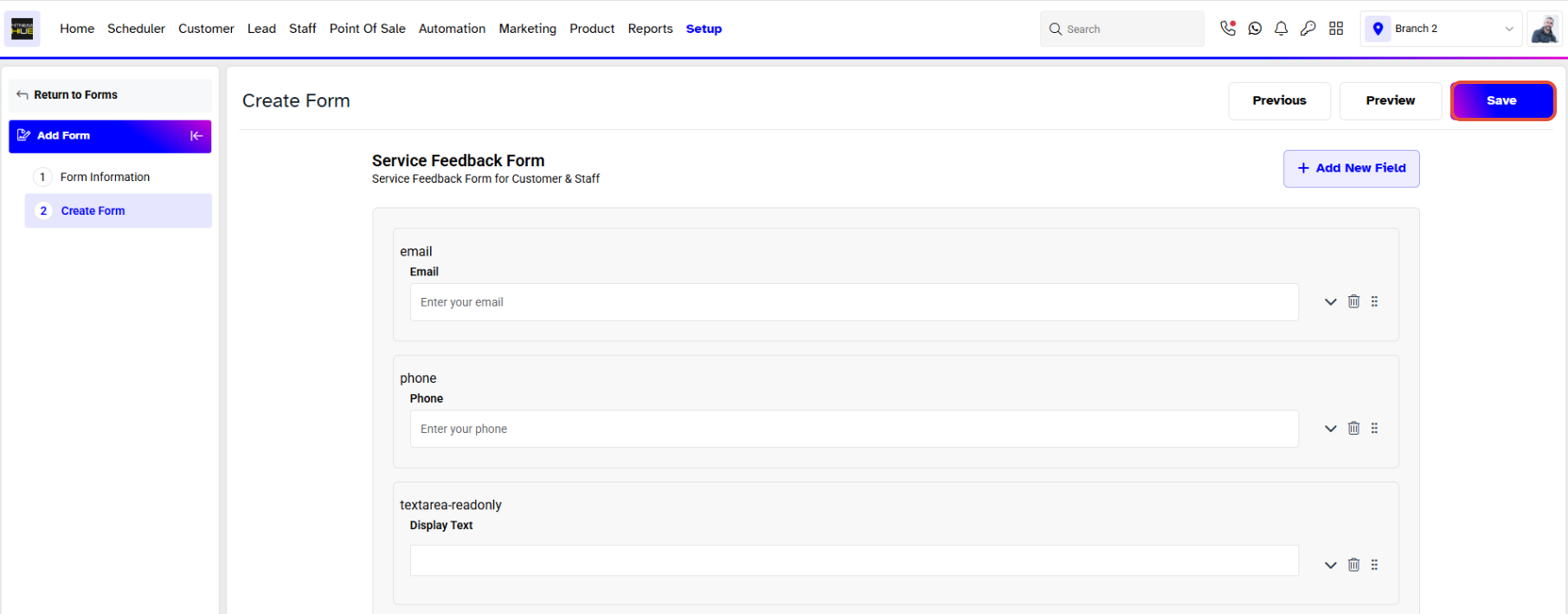
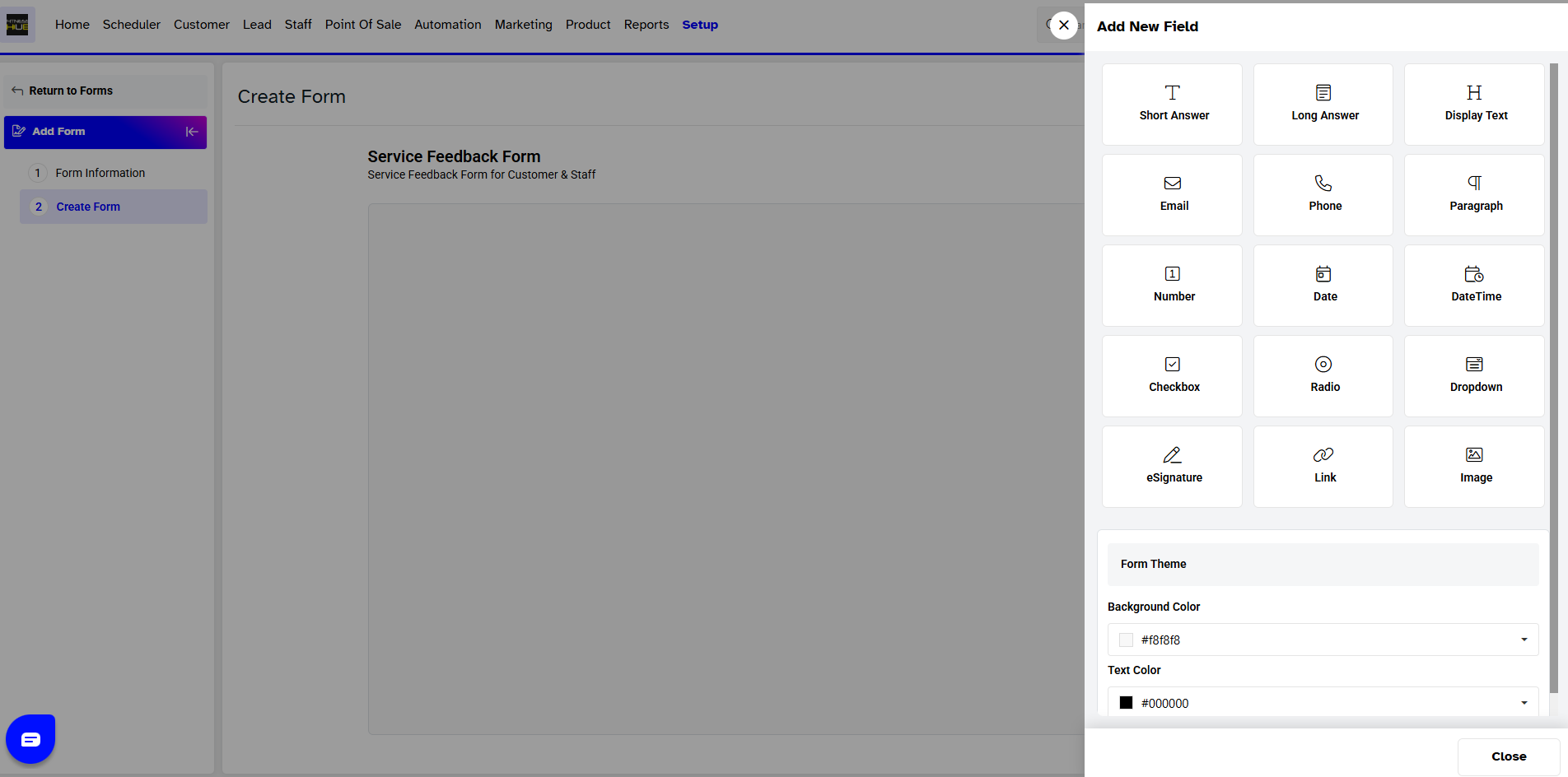
Click on Add New Field
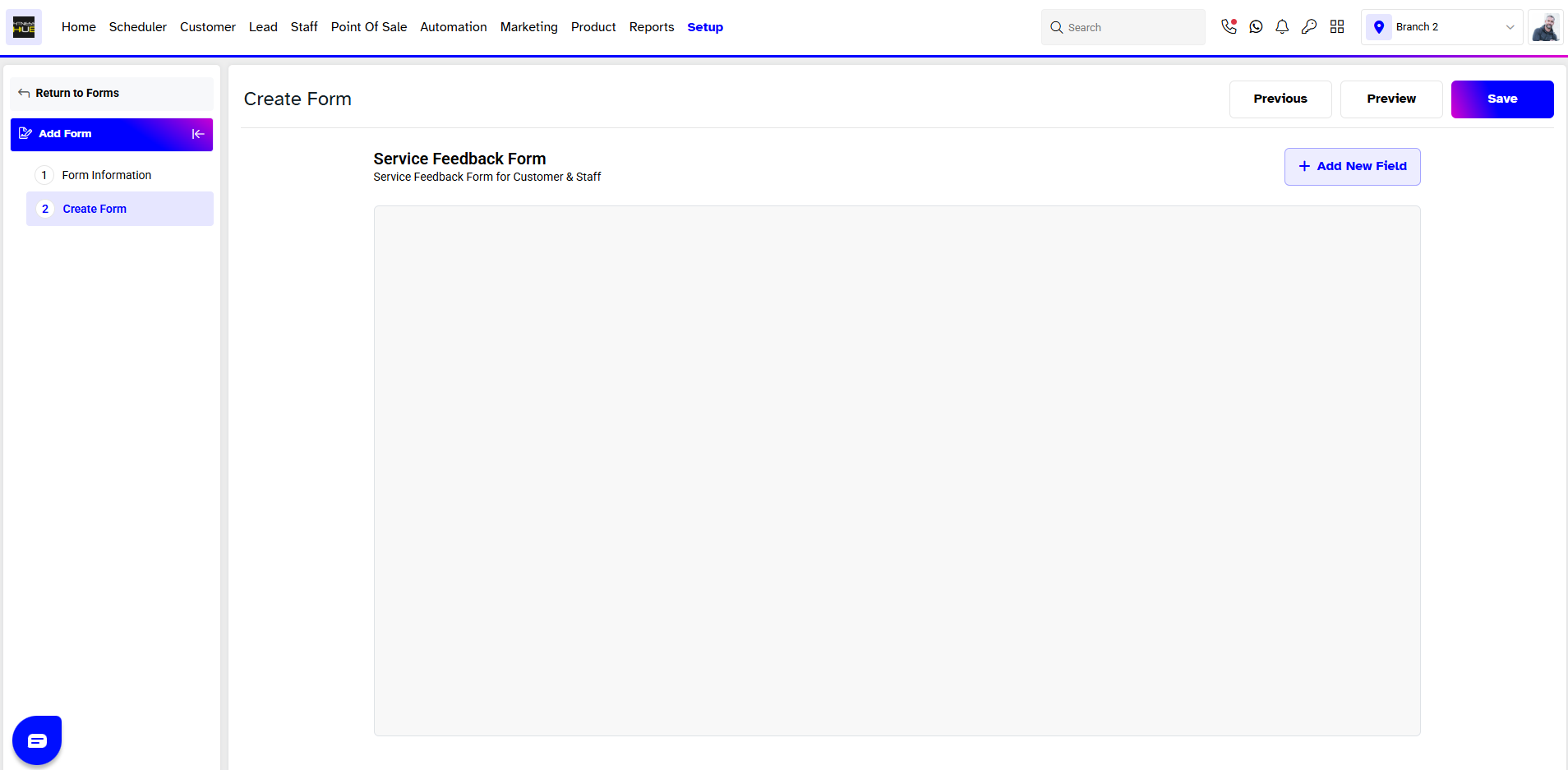
The Merchant can now create a customized Service Feedback form Template.
After finalizing the template, click the Save Button.