TABLE OF CONTENTS
- Overview
- Step 1: Navigate to Classes
- Step 2: Add a New Event
- Step 3: Enter Event Details
- Step 4: Save the Event
Overview
This guide explains how to add an Event in Core. Events are created in the same section as Classes but are displayed differently on the Widget and Customer App. While they appear as Classes in Core, they are shown as Events to customers online.
Step 1: Navigate to Classes
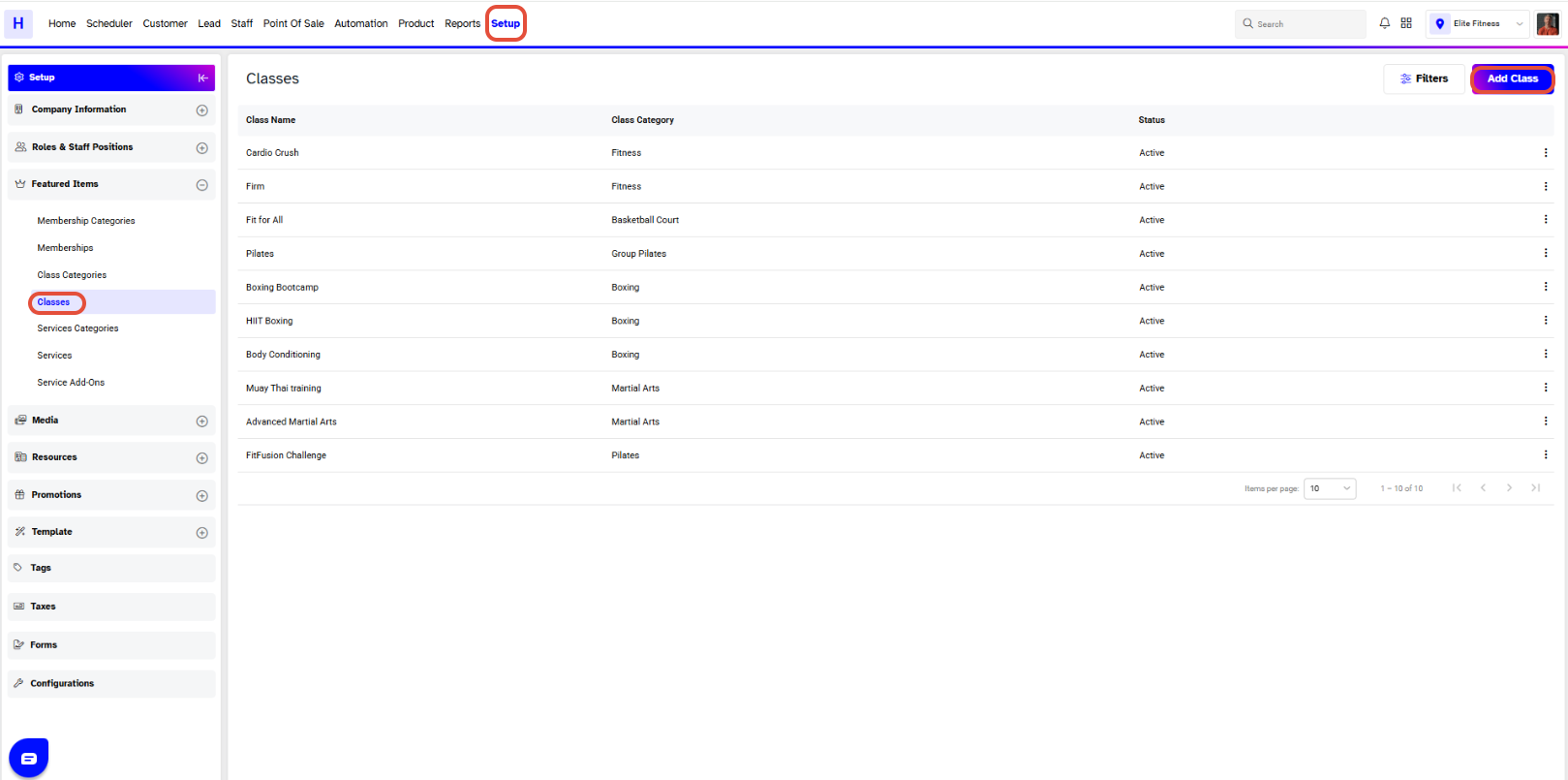
Go to the Setup module in Core.
Select Classes from the Featured Items tab.
Click on the Add Class button.
Step 2: Add a New Event
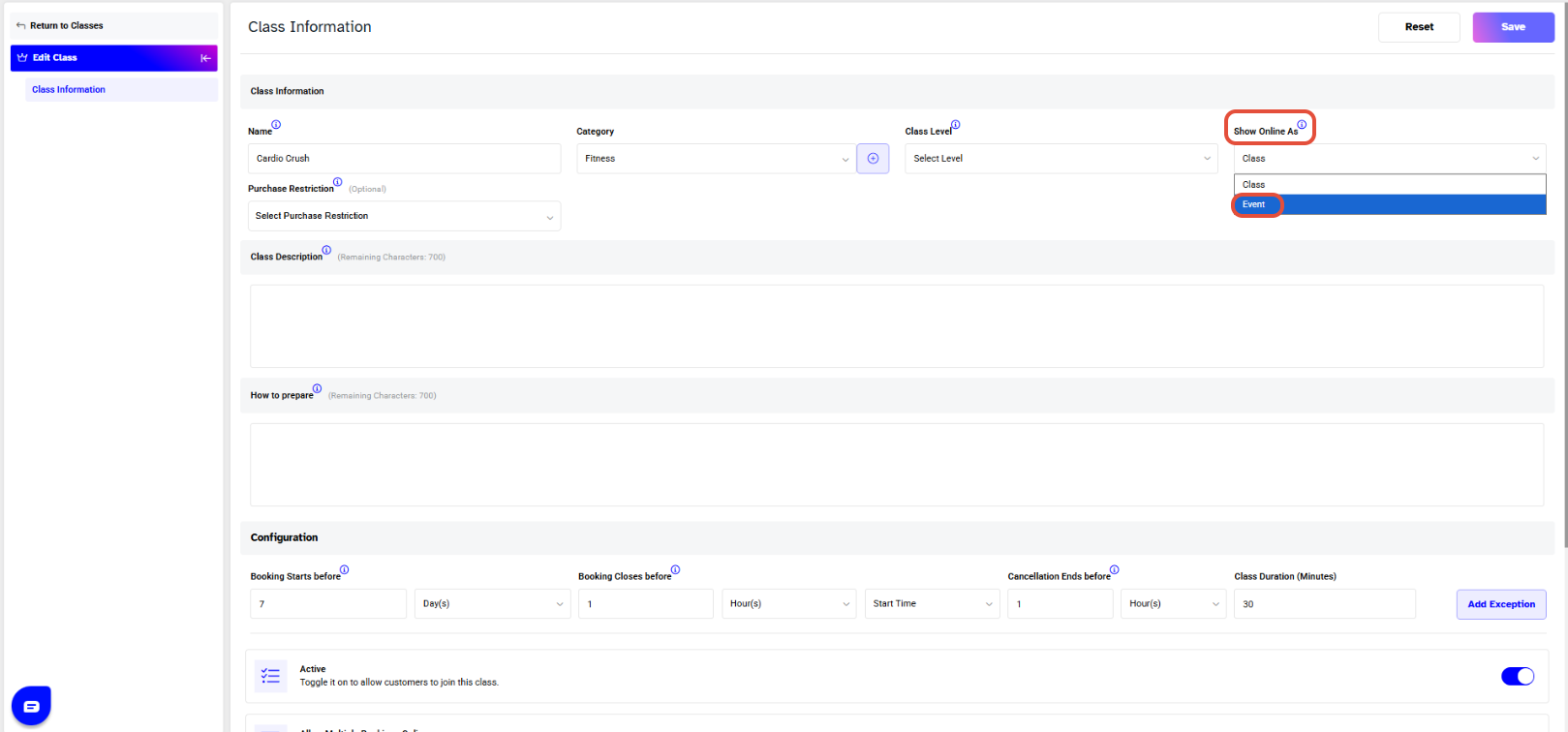
In the Class Information screen, click on the Show Online As dropdown.
Select Event from the list.
 Step 3: Enter Event Details
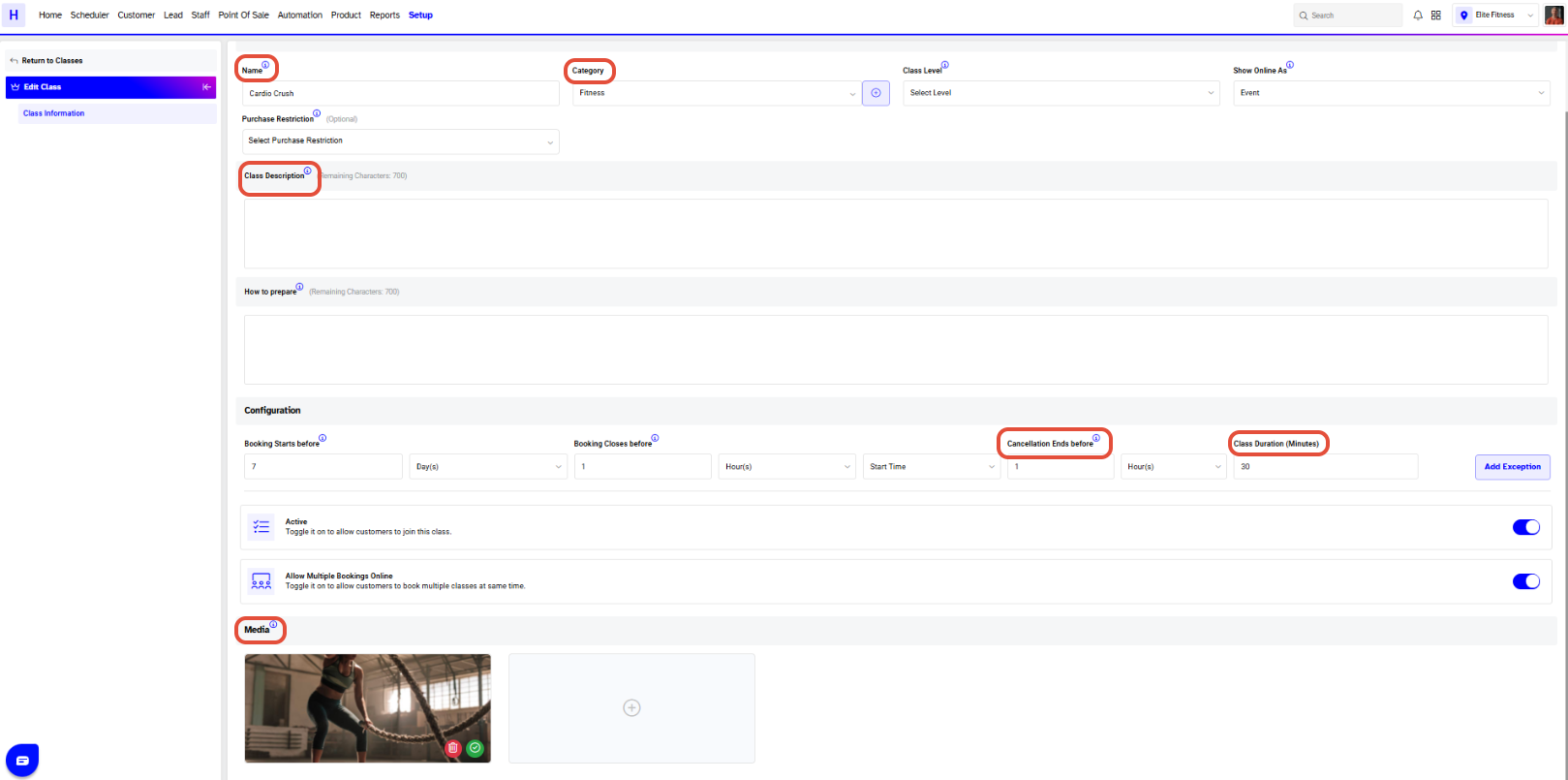
Add the Name, Category, Image, Description, and other relevant event details.
You can also configure booking, duration, and cancellation settings as needed.
 Step 4: Save the Event
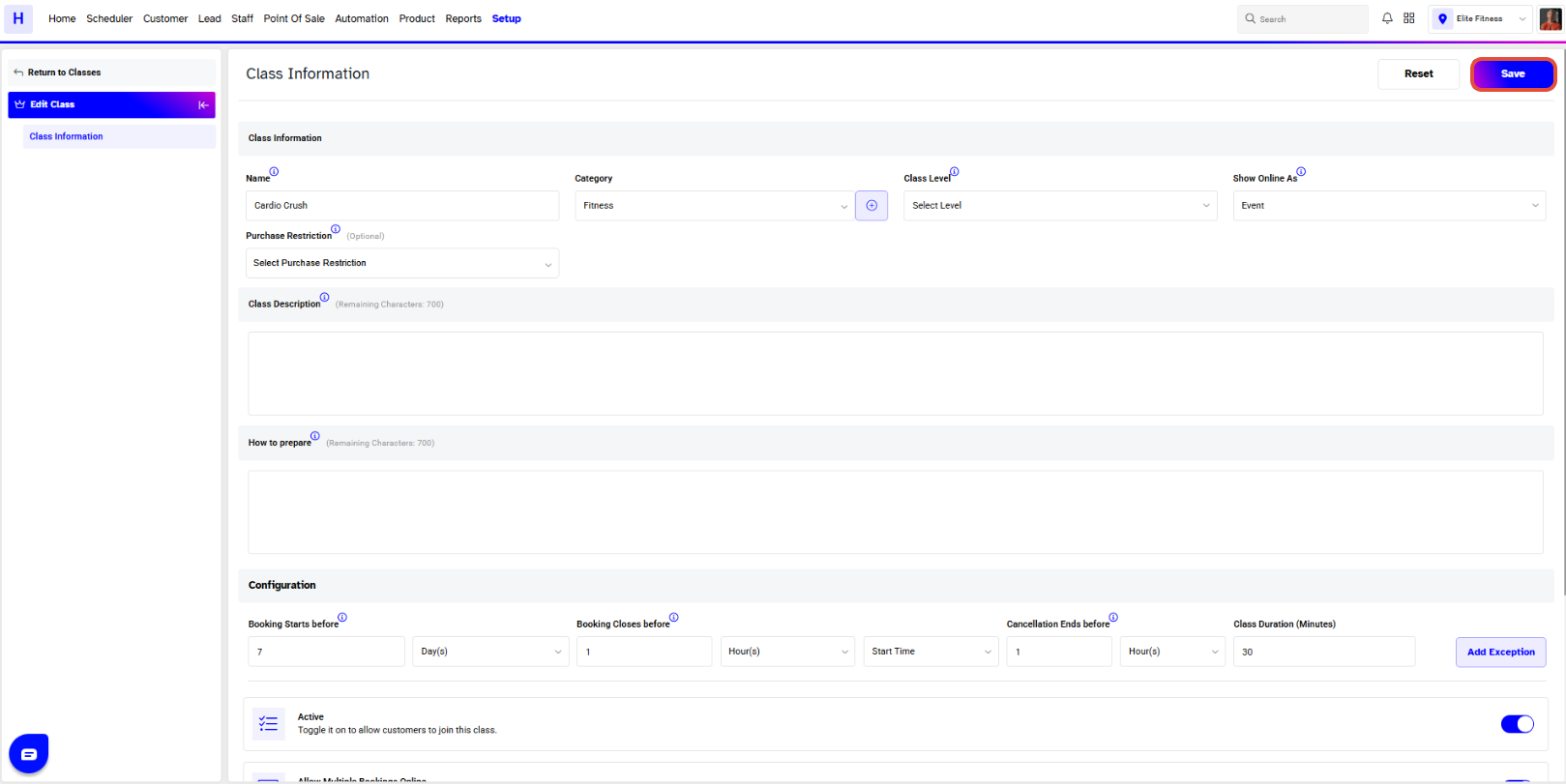
Once all information is added, click on the Save button to confirm.
The Event will now appear in the log.