TABLE OF CONTENTS
- Step 1: Navigate to the Customer Profile
- Go to the Customer Module in Core.
- Step 2: Access the Marketing Tab
- Step 3: Add to a Contact List
- Step 4: Save Changes
Overview
This guide explains how to manually add a customer to a contact list in Core. It covers all essential steps — from navigating to the customer profile to saving the changes. By following this guide, users can effectively manage their contact lists.
Step 1: Navigate to the Customer Profile
Go to the Customer Module in Core.
- Click on the Edit button against the customer name.
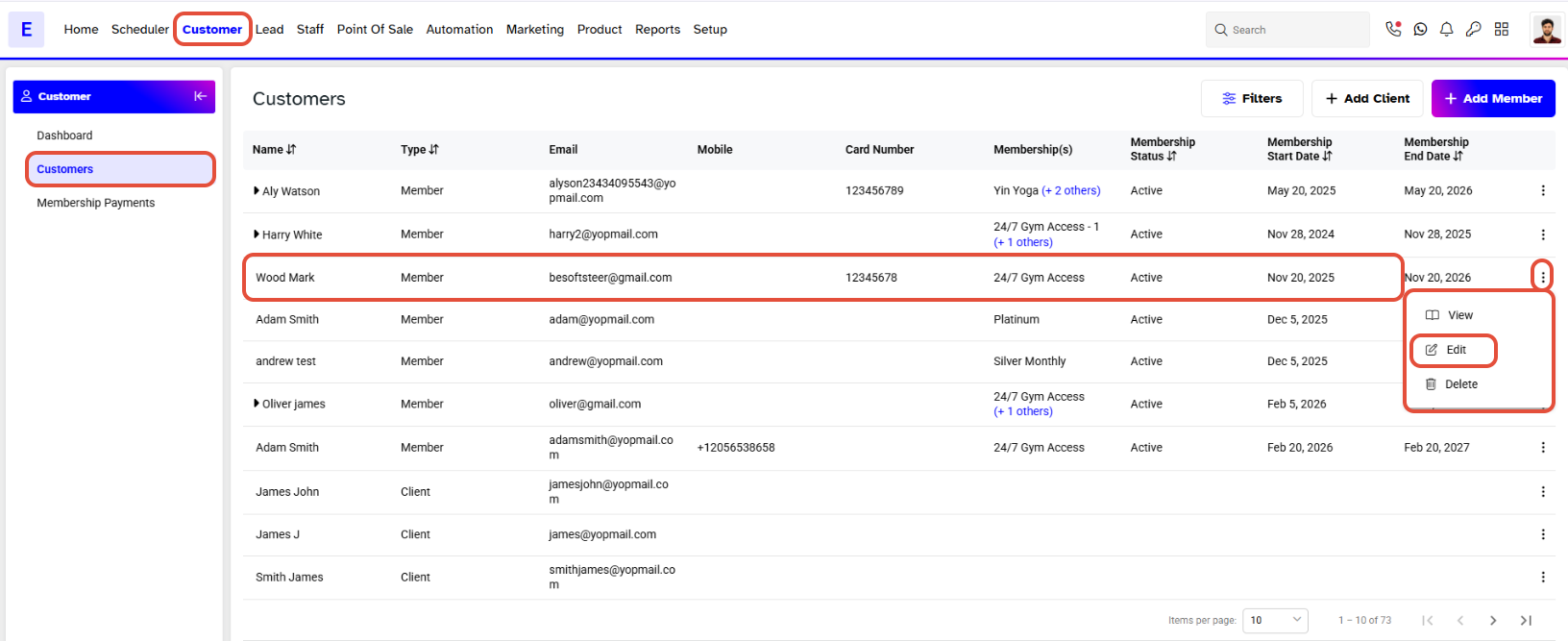
- The Customer Profile will open.
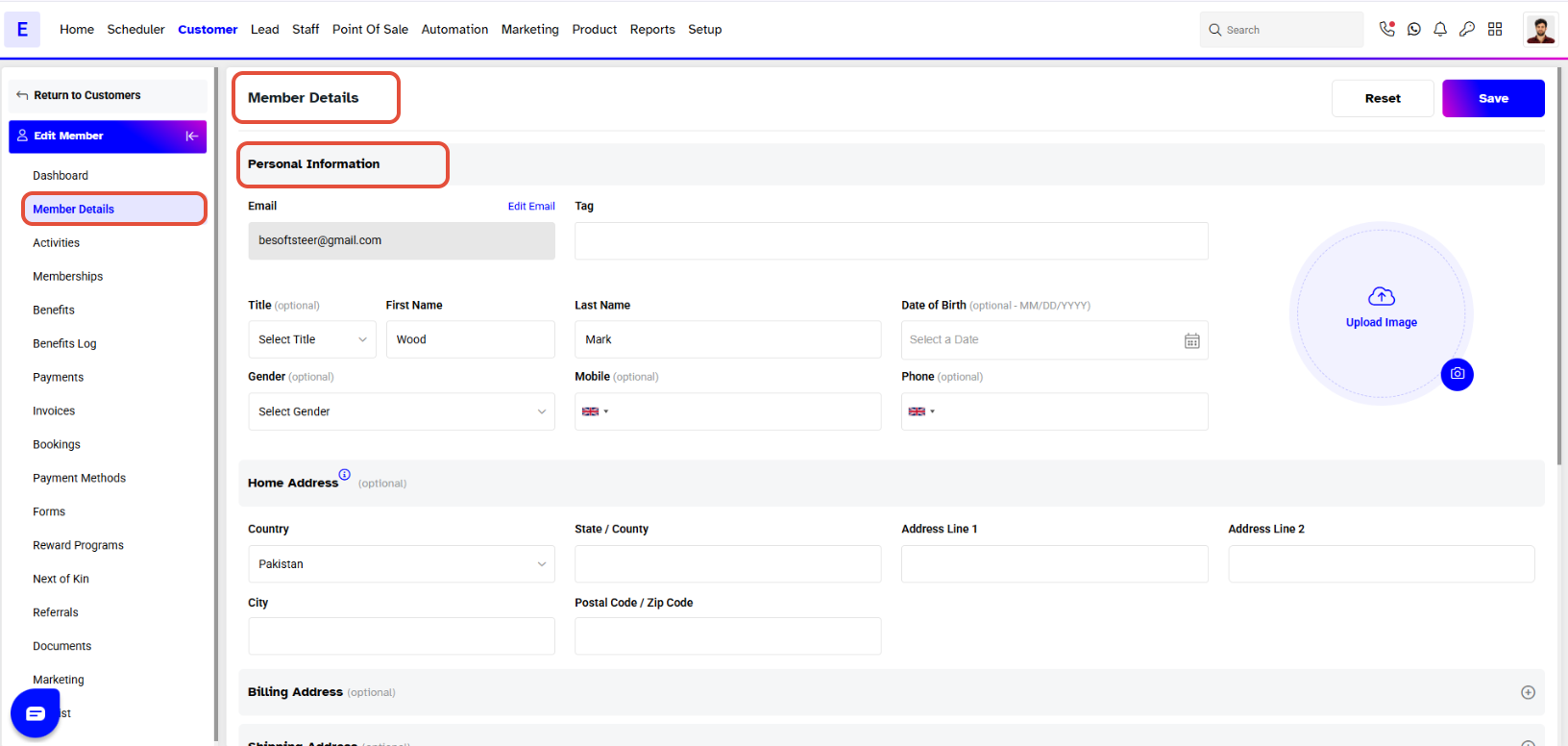
Step 2: Access the Marketing Tab
- Navigate to the Marketing tab from the Customer Profile.
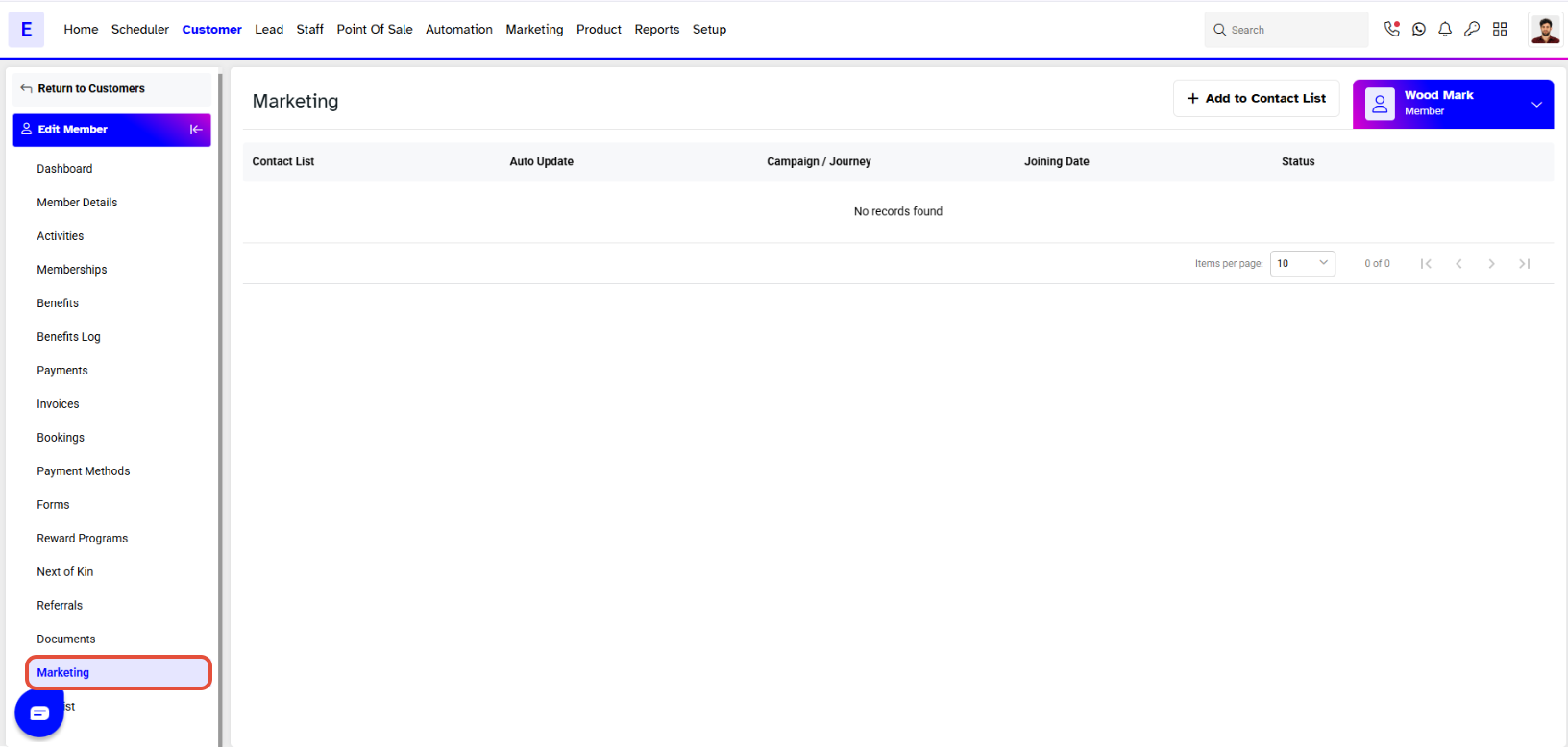
Step 3: Add to a Contact List
- In the Marketing tab, click on the Add To Contact List button.
- Choose the contact list from the Add To Contact List dropdown.
- Click on the Confirm button
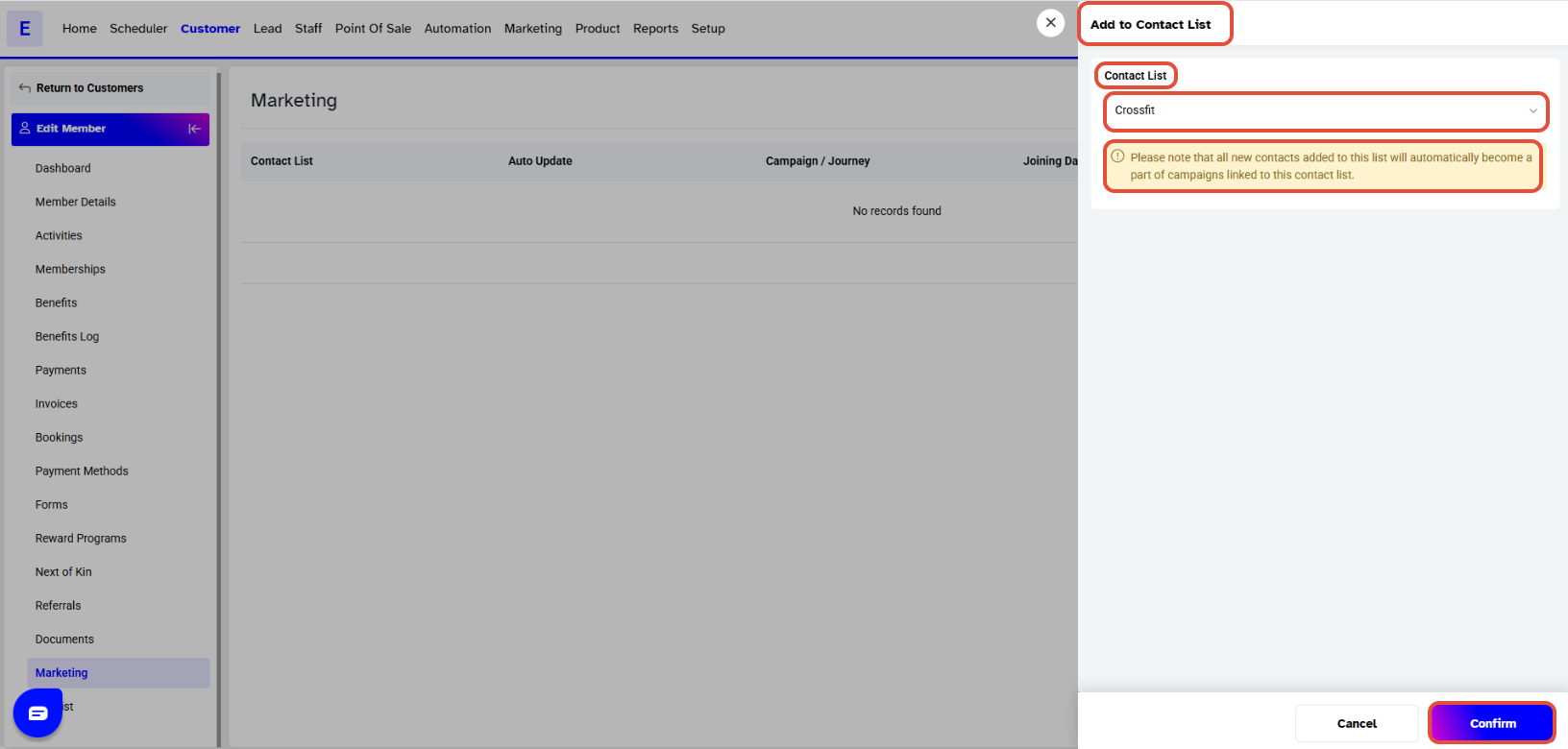
In the Add To Contact List drop-down, only the Contact Lists that are not set to Auto-Update will be visible.
Step 4: Save Changes
- Click on the Save button.
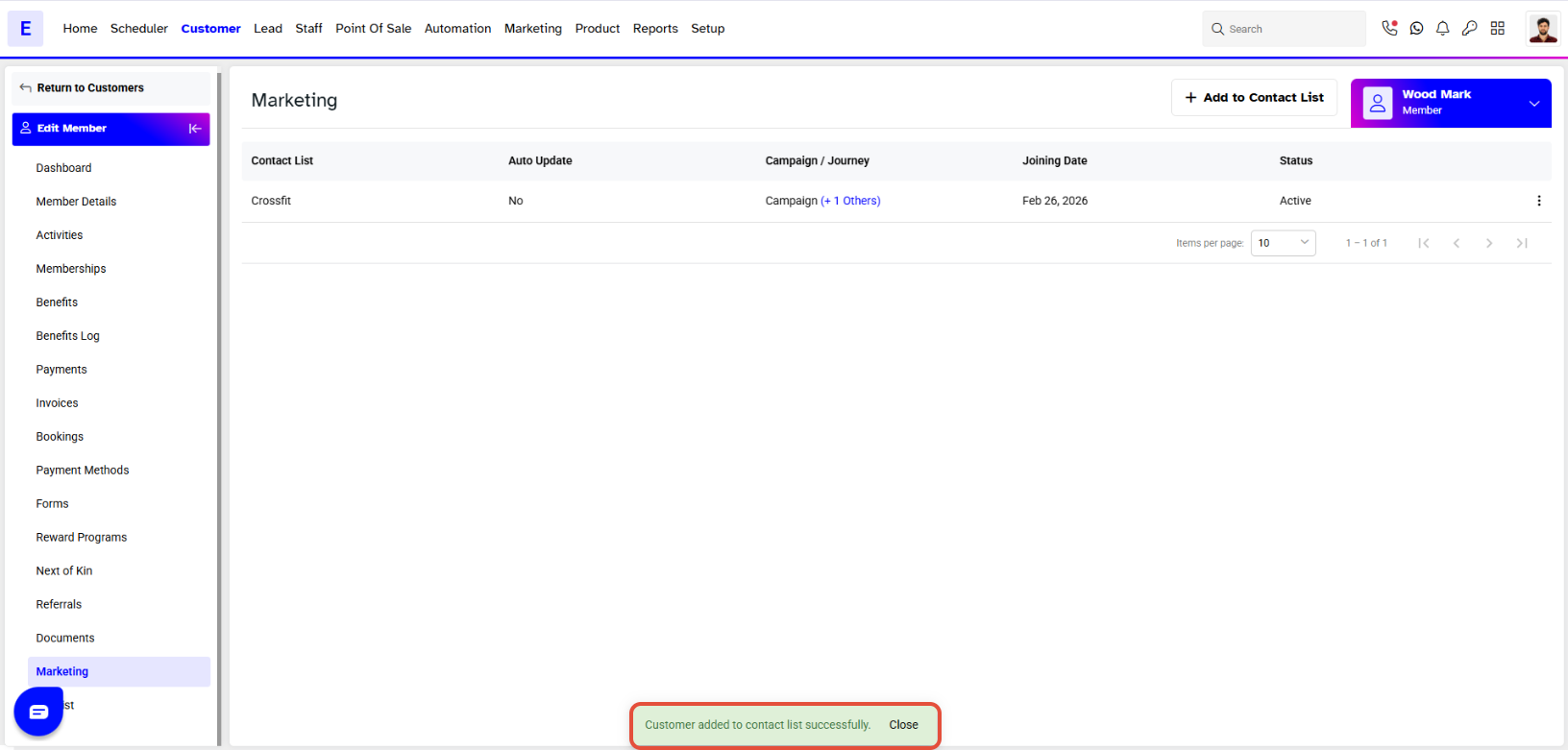
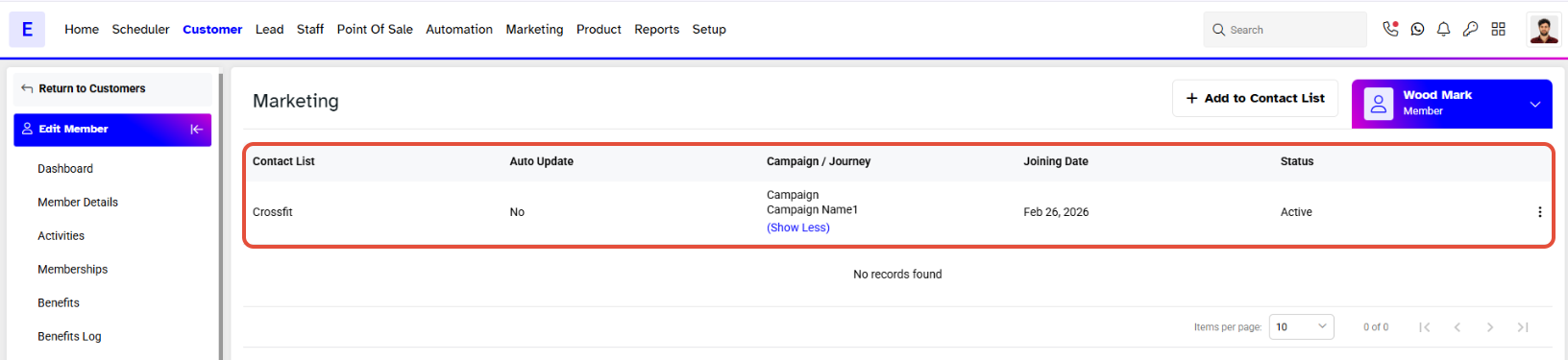
- The customer has now been successfully added to the contact list.